
10 Best Email Productivity Tools for Gmail in 2026
Boost your inbox efficiency with the best email productivity tools for Gmail. Our 2026 guide covers tracking, automation, and collaboration to save you hours.

Your day starts in Gmail. By 10 a.m., the inbox already holds a mix of client replies, internal requests, calendar notices, receipts, and the follow-up you meant to send yesterday. Nothing looks urgent until something gets missed.
The problem is not just message volume. It is using one inbox for several different jobs at once. A sales rep needs open tracking and follow-up prompts. A support lead needs shared ownership and collision prevention. An operator trying to get back to inbox zero needs triage, snoozing, and filtering that work inside Gmail instead of pulling them into another system. Research discussed in this PMC paper on email use and task management found that professionals often miss important tasks when email becomes an informal to-do list instead of a queue that gets processed.
That distinction matters.
This guide groups 10 Gmail productivity tools by the job they handle best: tracking and outreach, team collaboration, and inbox cleaning. The goal is not to stack features for the sake of it. The goal is to reduce context switching and keep the work inside Gmail whenever possible, because tools only help if people keep using them.
Some of these products overlap. That is the trade-off with Gmail extensions. A tracker may also offer templates. A collaboration tool may include shared inboxes and automation. An inbox cleaner may overlap with Gmail’s native filters. If you are still sorting out what kind of tracking setup fits your workflow, this breakdown of how to choose an email tracker for Gmail is a useful starting point. If you also want a process alongside the software, Ellie’s inbox zero guide is a useful companion.
1. Mail Tracker for Gmail
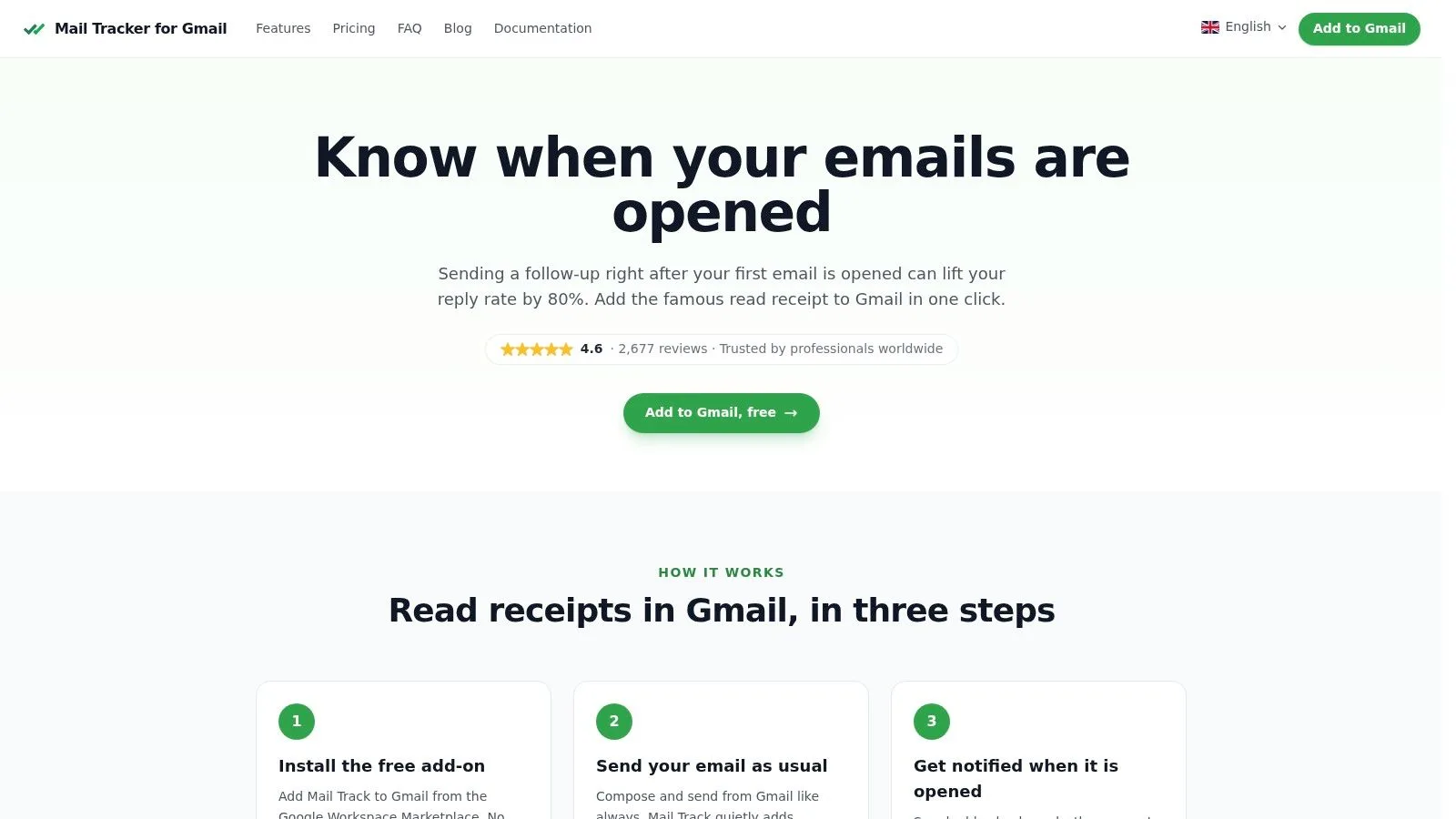
If your main question is “Did they even see my email?”, start here. Mail Tracker for Gmail is the cleanest option in this list for people who live in Gmail and don’t want a separate dashboard, CRM-heavy interface, or another tab to babysit. It sits inside Gmail and gives you read-receipt style visibility where you already work.
Why it works in real workflows
The Google Workspace Marketplace listing confirms that Mail Tracker for Gmail offers completely free and unlimited email tracking, works on iOS and Android via the Gmail app, and requires no sign-up. That matters because users often abandon email productivity tools when setup gets annoying or when the free version is too restricted to be useful.
In use, the value is simple. You send from Gmail, tracked messages show visual status inside the inbox, and you get notified when engagement happens. For sales reps, recruiters, freelancers, and account managers, that’s often enough to fix the timing problem that causes weak follow-ups.
Practical rule: Use tracking to decide when to follow up, not whether to keep pursuing the conversation at all. An unopened email may be bad timing. A repeatedly opened one usually deserves faster action.
A few details make it more practical than many lightweight trackers:
- Gmail-native setup: You don’t need a separate app or a new sending workflow.
- Mobile coverage: It works with Gmail on Android and iOS, so tracking doesn’t stop when you leave your desk.
- Flexible pricing: There’s a free plan, a Premium plan at about $2.99 per month, and a $99.99 lifetime option.
- Privacy stance: It records open events rather than reading email content, and its documentation discusses GDPR handling and organizational security references.
The trade-offs
This is still a pixel-based tracker. Email tracking tools generally work through invisible 1x1 pixels embedded in the email body and through tracked links, with the open event firing when the pixel loads, as explained in Qualtir’s Gmail email tracking guide. So if the recipient blocks images, some opens won’t register.
The free plan also includes a visible signature. If you want invisible tracking, full history, and daily reports, Premium is the practical upgrade path. If you need help deciding what level of tracking is right for your workflow, this guide on how to choose an email tracker is worth reading.
For pure Gmail users, though, this is the easiest recommendation in the category. It does one job well, and it doesn’t ask you to rebuild your routine around it.
Website: Mail Tracker for Gmail
2. Yesware
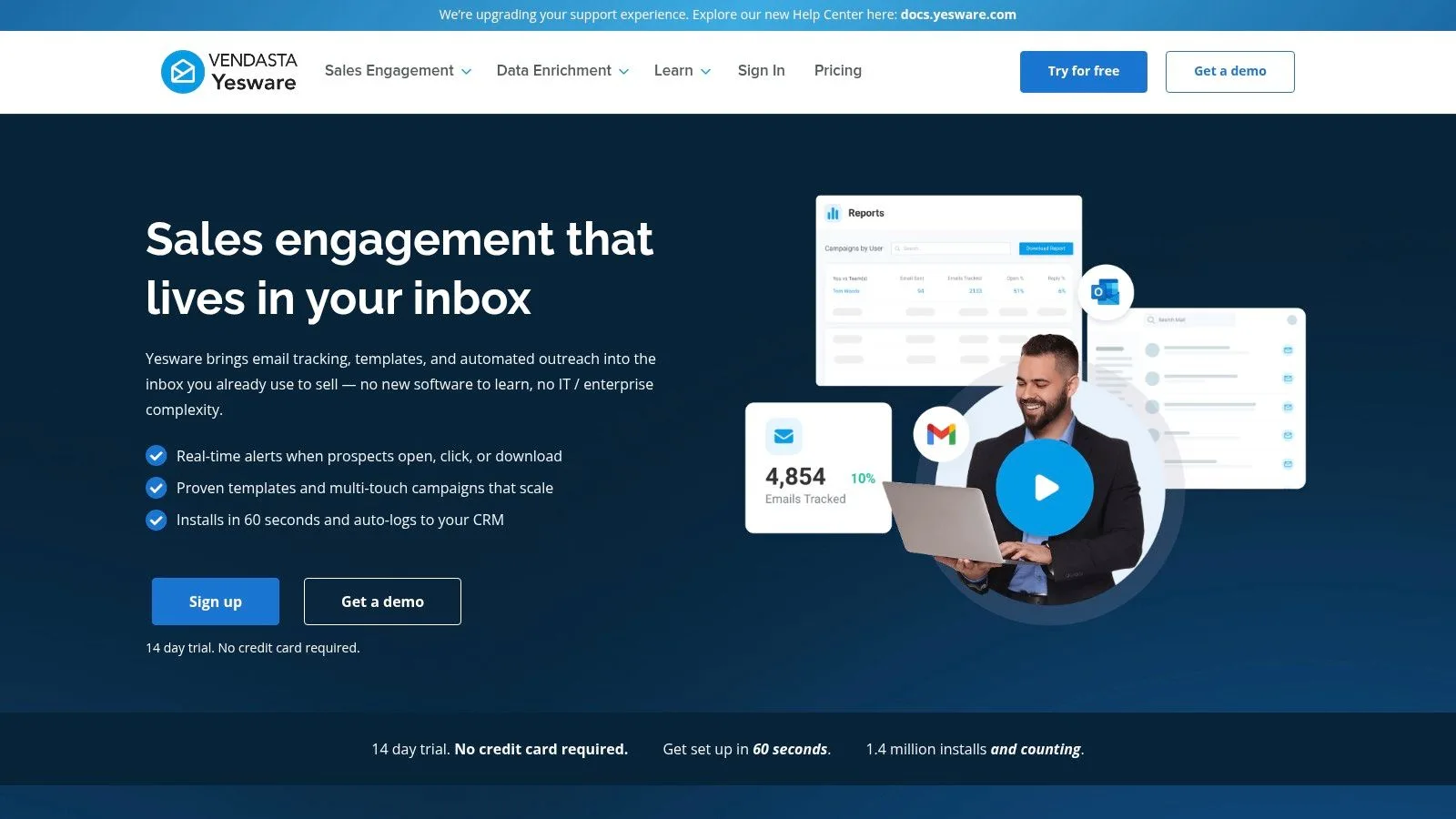
Yesware is for the person who wants more than read receipts but still wants Gmail to remain the command center. It brings tracking, templates, sequences, meeting scheduling, and optional Salesforce sync into the inbox. That makes it a stronger fit for outbound sales, recruiting, and structured follow-up work.
Where Yesware earns its place is the activity layer. You can send from Gmail, watch engagement, queue the next touch, and keep moving without bouncing between tools every few minutes. That’s a real improvement over a stack of disconnected browser tabs.
Best fit and rough edges
The broader market direction supports tools like this. The global Sales Email Tracking Tools Market is projected to reach USD 38.14 billion by 2035, expanding at a CAGR of 11.13% from 2026 to 2035, according to Spherical Insights’ sales email tracking market report. That growth tracks with what teams want in practice: faster visibility into opens, clicks, and response timing.
Yesware works best when you need a sequence engine and tracking in the same place. It’s less compelling if you only want simple notifications. In that lighter use case, it can feel like buying a toolkit when all you needed was a screwdriver.
- Strong point: Gmail integration feels close to native, which keeps context switching low.
- Good for teams: Reporting and CRM sync make more sense once multiple reps are involved.
- Watch for limits: Advanced automation and deeper integrations sit behind higher tiers.
There’s also an ethics question with any tracking-heavy tool. The mechanics are useful, but they can be misused. This piece on whether email tracking compromises ethics is a good reality check before you roll tracking out team-wide.
Website: Yesware
3. Mixmax
Mixmax is one of the more polished Gmail-first engagement suites. It combines sequences, scheduling, templates, reminders, analytics, and optional dialer or CRM integrations. If your inbox is tied directly to pipeline activity, Mixmax is built for that reality.
Its strongest trait is modularity. Teams can lean into meeting workflows, prospecting, or inbox productivity without adopting everything at once. That’s useful when one team needs scheduling and another needs outbound cadences.
Where Mixmax makes sense
Mixmax fits revenue teams better than general knowledge workers. If your day is full of follow-ups, demos, handoffs, and meeting links, it keeps those motions inside Gmail. If you mostly need cleaner triage and better focus, it’s probably too sales-oriented.
Reps usually adopt email tools faster when they can keep sending from the inbox they already know.
There’s also a broader stack argument for tools in this category. Industry analysis from Skrapp’s sales productivity tools overview notes that top platforms increasingly combine CRM, marketing automation, and multichannel communication into unified systems, with user adoption rates improving by up to 40% in high-volume outreach environments. That’s the appeal of Mixmax. It reduces fragmentation.
The downside is cost creep. Modular pricing sounds flexible until a team adds bundles, seats, and integrations over time. Solo users should be careful here. Mixmax is excellent when outreach is a core business process. It’s overbuilt when email is just one part of your day.
Website: Mixmax
4. Boomerang for Gmail
You block 90 minutes for focused work, open Gmail to send one reply, and 12 new messages pull you into reactive mode. Boomerang is built for that job. It helps individual Gmail users control timing, protect focus, and remember follow-ups without turning the inbox into a sales system or team workspace.
That focus is the reason it still holds up. Boomerang improves a few high-friction parts of Gmail directly inside the inbox: send later, inbox pause, reply reminders, recurring emails, and light writing assistance. For consultants, operators, founders, and anyone managing a lot of one-to-one communication, that is often enough.
Best for timing and follow-up workflows
The strongest workflow here is simple. Write the email when it is convenient, schedule it for when it is useful, then set a reminder if no reply comes back. If your main problem is dropped follow-ups, Boomerang handles it with less setup than a heavier outreach tool. Teams comparing reminder-based follow-up with open tracking can also review this guide to real-time email tracking for Gmail, because those are related jobs, but not the same one.
Inbox Pause is also more practical than it sounds. It lets you batch incoming mail into set windows, which is one of the few Gmail add-ons that can reduce interruptions instead of adding more notifications. I have seen this work especially well for people whose calendar is already fragmented. They do not need another dashboard. They need fewer inbox decisions during the day.
- Best for: Solo professionals and small teams that need reminders, scheduling, and inbox control inside Gmail.
- Useful workflow: Schedule outbound emails, pause inbound messages, then revisit only the threads that did not get a reply.
- Trade-off: Collaboration features are limited compared with shared inbox tools such as Gmelius or Hiver.
Boomerang can support outbound work too, especially if your process depends on timing and persistence more than multistep sales automation. If that is your use case, the article on building a coordinated outbound engine is a good companion read.
Website: Boomerang for Gmail
5. Streak CRM for Gmail
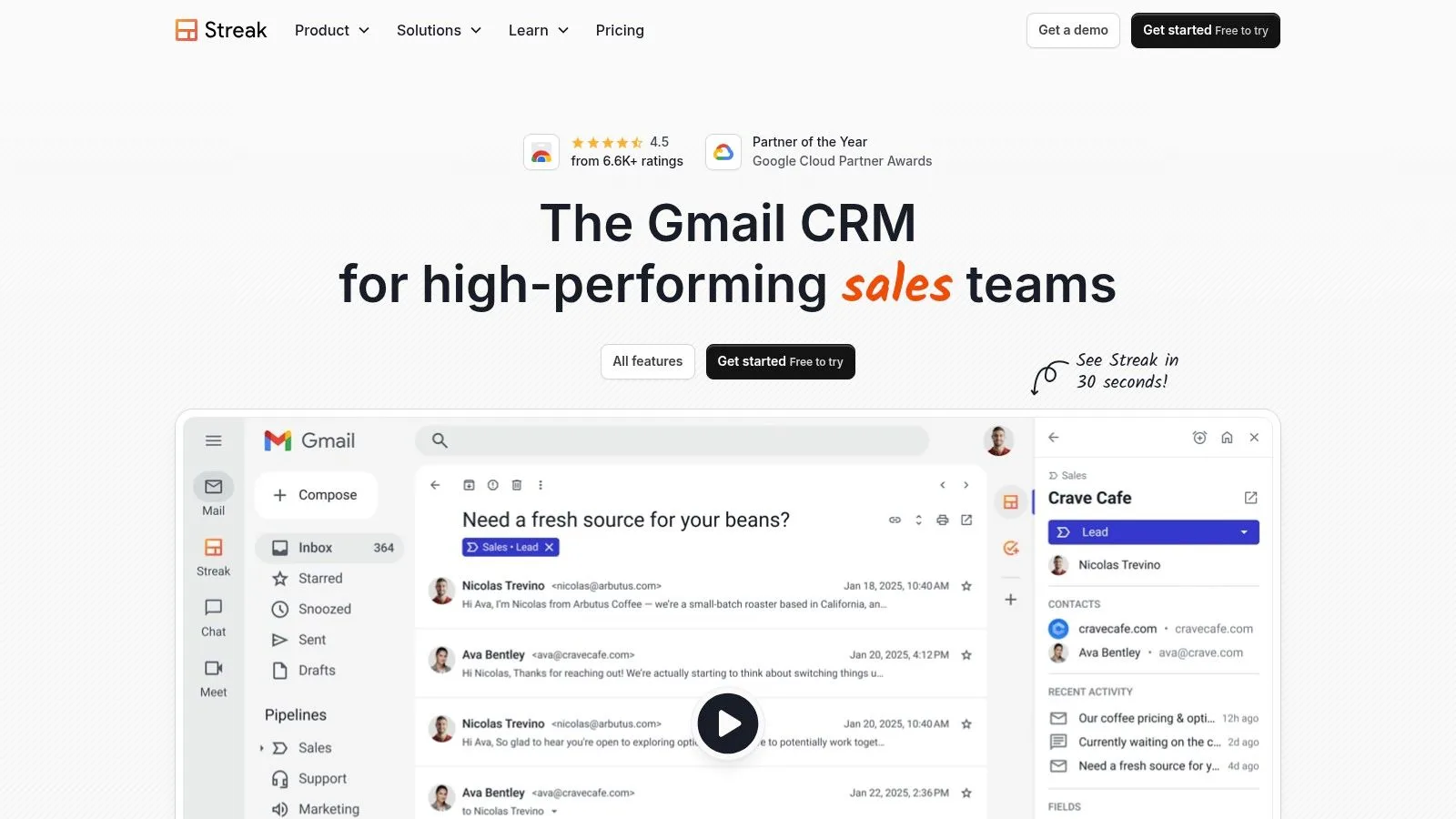
Streak takes a different approach from most email productivity tools on this list. Instead of bolting a few features onto Gmail, it builds CRM structure directly into the inbox. Pipelines, contacts, snippets, mail merge, tracking, and lightweight automation all live where you already send and reply.
For Google-centric teams, that can remove a lot of friction. You don’t have to remember which tab holds the account record, the deal stage, or the next action. It’s all attached to the email flow itself.
Best for pipeline-heavy Gmail users
Streak is strongest when email and CRM work are tightly connected. Recruiters, business development teams, founders, and account managers tend to get the most value because every conversation has context. You’re not just handling messages. You’re moving a relationship through a process.
That context also makes it easier to build a repeatable outbound motion. If you’re mapping follow-ups, ownership, and message timing together, this article on building a coordinated outbound engine pairs well with Streak’s style of workflow.
If you already live in Gmail, a Gmail-native CRM usually beats a more powerful external CRM that your team avoids opening.
The biggest trade-off is ecosystem lock-in. Streak is excellent inside Gmail. Outside Gmail, it doesn’t help much. Mixed environments, especially teams split across Outlook and Google Workspace, should think twice.
If your sales workflow depends on open timing as well as pipeline context, this guide on boosting sales efficiency with Mail Tracker for Gmail shows how tracking can complement a CRM-native inbox setup.
Website: Streak CRM for Gmail
6. Gmelius
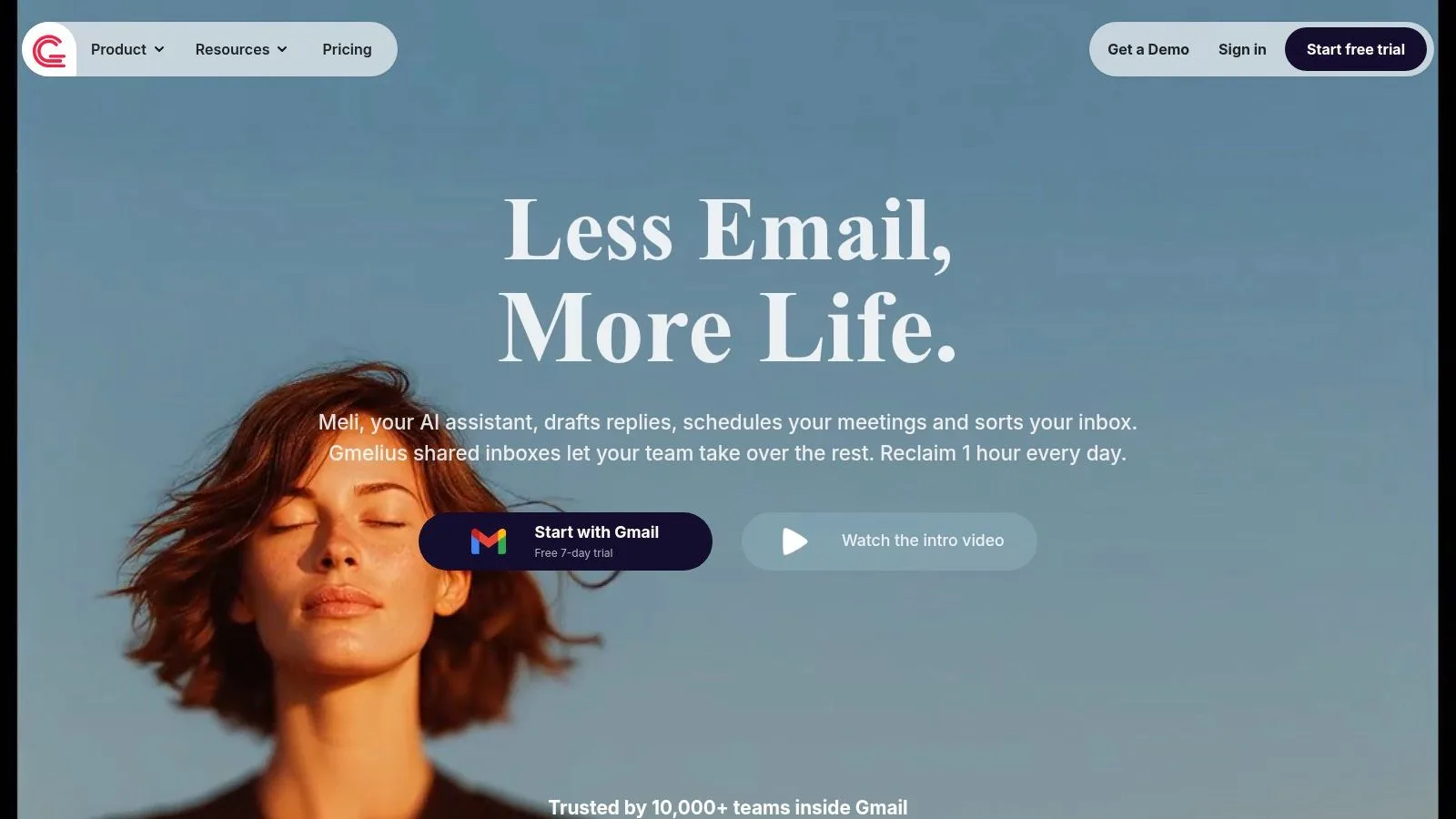
Gmelius is what I recommend when a team says, “We want a shared inbox, but we don’t want to leave Gmail.” It turns Gmail into a collaborative workspace with assignments, notes, shared drafts, labels, and AI assistance for sorting and drafting.
That matters because organizations typically don’t fail on email because they lack features. They fail because they adopt a tool nobody likes using. Gmelius keeps the learning curve lower by staying close to the Gmail interface.
Where it shines
Shared inboxes like support@ and info@ are the obvious use case. Collision detection and assignment are the practical features here. They prevent duplicate replies and make ownership visible without forcing the team into a heavyweight help desk.
Its mobile support also helps distributed teams. If your inbox needs triage while people are away from their desks, the ability to review, assign, and coordinate from a mobile workflow is more useful than flashy automation.
- Strong point: Collaboration happens inside Gmail rather than in a parallel tool.
- Useful layer: Shared notes and drafts reduce back-and-forth in chat apps.
- Trade-off: Teams with heavier volume or more advanced process needs may hit plan limits quickly.
Gmelius works best for teams that want customer-facing coordination without the ceremony of a full support platform. It’s not ideal if you need deeper ticketing logic, more advanced reporting, or wider omnichannel support.
Website: Gmelius
7. Hiver
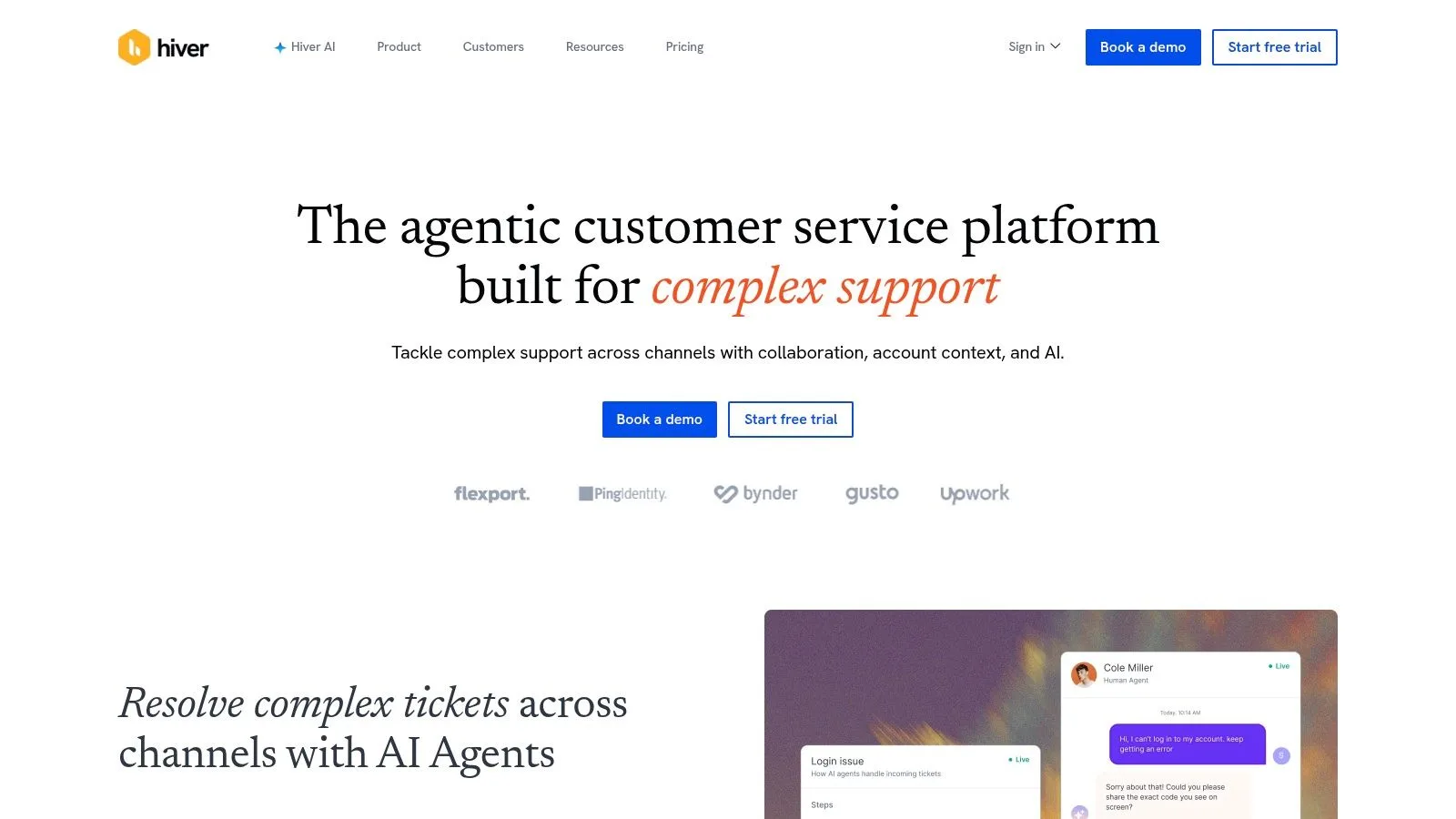
Hiver sits in the middle ground between basic shared Gmail workflows and a dedicated help desk. That’s exactly why many teams like it. You can assign conversations, add internal notes, manage ownership, track basic analytics, and add SLA-style discipline without forcing everyone into a new support system.
For support and operations teams, that midpoint is often the sweet spot. Gmail stays familiar, but the inbox starts behaving more like a managed queue.
Practical fit for service teams
Hiver is best when multiple people need to touch the same incoming conversations and timing matters. Support, finance operations, admissions, and internal service desks are good examples. You need visibility into who owns what, but you may not need the full weight of a standalone customer support suite.
Its upgrade path is also appealing. If your team later expands into chat, voice, WhatsApp, or social channels, Hiver can support that broader motion. That gives it a longer runway than simpler shared-inbox tools.
- Best use: Teams outgrowing Gmail groups and manual forwarding.
- Helpful feature set: Notes, tags, history, and collision detection solve everyday coordination problems.
- Main drawback: Per-seat pricing can become expensive as teams grow.
The limitation is depth. Hiver improves Gmail operations, but complex service workflows may still need a true help desk eventually. If your queue management, reporting, or automation gets complex, Hiver can start to feel like a transitional tool rather than a permanent one.
Website: Hiver
8. Right Inbox
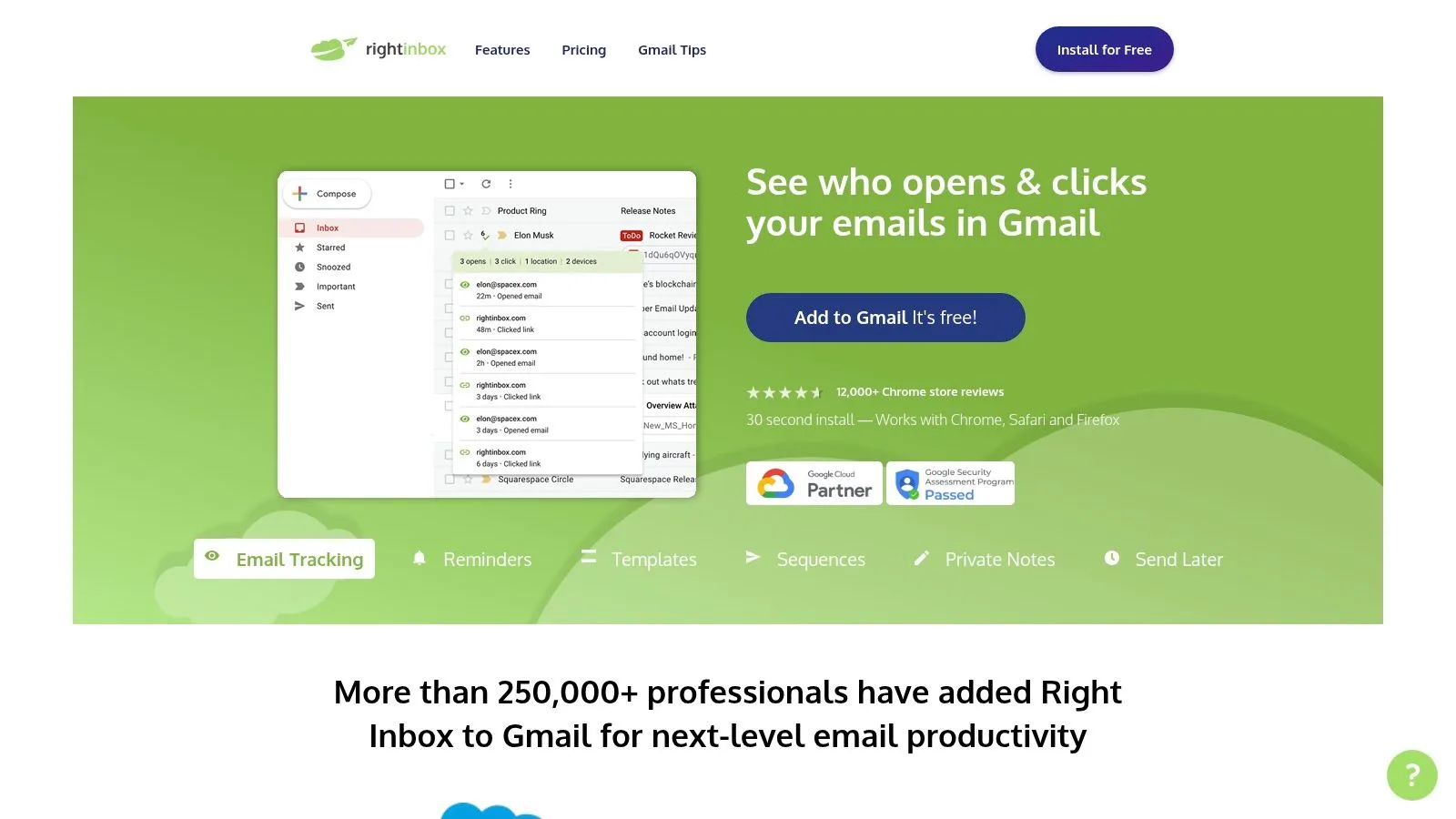
Right Inbox is the tool for people who want a lighter layer on top of Gmail and don’t need an entire sales stack. It adds practical basics like scheduling, reminders, recurring messages, templates, notes, mail merge, sequences, and some tracking features.
That makes it a strong fit for solo operators, consultants, and small teams. The install is simple, and the value shows up quickly because the features are easy to understand.
Why smaller teams like it
Some email productivity tools try to solve every problem at once. Right Inbox doesn’t. It focuses on everyday Gmail friction. You forgot to follow up. You send the same kind of reply repeatedly. You want a simple recurring check-in. Those are common problems, and this tool addresses them directly.
The benefit of that approach is low overhead. You can adopt one or two features and ignore the rest until you need them. That’s harder to do with large platform products.
Lightweight tools often win because people keep using them after the first week.
The trade-off is predictably the ceiling. You won’t get the same depth of analytics, reporting, or CRM connectivity you’d expect from Yesware, Mixmax, or Streak. If your email process is becoming more team-based and measurable, Right Inbox can start to feel small.
For individual productivity inside Gmail, though, it’s a sensible option.
Website: Right Inbox
9. SaneBox
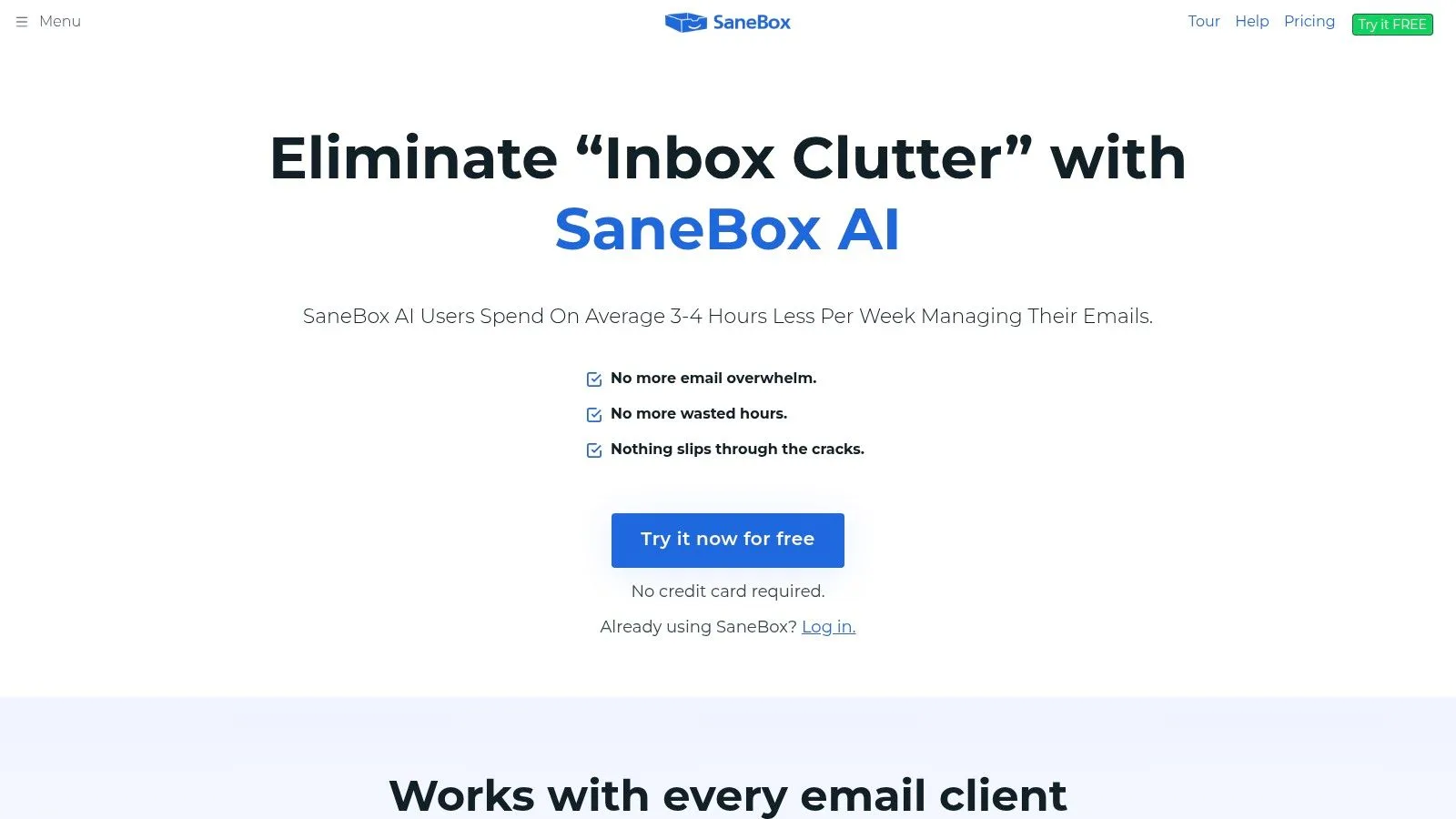
You open Gmail to answer two client emails, then lose 20 minutes clearing newsletters, receipts, calendar updates, and automated alerts. SaneBox is built for that exact job. It sits on top of Gmail and sorts incoming mail by likely importance, so the inbox stays focused on messages that need attention now.
That makes SaneBox one of the clearest examples in this list of a tool built around a single job-to-be-done: inbox cleaning.
Best for reducing Gmail noise
SaneBox fits people whose problem is volume, not outreach or team coordination. Executives, consultants, founders, and anyone with a long tail of low-value email usually get the fastest payoff. Instead of building and maintaining dozens of Gmail filters, they can train SaneBox through normal behavior, moving messages in or out of folders until the sorting gets sharper.
The workflow is straightforward. Let SaneBox route less important mail into folders like SaneLater, scan the digest at set times, then pull anything important back into the inbox. Add snooze for messages that matter but do not need action yet, and use the unsubscribe feature to cut recurring clutter at the source.
That setup keeps you in Gmail, which matters. You are changing triage habits, not replacing the whole email client.
The trade-off is control. People who already run a strict label and filter system in Gmail may find SaneBox redundant or slightly opaque. It adds another decision layer, and some users prefer rules they wrote themselves over a system that learns from behavior.
SaneBox is also a poor fit if your main need is shared ownership, CRM pipelines, or follow-up automation. It will clean the inbox. It will not run a team workflow.
Website: SaneBox
10. Shortwave
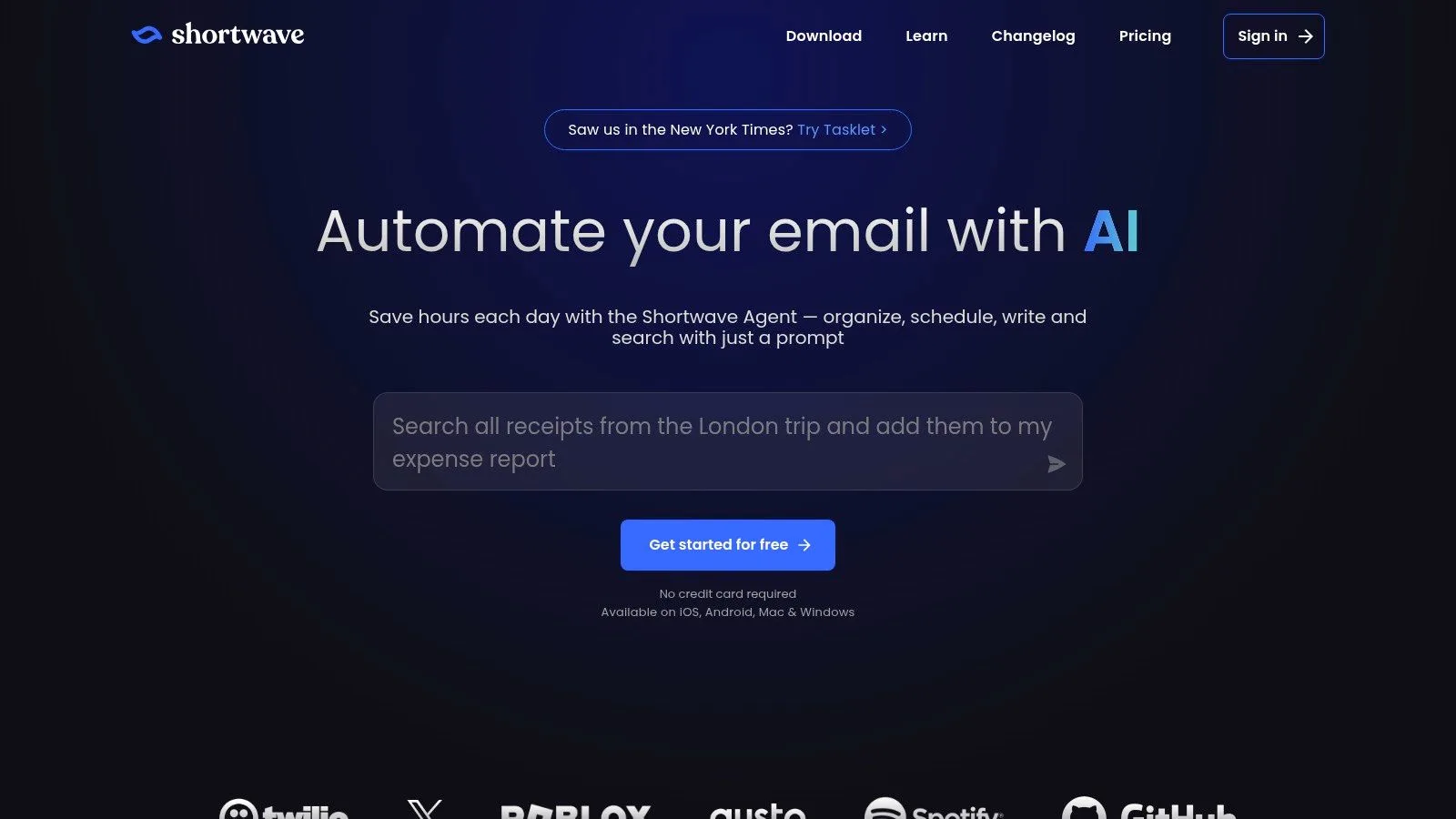
Open Gmail at 8:30 a.m. with 40 active threads, half-finished replies, and a search bar that still cannot surface the one message you need fast enough. Shortwave is built for that kind of day. Instead of adding one more layer of tracking or scheduling, it changes the way Gmail gets processed.
That makes it a different category from several tools in this list. Shortwave’s core job-to-be-done is high-speed triage inside a Gmail account, especially for people managing dense conversation volume. Bundles, priority views, keyboard shortcuts, AI summaries, drafting help, and natural-language search all point to the same outcome. Less time sorting. More time replying.
If you miss Google Inbox, the logic will feel familiar. Threads get grouped more aggressively, inbox cleanup happens faster, and search is strong enough to support a work style where you archive quickly and trust retrieval later. In practice, that suits founders, operators, support leads, and individual contributors who live in Gmail for hours each day.
AI matters here, but the core value is workflow design. As noted earlier, AI use at work has risen quickly. Shortwave applies that trend to email in a practical way: summarize long threads before a meeting, draft a reply from the latest context, then clear bundled conversations in batches without bouncing between tools.
The trade-off is adoption friction. Shortwave is not a lightweight Gmail tweak. It asks you to commit to a new inbox style, and that will annoy users who already have a disciplined system built around native Gmail labels, filters, and views. It is also a narrower fit for mixed-provider teams, since the product is centered on Gmail accounts.
Best for a faster Gmail triage workflow
Shortwave works best for people whose main problem is processing speed. A useful setup is simple: use bundles to group recurring conversations, rely on AI summaries for long internal threads, clear lower-priority batches in blocks, and use search as the retrieval layer instead of maintaining a perfect folder system.
That is a strong fit if the goal is personal or small-team email efficiency inside Gmail. It is a weaker fit if the main job is shared ownership, sales sequencing, or inbox cleaning alone.
Website: Shortwave
Top 10 Email Productivity Tools Comparison
| Product | Core features | UX & Quality (★) | Value & Pricing (💰) | Target audience (👥) | Unique selling points (✨) |
|---|---|---|---|---|---|
| Mail Tracker for Gmail 🏆 | Real‑time open tracking, double check marks, open counts, timestamps, instant push notifications, mobile support | ★4.6/5 on Google Workspace; Gmail‑native, easy setup; privacy‑forward | 💰 Free forever (visible signature); Premium ~ $2.99/mo; Lifetime $99.99 | 👥 Sales reps, recruiters, freelancers, small teams, account managers | ✨ Embedded in Gmail, unlimited free tracking, instant alerts, GDPR & ISO refs, invisible tracker on Premium |
| Yesware | Real‑time email/attachment/link tracking, sequences, templates, meeting scheduler, Salesforce sync | ★ Mature, team‑grade; in‑inbox activity feed | 💰 Free tier; advanced automations & CRM sync on higher plans | 👥 Sales & outreach teams, recruiters | ✨ Sequence automation + CRM integration and sales reporting |
| Mixmax | Sequences/cadences, mail merge, scheduling, templates, analytics, optional dialer/CRM | ★ Tight Gmail UX; powerful analytics for revenue teams | 💰 Modular copilot pricing; can become expensive as you add bundles | 👥 Revenue teams, sales ops | ✨ Modular “copilot” bundles, robust scheduler & cadence tools |
| Boomerang for Gmail | Send Later, follow‑up reminders, recurring emails, Respondable AI, Inbox Pause | ★ Stable & focused; long‑standing reliability | 💰 30‑day Pro trial; paid tiers for advanced features | 👥 Individuals and pros needing dependable follow‑ups | ✨ Reliable follow‑up workflows, Inbox Pause, AI writing assistance |
| Streak CRM for Gmail | CRM pipelines, shared records, tracking, mail merge, snippets, AI credits | ★ Gmail‑native CRM; eliminates tab switching | 💰 Free‑forever email tools; paid CRM tiers as you scale | 👥 Google‑centric sales teams, startups wanting CRM in Gmail | ✨ Full CRM inside Gmail + AI summaries/autofill |
| Gmelius | Shared inboxes/labels, assignments, notes, collision detection, AI assistants, PWA/mobile | ★ Collaborative Gmail UI; mobile/PWA support | 💰 Tiered team pricing; higher plans for heavy usage | 👥 Support & ops teams managing shared mailboxes | ✨ In‑Gmail shared inbox & collaboration + AI sorting/drafting |
| Hiver | Ticketing & shared inboxes, ownership/history, notes, tags, analytics, Slack/CRM integrations | ★ Support‑focused; minimal retraining for teams | 💰 Per‑seat pricing; scales with team size | 👥 Customer support & operations teams | ✨ Ticketing inside Gmail with SLA/omnichannel upgrade path |
| Right Inbox | Email scheduling, reminders, recurring messages, templates, mail merge/sequences, notes | ★ Lightweight & fast to adopt | 💰 Affordable vs full sales suites; team option available | 👥 Individuals & small teams seeking core productivity | ✨ Focused essentials at lower price point |
| SaneBox | AI filtering to smart folders, Daily Digest, BlackHole unsubscribe, follow‑up reminders | ★ Provider‑agnostic; reduces inbox noise effectively | 💰 Subscription model; tiers vary (pricing can be opaque) | 👥 Busy professionals across email providers | ✨ AI inbox triage, digest summaries, one‑click unsubscribe |
| Shortwave | AI triage & summaries, natural‑language search, bundles/priority views, AI drafting, import history | ★ Modern, keyboard‑driven Gmail client; cross‑device sync | 💰 Free tier; paid plan for full history & advanced AI features | 👥 Power Gmail users and teams wanting AI‑assisted workflows | ✨ AI “executive assistant” + NL search and cross‑platform bundles |
Build Your Ultimate Gmail Productivity Stack
Monday starts the same way for a lot of Gmail-heavy teams. A rep wants to know which prospect opened yesterday’s proposal. A manager needs shared ownership on a customer thread. Someone else is buried under newsletters, internal replies, and low-priority updates. Those are three different jobs. One tool rarely handles all three well inside Gmail.
As noted earlier, email volume keeps rising and email remains a primary work channel for many teams. That is why tool selection matters. If Gmail is where work already happens, the strongest setup is usually the one that adds the fewest extra steps.
The mistake I see most often is buying a broad platform before defining the bottleneck. Start with the job to be done. Tracking tools answer, “Who engaged, and when should I follow up?” Collaboration tools answer, “Who owns this conversation?” Cleanup tools answer, “What can stay out of my main inbox until I need it?” That framing leads to better choices and fewer abandoned subscriptions.
A lean stack usually outperforms a bloated one because each tool has a clear role.
- For follow-up timing: Pair Mail Tracker for Gmail with Boomerang or Right Inbox. Mail Tracker shows opens and timestamps inside Gmail. Boomerang or Right Inbox handles reminders and send-later workflows.
- For sales pipeline work: Pair Mail Tracker for Gmail with Streak or Yesware. You get engagement signals in the inbox and deal context without jumping into a separate CRM for every update.
- For team-managed inboxes: Pair Gmelius or Hiver with a personal cleanup layer such as SaneBox. The shared inbox handles assignment and accountability. The cleanup tool protects individual focus.
- For high-volume power users: Pair Shortwave with one specialized tool, not three. Shortwave can cover triage, search, and summarization, so adding overlapping AI or scheduling products often creates clutter instead of speed.
AI deserves a narrow role here. As noted earlier, adoption is growing fast. In practice, the useful AI features are the ones tied to a specific workflow already happening in Gmail, such as summarizing long threads before a handoff, drafting a first reply, or pulling lower-priority mail out of the way. AI is less helpful when it overlaps with tools you already use for routing, reminders, or shared ownership.
A disciplined setup keeps the stack usable:
- Choose one problem first. Start with tracking, collaboration, or cleanup. Do not roll out all three at once.
- Prefer native Gmail workflows. Tools that live in the inbox are easier to adopt and harder to ignore.
- Avoid feature overlap. Two schedulers, two trackers, or two AI assistants usually create noise.
- Review after two weeks of real use. If a tool does not change response time, follow-up consistency, or inbox load, remove it.
The best Gmail stack is not the one with the longest feature list. It is the one that fits the actual work: one tool for visibility, one for coordination, one for cleanup if the volume justifies it. Start small, keep each product tied to a clear job, and add another layer only when Gmail still feels slow after the first fix.
If you want the simplest place to start, try Mail Tracker for Gmail. It adds read receipts, open counts, timestamps, and real-time notifications directly inside Gmail on web and mobile, so you can follow up with better timing without learning a new system.
Ready to track your emails?
Add Mail Track for Gmail from the Google Workspace Marketplace and know the moment your emails are opened. Free and unlimited.
Add to GmailMore reading
More from Guides
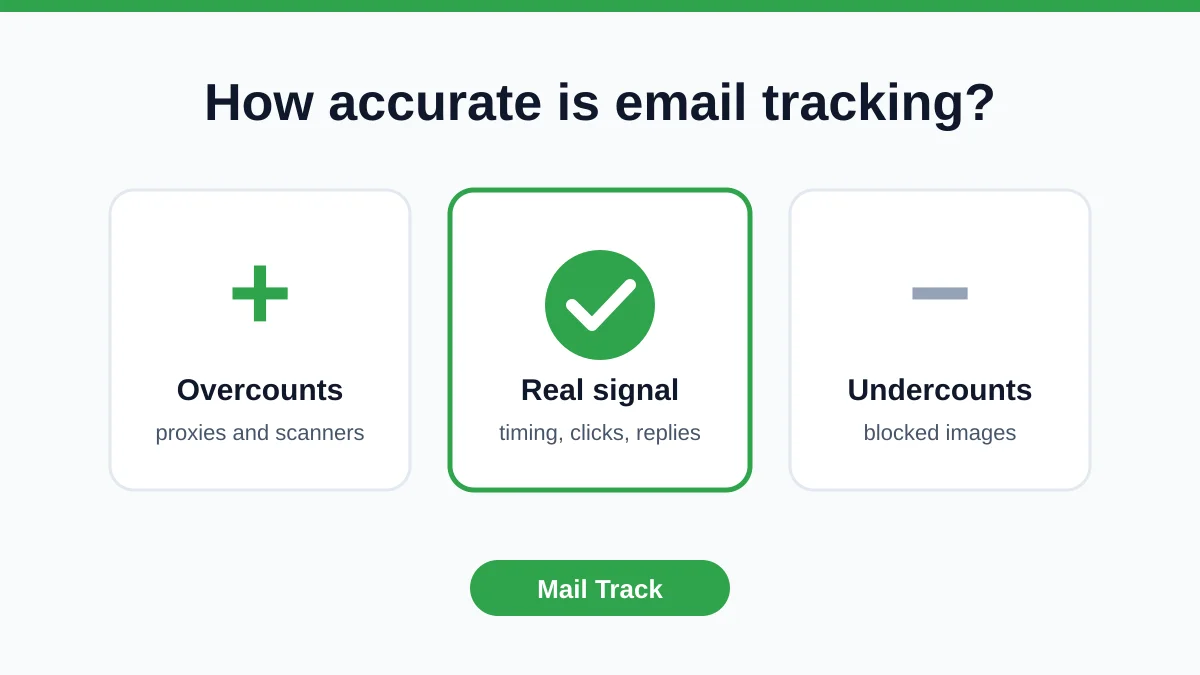
How Accurate Is Email Tracking? What Opens Really Tell You
How accurate is email tracking in Gmail? Learn why opens get overcounted or missed, how to spot false opens, and which signals to trust before you follow up.
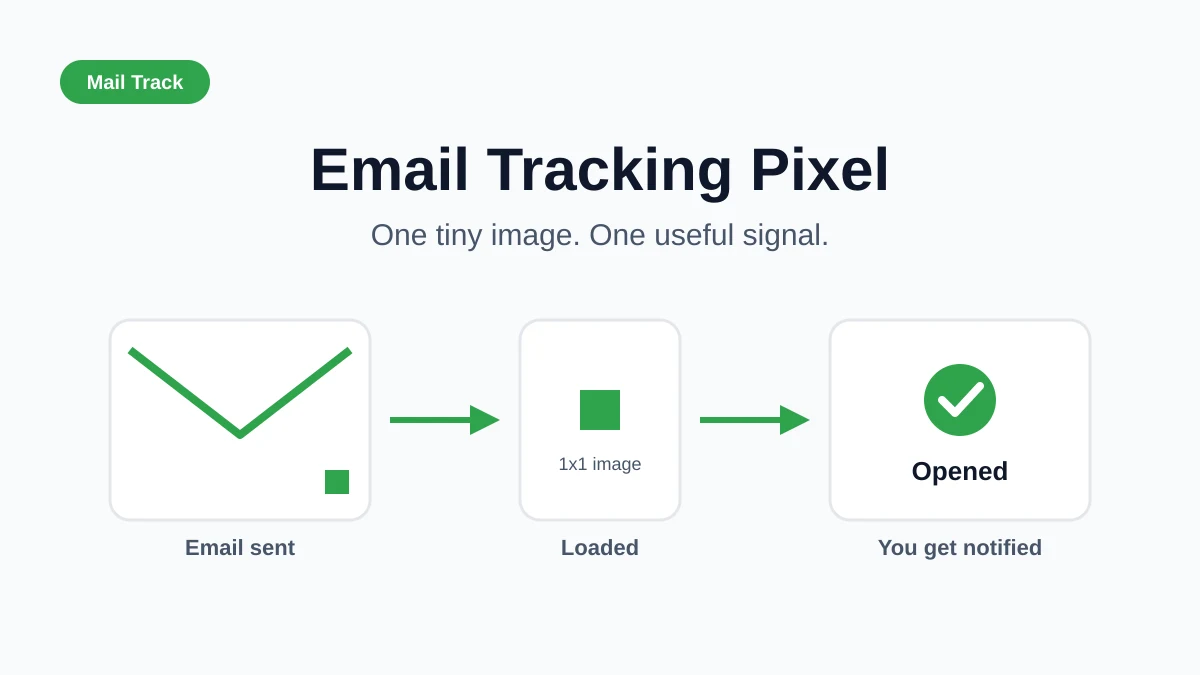
Email Tracking Pixel: How It Works, How to Spot One and Where It Falls Short
What is an email tracking pixel, how does it show an open in Gmail, how can you find one, and why Gmail and Apple Mail proxies limit what it can tell you.

7 Example Email Accept Job Offer Templates
Use these 7 example email accept job offer templates for formal, concise, and enthusiastic replies, with subject lines, clauses, and sending tips.