
Gmail Read Receipts Explained and Setup Guide
Learn how to enable and troubleshoot Gmail read receipts, understand limitations and privacy, and explore alternatives like Mail Tracker for Gmail.

You’re waiting on an email that matters, and the silence can feel louder than the inbox itself. Maybe it’s a client proposal, a hiring update, or a message to your manager that needs a clear response. Gmail read receipts help answer the question plain sending cannot, whether the message was opened, and whether it is time to follow up or wait a little longer.
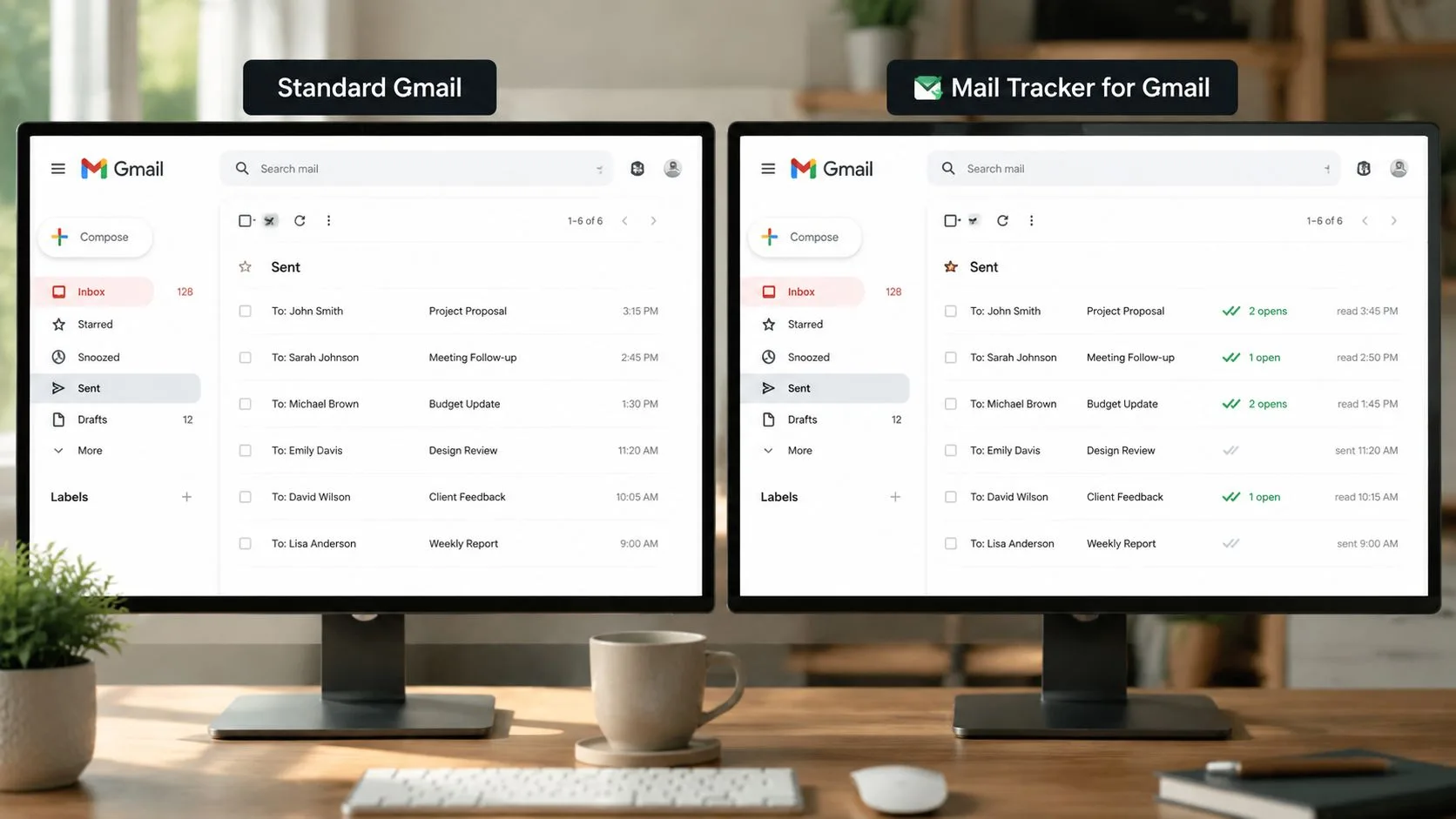
The catch is that Gmail’s built-in option is not as open to everyone as many users expect. It sits behind Workspace controls, so a lot of people run into hidden admin limits before they ever see a receipt option. That gap has led to browser-based tracking tools that work inside the Gmail workflow. One example is Mail Tracker for Gmail, which shows a single check mark for sent and double check marks for read, along with open counts, timestamps, and mobile notifications inside Gmail itself.
Why Gmail Read Receipts Matter
The hardest part of sending an important email is the gap between sending it and knowing what happened next. A client proposal, a hiring update, or a request to a manager can sit in that gap for hours or days, and the silence leaves you guessing whether the message was seen, postponed, or missed entirely. Read receipts reduce that uncertainty, which is why people look for them after a big pitch, an application, or a time-sensitive request.
The practical value is timing
When you know a message has been opened, your follow-up stops being a guess. That changes how you plan the next step, especially when a reply affects scheduling, approvals, or staffing.
Senders often want receipts because email’s asynchronous nature creates uncertainty. A quiet inbox does not tell you whether the recipient is unavailable, undecided, or is waiting to reply later. Read tracking gives you a more grounded reason to choose the next move, instead of refreshing your inbox and hoping for the best.
Independent coverage of Gmail tracking tools describes the larger response to Gmail’s limited native receipt controls, with tools that work inside Gmail for personal accounts as well as Workspace users. Mail Track’s Gmail tracking overview shows how that need turned into a broader category of open-event monitoring.
Practical rule: If the email is high-stakes, the value of a read signal is often timing, not just proof.
Understanding Gmail Read Receipts
A Gmail read receipt is closer to a signed acknowledgment than a hidden monitor. The recipient is asked to confirm that they opened the message, the same way a delivery notice confirms a package was received without showing you everything that happened on the route. Google’s own support page says the receipt arrives as an email with the date and time the message was opened, and that the feature depends on Workspace settings and recipient action. Google’s Gmail read-receipt help explains that workflow clearly.
For a plain-language explanation of how delivery confirmation differs from open confirmation, see Mail Tracker’s guide to email delivery confirmation.
Why Google keeps it controlled
Gmail’s built-in read-receipt feature is managed in the Google Admin console for Google Workspace accounts. Administrators can permit receipts for all addresses or limit them to internal addresses only, so this is a policy-based feature, not a universal Gmail setting. That admin layer is also why many personal Gmail users never see the option in the first place.
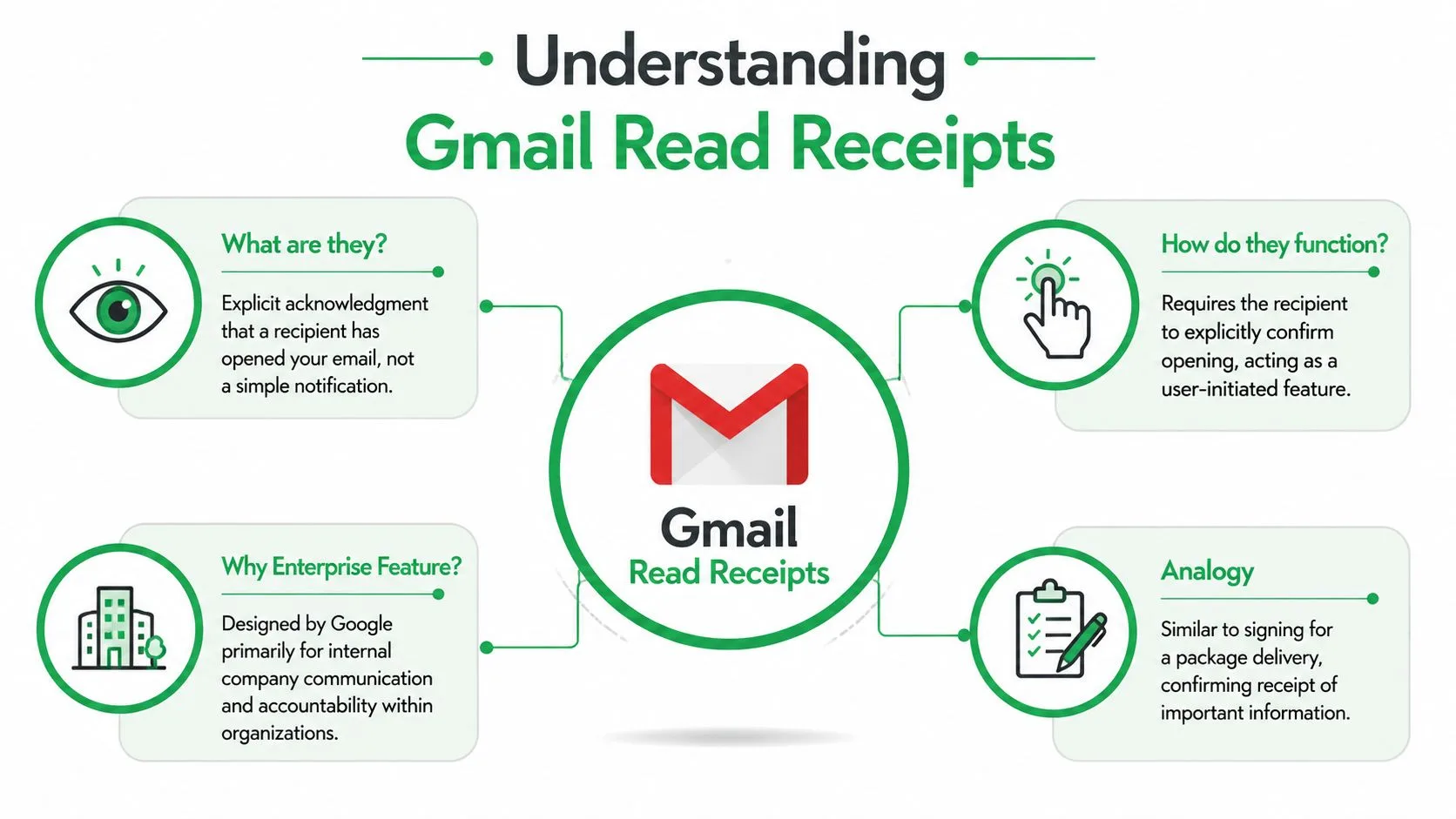
The simplest way to understand it is this, Gmail’s native receipt is an explicit request, not an automatic open ping. The recipient has to agree, and the administrator has to allow the feature first. That structure fits company communication, where accountability matters, but it also explains why the feature can feel buried.
The mental model to keep in mind
If you send a message with native Gmail receipts enabled, you are asking the recipient to confirm receipt, not automatically measuring every time an inbox opens. Technical commentary on Gmail tracking notes that receipt generation depends on recipient settings and action, so it cannot guarantee visibility across every domain or client. That protocol limitation is why native receipts behave differently from browser-based tracking.
Native Gmail receipts are best treated as an acknowledgment workflow, not a universal visibility tool.
That difference shapes expectations. If you need a formal confirmation inside a managed Workspace environment, native receipts fit that job. If you want a broader open signal in everyday sending, you need a different tool.
Internal control matters more than people realize
A lot of confusion comes from assuming Gmail works the same way for every account. It does not. Google documents read receipts for certain Workspace editions, and the administrator has to turn them on before users can request them. A separate guide on Workspace policy control reinforces the same point, receipts are not a default consumer feature.
Enabling Read Receipts In Gmail
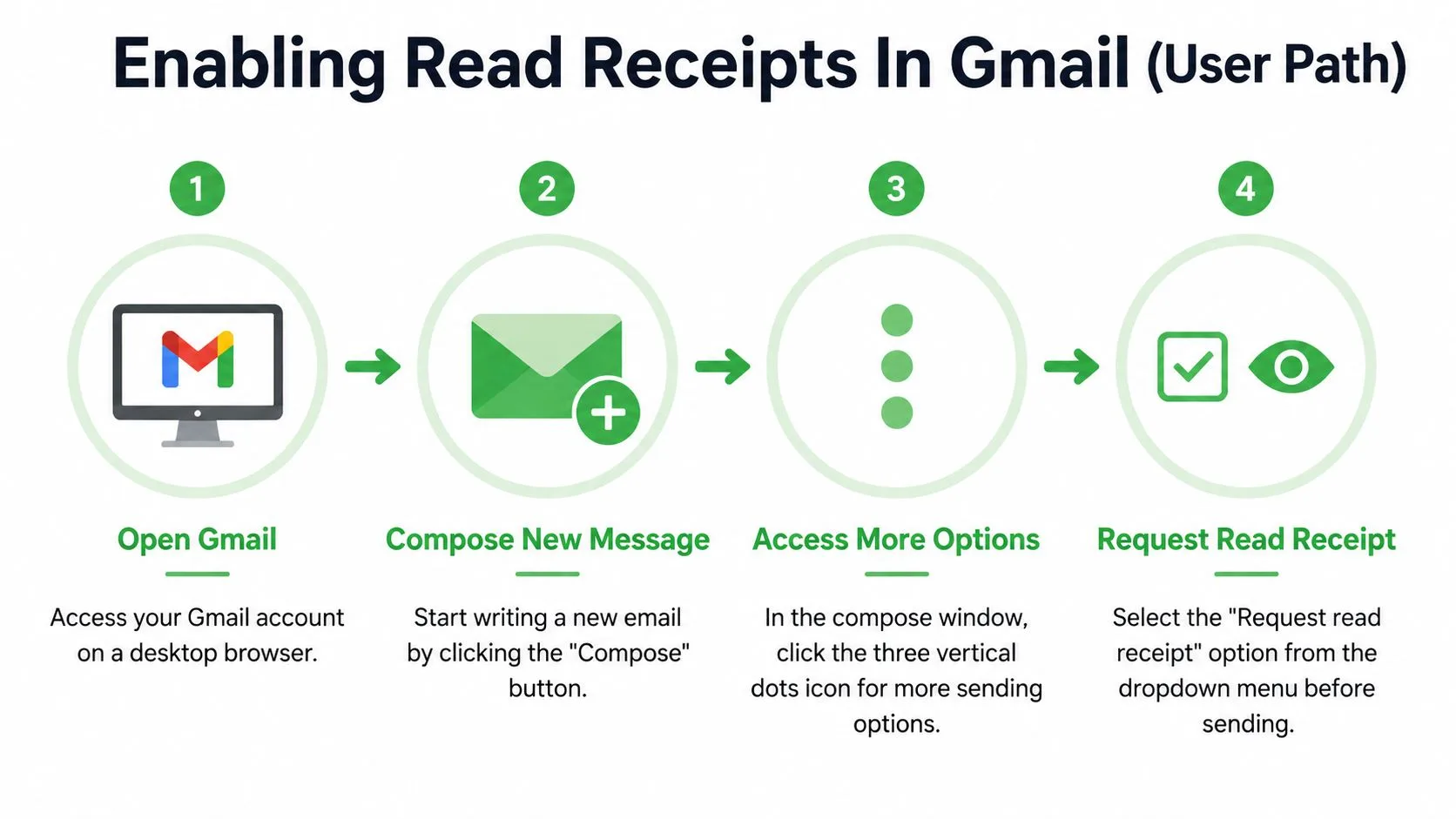
The setup has two paths, one for the sender and one for the administrator. If you are just composing a message, the option lives in the desktop compose window. If you manage a Workspace domain, the feature has to be allowed in the Admin console before anyone in the organization can use it.
The sender’s workflow
Open Gmail on desktop, start a new message, and click the three-dot menu in the compose window. From there, choose Request read receipt before sending. Gmail then asks the recipient to confirm the message was opened, so the receipt comes from a deliberate action rather than a background signal.
A simple way to picture it is certified mail. You send the message, then ask for a return acknowledgment after it has been opened. That helps when you need a paper trail, and it also makes the request visible to the person receiving the email.
The administrator’s workflow
For Workspace admins, the feature sits in policy settings. Google handles receipts through the Admin console, where admins can allow them across the domain or limit them to internal addresses only. That account-level control explains why one user may see the option while another, on a different account or domain setup, never does.
If the menu option is missing, the fix usually starts with admin policy, not the compose window.
That is where many users run into trouble. They follow the steps correctly, but their organization has not enabled the feature. In that case, the issue is permission structure, not Gmail behaving unpredictably.
Troubleshooting Common Issues
Most Gmail receipt problems trace back to three things, account type, admin policy, or recipient behavior. The feature can look simple on the surface, but it sits on top of Workspace rules and recipient prompts, so small differences in setup can change the result. The most useful habit is to diagnose the issue by asking where the chain broke, at sending, at policy, or at opening.
| Common Read Receipt Issues And Fixes | |
|---|---|
| Issue | Fix |
| The option doesn’t appear in Gmail | Use a Workspace account and confirm the admin has enabled receipts. |
| The recipient never sends a receipt | Treat it as optional confirmation, not guaranteed proof. |
| Receipts work internally but not externally | Check whether the admin limited them to internal addresses only. |
| You want open visibility without asking | Use a tracking tool that works through open events instead of a receipt prompt. |
Native receipts are not the same as open tracking
Google’s feature depends on recipient settings and action, while browser-based tracking uses a different mechanism. A tracking extension commonly embeds a tiny tracking pixel in the outgoing message, and the client’s image request becomes the open event. Mixmax’s explanation of Gmail email tracking is useful here because it shows why open tracking can produce different signals, including multiple opens and sometimes approximate device or location details.
That difference is important when you’re troubleshooting results. If a native receipt never arrives, that doesn’t necessarily mean the person never opened the email. It may mean the recipient declined the prompt, or their mailbox rules didn’t support the receipt flow.
Don’t treat one missing receipt as a final answer. Treat it as one signal in a larger communication thread.
Privacy And Legal Considerations
Read receipts sit in a gray zone for many users because they mix convenience with visibility. Native Gmail receipts ask the recipient to act, which makes the tracking more transparent. Pixel-based tracking is less visible, because the open event is triggered when the email client loads the embedded image rather than when the recipient clicks a confirmation button. MailTrack’s privacy discussion is a helpful companion if you want a deeper look at that difference.
Consent and transparency are the main issues
A recipient prompt creates an obvious consent moment. A tracking pixel does not create the same visible prompt, so you should think carefully about the relationship, the context, and your organization’s privacy policy before using it. The technical difference matters because it changes what the recipient understands about the interaction, even if the sender sees a useful open event.
You also need to be mindful that image loading can be affected by privacy settings and client behavior. That means open-tracking data is useful, but it isn’t perfect. If a mailbox blocks images or preloads them in unusual ways, the signal can be incomplete or misleading, which is why responsible use matters more than raw visibility.
Use the data as a communication aid
The safest mindset is to treat open data as a cue for better timing, not as a way to pressure people. If someone hasn’t replied, the fact that they opened a message can help you choose a better follow-up moment. If they haven’t opened it, you can adjust subject lines, resend timing, or channel choice without making assumptions about intent.
Privacy-sensitive communication works better when the sender remembers that tracking is a tool, not a verdict. That’s especially true in recruitment, client work, and internal communication, where trust can matter as much as response speed.
Use Cases And Best Practices
A Gmail read receipt is most useful when the next action depends on knowing whether a message was opened. A sales rep may want to time a follow-up after a proposal lands. A recruiter may want to know whether a candidate has seen interview details. An account manager may need confirmation that a sensitive update reached the right inbox. The goal is not to monitor every message, it is to decide when the next email should go out.
Match the tool to the situation
Internal company email is the setting where native Gmail receipts fit most naturally, because the admin already controls the Workspace environment and can decide whether the feature is allowed. For everyday outreach outside that kind of setup, many senders prefer a tracker that stays inside Gmail and does not require the recipient to approve a receipt request. A practical overview of that workflow appears in Mailtrack’s tips for effective Gmail email tracking, including inbox indicators that make open status easy to read at a glance.
A few habits keep the information useful:
- Ask only when the message matters. Routine notes usually do not need extra tracking.
- Time follow-ups with care. An open signal is a prompt to respond thoughtfully, not a reason to crowd the inbox.
- Protect trust. In a delicate relationship, a visible receipt request can feel intrusive.
- Read the signal in context. One open does not tell you the full story.
Keep expectations realistic
A read receipt gives you one piece of information, not the whole picture. It can show that an email was opened or that the recipient chose to acknowledge it, but it cannot tell you intent, urgency, or reaction. Like a doorbell chime, it confirms that someone came to the door, not what they thought about the message.
That is why the strongest email habits combine receipts with clear subject lines, short wording, and a follow-up plan that does not depend on a single signal. The receipt helps with timing. The message itself still has to do the primary work.
The best follow-up systems use receipts as a timing aid, not as a substitute for good email writing.
Used well, read receipts reduce guesswork and help you choose a better moment to follow up. Used poorly, they can make communication feel heavy-handed. The difference comes down to context, restraint, and whether the tracker fits the situation.
Recommended Alternatives With Mail Tracker For Gmail
Native Gmail receipts have a narrow lane, especially when Workspace policy or recipient cooperation gets in the way. That’s why many Gmail users look for an option that keeps tracking inside the same interface without asking for a separate workflow. One such option is Mail Tracker for Gmail, which is listed in the Google Workspace Marketplace as free and unlimited, works on iOS and Android, requires no sign-up, and shows how many times a tracked email has been opened directly from Gmail. Google Workspace Marketplace listing for Mail Tracker for Gmail contains those product mechanics in one place.
Why the workflow feels different
The main difference is where the information appears. Native receipts rely on a confirmation request, but open-tracking tools surface status directly in Gmail through checkmarks, counts, and timestamps. That makes the signal easier to scan when you’re handling several conversations at once, because you don’t need to leave the inbox to see whether a tracked message has been opened.
Mail Tracker for Gmail is built around that inbox-first idea. It keeps the status in the same place where you already send and manage mail, which matters for people who don’t want another dashboard to check. The product’s own Marketplace listing makes that inside-Gmail workflow clear, including its mobile support and its no sign-up setup.
Where it fits best
If your work depends on follow-ups, the biggest benefit is speed. The tracking signal arrives without asking the recipient to approve a read receipt, so you can decide what to do next sooner. If you want deeper usage guidance, Mail Track’s expert tips for Gmail tracking walks through practical habits for getting more value from open data.
The appeal is simple. Gmail’s built-in option is policy-bound and prompt-based, while a Gmail add-on can give you open counts and timestamps inside the normal compose-and-send flow. For users who live in Gmail every day, that difference is often the deciding factor.
Conclusion And Next Steps
Gmail read receipts are useful, but they’re not universal. Native Gmail receipts depend on Workspace settings and recipient confirmation, so they work best in controlled organizational environments. If you need broader open visibility inside Gmail, a tracking add-on fits the gap more naturally because it keeps the status in the inbox where the message already lives.
The smart next move is to choose the method that matches your communication style. Use native receipts when you want formal acknowledgment in a managed Workspace setup. Use an open-tracking tool when you need timing, open counts, and a cleaner workflow for everyday follow-up.
If you handle client outreach, hiring messages, or sales conversations, install the tool you’ll use and test it on a low-stakes email first. That gives you a clear feel for how read signals appear, how quickly they arrive, and how they fit your process.
A CTA for Mail Tracker for Gmail.
Ready to track your emails?
Add Mail Track for Gmail from the Google Workspace Marketplace and know the moment your emails are opened. Free and unlimited.
Add to GmailMore reading
More from Tips
How to Know if Someone Blocked Your Email in Gmail: Signs and Checks
How to know if someone blocked your email in Gmail: what a block really does, how to read bounce messages, and how open tracking tells a block from silence.
Gmail Snooze Email: How It Works and When to Use It
Learn how Gmail snooze email works, how it differs from archive and mute, and how to pair it with open tracking so follow-ups come back at the right time.
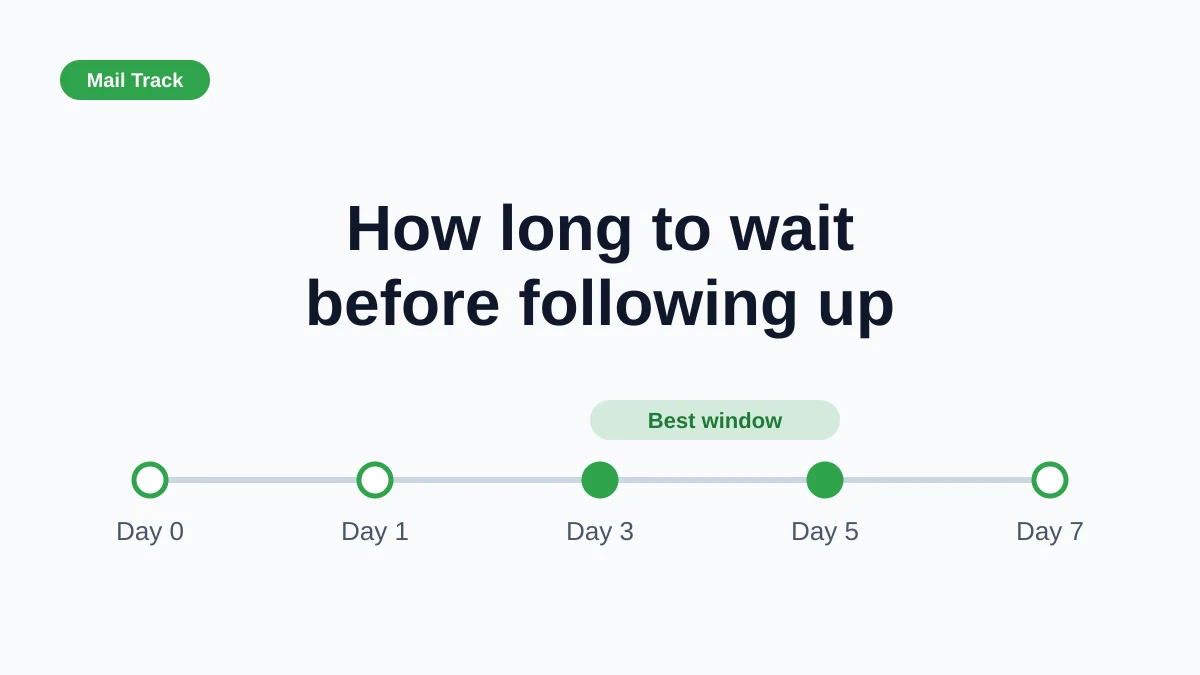
How Long to Wait Before Following Up on an Email (With Tracking Signals)
How long to wait before following up on an email? Use these waiting windows by situation, plus open and click signals in Gmail to time each follow-up.