
Email Tracking for Gmail: Setup, Tools & Best Practices
Learn how email tracking for Gmail works, from setup to best practices. Compare native features with top third-party tools for smart tracking.
You send a proposal, a candidate outreach note, or a client follow-up. Then the waiting starts. Gmail shows that the message left your outbox, but it doesn’t tell you whether a person saw it, skimmed it, ignored it, or never had images load at all.
That gap is why email tracking for Gmail has become a standard part of day-to-day work. Used well, it helps you follow up at better times, avoid unnecessary nudges, and focus on threads that show signs of life. Used badly, it turns into a vanity dashboard full of misleading open data.
The useful middle ground is simple. Track emails to improve timing and prioritization, but stay realistic about what an “open” means in 2026.
What Is Email Tracking and Why Use It in Gmail
Email tracking for Gmail adds visibility to a part of work that usually feels opaque. You send an email and, instead of guessing, you get signals about whether the message triggered an open event. That can help a sales rep decide when to follow up, a recruiter spot interest in a role, or a freelancer confirm that a proposal at least reached the client’s screen.

Gmail is the obvious place to care about this. Gmail hosts over 1.8 billion users globally as of 2026, and 75% of those users access their inbox exclusively through mobile devices, which is one reason teams often need add-ons that surface engagement data inside Gmail itself rather than in a separate reporting tool, according to Drag’s Gmail statistics roundup.
Why native Gmail isn’t enough
Gmail and Google Workspace handle sending and receiving well. They don’t give most users much insight into thread-level engagement, response timing, or which messages deserve attention first.
That matters in everyday situations like these:
- Sales outreach: You don’t want to call every prospect at random. You want to spend time where there are signs of interest.
- Hiring: If a candidate opens your outreach several times, that may justify a timely follow-up.
- Client work: If an invoice, contract, or proposal goes quiet, tracking can tell you whether silence means “not seen” or “seen but not answered.”
Practical rule: Tracking is most helpful when it changes what you do next. If it doesn’t affect your follow-up timing or prioritization, it may just add noise.
What a tracker actually gives you
Most Gmail tracking tools add a lightweight layer on top of your existing inbox. You send from the same compose window. Then you see status indicators, timestamps, or notifications tied to the message.
One product name in this space is Mail Tracker for Gmail. The name is very descriptive, which can make it easy to confuse with the broader product category of a mail tracker for Gmail or an email tracker for Gmail. The distinction matters when you’re comparing tools versus referring to a specific product.
The primary benefit isn’t surveillance. It’s reduced uncertainty. Instead of wondering whether your message disappeared into the void, you get one more signal to guide your next move.
How Email Tracking Technology Works in Gmail
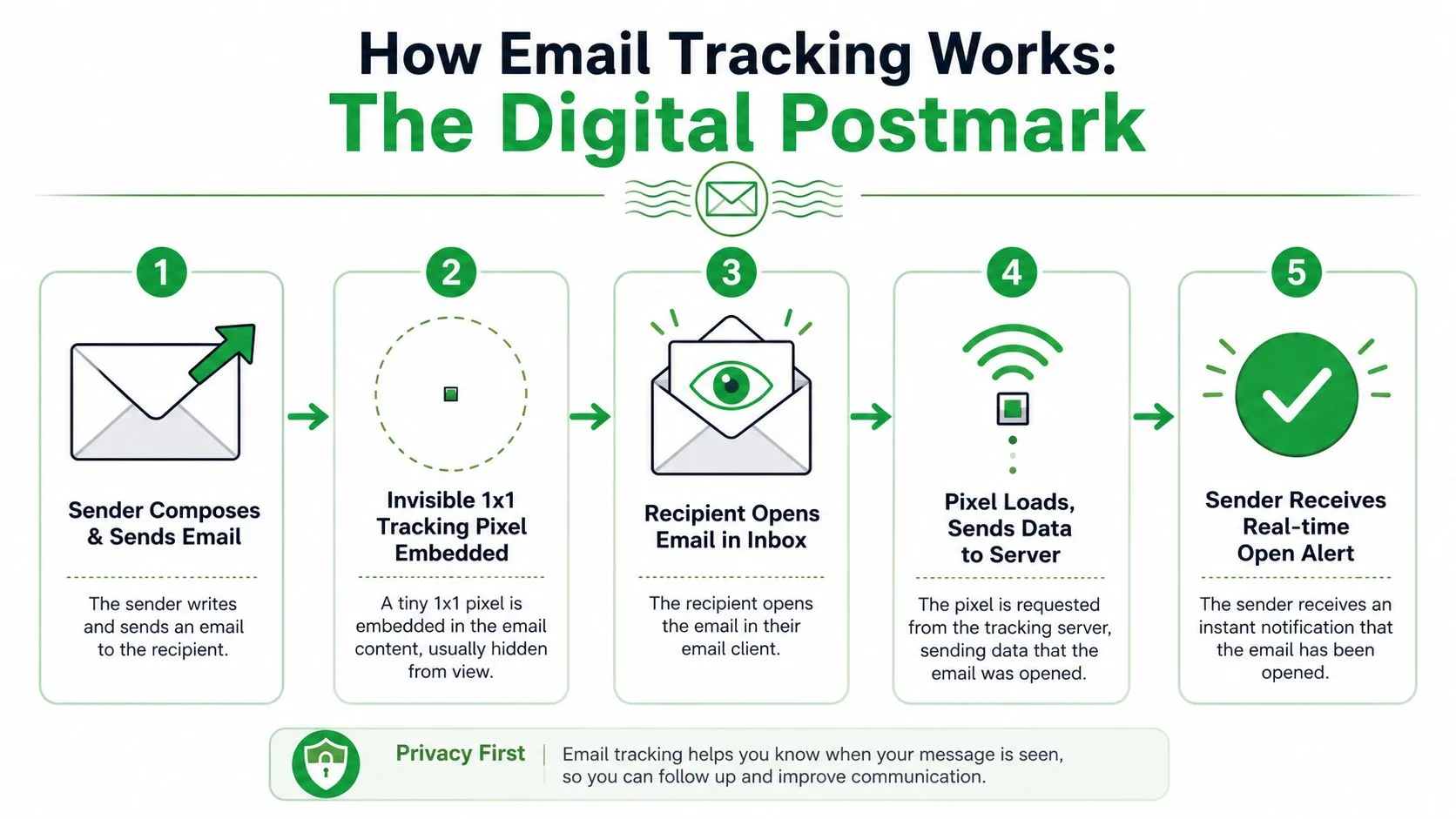
The easiest way to understand email tracking is to compare it to a digital postmark. Not proof that someone carefully read your message, but evidence that the email client loaded a tiny asset associated with it.
The basic mechanism
Email tracking in Gmail works by injecting a 1x1 invisible pixel image into the HTML body of an outgoing message. When the recipient’s email agent renders the message and loads images, that pixel triggers a request to the sender’s backend server, which logs the event as an open, as described in Alex Rothberg’s technical walkthrough.
If that sounds abstract, here’s the same process in plain English:
- You write the email. The tracker adds a tiny invisible image to the message.
- You hit send. The email goes out like any other Gmail message.
- The recipient opens it. Their email app tries to display the message.
- Images load. If the app loads images, the invisible pixel is fetched.
- The tracker logs an event. You may see a notification or a status update in Gmail.
What the signal means
The important nuance is this. The tracker records a load event, not a mind-reading event.
That means a tracked “open” usually tells you one thing with confidence: the tracking image was requested. It does not tell you whether the person read every line, cared about the content, or intended to reply.
A few tools also show related context such as timestamps or repeated opens. That can be useful, but it still sits on top of the same basic mechanism.
An open event is better treated as a signal than a verdict.
What email tracking can’t do
Readers often assume tracking is more precise than it really is. It isn’t.
Here are the main limits:
- It can’t track email close events: Email clients don’t provide reliable “message closed” data, so tools can’t accurately tell you when someone stopped reading.
- It depends on image loading: If images are blocked, the pixel may never load.
- It can be distorted by privacy and security systems: Some opens come from automated systems rather than humans.
- It needs inbox integration: On Gmail, the extension or add-on has to work inside the sending flow so the tracking element is inserted before the message leaves.
That last point is why good Gmail trackers feel native. If the sending workflow is clumsy, people stop using it.
Setting Up Mail Tracker for Gmail in 5 Minutes
Setup is usually straightforward. The goal isn’t to learn a new platform. It’s to keep using Gmail and add tracking where it helps.
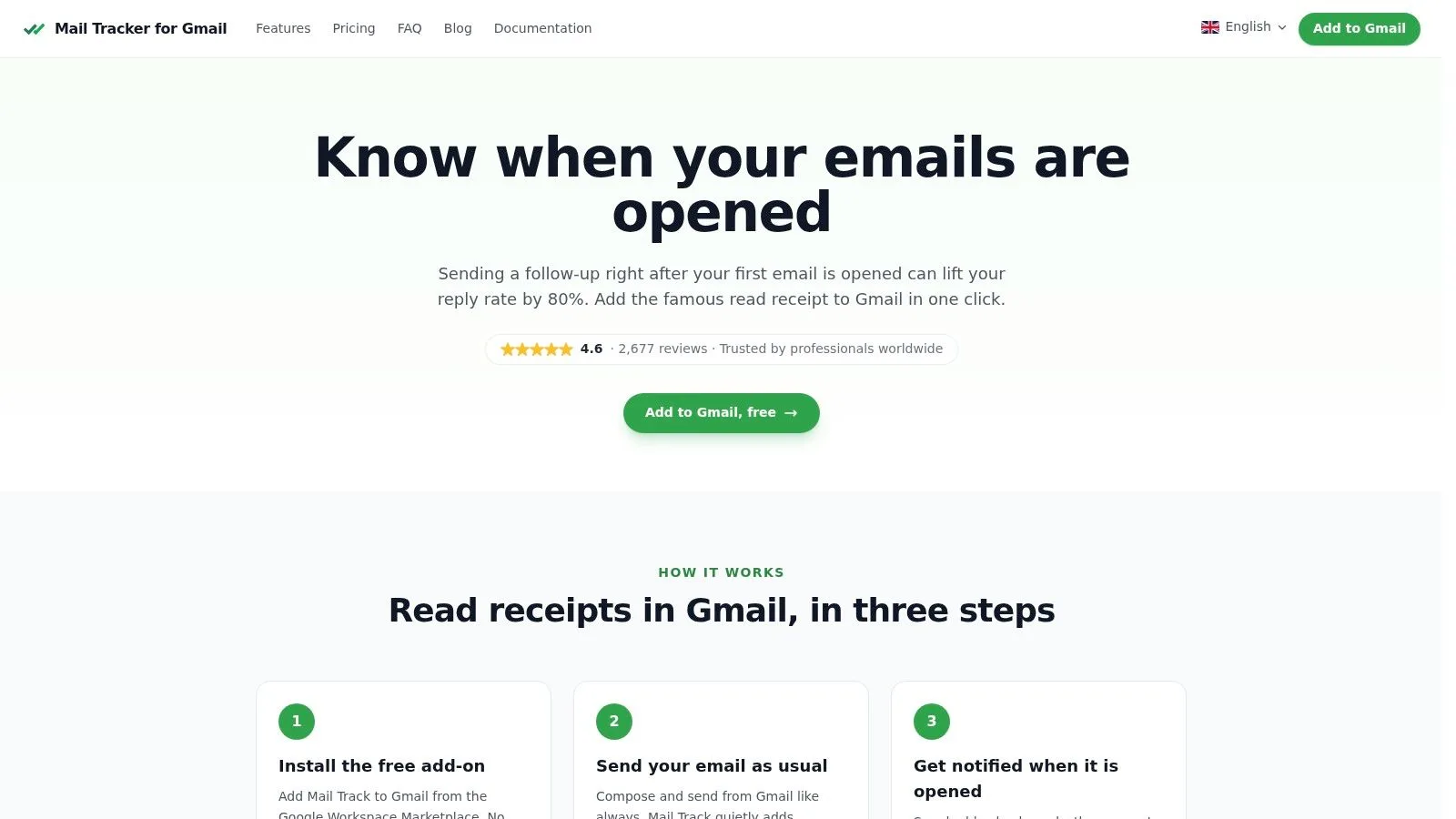
Install and connect it
Start from the Google Workspace Marketplace or Chrome Web Store, depending on how the tool is distributed. Then sign in with the Gmail account you want to track from and grant the requested permissions.
A common concern at this stage is whether the tool will force a separate dashboard. A Gmail-first tracker shouldn’t. It should sit inside the inbox you already use.
If you’re evaluating how tracking fits into a broader outreach workflow, this guide for modern sales teams gives useful context on what teams typically look for beyond basic open notifications.
Send your first tracked message
After installation, open Gmail and compose a message as usual. Look for the tracking toggle or indicator near the send area. Turn it on if the tool doesn’t enable it by default.
Then send a simple test email to another address you control. That gives you a safe way to confirm that the tracker is active and that notifications are arriving where you expect.
A practical setup checklist:
- Confirm the visual indicator: Many tools show a small icon, checkbox, or status marker in the compose window.
- Check notification settings: Decide whether you want browser alerts, in-inbox markers, mobile push notifications, or all three.
- Test on web and mobile: Since many Gmail users read mail on phones, make sure alerts still make sense when you’re away from your desk.
If you want a broader look at no-cost options before committing to one workflow, Mailtrack’s own article on a free email tracker for Gmail is a practical starting point.
Understand what you’ll see in Gmail
Most Gmail trackers use simple status cues after you send. Common examples include checkmarks, timestamps, or message-level activity panels.
The point isn’t to stare at them all day. It’s to spot moments that deserve action, such as a proposal that appears active again after a quiet week.
Here’s a quick visual walkthrough of what that kind of workflow looks like:
Free versus paid features
Plan differences vary by tool, but the pattern is familiar. A free plan often includes core tracking with a visible signature, while paid plans may add an invisible tracker, fuller message history, or daily summaries.
When comparing plans, focus on fit rather than feature volume. Ask:
| Question | Why it matters |
|---|---|
| Do I need mobile alerts? | Useful if you work from your phone and care about timing. |
| Do I want a visible tracking signature? | Fine for some contexts, awkward in others. |
| Will I review daily reports? | Helpful for volume senders, unnecessary for occasional use. |
A simple tool that you check beats a more elaborate one that never becomes part of your routine.
Smart Ways to Use Email Tracking for Work
The best use of email tracking for Gmail isn’t “watch every message.” It’s “make smarter decisions after sending.”
Sales follow-ups that aren’t random
A salesperson sends a pricing email on Tuesday morning. No reply comes in. By itself, that doesn’t say much.
Later, the email shows fresh activity. That’s a decent moment to send a short follow-up or place a call while the thread may still be top of mind. Not because an open guarantees intent, but because it helps prioritize one lead over another.
Recruiting without guesswork
A recruiter shares a role description with a candidate who seemed interested on a call. The candidate goes quiet.
Tracking can help the recruiter separate two very different situations. Maybe the email never triggered any visible activity, in which case resending or changing the subject line may help. Or maybe the message appears active, which suggests a lighter follow-up is enough.
For outreach timing ideas, this article on a follow-up email after no response is useful because it focuses on what to say once you have a reason to re-engage.
If tracking helps you write a better follow-up instead of a pushier one, you’re using it well.
Freelance and client communication
Freelancers often deal with awkward silence around proposals, statements of work, and invoices. Sending “just checking that you saw this” can feel hesitant, especially if the client already did.
Tracking doesn’t solve the payment problem. It does remove one layer of uncertainty. If a proposal has shown activity, you can move straight to the main question, such as timeline or decision status. If there’s been no visible engagement, a resend or a simpler subject line may be the smarter move.
Customer success and account work
Account managers can also use tracking to manage important threads such as renewal notes, onboarding instructions, or meeting recaps.
A helpful pattern is to pair tracking with message type:
- High-stakes email: Watch for activity and follow up with context.
- Routine update: Don’t overreact to opens or non-opens.
- Decision email: Use tracking as a prompt to prepare the next step, not as proof of commitment.
That difference keeps the tool in its lane. Useful signal. Not emotional fuel.
Tracking Ethically and Effectively in 2026
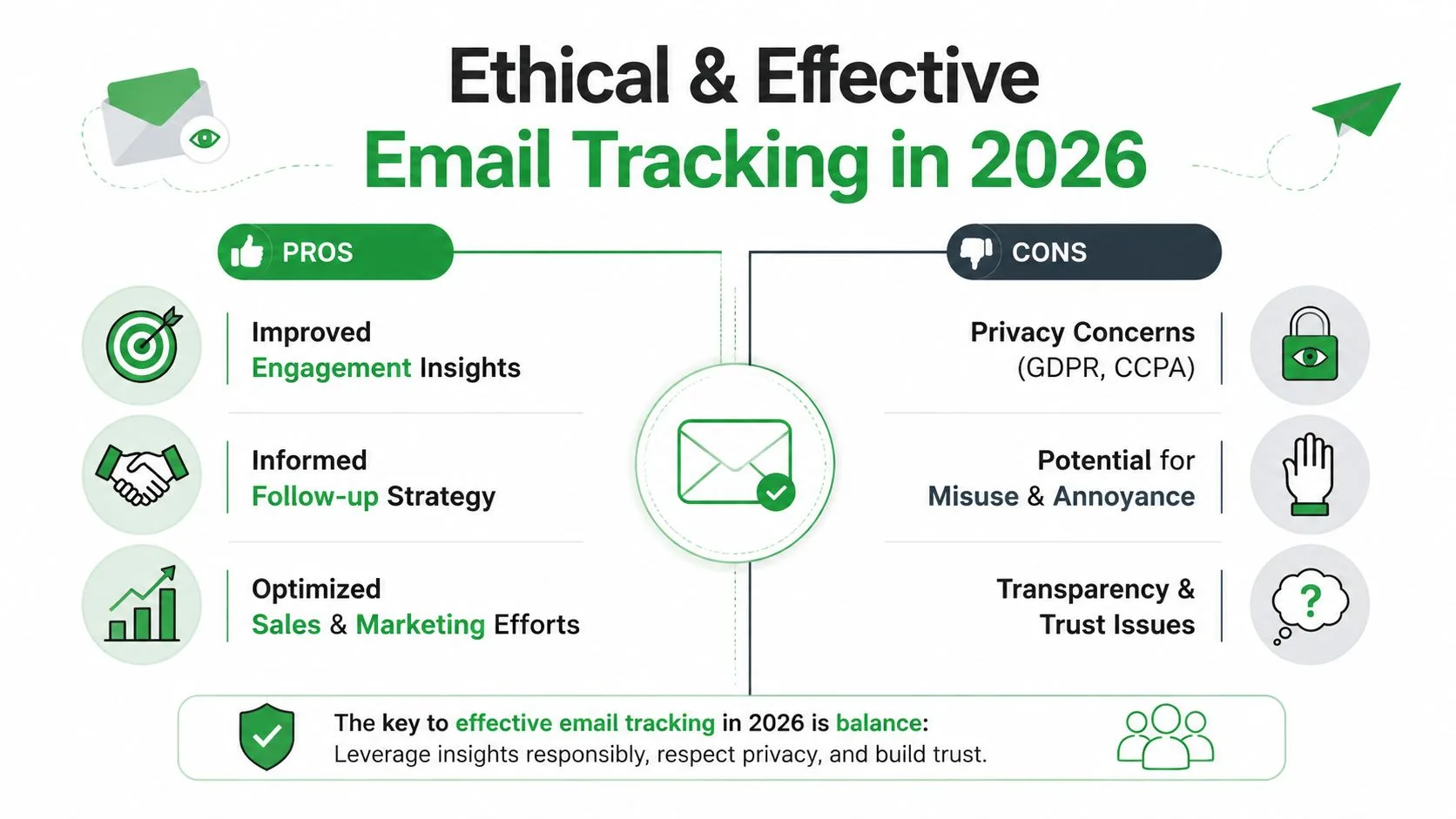
Ethical email tracking starts with intent. If you’re using tracking to improve service, timing, or communication quality, you’re on firmer ground than if you’re using it to pressure people.
It also starts with list quality. If your outreach begins with scraped or poorly sourced contacts, tracking won’t fix the underlying problem. A better starting point is understanding consent, collection, and context. For that, this piece on understanding ethical email collection is worth reading before you scale any outbound process.
Why open rates mislead people
This is the biggest shift in modern email tracking for Gmail. Apple devices account for approximately 52% of all email opens globally as of January 2026, and Apple’s Mail Privacy Protection can artificially inflate open counts. That pushes professionals away from using open rate as a primary performance metric and toward reply rates, according to Instantly’s analysis of Gmail email tracking.
In practice, that means your dashboard may show activity that looks impressive but isn’t very informative. Opens can fire because of privacy systems, preloading behavior, or other automated processes.
A few warning signs are especially common:
- Open rates that look too high: That often points to privacy interference rather than unusually compelling messaging.
- Opens that happen almost immediately: Those may come from automated processes.
- Heavy open activity with no clicks or replies: That gap should make you cautious.
What to optimize instead
Once you accept that opens are imperfect, the job gets clearer. Use open data as a rough operational signal, then judge performance using stronger outcomes.
Better metrics include:
- Replies: Did someone respond at all?
- Positive replies: Did they move the conversation forward?
- Meetings booked: Did the email help create a real next step?
- Clicks: If you’re linking to a portfolio, proposal, or booking page, clicks can be more meaningful than opens.
Don’t ask, “Did they open it?” first. Ask, “What action would count as real engagement here?”
The ethical side of day-to-day use
Tracking also needs restraint. Don’t tell a recipient that you saw them open your message. Don’t use a single open as justification for repeated follow-ups. And don’t treat every non-open as a failure if privacy settings may be masking activity.
If you want to think through the privacy side in more depth, this Mailtrack article on whether email tracking compromises ethics is a useful companion read.
Good tracking habits are boring in the best way. They make outreach calmer, more relevant, and less reactive.
Troubleshooting Common Email Tracking Issues
Most tracking problems come from one of three places. The recipient’s email app, Gmail’s security behavior, or your own expectations.
My email didn’t track
Sometimes nothing appears after sending, even when the email was delivered. One common reason is that the recipient’s client didn’t load images, which prevents the tracking pixel from firing.
Another issue is Gmail’s own filtering behavior. Gmail may automatically hide images in messages containing tracking pixels if the sender is considered unknown, showing a warning that the message might be suspicious or spam. That can stop the pixel from loading and lower reported open rates, as explained in Allegrow’s Gmail tracking overview.
If you’re doing cold outreach, that matters a lot. The message may have landed, but your tracker may not get the signal you expected.
My open data looks strange
Confusingly high activity usually doesn’t mean a recipient is obsessed with your email. It may reflect privacy systems, automated scanners, or repeat background loads.
Low activity doesn’t always mean the opposite either. On some devices and apps, the message can be seen without generating a clean open event.
A better way to read the data is:
- Treat opens as directional: Useful for timing, weak for certainty.
- Check for supporting signals: Replies and clicks are more convincing.
- Look at sender context: Warm conversations usually track more cleanly than cold outreach.
I think I’m tracking myself
Good tools are designed to avoid self-opens cluttering the data, but test carefully when you first install one. Open a tracked message from a different account and device if possible.
If you only test inside your own environment, the results can be misleading. That can make a tracker look broken when it’s filtering your own activity on purpose.
What to do when results are inconsistent
When tracking feels unreliable, simplify the setup:
- Send a plain test email to another account you control.
- Open it from a different device with images enabled.
- Check whether notifications and in-Gmail indicators match.
- Use replies and clicks as your main engagement check if open data stays noisy.
Reliable tracking isn’t about perfect surveillance. It’s about having enough signal to make better follow-up choices.
If you want a simpler way to see read receipts, open timestamps, and real-time notifications directly inside Gmail, Mail Tracker for Gmail is one option to try. It works within the Gmail interface on web and mobile, so you can keep your normal workflow and use tracking as a practical follow-up aid instead of a vanity metric.
Ready to track your emails?
Add Mail Track for Gmail from the Google Workspace Marketplace and know the moment your emails are opened. Free and unlimited.
Add to GmailMore reading
More from Guides
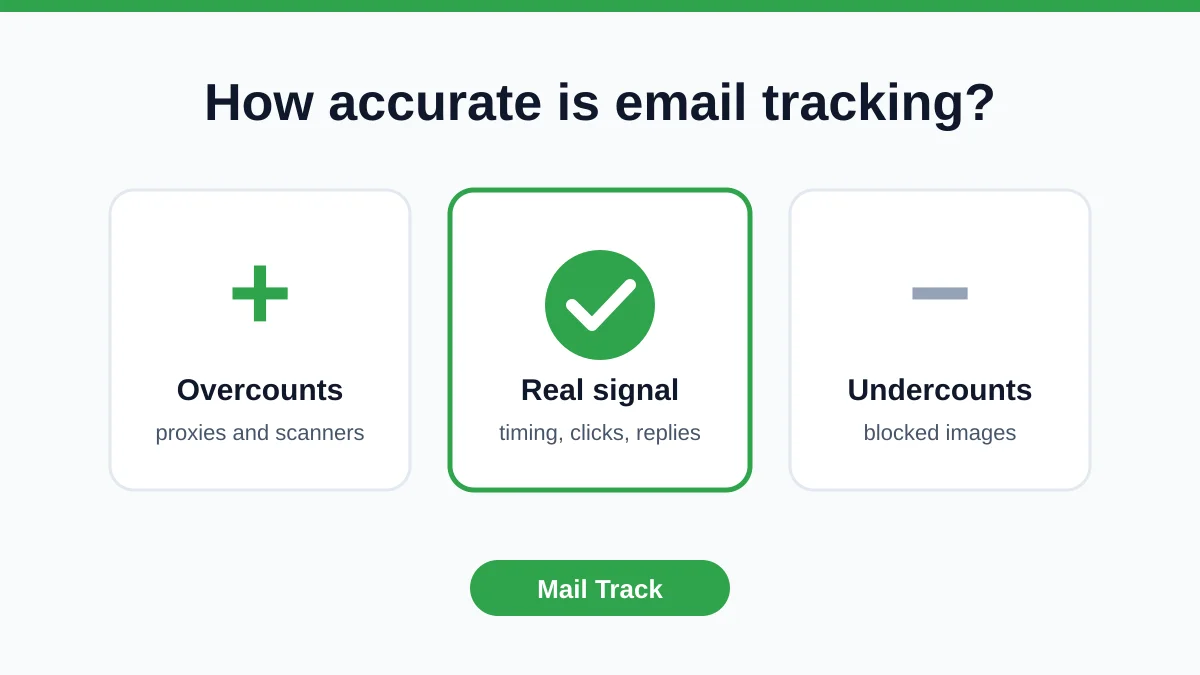
How Accurate Is Email Tracking? What Opens Really Tell You
How accurate is email tracking in Gmail? Learn why opens get overcounted or missed, how to spot false opens, and which signals to trust before you follow up.
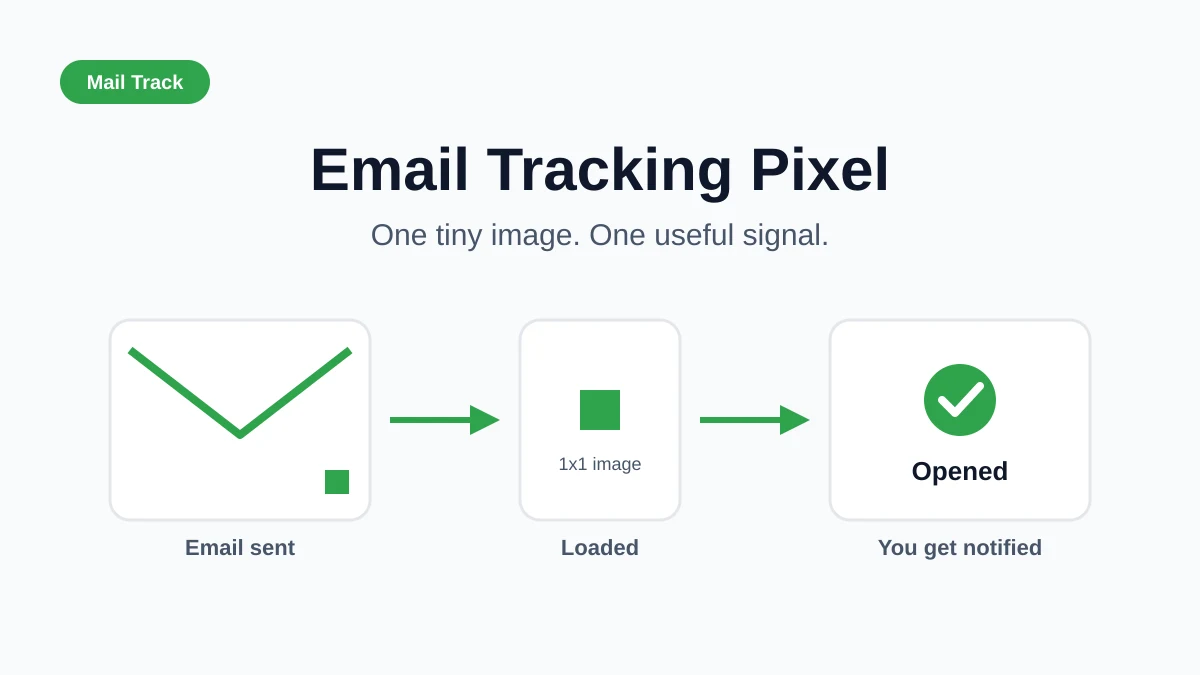
Email Tracking Pixel: How It Works, How to Spot One and Where It Falls Short
What is an email tracking pixel, how does it show an open in Gmail, how can you find one, and why Gmail and Apple Mail proxies limit what it can tell you.

7 Example Email Accept Job Offer Templates
Use these 7 example email accept job offer templates for formal, concise, and enthusiastic replies, with subject lines, clauses, and sending tips.