
Mail Merge with Attachments in Gmail (3 Pro Methods)
Learn how to run a mail merge with attachments in Gmail using Google Scripts, popular add-ons, or cloud links. A step-by-step guide for personalized outreach.
You’re staring at a spreadsheet, a Gmail draft, and a folder full of client files, and the same question keeps coming up. How do you send each person the right attachment without turning your afternoon into copy, paste, attach, send, repeat?
That’s the practical problem behind mail merge with attachments. Gmail can handle personalized text, but once attachments enter the workflow, the process shifts into a few different lanes, from DIY scripting to Marketplace add-ons to cloud-link workflows. If you’re trying to choose the right lane for your team, the clearest way to think about it is control versus convenience versus flexibility, which is exactly why Salesmotion insights on scaling outreach is a useful lens for the bigger outreach process.
Why Sending Attachments Manually Is Obsolete
Manually sending the same email with a different file to every contact feels manageable for the first few names. Then the list grows, someone gets the wrong PDF, and you’re backtracking through Sent Mail trying to figure out which file went where.
The core problem is row-by-row file matching
The primary bottleneck isn’t writing the email. It’s keeping the recipient data and the attachment data aligned so each person gets the right file. Microsoft’s support guidance makes the underlying limitation clear in the Outlook world, mail merge doesn’t natively attach a different file to each merged email, so you end up relying on add-ins, macros, or Power Automate to inject attachments after the merge runs, which is why this feature has always been an extension of the core workflow rather than part of it. That same pattern shows up in Gmail workflows too, where the practical solution is to map one file reference to one recipient record instead of trying to bolt a file onto a bulk send after the fact. Microsoft’s mail merge attachment guidance
That distinction matters because attachment-based mail merge isn’t just about speed. It affects deliverability, automation complexity, and the way you build your spreadsheet in the first place. If you’re working at any kind of volume, manual sending stops being a workaround and starts being a risk.
Three approaches solve the same job in different ways
The good news is the workflow is mature enough that you can pick the method that matches your comfort level. The three main paths are:
- DIY script, which gives you the most control if you’re comfortable in Google Sheets and Apps Script.
- Off-the-shelf add-on, which gives you a guided interface and less setup friction.
- Cloud links, which replace direct attachments when the file is too large or when link-based delivery is the better fit.
Google’s ecosystem has also made the attachment workflow more structured over time, with tools built around recipient-by-recipient file mapping, scheduled sends, and tracking. In Gmail-focused guidance, the split is simple, if one file goes to everyone, attach it once, but if different files are needed, the merge needs a separate field per recipient. Gmail add-on workflow overview
Practical rule: if you can’t describe the attachment logic in one sentence, your spreadsheet probably isn’t ready yet.
For teams looking at broader outbound automation, it also helps to compare email workflows with other channels. A useful parallel is implementing Sendvo direct mail, because the same principle shows up there, too, one record, one personalized output, one delivery path.
The DIY Method Using Google Apps Script
If you want total control and don’t mind a little setup work, the Google Apps Script route is the cleanest native-ish way to run a mail merge with attachments from Google Sheets. The pattern is straightforward, your sheet holds the recipient data, Drive holds the files, and the script ties the two together before Gmail sends each message.

Build the Sheet first
Start with one row per recipient. That row should include at least the email address, any personalization fields you want in the body, and a field that points to the right file. In Google Workspace workflows, the common setup is Google Sheets plus Google Drive links rather than a native Gmail attachment-merge feature, with each row carrying a unique Drive link for that person’s file. Google Workspace attachment workflow
Keep the file reference explicit. A link, a file ID, or a path can work, but it has to be consistent across the whole table. If one row points to a folder instead of a file, or if a link was copied incompletely, the merge script won’t guess what you meant.
Use Drive as the attachment source
Upload every personalized file into a dedicated Google Drive folder. Name files clearly, because the naming convention becomes your safety net when you’re checking rows against documents. The operational rule is simple, the merge engine reads the file reference in that row and attaches that specific file to that recipient’s message.
That’s also why script-based merges are unforgiving in a useful way. They don’t hide problems, they surface them early. If a file path is wrong, the merge fails visibly instead of sending the wrong document to a client unnoticed.
Paste and run a simple script
Open Extensions > Apps Script in the Sheet and wire up a script that does three things, reads the spreadsheet row, resolves the Drive file, and sends the email with the attachment. The exact code varies by your column names, but the logic stays the same.
For the people who maintain recurring attachment campaigns, that logic is the primary value. Once the structure is set, monthly reports, onboarding packs, or client deliverables become repeatable instead of hand-built each time. If you’re thinking about broader automated delivery beyond email, the same row-based logic shows up in time-saving PDF automation techniques, which is a useful mental model for document-heavy workflows.
Watch the permissions: if the script can’t access the file in Drive, the send fails. Folder discipline matters more than fancy code.
The drawback is obvious. This method is powerful, but it expects you to be comfortable debugging scripts, matching column names, and checking file access. If that sounds fine, it’s the most flexible option. If not, an add-on will get you live faster.
The Easy Route with Gmail Add-ons
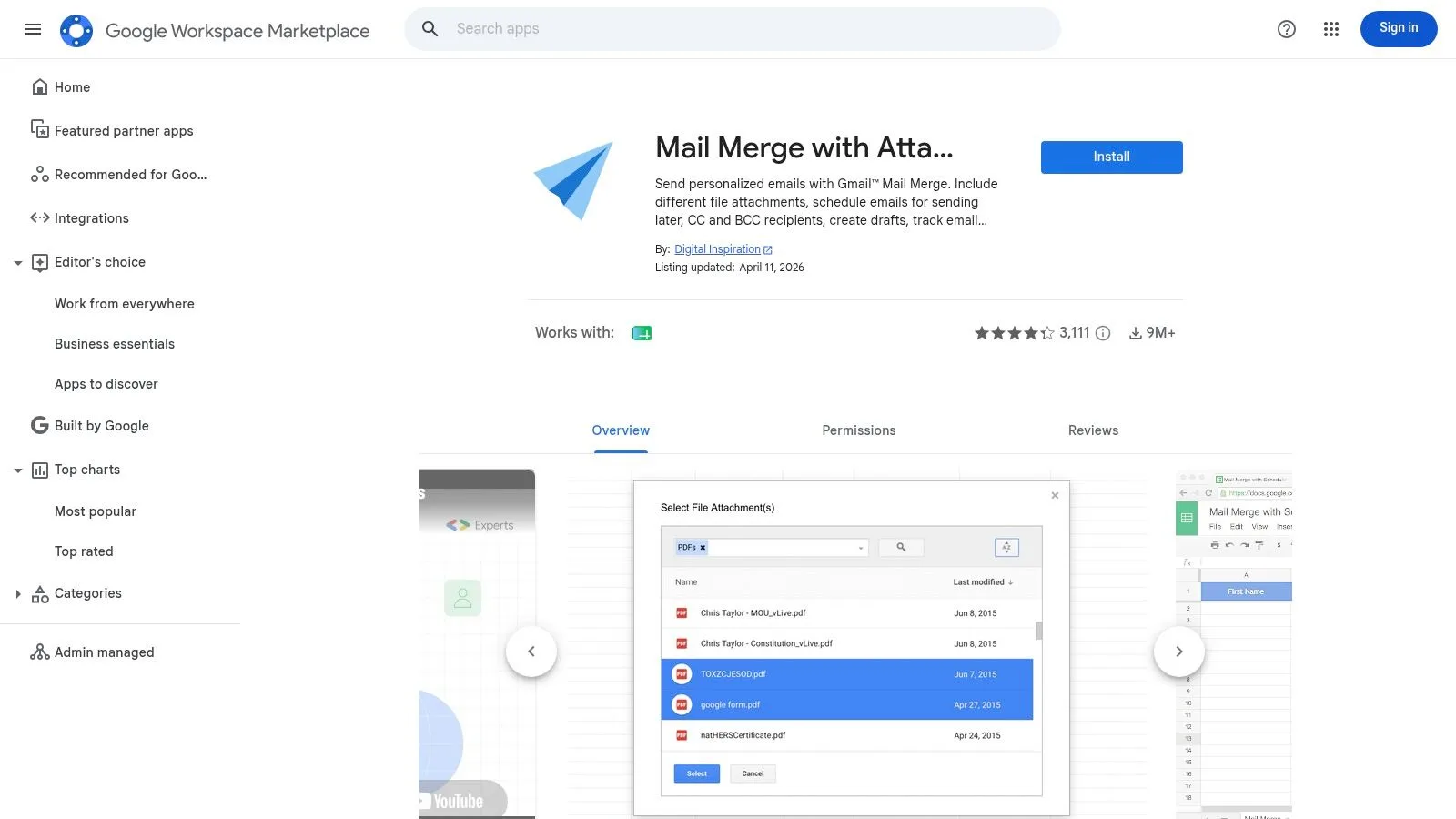
If you’d rather avoid code, Gmail add-ons are the fastest way to turn a spreadsheet into a working attachment merge. The general flow is familiar, connect the add-on to Google Sheets, map the columns, verify the attachment field, and send through a guided interface instead of writing a script.
What the add-on workflow usually looks like
A solid Gmail add-on follows the same recipient-by-recipient mapping model described in Google Workspace Marketplace listings. You prepare one row per recipient, add the email address, include the personalization fields, and populate an attachment column with the right file reference for that person. Add-ons in this category also commonly support different files per recipient, scheduled sending, and email-open tracking, which turns a basic bulk send into something you can measure. Gmail add-on capabilities
That matters in day-to-day work. Sales teams need timing, recruiters need consistency, and client-facing teams need confidence that the right document went out to the right contact. A guided interface removes a lot of the failure points that show up in scripts, especially when the person running the send isn’t technical.
How to evaluate an add-on before you install it
Not every add-on deserves a place in your workflow. A decent evaluation pass should focus on four things.
- Attachment mapping: can it handle different files for different people, or only the same file for everyone?
- Scheduling controls: can you queue sends instead of blasting everything at once?
- Tracking options: does it surface opens or reply-related signals inside the workflow?
- Permission model: does it need Drive access, Gmail access, or both?
One useful benchmark is whether the add-on keeps the work inside Gmail and Sheets without forcing you into a second dashboard for every action. The best tools feel like an extension of your existing workflow, not a new platform you have to train around.
Use the marketplace carefully
The Google Workspace Marketplace makes installation easy, but ease of installation isn’t the same as fit. Look at how the add-on handles drafts, whether it supports attachment columns cleanly, and whether it gives you enough visibility before send. If your team values quick deployment more than custom logic, this route usually wins.
For a broader sense of how these tools fit into a day’s work, the internal comparison in email productivity tools is useful context. It helps separate simple productivity boosters from tools that change the workflow.
The downside is control. You get speed and simplicity, but you also inherit the vendor’s opinions about how the workflow should work. If the add-on doesn’t support your attachment logic cleanly, you’ll hit a ceiling sooner than you would with a script.
Alternative Workflows Cloud Links and Zipping
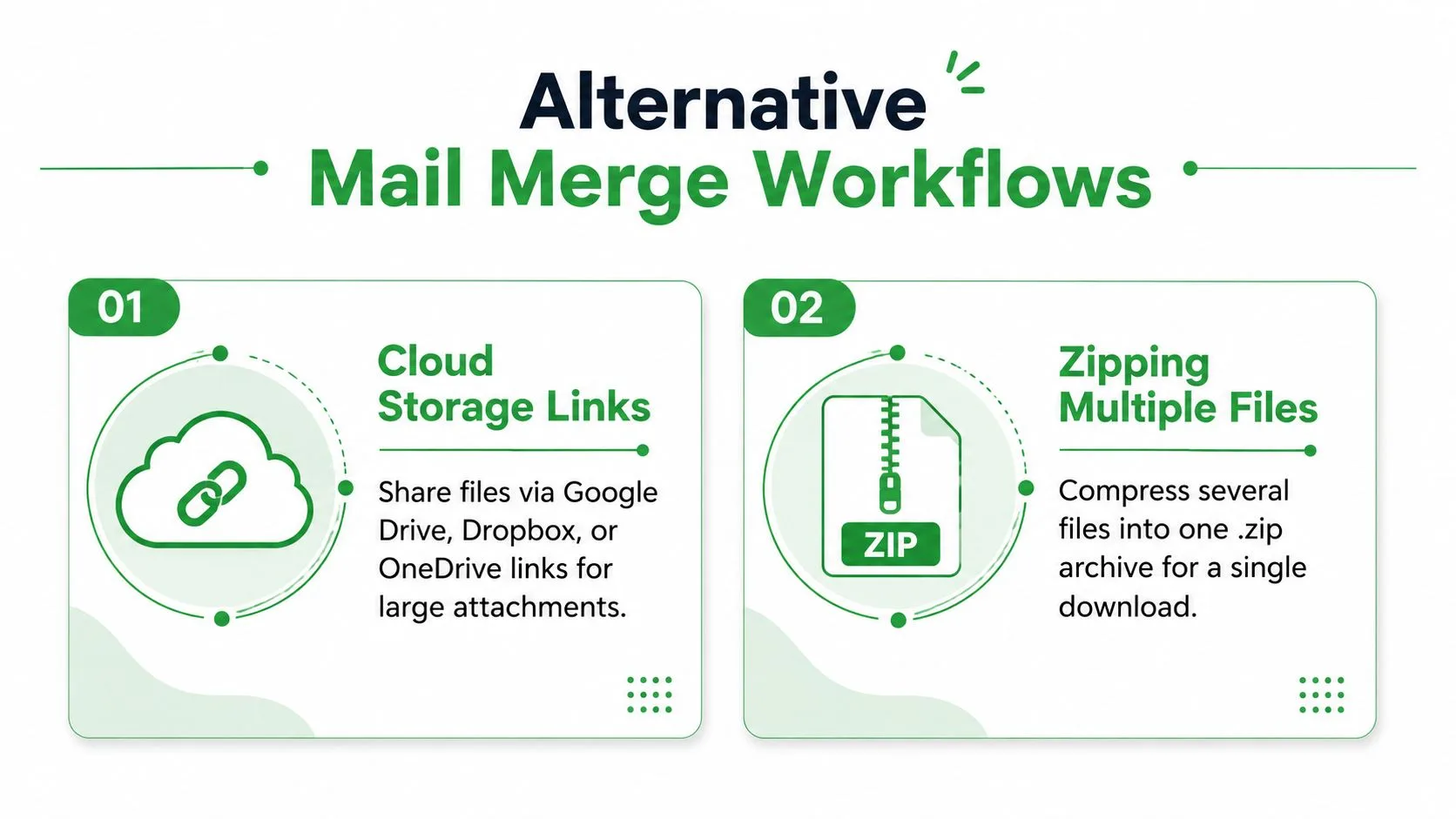
Sometimes the best answer isn’t a direct attachment at all. If the file is large, if you need more flexibility around access, or if you’re sending multiple documents to the same person, cloud links and zipped files can be the smarter play.
Cloud links are better when the file should not travel in the email itself
Google Workspace guidance and Gmail-oriented workflow notes point to a simple pattern, use Google Sheets plus Drive links instead of direct attachments when the recipient should click through to a file. Each row gets a unique link to the exact document for that person. MailGenius also notes that the file reference must open the correct file before you send, which is the right test to run if you’re using Drive links for personalized delivery. Drive-link workflow for attachments
This approach is strong for large files and for messages where you’d rather not embed the document in the sent email. It also gives you a cleaner handoff if the file needs to be updated later, because the email can point to the current version rather than freezing a copy in the message.
Zipped folders fit multi-file delivery
When one person needs several files, a .zip archive is often the cleanest answer. Instead of trying to attach separate files one by one, you package the set into one file and send that single archive. That keeps the merge simpler and reduces the chance that one of the files gets dropped in transit.
Use zips when the recipient needs a bundle, not when you’re trying to hide a workflow problem.
The trade-off is usability. A zip works well for internal teams, technical audiences, or clients who know what to do with an archive. It’s less elegant for a broad audience that expects a simple document. If you’re sending certificates, reports, or account packs, the better choice depends on whether the receiver needs immediate viewing or organized file delivery.
Pick based on the constraint you care about most
Cloud links make sense when file size, version control, or access tracking matter most. Zips make sense when the recipient needs multiple files in one package and you want to keep the merge logic simple. Both options are stronger than forcing a direct attachment when the file set doesn’t fit the workflow.
For teams that send in volume, link-based workflows also map neatly to broader email cadence planning. The related overview in how to send mass emails is helpful if you’re deciding how attachment delivery fits into your larger outreach rhythm.
Best Practices for a Flawless Merge
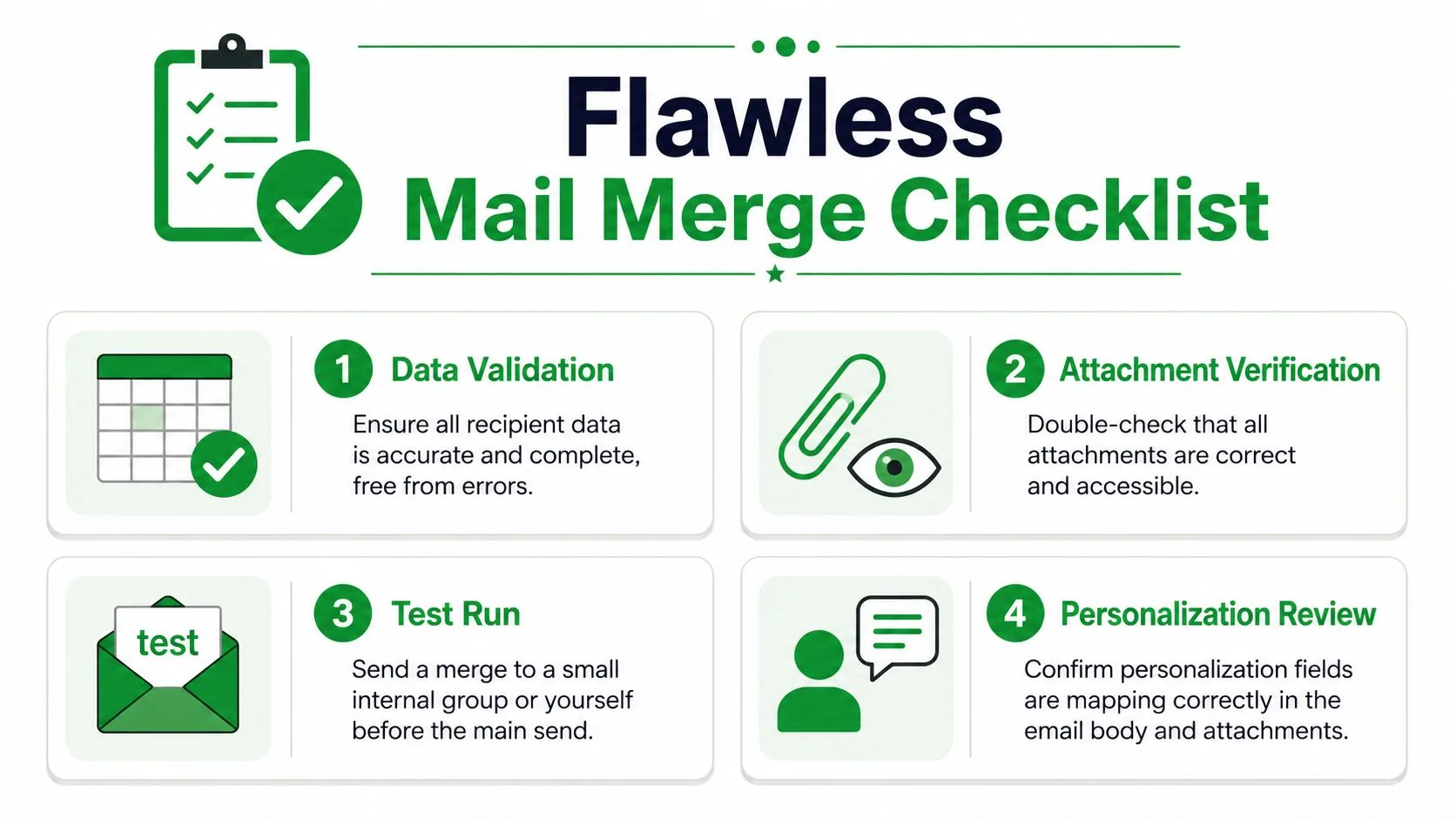
A clean send starts before you press send. The spreadsheet has to be accurate, the file references need to resolve, and the message should be checked the same way you would review a client-facing proposal before it leaves your desk.
Treat the spreadsheet like source code
Every row needs to be complete, consistent, and easy to audit. Bad email addresses, mismatched filenames, and broken Drive links are the usual failure points because the merge engine only follows what the row tells it. If the data is messy, the send will be messy too.
That check matters even more with confidential files. A wrong attachment in the wrong inbox is a data handling problem, not a formatting glitch. Before you send, verify the file reference against the recipient and confirm that the permissions match the content. For teams handling sensitive material, the privacy guidance in GDPR email compliance is worth aligning with internal policy before you scale.
Send one test message before the batch
A test send is required. Run one message through the exact same merge logic you plan to use for the full batch, so you can catch row-to-file mapping errors before they affect the rest of the campaign. Test-before-send guidance
The test should include the same fields, the same attachment path, and the same formatting as the live send. If the name renders correctly, the file lands in the right place, and the layout holds up in the inbox, you have a workable setup. If any of that breaks, fix the sheet or the script before you send again. A good test also tells you whether your attachment workflow is worth keeping, or whether you should switch to time-saving PDF automation techniques for a cleaner handoff.
Keep deliverability and privacy in view
Attachments can draw extra scrutiny from spam filters, so keep the file type sensible and your sending pattern measured. Larger files, repeated sends, and inconsistent recipient lists all make the campaign look less trustworthy. If you rely on recurring outreach or client delivery, plan the attachment flow with inbox placement in mind.
Use tracking after the send, not as part of the merge itself. Once messages go out, inbox-level tracking shows opens and gives you a read on who is engaging, which helps you time follow-up without guessing. That feedback loop is where Mail Tracker for Gmail adds value in practice, because it shows whether the message reached the audience and how they interacted with it.
Common Questions About Mail Merging with Attachments
Can Gmail send a different attachment to each recipient?
Not natively. Gmail’s built-in merge workflow is limited, so different files per recipient require an add-on, a script, or a link-based workflow. That’s why the row-by-row file mapping model is the standard workaround.
What should I do if the attachments keep going to the wrong people?
Check the row alignment first. The file reference should sit beside the exact recipient it belongs to, and the test message should use the same row structure as the full batch. If the mapping is off, fix the spreadsheet before you send again.
Can I use PDFs, Word docs, and images in the same merge?
Yes, if your chosen tool supports them and the file references are set correctly. The important part isn’t the file type itself, it’s whether the merge engine can resolve each file reference and attach the correct document to the correct record.
Is a cloud link better than a direct attachment?
It depends on the job. Use a cloud link when the file is large, when you want version flexibility, or when link access makes more sense than embedding the file in the email. Use a direct attachment when the recipient expects the file right in the message and the file size is manageable.
If you want a clearer view of who opens your merged emails after they go out, Mail Tracker for Gmail gives you real-time open notifications, timestamps, and read receipts right inside Gmail. It’s a practical next step once your mail merge with attachments is live, because the send is only useful if you know what happened after delivery.
Ready to track your emails?
Add Mail Track for Gmail from the Google Workspace Marketplace and know the moment your emails are opened. Free and unlimited.
Add to GmailMore reading
More from Guides
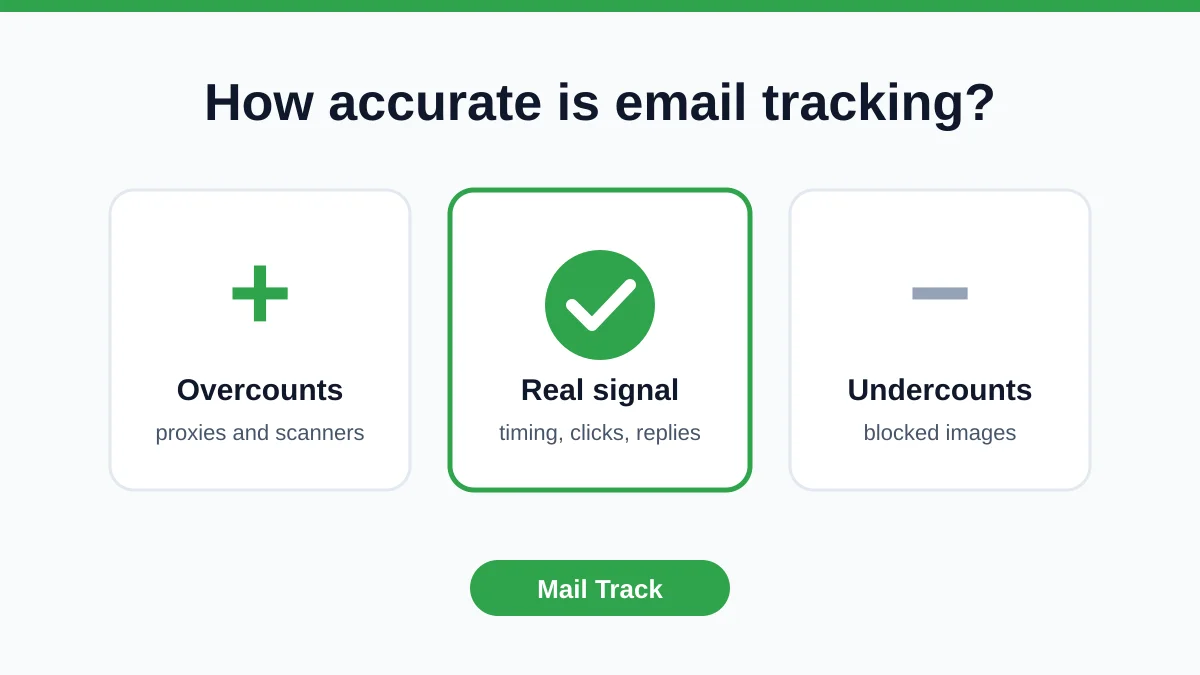
How Accurate Is Email Tracking? What Opens Really Tell You
How accurate is email tracking in Gmail? Learn why opens get overcounted or missed, how to spot false opens, and which signals to trust before you follow up.
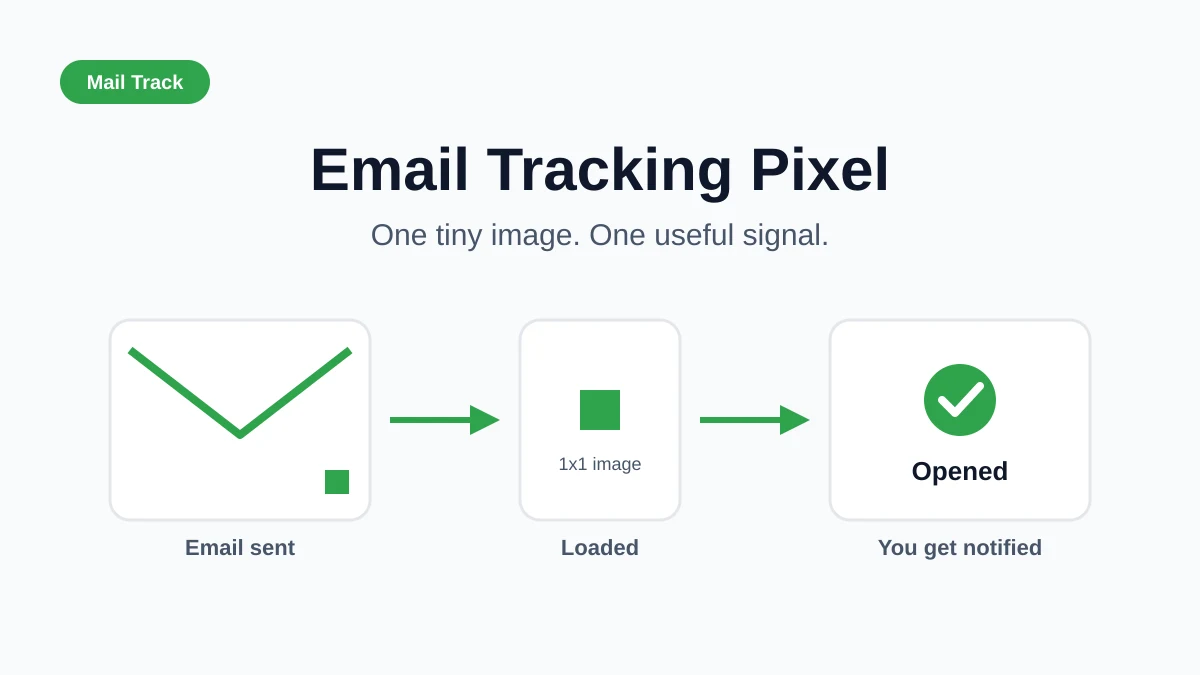
Email Tracking Pixel: How It Works, How to Spot One and Where It Falls Short
What is an email tracking pixel, how does it show an open in Gmail, how can you find one, and why Gmail and Apple Mail proxies limit what it can tell you.

7 Example Email Accept Job Offer Templates
Use these 7 example email accept job offer templates for formal, concise, and enthusiastic replies, with subject lines, clauses, and sending tips.