
How to Get Gmail Updates on Desktop with Real-Time Tracking
Set up Gmail updates on desktop with browser notifications, real-time open alerts, and troubleshooting tips for sales and outreach teams.
You’re halfway through drafting a follow-up when the prospect opens your proposal. Gmail’s inbox tab shows a new activity badge, but you don’t notice it until much later. By then, the useful moment has passed. For outreach teams, Gmail updates on desktop matter because they turn a passive inbox into a more immediate signal system. Native desktop alerts tell you that a message arrived, while a tracking tool can show when a recipient’s email client loaded the message. The practical challenge is knowing which signal deserves action and which one is only noise.
Why Gmail Desktop Updates Change the Way You Time Follow-Ups
A prospect opens your proposal at 10:42 a.m. You’re still working in Gmail, but the message sits in another tab. A desktop notification or a real-time open alert can bring that activity into view while the recipient is still thinking about your offer. That doesn’t guarantee a reply, but it gives you a better chance to send a relevant follow-up while the conversation remains active.
The difference between alert types is important:
- Inbox badges are easy to miss when you’re moving between threads.
- Browser notifications appear outside Gmail and can interrupt other work.
- Operating system toasts are more visible, but Focus or Do Not Disturb modes can suppress them.
- Open alerts show activity on a tracked message, although they’re probabilistic rather than definitive proof of reading.
For a rep juggling dozens of active threads, the ranking matters. You don’t need every newsletter, automated receipt, and internal update appearing beside a proposal alert. You need the right event to surface at the right time.
A practical follow-up rhythm
Use the open timestamp as a prompt, not an automatic command to call. A first alert can justify a thoughtful follow-up within 30 minutes if the message is time-sensitive. If the prospect doesn’t respond, a second touch around 2 hours can add context rather than just asking whether they saw the email. At the end of the day, close the loop with a concise next step or a scheduling option.
Practical rule: Treat the alert as a reason to review the thread, not as permission to pressure the recipient.
A 47-minute reply window can be enough to revive a stalled demo when the follow-up answers the question the prospect was likely considering. That scenario isn’t a promise of a particular outcome. It illustrates the operational advantage of knowing when to revisit a thread instead of relying on volume alone.
Google’s continued attention to the web product makes this relevant at broad scale. Google reported 1 billion monthly active Gmail users in February 2016 and 1.5 billion users in October 2018, while independent trackers still place Gmail at about 1.8 billion active users worldwide in 2024 to 2026, as summarized by Gmail usage statistics. Desktop Gmail also remains a distinct administrative surface, with Google Workspace reporting separating “Gmail (Web) - last used time” from IMAP and POP activity, according to Google Workspace Gmail statistics.
Turning On Native Gmail Desktop Notifications
Start inside Gmail rather than your browser. Select the gear icon, choose See all settings, open the General tab, and scroll to Desktop notifications. Gmail normally offers New mail notifications on, Important mail notifications on, or Mail notifications off. For outreach, Important mail notifications can reduce noise, but New mail notifications may be more useful while you’re testing the setup.
Some accounts place the same controls under the newer interface’s customization and notification preferences area. If the familiar General-tab setting doesn’t appear where expected, open Gmail’s Customize controls and check Notification preferences. The exact surface can vary with account configuration and rollout status.
Give the browser permission to speak
Gmail’s own setting isn’t enough. The browser must also be allowed to send notifications for mail.google.com.
- Chrome: Open the browser menu, choose Settings, Privacy and security, Site settings, Notifications, then find
mail.google.comand set notifications to Allow. - Firefox: Open Settings, Privacy & Security, Permissions, Notifications, Settings, then allow Gmail’s site entry.
- Edge: Open Settings, Cookies and site permissions, Notifications, and allow
mail.google.com.
If Gmail asks for permission after you change its internal setting, accept the prompt. A blocked site permission can make Gmail appear correctly configured while the browser discards every alert.
Check the operating system
Windows users should open Settings, System, Notifications, find the browser running Gmail, and enable notifications. Review Focus assist or the current Focus settings, because a scheduled focus period can suppress desktop toasts even when browser permissions are correct.
On macOS, open System Settings, Notifications, select the browser, and enable Allow notifications. Check Do Not Disturb and other Focus modes under System Settings, Focus. If alerts arrive only after you leave your desk, an OS-level focus rule is a likely cause.
For a quick confirmation, send a test message from a second account. After changing a browser permission, reload Gmail, wait about 30 seconds, and send the test again. If nothing appears, close and reopen the Gmail tab before troubleshooting extensions or account settings. The guide to enabling Gmail push notifications can help when you need a second check on the permission chain.
Adding Mail Tracker for Gmail for Real-Time Open Alerts
Native Gmail notifications tell you that mail arrived. They don’t tell you whether a recipient’s email client loaded a tracked message. Mail Tracker for Gmail adds message-level open indicators inside Gmail, so you can review activity without moving to a separate dashboard.
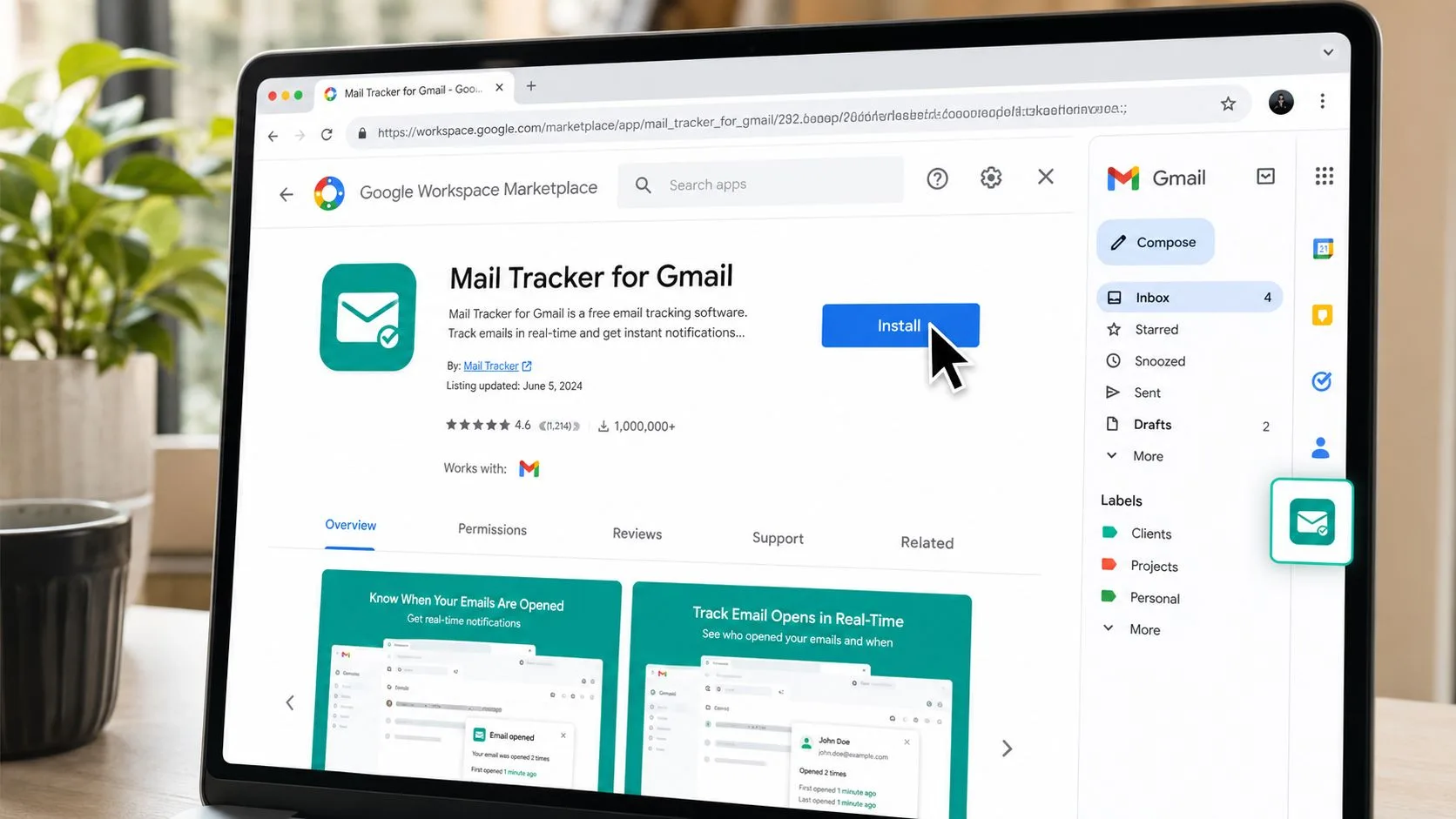
Install the extension through the Google Workspace Marketplace, then approve the requested Gmail access for reading and composing messages. Workspace administrators may need to approve the application before users can complete installation. Once it’s active, pin its icon or side panel entry so it remains visible in Gmail’s newer layout.
Read the indicators carefully
A gray check indicates that the tracking element was sent with the message. A colored double-check indicates that the tracking pixel loaded. Depending on the message view, the side panel can show an open count, timestamp, and city-level IP information. Those details can help you decide when to review a thread, but they don’t establish that a person deliberately read every word.
Open a thread and confirm that tracking is enabled before sending. If the tool adds a tracking footer or link-tracking element you don’t want in a particular message, use its tracking controls to turn that option off. Teams that need downstream reporting can use a Sheets export where their Workspace plan supports it, then record meaningful actions alongside the open event.
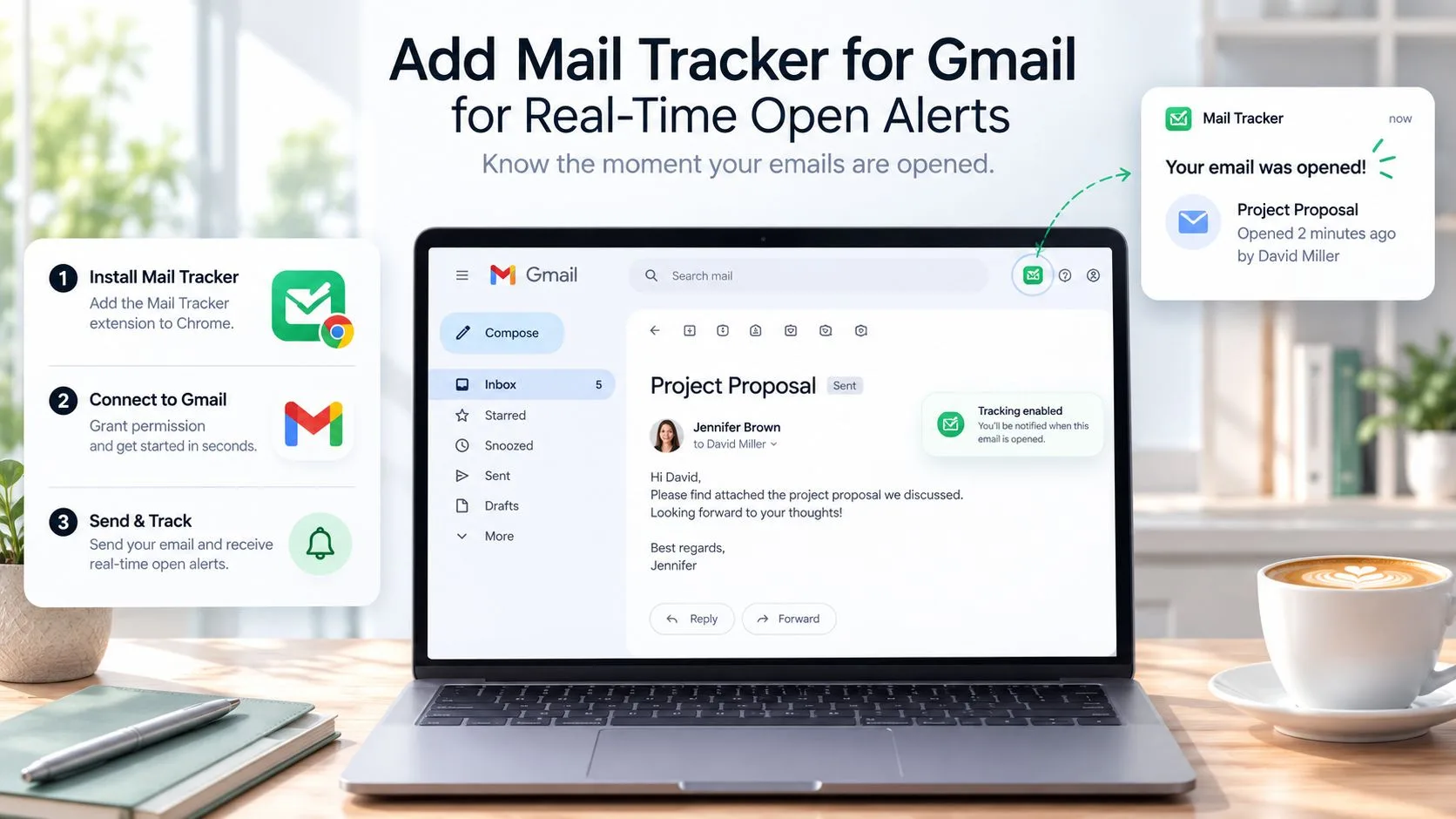
The product’s free tier has a cap of 200 tracked sends per month, while higher-volume sales teams can use a paid tier, as described on the free email tracker for Gmail page. Confirm the workflow with a personal account: send a tracked email, open it over mobile data, and watch for the indicator to change. A result in under 10 seconds confirms that the basic path works in that test environment, not that every recipient will produce the same timing.
Use the double-check to prioritize inspection. Don’t use it as a read receipt.
Why Open Counts Lie and What to Track Instead
An open alert fires when an HTML email loads a remote tracking pixel. That mechanism is useful, but it’s fragile. Plain-text messages have no pixel to load, Gmail can clip messages above 102 KB, and recipients can block images, as documented in Gmail open-tracking accuracy guidance.
Image caching and preloading create false positives. Corporate security systems can open messages while scanning them, and privacy features can request images before the recipient engages. Independent analysis places Gmail and Google Workspace false opens around 15% to 20%, which is why raw open totals shouldn’t determine whether you call, escalate, or declare interest, according to the analysis of email open-rate reliability.
False negatives happen too. A recipient can read a message while images remain blocked, or Gmail can handle the message in a way that prevents the pixel request. Clipping is especially relevant when a long email is opened in a mobile view and the tracking element never loads.
Compare the signal by client
| Email Client | Pixel Loads On Open? | Common Distortion | Better Signal To Track |
|---|---|---|---|
| Gmail web | Sometimes | Caching, preloading, image policies, clipping | Reply, click, or booked meeting |
| Gmail mobile | Sometimes | Image handling and limited content loading | Reply or link click |
| Outlook | Sometimes | Security scans and image blocking | Reply, click, or thread continuation |
A click is usually a stronger action signal than an open because the recipient, or an automated system acting on the message, followed a link. A reply is stronger still. Track the time between delivery and reply, whether the response stays in the existing thread, and whether the recipient takes a concrete next step. Forward events can add context, but they still need human interpretation.
Use open data as a weak top-of-funnel indicator. Segment recipients by domain, compare open-to-reply behavior, and investigate sudden clusters of near-immediate opens. The email open-rate feature overview is useful for understanding what the tool records, but the decision should rest on second-order behavior.
Building a Focused Alert Setup That Survives Notification Fatigue
Turning on every alert creates a slot machine beside your keyboard. A new message, automated receipt, mailing-list update, and low-value notification all compete for the same attention. More pings don’t automatically produce faster replies. They often make it harder to recognize the one thread that deserves immediate review.
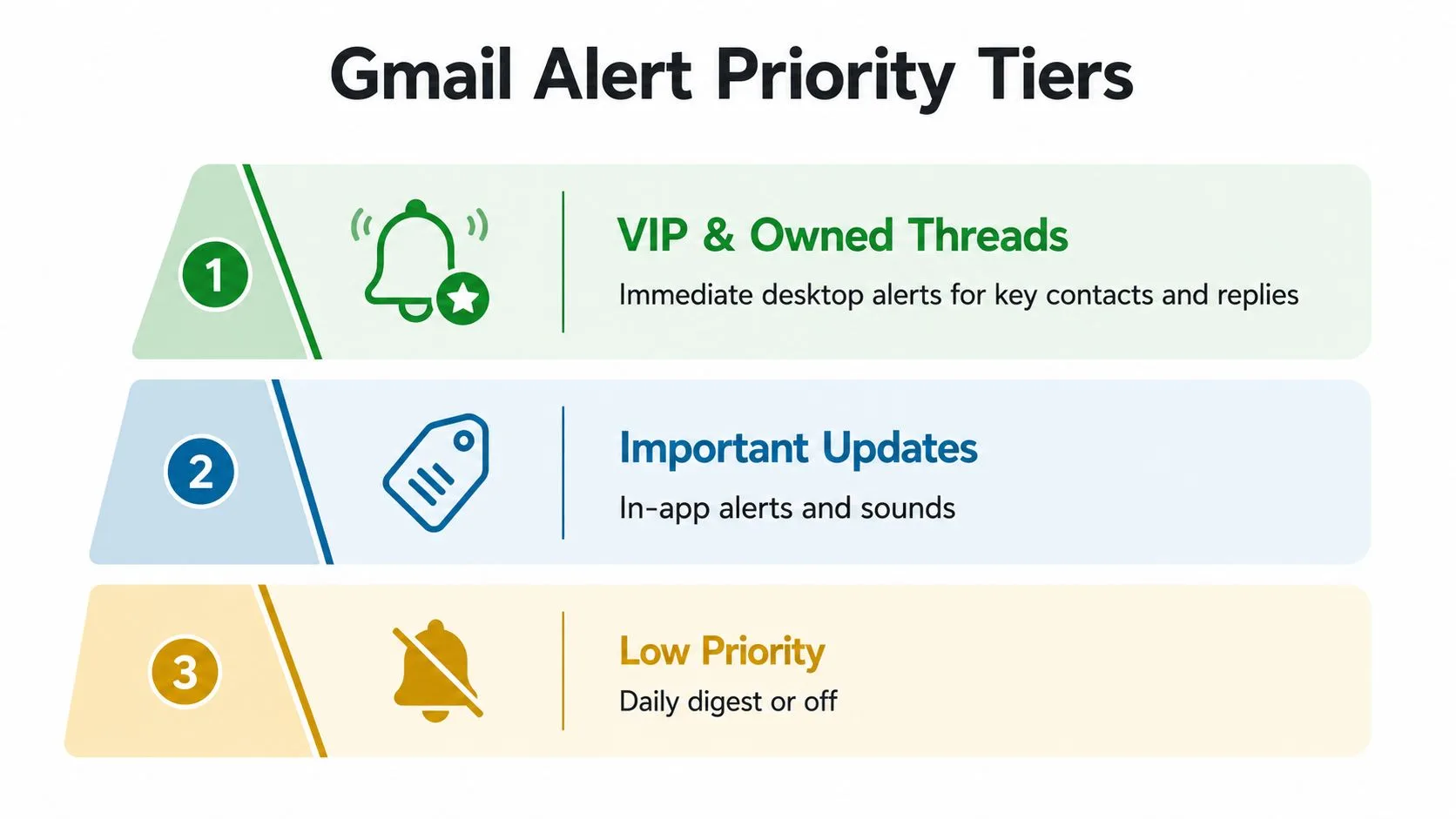
Build three levels instead:
- VIP and owned threads: Use immediate desktop notifications for key contacts and replies to conversations you own.
- Important updates: Keep these visible through Gmail labels, in-app alerts, or sounds rather than full-screen interruptions.
- Low priority: Mute newsletters, listserv traffic, and automated messages, then review them in batches.
Filter the predictable noise
Create a Gmail filter from the search bar using terms such as Listserv, unsubscribe, or no-reply. Select the actions that keep those messages out of the active inbox, such as skipping the inbox, applying a low-priority label, or muting matching conversations. Test the filter against a few real messages before applying it broadly. A filter that catches a customer receipt can hide a useful operational message.
Mail Tracker pop-ups should also start muted by default. Enable them only for selected threads, labels, or high-value contacts where a fresh activity signal changes your next action. That keeps a hot prospect visible without turning every tracked send into an interruption.
Batch follow-ups around clusters of activity, not every individual ping.
A 90-minute outreach block can give you enough uninterrupted time to draft useful responses, review linked documents, and update your CRM. Open timestamps can help you identify when several threads deserve attention, but they shouldn’t dictate every movement during the day. The point of focused alerts is to protect judgment, not to eliminate it.
Fixing Common Gmail Desktop Notification Problems
Most broken desktop alerts come from a short list of permission and policy conflicts. Check them in order, because changing the tracker before confirming Gmail’s own notification path often creates unnecessary confusion.
Browser permissions come first
In Chrome, open Settings, Privacy and security, Site settings, Notifications, then inspect the mail.google.com entry. In Firefox, use Settings, Privacy & Security, Permissions, Notifications, Settings. In Edge, go to Settings, Cookies and site permissions, Notifications. Remove a stale blocked entry only when you’re ready to reload Gmail and approve the permission again.
Password changes, browser profile synchronization, or managed browser policies can reset a site permission. Send a test message after each change. If the test works in a fresh browser profile but not your usual one, the problem is probably profile-level rather than Gmail itself.
Check the system’s quiet modes
Windows users should inspect Settings, System, Notifications, then review Focus assist or current Focus rules. macOS users should open System Settings, Notifications, select the browser, and review System Settings, Focus for Do Not Disturb schedules. A green or enabled Gmail setting can’t override an operating system that’s deliberately suppressing alerts.
Verify tracking access
Ad blockers and corporate proxies can strip tracking pixels. If your organization permits it, allowlist the tracking host used by your deployment, such as track.gmass.co or mailtrack.io, and confirm that the extension has the required Gmail host permissions. Send a short HTML test to a personal account, open it with images enabled, and check whether the event appears.
Zero opens can mean blocked pixels, not zero attention.
If the Workspace Marketplace install stalls, ask the administrator to review the organization’s application allowlist. Managed accounts may prevent installation, restrict Gmail scopes, or require an admin approval workflow. The fastest verification is to test the same installation path with an account that isn’t managed, then give the administrator the exact error shown by the Marketplace.
Putting It All Together for Outreach and Sales
A reliable desktop routine gives each alert a job. Start with Gmail open in a pinned Chrome profile, confirm that browser and operating system notifications are active, and send a tracked test message when you change the setup. Keep native Gmail alerts for incoming work and use tracker events to decide which sent threads deserve review.
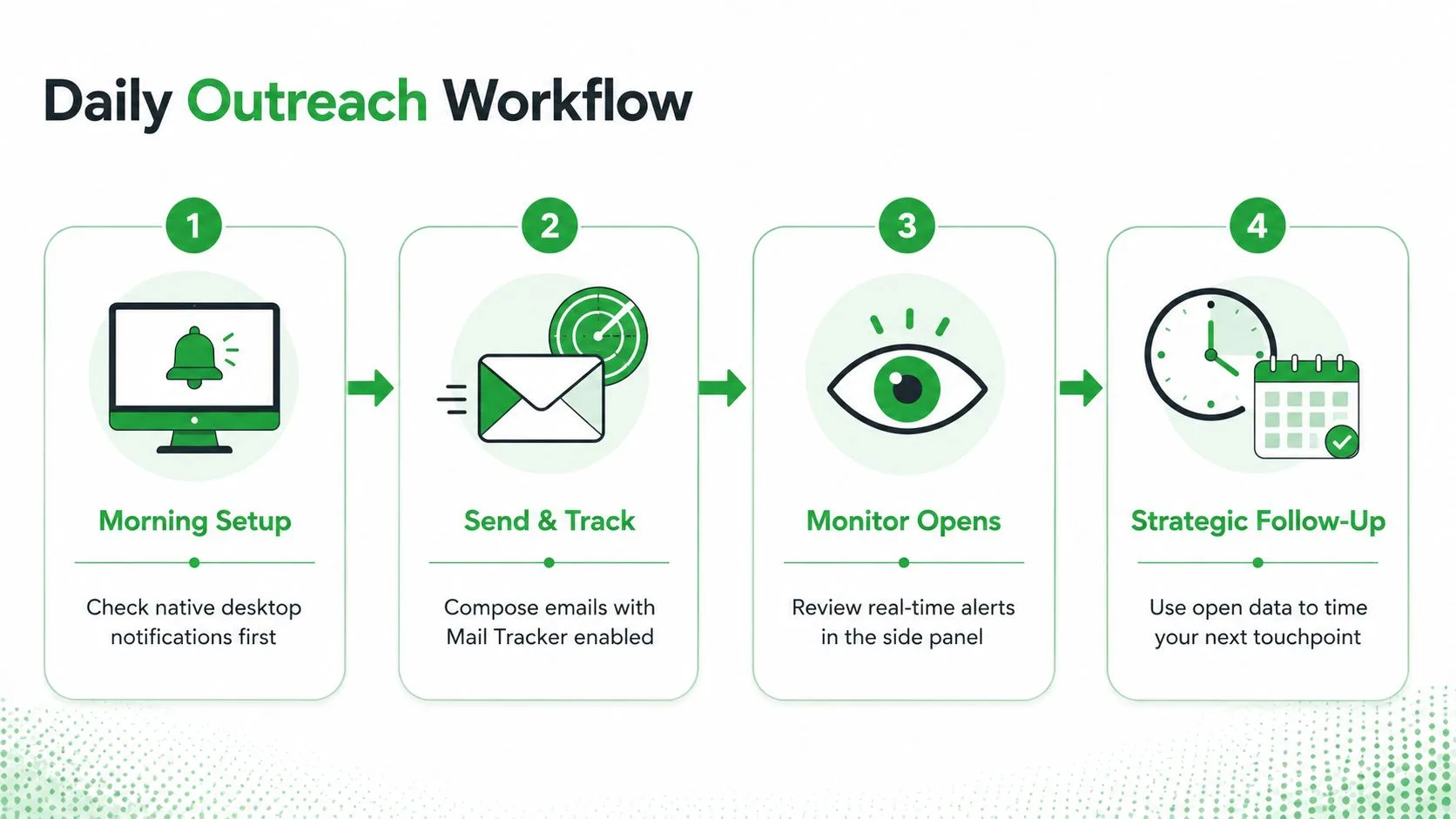
A repeatable daily sequence
- Morning setup: Check native Gmail notifications first, then scan VIP labels and replies to owned threads.
- Send and track: Compose outreach with tracking enabled only where an open signal will influence the next step.
- Monitor activity: Review the side panel and timestamps during planned follow-up blocks instead of reacting to every ping.
- Follow up strategically: Match the next message to the recipient’s behavior, the original offer, and the age of the thread.
A first open within an hour can prompt a same-day bump if you have a useful addition. A second open across two days can justify a value-add follow-up. Silence after 48 hours can move the thread into a breakup sequence, provided the message remains appropriate and your team’s normal cadence supports it. Keep reply rates and actual next steps in the CRM, not just open counts.
For the writing itself, a resource such as Pretty Progress email templates can help you shape deadline reminders and follow-ups without sending repetitive “just checking in” notes. On Friday, prune noisy senders from desktop alerts, archive dormant threads, and reset your tracking columns for the next sprint. Google Workspace release notes also show that Gmail changes can roll out gradually, with Rapid and Scheduled Release domains receiving visibility over up to 15 days from 2026-08-18, so a feature appearing for one account may not yet be available to another, as noted in the Workspace release updates.
Mail Tracker for Gmail adds read receipts, open timestamps, open counts, and real-time notifications inside Gmail so you can connect desktop activity with a disciplined follow-up process. Visit Mail Tracker for Gmail to test a tracking workflow that keeps alerts in the Gmail interface and helps you weigh meaningful engagement more carefully.
Ready to track your emails?
Add Mail Track for Gmail from the Google Workspace Marketplace and know the moment your emails are opened. Free and unlimited.
Add to GmailMore reading
More from Tutorials
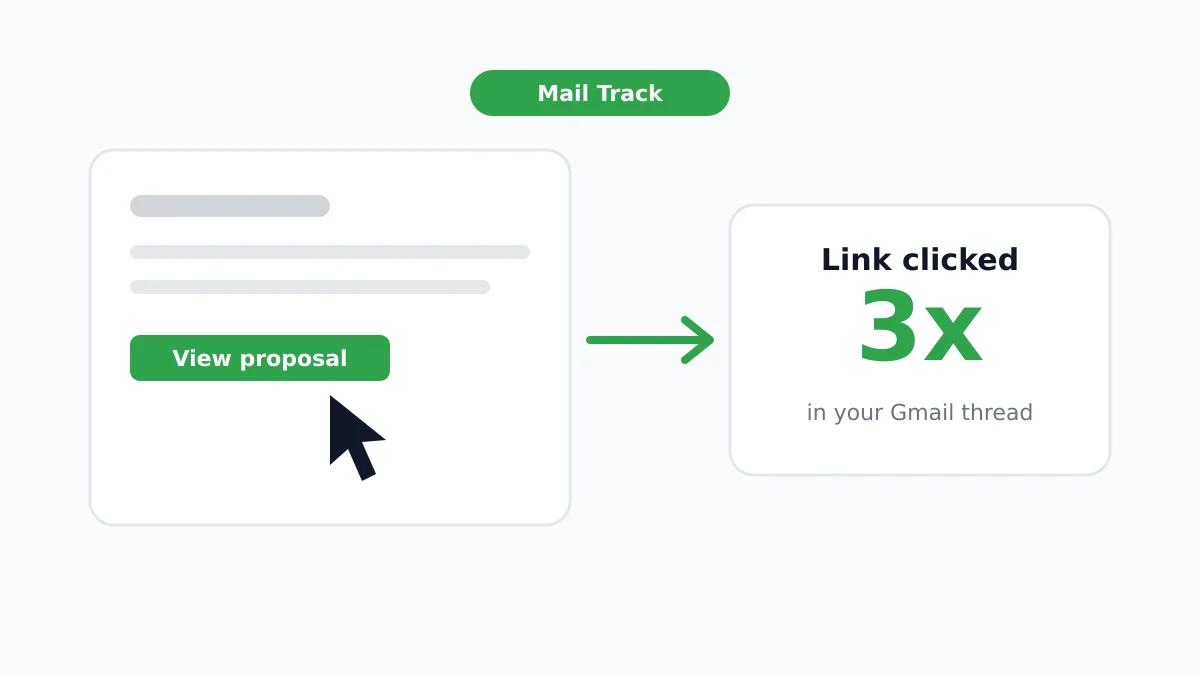
How to Track Link Clicks in Gmail (and What a Click Really Tells You)
Learn how to track link clicks in Gmail, why Gmail does not do it natively, how tracked links work and how to read clicks without being fooled by scanners.
How to Find My Contacts in Gmail: A Practical Guide
Learn how to find my contacts in Gmail on desktop and mobile. Clear steps for Google Contacts, search tips, shortcuts, and contact details from emails.
Objection in Sales Explained and How to Handle It
Learn what objection in sales really means, why it happens, and proven frameworks to handle price, timing and trust objections with confidence.