
How to Find My Contacts in Gmail: A Practical Guide
Learn how to find my contacts in Gmail on desktop and mobile. Clear steps for Google Contacts, search tips, shortcuts, and contact details from emails.
You’ve opened Gmail, remember exchanging messages with someone, and need their phone number or email address. You search the inbox, scan old threads, and still can’t find a proper address-book view. The confusion is understandable, because how to find my contacts in Gmail depends on whether you’re using Gmail on a desktop, opening a sender card, or working from a phone.
The quickest answer is usually Google Contacts, the address-book service connected to your Google Account. This guide shows where to look, how to distinguish saved contacts from automatically collected addresses, and what to do when a contact seems to have disappeared.
Why Your Contacts Are Not Actually Inside Gmail
You search Gmail for a colleague’s name and find an old thread, yet no complete address-book record appears. The reason is the boundary between Gmail’s message search and Google Contacts, where saved contact details are managed.
Gmail’s search bar checks subjects, message text, senders, and recipients. It does not search the saved contact list in the same way. Treat the inbox as a filing cabinet for conversations, while Google Contacts serves as the address book connected to that cabinet. They work together, but each has its own screen and search field.
Google Contacts also keeps a History view for contact records when you add or edit them. The service began as Gmail’s built-in contacts manager, became a separate web app, and later reappeared in Gmail through sidebar features. The practical result is a cross-interface search: you may need to check Gmail on a computer, contacts.google.com, an email sender card, or the Gmail mobile app. Google’s contact help documentation describes the contact-history workflow.
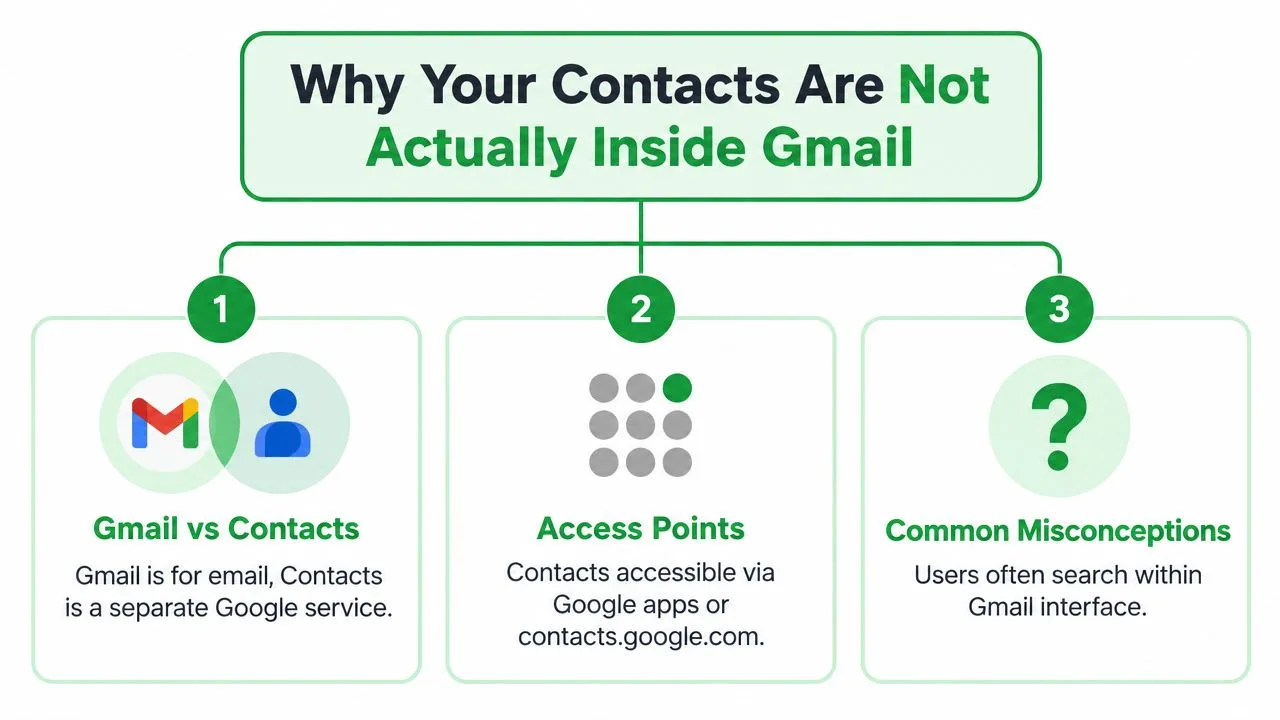
The three places to check
- Desktop Gmail: Open the Google apps grid and select Contacts. This takes you to the full address-book interface.
- An email thread: Click or hover over the sender’s name or profile picture. The information card may show available contact details and options.
- Mobile: Tap the sender’s details in the Gmail app, or open the standalone Google Contacts app for the broader list.
Check Other contacts as well. Google may place an address there after you email someone, even if you never deliberately saved that person. It can help you locate a correspondent, but it may not appear in your primary Contacts list. Once you separate message history, saved records, sender cards, and automatically collected addresses, a missing “Gmail contact” becomes easier to locate.
Finding Contacts From the Gmail Desktop Inbox
You remember a colleague’s name, open Gmail on your computer, and find the old conversation. The message confirms the email address, yet the person does not appear in your saved list. Gmail and Google Contacts use related account data, but they are separate interfaces, so check both.
In the upper-right corner of Gmail, click the Google apps launcher, the grid of dots, and select Contacts. Google’s Workspace contact instructions describe this route and explain that matching contacts appear as you type in the Contacts search field.
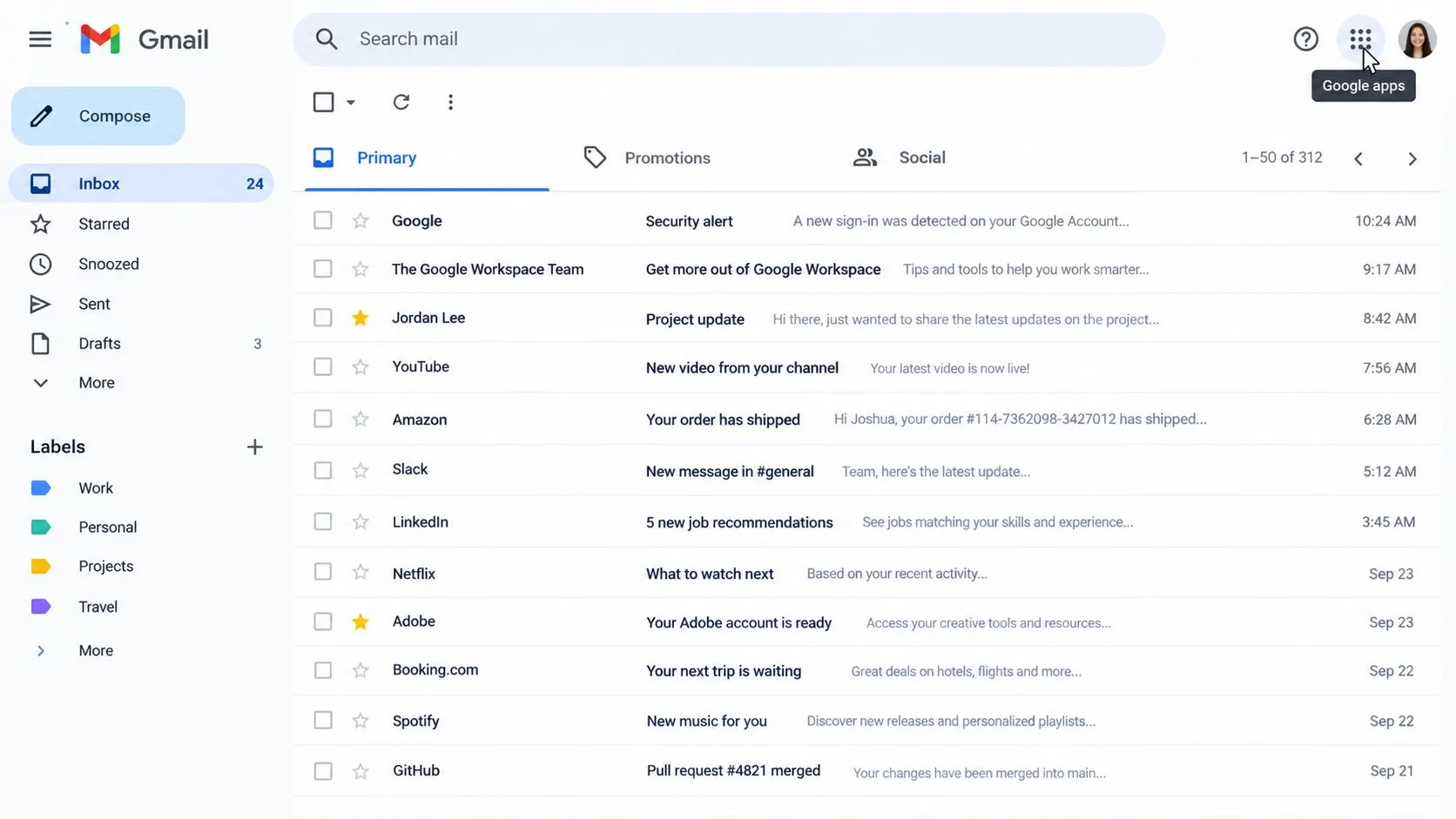
Google Contacts opens in a separate browser page. Check the profile picture or account indicator in the top-right corner before searching. A personal Google Account and a Google Workspace account can maintain different address books, so a contact may exist under another signed-in account.
Click the Contacts search field and enter the person’s name or email address. Review both Contacts and Other contacts in the results. Other contacts can contain people you have emailed without deliberately saving them. Open a matching record there and choose the available option to add it to your saved contacts.
The desktop Gmail route is only one way to reach the record. If keyboard shortcuts are enabled, type g, then c in Gmail to open Google Contacts without using the apps launcher. Google’s keyboard shortcut documentation describes this navigation. If you need to identify the right conversation first, use this guide to searching dates in Gmail to narrow messages by date.
For a large address book, keep typing in the search box as results update. If Gmail shows the address but Contacts returns no saved record, check Other contacts, then verify the active account. This distinction explains why an address found in message history may not appear in the primary Contacts list.
Getting Contact Details Straight From an Email Thread
If you’re already reading a message from the person, you may not need to leave Gmail. Open the email and move your pointer over the sender’s name or profile picture in the message header. Gmail opens a sender information card with the available contact details and actions.
The card can show the sender’s email address and information associated with the Google Account. Depending on what Google has available, it may also show phone details, recent messages from that address, and actions such as Email, Chat, Video call, and Save to contacts. Select Save to contacts when you want the address to become a deliberate entry in your main contact list.
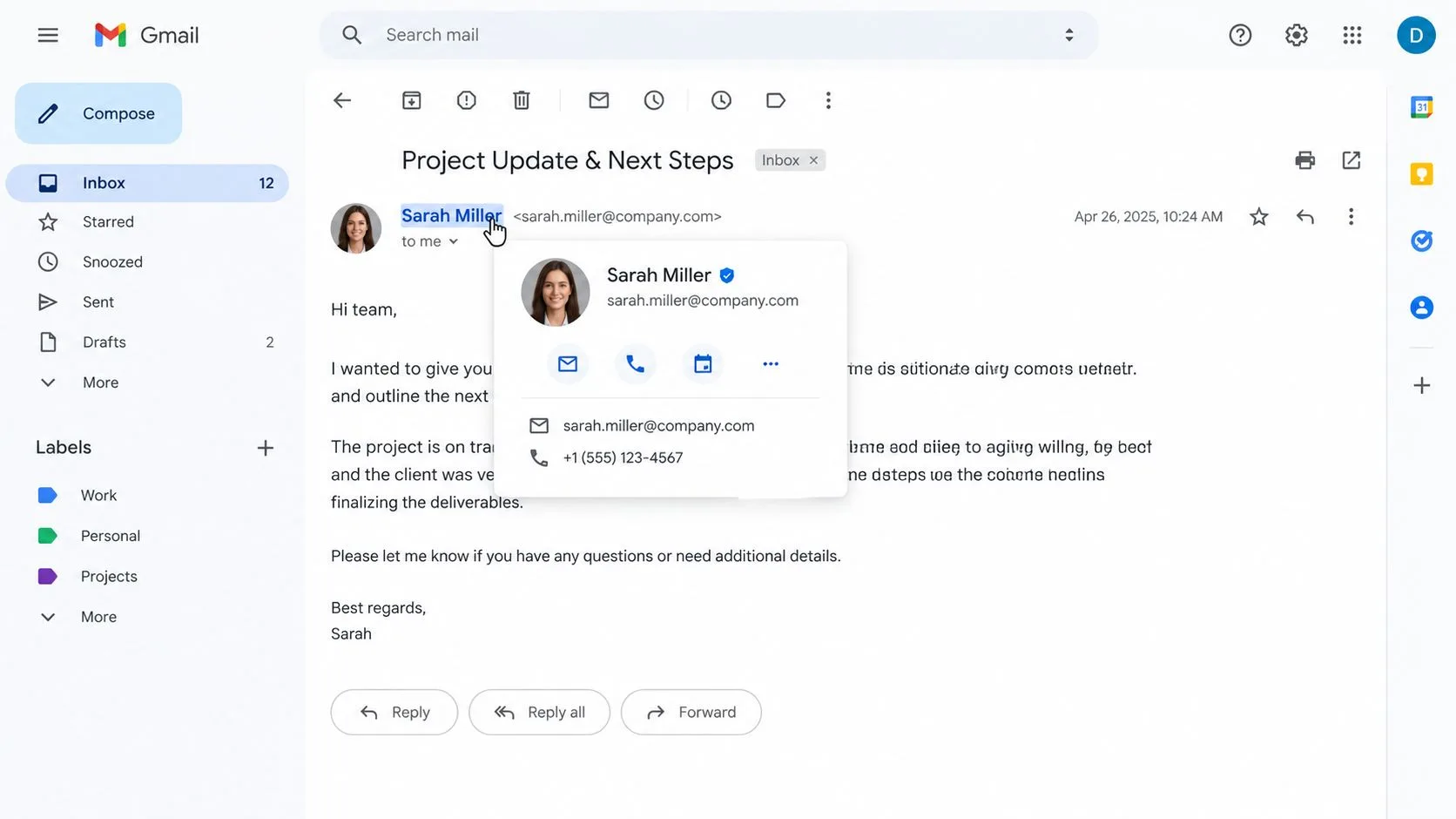
Sometimes Save to contacts isn’t visible. That usually means Gmail already knows the address through your saved contacts or Other contacts. Click the sender’s name to open the fuller contact view, then look for the option to edit or add information.
You can also open the three-dot menu on the sender card. Options can include Hide from contacts, Report spam, and Block, depending on the account and interface. Use these controls carefully, especially when you only meant to remove a suggestion rather than block future mail.
For message-level searching, right-click an email address inside the message body when the browser offers that action, then choose Find emails from sender. This filters Gmail to that correspondent, which is useful when you want to confirm the person’s identity from prior conversations. If Gmail displays a conversation rather than individual messages, this explanation of conversation view in Gmail can clarify why several replies appear together.
A contact created or updated from the sender card syncs with Google Contacts, so it can become available across Google services connected to that account. The sender card is therefore a fast lookup tool, while Google Contacts remains the better place for organizing and reviewing the complete record.
Finding Contacts in the Gmail Mobile App
Mobile Gmail doesn’t always expose contacts in the same way as desktop Gmail. Google’s Android guidance notes that you may need to open an email, tap the sender’s profile picture, or use recipient suggestions while composing to see a person’s contact information. Google’s Android Gmail guidance covers these sender-focused paths.
Inside the Gmail app, open a message from the person you need. Tap the sender’s name or profile picture, then review the information card. You can save the person, copy the email address, or open the available contact details. On some devices and account configurations, the Gmail side menu may also expose a Contacts option. If you see it, tap it to open Google Contacts, often in a browser or linked app.
The standalone Google Contacts app is usually clearer for searching the full address book. Install it from the relevant app store, open it, and check the colored profile circle in the top-right corner. Tap it to switch between Google Accounts, or choose All contacts when you want to search across the contacts available on the device. Google’s contact guidance specifically documents account switching and the all-contacts view on mobile. Google’s mobile Contacts instructions explain why the account selector matters.
Search and save from Contacts
Tap the magnifying-glass icon and enter part of a name or email address. Review both Your contacts and Other contacts, because an address collected from a previous interaction may not be a saved record.
To create a record, tap the round plus button, enter the person’s details, and choose the Google Account where the contact should live. Saving it to the wrong account can make it appear to vanish later when Gmail is using a different profile. Google Account settings also let you control automatic saving from interactions under People & sharing, Contacts, and Contact info saved from interactions. The Google Account settings guide describes the setting called Save contact info when you interact with people.
Keyboard Shortcuts That Speed Up Contact Searches
You are comparing an address in a Gmail thread with a record in Google Contacts. Keyboard shortcuts reduce the repeated mouse trips between the inbox, the apps grid, and contacts.google.com.
First, turn them on in Gmail. Open Settings, select See all settings, choose General, find Keyboard shortcuts, and select Keyboard shortcuts on. Select Save Changes if Gmail requests it.
| Shortcut | Action | Where it helps |
|---|---|---|
| g, then c | Opens Contacts from Gmail | Moving from the inbox to Google Contacts |
| / | Focuses the search field | Starting a name or email search without clicking |
| j or → | Moves to the next contact | Reviewing records in Google Contacts |
| Enter | Opens selected contact details | Checking a record after keyboard navigation |
| ? | Opens the shortcut list | Checking available commands |
Google lists / for moving to search, ? for opening the shortcut list, j or the right arrow for moving to the next contact, and Enter for opening contact details. The official keyboard navigation reference provides the current command list, which is useful because Google can change interface behavior.
Use g, then c when Gmail is open and you want to reach Contacts without opening the apps grid. Use / after Contacts or another searchable view is already open. Once a result is highlighted, Enter opens its details. The same workflow applies whether you reached Contacts from desktop Gmail or went directly to contacts.google.com.
Gmail’s Tab and Shift+Tab also move through interface controls. They can help when you are working through message controls or category results, but they do not replace the Contacts search shortcut.
For repeated searches, create a Chrome site-search keyword for contacts.google.com. Enter the keyword followed by a person’s name in the address bar, and Chrome can open the address-book search directly. This works well when Gmail, Calendar, and Contacts stay in separate browser tabs. Mobile Gmail does not offer the same desktop shortcut workflow, so use its search and account controls there instead.
Recovering a Missing Contact Within 30 Days
A contact can disappear because it was deleted, edited, or changed in the wrong Google account. Open Google Contacts on a desktop and check the account shown in the profile menu first. Then click the gear icon in the top-right corner and select Undo changes. Google allows changes from 10 minutes ago up to 30 days ago, so act within that period. Google’s contact-history documentation explains how contact edits relate to recovery history.
Use the time selector to choose a restore point. Google reverses a group of contact changes made after that point, rather than recovering one isolated action. If the record vanished recently, start with the newest available point. If it is still missing, try an earlier point within the available window.
Review the contact history before changing anything when you are unsure what happened. Check whether the entry was created, updated, or deleted during the selected period. A recovered record may include its earlier name, phone number, labels, and photo if those details were saved at the time.
Before restoring: Export a backup if the address book supports your work. This export contacts to CSV guide can help you save a copy before applying a broad rollback.
Undo changes applies most directly to records in Your contacts. Other contacts is a separate, automatically collected area created from interactions such as email. It does not follow saved-contact history in the same way as a contact you deliberately created.
For a more targeted check, open the individual contact, click the three-dot menu, and choose History. This item-level view helps when the person remains listed but a phone number, name, or another detail changed unexpectedly. You can inspect those edits without rolling back unrelated records.
Quick Reference and How a Gmail Add-On Helps
Choose the path based on where you are and what you need. The inbox is best for identifying a sender, while Google Contacts is better for searching and managing the address book.
| Situation | Best Path | Where |
|---|---|---|
| You emailed the person before but never saved them | Search Other contacts | Google Contacts on desktop or mobile |
| You’re reading a recent message from the person | Open the sender information card | Gmail message header |
| The contact was deleted or changed | Use Undo changes or contact History | Google Contacts on desktop |
| You’re searching from a phone | Use the Google Contacts app and check the account | Mobile Contacts app |
| You need to find many records | Search by name or email in Contacts | Contacts search field |
The key distinction is simple: Gmail helps you locate the conversation, while Google Contacts helps you locate the address-book record. If the person isn’t in Your contacts, check Other contacts before assuming the data is gone. If the record was changed, use the history tools rather than recreating it immediately.
A Gmail add-on such as Mail Tracker for Gmail sits in the same Google account environment and can use the same organized contact list when it identifies who opened a message. That makes accurate names, addresses, and account selection useful beyond contact lookup. For broader context on how an add-on fits into Gmail workflows, see this overview of Mail Tracker for Gmail.
Mail Tracker for Gmail adds read receipts, real-time open notifications, double check marks, open counts, and message-level timestamps directly inside Gmail. Visit Mail Tracker for Gmail to see how it can connect contact organization with timely follow-ups from desktop or mobile.
Ready to track your emails?
Add Mail Track for Gmail from the Google Workspace Marketplace and know the moment your emails are opened. Free and unlimited.
Add to GmailMore reading
More from Tutorials
How to Track Link Clicks in Gmail (and What a Click Really Tells You)
Learn how to track link clicks in Gmail, why Gmail does not do it natively, how tracked links work and how to read clicks without being fooled by scanners.
Objection in Sales Explained and How to Handle It
Learn what objection in sales really means, why it happens, and proven frameworks to handle price, timing and trust objections with confidence.

How to Forward Emails in Gmail
Learn how to forward emails in Gmail with step-by-step instructions for single messages, automated filters, mobile setups, and troubleshooting silent failures.