
How to Check Read Receipts in Gmail
Learn how to check read receipts in Gmail on web and mobile. Covers native options, add-on tracking, icon meanings, and fixes for common issues.

You’ve got a proposal sitting in Sent, your recruiter follow-up is waiting on a response, or a client thread feels like it disappeared into the void. At that point, how to check read receipts stops being a feature question and turns into a decision about what signal you can trust. In Gmail, that choice usually comes down to two paths, native Google Workspace receipts that depend on admin settings and recipient consent, or an add-on like Mail Tracker for Gmail that shows opens with in-inbox tracking cues.
Native Gmail receipts are narrow by design. They’re available only in managed Workspace environments, not on personal @gmail.com accounts, and Google’s docs say the sender gets an email back with the open event’s time and date when the workflow is allowed. Third-party trackers aim for a different experience, surfacing open events directly inside the sent thread with check marks and timestamps so sales and recruiting teams can follow up without guessing.
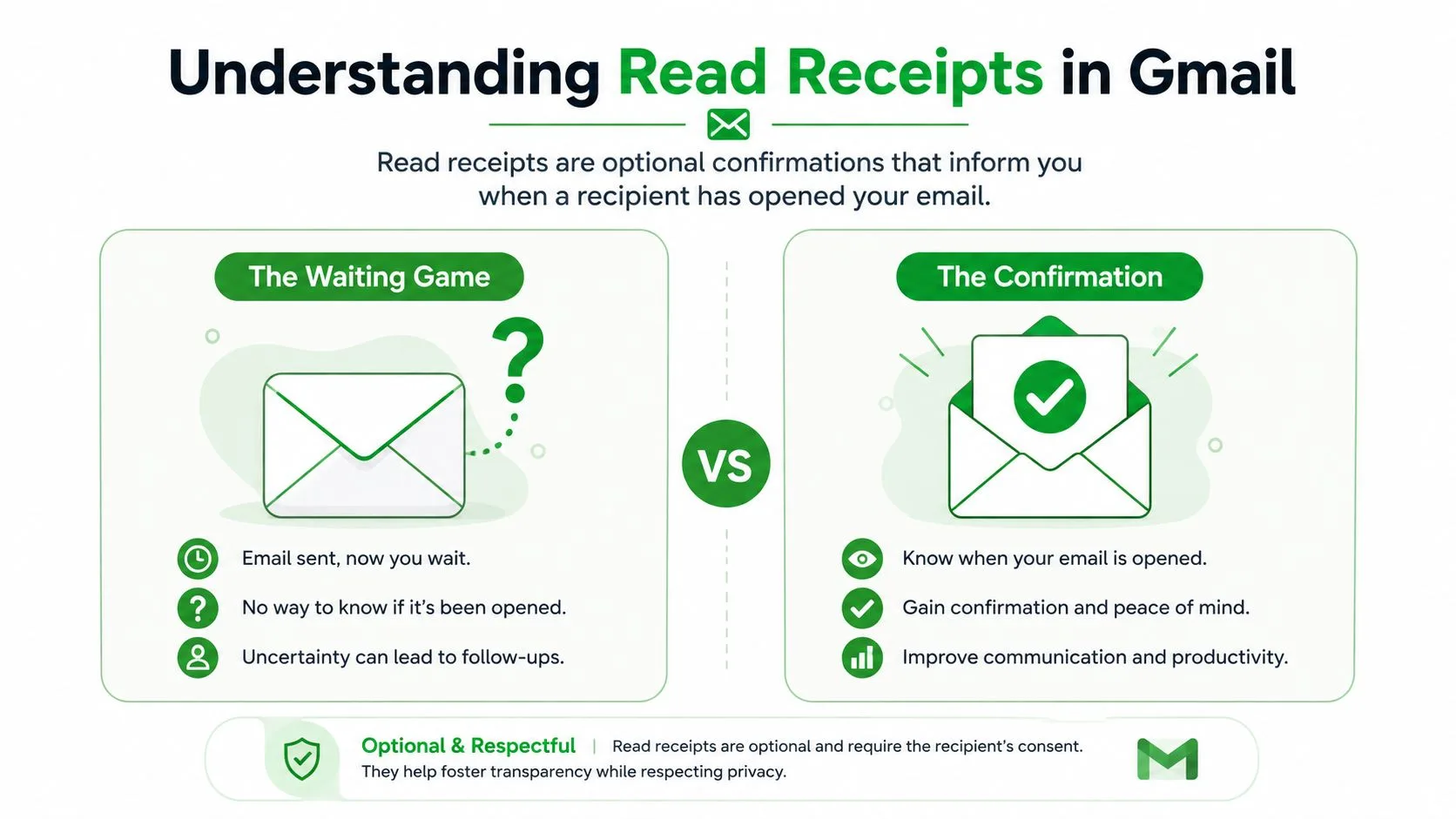
If you’re comparing a native setup to a tool-based workflow, it helps to think in terms of policy versus visibility. For a deeper look at the practical side of timing and sequencing in outreach, Pipecorn’s Sales Navigator billing history is a useful related resource.
What “Checking Read Receipts” Actually Means in Gmail
The phrase sounds simple, but in Gmail it usually means one of two very different things. Either you’re asking Google Workspace to return a recipient-approved confirmation email, or you’re using a tracking add-on that logs an open event when the message loads. Those aren’t equivalent, and treating them like the same thing leads to bad follow-up timing.
Native Gmail receipts and tracking tools solve different problems
Google’s native flow is controlled by the Workspace admin and tied to the recipient’s settings. A sender can request a receipt, but the request is only honored when the Workspace configuration and the recipient’s response rules allow it, and the feature isn’t available to personal Gmail accounts at all. That makes native receipts a policy-controlled feature, not a universal Gmail switch.
Tracking tools work differently. They use open-event monitoring inside the compose and sent-mail workflow, which is why they show signals like double check marks, open counts, and timestamps in the inbox. For teams in sales, recruiting, or client success, that matters because follow-up timing often depends on whether a message was merely delivered or opened.
Practical rule: a receipt tells you something happened in the email system, not that the person read and understood your message.
The distinction matters even more when you’re deciding whether to nudge a prospect, ask a candidate to pick a slot, or escalate a renewal thread. If the only signal you have is a delayed reply, you’re already reacting late. If you have a usable open indicator, you can at least separate “not seen yet” from “seen and ignored.”
Using Gmail’s Built-In Read Receipts on the Web
If a recruiter needs confirmation that a scheduling email was opened, the first question is whether the account is managed through Google Workspace. Native read receipts depend on administrator policy, not a hidden switch in a personal Gmail inbox. In the Admin Console, open Apps > Google Workspace > Gmail > User Settings, enable Allow users to request read receipts, and save the change. Google’s support material notes that the setting can take up to 24 hours to reach users, so the option may not appear right away.
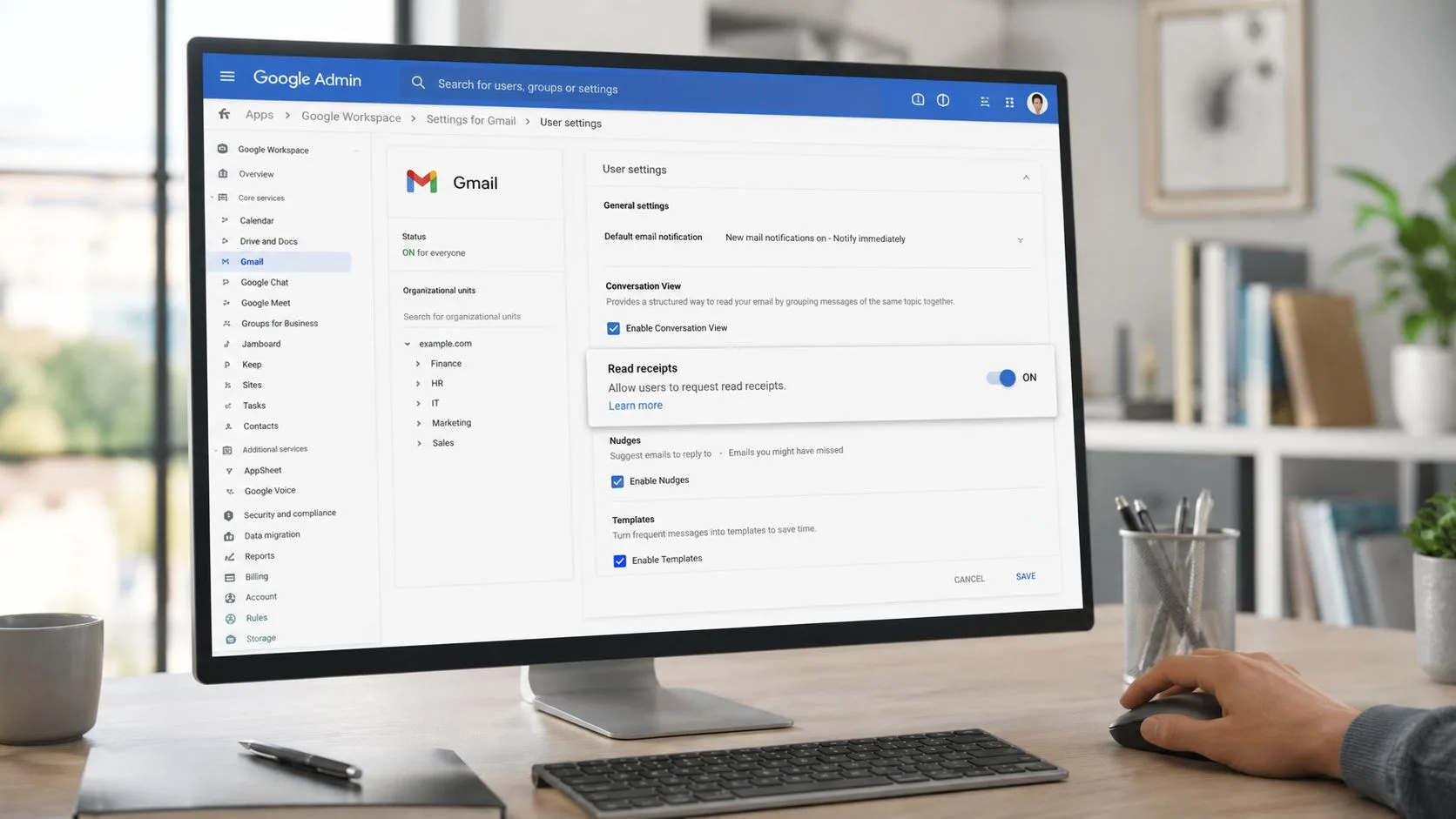
After the policy is available, compose the email in Gmail on the web. Open the three-dot menu, select Request read receipt, and send the message. If the recipient’s workspace configuration and response rules permit it, Gmail returns a notification email showing the recipient’s address, the timestamp, and the receipt acknowledgment.
What you actually get back
The notification confirms that the request was acknowledged and records a dated open event. It does not confirm attention, comprehension, or intent. A recipient can decline the request, and no confirmation can mean the request was not honored. It does not prove the message remains unread.
For sales follow-up or recruiting, that distinction affects how you interpret silence. A native receipt can document an event, but it cannot tell you whether the recipient reviewed the details or plans to respond.
Personal Gmail accounts have no native read-receipt capability. Their web interface cannot request an open confirmation, so users must choose between asking a Workspace administrator to enable the feature and installing an add-on such as Mail Tracker for Gmail. The choice is practical: native receipts offer policy-controlled acknowledgments, while add-ons provide their own open indicators and timestamps.
Setting Up Mail Tracker for Gmail on Web and Mobile
For a sales follow-up sent from a laptop, the practical choice is between Workspace policy and an add-on. Mail Tracker for Gmail installs as a Chrome extension and places tracking controls in Gmail’s compose window. After you grant Gmail and Google Contacts permissions, check the tracking indicator before sending. When the message records an open, the sent thread displays double check marks and its available open history.
That signal is useful, but it comes from the add-on rather than Gmail’s native receipt system. Review this free email trackers for newsletters comparison before choosing a setup, especially if you need to weigh visible branding against tracking features.
Mobile follows the same workflow, just with push alerts
On iPhone or Android, install the companion app, sign in with the same Google account, and allow notifications. The app can then alert you when a tracked message records an open, so a recruiter or sales rep does not need to keep reopening Sent to check for activity.
You can send from Gmail on your phone, enable tracking, and receive a prompt when the recipient opens the message. The alert is a timing cue, not proof that the recipient read every detail or intends to respond. On the free version, the tracking signature appears on outbound mail. Premium removes that signature.
This setup suits users who need open indicators across web and mobile. Workspace read receipts remain controlled by administrator settings, while the add-on supplies its own check marks, alerts, and timestamps. For the product’s setup details, see the Mail Tracker for Gmail free email tracker feature page.
Reading the Check Marks, Counts, and Timestamps
A recruiter sees two checks after sending an interview request, while a sales rep sees several opens but no reply. Those icons and times help set the next action, provided you know which system produced them. Gmail’s native read receipts and Mail Tracker for Gmail do not report identical signals, so treat the indicators as workflow clues rather than a complete record of recipient behavior.
Signal by signal
| Signal | What It Shows | Practical Implication |
|---|---|---|
| Single check | The message left your outbox and Gmail accepted it | The email was sent, but you still don’t know whether it reached the recipient’s inbox |
| Double check | Stronger delivery visibility in the inbox workflow | Good for confirming that the thread is moving, but it still isn’t proof of reading |
| Open count | A tracked open event logged by the tracker | Useful for spotting repeated looks across devices or sessions |
| Timestamp | The time the open event was recorded | Helps you time a follow-up while the message is still fresh |
A single check confirms sending. A double check provides stronger delivery visibility, but neither icon proves that the recipient read every word. An open count comes from a tracking pixel recorded by the add-on, not from Gmail’s native receipt system.
The timestamp gives the clearest operational cue. If an interview request is opened shortly before your planned follow-up, a brief, relevant nudge makes more sense than sending the same message again. In a sales cadence, repeated opens can show that the thread remains active, while zero opens may point to a weak subject line, inbox placement, or poor timing.
Open activity still does not establish intent. A recipient may preview a message, return to it on another device, or trigger tracking without engaging with the content. A reply, booked meeting, or confirmed next step carries more weight than any check mark or count.
Use the signal to pace communication, not to pressure the recipient. That distinction keeps tracking useful in daily recruiting and sales work, where the goal is a clear next step rather than a higher open number.
Enabling, Disabling, and Customizing Tracking
Choose tracking per message rather than leaving it active for every thread. In the compose sidebar, switch off the track control before sending confidential material. The tracker then leaves its pixel out of that message, which suits legal drafts, compensation notes, and other content that should not carry monitoring.
You can also stop tracking within an existing thread through the message overflow menu. Use that option when a conversation moves from prospecting into sensitive discussion, so new opens are no longer recorded during the later exchange.
Notification controls belong in two places
Gmail’s Settings > General > Desktop Notifications controls browser toasts. Mail Tracker’s panel, usually under Settings > Add-ons > Mail Tracker, controls open alerts and digest-style email updates. Check both settings when alerts are too frequent or absent, because the tracker can record activity even when notifications are disabled.
On mobile, grant the operating system notification permission first, then adjust the app’s timing controls. Quiet hours help prevent meeting interruptions when sending late-night follow-ups or working across time zones. The free plan adds a visible sender tagline. Premium removes that branding by using a hidden 1x1 pixel, so recipients do not see the tracker in the message. These choices affect visibility and interruption levels, not the meaning of an open timestamp.
How Much Should You Trust the Signal
You send a proposal before a sales call and see two opens. A recruiter sends interview details and sees none. Neither result proves intent. Open tracking is directional, not definitive. Apple Mail Privacy Protection may prefetch remote images, recording an open before anyone reads the message. Corporate image blocking can suppress the tracking pixel, so zero opens may reflect a security setting rather than disinterest.
Native Gmail read receipts provide a different signal, but they are also incomplete. Recipients can decline them, and some environments never return the request. The result is sparse data before privacy controls and mail clients affect it. Do not move a sales opportunity or hiring candidate through a pipeline stage based on opens alone.
Use opens as one input, not the decision
Mail Tracker for Gmail records activity more consistently than manually guessing from a reply, yet its pixel still depends on the recipient’s client, proxy, and security rules. VPN previews, blocked images, and aggressive junk filters can produce misleading activity or hide a genuine read. Treat the timestamp as a prompt for context, then check whether the recipient replies, books a meeting, clicks a link, or changes the conversation.
The email open rates feature page gives more context for interpreting open activity without treating it as proof of engagement.
An opened thread without a reply may reflect timing, a busy inbox, or low priority. In sales, use that signal to choose whether a follow-up is timely, not to assume buying intent. In recruiting, confirm interest through a response or scheduling action before changing the candidate’s status.
Pair opens with replies, meeting bookings, or link clicks. That reduces overreaction to false positives and keeps follow-up decisions tied to observable engagement.
Fixing Common Read Receipt Problems
Start with the symptom. Missing check marks usually mean Mail Tracker for Gmail is installed under a different Google account, or the extension has not finished syncing. Confirm the active Gmail profile, wait briefly for synchronization, then reload the inbox. Cache conflicts, incomplete authorization, and browser profile mismatches can all delay the icon.
A clean desktop reinstall often resolves persistent errors. Remove the extension, reinstall it from the Chrome Web Store, reopen Gmail in the same browser profile, and confirm that the sidebar loads. Duplicate sidebars or permission warnings indicate that the installation needs to be removed and authorized again.
Mobile checks that solve most problems
Keep the Gmail app current on iPhone or Android, and reinstall the companion app if push notifications stop arriving. Enable background app refresh so timestamp updates can reach the device while the app is idle. Apple Mail Privacy Protection, blocked images, and company firewall rules can still hide an open even after the recipient views the message.
A text reply is the clearest fallback when you need to confirm delivery and rendering. For broader delivery problems, run a deliverability test before treating the tracker as the cause. Timestamp drift that continues after 48 hours, along with repeated permission errors, points more toward an account or authorization problem than a single message.
Device and client behavior varies, so review this cross-platform compatibility guide for edge cases involving webmail, mobile apps, and privacy controls.
For read visibility inside Gmail, Mail Tracker for Gmail provides inbox open signals, timestamps, and notification settings across web and mobile. Use those signals to choose a follow-up time, then confirm meaningful interest through a reply or another direct action.
Ready to track your emails?
Add Mail Track for Gmail from the Google Workspace Marketplace and know the moment your emails are opened. Free and unlimited.
Add to GmailMore reading
More from Tutorials
How to Track Link Clicks in Gmail (and What a Click Really Tells You)
Learn how to track link clicks in Gmail, why Gmail does not do it natively, how tracked links work and how to read clicks without being fooled by scanners.

How to Find My Contacts in Gmail: A Practical Guide
Learn how to find my contacts in Gmail on desktop and mobile. Clear steps for Google Contacts, search tips, shortcuts, and contact details from emails.
Objection in Sales Explained and How to Handle It
Learn what objection in sales really means, why it happens, and proven frameworks to handle price, timing and trust objections with confidence.