
Cross Platform Compatibility Explained for Gmail Tracking
Learn cross platform compatibility for email tracking across Gmail web, Chrome and mobile. Test better and ensure reliable tracking everywhere.

You send a tracked email from Gmail on your laptop, see double check marks appear, and move on to the next task. Later, you open the Gmail app on your phone and the message looks different. The open count hasn’t refreshed, a notification arrived late, or the timestamp seems out of step with what you saw on desktop. The account is the same, but the experience doesn’t feel identical.
That’s the practical meaning of cross platform compatibility for email tracking. It isn’t enough for a tool to install on a laptop, appear in a Chrome extension, or offer a mobile app. The important question is whether the same business outcome, an accurate open event, a dependable check mark, and a useful notification, survives when you move between Gmail web, a browser extension, and Gmail mobile apps.
Why Email Tracking Feels Different on Every Device
You send a proposal from Gmail on your desktop, enable tracking, and watch for the familiar check marks. Later, during a commute, you open the Gmail app on Android or iOS to check whether the recipient opened it. The conversation is still there, but the open count, check mark, or notification may not appear with the same timing.
The account has not changed. You are viewing the same recipient, thread, and sent message. The software around that message has changed, though. Gmail web, a Chrome extension, and Gmail mobile apps run in different environments, with different methods for showing interface elements, running background tasks, requesting permissions, and delivering alerts.
The practical test: compatibility means a tracking result stays trustworthy as your workflow moves between Gmail surfaces.
Email tracking exposes these differences because it relies on several connected steps. The message must leave Gmail with its tracking mechanism attached. An open event must be recorded, Gmail must show the resulting state, and the device must deliver an alert when the feature is enabled. If one step behaves differently, you may see a missing check mark, an incomplete open count, or a notification that arrives too late to guide follow-up.
The expectation of continuity extends beyond email. People who switch between devices generally expect the same task state to remain available, even when each app uses a different layout or background process. That expectation makes a tracking result more useful when it remains consistent across Gmail web, the Chrome extension, and Gmail mobile apps.
Installation alone does not establish compatibility. The meaningful test is whether the same outcome survives the switch: an open is recorded, check marks retain their meaning, counts remain understandable, and notifications arrive when they can still help. A smaller mobile screen can present the information differently without changing what the tracking state means.
This article examines Gmail tracking as an outcome rather than an installation checklist. The focus is the evidence you rely on for sales, recruiting, consulting, and client follow-ups: whether an open count is credible, whether a check mark reflects the same event, and whether a notification remains useful wherever you open Gmail.
What Cross Platform Compatibility Really Means for Email Tracking
Think of a bridge. It’s compatible when it carries the same intended load whether a person crosses by car, bicycle, or on foot. The vehicles differ, but the bridge’s essential promise stays stable. Email tracking needs the same kind of consistency across Gmail web, a Chrome extension, and Gmail mobile apps.
Start with the workflow, not the device:
- You send a tracked message from Gmail.
- The recipient opens it.
- The tracking system records the event.
- Gmail shows a check mark, count, or timestamp.
- Your device delivers a notification if that feature is enabled.
Cross platform compatibility means those important results remain dependable as you switch surfaces. It doesn’t require every screen to look identical. A mobile interface can use a smaller layout than desktop, but it shouldn’t change the meaning of an open count or hide the state you need to make a follow-up decision.
The web became a strong cross-platform environment because developers gained shared technical rules. The W3C helped standardize ECMAScript in the late 1990s, with the first version published in 1997, giving browser makers and developers a common scripting target during the browser wars (the history of cross-browser compatibility). The DOM added another interoperability layer. DOM Level 0 and Level 1 appeared in 1996 and 1997, DOM Level 2 was published in 2000, and DOM Level 3 arrived in April 2004. By 2005, major ECMAScript-enabled browsers, including Internet Explorer, Opera, Safari, and Gecko-based browsers, supported large parts of the W3C DOM, creating a practical foundation for web software that could travel across platforms.
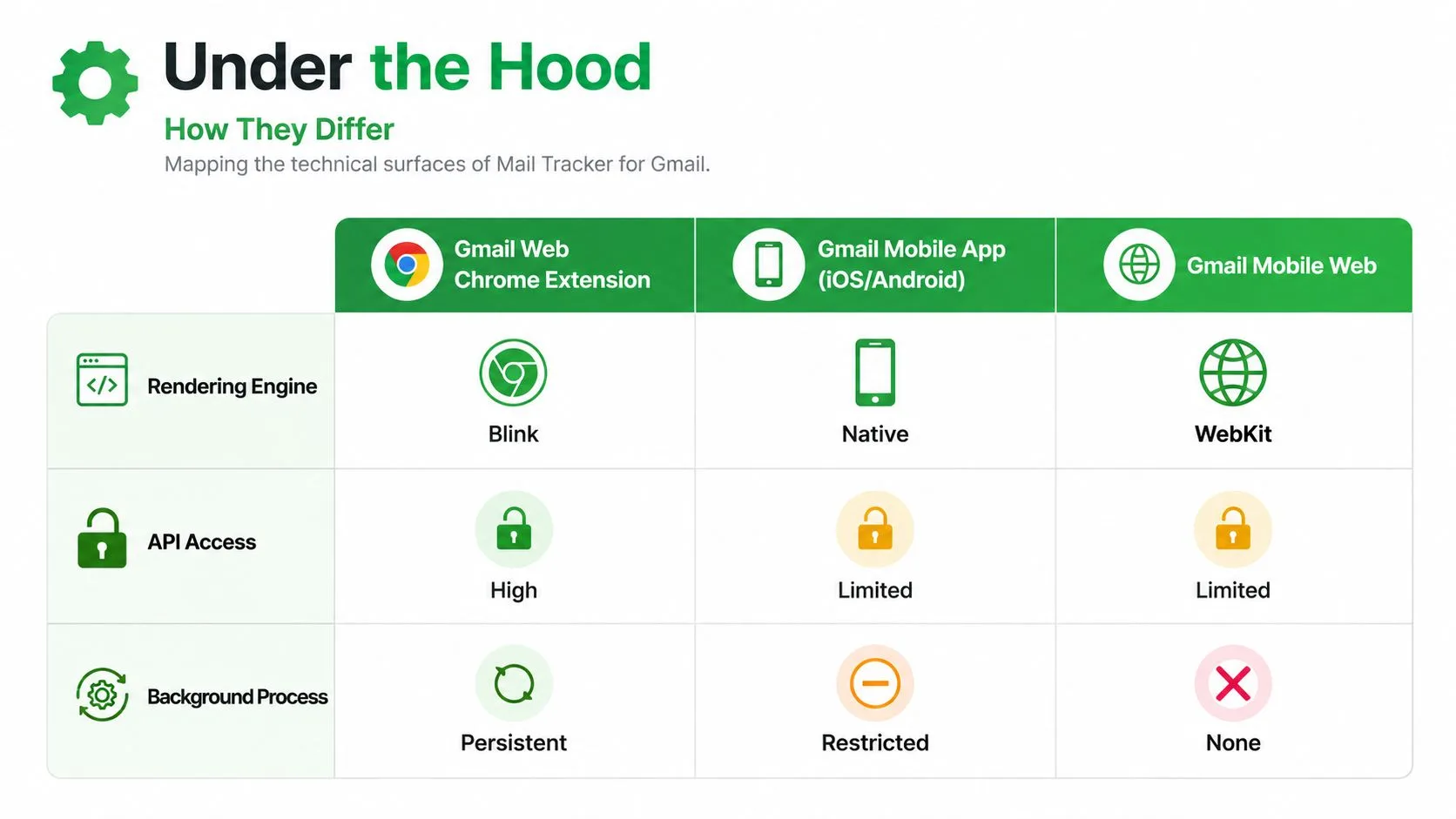
Gmail builds on that broader idea, but its surfaces still have different runtimes. A browser extension can work alongside Gmail web, while a mobile app embeds Gmail through an application shell with its own permission and notification behavior. Mobile web adds another browser layer. The inbox is shared, but the path through which you reach it isn’t.
A useful companion to this workflow is a consistent email identity. If your tracked messages include a professional signature, these signature setup tips can help keep the visible parts of your communication coherent across devices. For a Gmail-specific discussion of the tracking problem, see cross-platform tracking.
How Gmail Web Chrome Extension and Mobile Apps Differ Under the Hood
The biggest source of confusion is that “Gmail” can refer to several technical surfaces. Gmail web runs in a browser. A Chrome extension adds functionality through browser permissions and the desktop Gmail interface. Gmail mobile apps on Android and iOS use application shells with their own rules for rendering, notifications, background activity, and permission prompts.
Google’s documentation makes this difference clear for dynamic email content. AMP email rendering works only in the latest official Gmail apps on iOS and Android, while unsupported browsers fall back to HTML. Google lists Chrome 69, Firefox 58, Opera 48, and Safari 10 as minimum browser versions for AMP email support, and Android support requires OS 5.0 or higher with system WebView 74 or higher (Google’s supported platforms for AMP email). The same message can therefore behave differently depending on the browser engine or mobile runtime.
Gmail web and the Chrome extension
On desktop, Gmail web provides a large interface where an extension can add controls near message composition, sent-mail views, and thread details. The browser can keep the extension close to the Gmail page, making check marks and timestamps feel like native inbox features.
That convenience has limits. Browser permissions, extension state, browser updates, and page changes can all affect how the feature appears. A user may still send the email successfully while a tracking indicator fails to load or a notification behaves differently from the mobile experience.
Gmail mobile apps
Android and iOS treat notifications and background work differently from a desktop browser. A mobile app may show the tracked message and its status, but notification timing can depend on the operating system’s delivery rules, the user’s notification settings, battery controls, and network availability.
Google also states that Gmail add-ons work the same across web and Android, require installation only once to be available across devices, and can be written once to run natively in Gmail on web and Android (Google’s explanation of Gmail add-ons). That creates a useful baseline, but it doesn’t erase every difference between desktop browsers and mobile operating systems.
The same inbox doesn’t mean the same runtime.
Gmail mobile web
Mobile web introduces a browser viewport and engine between the user and Gmail. A control that fits naturally beside a desktop compose window may be compressed, moved, or omitted on a smaller screen. Dynamic content can also fall back when the browser doesn’t meet the required support conditions.
For mobile-specific tracking workflows, compare the exact actions you need, such as sending a tracked message, viewing an open count, or receiving an alert, with the details in mobile email tracking.
Why Compatibility Looks Fine Until It Fails on One Platform
A sales representative sends a tracked proposal from Gmail on a laptop. Before a call, they open the Gmail mobile app and find no new check mark. A recruiter expects an alert after a candidate opens a message, but the notification arrives late. The email still works, yet the tracking outcome has changed.
Installation proves very little. A tracker may appear in Gmail and send messages normally while failing to record an open, update a count, or deliver a notification on another device.
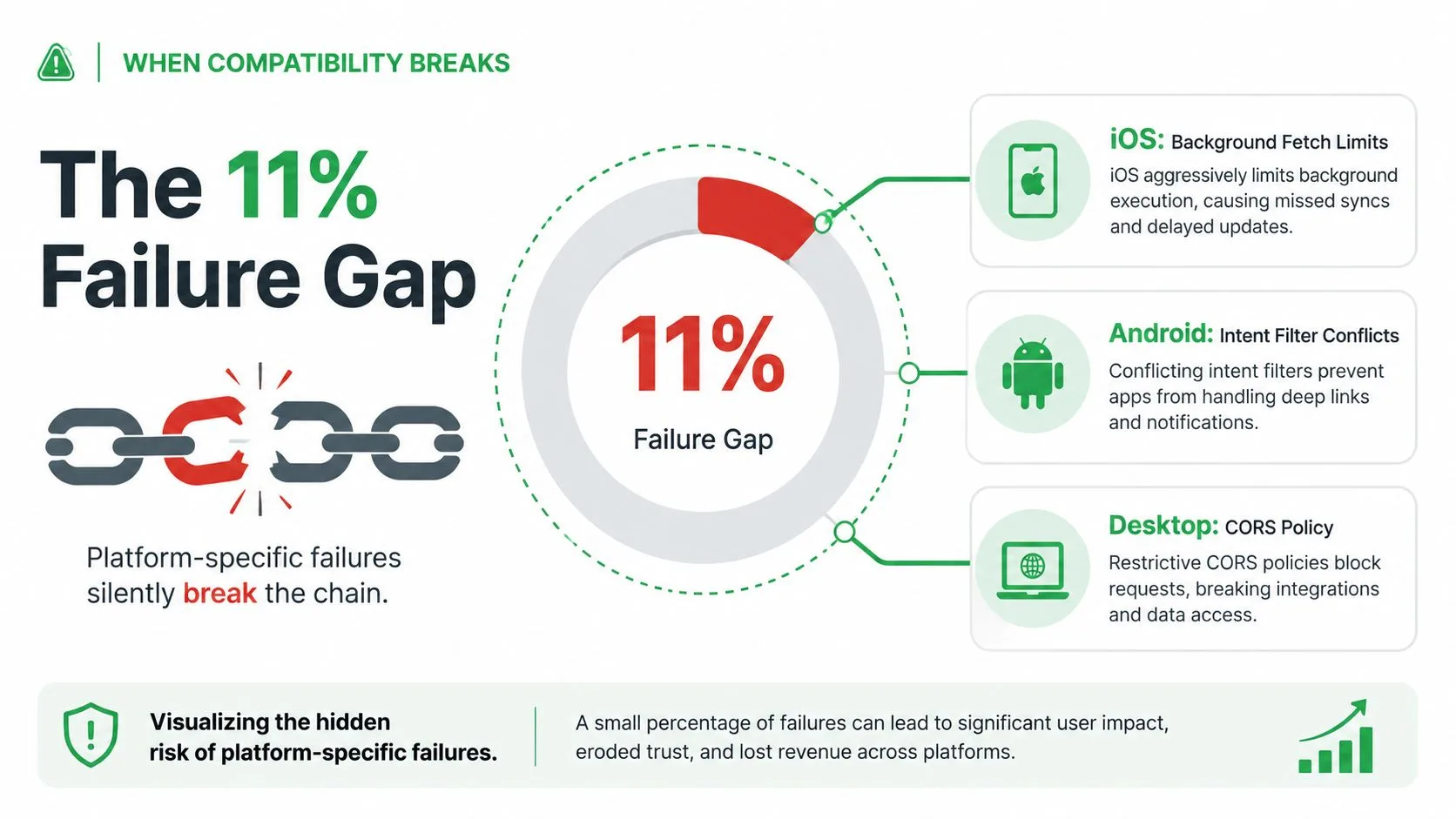
A 2026 empirical study of 500 cross-platform-tested Python projects found that 11.2% had OS-dependent test failures (the empirical study of OS-dependent failures). The finding shows how compatibility problems can stay hidden during ordinary use. A workflow may pass on one operating system and fail on another because background activity, permissions, rendering, or notification delivery behave differently.
The failure appears after adoption
Users often find these problems only after building a routine around the product. A consultant checks Gmail on mobile and sees a different open count from the desktop view. They cannot tell whether the recipient opened the email once or several times. A sales representative may keep following up from the wrong signal, while a recruiter misses the expected alert.
Partial failures are difficult to diagnose because the main email workflow remains intact. The message sends, the thread syncs, and Gmail opens normally. Only the signal that supports a business decision breaks.
Prioritize the tracking outcome
Desktop and phone screens can legitimately differ in layout. Compatibility testing should therefore center on whether the same tracking result remains available as users move between Gmail web, the Chrome extension, and Gmail mobile apps.
Check the actions that guide follow-up:
- Open detection: Does an opened tracked message create a reliable event?
- Status display: Do check marks, timestamps, and counts remain understandable?
- Notification timing: Does the intended device receive an alert under normal settings?
- Permission behavior: Can users authorize the feature without a platform-specific dead end?
- Thread continuity: Can a user switch devices without losing message-level context?
Cross-platform use has made this expectation ordinary. As noted earlier, users expect access to continue across devices rather than remembering which platform is safe for a particular task. Gmail users bring the same expectation to email tracking. The goal is a dependable decision signal, even when the screen and operating system change.
Testing Strategies and Best Practices for Reliable Tracking Everywhere
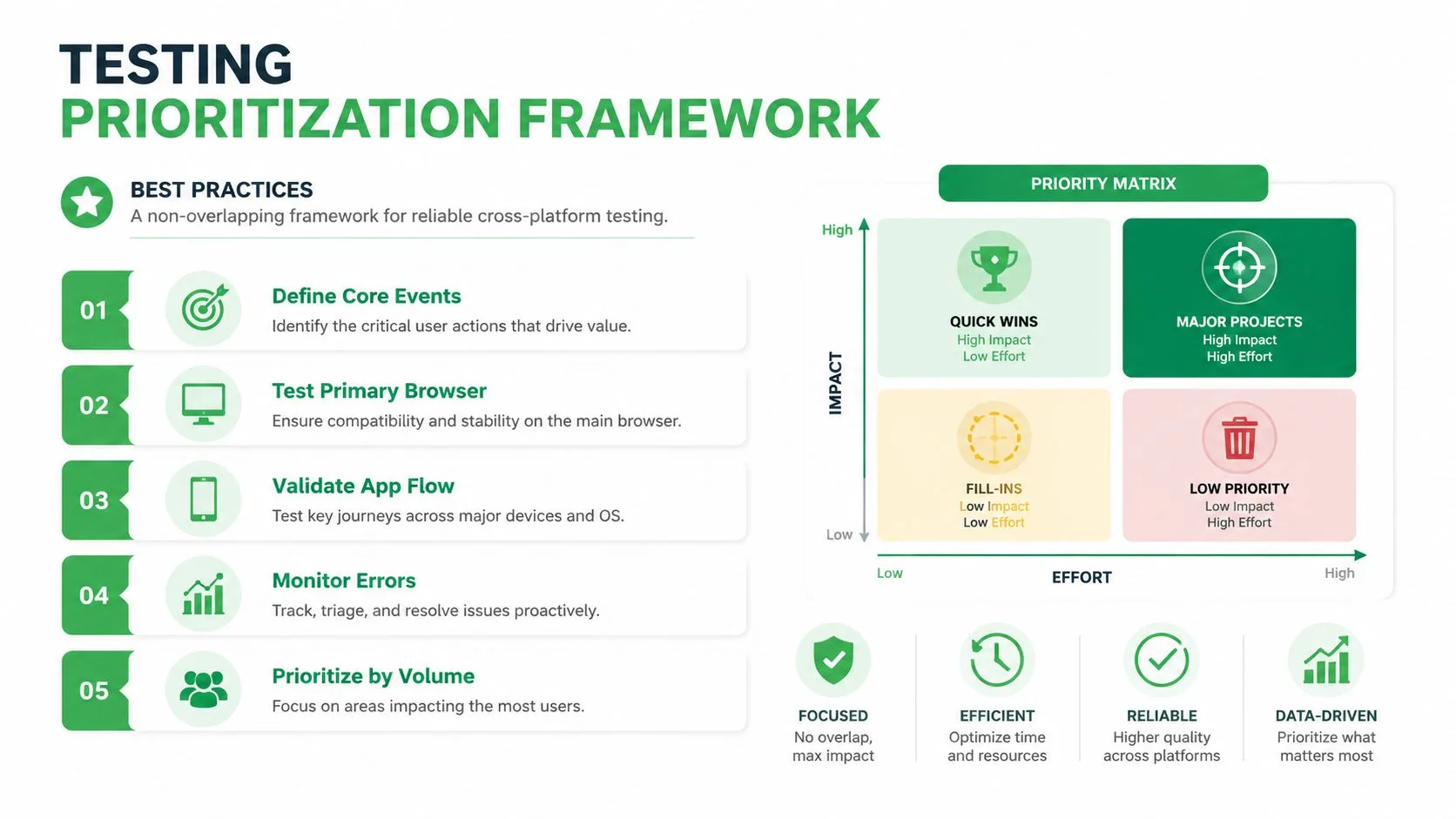
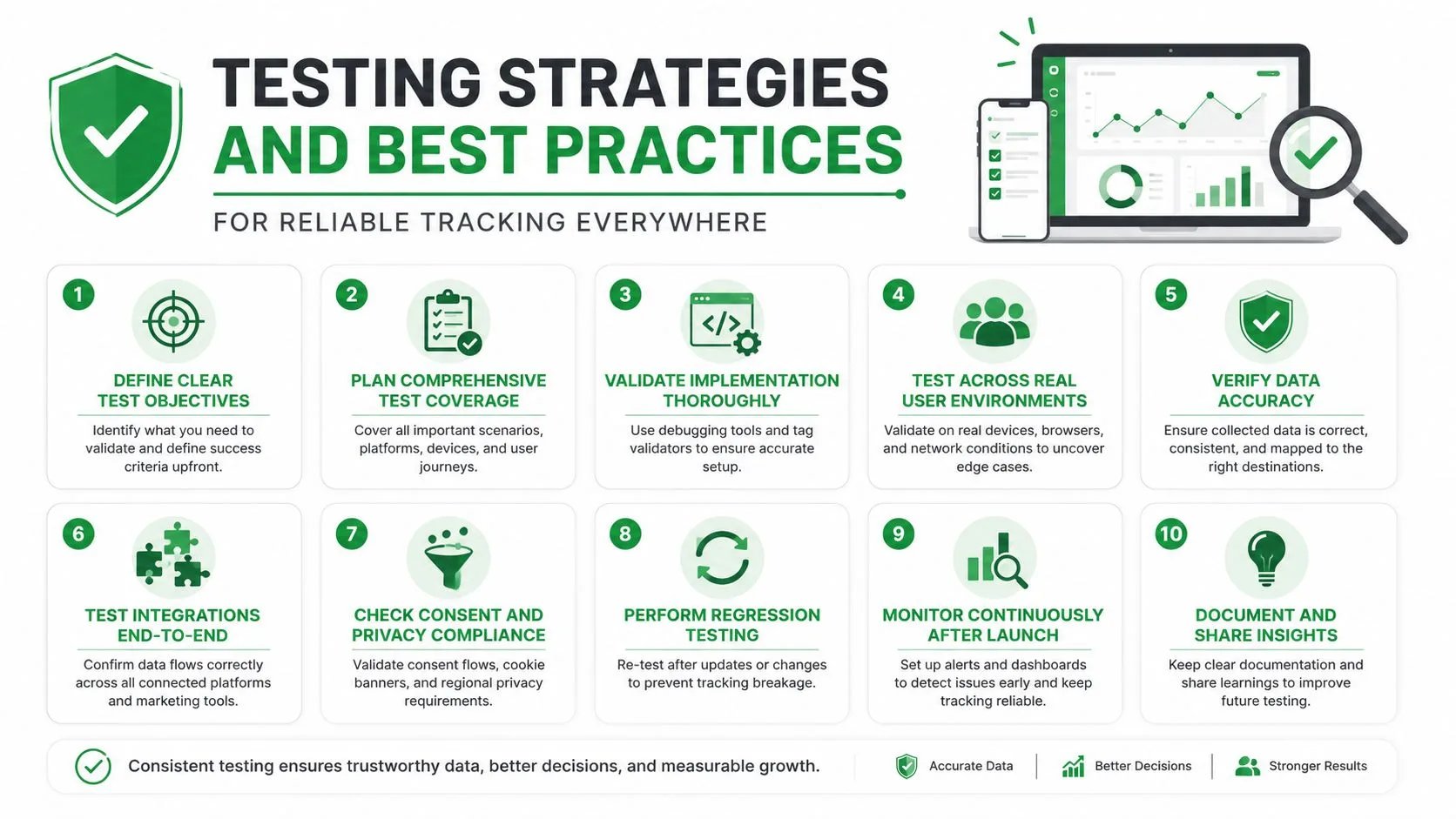
Reliable testing begins with a single question: what decision will the tracking data support? If the answer is “I’ll follow up when the recipient opens the message,” then open detection and alert timing deserve more attention than cosmetic differences between desktop and mobile.
Test the complete journey
Use a controlled Gmail account and a recipient account you can access on the platforms you want to evaluate. Send a tracked message from Gmail web, open it from the recipient environment, then check the sender’s status on desktop and mobile. Repeat the journey in the opposite direction so you can identify whether the failure belongs to sending, recording, display, or notification delivery.
Record what happens at each point:
- Before sending: Is tracking visibly enabled, and does the compose experience behave normally?
- After sending: Does the sent message show the expected status control?
- After opening: Does the open event appear with the expected count or timestamp?
- After switching devices: Does the same thread preserve its tracking context?
- After notification delivery: Does the alert arrive where the user expects it?
Google’s cross-platform sign-in guidance adds an identity check that teams shouldn’t skip. For web and Android single sign-on, Google requires both apps to use the same API Console project and request matching scopes. The user must already be signed in to Google on the browser or Android device and must have previously authorized the app for those same scopes (Google’s cross-platform sign-in requirements). That means a tracking workflow can fail even when its interface looks correct if account state and authorization aren’t aligned.
Prioritize real-world edge cases
Test notification settings, permission denial and re-approval, network changes, background restrictions, and switching between an active Gmail thread and a newly opened message. Don’t test only the ideal path. A user who checks Gmail during a meeting, on a locked phone, or after changing notification preferences is using the product normally.
A practical testing reference is this browser testing case study from Faberwork LLC, which is useful for thinking about how development teams surface issues before users encounter them. The specific lesson for tracking is to make compatibility checks repeatable instead of relying on one manual demonstration.
For a practical Gmail workflow, use email tracking for Gmail as a reference point, then create your own acceptance criteria. A tool passes when a user can send, verify, and act on tracking information without needing to remember which platform created the event.
How Mail Tracker for Gmail Delivers Consistent Tracking Across Platforms
Mail Tracker for Gmail is an email tracking add-on that places read receipts and real-time open notifications inside Gmail. Its model is straightforward: users send tracked messages from Gmail, then use double check marks, open counts, and message-level timestamps to understand engagement across supported surfaces.
Installation follows Google’s official distribution path. Google Workspace Marketplace is the official place to find and install apps that work with Gmail. Google’s help documentation says users can open the Marketplace from Gmail’s sidebar, install an app, grant OAuth permissions, and use the app inside Gmail (Google’s Gmail Marketplace installation guidance). Google’s release notes also explain that Gmail add-ons were deprecated with the launch of Google Workspace add-ons and that add-ons are now in the G Suite Marketplace (Google Workspace add-ons release notes).
One workflow across desktop and mobile
The product offers a Google Workspace Marketplace add-on and a Chrome extension for Gmail. Users can send tracked emails from Gmail web and use Gmail on Android and iOS to send tracked messages and receive alerts, keeping the important outcome inside the inbox instead of requiring a separate application.
The tracking layer records open events rather than reading email content, and the product documents GDPR compliance statements and user data rights. Users can choose a visible tracking signature on the free plan, while Premium provides an optional invisible tracker. Premium also includes daily activity reports and full tracking history with message-level details.
That design reflects the distinction between surface consistency and outcome consistency. A desktop user may see more room around the controls, while a mobile user may interact with a compact Gmail interface. The useful result remains the same: a person can inspect whether the message was opened and respond to the signal from the device they’re using.
Teams evaluating embedded workflow tools can also review the key capabilities of SigOS for a broader view of how software can preserve operational context inside an existing work environment.
Building Confidence in Every Inbox You Open
Cross platform compatibility began with shared standards, but Gmail users experience it as continuity. The test isn’t whether a tracker appears on desktop, Android, and iOS. It’s whether open counts, check marks, timestamps, and notifications remain dependable when the user changes devices.
Evaluate any tracker with five questions:
- Does it install through a trustworthy Gmail path?
- Does the identity and permission setup remain consistent?
- Can users send tracked messages from the surfaces they use?
- Does the same message status appear clearly across devices?
- Have the team’s highest-value actions been tested under real notification and permission conditions?
When those answers are clear, compatibility stops being an abstract technical label. It becomes confidence that the next sales follow-up, recruiting message, or client reply is based on a signal you can understand.
Mail Tracker for Gmail keeps tracked sending, read receipts, open counts, timestamps, and alerts inside the Gmail workflow across desktop and mobile. Visit Mail Tracker for Gmail to review the supported tracking experience and choose the setup that fits how you move between Gmail web and mobile.
Ready to track your emails?
Add Mail Track for Gmail from the Google Workspace Marketplace and know the moment your emails are opened. Free and unlimited.
Add to GmailMore reading
More from Tips
How to Know if Someone Blocked Your Email in Gmail: Signs and Checks
How to know if someone blocked your email in Gmail: what a block really does, how to read bounce messages, and how open tracking tells a block from silence.
Gmail Snooze Email: How It Works and When to Use It
Learn how Gmail snooze email works, how it differs from archive and mute, and how to pair it with open tracking so follow-ups come back at the right time.
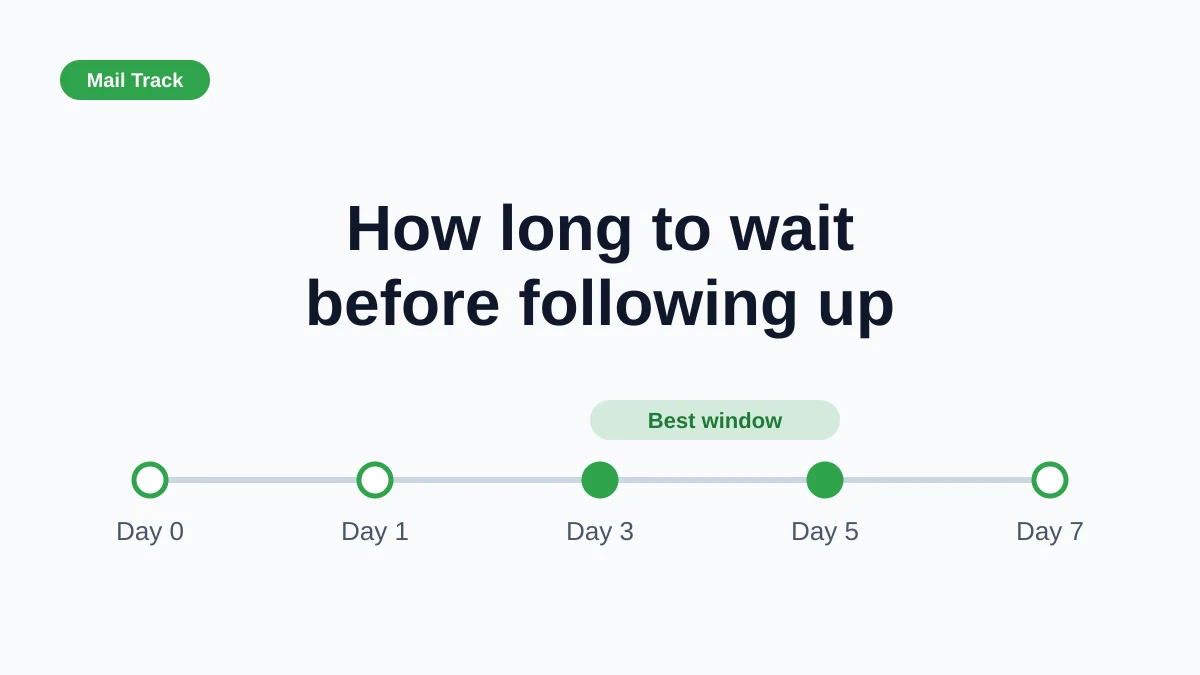
How Long to Wait Before Following Up on an Email (With Tracking Signals)
How long to wait before following up on an email? Use these waiting windows by situation, plus open and click signals in Gmail to time each follow-up.