
Mail Delivery Subsystem: Real Bounce or Scam, and How to Fix It
Got an email from Mail Delivery Subsystem? It is Gmail's bounce notice. See how to read the error, fix each cause, and tell a real bounce from a fake one.
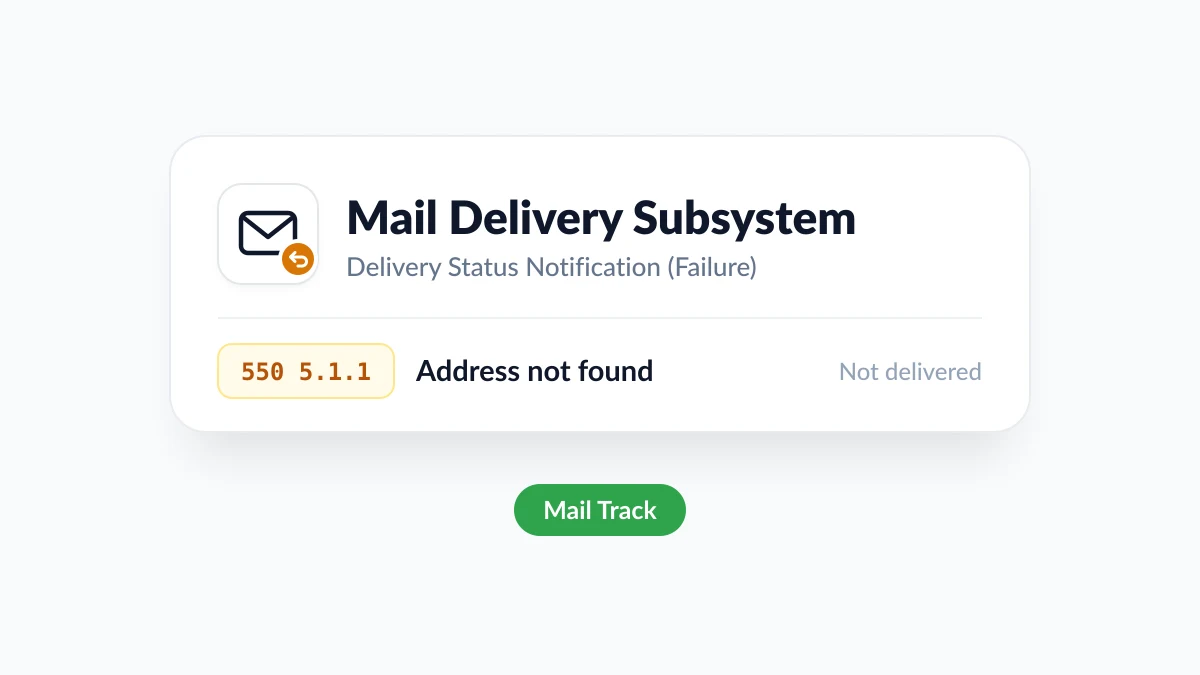
An email from Mail Delivery Subsystem lands in your inbox, often seconds after you hit Send. It looks official and a little alarming, and no person wrote it. It is the automated sender of Gmail’s bounce messages, and it is telling you that an email did not reach its recipient.
Most of the time that is useful news, because the message names the address that failed and the reason. Sometimes it is stranger: the bounce is about an email you never wrote, or the message only pretends to be a bounce. This guide shows how to tell those cases apart, read the error and fix the common causes. It ends with the opposite case, where nothing bounces and nobody answers. That is where Mail Track for Gmail, a Chrome extension and Google Workspace add-on for email open and click tracking inside Gmail, helps: it shows when a delivered email is opened.
What is Mail Delivery Subsystem in Gmail?
It is the name Gmail gives to its automatic delivery failure reports. Google’s help page on fixing bounced or rejected emails puts it in one sentence: “When your message bounces, Gmail automatically sends you an email that explains what happened.” The same page says what to look for:
| Detail | What Google’s help page says |
|---|---|
| Sender name | Mail Delivery Subsystem |
| Sender address | mailer-daemon@googlemail.com |
| Subject line | Often “Delivery Status Notification (Failure)“ |
| Where it arrives | Your Inbox or your Spam folder |
The name is older than Gmail. The internet standard for these reports, RFC 3464, dates from January 2003, and its sample report, dated 1994, already comes from “Mail Delivery Subsystem” at a MAILER-DAEMON address. A daemon is a program that runs in the background. Other mail systems send the same kind of report under similar names.
In December 2016, Google redesigned the message. Its announcement of revamped bounce messages promised “user-friendlier text” in the user’s language, with the original technical bounce kept below the new summary.
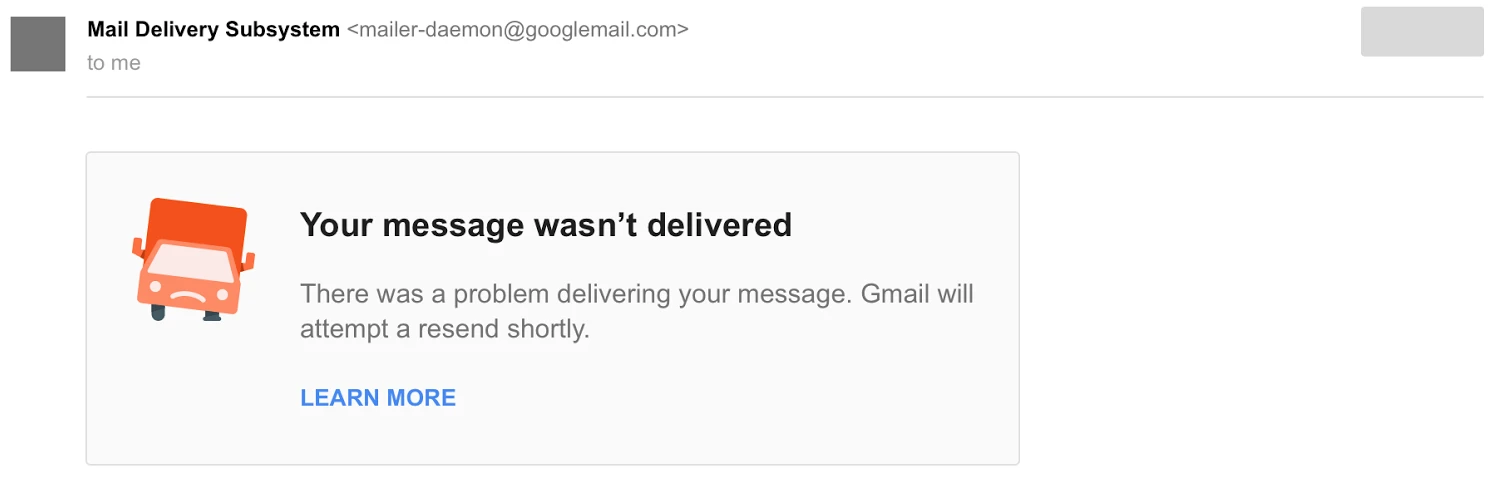
Is a Mail Delivery Subsystem email real, spoofed or a scam?
Mail Delivery Subsystem itself is a legitimate automated sender. What varies is the email the bounce is about. A message under this name is one of three things:
| What it is | How to recognize it | What to do |
|---|---|---|
| A bounce for an email you sent | The original is in your Sent folder, and you know the recipient | Read the reason and fix it |
| A bounce for an email you never sent | Nothing matches in Sent, and the recipient is a stranger | Report it as spam and click nothing inside it |
| A fake that imitates a bounce | It asks you to sign in, confirm your account or open a file | Report it as phishing |
Three checks that take a minute
- Check the address, not only the name. Google’s page on spoofed addresses warns that “the sender name can be forged”, and its guide to avoiding phishing emails says: “Check that the email address and the sender name match.” A Gmail bounce comes from
mailer-daemon@googlemail.com. - Search your Sent folder for the recipient or the subject quoted in the bounce. If the email is there, the bounce is yours.
- Look at what it asks for. A real bounce explains a failure and asks for nothing. The phishing guide is categorical: “Gmail won’t ever ask you for personal information, like your password, over email.”
Why you get bounces for emails you never sent
Google’s explanation is spoofing: “Your Gmail account might be spoofed if you get bounce messages for emails that look like they were sent from your account.” The same page describes the method: “Some spammers use software programs to create random lists of email addresses to use in spoofing.”
In practice, a spammer sends junk mail with your address written in as the sender. Some of it goes to addresses that do not exist, and the failure reports come back to you. The bounce can be authentic. The email it reports was never yours.
A wave of these bounces does not by itself mean your account was hacked. Google is explicit that “these emails are created outside of Gmail.” It becomes an account problem if your Sent folder holds emails you did not write, or if contacts received spam from you. For that case, Google says to follow the Gmail security checklist and report the problem to Gmail.
How to read the bounce message: headline, address, code
A real bounce has three parts:
- A headline in plain words, such as “Address not found”, “Message blocked” or “Delivery incomplete”.
- The address that failed. If you wrote to several people, only the addresses named in the bounce missed your email.
- The server’s response, a line of technical text that starts with a number. This is the actual diagnosis.
What the numbers mean
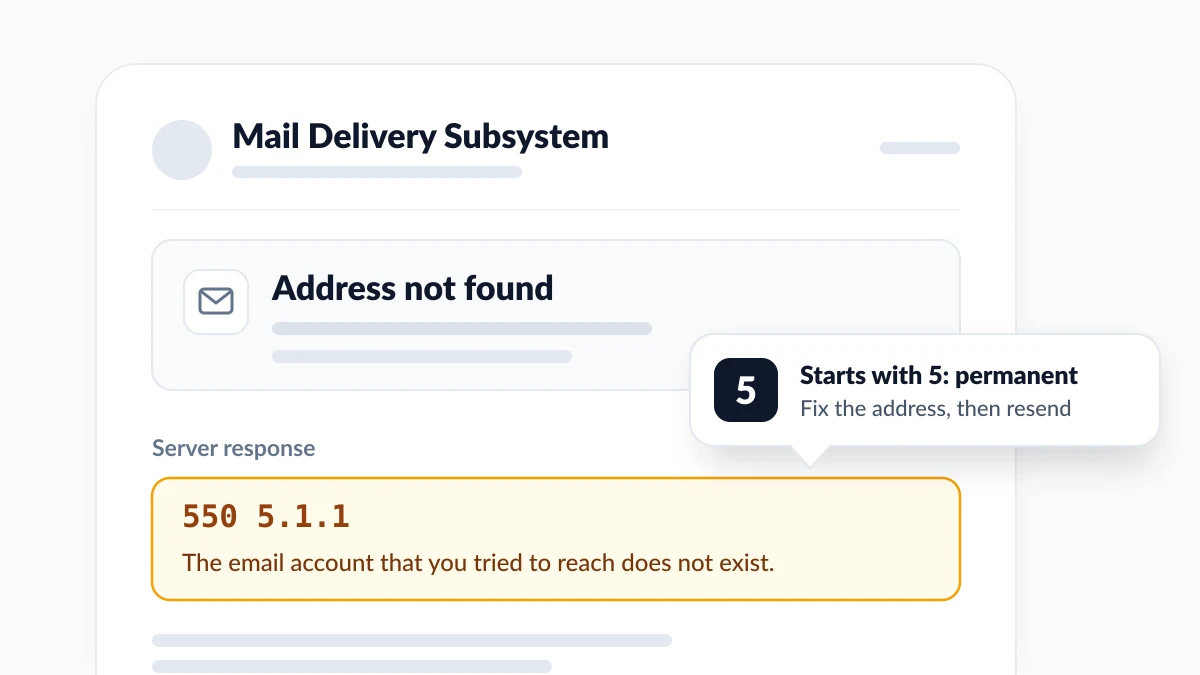
Google’s guide to SMTP error messages gives the rule: “Errors that start with a 4 are temporary failures. No action is needed, the sender will try again. Errors that start with 5 are permanent failures and action is required to fix the problem.”
The standard behind the dotted second number, RFC 3463, defines a permanent failure as one “which is not likely to be resolved by resending the message in the current form.” An email that bounced with a 5 will bounce again until you change something.
The middle digit of the dotted number narrows down the cause: in Google’s table, x.1 is about addressing, x.2 about the mailbox and x.7 about security or policy. Here are common lines for a Gmail or Google Workspace recipient, as worded in Google’s Gmail SMTP errors and codes reference:
| Code | Google’s error text | In plain terms |
|---|---|---|
| 550 5.1.1 | ”The email account that you tried to reach does not exist.” | A typo, or a closed account |
| 452 4.2.2 | ”The recipient’s inbox is out of storage space.” | Their mailbox is full |
| 552 5.3.4 | ”Your message exceeded Google’s message size limits.” | The email is too large |
| 550 5.7.1 | ”This message is likely unsolicited email.” | A spam filter rejected it |
| 550 5.7.26 | ”This email has been blocked because the sender is unauthenticated.” | The sending domain is not set up correctly |
Other mail providers word their responses differently, but the numbering follows the same standard. When the line ends in “gcdp”, Google says the error results from “customized rules created by a Google Workspace administrator.” Only that administrator can change the rule.
How to fix the most common bounce errors
Address not found
Google’s help page lists the usual mistakes: spelling errors, quotation marks, dots at the end of the address, and spaces before or after it. Then it names the less obvious cause: “Make sure you have the person’s current email address, as their email address may have changed.”
- Compare the address character by character with a source you trust, such as an email signature.
- Check the saved contact in Google Contacts, as Google suggests, and correct an outdated entry.
- Ask through another channel. Google’s wording: “If possible, ask the person for their email address.”
Resending the same email unchanged changes nothing.
Message blocked
The recipient’s mail system refused the email. Google’s description of the cause: “Something in your message, like links, attachments, or text, triggers the recipient’s spam filters.” Sending “to a large group of recipients at once” can do it too. Gmail’s page on how Gmail blocks messages is short: “If we think an email might be spam, we block it.”
- Remove what looks risky. Google’s first fix: “Remove links to websites or text that ask for personal information.”
- Send large mailings differently. Google suggests putting all recipients in a Google Group and writing to that single group address.
- Check your domain setup if you send from a company address and the code is 5.7.26. Our guide on why your emails are going to spam covers SPF, DKIM and DMARC.
“Message blocked” does not mean the person blocked you. When a Gmail user blocks a sender, Google’s page on blocking an email address says “all future emails from them go to Spam.” The email is delivered there, so nothing bounces. Our guide on how to know if someone blocked your email covers the signs that do exist.
Delivery incomplete
This one is a delay, not a failure. A Gmail Community thread from 2019 quotes a “Delivery incomplete” notice in full. It starts with “There was a temporary problem delivering your message” and continues: “Gmail will retry for 45 more hours. You’ll be notified if the delivery fails permanently.”
- Wait. Gmail is still trying, and resending now can leave the recipient with two copies.
- Act on the final notice. If delivery fails for good, Google’s advice is: “Send the message again at a later time.”
Sending limit, full inbox, message too large
| Bounce | What Google says | Your move |
|---|---|---|
| You reached the sending limit | Personal Gmail accounts get this error after more than 500 emails in a day, or one email to more than 500 recipients | Wait: “You can send emails again within 24 hours.” |
| The recipient’s inbox is full | ”The recipient must clear space in their account storage before they can receive new email.” | Tell them by phone or chat |
| The message is too large | ”To send large files over the size limit, like videos, use Google Drive.” | Share the file as a link |
The last quote is from Google’s page on sending attachments with Gmail, the others from the bounce help page.
How to stop Mail Delivery Subsystem emails you never sent
Google is frank about the limits: “Because these emails are created outside of Gmail, Gmail isn’t able to stop the spammers from spoofing your address.” Its advice fits in one line: “If you get these kinds of emails, report them as spam.” No switch turns spoofed bounces off, but three habits help:
- Report each one as spam instead of only deleting it.
- Keep the sender out of your filters. A filter that deletes everything from the bounce address would also hide the bounces for your own emails.
- Authenticate your domain if you own one. Google’s email sender guidelines say SPF “prevents spammers from sending unauthorized messages that appear to be from your domain.” You cannot set this up for a gmail.com address.
What a bounce proves, and what it cannot
A bounce is the one moment Gmail tells you plainly that an email failed. Everything else is silence, and silence has several meanings.
| Signal | What it tells you | What it leaves open |
|---|---|---|
| A bounce | The email did not reach that address, and why | Your other recipients, who are not named in it |
| No bounce | Most likely, the receiving server accepted the email | Inbox or Spam, seen or unseen |
| An open | The email was displayed at least once | Whether every line was read |
Gmail will not fill the gap for most people. Google’s page on read receipts states that they “are only available to work or school accounts”, and that “the recipient of your email may need to approve it first.”
This is the part an email tracker covers. Mail Track adds read receipts to Gmail: double check marks appear when a tracked email is opened, with the open count and the time. The free plan tracks unlimited emails and adds a small visible signature that tells recipients the email is tracked. The Premium plan uses an invisible tracker with no signature.
For an email that matters, combine both signals:
- A few minutes after sending, look for a bounce. Searching Gmail for
from:mailer-daemon@googlemail.comlists the bounces in your mailbox. - No bounce? Watch for the open. An open means the email very likely reached a folder the recipient looks at.
- Opened but no reply? Follow up while the subject is fresh.
- No open after several days? The email may be in Spam, or simply unread. Try another channel.
Keep the limits in mind. An open means the email was displayed with its images loaded. If the recipient’s mail app blocks images, no open is recorded, and some apps and security filters load images automatically. Our guide on whether you can see if someone read your email explains how to read those signals.
FAQ
Conclusion
A message from Mail Delivery Subsystem is Gmail’s way of saying that an email did not arrive, and usually why. Check that the bounce is about an email you actually sent, read the code, fix the cause, and report the rest as spam. The harder case is the email that does not bounce and still gets no answer. For that one, Mail Track shows inside Gmail whether the email was opened, so you know when to follow up.
Ready to track your emails?
Add Mail Track for Gmail from the Google Workspace Marketplace and know the moment your emails are opened. Free and unlimited.
Add to GmailMore reading
More from Tips
Why Are My Emails Going to Spam? Causes and Fixes for Gmail Senders
Why are my emails going to spam? The causes Google documents, a five-minute test to find yours, fixes for Gmail senders, and what open tracking can reveal.
What Does Queued Mean in Gmail? Causes, Fixes and What Happens Next
What does queued mean in Gmail? Your email is waiting in the Outbox and has not been sent. See the causes and the fixes for Android, iPhone and computer.
How to Know if Someone Blocked Your Email in Gmail: Signs and Checks
How to know if someone blocked your email in Gmail: what a block really does, how to read bounce messages, and how open tracking tells a block from silence.