
What Does Queued Mean in Gmail? Causes, Fixes and What Happens Next
What does queued mean in Gmail? Your email is waiting in the Outbox and has not been sent. See the causes and the fixes for Android, iPhone and computer.
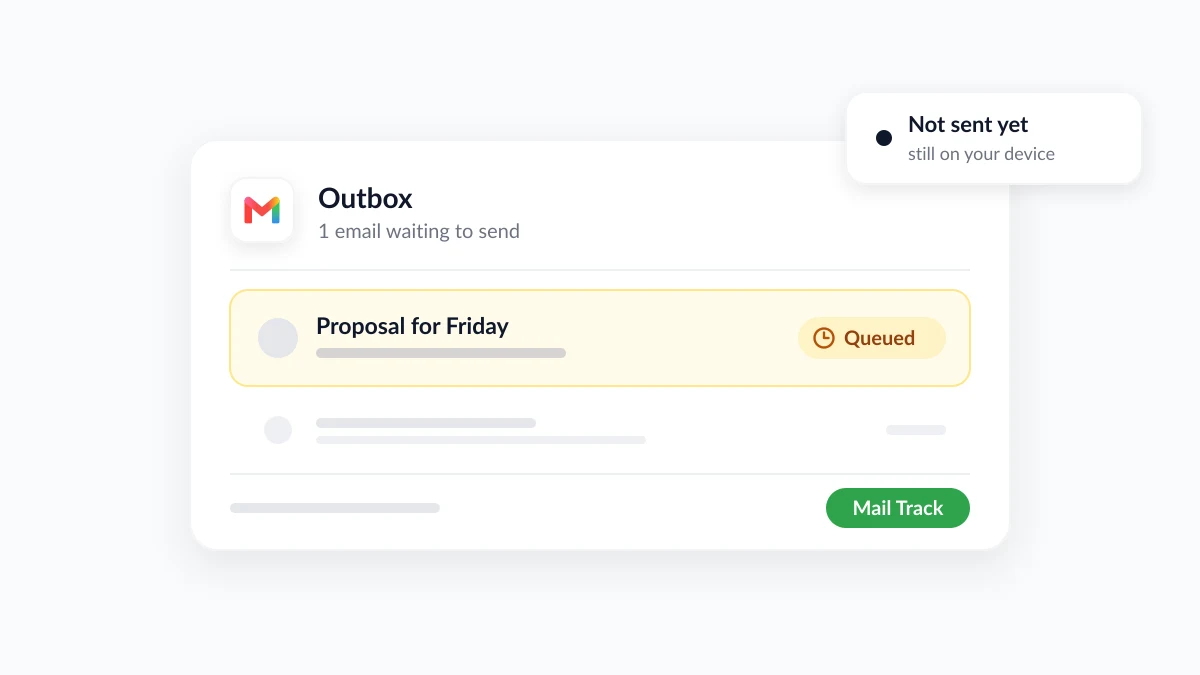
You tap Send in the Gmail app, and instead of moving to Sent, the message stays put with a “Queued” label on it. So what does queued mean in Gmail? It means the email has not been sent. It is waiting in your Outbox, on your own device, until Gmail is able to send it. The recipient has received nothing yet.
Most queued emails leave by themselves once the cause is gone, and the list of causes is short: a weak connection, a setting, a full account or a sending limit. This guide goes through each one, the fixes for Android, iPhone and computer, and how to cancel a queued email you no longer want to send. It also covers what happens after the queue clears. Mail Track for Gmail, a Chrome extension and Google Workspace add-on for email open and click tracking inside Gmail, shows when a sent email is opened, but only once the email has really left your Outbox.
What does queued mean in Gmail, exactly?
“Queued” is a waiting status. The Gmail app could not send your message at the moment you tapped Send, so it parked the message and will try again later. Clean Email’s guide to queued emails in Gmail describes it as an email that is “in a waiting list and currently cannot be sent”, and notes that you usually see the label in the Outbox of the Gmail app on Android or iPhone.
Gmail on a computer has the same mechanism under a different name. Google’s help page on using Gmail offline says that a message you send offline is saved in a new “Outbox” folder, and that it is sent automatically when you connect to the internet again.
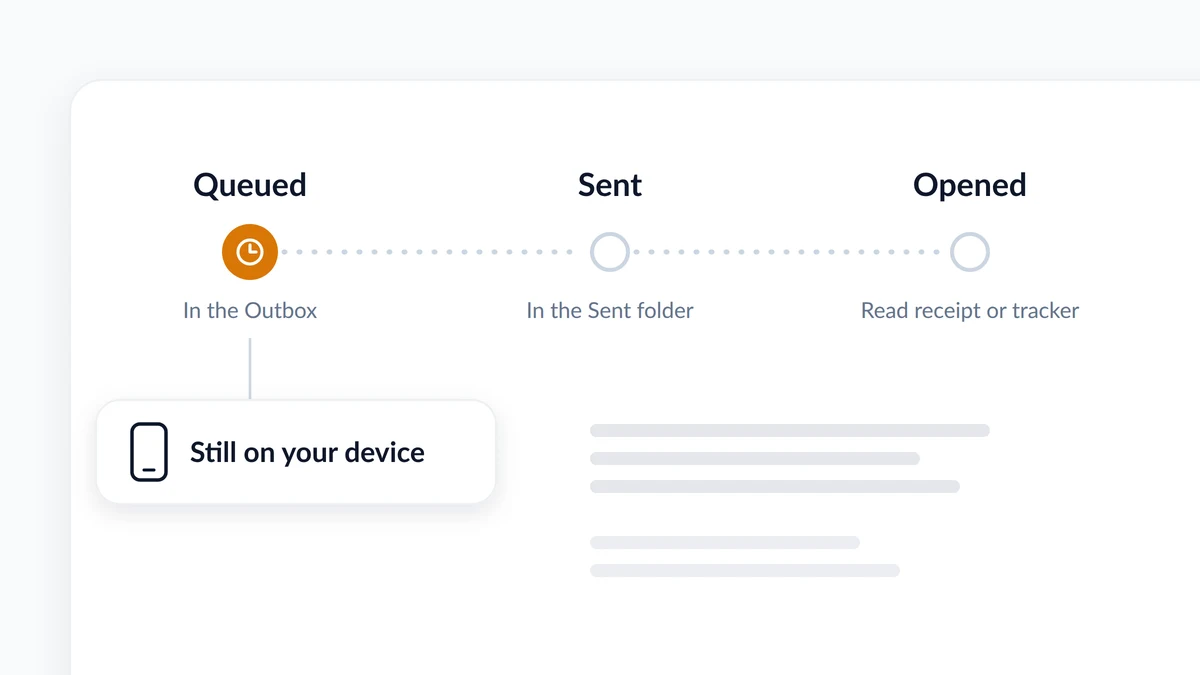
Three statuses are easy to mix up:
| Status | Where the email is | What the recipient has |
|---|---|---|
| Queued | In your Outbox, on your phone or in your browser | Nothing |
| Sent | In your Sent folder, handed over by Gmail | The email, unless it bounces or lands in spam |
| Opened | Reported by a read receipt or an email tracker | The email, displayed at least once |
Why is my email queued in Gmail? Seven usual causes
Almost every case comes down to one of the causes below. The first four sit on your device, the last three on the message or your account.
| Cause | What is going on | Typical sign |
|---|---|---|
| Weak or no connection | Gmail holds the message until Wi-Fi or mobile data is back | Websites are slow to load too |
| Offline mode on a computer | Messages sent while offline wait in the Outbox | An Outbox label shows up in Gmail in your browser |
| Sync is off or the app is outdated | The app cannot exchange mail with Google’s servers | New mail is not arriving either |
| Background data is restricted | Android’s Data Saver keeps most apps off mobile data in the background | The email leaves as soon as you join Wi-Fi |
| Large attachment | A big file is still uploading | The email carries a video or many photos |
| Google storage is full | Sending and receiving both stop | Incoming mail has stopped too |
| Sending limit reached | Sending is paused for up to a day | You emailed a long list today |
Here is what Google’s own pages say about the less obvious ones:
- Sync problems. Google’s page on sync errors with the Gmail app lists “You can’t send messages” among the symptoms, next to an inbox that does not update and an “Account not synced” error.
- Data Saver. On Android, Data Saver “lets most apps and services get background data only via Wi-Fi”, according to Pixel Phone Help’s page on using less mobile data.
- Attachments. For personal accounts the attachment limit is 25 MB. Above it, Gmail removes the attachment and adds it as a Google Drive link. Clean Email adds that a slow upload on mobile data can stall, which leaves the message waiting.
- Storage. A Google Account comes with up to 15 GB shared among Drive, Gmail and Photos. Google’s page on managing your storage is blunt about the limit: once you reach it you can’t send or receive email, and messages sent to you are returned to the sender.
- Sending limits. Gmail’s page on sending limit errors says the message “You have reached a limit for sending mail” can appear after you send to more than 500 recipients in a single email or send more than 500 emails in a day, and that you should be able to send again within 1 to 24 hours. Paid Google Workspace accounts get a daily limit of 2,000 messages per user, and a user who reaches a limit can’t send new messages for up to 24 hours.
One caveat. Google’s pages confirm each limit and symptom above, but they do not promise that the app will say “Queued” in every one of these cases. That connection comes from troubleshooting guides and user reports, so use the list as a checklist to work through, not as a diagnosis.
How to send a queued email in Gmail
Start with three steps that apply to every device. Then move to the section for yours.
- Check the connection. Open any website in a browser, which is the connection test Google suggests. If it does not load, fix Wi-Fi or mobile data before anything else.
- Refresh the Outbox. In the Gmail app, tap the menu (three lines), open Outbox and pull down from the top. How-To Geek’s guide to emails stuck in the Gmail Outbox lists this fix for both iPhone and Android.
- Do not rewrite the email. Clean Email warns that if you rewrite and resend the same message in the meantime, the recipient may get both copies.
How to fix a queued email in Gmail on Android
These are Google’s sync troubleshooting steps for Android, plus the Data Saver check:
- Update the Gmail app from the Play Store.
- Restart the phone. Google recommends it to fix temporary sync issues.
- Turn on Sync Gmail. In the app, open Menu, then Settings, pick your account, and under “Data usage” make sure “Sync Gmail” is checked.
- Check storage twice. A full Google Account blocks sending, and Google adds that when the device itself is low on storage space, the Gmail app doesn’t sync.
- Let Gmail use background data. If Data Saver is on, go to Settings, Network & internet, Data Saver, Unrestricted data, and turn it on for Gmail. These are Pixel menu names, and other phone makers word them differently.
- Clear the app’s storage as a last resort. The path is Settings, Apps, See all apps, Gmail, Storage & cache, Clear storage, followed by a restart.
If the app shows other symptoms as well, such as crashes or missing notifications, our guide to Gmail not working on Android goes deeper.
How to fix a queued email on iPhone and iPad
The same Google help page has an iPhone and iPad version. Its steps:
- Sync manually. In your inbox, swipe down from the top.
- Update Gmail from the App Store.
- Restart the device.
- Test the connection by loading a website in Safari.
- Turn on Background App Refresh. Go to Settings, General, Background App Refresh, and enable it for Gmail.
- Check your Google Account storage. When it is full, you can’t send or receive messages.
How to clear the Gmail Outbox on a computer
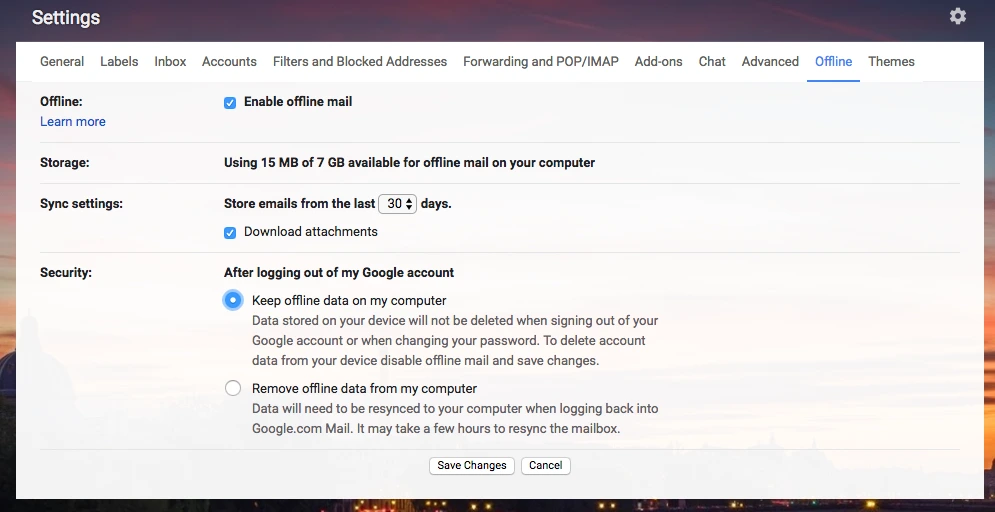
In a browser, the Outbox belongs to Gmail’s offline mode. It has been built into Gmail since 2018, when Google announced offline support in the new Gmail so that Chrome users could search, write, delete and archive up to 90 days of messages without a connection. It works only in a Chrome window that is not in Incognito mode.
If your connection is fine and messages keep waiting in the Outbox, turn offline mail off:
- Open settings. Click the gear icon, then See all settings.
- Open the Offline tab.
- Untick “Enable offline mail” and click Save Changes.
- Reload Gmail.
Will a queued email eventually send, and can you cancel it?
When the cause is temporary, yes. Google states that a message sent offline goes out automatically once you connect, and Clean Email says the same of the mobile app: Gmail keeps trying and sends the message once the problem is resolved.
A queued email will not clear by itself when the cause sits on your account:
- Full storage. Nothing leaves until you free up space. Google’s first suggestion is to empty Trash and Spam.
- A sending limit. Waiting is the only fix: 1 to 24 hours on a personal account, up to 24 hours on Google Workspace, after which the limit resets.
How to delete a queued email in Gmail
Open the Outbox, open the queued email and delete it. According to Clean Email, the message moves to Trash and the recipient will not receive it, because it has been withdrawn from the sending queue.
This is the one stage where you can truly take an email back. After it is sent, Gmail’s Undo Send gives you a cancellation period of 5, 10, 20 or 30 seconds, and then the message is out of your hands. Our guide on how to recall an email in Gmail covers that window in detail.
Need to change the email instead of dropping it? Copy the text, delete the queued version, and send a corrected one when you are back online.
After the queue clears: sent is not the same as read
When the email moves from Outbox to Sent, Gmail has done its part and goes quiet. It does not tell you whether the message was opened. Gmail’s built-in read receipts are only available to work or school accounts, the recipient may need to approve them, and Google itself notes that a receipt “doesn’t always mean the recipient read your message”.
An email tracker fills that gap. Mail Track adds read receipts to Gmail: double check marks appear when your email is read, with the open count and the time, and you can get push alerts on desktop and mobile. The free plan tracks unlimited emails and adds a small visible signature that tells recipients the email is tracked. The paid plan uses an invisible tracker with no signature.
The queue matters for tracking in one specific way: a tracker can only report on an email that has left. If an important message shows no opens after a day or two, run three checks before you write a follow-up.
- Outbox. Is the message still there, queued? Then nobody has ignored you. It never went.
- Sent. Is it in Sent, addressed to the right person?
- Opens. Does the tracker show any? Our guide on how to know if your email has been read explains how to read those signals.
Keep the limits in mind. An open is a timing signal, not proof that someone read every line, and some mail apps hide opens or record extra ones. A “Queued” label is the opposite kind of evidence: a plain fact. Until the email is sent, there is nothing for anyone to open.
FAQ
Conclusion
So, what does queued mean in Gmail? The email is written and waiting in your Outbox, and it has not been sent. Check the connection, refresh the Outbox, then work through sync, background data, attachment size, storage and sending limits until it leaves. If you would rather not send it at all, delete it from the Outbox while you still can. Once the message is in Sent, the next question is whether anyone opened it, and that is the part Mail Track answers inside Gmail.
Ready to track your emails?
Add Mail Track for Gmail from the Google Workspace Marketplace and know the moment your emails are opened. Free and unlimited.
Add to GmailMore reading
More from Tips
How to Know if Someone Blocked Your Email in Gmail: Signs and Checks
How to know if someone blocked your email in Gmail: what a block really does, how to read bounce messages, and how open tracking tells a block from silence.
Gmail Snooze Email: How It Works and When to Use It
Learn how Gmail snooze email works, how it differs from archive and mute, and how to pair it with open tracking so follow-ups come back at the right time.
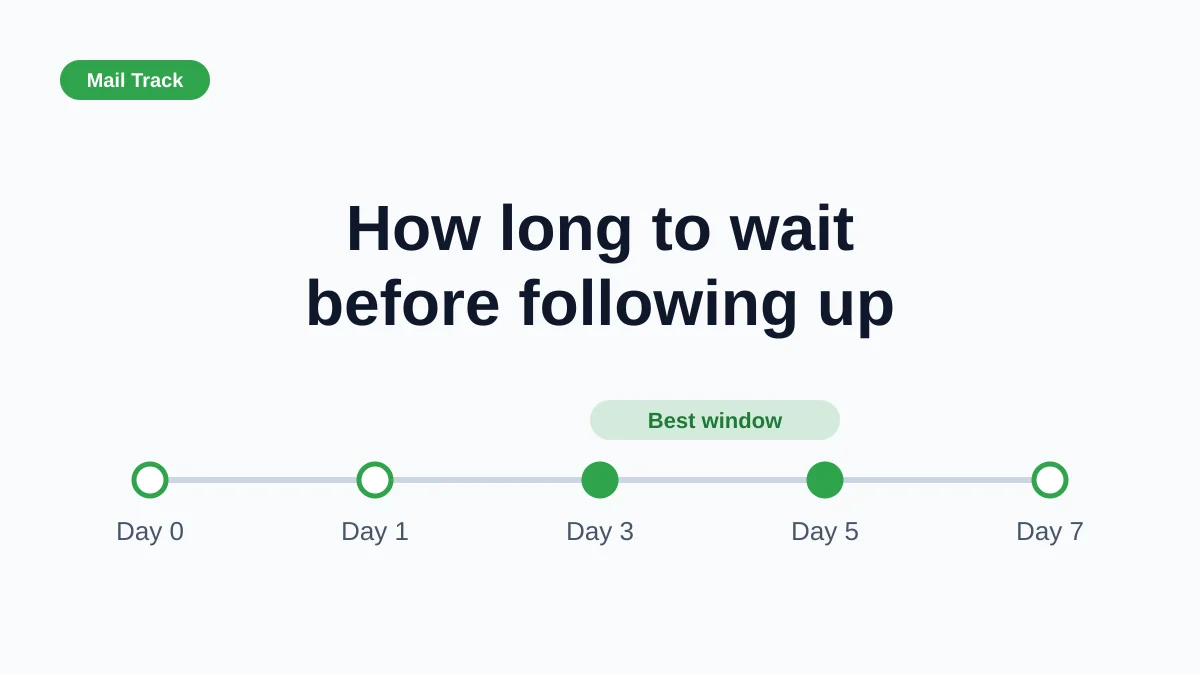
How Long to Wait Before Following Up on an Email (With Tracking Signals)
How long to wait before following up on an email? Use these waiting windows by situation, plus open and click signals in Gmail to time each follow-up.