
Why Are My Emails Going to Spam? Causes and Fixes for Gmail Senders
Why are my emails going to spam? The causes Google documents, a five-minute test to find yours, fixes for Gmail senders, and what open tracking can reveal.
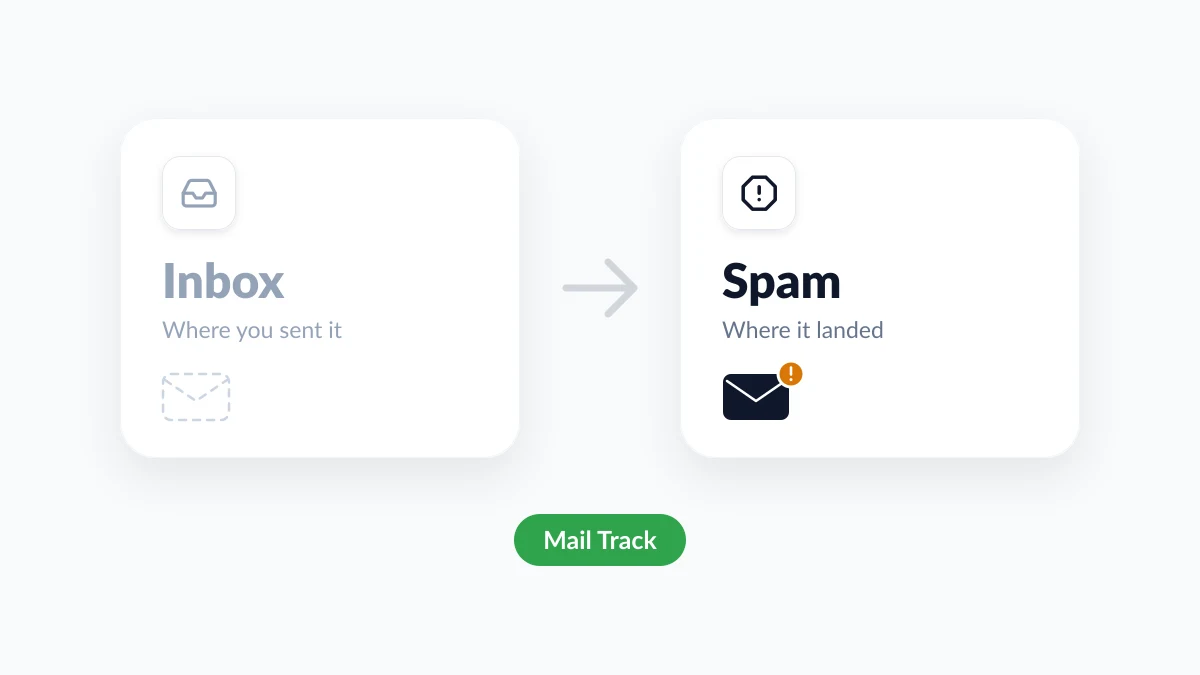
You sent the quote on Monday. By Thursday there is still no reply, and when you finally call, the client finds your message in a folder they never open. If you are asking why are my emails going to spam, the short answer is that a mailbox provider, usually Gmail, judged your message unverified or unwanted. It decides from who you are, how you send, what the message contains and how recipients reacted to your earlier mail.
This guide sticks to what Google documents for people who send from Gmail, on a personal address or a company domain. You get a five-minute test, the fix for each cause, and a straight answer about email tracking. Mail Track for Gmail, a Chrome extension and Google Workspace add-on for email open and click tracking inside Gmail, is relevant for one practical reason: a run of sent emails that nobody opens is often the first sign of a spam problem.
Why are my emails going to spam? The five usual causes
| What went wrong | Typical sign | First fix |
|---|---|---|
| A recipient reported you | One person goes quiet while everyone else replies | Ask them to click Not spam and add you to contacts |
| Your domain is not authenticated | A question mark next to your name in the recipient’s Gmail | Set up SPF, DKIM and DMARC for the domain |
| A tool sends as your gmail.com address | Newsletters or form emails go to spam, normal emails do not | Send from Gmail itself, or from a domain you own |
| A sudden jump in volume | Trouble starts right after a large send | Slow down and send at a steady rate |
| Content or links look deceptive | A plain version arrives, the full version does not | Fix the subject line, the links and anything hidden |
Google’s email sender guidelines put the consequence in one sentence: if you do not meet the requirements, “your email might not be delivered as expected, or might be marked as spam.” They cover mail sent to personal Gmail accounts, the ones ending in @gmail.com or @googlemail.com. Google’s sender guidelines FAQ adds that they do not apply to messages sent to Google Workspace accounts.
One recipient or everyone? Run this five-minute test
Before you change anything, find out how wide the problem is.
- One recipient is silent and the others answer. The cause is most likely inside that person’s mailbox: an earlier spam report, a filter, a block or a company rule. Our guide on how to know if someone blocked your email covers that case.
- Several recipients went quiet at the same time. The cause is most likely on your side: authentication, volume or content.
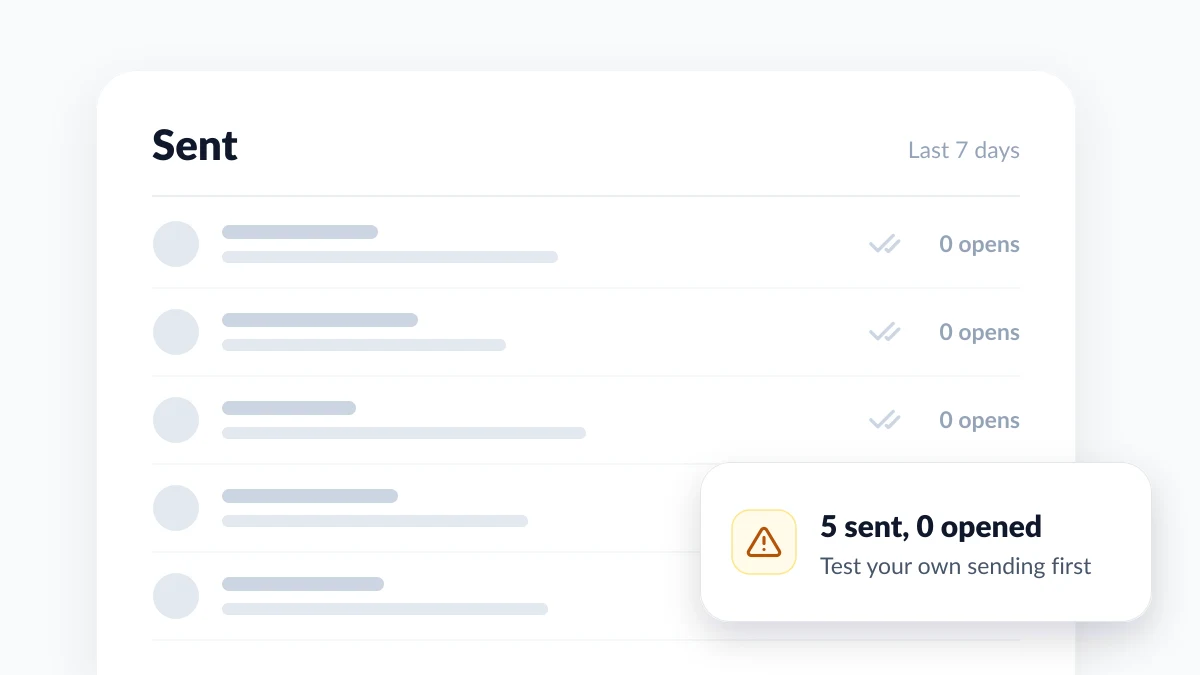
If you track your emails, your Sent folder already holds a clue. Open tracking relies on a tiny image that loads when the message is displayed, and Google’s page on turning images on or off in Gmail says that when Gmail thinks a sender or message is suspicious, “you won’t see images automatically.” An email filed in Spam will therefore usually record no open. One unopened email proves nothing. Five tracked emails to five different people with no opens between them is a pattern worth testing.
Send a test to a mailbox you control
- Send your real email to a second address. Use a personal Gmail account that has never received mail from you and does not have you in its contacts. Keep the signature, links, attachment and tracking as usual.
- Look in Spam. In Gmail on a computer, click More in the left menu, then Spam. The Promotions tab does not count: it is one of Gmail’s inbox categories, and an email there was delivered.
- Read the warning at the top. Google’s page on reporting spam in Gmail says each email in Spam carries a warning that explains why Gmail sent it there.
- Check the sender details. Click the Down arrow below the sender’s name. Per Google’s page on checking whether a Gmail message is authenticated, you should see a “Mailed by” header with the domain name and a “Signed by” header with the sending domain.
- Send a plain version. No links, no attachment, tracking off. If only the plain version reaches the inbox, the content is the trigger. Add the elements back one at a time.
| Warning in Gmail | What Google says it means | What to do as the sender |
|---|---|---|
| Messages from an unconfirmed sender | Gmail can’t confirm who sent the email | Fix authentication |
| Emails you sent to Spam | The recipient reported an earlier email, and later ones might follow it | Ask them to report it as not spam |
| You tried to unsubscribe from this sender | Emails sent after an unsubscribe go directly to Spam | Stop writing to that address |
| Messages content is empty | Spammers often send emails with no content in the body or subject | Always add a subject and a line of text |
| Administrator-set policies | The recipient’s organization marks certain emails as spam | Ask your contact to raise it with their admin |
A test mailbox shows how Gmail treats your mail in general. It cannot show what one recipient’s mailbox has learned about you.
Why emails go to spam: what Google documents
Recipients reported you
Spam reports are the signal Google describes most bluntly: “If messages from your domain are frequently reported as spam, future messages from you are more likely to be marked as spam.” Google asks senders to keep the spam rate shown in Postmaster Tools below 0.10% and never to reach 0.30%, which is three reports per thousand messages.
It is also personal. People who did not sign up to hear from you “might mark your messages as spam, and future messages to these recipients will be marked as spam.”
Your domain is not authenticated
This applies when you send from an address at your own domain. Three DNS records prove that a message really comes from you, and Google defines each in one line:
- SPF “prevents spammers from sending unauthorized messages that appear to be from your domain.”
- DKIM lets receiving servers “verify that the domain owner actually sent the message.”
- DMARC “tells receiving servers what to do with your messages that don’t pass SPF or DKIM.”
Without them, Google says messages “might be marked as spam or rejected with a 5.7.26 error.” A new sending tool can break a setup that used to work: if a third-party sender is missing from your SPF record, its messages “are more likely to be marked as spam.”
Recipients can see the failure too. Google’s 2016 announcement of new security warnings in Gmail describes a question mark in place of the sender’s profile photo for messages that can’t be authenticated, and the current help page still mentions it.

A tool sends as your gmail.com address
When you send from Gmail itself, the message leaves from Google’s own servers. The problem starts when another service (a newsletter platform, a website contact form, a CRM) sends from its own servers while showing your gmail.com address as the sender. Google’s guidelines tell senders “Don’t impersonate Gmail From: headers”, and say that doing so might impact delivery under Gmail’s DMARC quarantine policy.
A sudden jump in volume
Google’s guidelines ask senders to “Increase sending volume slowly” and to “Avoid sending email in bursts.” Its list of the top 10 Gmail sender issues says to send “at consistent volumes throughout the day and over several days.”
Volume also has hard caps, which are separate from spam filtering:
| Account | Daily sending limit | When you reach it |
|---|---|---|
| Personal Gmail | 500 emails a day, or 500 recipients in a single email | ”You have reached a limit for sending mail”, then sending resumes within 1 to 24 hours |
| Google Workspace | 2,000 messages a day per user (500 on a trial account) | No new messages for up to 24 hours |
The figures come from Google’s pages on limits for sending and getting mail and on Gmail sending limits in Google Workspace.
Content and links that look deceptive
Filters read the message too. Google’s guidelines list specific rules:
- Honest subject lines. Do not start a subject with Re: or Fwd: unless the message is an actual reply or forward.
- Nothing hidden. “Don’t use HTML and CSS to hide content in your messages.”
- Clear links. “Web links in the message body should be visible and easy to understand.”
- Real content. Gmail has a spam warning for messages with no content in the body or subject, so an attachment sent with no subject and no text can look like one.
How to stop emails from going to spam
Work through the fixes in this order.
- Authenticate your domain. Skip this step if you send from a gmail.com address in Gmail. On Google Workspace, an administrator turns on DKIM in the Admin console. Google’s Set up DKIM page says you must wait 24 to 72 hours after turning on Gmail before you can get your key, and that DKIM can take up to 48 hours to start working. It recommends SPF and DMARC as well. Then repeat the test and look for your domain next to “Signed by”.
- Send from the right place. If a newsletter tool or a contact form shows your gmail.com address as the sender, switch it to an address on a domain you control.
- Steady your volume. Spread a large send over several days, and start with people who already know you.
- Clean up the message. Write a real subject line, use descriptive link text and remove whatever the plain-version test flagged.
- Write only to people who expect your email. Google’s guidelines say: “Consider unsubscribing recipients who don’t open or read your messages.”
Then give it time. Google’s sender issues page says that after spam rates improve, “it can take some time for Gmail to adjust its spam classification rate for your messages.”
Ask the recipient for two clicks
When one mailbox is the problem, the fastest fix is on the recipient’s side:
- Not spam. Gmail’s help says that after a recipient removes an email from Spam, future emails from that sender won’t go to Spam.
- Add to contacts. When the sender is in the recipient’s Google Contacts, Gmail stops sending their messages to Spam.
Ask through another channel, such as a call or a text, since an email about the Spam folder will probably land there too. Our guide on how to remove an email from spam walks through the recipient’s side.
Does email tracking send emails to spam?
Not on its own, as far as anything Google publishes goes. The sender guidelines do not mention tracking pixels. They do contain the two content rules quoted above, so it is fair to check what a tracker adds against them.
- Open tracking adds an email tracking pixel, a tiny image that loads when the message is displayed.
- Click tracking routes a link through a tracking server before it reaches your page. Mailchimp’s help page on campaign links that trigger fraud alerts says click tracking can do so “on rare occasions”, because some spam filters distrust redirects.
- A visible signature tells the recipient that the email is tracked. Mail Track’s free plan adds one, and the Premium plan uses an invisible tracker with no signature.
No tracker can promise inbox placement. Measure the effect yourself: send the same email to your test mailbox twice, once with tracking on and once with it off. If both copies land in the same folder, tracking is not your problem.
What tracking does give you is an early warning. Mail Track shows double check marks in Gmail when a sent email is opened, with open counts and timestamps, so a sudden drop across recipients stands out within days. Read the signal with care:
- An open means the message was displayed with images. It very likely reached a folder the recipient looks at.
- No open is weak evidence. Images may be turned off, or the email may simply be unread.
- An open is not a read. Some mail apps and security filters load images on their own.
FAQ
Conclusion
The question “why are my emails going to spam” almost always comes down to one of five causes: a recipient’s report, missing authentication, a tool that borrows your gmail.com address, a burst of volume, or content that looks deceptive. Find out first whether one person or everyone is affected, run the test, apply the fixes in order and give Gmail time to adjust. Mail Track will not fix deliverability for you, but its open signals show early when your emails stop being seen.
Ready to track your emails?
Add Mail Track for Gmail from the Google Workspace Marketplace and know the moment your emails are opened. Free and unlimited.
Add to GmailMore reading
More from Tips
What Does Queued Mean in Gmail? Causes, Fixes and What Happens Next
What does queued mean in Gmail? Your email is waiting in the Outbox and has not been sent. See the causes and the fixes for Android, iPhone and computer.
How to Know if Someone Blocked Your Email in Gmail: Signs and Checks
How to know if someone blocked your email in Gmail: what a block really does, how to read bounce messages, and how open tracking tells a block from silence.
Gmail Snooze Email: How It Works and When to Use It
Learn how Gmail snooze email works, how it differs from archive and mute, and how to pair it with open tracking so follow-ups come back at the right time.