
How to Know if Someone Blocked Your Email in Gmail: Signs and Checks
How to know if someone blocked your email in Gmail: what a block really does, how to read bounce messages, and how open tracking tells a block from silence.
You sent an important message, waited a week and heard nothing. No reply, no bounce, no sign that it was ever read. At some point the uncomfortable question appears: did they block me? This guide explains how to know if someone blocked your email in Gmail, what a block actually does behind the scenes, and which signs mean something versus which ones are noise.
The honest answer up front: Gmail never tells a sender that they have been blocked. What you can do is rule out the other explanations one by one. Open signals from Mail Track for Gmail, a Chrome extension and Google Workspace add-on for email open and click tracking inside Gmail, are one of the few pieces of evidence available to you. We will also be clear about what those signals cannot prove.
What happens when you block an email on Gmail
Before you look for signs, it helps to understand what the recipient’s block does. There are three different things people call “blocking”, and they behave very differently for the sender.
A personal block in Gmail
When a Gmail user blocks an address, nothing is rejected. Google’s help page on blocking an email address in Gmail says it plainly: after you block a sender, all future emails from them go to Spam. The message is accepted by Google’s servers, delivered to the account and filed into the Spam folder instead of the inbox. The sender receives no notification and no bounce. From your side, the email looks exactly like any other sent message.
Two details follow from that:
- Your email is not gone immediately. Gmail’s page on missing messages states that emails in Spam are permanently deleted after 30 days, or sooner if the person empties the folder. If they ever check Spam, they can still see your message.
- The block only affects incoming mail. The person who blocked you can still write to you if they want to, and your replies to that thread will land in their Spam folder again.
A Google Workspace admin block
Companies on Google Workspace can block senders or whole domains at the organization level, and that mechanism behaves like a real rejection. Google’s admin documentation on blocking messages from an address or domain explains that admins are automatically rejecting messages from the listed senders, and that blocked senders get a notice when their message is rejected, with text the admin can customize. If you ever receive a bounce with a custom, human-written rejection explanation, that is the one scenario where “blocked” is the literal cause.
A filter that deletes
A Gmail user can also create a filter that sends your messages straight to Trash or archives them. Like a personal block, a filter produces no bounce and no notification. You simply never get a reply.
So the first lesson of this topic: a personal block and a filter are silent by design. Only an organization-level rejection makes noise.
Do blocked emails bounce back? Reading the bounce you did get
If a message comes back from “Mail Delivery Subsystem”, your instinct may be that you were blocked. In practice, almost every bounce has a different cause. Google’s page on fixing bounced or rejected emails lists the common reasons, and none of them is a personal block:
- The recipient address does not exist. The address has a typo or the account was closed. This is the most common bounce after someone changes jobs.
- Flagged as spam or temporarily rejected. Links, attachments or wording tripped a spam filter, which often happens when you email many people at once.
- Sending limit reached. Personal Gmail accounts cannot send more than 500 emails in a day, so this bounce is about your account, not the recipient’s choices.
- A temporary problem with the recipient’s server. Their mail server is busy or offline. Retry later.
- The recipient is out of storage. Their Google account has no space left to receive anything.
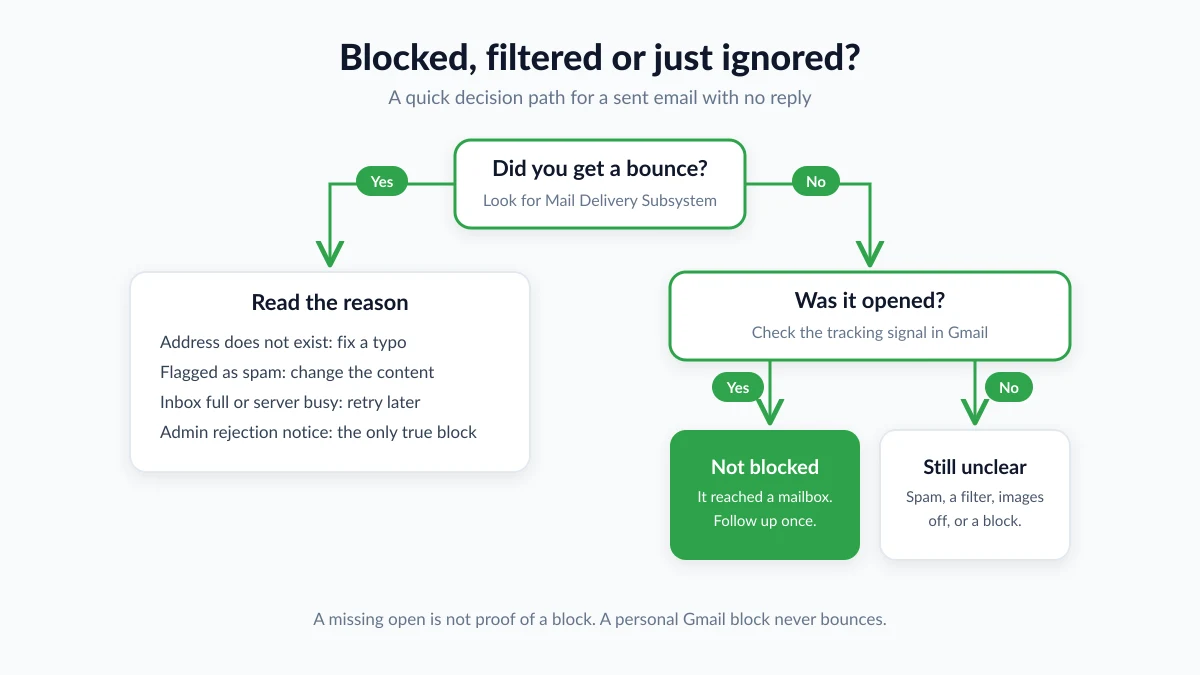
Read the error text in the bounce carefully. “Does not exist” means fix the address or find a new one. A spam-related rejection means change the message, not the recipient. Only a custom rejection notice from an organization points to a deliberate block.
If your message was not bounced, you are in the silent zone, and that is where the detective work begins.
Signs someone blocked your email, and the innocent explanations
Most online lists of “signs you were blocked” are really lists of signs you were not answered. Here is each sign with the boring alternative that is usually true.
| What you see | What it might mean | The more common explanation |
|---|---|---|
| No reply for weeks, no bounce | A block or a filter | Busy inbox, Promotions tab, vacation, or your email landed in Spam on its own |
| They reply to a colleague but not to you | A block on your address | Your colleague has a prior relationship, or your message read like a sales pitch |
| They answer on another channel but never by email | A block or a filter | They prefer chat or phone, or your email is buried |
| Messages used to be opened, now none are | A block, a filter or a changed address | They switched email clients, turned off images or left the company |
| Your Google Chat message will not go through | A block in Chat | A Chat block says nothing certain about your emails |
On the last point, Google’s help page on blocking someone in Google Chat confirms that a person you blocked cannot send you messages until you unblock them. A failed Chat message is therefore a hint about Chat, and it does not by itself show what happens to your emails. It is still worth noticing if the person is in your Google Workspace organization and you had a working conversation before.
The pattern to remember: a single sign proves nothing. Several signs together, over time, make a block more likely.
How to know if someone blocked your email: five tests
You can be methodical about this without becoming a pest. Work through these in order and stop as soon as you have an answer.
1. Look for a bounce, then read it
Search your inbox and Spam folder for “Mail Delivery Subsystem” together with the recipient’s address. If there is a bounce, use the previous section to decode it. If there is none, continue.
2. Check that the address is still valid
Confirm the address against a signature in an older email, the company website or a shared document. Watch for trailing spaces, quotation marks or an old domain after a rebrand. Many “blocks” turn out to be a typo.
3. Check your own sending health
If several recipients have gone quiet at the same time, the problem may be your domain rather than one person. Google’s email sender guidelines require senders to authenticate with SPF or DKIM, keep spam complaint rates low and use a TLS connection, and they warn that unauthenticated messages may be marked as spam or rejected. A business domain without SPF or DKIM is a far more common reason for silence than a personal block.
4. Look at the open signal
If you track your outgoing mail, check whether your messages to this person are being opened. An open recorded by Mail Track means the message reached a mailbox and was displayed with images loading. That rules out a deleting filter, and it makes a personal block unlikely, because blocked mail sits in a Spam folder that most people rarely check. The next section covers what an open does and does not prove.
5. Try one other channel, once
A short, friendly note through another channel (“Not sure my email reached you, is this still the best address?”) resolves most cases. Sending from a second address to test the block is a popular tip, but it can read as evasive if the person really did block you. Use it only for professional relationships where a wrong address is a plausible explanation.
If the answer after all five is still silence, treat it as a no. Whether it is a block or a decision not to reply, the practical outcome is the same.
How email tracking separates a block from silence
Open tracking works by placing a tiny invisible image in your message. When the recipient’s mail client loads that image, the tracking service records an open. Gmail shows images automatically by default, as Google’s page on turning images on or off explains, so an open is often visible when your recipient reads in Gmail. Our guide to how accurate email tracking is covers the mechanics in depth.
For the “was I blocked” question, the signal is asymmetric:
- An open is strong evidence that you were not blocked. The message arrived, sat in a folder the recipient looks at, and was displayed. Combined with a missing reply, it tells you the honest story: they saw it and have not answered yet. That is useful, because the right next step is a polite follow-up email after no response, not a change of address.
- A missing open is weak evidence of anything. Images may be turned off, the message may be read in a preview pane or a plain-text client, a privacy tool may have stripped the pixel, or the email may simply be sitting unread. None of those is a block.
There is also a cost to over-reading opens in the other direction. Gmail scans images before they reach the reader, and some mail clients preload images, so a recorded open does not prove that a human read a word. Treat it as “the message reached a live mailbox”, which is exactly what the block question needs, and nothing more.
What about Gmail’s built-in read receipts? They are available only on work or school accounts, the recipient may be asked to approve them, and Google’s own read receipt help page warns against relying on them to certify delivery or reading. For an individual question like this one, a passive open signal is more informative than a receipt the other person can decline.
What to do once you know
- A bounce says the address does not exist. Find the new address through the company directory or a mutual contact. Do not keep retrying the old one.
- An organization rejected your message. Respect it. If you believe it is a mistake, for example after a domain change, contact the company through its website rather than by trying other addresses.
- The message was opened but not answered. Wait a few days and send one short follow-up that adds something new. Two follow-ups is a sensible maximum.
- No open and no bounce. Your message may be in their Spam folder without any block at all. Our guide to getting email out of spam covers the sender habits that trigger filters. Fix what you can on your side, then try one other channel.
- You are fairly sure you were blocked. Stop emailing. Repeated messages to someone who blocked you keep landing in Spam, and in a professional context they damage your reputation more than the original silence did.
FAQ
Conclusion
The question of how to know if someone blocked your email rarely has a certain answer, because Gmail keeps a personal block invisible to the sender. What you can do is read any bounce you received, confirm the address, check your own sending setup, and use the open signal to tell a message that reached a mailbox from one that vanished. If you want that signal inside Gmail, try Mail Track and pair it with the five tests above.
Ready to track your emails?
Add Mail Track for Gmail from the Google Workspace Marketplace and know the moment your emails are opened. Free and unlimited.
Add to GmailMore reading
More from Tips
Gmail Snooze Email: How It Works and When to Use It
Learn how Gmail snooze email works, how it differs from archive and mute, and how to pair it with open tracking so follow-ups come back at the right time.
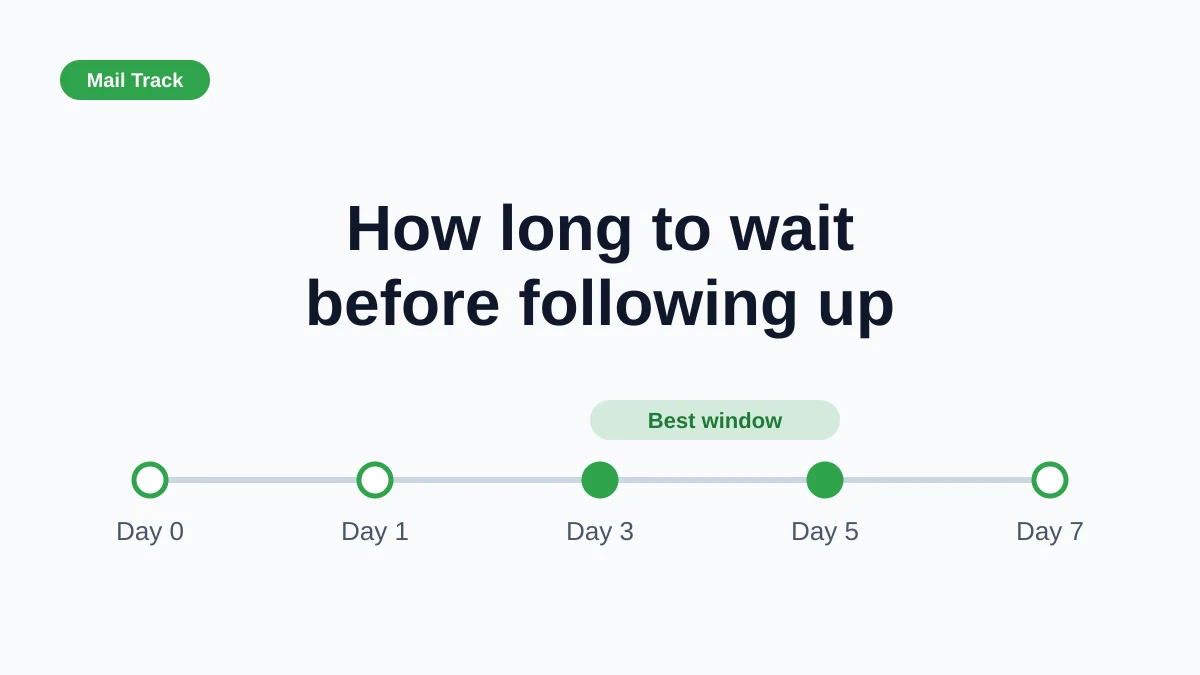
How Long to Wait Before Following Up on an Email (With Tracking Signals)
How long to wait before following up on an email? Use these waiting windows by situation, plus open and click signals in Gmail to time each follow-up.
10 Email Communication Best Practices for Professionals
Master email communication best practices with actionable tips on subject lines, send timing, personalization, and Gmail open tracking for higher engagement.