
Application Notification Android: Troubleshooting Guide 2026
Fix application notification android issues for good. This 2026 step-by-step guide covers settings, battery optimization, and troubleshooting to ensure you get
You know the feeling. A critical email should’ve triggered a phone buzz, but your Android stays quiet, the thread slips down your inbox, and you only notice the reply when it’s already too late. On modern phones, that usually isn’t one broken setting. It’s a stack of small blocks, from permission prompts to notification channels to battery rules that can silence even well-built apps.
Android notifications now compete with a lot of noise. U.S. smartphone users receive an average of 46 push notifications per day and check their phones around 352 times daily according to the notification overload statistics cited here. That’s why a reliable application notification Android setup matters so much for Gmail users, sales teams, recruiters, and anyone relying on a timely read alert. If your inbox tracking depends on a notification arriving on time, you need a system that survives real-world device settings, not just ideal lab conditions. A practical Gmail troubleshooting reference can help if the problem starts inside the mail app itself.
Why Your Android Notifications Are Suddenly Silent
The frustrating part is how normal the phone looks when notifications go missing. The app is installed, the inbox is active, and everything appears enabled, yet the alert never reaches you. That usually means Android has let the notification get blocked somewhere in the chain, from app permissions to channel settings to battery controls.
For people using Gmail as a work inbox, that silence can cost real time. A missed open alert, a delayed reply, or a quiet follow-up changes the rest of the day fast. Android expects notifications to earn attention, so apps and users both have to be selective about what gets through. The practical result is that a application notification Android setup has to be checked at several layers, especially if you rely on tools like Mail Tracker for Gmail and need timely delivery to hold up under real phone settings.
Practical rule: if a notification feels generic, Android is more likely to hide, delay, or mute it somewhere in the stack.
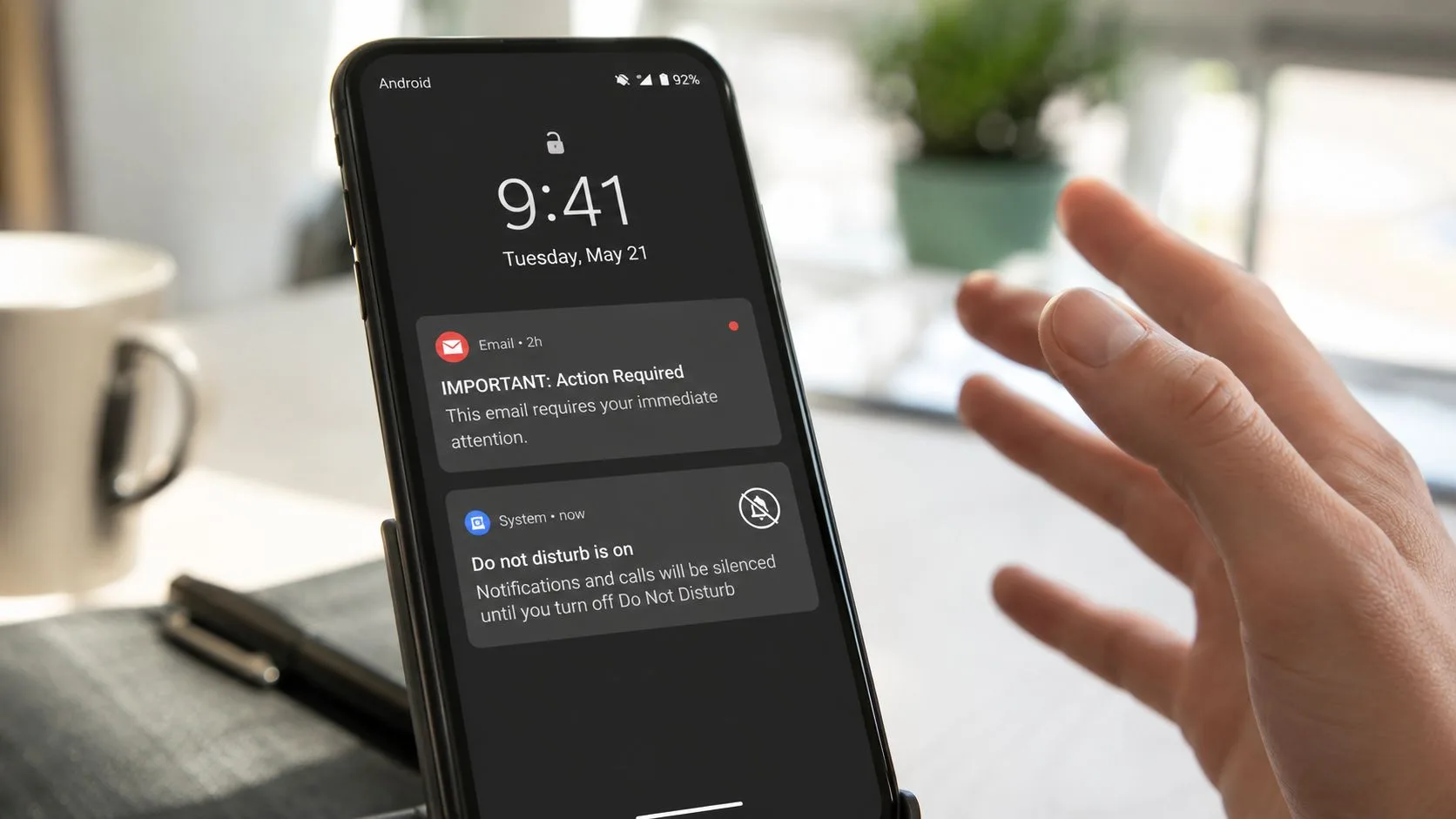
A key challenge is that failure can happen at several layers. A user might have denied the runtime permission, switched the app’s channel to silent, turned on Do Not Disturb, or left battery optimization in a mode that restricts the app’s background activity. The result is the same, silence on the lock screen, but the fix depends on where the chain broke.
For a concrete troubleshooting reference, start with this Gmail alert guide for Android if the problem seems tied to the mail app itself.
Mastering Android’s Core Notification Controls
Android gives you more control than is commonly understood, but that also means there are more places for an alert to get stuck. Since Android 13, apps must ask for POST_NOTIFICATIONS before they can show notifications, and apps that fail to prompt users can see a 20% to 30% drop in push notification reach as summarized in this Android push notification guidance. If the permission isn’t granted, no amount of channel tweaking will help.
Start at the system level
The safest order is simple. First, check whether Android itself is allowed to show notifications for the app. Then open the app’s notification settings and look at the channel list, because Android treats different notification types separately. That’s how one app can still alert you about an urgent inbox item while staying quiet about a less important category.
Google’s notification docs also make the update model clear, the system uses NotificationManager.notify(id, notification), and the ID is what lets the app update or cancel the same alert later. That means notification design isn’t just about sending something, it’s about sending the right thing under a stable ID so the app can refresh state instead of stacking duplicates. On API 26 and above, the app should also create a NotificationChannel and use NotificationCompat.Builder with a PendingIntent so taps return the user to the app.
If a user has muted a channel, the app can still be installed and healthy, but the alert path is broken at the platform layer.
Why channels matter more than most people think
A channel is basically a lane for a specific kind of alert. For Gmail, that can mean the difference between important inbox mail, promotional noise, or account-related messages. For any application notification Android workflow, channels let you keep high-value alerts visible without turning the whole app into a constant interruption.
The mistake I see most often is assuming a single global switch is enough. It isn’t. Android’s support docs show that users can manage per-app notification categories, lock-screen visibility, and alerting versus silent modes, so the same app can behave differently depending on how the channel is configured and how the user wants to be interrupted. That’s useful when done well, but it’s also why a recently installed or updated app can look “enabled” and still not make a sound.
The runtime permission step
On Android 13 and later, the permission prompt has to happen explicitly. The app should declare the permission in the manifest, create its channel, then ask for the runtime grant before trying to post alerts. The common pitfall is assuming that channel creation alone is enough. It isn’t, because without the permission the notification won’t appear to the user at all.
Configuring Gmail and Mail Tracker for Gmail Alerts
Gmail’s own notification settings have to be solid before anything layered on top can work reliably. If you use Gmail for tracked outreach, the app’s notification behavior controls whether you see the inbox event, which then determines whether a follow-up alert can be useful. For teams working with Mail Tracker for Gmail, that dependency matters because the tracking flow depends on Gmail’s notification pipeline being alive and properly configured first. A simple guide to the Gmail tracking side helps if you need the basics.
Configure the inbox that actually matters
Open Gmail and check which account is handling the mail you care about. If you use multiple accounts, it’s easy to configure one and forget the other, then wonder why alerts only show up for half your traffic. Make sure the primary inbox is allowed to notify you, and then review any label-specific settings if you depend on separate work streams.
The practical habit here is to narrow noise before chasing edge cases. If every message gets the same treatment, notifications become easier to ignore. If only the right labels speak up, you’re more likely to notice the events that matter.
Keep the Gmail path clean for tracking alerts
Mail tracking tools work best when Gmail’s own notification path is stable, because the app can only surface a useful event if Gmail is already handling the underlying message flow. That’s true whether you’re watching for a new lead reply, a client response, or an internal handoff. In plain terms, if Gmail is buried, muted, or misrouted, the tracker can’t reliably rescue the experience.
The embedded video below is a useful visual companion for users who want to compare their phone settings with a known-good Gmail setup.
Solving Battery Optimization and Background Restrictions
Many guides stop too early. They tell you to enable notifications, then act surprised when alerts still don’t arrive. On many phones, especially heavily customized ones, the primary culprit is aggressive battery management that keeps apps from running long enough to notice and deliver anything important.
Android’s own support guidance calls out several common failure points, including Do Not Disturb mode, app-level toggles, battery optimization, and background-data restrictions in Google’s Android help documentation. That lines up with what people see on real devices, notifications work for a while, then vanish after the phone has been idle or the app has been pushed into the background.
What battery optimization is doing behind the scenes
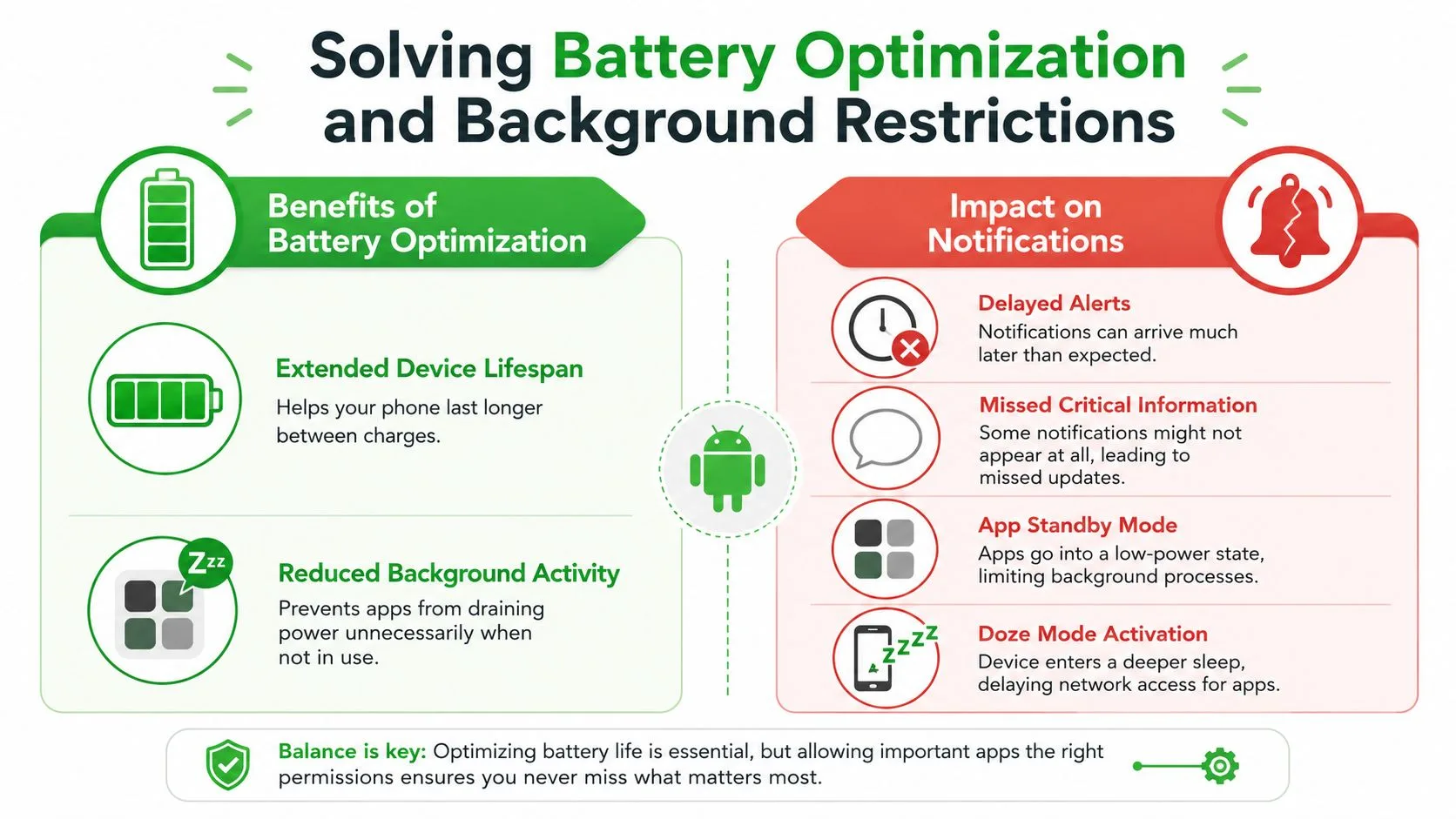
Battery optimization is useful in general. It reduces background activity, stretches runtime, and stops apps from draining power when you’re not using them. The downside is that notification-dependent apps can get delayed, parked, or restricted before they get a chance to finish their work.
That’s why one phone model can feel reliable while another behaves like it has a mind of its own. Android gives manufacturers room to tune power behavior, and the result is a patchwork of different controls across Samsung, OnePlus, Xiaomi, and others. If your alert problem appears after the screen has been off for a while, battery management is one of the first places to look.
Find the hidden vendor settings
The standard Android settings page is only part of the story. On some brands, the solution lives deeper in device-specific power menus, where the app may need to be marked as unrestricted, not optimized, or allowed to run in the background without limits. Gmail deserves special attention here because it often sits at the center of work communication, and if it’s restricted, the rest of your notification stack can look broken even when it isn’t.
A practical way to test this is to temporarily relax battery controls for the app and watch whether alerts become timely again. If they do, you’ve found the bottleneck. Then you can decide whether the trade-off in battery life is worth it for the app you’re trying to trust.
Balance reliability against constant interruption
Battery tuning is not a failure of Android, it’s a trade-off. The phone is trying to conserve power, while your inbox tracker is trying to stay awake long enough to tell you something changed. For that reason, a reliable setup usually means whitelisting the app that matters most and leaving the rest alone.
Advanced Tips for Real-Time Notification Delivery
Once the permission path, inbox settings, and battery controls are sorted, the remaining failures are usually smaller, but they still make alerts feel unreliable. A weak data connection, background data being blocked, or a stale app cache can delay delivery even when the main settings look correct. These fixes are not flashy, but they are often what restores consistency on a phone that seems to ignore incoming alerts.
Android also rewards restraint. Platform guidance on notification design pushes developers to avoid interruptions unless the alert has clear value, because too many pings train people to shut them off. That matters even more for tracking tools, since the goal is better timing, not louder noise.
Use timing, priority, and context
If an app treats every event as urgent, users stop trusting the alerts. A better setup gives priority to messages that need attention and keeps lower-value updates quiet or grouped. That same approach helps in a Gmail workflow, because a follow-up alert is only useful if it arrives before the next meeting, not after the thread has already gone cold.
Practical rule: a notification that arrives a little later but still matters is more useful than one that arrives instantly and teaches the user to mute everything.
Check the network path too
Notifications often depend on the device being allowed to talk to the network in the background. If Data Saver, background-data restrictions, or an unstable connection get in the way, alerts can arrive late even though the app itself looks fine. Clearing cache can help if the app’s local notification state has become messy, especially after an update or a long stretch of inconsistent behavior.
For a closer look at how push delivery behaves across Android and iOS production setups, AppLighter’s Expo push notifications guide is a useful reference. It is more technical than a typical user guide, but the ideas around routing, priority, and platform behavior still help when you are tracing a stubborn inbox alert.
Keep the goal narrow
The point is not to make every alert louder. It is to make the right alert dependable. Once you frame notification delivery that way, a lot of settings choices get easier, because you stop asking how to maximize noise and start asking which events deserve a guaranteed path.
Mail Tracker for Gmail’s email-tracking notes are relevant here if you rely on Gmail read receipts and want to treat alert timing as part of the workflow rather than as a separate phone problem.
A Final Checklist for Reliable Notifications
Start with the permission. On Android 13 and newer, make sure POST_NOTIFICATIONS is granted, because without it the alert won’t appear at all. Then verify the app’s own notification settings and confirm the right Gmail account or label is configured to speak up.
Next, check the system layers. Review notification channels, make sure Do Not Disturb isn’t suppressing the alert, and confirm that the app hasn’t been pushed into a silent or minimized state. If the notification is important enough to matter, it should be attached to a channel that reflects that importance.
Then go deeper. On the device you use, look for battery optimization, background-data restrictions, and any manufacturer-specific power menu that might be limiting Gmail or your tracker. If alerts work only right after you open the app, that’s usually your strongest clue that background restrictions are the underlying problem.
Finally, remember the design trade-off. Reliable notifications aren’t about shouting louder, they’re about staying relevant enough that the user doesn’t shut them off. A clean application notification Android setup respects that balance and makes it far easier to trust alerts when they arrive.
If you rely on Gmail alerts for follow-up timing, open counts, or read receipts, set aside ten minutes today to walk through this checklist on your own phone and your team’s test device. Then compare what you see with Mail Tracker for Gmail and make sure the notification path is working end to end before your next important send.
Ready to track your emails?
Add Mail Track for Gmail from the Google Workspace Marketplace and know the moment your emails are opened. Free and unlimited.
Add to GmailMore reading
More from Guides
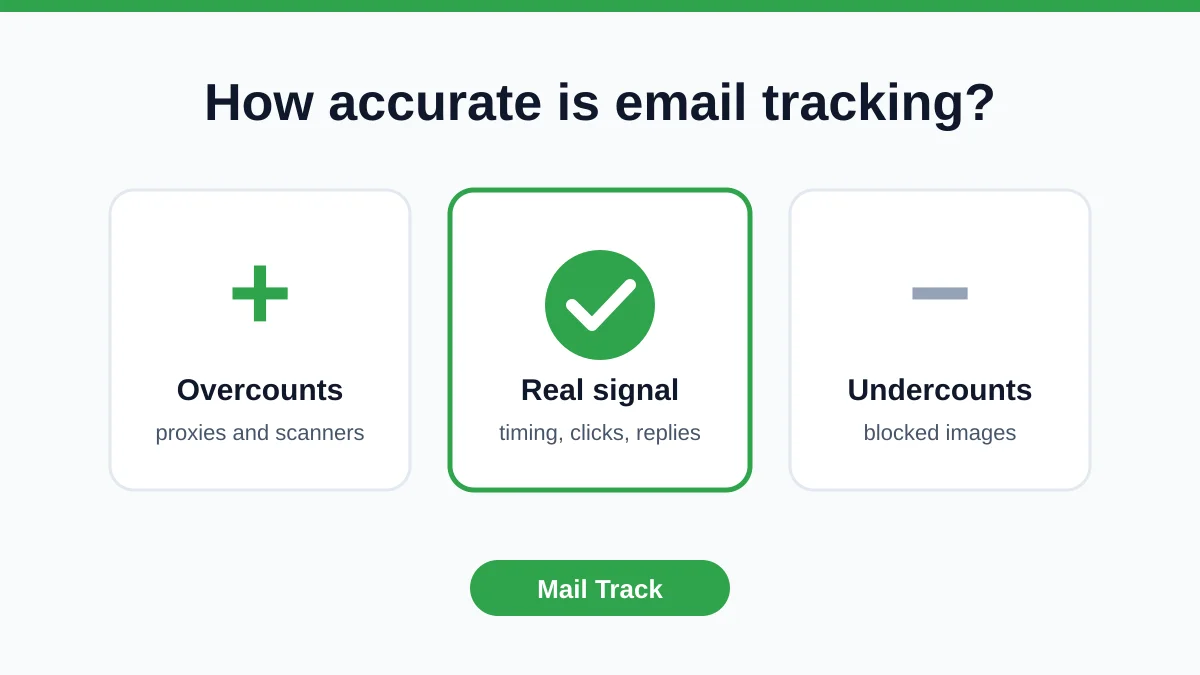
How Accurate Is Email Tracking? What Opens Really Tell You
How accurate is email tracking in Gmail? Learn why opens get overcounted or missed, how to spot false opens, and which signals to trust before you follow up.
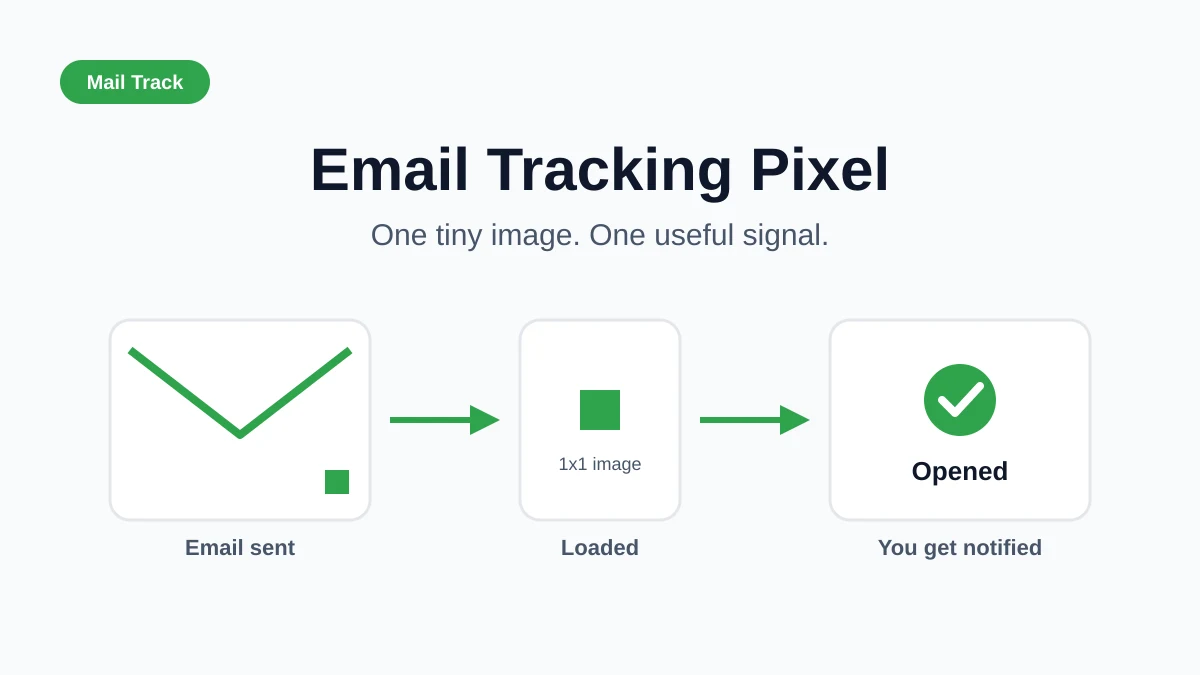
Email Tracking Pixel: How It Works, How to Spot One and Where It Falls Short
What is an email tracking pixel, how does it show an open in Gmail, how can you find one, and why Gmail and Apple Mail proxies limit what it can tell you.

7 Example Email Accept Job Offer Templates
Use these 7 example email accept job offer templates for formal, concise, and enthusiastic replies, with subject lines, clauses, and sending tips.