
Gmail Stopped Working on Android
Is gmail stopped working on android? Our 2026 guide fixes app crashes, sync errors, & notification issues with quick & advanced solutions.
Your phone is in your hand. Gmail opens, then freezes, crashes, or just sits there refusing to load new mail. Maybe notifications vanished. Maybe messages send on desktop but not on Android. Either way, it feels like Gmail stopped working on Android and you need it fixed now, not after an hour of random guessing.
Start simple. Most Gmail failures on Android are local app or device issues, not a permanent Gmail shutdown. The biggest historical disruption was a roughly six-hour Google services outage on August 20, 2020, which disrupted Gmail and other Google services worldwide, but Gmail on Android has not permanently stopped as a service (Google services outages history). For day-to-day problems, the right move is a clean troubleshooting funnel. Quick checks first, deeper system fixes after that.
Start with These Quick Gmail Fixes
Treat this as your 3-minute checklist. If Gmail stopped working on Android, these are the first things I’d do before touching deeper settings.
Check the obvious first
Open Chrome or another browser and load a normal website. If pages won’t load, Gmail isn’t your problem. Your connection is.
Then check your phone’s date and time. If Android is using the wrong time, Gmail can fail to sync or authenticate properly. Set time to automatic if it isn’t already.
After that, restart the phone. Not glamorous, but worth doing. A reboot resets stuck background services, temporary app states, and flaky network handoffs.
Force-stop Gmail properly
If Gmail opens but behaves strangely, force-stop it.
- Open Settings
- Tap Apps
- Find Gmail
- Tap Force stop
- Reopen Gmail
This doesn’t delete your mail or sign you out. It just kills the current app process and starts fresh.
Practical rule: Force-stopping is a reset, not a wipe. Use it early.
According to Google’s own troubleshooting guidance, force-stopping the app, verifying internet connectivity, and ensuring correct device time settings resolve 85% of non-outage-related Gmail errors on Android (details discussed here).
Update Gmail before you do anything clever
A stale app version causes a lot of nonsense. Open the Play Store, search for Gmail, and install any update waiting for you.
If your inbox looks wrong after the app starts working again, don’t confuse a working app with a mail organization issue. If messages seem to have vanished, they may just be archived. This guide to unarchiving mail is useful when the app itself is fine but your inbox layout isn’t.
Quick triage checklist
- Test connectivity: Try Wi-Fi, then mobile data, or switch the other way.
- Restart Android: Clear temporary app and sync glitches.
- Force-stop Gmail: Reset the app without losing account data.
- Fix device time: Wrong time breaks sync more often than people realize.
- Update the app: Old Gmail builds cause avoidable errors.
If Gmail is still broken after this, stop repeating the same basic steps. Move to sync, notification, and background permission checks.
Resolve Gmail Sync and Notification Errors
A lot of people say Gmail stopped working on Android when the app opens fine, but sync is off or notifications are blocked. Those are different problems. You have to check both.
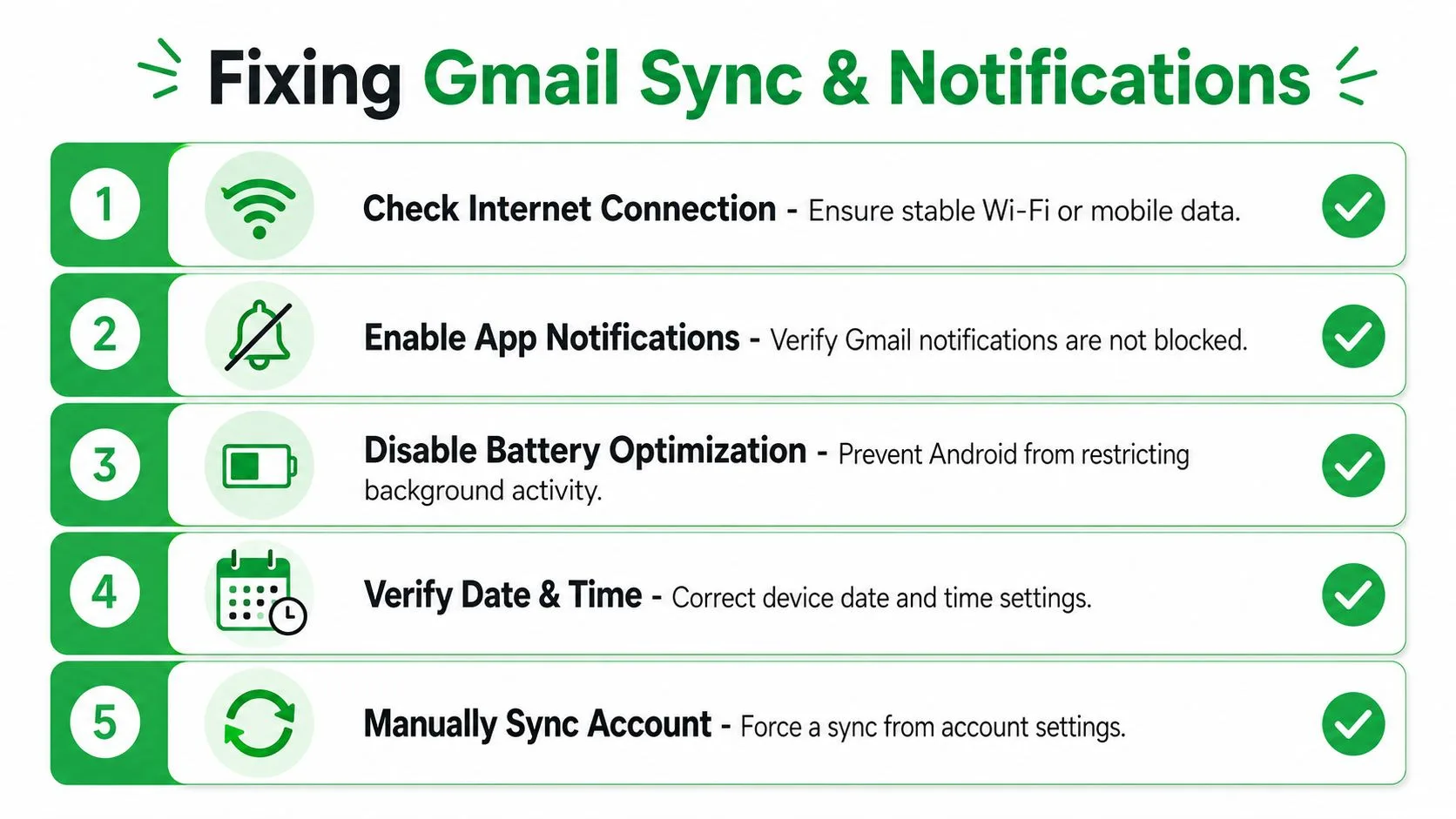
Fix sync inside Gmail first
Open Gmail and go to:
Menu > Settings > your account > Data usage
Make sure Sync Gmail is enabled. If that switch is off, Gmail can look dead even while the app itself is perfectly healthy.
Then go to Android account sync settings and confirm your Google account is allowed to sync in the background. Different Android skins move this around, but it’s usually under Settings > Accounts or Passwords & accounts.
Gmail push notifications on Android fail to resolve in 20% of cases unless system-level notification permissions and Gmail’s internal Sync Gmail setting are both explicitly enabled (Inbox Zero guide).
That stat matters because it explains why people often fix one setting and still miss mail. Gmail needs both the app-level sync setting and Android-level permissions lined up.
Then fix Android notifications
Go to:
Settings > Apps > Gmail > Notifications
Turn on Allow notifications and check that the mail notification categories are active. Some phones keep the master switch on while disabling specific notification categories underneath without clear indication.
Inside Gmail itself, verify:
- Email notifications: Set them to all new mail if that’s what you want
- Inbox notifications: Confirm the right label behavior
- Per-account settings: If you use multiple Gmail accounts, check each one
If you need read receipts and mobile alert behavior after Gmail is stable again, this walkthrough on how to get a read receipt in Gmail is helpful.
Look for silent blockers
Android’s system tools often interfere without making it obvious.
| Setting to check | What it breaks |
|---|---|
| Battery Saver | Delays or stops background sync |
| Data Saver | Blocks Gmail background data |
| Focus modes | Silences alerts even when Gmail works |
| Per-app mobile data limits | Prevents timely inbox updates |
A phone can show Gmail installed, signed in, and “working,” while the system blocks the app from checking mail in the background.
Use this sequence
- Turn on Sync Gmail inside the app.
- Turn on Android account sync for your Google account.
- Enable Gmail notifications at the Android app level.
- Check mail notification categories and account-specific settings.
- Disable Battery Saver, Data Saver, or any Focus mode that’s suppressing Gmail.
If new mail appears only when you manually open Gmail, your issue usually isn’t the inbox. It’s background restrictions.
If mail still doesn’t arrive properly, the next likely culprit is corrupted app cache.
Clear the Gmail App Cache Correctly
If you only remember one thing from this section, remember this: clear cache first, not data.
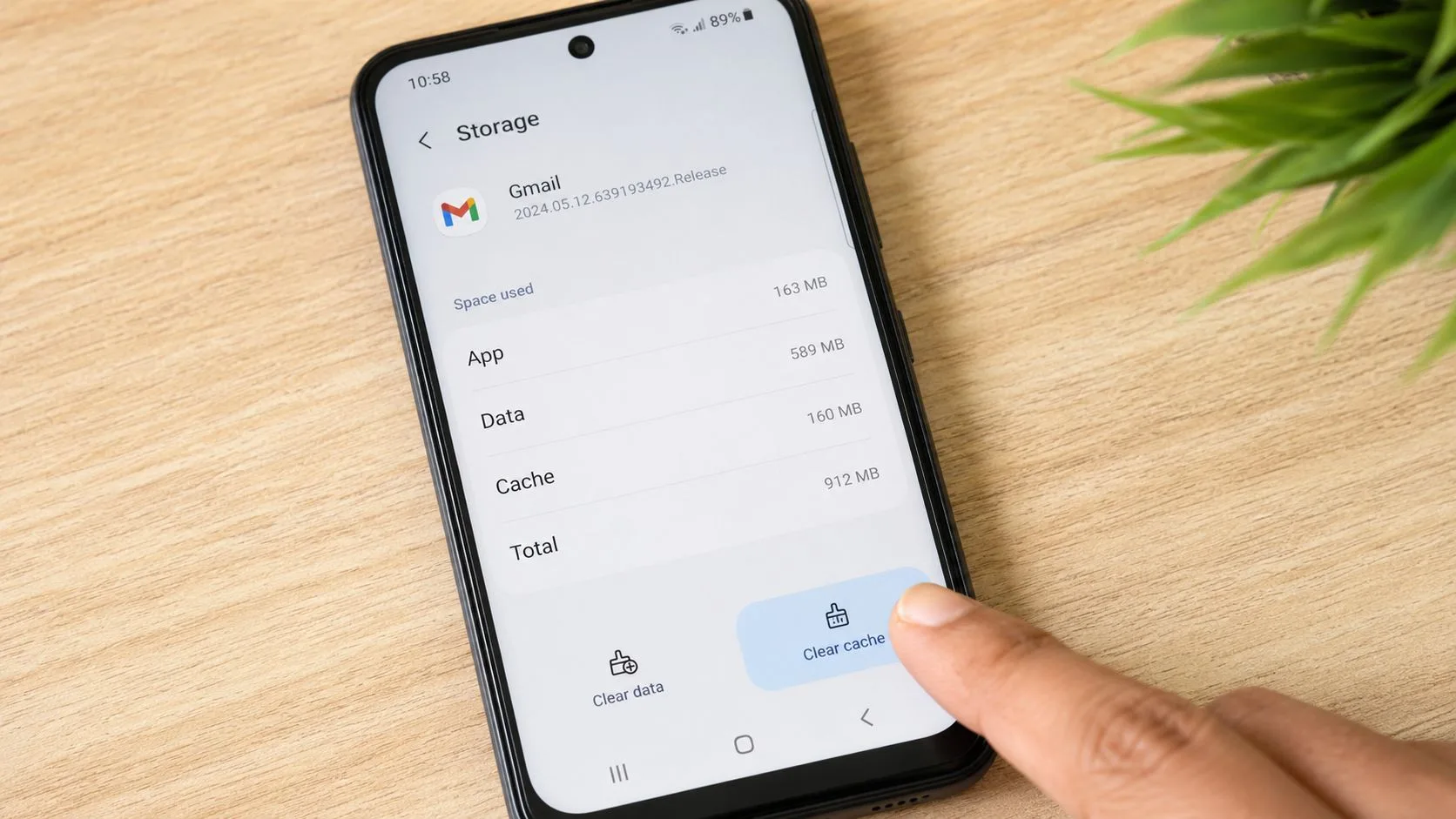
Clear cache, not data
Go to:
Settings > Apps > Gmail > Storage
Tap Clear cache.
That removes temporary files that may be corrupted. It does not remove your account, erase your messages from Google’s servers, or reset the app the way a full storage wipe does.
By contrast, Clear data or Clear storage is more aggressive. It resets the app locally and forces Gmail to rebuild its local state. That can mean a messy re-sync, longer load times, and extra hassle signing things back in.
According to a validated three-step resolution sequence, disabling adaptive battery optimization for Gmail and clearing only the app cache, not data, reduces the Gmail app crash rate on Android by 68% within 10 minutes (troubleshooting reference).
Why cache gets corrupted
Gmail stores temporary files to speed up inbox loading, message rendering, and search. Over time, those files can get stale after app updates, Android updates, or interrupted sync jobs. Then the app starts crashing, hanging, or loading blank screens.
Do this, not that: Clear cache when Gmail is glitchy. Save Clear data for last-resort troubleshooting.
Pair cache clearing with battery settings
While you’re in settings, check whether Android is choking Gmail in the background.
Go to your phone’s battery settings and remove optimization for Gmail if your device offers that option. Aggressive battery management often sits behind app crashes and delayed behavior.
For a visual walkthrough, use this video before you start poking around unfamiliar menus:
Safe order of operations
- First: Force-stop Gmail
- Second: Clear cache
- Third: Reopen Gmail and test send/receive
- Fourth: Check battery optimization only if issues remain
- Last: Consider clearing data only if nothing else works
If Gmail still crashes after a proper cache clear, stop blaming the Gmail app alone. The problem is often elsewhere in Android.
Apply Advanced Fixes for Stubborn Problems
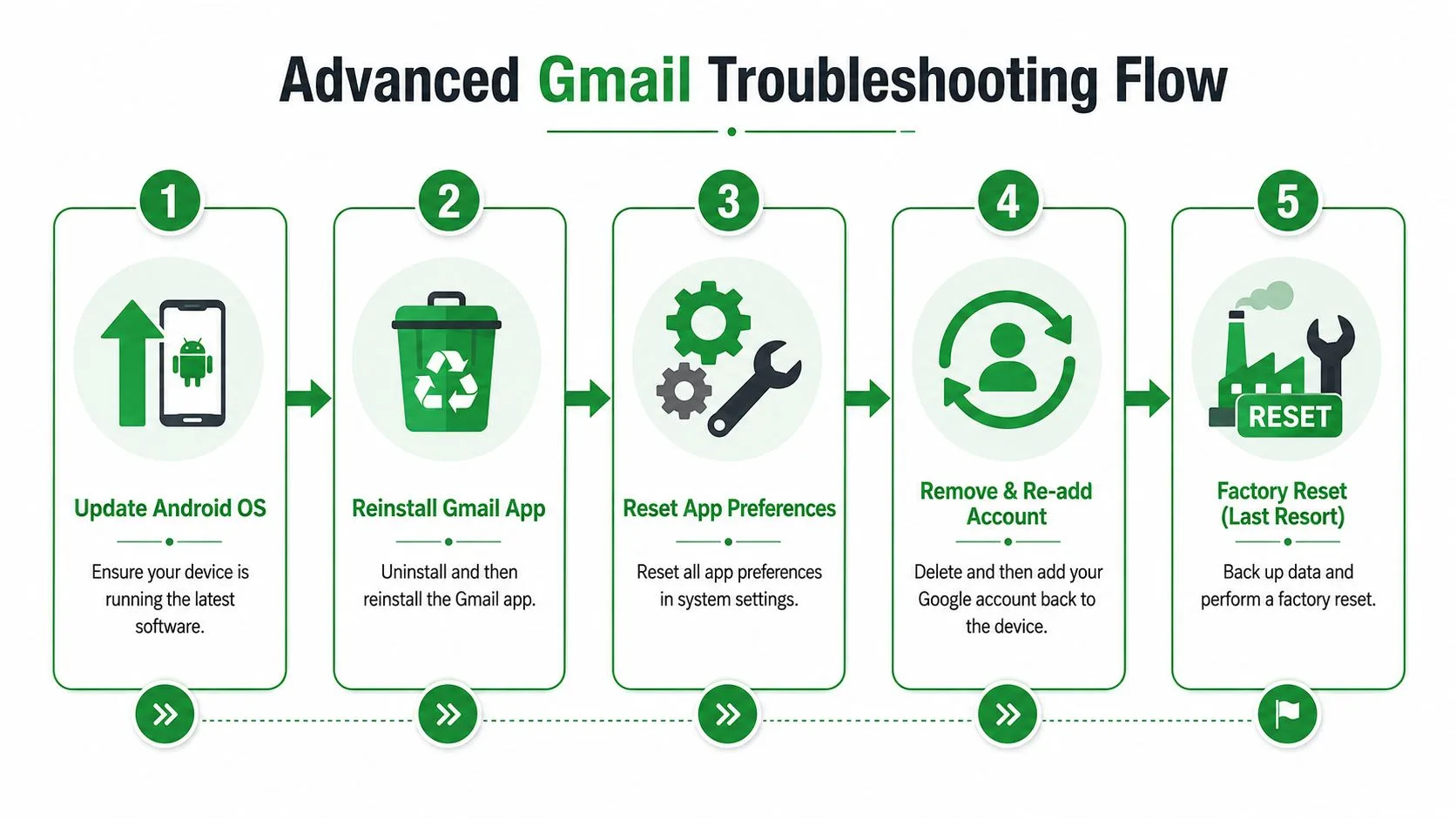
Persistent Gmail failures usually come from supporting Android components, not the Gmail app itself. Consequently, most bad advice falls apart. People keep telling you to reinstall Gmail while the underlying cause sits in Android System WebView, Chrome, Google Play Services, or Android’s battery controls.
Fix Android System WebView and Chrome
If Gmail crashes immediately, opens to a blank screen, or dies when rendering certain content, check Android System WebView and Google Chrome in the Play Store.
Update both.
This is one of the most missed fixes. Existing content fails to address the critical nuance of Android System WebView as the root cause of widespread Gmail crashes, with data showing 40% of reported crashes in the last 12 months were linked to WebView, not the Gmail app itself (Mashable coverage).
That matters because Gmail relies on Android components to render parts of its interface and linked content. If WebView is broken, Gmail can look broken even when the Gmail app package itself is fine.
Override battery optimization
Some Android phones are brutal about background restrictions. They kill sync, delay notifications, and suspend Gmail when the screen is off.
Go to your battery settings and set Gmail to Don’t optimize or Unrestricted, depending on your phone brand. Also make sure Gmail has permission to use background data.
This isn’t optional if you depend on real-time mail. Gmail can’t behave like live email if Android keeps putting it to sleep.
Check Google Play Services
Google Play Services handles the plumbing behind account auth, sync, push messaging, and other Google app functions. If it’s outdated or stuck, Gmail can fail in ways that make no sense.
Do three things:
- Open the Play Store and update Google Play Services if an update is available.
- Restart the phone after the update.
- Test another Google app such as Drive or Calendar. If more than one Google app is acting strange, the issue is broader than Gmail.
When Gmail, Drive, and Calendar all misbehave together, start looking at Play Services, account sync, or a broader Google-side issue.
Re-add the Google account
If the app is updated, WebView is updated, Chrome is updated, and Gmail still won’t sync, remove and re-add the Google account on the device.
Use this order:
- Open Settings
- Go to Accounts or Passwords & accounts
- Select your Google account
- Remove it
- Restart the phone
- Add the account back
This refreshes local auth tokens, permissions, and sync relationships. It’s disruptive, but sometimes it’s the cleanest fix for stubborn account-level corruption.
Reinstall Gmail only after system checks
People jump to reinstalling Gmail too early. I wouldn’t. Reinstalling helps when the app installation itself is damaged, but it won’t cure a broken WebView component or hostile battery policy.
Use reinstalling only after:
- Gmail is updated
- Chrome is updated
- Android System WebView is updated
- battery restrictions are removed
- Play Services is healthy
- account sync has been checked
Last-resort options
If all else fails, consider these in order:
| Option | Use it when |
|---|---|
| Reset app preferences | App permissions or defaults got scrambled |
| Reinstall Gmail | The app package itself seems corrupted |
| Android system update | Problems began after an old OS build lagged behind |
| Factory reset | Multiple apps are unstable and system corruption is likely |
Factory reset is the nuclear option. Back up first. Use it only when the whole phone is unstable, not just Gmail.
Adopt Habits to Prevent Future Gmail Issues
The best Gmail fix is the one you never need.
Turn on auto-updates for Gmail, Chrome, and Android System WebView in the Play Store. Those three components are tightly connected, and when one falls behind, weird bugs follow. Keep Android itself updated too.
Clear the Gmail cache occasionally as basic maintenance. You don’t need to obsess over it, but doing it every so often is a smart bit of housekeeping if you use Gmail heavily.
Also, stop letting battery-saving features make decisions for critical apps. If email matters for work, treat Gmail like a priority app and exempt it from aggressive optimization.
For inbox reliability, sender management matters too. If important messages keep getting filtered or lost in the noise, this guide on how to prevent important emails from disappearing is worth bookmarking.
And once your inbox is stable again, tighten your workflow with practical email productivity tools. A healthy Gmail app is only half the battle. The other half is keeping email useful instead of chaotic.
Ensure Email Tracking Works on Mobile
Once Gmail is working again, make sure your tracking workflow works too. Mobile tracking depends on the same settings that break Gmail in the first place. If sync is restricted, notifications are blocked, or background activity is limited, your tracking experience will feel unreliable.
The mobile workflow is specific. Mobile email tracking on Android requires users to tap the three-dot menu in the Gmail composer, choose insert from the tracking add-on, and then tap track email to enable tracking (video walkthrough).
The mobile workflow that actually works
- Open Gmail on Android.
- Start a new message.
- Tap the three-dot menu in the composer.
- Choose insert from your tracking add-on.
- Tap track email.
- Send the message.
- Check the sent message later through the add-on view for open activity.
Open tracking itself isn’t magic. It’s an educated guess based on image loading, so privacy settings on the recipient side can affect accuracy. If you want the broader mechanics explained, this guide to email tracking for Gmail gives the full picture.
If you want read receipts and real-time open notifications directly inside Gmail, Mail Tracker for Gmail keeps that workflow simple on desktop and mobile. You send from Gmail, track opens inside Gmail, and get the visibility you need without switching to a separate app.
Ready to track your emails?
Add Mail Track for Gmail from the Google Workspace Marketplace and know the moment your emails are opened. Free and unlimited.
Add to GmailMore reading
More from Guides
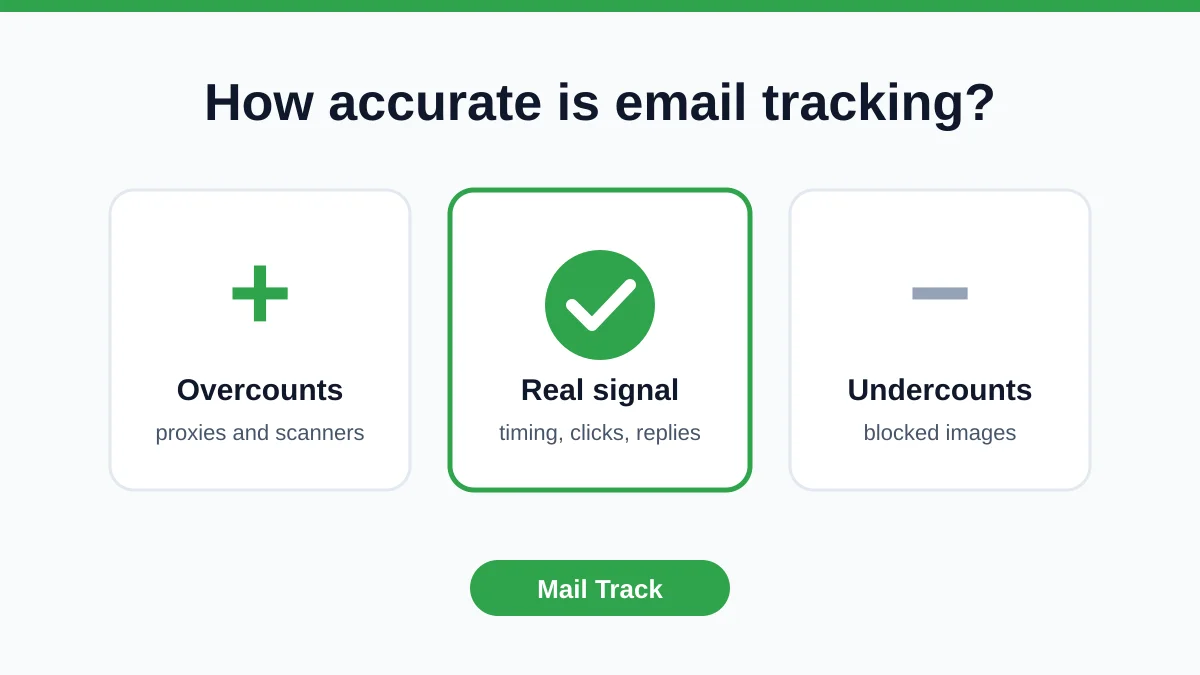
How Accurate Is Email Tracking? What Opens Really Tell You
How accurate is email tracking in Gmail? Learn why opens get overcounted or missed, how to spot false opens, and which signals to trust before you follow up.
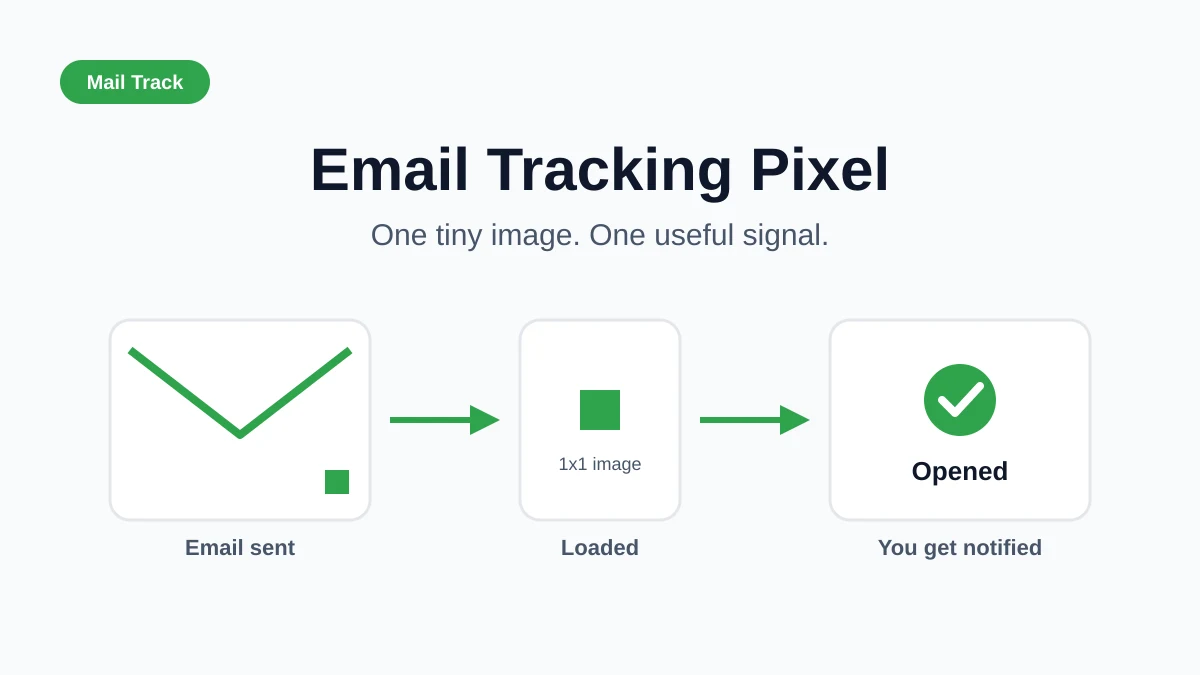
Email Tracking Pixel: How It Works, How to Spot One and Where It Falls Short
What is an email tracking pixel, how does it show an open in Gmail, how can you find one, and why Gmail and Apple Mail proxies limit what it can tell you.

7 Example Email Accept Job Offer Templates
Use these 7 example email accept job offer templates for formal, concise, and enthusiastic replies, with subject lines, clauses, and sending tips.