
Email Tracking Pixel: How It Works, How to Spot One and Where It Falls Short
What is an email tracking pixel, how does it show an open in Gmail, how can you find one, and why Gmail and Apple Mail proxies limit what it can tell you.
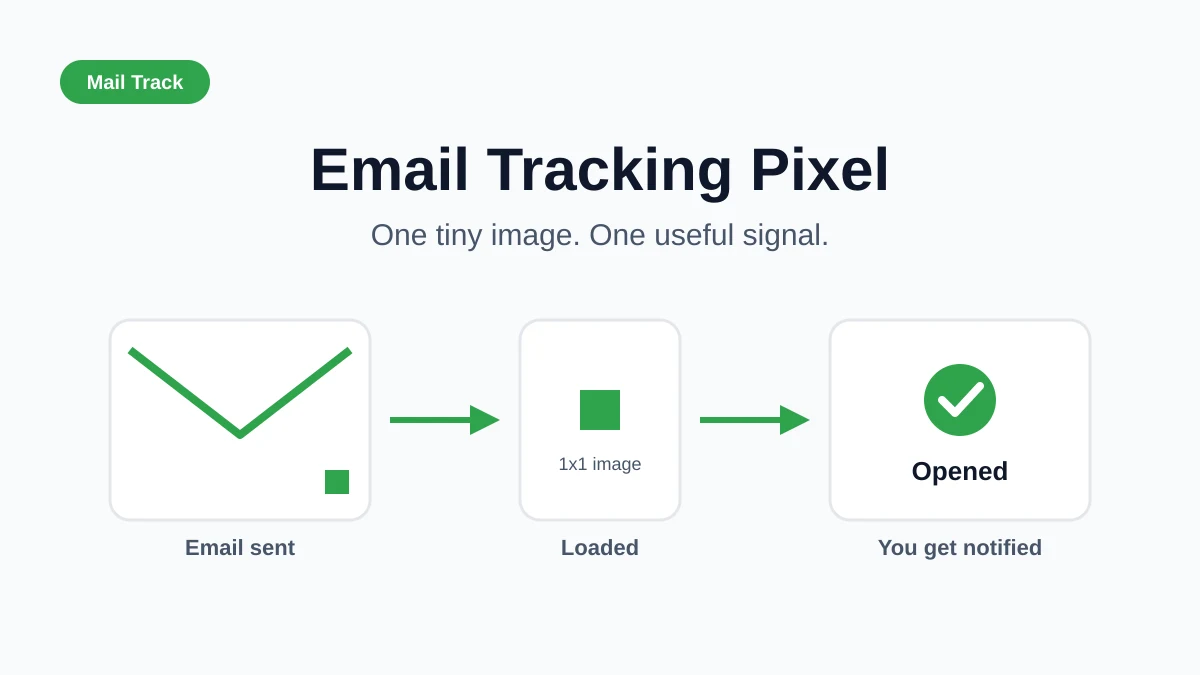
An email tracking pixel is the small piece of technology behind almost every “opened” notification you have ever seen. It is a tiny image hidden in an email, and when the recipient’s email app loads it, the sender learns the message was opened. It sounds simple, and it is. But the details decide how much you can trust the signal, and how much your own privacy is affected when you are on the receiving end.
This guide explains how the pixel works, how to find one in a message, what Gmail and Apple Mail change about it, and how to use the signal sensibly. It also shows where Mail Track for Gmail, a Chrome extension and Google Workspace add-on for email open and click tracking inside Gmail, fits in.
What is a tracking pixel in an email?
A tracking pixel is usually a 1x1 transparent image placed in the HTML of an email. Each pixel has a unique web address tied to one message and one recipient. It looks like any other image tag, except that it is so small nobody can see it.
Here is the sequence:
- The sender’s tool inserts the pixel. The image URL contains a unique identifier.
- The recipient opens the email. The email client loads the images in the message, including the pixel.
- The tracking server receives the request. It records that this identifier was requested and when.
- The sender is told. A notification or a status mark appears next to the sent message.
Nothing is installed on the recipient’s device and nothing is asked of them. The open is inferred from a normal image download, which is why it is called an open signal rather than proof.
How an email tracking pixel shows up in Gmail
If you send email from Gmail with a tracker, the extension or add-on adds the pixel when you send. When the recipient opens the message, you see the result in your inbox or in a notification. In Mail Track, that is a check mark style status on the sent message plus an optional alert.
A pixel is only one of two common signals. The other is link click tracking. A tracked link points to a redirect address first, then sends the reader to the real page. A click can indicate interest, but bots and security scanners also follow links. If you want the full picture of how open and click signals work together, read email tracking for Gmail.
Some tools show a visible marker to the recipient and others stay invisible. Which one suits you depends on the relationship and the context. The trade-offs are covered in visible vs. invisible tracker.
How to tell if an email has a tracking pixel
You do not need special software to check a message. In Gmail you can inspect the source yourself.
Check the source in Gmail
- Open the email.
- Click the three-dot menu next to the reply arrow.
- Choose Show original, then look at the message body or use Download original.
- Search the text for
width="1"orheight="1". - Look at where that image is hosted. A tiny image on a domain that is not the sender’s, often with a long string of random characters in the address, is a tracker.
Marketing platforms often use subdomains with names such as track, click or email. Those are good search terms too.
Look for other clues
- Images that load nothing visible.
- Links whose address goes through a redirect before the final page.
- Extensions that flag or block trackers, if you want a faster check than reading the source.
Finding a pixel does not mean anything sinister is happening. Newsletters, receipts and sales follow-ups all use them. It simply tells you that the sender can see when the message was loaded.
What Gmail’s image proxy changes
Gmail does not let the sender’s server talk to your device directly. Google fetches images through its own proxy and caches them, then shows you the cached copy. This is described in more detail in Litmus’s overview of Gmail image caching.
For tracking, that has three practical effects:
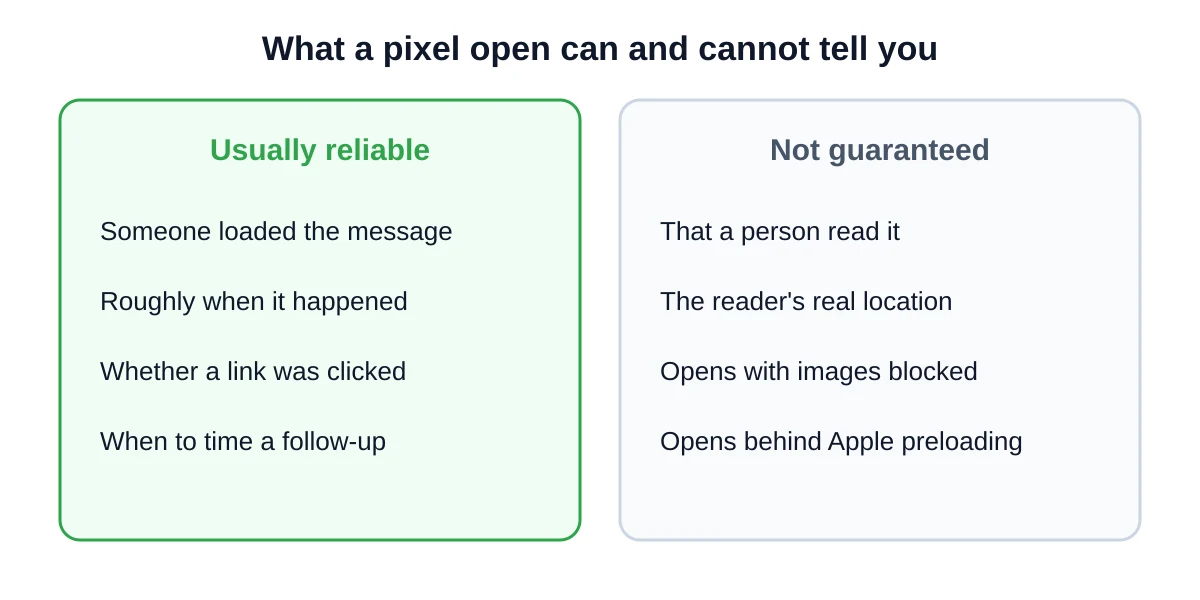
- The sender sees Google’s servers, not the recipient’s device. IP-based location for Gmail recipients is not reliable.
- The first load is what counts. Later views of the same cached image may not create another request, so a count of repeat opens can be lower than reality.
- Opens still register. The pixel is still requested when the recipient views the email with images on, so the core “was it opened” signal keeps working for most Gmail users.
If a recipient has turned off automatic image display, the pixel may not load at all, and no open is recorded even though the person read the message.
How Apple Mail Privacy Protection affects open tracking
Apple Mail Privacy Protection preloads remote content through Apple proxy servers, often when the email arrives rather than when a person opens it. According to Postmark’s explanation of open tracking and Apple Mail, this can make opens appear even though nobody looked at the message, and it applies to any address read inside Apple Mail, including a Gmail address.
What to do about it:
- Treat a very fast open with caution. An open a few seconds after sending, with no other activity, may be automated.
- Give direct replies and confirmed actions more weight. Clicks can also be automated, as Mailchimp explains. A recorded click alone does not prove human interest.
- Compare patterns, not single events. A message opened several times over two days looks different from one opened once at the moment it was delivered.
This is why open tracking works best as a timing aid, not a scoreboard.
How to use pixel data well
A pixel is a good tool when you keep its limits in mind. These habits help:
- Use opens to time follow-ups. If a proposal was opened yesterday and there is no reply, a short nudge is reasonable. The follow-up email after no response guide has wording ideas.
- Check clicks against other context. A pricing or calendar link click can be useful, but confirm interest with a direct reply or completed booking.
- Do not read too much into a single open. An open is not the same as reading carefully, and the recipient may have skimmed or previewed it. See can you tell if someone read your email for the full discussion.
- Be open about tracking where it matters. If your recipients are in the EU or you work in a sensitive area, disclose it in your privacy notice and follow the rules in GDPR email compliance.
- Avoid pressure tactics. Messaging someone within a minute of an open to say “I saw you opened this” feels intrusive and can backfire.
Should you block tracking pixels as a recipient?
It depends on what you value. If privacy matters most to you, you can set your email client to ask before displaying external images. You lose some visual polish in newsletters, but senders no longer learn when you open their message. If you use Apple Mail, you can turn on Mail Privacy Protection. Neither step is required, and neither affects how you can track your own outgoing email.
The ethical question of tracking others is worth thinking about too. Does email tracking compromise ethics? takes it on directly.
FAQ
Conclusion
An email tracking pixel is a simple and useful mechanism. It is a hidden image that reports when a message is loaded, and it works well as a hint for when to follow up. It is not proof that someone read your message, and proxies from Google and Apple make location and repeat-open data unreliable. Pair opens with clicks and replies, be transparent where the law or good manners call for it, and you get the benefit without the noise.
Ready to see opens and clicks right inside Gmail? Try Mail Track for Gmail and follow up at the right moment.
Ready to track your emails?
Add Mail Track for Gmail from the Google Workspace Marketplace and know the moment your emails are opened. Free and unlimited.
Add to GmailMore reading
More from Guides
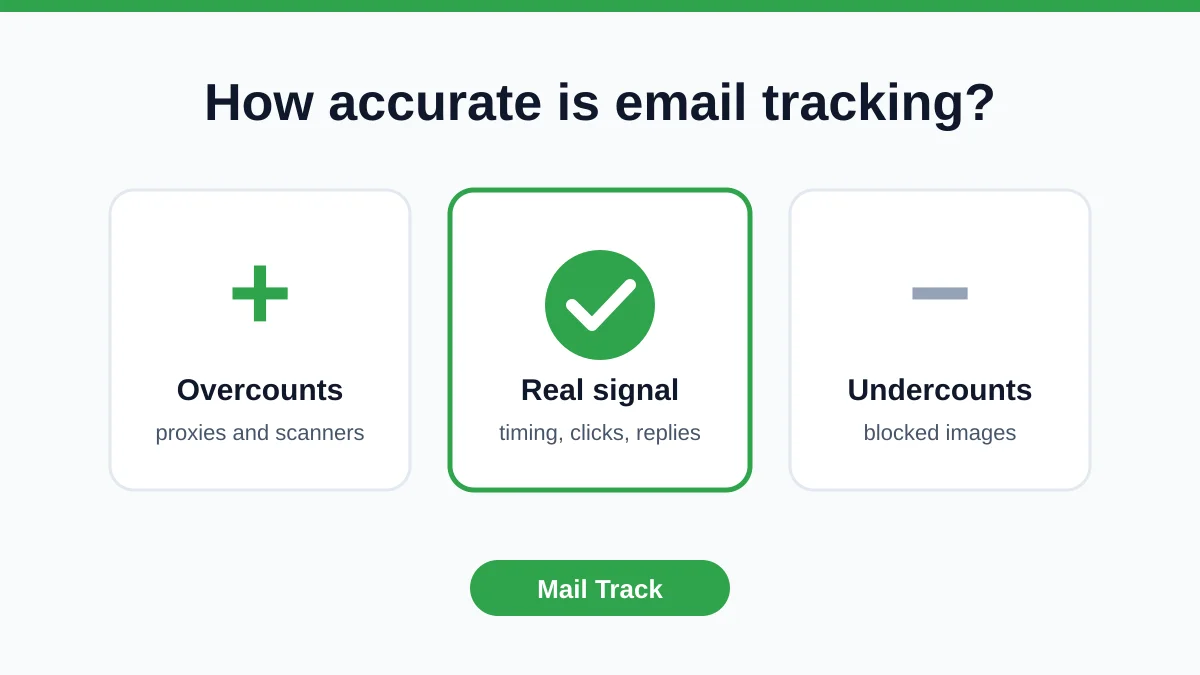
How Accurate Is Email Tracking? What Opens Really Tell You
How accurate is email tracking in Gmail? Learn why opens get overcounted or missed, how to spot false opens, and which signals to trust before you follow up.

7 Example Email Accept Job Offer Templates
Use these 7 example email accept job offer templates for formal, concise, and enthusiastic replies, with subject lines, clauses, and sending tips.

8 Meeting Follow Up Email Examples That Get Replies
Use these 8 meeting follow up email examples for intros, demos, internal syncs, and decisions, with subject lines and copy-paste templates.