Automate Email Responses in Gmail: Boost Productivity
Automate email responses in Gmail using built-in features & Zapier. Save time, follow up smarter, and boost engagement.
By 9:30 a.m., a lot of Gmail inboxes already feel lost. A recruiter has candidate follow-ups mixed with scheduling replies. A consultant has proposal questions buried under invoices and internal threads. A sales rep knows three prospects replied overnight, but the inbox still looks like one long list of small decisions.
That’s usually where people make the wrong call. They either keep answering everything manually, which burns hours, or they over-automate and start sending stiff, generic replies that sound like they were written by a help desk bot.
The better approach is layered. Let Gmail handle the predictable parts. Use templates, filters, and simple auto-replies for repetitive traffic. Then add tracking and workflow automation so timing gets smarter, not just faster. That’s how you automate email responses without flattening your tone or missing the moments that actually need a human reply.
Reclaiming Your Inbox from Repetitive Replies
The busiest inboxes rarely have a writing problem. They have a repeat-work problem.
A lot of messages don’t need a fresh draft. They need a solid response pattern. “Can you send pricing?” “Did you get my resume?” “When can we talk next week?” “Please resend the invoice.” If you write those from scratch every time, Gmail becomes a copy-and-paste job with extra guilt attached.
Where manual replying breaks down
A typical workday creates three kinds of email pressure at once:
- Recurring questions: The same request arrives in slightly different wording.
- Follow-up debt: Threads sit because you’re waiting for the right time to nudge.
- Context switching: You jump from a candidate email to a client question to an internal update, then back again.
That’s why automation works best when you treat it like an assistant, not a replacement. It should clear the mechanical work so you can spend your attention on judgment, nuance, and timing.
Practical rule: Automate the reply pattern, not the relationship.
The business case is strong, too. Businesses see an average 544% ROI over three years from marketing automation investments, and email marketing specifically yields a 3600% return ($36 for every $1 spent), according to these marketing automation statistics. That matters because it reframes automation as a revenue tool, not just an inbox convenience.
What good automation actually looks like
Good Gmail automation doesn’t mean every incoming message gets an instant canned answer. It means you build a system that handles:
- Acknowledgments quickly: “Got it, I’ll review and get back to you.”
- Routing cleanly: Labels, stars, and inbox placement happen automatically.
- Common answers consistently: Your best response becomes the default version.
- Escalation clearly: Sensitive emails stay manual.
If your work leans toward support-heavy communication, Halo AI on customer service automation is a useful read because it shows how teams separate repetitive tasks from higher-value conversations.
The inbox gets lighter when you stop asking Gmail to be a blank page every time. Individuals don’t need a more disciplined inbox. They need fewer messages that require original effort.
Starting with Gmail’s Built-In Automation Tools
If you want quick wins, start inside Gmail itself. Many overlook this and go hunting for AI tools before they’ve used the features already sitting in their account.
The foundation is simple. Use Templates for repeat replies, Filters for inbox control, and Vacation Responder for edge cases where you need a broad automatic acknowledgment.
Build the first layer with filters and templates

Start with a small set of emails you already answer over and over. Don’t begin with your most complex conversations. Begin with the threads that feel repetitive and safe.
A practical starter list looks like this:
-
Meeting request replies
Save a template with two or three scheduling options and a short line that invites context. -
Proposal acknowledgment
Use a concise response that confirms receipt and gives a realistic review window. -
Recruiter or candidate follow-up
Keep this warm and short. Confirm next step, timing, and preferred channel if needed.
How to turn on Gmail Templates
In Gmail settings, enable Templates under Advanced. Then draft a message you’d be happy to send repeatedly. Save it as a template with a name you’ll recognize fast, such as “proposal received” or “send calendar link.”
A strong template has three parts:
- A personal opener: Use the recipient’s name and refer to the request directly.
- A core answer: One clean paragraph that handles the common need.
- A next step: Tell them what happens now.
The best templates don’t sound clever. They sound clear.
Use filters to reduce inbox friction
Filters are where Gmail starts acting like a system instead of a mailbox. You can sort by sender, keywords, subject line, or combinations of those conditions.
Here are three useful examples:
| Email type | Filter idea | Gmail action |
|---|---|---|
| Invoice questions | Subject contains invoice or billing | Apply label, star, never send to spam |
| Newsletter clutter | From known newsletter senders | Skip inbox, apply reading label |
| Meeting confirmations | Contains calendar or confirmed | Apply label and archive |
If you frequently receive messages with predictable phrases, filters can clean up your inbox before you touch it. That doesn’t send an auto-reply on its own, but it removes visual clutter and helps you batch similar work together.
Combine the tools for lightweight automation
The most useful setup is usually a combination:
- Filters organize incoming mail
- Templates handle repeated replies
- Vacation Responder covers broad absences or intake windows
For example, if messages with “invoice question” always need the same initial acknowledgment, create a filter that labels them immediately. Then when you open that label, insert your saved template in seconds instead of composing from scratch.
Vacation Responder needs restraint. It works well for travel, temporary support coverage, or intake windows where people need an expectation set right away. It works poorly for relationship-driven outreach because it’s blunt and mailbox-wide.
What Gmail can’t do on its own
Built-in automation is strong for sorting and speed. It’s weak on timing and feedback.
Gmail can help you send faster. It can’t tell you whether someone opened your reply, whether your follow-up should happen now, or whether that proposal email deserves another nudge this afternoon instead of next week.
That’s where the second layer matters.
Triggering Timely Follow-Ups with Open Tracking
Most Gmail automation stops too early. You send the reply, file the thread, and hope the other person saw it.
That gap matters more than people admit. If you automate email responses but have no clue whether the message was opened, your follow-up timing turns into guesswork. You either wait too long or chase too soon.
Passive automation leaves a blind spot

This is the missing piece in a lot of automation advice. Users frequently ask, “How can I know if my automated reply was seen before I send a follow-up?” but current guides stop at automation setup without integrating real-time open notifications or read receipts to close the loop on engagement, as noted in this review of AI email responder tools.
That blind spot affects more than sales. It shows up in recruiting, consulting, account management, and business development. If you send a candidate update, proposal reply, or follow-up answer, the next move depends heavily on whether the other person saw it.
What open tracking changes in practice
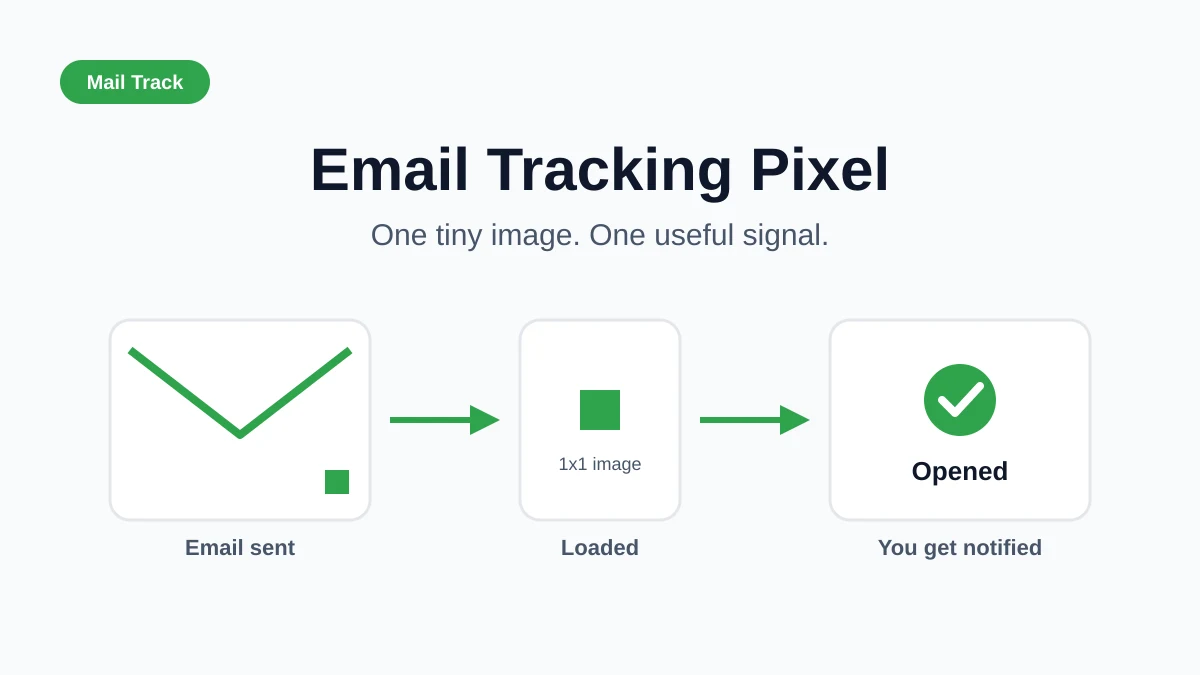
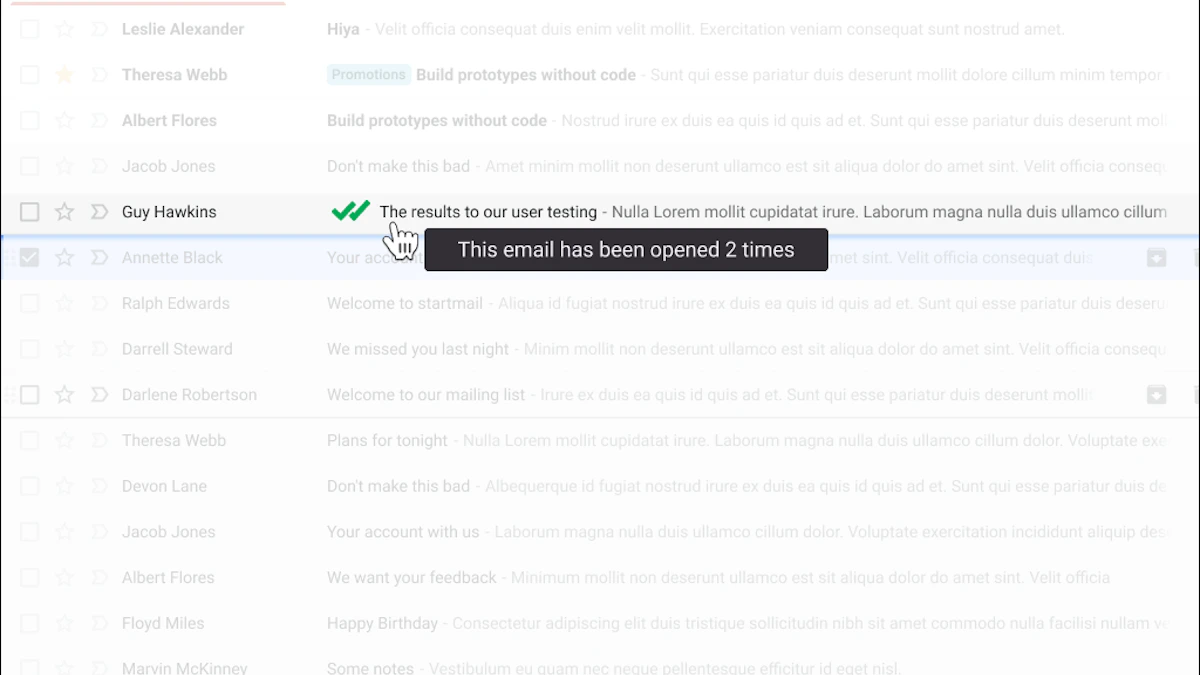
Open tracking turns a static reply into a usable signal.
Say you send a proposal follow-up using a saved Gmail template. Without tracking, your next step is based on a calendar reminder and a guess. With tracking, you can make better calls:
- Opened quickly and multiple times: That thread is active. Follow up while interest is warm.
- Never opened: Don’t write a long second email yet. Consider a cleaner subject line or another channel.
- Opened once, then silent: Wait, then send a short clarifying nudge.
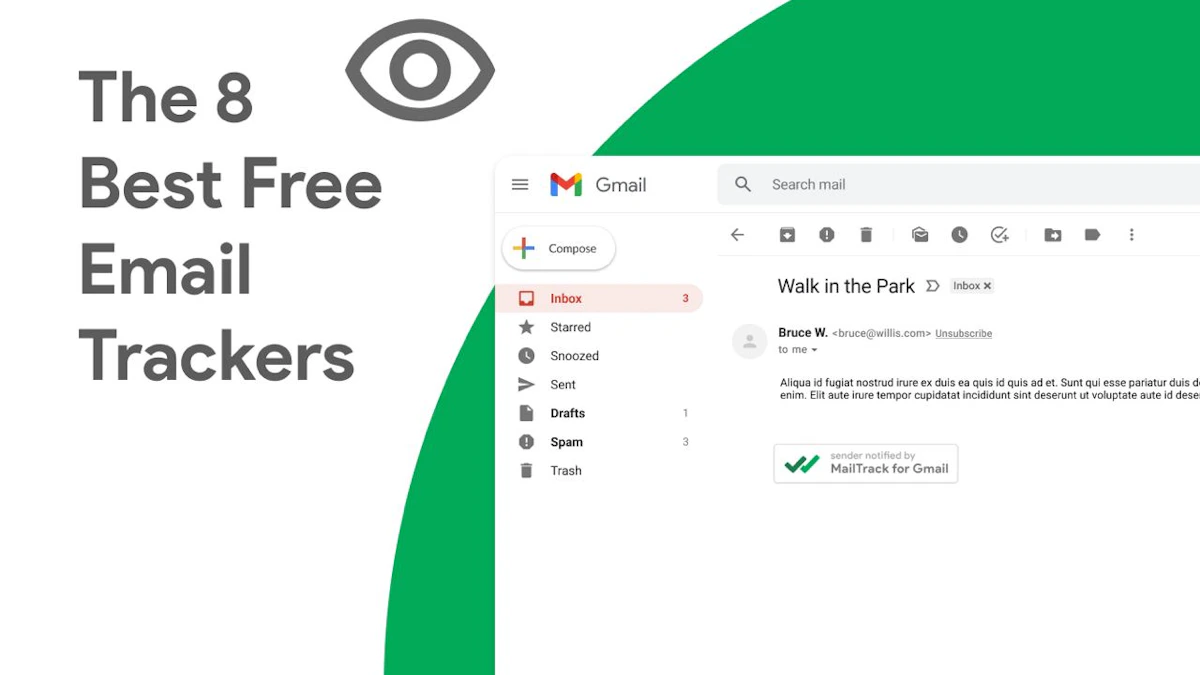
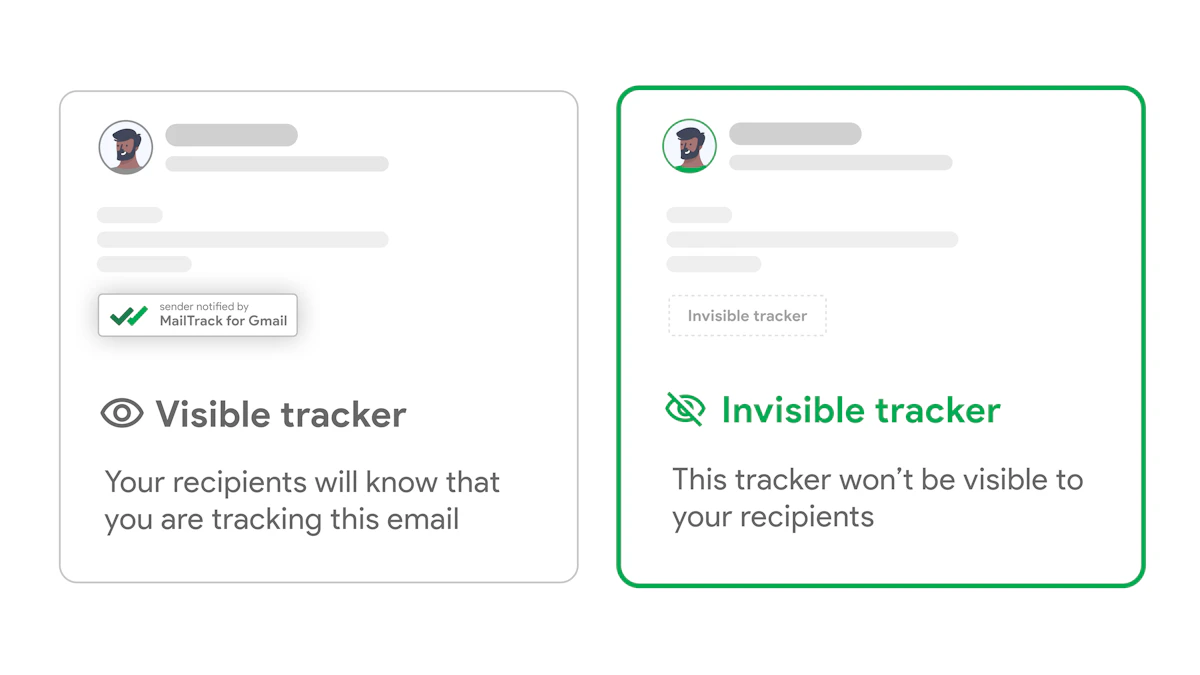
For Gmail users, email tracking for Gmail is useful background because it shows how read receipts and open signals fit into everyday outreach rather than some separate sales workflow.
If you don’t know whether the first reply was seen, the second reply is mostly timing theater.
A better follow-up rhythm
When I build email systems for high-volume relationship work, I don’t tie every follow-up to a rigid timeline. I tie it to behavior where possible.
A practical rhythm looks like this:
- After an acknowledgment email: Wait for engagement before sending extra detail.
- After sending a proposal or resource: Watch for opens, then follow up when the thread looks active.
- After a recruiting update: Use open activity to decide whether to nudge by email or switch to a call.
Tracking offers a capability beyond Gmail’s built-in tools. It closes the loop between send and response. You stop treating all sent emails the same.
Open tracking works best with restraint
Not every thread needs to be optimized around opens. Sensitive conversations, legal topics, and highly personal exchanges still call for judgment first.
The point isn’t to become obsessive about notifications. The point is to remove one common source of wasted effort: following up without knowing whether the last message even landed.
That’s the difference between simple automation and intelligent response management.
Building Advanced Automated Workflows with Zapier
Once Gmail is handling common replies and tracking gives you engagement signals, the next step is connecting those signals to the rest of your work. Zapier then becomes useful.
Instead of treating email as the end of the process, treat it as the start of one.
Use opens as workflow triggers

The basic logic is straightforward. A trigger happens in Gmail or your tracking layer. Zapier receives it. Then another tool takes action.
That matters because AI-powered automation has transformed response latency and efficiency, with IBM research showing AI can reduce average response times by up to 99% in scenarios where customers previously waited hours for a reply, as summarized in this article on automating email responses with AI. Faster response is useful. Coordinated response is better.
If you want more ways to think about connected workflows around Gmail, this roundup of email productivity tools is a good companion resource.
A practical Zap to build first
The easiest useful workflow is not “auto-send everything.” It’s “create the next action automatically.”
Use this structure:
-
Trigger
A tracked email is opened. -
Delay step
Wait a set period so you don’t react instantly. -
Action
Create a task in Trello, Asana, or your task manager of choice. -
Optional notification
Send yourself a Slack or mobile alert if the thread matters.
Here’s what that looks like in practice.
A consultant sends a proposal email from Gmail. The recipient opens it. Zapier waits. If there’s no reply after the delay, it creates a task: “Follow up on proposal with Acme contact.” Now the thread leaves your memory and enters a system.
Why this works better than inbox reminders
Gmail stars and snooze features are useful, but they’re still inbox-native. That means your next action is trapped in the same environment that’s already crowded.
Zapier helps by moving follow-up work into the tool where you manage tasks. That separation is powerful because it reduces two common failures:
- You saw the thread, meant to follow up, then lost it
- You remembered the thread, but not at the best moment
Good automation doesn’t just send messages faster. It places the next decision where you’re most likely to act on it.
A short walkthrough can help if you haven’t built a Zap before:
Other useful workflow ideas
Once you understand triggers and actions, you can build small systems around them.
- Recruiting workflow: Candidate opens scheduling email, then a task is created to check for response later that day.
- Sales workflow: Prospect opens pricing email, then CRM gets updated with an activity note.
- Freelancer workflow: Client opens proposal, then Slack posts a private reminder to prepare a call follow-up.
The key is to keep the workflow narrow. One trigger. One delay if needed. One useful action. If you add too many branches too early, you’ll spend more time debugging than saving time.
Best Practices for Human-Sounding Automation
Individuals aren’t afraid of automation itself. They’re afraid of sounding cold, canned, or slightly off.
That fear is valid. A lot of automated email feels lifeless because the system is doing too much, or the template is doing too little. This gets even harder in nuanced situations. Most existing content on automate email responses focuses heavily on customer service or generic sales follow-ups, but neglects the specific nuance of automating replies in high-stakes, non-repetitive contexts like recruiter outreach or consultant client negotiations, where preserving human tone and context is critical, as discussed in this guide on automating email responses.
Write templates with room to breathe

A template shouldn’t read like a frozen speech. It should read like a strong first draft you can send with minimal editing.
Use this checklist:
- Personalize the opening: Reference the actual request, not just the sender’s name.
- Keep one sentence flexible: Leave space for a custom line that reflects the thread.
- End with a clear next step: Ambiguity makes automation feel evasive.
- Read it aloud: If it sounds stiff spoken out loud, it will sound stiff in the inbox.
For more ideas on balancing AI help with natural tone, the Robotomail AI email guide is worth reading.
Know when not to automate
This matters more than any template trick. Some emails should stay manual from the start.
| Automate confidently | Handle manually |
|---|---|
| Scheduling replies | Complaints with emotion or conflict |
| Receipt acknowledgments | Contract or pricing negotiation |
| FAQ-style answers | Sensitive hiring or rejection notes |
| Standard follow-up nudges | Anything where tone could change the outcome |
A good rule is simple. If the email needs empathy, judgment, or careful interpretation, automation should support the draft, not send the final answer untouched.
Use automation for speed. Use yourself for stakes.
Timing, privacy, and expectations
Human-sounding automation isn’t only about wording. It’s also about timing and ethics.
If your system sends replies too quickly in contexts that usually require thought, people notice. If your follow-ups arrive without regard for whether the message was seen, they feel pushy. If you use tracking, be clear about your standards and make choices that fit your audience.
Questions around privacy and transparency are worth taking seriously. This discussion of whether email tracking compromises ethics is useful if you want a practical view of how tracking, consent, and professional norms interact.
The best automated emails still feel like someone is on the other end paying attention. That’s the bar.
Common Questions About Automating Gmail
Can I automate email responses from my phone
Yes, but keep the mobile role narrow. Your phone is great for sending a template-based acknowledgment, checking tracked activity, or replying to simple threads quickly. It’s not the best place to design filters, write nuanced templates, or build multi-step workflows.
A good mobile setup handles light action. The heavier setup work still belongs on desktop.
Will automation get my emails marked as spam
Automation itself isn’t the problem. Low-quality email behavior is.
If your replies are repetitive, misleading, too frequent, or disconnected from what the recipient asked, deliverability can suffer. The fix is simple: keep replies relevant, keep lists clean, and avoid over-triggering follow-ups. If spam placement is already an issue, this guide on how to stop email from going to spam in Gmail covers the practical causes well.
What’s the right follow-up cadence after an automated reply
There isn’t one universal cadence. The right timing depends on context, stakes, and whether the earlier message was engaged with.
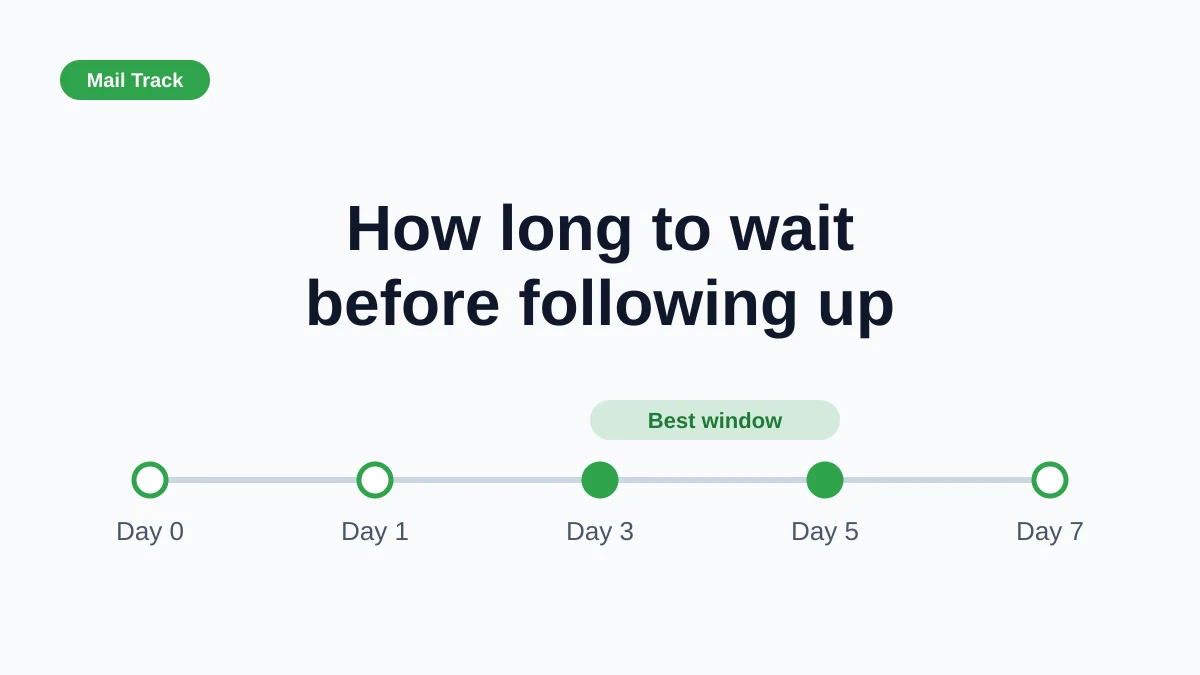
For sales or proposal outreach, tie your next step to visible engagement when possible. For recruiting or client communication, use a more conservative rhythm and avoid stacking multiple nudges too quickly. If a thread is important, shorter follow-ups work better than long “just checking in” essays.
Should I automate one-to-one business development emails
Yes, but only partially.
Use automation to handle acknowledgments, reminders, scheduling, and repeated informational replies. Don’t hand over emotionally nuanced or strategically delicate messages without review. The safest system is hybrid. Gmail handles the repeatable parts, and you step in where tone, influence, or relationship quality matters most.
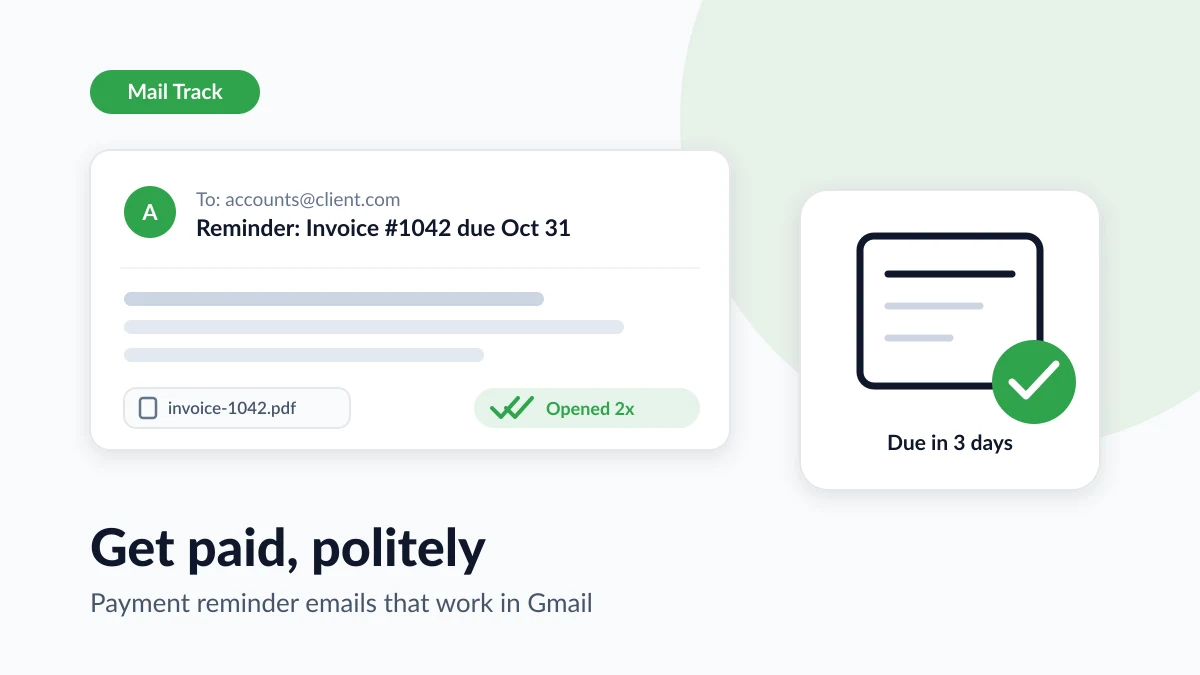
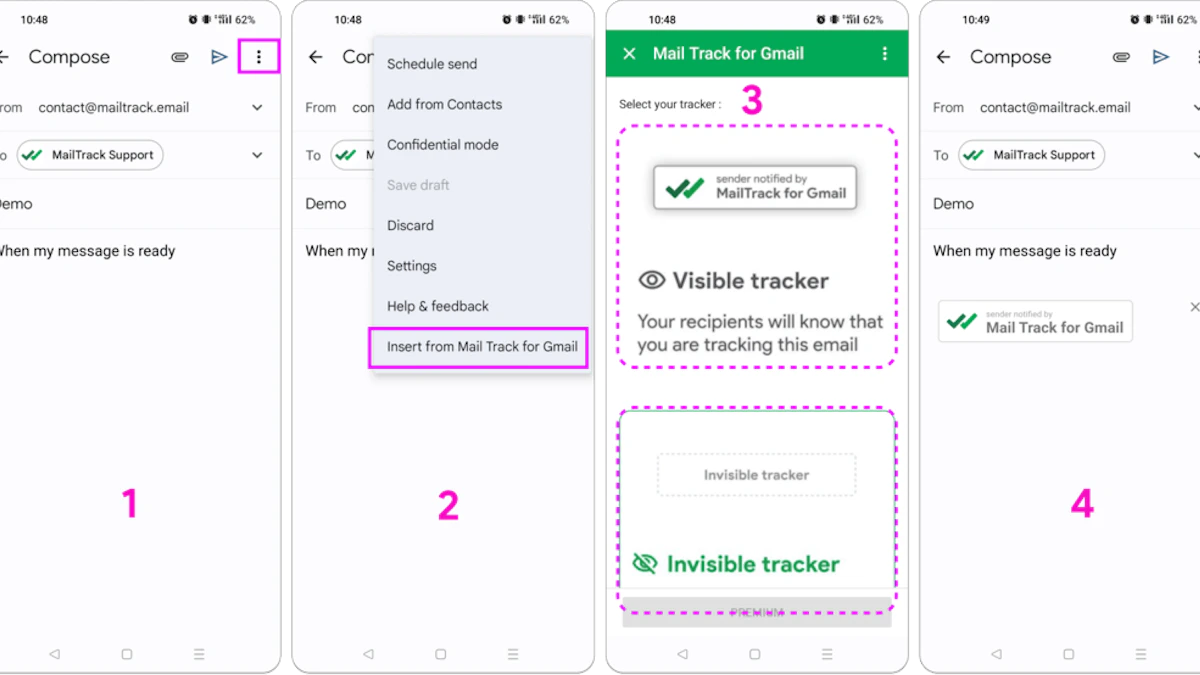
If you want a simple way to add read receipts and real-time open notifications directly inside Gmail, Mail Tracker for Gmail fits neatly into the workflow above. It works inside Gmail on web and mobile, shows open activity without forcing you into a separate app, and helps you time follow-ups based on actual engagement instead of guesswork.
Ready to track your emails?
Add Mail Track for Gmail from the Google Workspace Marketplace and know the moment your emails are opened. Free and unlimited.
Add to GmailMore reading
More from Guides
Can You Tell if Someone Read Your Email: Tracking Guide 2026
Can you tell if someone read your email - Explore methods for how you can tell if someone read your email in 2026. Discover read receipts, tracking pixels, &
Gmail Stopped Working on Android
Is gmail stopped working on android? Our 2026 guide fixes app crashes, sync errors, & notification issues with quick & advanced solutions.
Email Open Rates: A Realistic Guide for 2026
Unlock the truth about email open rates. Learn how they're tracked, why they're flawed, and how to use them effectively for sales and marketing in 2026.