
How to Remove Email from Spam in 2026
Learn how to remove email from spam, whitelist trusted senders, stop future false positives, and improve your inbox deliverability.

You just found a client reply in Gmail’s spam folder, or worse, a prospect’s first response vanished there before you ever saw it. That’s the part most guides skip. Removing email from spam is only the first correction, and if you send outreach for a living, the actual work is making sure the same sender doesn’t land there again tomorrow.
Why Your Important Emails End Up in Spam
A sales rep opens Gmail on Monday, expecting a reply from a hot lead, and finds the message buried in Spam instead of Inbox. The first instinct is to click Not spam and move on. That helps, but it only fixes that one mailbox, that one message, and that one moment in time.
Why Gmail misclassifies legitimate outreach
Gmail’s system is built to evaluate mail inside the mailbox, not through some universal “remove this sender from spam everywhere” switch. Its official help explains that users review flagged mail in the Spam folder, then move a message out of spam when it was filtered incorrectly, which is a mailbox-level correction rather than a global internet repair. That distinction matters because outreach teams often assume one correction will fix future sends from the same domain across every inbox. It won’t.
Spam filters look at patterns. A new sender with little history, a cold campaign sent too fast, a message body loaded with links, or a recipient who never engages can all make a legitimate email look risky. Tracking tools can add another layer of scrutiny when the sending pattern looks mechanical or the signature feels unfamiliar to the recipient.
Practical rule: if a message belongs in the Inbox, fix the classification in the mailbox first, then fix the sending pattern that caused the problem.
Why sender-side habits matter more than people think
The sender’s behavior shapes deliverability long before a message reaches the recipient. A campaign that blasts the same copy to a large list, especially from a fresh domain, tends to look nothing like normal one-to-one business mail. That’s why removing a message from spam is really two jobs, restoring the legitimate message, then reducing the chance of repeat filtering.
The FTC’s consumer guidance points people toward report, mark as spam, or unsubscribe depending on the sender type, not toward some universal blacklist removal. For sales and business outreach, that’s the right mental model. Clean up the inbox issue, then clean up the sending behavior.
Removing Messages From the Gmail Spam Folder
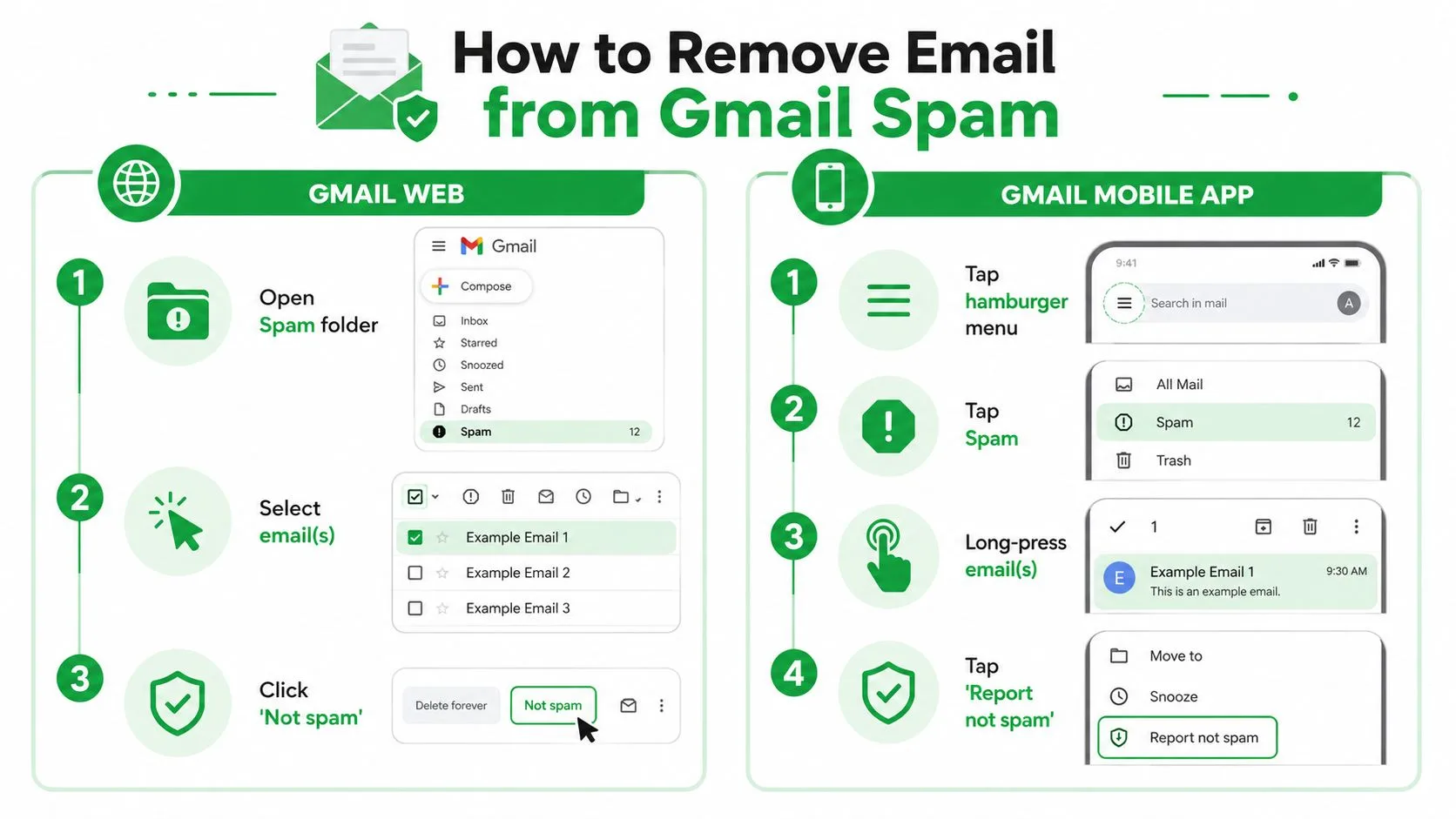
A good email can still end up in Spam when Gmail does not trust the sending pattern yet, or when the recipient has already trained the mailbox to be cautious. In that case, the fix starts inside the mailbox. Open the message, mark it Not spam, and move it back to the Inbox so Gmail gets a clear correction for that specific thread Gmail mark or unmark spam.
On desktop, the recovery flow is simple enough, but the work is still sender-side. If you only rescue the message and leave the sending pattern unchanged, the next reply can land in Spam again. That happens often with outbound teams that send too fast, reuse the same template too broadly, or keep pushing from a domain that has not earned enough trust yet. The mailbox correction matters. So does the sender profile behind it.
Gmail web and mobile steps that actually work
On the web, open Spam from the left sidebar, open the message, and choose Not spam or move it back to the Inbox. If you are handling several legitimate replies from the same sender, correct them together. Gmail learns from repeated mailbox behavior, so one-off fixes do less than a consistent pattern of cleanup.
On mobile, open the Gmail app, tap the menu, go to Spam, open the message, then choose the option that marks it as not spam. The exact tap path shifts a little between Android and iPhone, but the workflow stays the same. Find the false positive, correct it, and keep the thread in the normal inbox flow.
If you manage recurring outreach, pair the mailbox fix with a sender workflow. An internal Gmail auto-labeling setup guide can help route important replies into a cleaner view, which makes it easier to spot messages that were classified incorrectly. That does not replace reputation work, but it does reduce the chance that a real reply disappears in the wrong folder again.
Use the correction to train the mailbox
The goal is not just to recover one email. It is to teach Gmail that this sender belongs in normal conversation. Repeatedly clicking Not spam on the same contact helps, but a cleaner pattern comes from stable sender habits, regular engagement, and fewer signs that the inbox is getting hit by a mechanical campaign.
That is the part sales teams miss. A spam-folder correction solves the immediate mailbox problem, but if you keep sending in a way that looks promotional or unfamiliar, Gmail will keep testing the message. Fix the thread first, then make sure the sender behavior gives the mailbox a reason to trust future mail.
Whitelisting Senders and Creating Filters to Prevent Future Flags
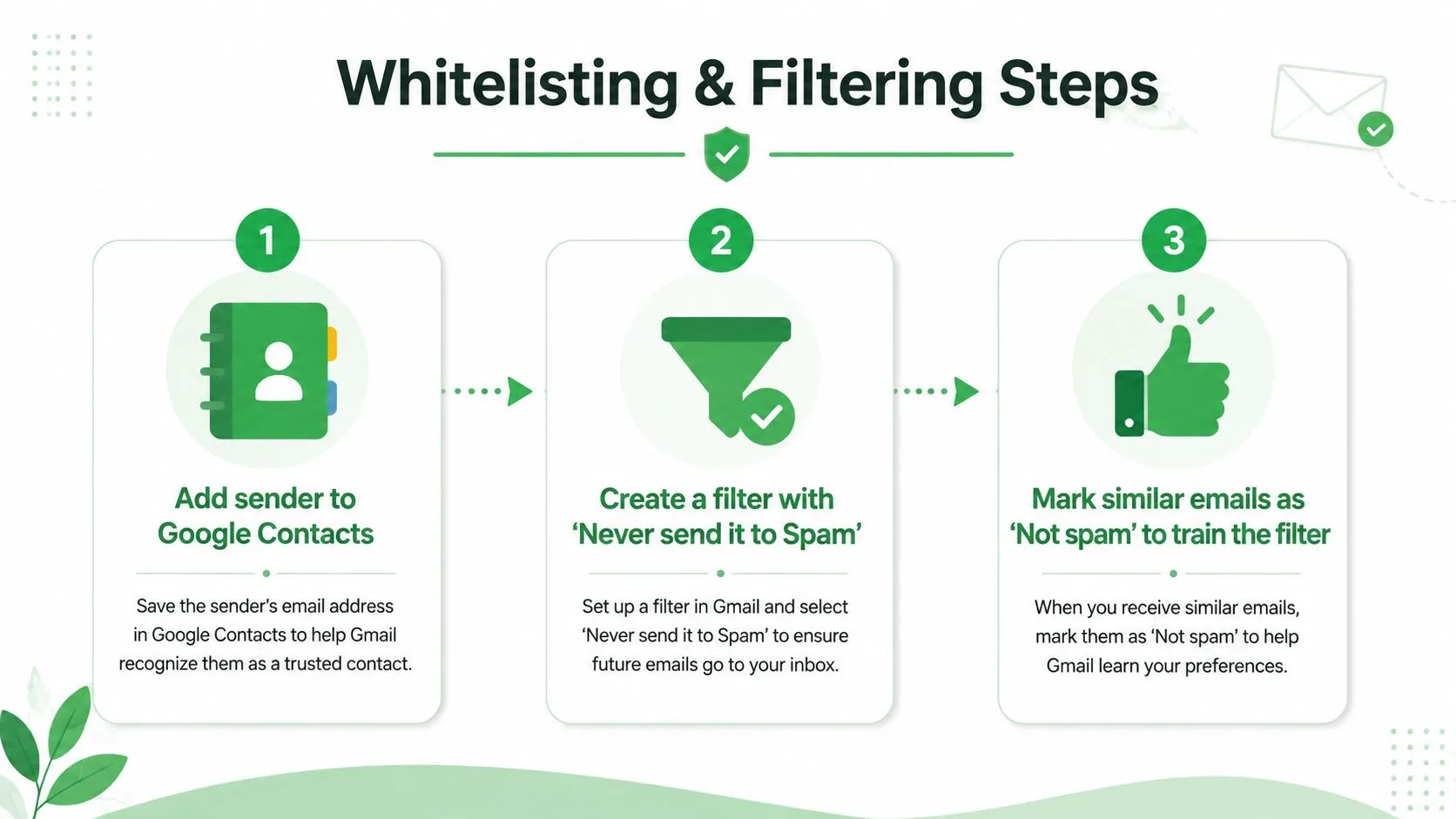
A true whitelist fix starts on the recipient side, but it works best when the sender side is clean too. Adding a trusted sender to contacts gives Gmail a stronger signal that the relationship is real, especially for ongoing one-to-one communication. That helps, but it does not override weak sender habits, so use it as a baseline rather than a final fix.
For repeat senders, a filter is more durable than a one-time rescue. Build it from the search bar, target the sender address or domain, then choose the setting that keeps future messages out of spam. Gmail’s spam controls for Workspace users also let admins handle sender blocking and related message controls, so team inboxes can stay consistent even when several people are sending from the same domain.
Set up the mailbox so it stops relearning the wrong thing
The point is to train the mailbox that this sender belongs in normal conversation. Clicking Not spam on every message can help in the short term, but a filter based on address, domain, or a recurring subject pattern gives Gmail a steadier rule to follow.
That still leaves the sender-side workflow. If you are working a deal, ask the prospect to add your address to contacts, move the message out of spam if it lands there, or create a rule on their side. Keep the request plain and professional. A line like, “If this message lands in spam, moving it to your inbox helps make sure our next notes reach you cleanly,” sounds like housekeeping, not pressure.
The follow-up request that doesn’t feel awkward
Sales teams get better results with a short whitelist request that names the sending domain. That matters when updates come from a team alias or a sequence, because one address can be allowed while the rest of the domain still gets filtered.
A clean inbox workflow also helps when replies start coming in. If you want a practical way to keep important threads visible, the guide on how to auto label emails in Gmail is useful for sorting replies without changing the way you send.
For teams that send templated outreach, email templates for listing agents can also show how to keep the message structure familiar without making it look like bulk mail. That matters because filters look at pattern as much as content.
A single Not spam click corrects one message. A filter creates a rule that keeps the next message in the inbox.
Sender Habits That Trigger Spam Filters and How to Fix Them
The sender side is where a lot of deliverability problems begin. Too many cold emails sent too quickly, aggressive subject lines, mismatched sender names, and weak list hygiene all make a campaign look automated or unwanted. Microsoft’s guidance on spam cleanup specifically warns that scammers hide behind friendly visible names, so checking the actual sender address and using sender-level blocking or rules matters more than just deleting the message.
The habits that get outreach flagged
Spam filters do more than read words. They read behavior. If a new domain starts sending high volume right away, that looks suspicious. If an email carries too many links, a heavy attachment, or a subject line that feels inflated, the mailbox starts treating it like bulk mail instead of a real conversation.
Tracking tools can help or hurt depending on how they are set up. A free tracker with a visible signature can make a message feel less native, while an invisible tracker on a paid plan can reduce that visual friction. Mail Tracker for Gmail is one option that sends tracked email from Gmail and shows read receipts and open notifications inside the inbox, which can help when you want to see which messages are being seen without changing your workflow.
Fix the message before you fix the complaint
Subject lines usually get the first trust check. If you need ideas that sound more natural for outbound prospecting, Saleswise has a useful collection of email templates for listing agents that can help you write subject lines that feel human instead of spammy. The point is not to copy them blindly. It is to see how concise, specific language usually performs better than hype.
You also need to pace sending. New domains need careful warming, meaning consistent volume, steady engagement, and clean lists before you push harder. The fastest way to burn trust is to treat every mailbox like a dumping ground for recycled copy.
Clean habits that hold up over time
- Personalize the opening line: a message that clearly references the recipient’s context looks less like bulk outreach.
- Use a verified domain: send from a domain that matches your business identity, not a random throwaway address.
- Keep the list clean: if people do not engage, remove or segment them instead of hammering them again.
- Watch tracking signals: if your tracker shows repeated opens with no reply, adjust the follow-up instead of blasting another version.
If your team keeps repeating the same mistakes, the internal guide on the 20 most common email marketing mistakes is worth reviewing before the next send. The fix is rarely one setting. It is usually a chain of better sending choices.
Troubleshooting Persistent Spam Folder Issues
When an email keeps landing in Spam after you’ve marked it Not spam, the problem usually sits outside the message itself. At that point, check authentication, sender reputation, and how the same thread behaves across different recipients. A single mailbox fix can rescue one conversation, but it will not repair a sender setup that keeps tripping filters.
Check the sender identity first
Start with the actual sender address, not the display name. A familiar name can hide a mismatched domain, a shared mailbox, or an alias that does not match what the recipient expects. If the address looks off, that is often the first sign the message is being treated as risky.
Review the message headers in Gmail’s Show original view if you have access to it. That is where you can check whether the message passed the authentication tests that matter to inbox placement. If those checks fail, local mailbox actions may help one thread, but they will not fix the broader pattern.
Decide whether the fix belongs in the mailbox or the domain
If the problem is limited to one recipient, a filter or safe sender rule may be enough. Mailbox controls can override a bad classification when the relationship is legitimate, which is why tools like Blocked Senders and Safe Senders still matter in Outlook Outlook junk mail controls.
If the same issue shows up across several recipients, stop sending the same message harder. Check the sending domain, the campaign setup, and whether the email is really one-to-one or functioning like bulk outreach. That is usually where the problem sits.
Use the provider’s own settings when you control the environment
Google Workspace administrators can manage spam settings at the organizational level, and Gmail users can still rely on native tools like Spam, block sender, and not spam controls. That matters in larger teams because one rep can correct a thread locally while the admin keeps broader policy aligned.
When messages keep slipping back into Spam, assume the mailbox is pointing to a sender-side issue, not just a stubborn filter.
For a practical reference point, BatchData’s overview of email deliverability benchmarks is a useful way to compare your placement patterns with wider norms. Use it as context, not as a scoreboard.
Reset the follow-up pattern
Persistent spam issues often come from how follow-up is handled, not just from the first send. If a prospect never engaged, repeated resends of the same copy usually make the next touch look more automated, not more relevant. Adjust the timing, change the angle, and remove any tracking behavior that creates unnecessary noise.
That is also where a broader outbound process helps. Teams that keep reusing the same subject lines, copy blocks, and resend timing tend to teach filters the wrong pattern. A cleaner structure for creating an effective email marketing strategy gives sales reps a way to keep follow-up consistent without leaning on repeated risky sends.
Building a Reliable Email Deliverability System
The teams that stay out of spam don’t rely on rescue clicks. They build a weekly routine around cleanup, sender hygiene, and follow-up timing. That matters because Gmail, Outlook, and other inboxes keep adjusting their filters, and your process has to stay ahead of that drift.
Make deliverability part of your weekly rhythm
A simple operating loop works better than emergency cleanup. Review Spam folders, check which messages were marked Not spam, and look at whether the same sender or subject pattern keeps reappearing. Then clean inactive contacts, tighten subject lines, and keep your volume steady instead of spiking it.
Tracking helps here when it’s used for timing, not pressure. Real-time open notifications let you follow up when the message was seen, which reduces the temptation to resend too quickly and create more filtering noise. Daily email reports and tracking history also show which outreach gets attention and which threads die.
Keep the system simple enough to maintain
You don’t need twenty moving parts. You need consistent sending, a clean list, and a feedback loop between inbox placement and follow-up behavior. If a prospect never opens the first email, another identical resend usually doesn’t help. If they open and still don’t reply, the issue is probably message content or timing, not just delivery.
For teams building a broader outbound process, the internal guide on complete email marketing strategy creation fits well beside this workflow. It keeps deliverability tied to campaign design instead of treating it like a separate chore.
Bottom line: inbox placement is an operating discipline. The best teams monitor it, correct it, and then make the next send cleaner than the last.
If you want a clearer view of whether your Gmail outreach is being opened, ignored, or buried, Mail Tracker for Gmail gives you read receipts, real-time open notifications, and tracking history right inside Gmail. It’s built for people who need to spot deliverability problems early and adjust follow-up before good email gets lost. Visit Mail Tracker for Gmail and put a tighter handle on your next send.
Ready to track your emails?
Add Mail Track for Gmail from the Google Workspace Marketplace and know the moment your emails are opened. Free and unlimited.
Add to GmailMore reading
More from Tutorials
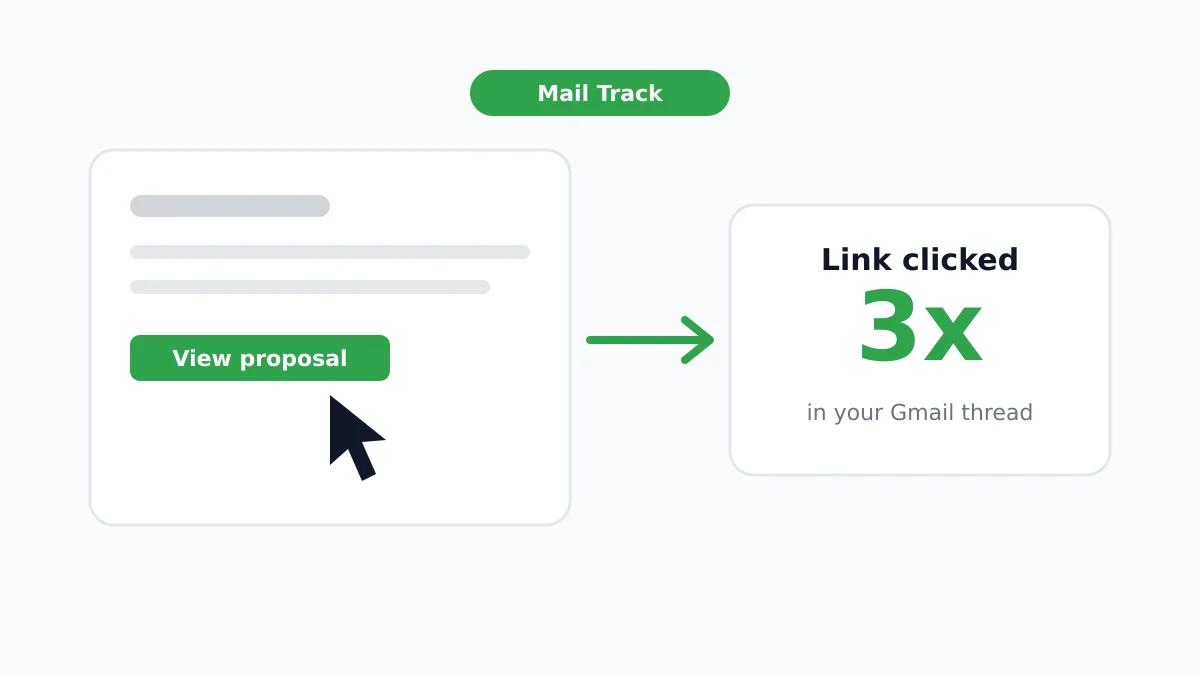
How to Track Link Clicks in Gmail (and What a Click Really Tells You)
Learn how to track link clicks in Gmail, why Gmail does not do it natively, how tracked links work and how to read clicks without being fooled by scanners.
How to Find My Contacts in Gmail: A Practical Guide
Learn how to find my contacts in Gmail on desktop and mobile. Clear steps for Google Contacts, search tips, shortcuts, and contact details from emails.
Objection in Sales Explained and How to Handle It
Learn what objection in sales really means, why it happens, and proven frameworks to handle price, timing and trust objections with confidence.