
How to Send a Secure Email from Gmail and Mobile
Learn how to send a secure email from Gmail and mobile in 2026, with clear steps for TLS, Confidential Mode, S/MIME, PGP, and encrypted attachments.
You’ve got a sensitive message sitting in Gmail right now, and it probably isn’t the message itself that worries you. It’s the attachment, the forwarded thread, the autocomplete suggestion, or the fact that the recipient still needs a way to confirm they saw it without you leaking the contents to a tracker or a sloppy reply chain. That’s the job of a secure email workflow, and in Gmail it takes more than one toggle to get right.
What Secure Email Actually Has to Protect
A recruiter sending a candidate’s salary band is dealing with four separate risks, even if the email looks ordinary on the surface. Confidentiality keeps the content private in transit, authenticity proves who sent it, integrity shows the message wasn’t altered, and delivery confirmation tells you whether the recipient saw it. If you only solve one of those, you still have a weak point somewhere.
A salary email is not one problem
If the recruiter sends the salary band in a normal Gmail draft, the subject line, recipient choice, attachments, and follow-up behavior all matter. NIST’s email guidance separates these jobs clearly, because email confidentiality and authenticity rely on different mechanisms, including message signing, message encryption, and server-to-server protection in transit NIST SP 800-45v2. That’s why “secure email” is really a stack, not a single feature.
Practical rule: if the message would still be risky when forwarded, copied, or misaddressed, it is not secure enough yet.
Delivery confirmation is its own layer. You might want to know the candidate opened the offer note, but that doesn’t mean the same email should carry the sensitive attachment, a visible tracking pixel, and the reply thread with private details all at once. The cleaner pattern is to separate the confidential payload from the engagement signal.
What Gmail-side choices map to each job
Gmail’s built-in tools and add-ons solve different parts of the problem. TLS helps with confidentiality in transit, Confidential Mode puts access behind a link-based wrapper, S/MIME gives message-level protection inside Workspace, and tracking tools live above that as engagement signals. The right choice depends on who you’re writing to, whether they use Gmail, and whether the message needs to be readable outside your own ecosystem.
That matters because secure email isn’t only about keeping strangers out. Barracuda’s 2026 reporting says 1 in 3 email messages are malicious or unwanted spam, and 48% of malicious email activity is phishing Medha Cloud’s 2026 security roundup. In that environment, the safe move is usually layered protection, not one flashy feature.
Gmail’s Built-In Security Options at a Glance
Gmail gives you a few different paths, and each one protects a different layer of the message. TLS is the default transport protection, Confidential Mode turns the message into a controlled link view, S/MIME protects the message body and signatures for Workspace users, and third-party PGP add-ons add end-to-end style encryption at the cost of more setup. The trap is assuming they all do the same thing.
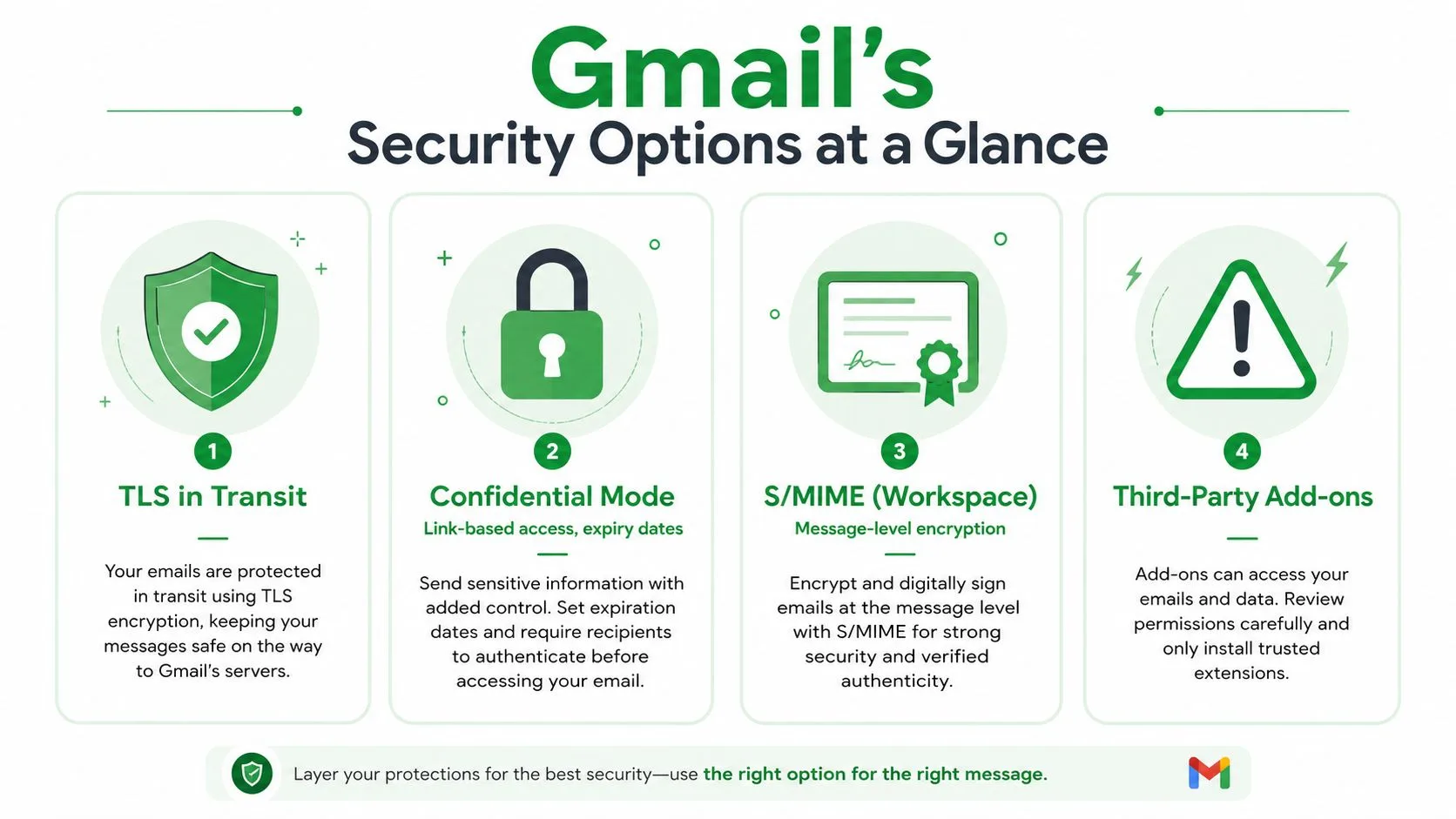
The option that looks simplest is not always the safest
Gmail Confidential Mode is useful when you want to limit forwarding, copying, or access after a set time, but it doesn’t magically make the message end-to-end encrypted. It is a delivery-control layer, not a universal cryptographic shield. If a recipient forwards the access link or screenshots the content, the confidentiality boundary has already been crossed.
TLS protects the transport path between mail servers. That is valuable, but it is not the same as message-level encryption, and it can still fall back in ways you do not expect. The government guidance is blunt about the bigger picture, because secure email depends on authenticated domains, MFA, and encryption working together Canadian Centre for Cyber Security.
If the recipient can read the message in plain text without your intended keys or controls, the protection is only partial.
Where S/MIME and PGP fit
S/MIME is the cleaner option when both sides are in a managed environment, especially if your organization already handles certificates. It gives you message-level encryption and digital signatures, which is closer to what a typical user means by secure email. NIST’s Trustworthy Email work also points to S/MIME and TLS with SMTP as the standard technologies for content security NIST SP 800-177 draft.
PGP add-ons can work well for technically comfortable users, but they often create friction for the person on the other end. If the recipient does not already have the right keys or plugin, you are back to explaining software instead of sending a message. For Gmail users who need dependable confidentiality with less drama, that friction can outweigh the benefit.
If you ever need to clean up after a mistaken send, how to delete sent emails in Gmail is worth knowing, because secure sending and damage control often go together.
A quick comparison for Gmail users
| Method | What it encrypts | Recipient setup | Best for |
|---|---|---|---|
| TLS | Transport between mail servers | None visible to the sender | Everyday delivery protection |
| Confidential Mode | Access to the message through a controlled view | Recipient clicks a link or uses access controls | Time-limited or low-friction restriction |
| S/MIME | Message content and signatures | Certificates on both sides | Managed teams and sensitive business mail |
| PGP add-ons | Message content, depending on setup | Keys and usually extra software | Technical users who already share keys |
The safest choice is the one your recipient can use. A perfect encryption method that breaks the first time the other side opens their inbox is worse than a simpler control they will follow consistently.
Setting Up S/MIME in Gmail Step by Step
S/MIME starts as a setup job, not a checkbox. You import a certificate, point Gmail at it, and confirm the other person has a certificate Gmail can trust too. Once both sides are ready, Gmail can sign and encrypt at the message layer, which gives you stronger message integrity than transport-only protection.
Desktop setup and the first trust prompt
Open Gmail on desktop and go to the account or security area where Workspace exposes S/MIME support. Import the client certificate if your admin has not already provisioned one, then select it for the account you use for sensitive mail. The first time you message someone whose certificate Gmail has not seen before, you may hit a trust prompt or a warning that encryption cannot complete until a valid certificate exists on both sides.
That is the main constraint. S/MIME is end-to-end only when both sender and recipient can exchange and trust certificates, so the recipient side matters just as much as yours. If they open the message in a client that does not support S/MIME, the result can be a plain message, a failed decrypt, or a message that never opens cleanly.
A practical example helps. If your vendor still uses a desktop client with no S/MIME support, you can have a perfectly valid certificate on your side and still fail to deliver a readable encrypted mail. If the other side uses Outlook with a certificate from the same trust chain, Gmail is much more likely to sign and encrypt without drama. When the setup is mismatched, the failure usually shows up as a certificate warning, an encryption toggle that will not activate, or a message that sends without the protection you expected.
Mobile handling and what to expect
On the Gmail mobile app, the result depends on Workspace support and whether the certificate is already tied to your account. If your organization has enabled S/MIME for mobile, the app can use that certificate for supported messages. If not, mobile becomes a viewing or signing limitation, not a workaround for missing certificate support.
The cleanest operational rule is simple.
- Import or request the certificate through your organization’s approved process.
- Confirm Gmail shows the S/MIME option for the account you will use.
- Send a test message to a colleague who already has a valid certificate.
- Verify decryption on both desktop and mobile before you use it for client mail.
That test step catches the annoying edge cases early. A message can look fine in Gmail web, then fail on a phone because the profile is incomplete, the certificate chain is missing, or the recipient’s client does not like the format. I have also seen setups where signing works but encryption does not, which usually means Gmail sees the certificate but cannot complete the full trust path for that recipient.
Two failure cases to plan for
The first failure case is a recipient who only uses plain Gmail web in a way that does not support the certificate exchange you need. The second is a third-party client that has no usable certificate, or one that is installed but not recognized properly. In both cases, forcing the same workflow rarely helps. A safer move is to send the file through a secure link, a controlled portal, or another method the other side can open.
Use the NIST email security guidance as the baseline for how message protection splits into authentication, encryption, and server transport. If the other side cannot participate, the result is not true end-to-end protection, even if Gmail shows a lock icon on your screen.
When to Use a Secure Email Provider Instead
Some teams don’t want to build an S/MIME process inside Gmail, and that’s reasonable. If the recipient experience needs to be simpler than key exchange, or if you’re constantly sending sensitive mail outside your own domain, a dedicated secure provider can reduce the operational mess. ProtonMail, Tutanota, Virtru, and StartMail all sit in slightly different places on that spectrum.
Where dedicated providers beat Gmail
A provider like ProtonMail or Tutanota is attractive when you want the secure workflow to be the default, not a feature you toggle on occasionally. That helps solo freelancers and small teams that don’t have certificate management baked into their environment. Virtru is often a better fit when you want a plug-in style layer that lives closer to existing Gmail workflows, while StartMail appeals to users who want privacy-centered mail handling without managing S/MIME manually.
The biggest difference is the recipient experience. If the recipient doesn’t use the same service, most secure providers shift them into a portal, link, or guest-style access flow. That can be fine for sensitive mail, but it’s not always ideal for regular back-and-forth with clients who expect instant reply behavior.
A quick verdict by situation
If you’re a solo freelancer, a provider with built-in secure sharing can be easier than certificate management. If you’re a small team using Gmail every day, a plug-in or add-on model usually creates less disruption. If you’re in a regulated industry, the provider has to fit policy, audit, and identity controls, not just look secure. If you do mixed-recipient outreach, especially sales or recruiting, Gmail plus selective protection often stays more practical because not every contact needs the same level of friction.
| Method | What it encrypts | Recipient setup | Best for |
|---|---|---|---|
| ProtonMail | Mail handled inside the provider’s secure ecosystem | Often easiest when both sides use the service, otherwise portal-style access | Privacy-first users and teams |
| Tutanota | Mail and attachments in its secure flow | Recipient may need a secure link or account | Users who want a privacy-focused mailbox |
| Virtru | Message and attachment protection layered onto existing mail workflows | Recipients usually access through controlled methods | Gmail users who want less disruption |
| StartMail | Privacy-oriented email handling with secure access patterns | Varies by recipient flow | Users who want a secure provider without heavy admin work |
For a separate comparison of password-protected delivery, how to send password-protected email is worth a look if your problem is file access more than mailbox control.
Handling Attachments and Passwords Without Leaks
Attachments are where secure email workflows often break down. The body may be encrypted or controlled, but the file arrives with metadata, the password goes in the same thread, or someone forwards the whole thing to the wrong person. The question is not whether you can attach a file, it’s whether the attachment can survive the rest of the workflow.
Protect the file, then protect the password separately
Password-protected Office documents and PDFs are useful when the file itself carries sensitive content. The password must travel in a separate channel, though, because sending both in the same email cancels out most of the benefit. That’s a basic rule, but it’s still the one people ignore most often.
Large files are usually better handled through a secure link from Drive or Dropbox with access limits, rather than as a raw attachment. That keeps the file in one place and lets you revoke access or expire the link later. For image-heavy files, a helpful practical example is protecting client photo files, because photo sets are often where casual forwarding causes the most accidental exposure.
Practical rule: if the password and the file can be forwarded together, they don’t meaningfully protect each other.
The mistakes that show up in real inboxes
Autocomplete is one of the quietest risks. Tufts treats recipient checking as a security control, not a clerical task, and specifically warns people to double-check addresses, including autocomplete suggestions Tufts sensitive information rules. That’s because a single wrong recipient turns a secure message into an incident.
Other mistakes are more obvious once you’ve seen them once. People attach scanned ID images without redaction, forget metadata inside PDFs, or forward the original thread and assume encryption still applies. It usually doesn’t, at least not in the way they think it does.
A short checklist for the compose window
- Protect the file first: use password-protected Office files or PDFs for material that should not open casually.
- Use a separate channel for passwords: phone, text, or another trusted path, never the same message.
- Prefer links for bulky or updateable files: Drive or Dropbox-style sharing is easier to revoke.
- Verify the recipient before sending: read the address field slowly, especially when autocomplete changes the name.
For a more detailed workflow on the file side, data handling practices can help when you’re deciding how much information should live in email at all.
Tracking Read Receipts Without Breaking Privacy
If you need to know whether a secure email was opened, that is a valid operational question. The mistake is treating open tracking and message protection as the same layer. Encryption protects the message, while tracking tools like Mail Tracker for Gmail sit in the engagement layer and tell you whether the email was opened or interacted with.
Tracking belongs outside the sensitive payload
Open tracking usually relies on a tracking pixel, which is a poor fit for highly private threads. Gmail can strip or suppress pixels in some cases, so a tracker will not behave the same way in every inbox. In Mail Tracker for Gmail, the free plan uses a visible tracking signature, while Premium can use an invisible tracker, and that changes how noticeable the tracking is to the recipient.
That trade-off matters in sales, recruiting, and client follow-up. A lightly tracked cover email can confirm that the note was opened, while the sensitive payload stays inside an encrypted attachment or controlled link. That is cleaner than trying to track the thread that carries credentials or private records.
A practical compromise that holds up
For private sends, keep the sensitive content out of the tracked thread. Send a separate cover email that identifies the purpose, then place the confidential material in an encrypted attachment or secure link. If the recipient needs confirmation without a privacy headache, use the cover email for the signal and the protected channel for the substance.
That approach fits broader privacy discipline. A clear reference to reviewing data handling practices for privacy compliance helps when you are deciding what should be measured, stored, or exposed at all. The point is not to track everything. It is to avoid turning the secure channel into a surveillance channel.
The guide on how Gmail read receipts actually work is useful if your main question is how open signals behave in regular Gmail workflows.
Track the outreach message, not the secret.
A Method-Picker for Your Next Sensitive Email
If the recipient is inside your managed environment, S/MIME is the strongest Gmail-native answer, especially when both sides can handle certificates. If the recipient is external and the content is sensitive but not extreme, a secure link or controlled access flow is usually easier than forcing a key exchange. If you need to know they opened it, keep the tracking layer on the cover email and leave the private payload untracked.
The fastest way to choose is to ask three questions. Who is reading it. What exactly is inside the payload. Do you need an open signal, or just safe delivery. The answer usually points to one of three setups, Gmail-native protection, a dedicated secure provider, or a split workflow with a lightly tracked note and a protected attachment.
Most leaks happen because of address-book mistakes, forwarding, or unprotected files, not because the encryption button was missing. If you remember nothing else, remember that secure email is a workflow, not a checkbox.
Mail Tracker for Gmail helps you separate the open signal from the sensitive content, so you can follow up without turning every private email into a privacy problem. If you’re sending sensitive messages from Gmail and still need delivery awareness, visit Mail Tracker for Gmail and use the tracking layer only where it belongs.
Ready to track your emails?
Add Mail Track for Gmail from the Google Workspace Marketplace and know the moment your emails are opened. Free and unlimited.
Add to GmailMore reading
More from Tutorials
How to Track Link Clicks in Gmail (and What a Click Really Tells You)
Learn how to track link clicks in Gmail, why Gmail does not do it natively, how tracked links work and how to read clicks without being fooled by scanners.
How to Find My Contacts in Gmail: A Practical Guide
Learn how to find my contacts in Gmail on desktop and mobile. Clear steps for Google Contacts, search tips, shortcuts, and contact details from emails.
Objection in Sales Explained and How to Handle It
Learn what objection in sales really means, why it happens, and proven frameworks to handle price, timing and trust objections with confidence.