
How to Edit Filters in Gmail Without Breaking Your Inbox
Learn how to edit filters in Gmail on web and mobile, apply changes to existing messages, avoid conflicts, and manage rule sets like a pro.
The fastest way to break a Gmail inbox is to treat filters like a one-time cleanup job. A sales rep fixes one rule, forgets about the backlog, and a week later half the inbound leads are archived, mislabeled, or forwarded to the wrong person because the edit changed live behavior instead of just future mail.
That’s why edit filters in Gmail should feel like maintenance, not setup. A filter is a persistent inbox automation, and Gmail’s own help flow makes that clear by putting editing inside Settings and Filters and Blocked Addresses, where existing rules can be revised and saved again with Update filter or OK. Once you start thinking that way, the process gets safer: check what the rule already catches, change only the part that needs changing, and assume every saved edit has consequences.
Why Editing Gmail Filters Is Riskier Than Creating Them
A common failure pattern shows up in shared sales inboxes. Someone edits a rule that used to label a prospecting source, misses the Also apply to matching conversations checkbox, and a week of live replies stays buried because only future mail changes. The inbox looks “fixed” on the surface, but the old threads are still behaving under the previous logic.
That’s the key difference between creating and editing. Gmail treats filters as a durable system inside the account, not a temporary shortcut. Google’s help instructions put the workflow in the regular settings area, where a saved rule can be reopened, adjusted, and kept alive over time. Google also documents that edited filters can be refined with And or Or logic, which means a change isn’t just cosmetic. It can widen, narrow, or entirely redirect a rule that already touches real messages.
Treat every edit like a production change
A safer habit is to audit before you touch anything. Check which labels, forwarding actions, and archive decisions already depend on the rule, then decide whether the edit should be a small adjustment or a full replacement.
Practical rule: if a filter already touches live leads, assume it will affect tomorrow’s replies and today’s backlog unless you prove otherwise.
That mindset matters because Gmail filters don’t live in isolation. A forwarding rule can collide with a labeling rule, a sales inbox can inherit old archive behavior, and a tidy-looking edit can change who sees what. The rest of this guide is built around one idea, maintain the rule set like a system you depend on every day, not like a one-time cleanup you can forget.
Editing Filters in Gmail on the Web
The web interface is still the only place where Gmail filter editing feels complete. Start in Gmail, open Settings, choose See all settings, then go to Filters and Blocked Addresses. There you’ll see each existing rule with Edit and Delete, and that’s the screen that matters when you need to repair a messy inbox without rebuilding everything from scratch.
When you click Edit, Gmail reopens the original filter criteria already filled in. Third-party walkthroughs describe the same behavior, the search screen comes back pre-populated so you can adjust the match conditions before saving again with Create filter or Update filter depending on the path you came through. That makes editing faster than starting over, but it also makes it easy to miss the fact that you’re changing an active rule, not drafting a new one.
What to change and what to leave alone
The safest edits are usually narrow ones. Add a sender, tighten a subject condition, or adjust a label action when the rule is already close to correct. Use And when the new condition should narrow the match, and Or when you’re intentionally combining similar triggers that should both count.
The actions area is where most inbox damage happens, so read it carefully. A rule can Skip the Inbox, Apply label, Forward, or Mark as read, and those choices don’t just affect organization, they affect visibility. If you’re trying to rescue a broken rule set, the most important button on the page is the one at the bottom, Update filter. Forgetting it leaves the old version in place.
One more practical detail. Gmail doesn’t give you a glamorous reorder interface, so the simplest way to change sequence is often to delete a rule and recreate it in a cleaner form. If several filters overlap, a shorter list is usually safer than a more complex one. For related cleanup work, a useful companion resource is this guide to auto-labeling emails in Gmail, because labels and filters tend to be built together.
What Works on the Gmail Mobile App and What Does Not
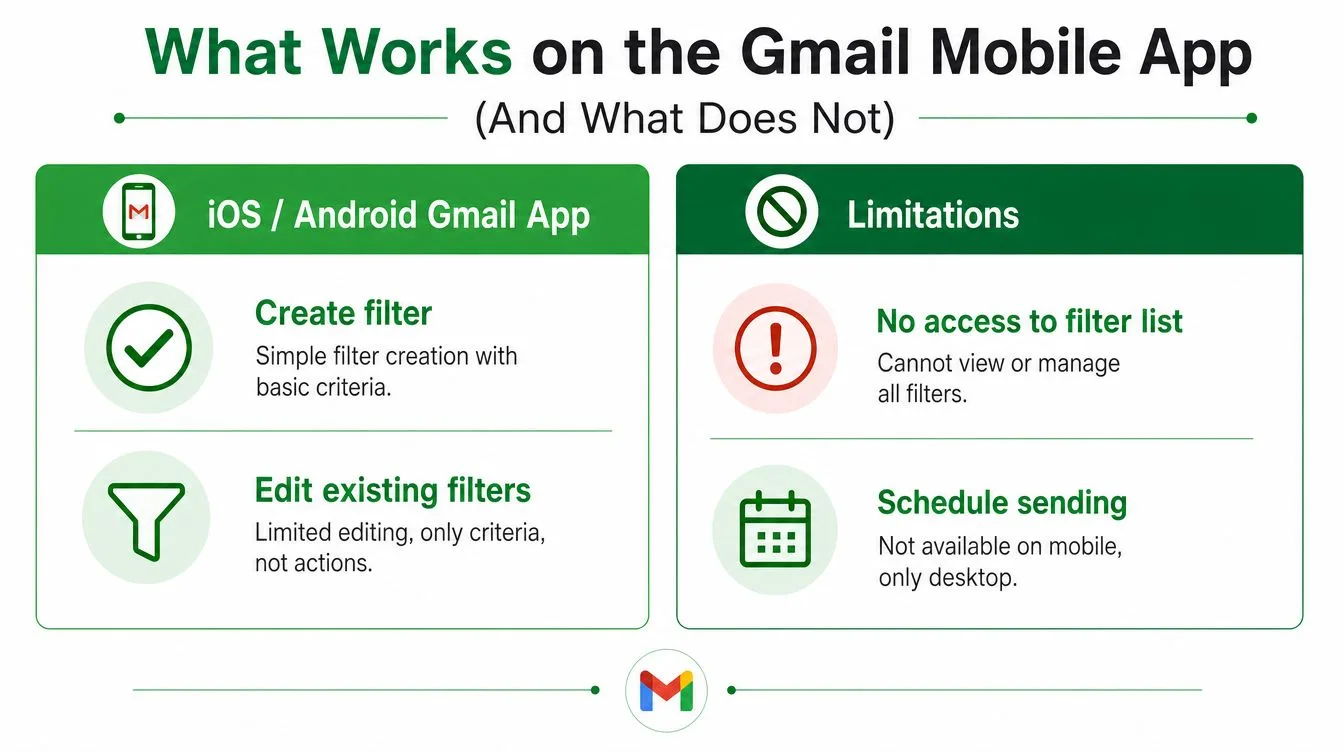
The Gmail app on iPhone and Android is fine for reading, replying, and checking whether something got routed correctly. It’s not the place to manage a serious filter set. Once you need to edit existing rules, the app experience gets thin fast, and many people only discover that limitation when they’re away from a laptop and trying to fix a broken inbox in a hurry.
The practical mobile workaround
If you need full filter control on a phone, open Gmail in a mobile browser and request the desktop site. That gives you the web workflow again, including the full Filters and Blocked Addresses page and the same edit controls you’d use on a computer. A tablet browser, especially on a Workspace-managed account, usually feels closer to the desktop experience than the phone app does.
The rule of thumb is simple. Mobile is enough for checking whether a message landed where it should. Mobile isn’t enough when you need to alter the rule that controls routing. For that, the browser workaround is the fix.
If a filter change affects lead routing, don’t trust a stripped-down app screen. Use the desktop interface, even if it means waiting ten minutes.
A clean mobile workflow matters because bad edits are often made under pressure. A rep sees a missing lead, tries to patch the rule from the train platform, and ends up making the inbox harder to trust. The app is good for visibility, not for restructuring the plumbing.
Understanding Filter Logic, Conflicts, and the Retroactive Checkbox
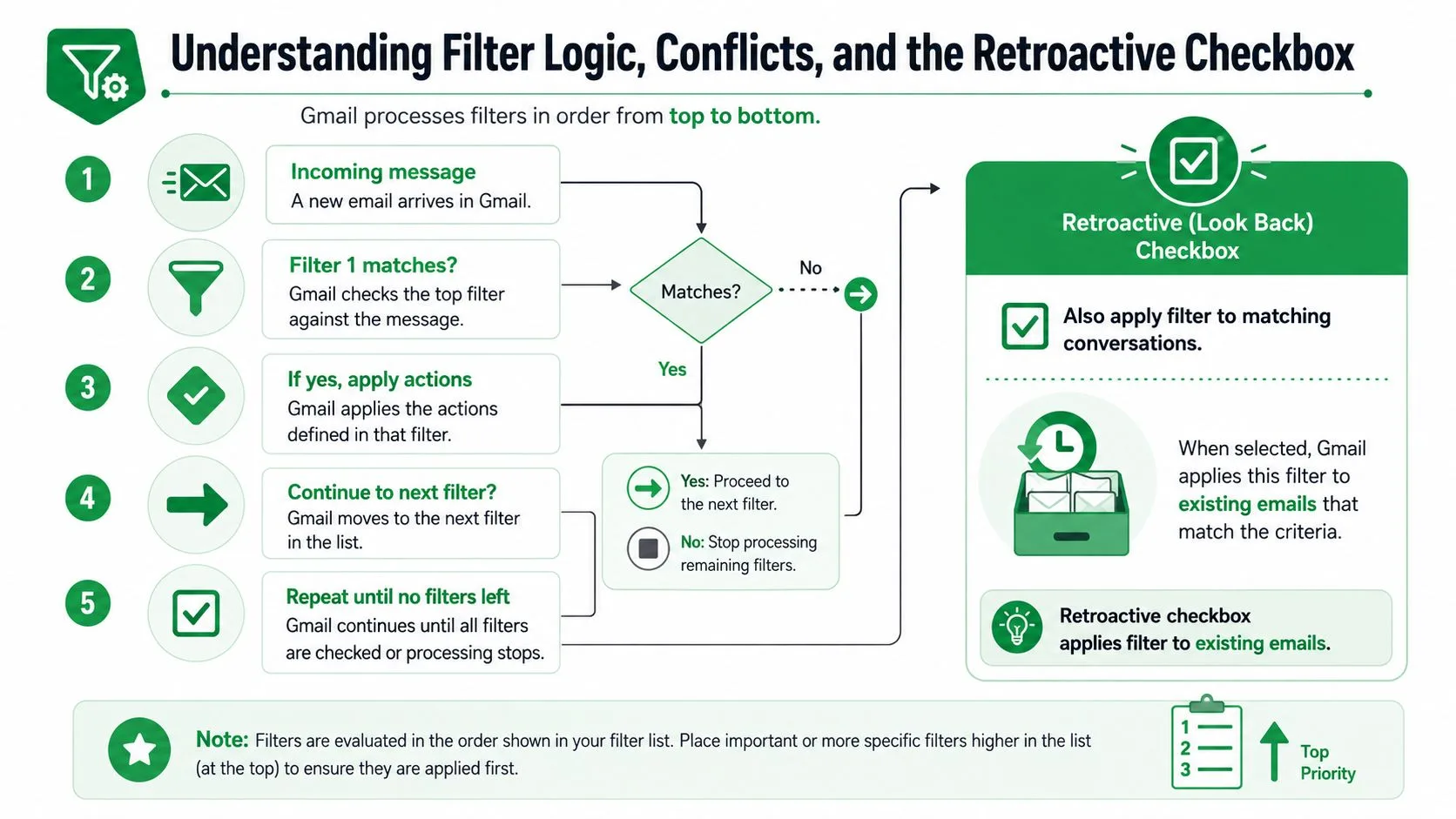
Gmail filter logic gets messy the moment you manage more than a handful of rules. A single message can match multiple filters, and then you’re no longer editing a neat little rule, you’re managing a decision system. Google’s community guidance points to And and Or as the building blocks for edited rules, but the harder question is what happens when two rules touch the same mail in different ways.
Overlap is the real danger
If two filters both match a sender, one can archive while another applies a label. If one forwards and another marks as read, the message can still flow through both actions. The most reliable way to avoid surprises is to search for overlap before you save the edit. Use the Gmail search bar to test the sender, subject, or keywords that the rule uses, then inspect whether other filters are likely to catch the same mail.
Here’s where the Also apply to matching conversations checkbox matters most. It is the retroactive switch. Check it when you need the edited rule to catch up on existing mail, like a backlog of unread leads or older threads that should now be labeled correctly. Leave it unchecked when the action is sensitive, especially with forwarding, archiving, or anything that removes messages from immediate view.
Practical rule: if the action would be painful on an old thread, don’t retroactively apply it until you’ve previewed the match set.
Google’s support materials also show a useful distinction between criteria and actions in advanced filtering. The Gmail API breaks filters into separate criteria and action fields, with options like from, hasAttachment, size, query, and label changes. That same split is a good mental model for manual editing, because it keeps you from confusing what the message looks like with what the filter does to it. For date-sensitive cleanup, this guide to searching dates in Gmail is a useful companion when you need to preview a backlog before applying a retroactive edit.
Bulk Edits, Backups, and Importing Filters Across Accounts
Once a filter set gets big, editing one rule at a time stops being efficient. That’s when you treat Gmail filters like configuration, not preferences. Google’s Gmail API exposes filters as separate criteria and action fields, which makes them easier to read, modify, and rewrite in bulk than a manual click-through ever will.
A practical bulk workflow
Start by exporting what you already have, or at minimum documenting it in a structured file before you touch anything. Then map each rule to its purpose. Which filters support lead routing, which ones only add labels, and which ones are duplicates left over from earlier workflows? If you’re using Google Apps Script or the Gmail API, the value is not just automation, it’s recovery. You can rebuild a rule set after cleanup, after onboarding, or after a teammate leaves.
A common pattern looks like this.
- Read existing rules: pull the current filter list and identify overlapping criteria.
- Edit in bulk: tighten sender logic, merge duplicate labels, or remove stale forwarding actions.
- Rewrite safely: save the updated version after reviewing the action fields, not just the criteria.
- Transfer across accounts: recreate the same structure on a Workspace mailbox or a new teammate’s inbox.
The limits matter too. Advanced filtering is useful, but only when the logic stays understandable. Google documents explicit Location and Match type controls for content filtering, which helps when you’re auditing large rule sets because it reduces ambiguity about where text gets matched. That’s exactly the kind of detail that saves you from a quiet inbox disaster later.
Third-party filter managers can help when a team needs visibility and repeatability, but they also add another layer to debug. If the tool can’t clearly show the final rule logic, it’s not a simplifier, it’s another moving part. For a sales team, the safest version of “bulk” is still the one you can explain to the next person who inherits the inbox.
Troubleshooting Common Filter Editing Mistakes
The most common filter problems are boring, which is why they survive. A sender changes their address, a rule starts matching too broadly, or someone edits the filter but never clicks Update filter. The inbox looks organized until a rep notices that the wrong threads are still disappearing, and then you’re back to debugging behavior instead of reviewing content.
Fast diagnosis before you rewrite anything
First, reproduce the match in Gmail search. If the sender changed, the old rule may be technically correct and still useless. If the rule matches too broadly, narrow the subject, sender, or label condition before you touch the action. If existing mail didn’t move, check whether the retroactive box was left off.
A few repair patterns show up again and again.
- Sender changed address: edit the criteria or add the new sender alongside the old one.
- Rules match too broadly: split the filter into two narrower rules instead of one overloaded one.
- Missing retroactive checkbox: re-run the edit with Also apply to matching conversations selected.
- Stale filters: delete the rule and recreate it if the logic has drifted too far from the original intent.
Sometimes deletion is the safer move. If a rule has accumulated too many exceptions, fixing it can take longer than replacing it. That’s especially true for old forwarding filters and rescue rules that started small and turned into hidden dependencies.
For recovery work, this guide to recovering email from Trash is worth keeping nearby, because badly edited filters sometimes send people hunting for messages in the wrong place after the fact. The lesson is simple, if the filter is stale enough, start fresh and make the new version easier to understand than the old one.
A Quarterly Filter Review Routine for Cleaner Outreach
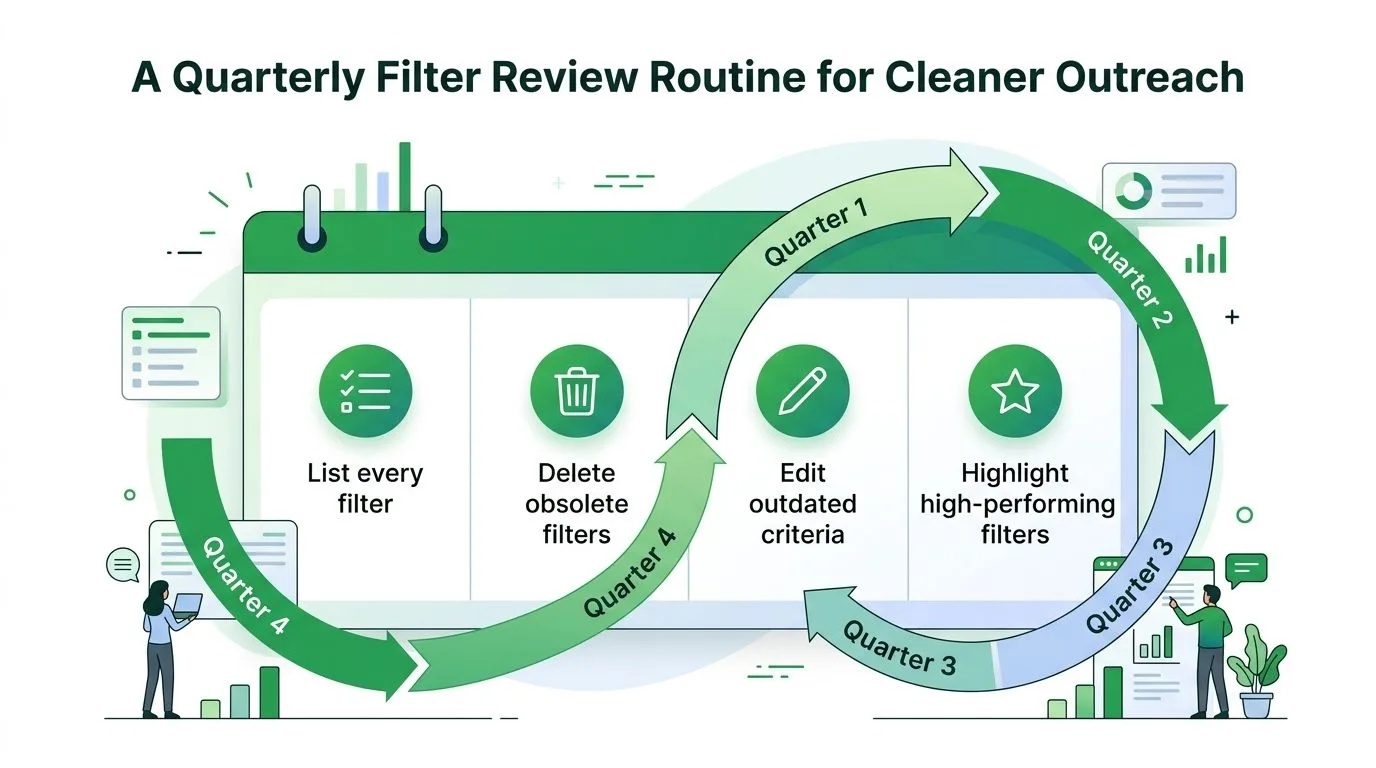
A filter set only stays useful if someone maintains it. Quarterly review gives you a clean way to catch rule conflicts, stale criteria, and filters that still match mail but no longer match the way your team works. I’ve seen sales teams keep old Gmail rules alive for months because no one checked which ones were still shaping live leads. That is how inbox automation drifts away from outreach reality.
What a review should capture
Use a shared note or doc to log why each rule still exists. If a filter protects demo requests, write that down. If another one routes partner mail to a label but leaves it in the inbox, note that too. When the intent is visible, edits are safer because the next person does not have to infer why a rule was built in the first place.
The review also helps with cleanup work that happens after the fact. A rule can look fine on paper and still conflict with another filter, send mail to the wrong label, or bury an important thread until someone notices the miss manually. That is why the review should check for overlaps, dead rules, and exceptions that no one remembers adding. For teams that tie inbox hygiene to outreach performance, a guide to higher open rates can sit beside the filter audit, because routing and attention are part of the same workflow.
Keep the inbox lean enough that the important thread gets seen the first time.
When a reply path matters, filter maintenance does not stop at routing. Once a message lands in the right place and the response goes out, Mail Tracker for Gmail helps show whether the recipient opened it, with read receipts, double check marks, and real-time open notifications inside Gmail. That makes it easier to tell whether a slow response is a filter problem, a follow-up problem, or just a message that never got attention.
A quarterly pass works best as a routine, not a rescue job. Review the rules that touch active leads first, clear out overlaps, and rebuild anything whose logic has drifted too far from how your team handles outreach. If you also want to keep the follow-up side of the process visible, Mail Tracker for Gmail is a practical way to track whether sent mail is being seen while your filters stay in shape.
Ready to track your emails?
Add Mail Track for Gmail from the Google Workspace Marketplace and know the moment your emails are opened. Free and unlimited.
Add to GmailMore reading
More from Tutorials
How to Track Link Clicks in Gmail (and What a Click Really Tells You)
Learn how to track link clicks in Gmail, why Gmail does not do it natively, how tracked links work and how to read clicks without being fooled by scanners.
How to Find My Contacts in Gmail: A Practical Guide
Learn how to find my contacts in Gmail on desktop and mobile. Clear steps for Google Contacts, search tips, shortcuts, and contact details from emails.
Objection in Sales Explained and How to Handle It
Learn what objection in sales really means, why it happens, and proven frameworks to handle price, timing and trust objections with confidence.