
Conversation View in Gmail: A Complete Guide to Threading
Learn what conversation view in Gmail is, how threading works, and how to turn it on or off on web and mobile with clear step-by-step instructions.
Monday morning, Gmail opens to the same small shock a lot of people know well. A few threads look harmless, but under them sit all the replies, follow-ups, and forwarded notes from projects that never really stopped moving. Conversation view in Gmail is the setting that turns that pile of separate rows into a single conversation, so the inbox stops behaving like a stack of loose messages and starts behaving like a thread-based workspace.
That shift matters because Gmail is no longer showing you one line per email when conversation view is on. Google’s help pages describe it as a setting users can toggle in Settings → See all settings → General → Conversation View, and they show that related messages are grouped into threads you can expand or collapse on desktop and mobile workflows (Google Help on Conversation View). If you’ve ever wondered why one client exchange seems to “disappear” into a single row, that’s the feature doing its job.
What Conversation View Actually Does in Your Inbox
You open Gmail, and instead of seeing twelve rows for one prospect, one recruiter, and one client, you see three conversations. Each row represents a whole back-and-forth, not just one message, so the inbox feels calmer before you’ve even started triage. That’s the promise of conversation view in Gmail, less visual noise and a clearer sense of what still needs attention.
Gmail’s own guidance frames the setting as an inbox-organization tool. When conversation view is enabled, related emails collapse into one visible thread, and you can expand or collapse that thread to inspect the individual messages inside it (Google Help on threaded conversations). In practical terms, one client exchange can contain many separate emails while still occupying only one inbox item.
That changes how people read their inbox. You stop scanning for every reply as if it were brand new, and you start scanning for which conversation needs action next. A long sales chain, a recruiting loop, or a consulting revision thread becomes easier to re-enter because the history is sitting in one place.
Practical rule: If the same people keep replying on the same subject, conversation view is usually helping you by reducing clutter. If you need every message to stand alone, the grouped view can feel dense.
The simplest way to think about it is this. Conversation view turns Gmail into a thread-based inbox, so the visible unit is the conversation, not the single message. That’s why a busy inbox can suddenly feel lighter even though no email has disappeared.
How Gmail Threading Groups Messages Together
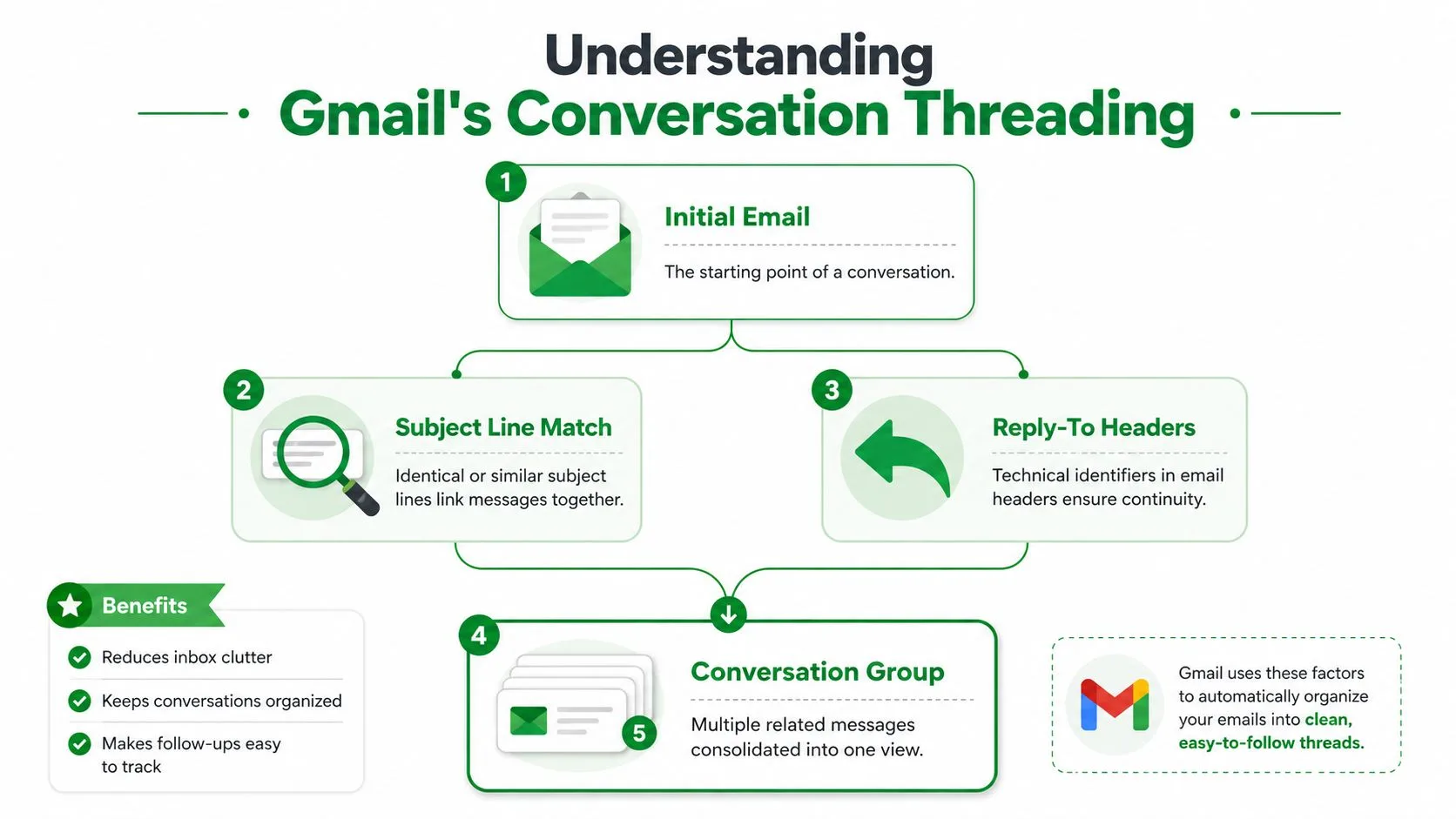
Think of a Gmail thread like a manila envelope full of letters. The envelope is the conversation, and each letter inside is one message, even if there are many notes, replies, and forwarded pieces inside it.
The mental model
Gmail groups messages into a conversation group when they belong to the same exchange. Google’s help content and third-party explanations both point to the same practical rule, messages are grouped by the conversation concept, typically through the subject line and the reply relationship between emails (Google Help on conversation grouping, GMass explanation of Gmail conversation view). That’s why one changing subject can split a thread and make a message show up separately.
The inbox itself uses that thread as the message-indexing unit. Instead of one line per message, Gmail collapses the replies and forwards that match the thread into a single expandable item. A third-party walkthrough also notes that the mobile app can require its own setup, which matters because thread behavior can differ until both places are configured (YouTube walkthrough on Gmail conversation view).
How the inbox presents the thread
The latest message is what you notice first. Earlier replies stay tucked inside the same conversation, and you can expand the thread when you need the history. That means Gmail is organizing for the newest activity while still preserving the full chain of discussion in one place.
A useful way to remember it:
- Initial email: starts the conversation.
- Reply relationship: keeps the chain connected.
- Thread row: becomes the single inbox item you scan.
- Expand or collapse: shows or hides the older messages inside the same conversation.
A thread is not a folder in the old email sense. It’s one living conversation, and Gmail decides where to place new replies based on whether they still belong to that chain.
That’s why the feature feels subtle until you’ve used it for a while. Once you understand the thread model, Gmail’s behavior starts to make sense instead of feeling arbitrary.
Conversation View On Versus Off and What Changes
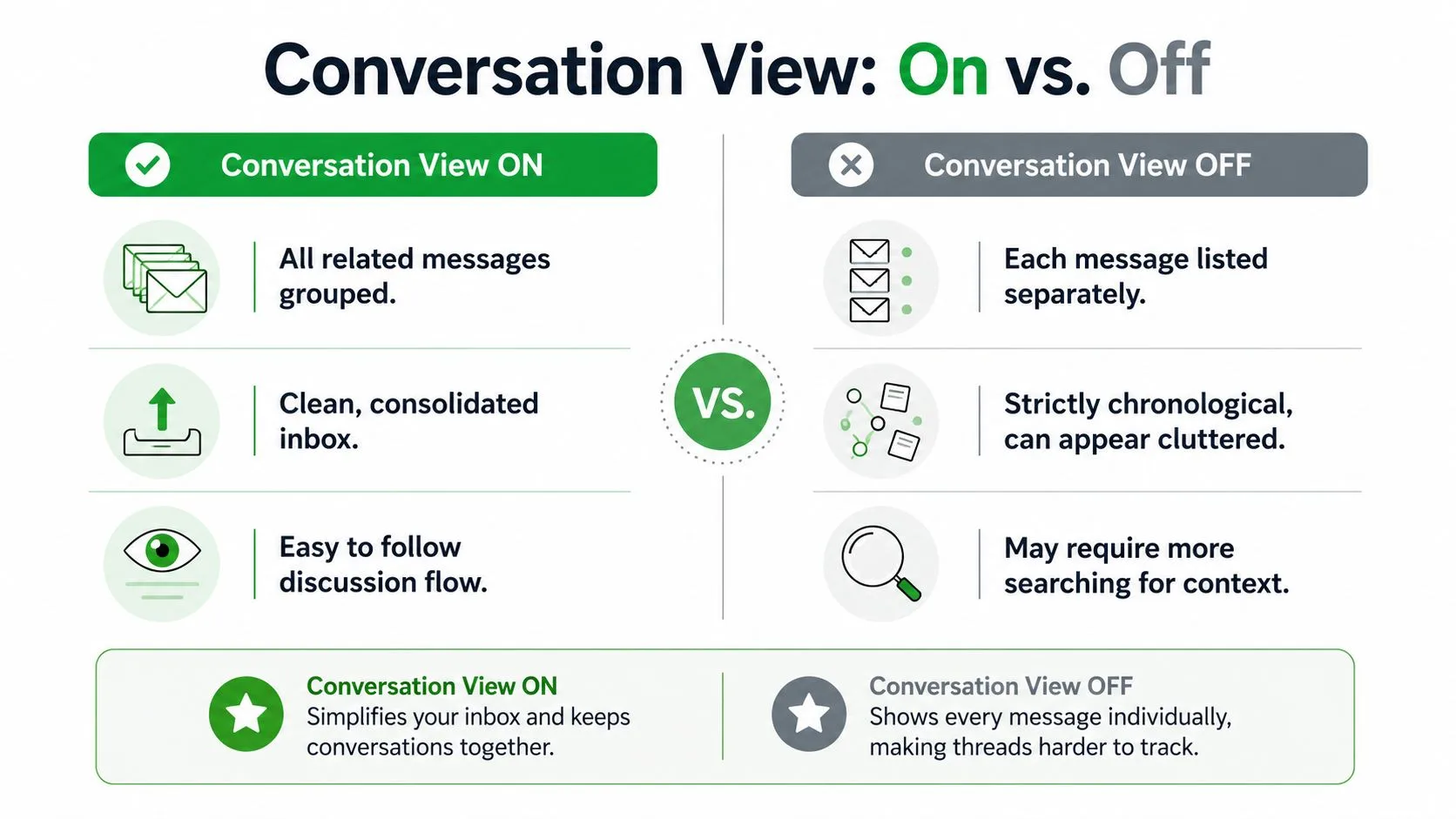
The toggle does one thing, but it changes the feel of the whole inbox. With conversation view on, Gmail shows grouped replies as a single thread. With it off, every message gets its own row again.
| Behavior | Conversation View On | Conversation View Off |
|---|---|---|
| Inbox row count | Related messages are collapsed into one thread | Every reply appears separately |
| Scanning | Faster for long back-and-forths | More direct if you want every message visible |
| Context | Full exchange is inside one expandable item | Context is spread across individual rows |
| Follow-up flow | Latest activity is easier to spot | Each email stands on its own |
That’s the practical difference readers usually care about. A sales conversation with six back-and-forth replies becomes one row when conversation view is on, but six separate rows when it’s off. The same is true for recruiting loops and client revisions.
When the setting is off, Gmail returns to a strictly message-by-message inbox. That can feel cleaner for people who like to judge each email independently, but it also means the history of a discussion isn’t bundled for you. When the setting is on, the inbox is less cluttered, but the next reply sits one click deeper inside the thread.
Inbox tabs and filters are separate tools, and they don’t control this behavior. Conversation view only changes how Gmail groups the messages you already have. It doesn’t decide whether something lands in Primary, Promotions, or another tab.
If you want to compare the feel of the two modes, think in terms of task style. On works well when you live inside long-running exchanges. Off works better when you want every individual email to stand on its own in the inbox.
Turning Conversation View On or Off on Web and Mobile
Start on the web if that’s where you spend most of your time. Open Gmail, click the gear icon, choose See all settings, then go to General and find Conversation View. Save the change from the same settings area, and Gmail will keep that preference for that account (Google Help on Conversation View settings).
If you use multiple accounts, check each one separately. Gmail settings are account-specific, so your work inbox and personal inbox don’t have to behave the same way. That’s useful when one mailbox is full of client threads and the other is mostly quick one-off messages.
On mobile, the path is different. Open the Gmail app, tap the three-line menu, go to Settings, pick the account you want, and toggle Conversation View there. Third-party walkthroughs show that the app can have its own threading setting, so changing the browser version doesn’t always change what you see on your phone right away (Gm a ss conversation view walkthrough).
One detail trips people up all the time. If you switch threading off on desktop but leave it on in the app, your inboxes won’t match. The same account can look threaded in one place and flat in another until both settings are aligned.
The mobile app follows the same logic, just with a different click path.
Quick habit: After changing the setting, open one thread you know well and check whether Gmail is showing one conversation or separate rows. That’s the fastest way to confirm the account is behaving the way you expect.
How Threading Changes Sales, Recruiting, and Consulting Workflows
A salesperson sees the benefit first in follow-up work. One prospect thread can hold discovery questions, pricing replies, and the last nudge all in the same place, so the next message is easier to send because the context is already there. That’s also why many teams connect conversation structure to outreach tools and workflow habits, including resources like how not to write recruiting emails when they’re trying to keep outreach clear and human.
A recruiter feels the same pressure, just with more moving parts. Candidate conversations can stretch across scheduling, interview feedback, and compensation questions, and threaded grouping keeps that history attached to the person instead of scattering it across the inbox. Consulting work looks similar, except the thread often holds deliverables, revisions, and approvals from one client or project lead.
Where threading helps most
- Sales: The latest reply is easy to spot when a prospect suddenly comes back after days of silence.
- Recruiting: Candidate communication stays attached to the same chain, which helps when you’re juggling many open roles.
- Consulting: Comments on drafts, scope changes, and approval emails stay in one record instead of drifting apart.
The trade-off is real. A quick reply can hide inside a long thread, and if you’re moving fast, you might miss a short message that deserves immediate attention. That’s why some people prefer a flatter inbox when they’re doing high-alert triage.
A tool-oriented workflow can help if you need visibility inside those threads. The internal sales-tracking use case on Mail Tracker for Gmail’s sales email tracking page is a good example of how teams think about timing when a conversation is already threaded.
The main point is simple. Conversation view changes more than appearance. It changes how sales reps re-enter stalled deals, how recruiters keep candidate history straight, and how consultants manage long project cycles without losing the conversation thread.
Using Mail Tracker for Gmail Inside Threaded Conversations
Mail Tracker for Gmail sits inside Gmail and adds read receipts, double check marks, open counts, and per-message timestamps to the messages you send. That makes it useful in a threaded inbox because the tracking data stays attached to the message, even when the conversation itself is collapsed.
A few mechanics matter here. When someone opens one message in a thread, that open event registers for that message, not for every reply in the chain. The open count reflects recent recipient engagement, and tracking notifications still arrive even if the thread is folded up in the inbox. The point is to show what happened to the message you sent, not to guess at the whole conversation history.
Mail Tracker for Gmail also offers a visible tracking signature on the free plan, while Premium includes an invisible tracker for people who want their emails to fit normal communication habits more discreetly. The product works inside Gmail on web and mobile, including the Chrome extension and Gmail app integration, so the tracking view stays close to the inbox you already use.
If you want a fuller walkthrough of setup and behavior, the product’s email tracking for Gmail guide goes deeper into how the indicators appear in daily use.
What matters for threaded conversations is simple. Conversation view tells you how Gmail groups the inbox. Mail Tracker for Gmail tells you whether a specific message in that thread got opened. Those are different signals, and together they help you read both the structure of the inbox and the response to what you sent.
Troubleshooting Common Threading Problems and Misconceptions
A thread breaks more often than people expect, and the cause is usually ordinary. If a message suddenly appears in a separate row, check whether the subject line changed. Gmail relies on the conversation relationship, so even a small subject shift can make a reply look like a new chain.
Another common issue is an email from a different account not appearing where you expected. That usually comes down to the fact that Gmail handles settings per account, so one inbox can show conversation view while another doesn’t. The fix is boring but effective: check the account you’re using and make sure the same threading setting is turned on or off there too.
Turning conversation view off does not delete anything. It only changes how the inbox displays the messages that already exist. If you want a refresher on why people confuse reply visibility with message delivery, the Gmail read receipts guide helps separate display behavior from engagement tracking.
Two other misconceptions come up a lot. Conversation view is not the same as inbox tabs, and it doesn’t control Primary, Social, or Promotions. It also doesn’t make Gmail faster in a technical sense, it just changes how the inbox feels while you scan it.
If a message looks “missing,” start with the subject line, then the account, then the thread state. In most cases, one of those three explains the behavior.
The cleanest way to think about Gmail threading is this. It’s a foundational inbox model, not a cosmetic preference. Once you know how the grouping works, you can decide whether the threaded view matches your workflow, or whether a flatter inbox helps you move faster.
Mail Tracker for Gmail adds read receipts, open notifications, and in-inbox tracking signals that work alongside Gmail’s thread-based view. If you want a clearer read on what happened after you hit send, visit Mail Tracker for Gmail and see how it fits into the inbox you already use.
Ready to track your emails?
Add Mail Track for Gmail from the Google Workspace Marketplace and know the moment your emails are opened. Free and unlimited.
Add to GmailMore reading
More from Tutorials
How to Track Link Clicks in Gmail (and What a Click Really Tells You)
Learn how to track link clicks in Gmail, why Gmail does not do it natively, how tracked links work and how to read clicks without being fooled by scanners.
How to Find My Contacts in Gmail: A Practical Guide
Learn how to find my contacts in Gmail on desktop and mobile. Clear steps for Google Contacts, search tips, shortcuts, and contact details from emails.
Objection in Sales Explained and How to Handle It
Learn what objection in sales really means, why it happens, and proven frameworks to handle price, timing and trust objections with confidence.