
Gmail Snooze Email: How It Works and When to Use It
Learn how Gmail snooze email works, how it differs from archive and mute, and how to pair it with open tracking so follow-ups come back at the right time.
Your inbox is not a to-do list, yet that is how most of us use it. Messages that need an answer next Tuesday sit beside messages that need one now. Gmail snooze email is the built-in way to separate the two. It hides a conversation and brings it back at a time you choose. Pair it with Mail Track for Gmail, a Chrome extension and Google Workspace add-on for email open and click tracking inside Gmail, and you also know when a sent message is worth acting on.
This guide covers how snooze works, how it differs from archive and mute, where it stops being useful, and a simple routine for follow-ups.
What Gmail snooze actually does
According to Google’s Gmail Help page on snoozing, a snoozed email is removed from your inbox temporarily. It comes back to the top of your inbox at the day and time you picked. While it waits, you can find it in the Snoozed section of the left sidebar or by searching for in:snoozed.
A few practical points follow from that:
- Snooze changes when you see a message, not what the message says.
- The conversation is not deleted or archived, so nothing is lost.
- You can snooze several conversations at once by selecting them and using the clock icon in the toolbar.
- Google’s page does not describe a cap on how many messages you can snooze or how far ahead. Check your own account if you rely on a very long delay.
Note that the Help page is written about messages you receive. It does not say that sent messages can be snoozed, so this article does not assume it.
How to snooze an email in Gmail
On desktop
- Hover over a message in your inbox.
- Click the clock icon on the right.
- Pick a preset or choose a custom date and time.
To snooze a batch, tick the checkboxes, then click the clock icon at the top. If you do not see it, open the More menu and choose Snooze.
On the Gmail mobile app
The Gmail app has the same action in the message menu. Third-party guides report that the iOS app lets you change the default morning, afternoon and evening times, but the web version does not. Treat that as unofficial and confirm it in your app.
Check what is waiting
Open Snoozed once a day, ideally at the start of work. A snoozed list that keeps growing is a sign you are using snooze to avoid decisions instead of scheduling them.
Snooze vs archive vs mute
The three actions all clear your inbox, but they mean different things. A comparison by Inbox Zero frames it well: snooze is the only one that is time based.
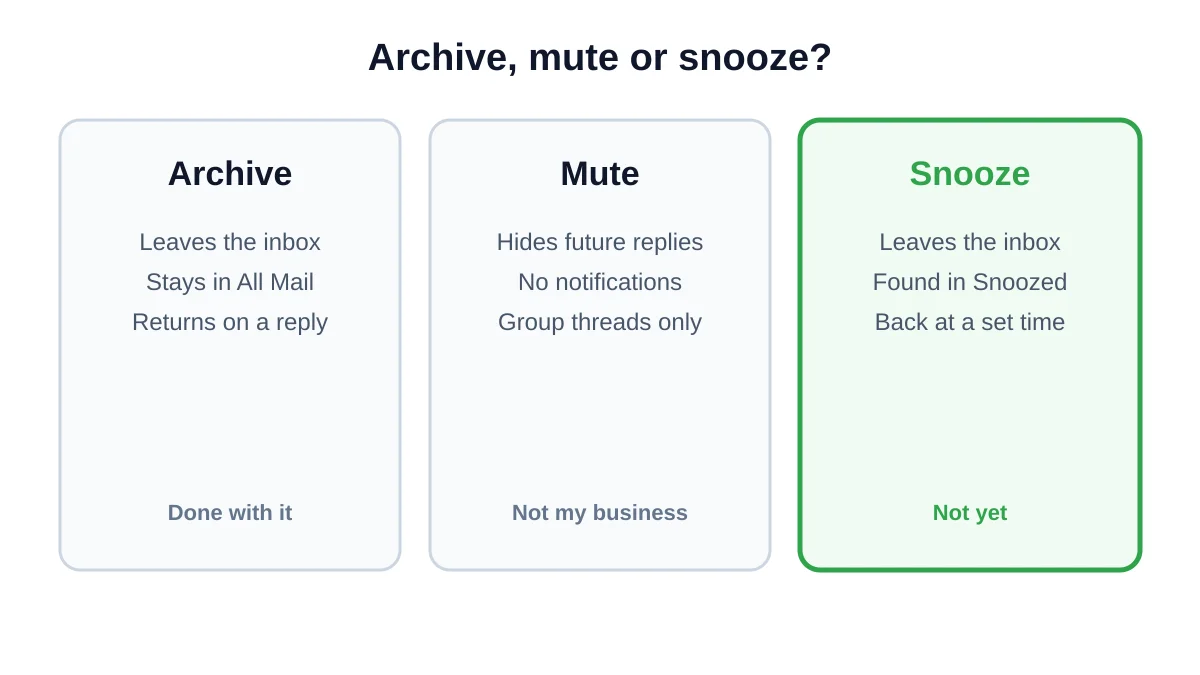
| Action | What happens | Best for |
|---|---|---|
| Archive | Leaves the inbox and stays in All Mail. A new reply brings it back. | Finished conversations |
| Mute | Future replies skip your inbox and raise no notifications. | Busy group threads you do not need |
| Snooze | Hidden now, returns at a time you pick. | Things you will handle later |
Sources disagree a little on where muted and archived mail is filed, but both end up searchable in All Mail. If you want to find old threads quickly, our guide to searching for unread messages in Gmail helps.
When snooze is the right choice
Snooze works best when the next step is known but not ready:
- A recipient asked you to reconnect later. Snooze their reply until the date they named.
- You are waiting on information. Bring the thread back the day the data should arrive.
- A message needs focus time. Move it to the afternoon slot and clear your morning.
- A decision depends on an event. Snooze until the day after the meeting.
It works poorly when you are waiting on someone else, because snooze does not know whether they have replied. That is where reminders and tracking come in.
Snooze, nudges and follow-ups
Gmail has a second feature that is easy to confuse with snooze. Nudges are the suggestions at the top of your inbox that remind you to reply to or follow up on a message. Google’s help on conversation view explains that on mobile, nudges are tied to conversation view, so turning conversation view off hides them. On desktop, open Settings, then See all settings, and look for Nudges on the General tab, where reply and follow-up suggestions are two separate options.
The difference is simple:
- Snooze is a decision you make. You choose the time.
- Nudges are a suggestion Gmail makes. You do not control the timing.
- Schedule send controls when a message leaves, and a scheduled follow-up can still go out even after the recipient has replied, as Mailmeteor notes.
For a deeper look at the follow-up side, read follow up email in Gmail and how long to wait before following up on an email.
A simple routine: snooze plus open tracking
Snooze answers “when should this come back?” Tracking answers “did my last message get any attention?” Together they make follow-ups less guesswork.
- Send the email with tracking on. Mail Track adds open and click signals inside Gmail, and the email tracking for Gmail guide covers setup.
- Decide the follow-up date. For a normal business email, a few working days is a reasonable starting point.
- Snooze the related incoming thread, or add a reminder. Use snooze for mail you received. For a sent message, use a calendar entry or task so you do not depend on a feature that may not apply.
- Check the signal on that day. If the message was opened and there is no reply, a short, useful follow-up makes sense. If there is no open signal, consider a different subject line or channel.
- Cancel the follow-up if the person replied. Reply status always beats a plan you made earlier.
Read opens carefully
An open is a signal, not proof of reading. Privacy features and image proxies can inflate or hide opens, so treat tracking as a timing hint. Our post on how accurate email tracking is goes through the limits in detail.
Common snooze mistakes
- Snoozing everything. If every message is snoozed, nothing is prioritised.
- Picking vague times. “Later today” is easy to ignore. Choose a specific time when you will actually be free.
- Forgetting the Snoozed folder. A message that returns and is ignored again is worse than one you never snoozed.
- Using snooze for waiting-on-others. Use a reminder tied to a reply, or tracking, instead.
- Confusing snooze with schedule send. One hides an incoming message, the other delays an outgoing one.
FAQ
Conclusion
Gmail snooze email is a small feature with a large effect on how calm your inbox feels. Use it for mail you will handle later, use archive for finished threads and mute for noise. When the next move depends on someone else, add tracking so you can see whether your message got attention before you chase it. You can try that combination with Mail Track for Gmail and keep snooze for what it does best.
Ready to track your emails?
Add Mail Track for Gmail from the Google Workspace Marketplace and know the moment your emails are opened. Free and unlimited.
Add to GmailMore reading
More from Tips
How to Know if Someone Blocked Your Email in Gmail: Signs and Checks
How to know if someone blocked your email in Gmail: what a block really does, how to read bounce messages, and how open tracking tells a block from silence.
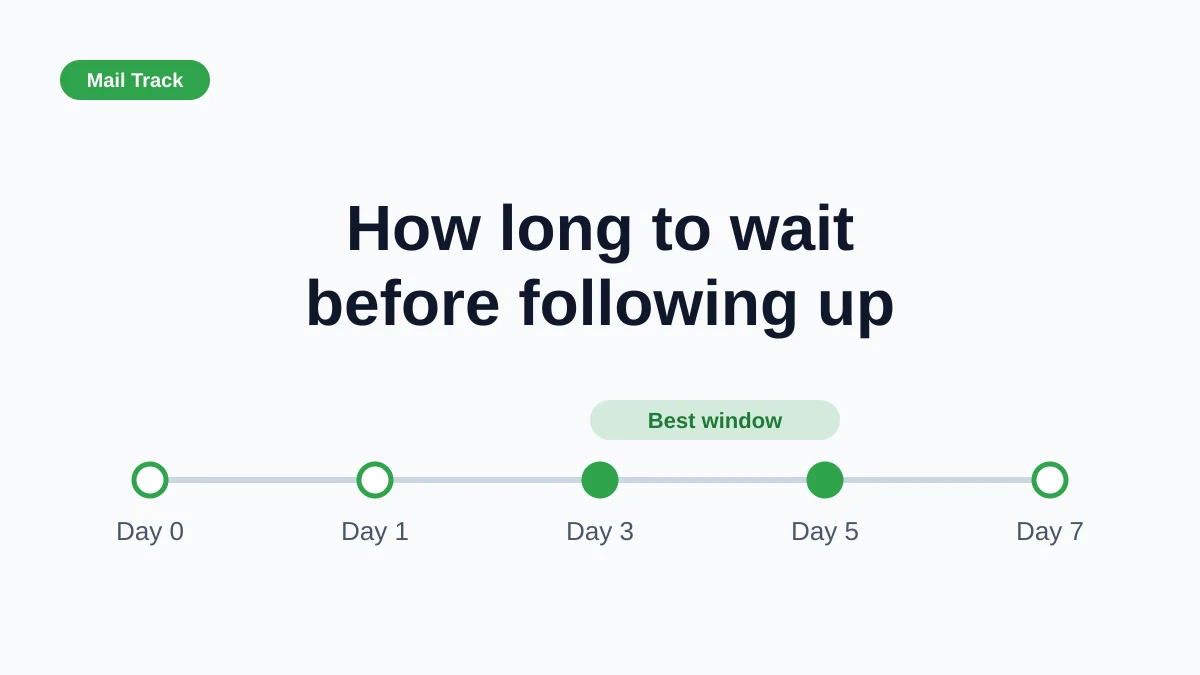
How Long to Wait Before Following Up on an Email (With Tracking Signals)
How long to wait before following up on an email? Use these waiting windows by situation, plus open and click signals in Gmail to time each follow-up.
10 Email Communication Best Practices for Professionals
Master email communication best practices with actionable tips on subject lines, send timing, personalization, and Gmail open tracking for higher engagement.