


















8 Email Signature Best Practices for Gmail in 2026
Master email signature best practices for Gmail. Our guide covers design, mobile, what to include/avoid, and tips to boost engagement with every email you send.
Email tracking has made the signature line more strategic than it used to be. For Gmail users, that matters because the signature sits at the intersection of branding, response rate, and privacy.
A good signature does more than identify the sender. It shapes first impressions, gives the recipient a fast path to reply, and can support outreach goals without making the email feel overengineered. I treat it as part of message design, not an afterthought.
That matters even more in Gmail, where a signature may appear hundreds of times a week across sales outreach, recruiting follow-ups, client updates, and support threads. A visible signature can reinforce trust and make tracking more transparent. An invisible signature keeps the email cleaner and reduces visual clutter, which can help in plain-text-style outreach, but it also puts more pressure on the sender to handle consent, disclosure, and follow-up timing responsibly.
The trade-off is practical. If your team uses Mail Tracker for Gmail, choose the signature style that fits the email’s job. Visible signatures usually work better for relationship-driven communication where credibility matters on first read. Invisible tracking fits lean outbound workflows where extra design elements can hurt reply rates. The right setup depends on audience expectations, brand standards, and how much friction you can afford in the thread.
If you want stronger engagement from Gmail without making messages heavier, start by tightening the full sending experience, including subject lines, body copy, and signature placement. This guide on how to improve email open rates is a useful companion to signature work.
The best email signature guide advice comes back to the same principle. A signature should support the email, not compete with it. The eight practices below focus on Gmail specifically, with an eye on how signatures affect trust, recognition, clicks, and privacy in real sending environments.
1. Keep Your Email Signature Concise and Professional
Emails with less visual clutter are easier to scan, and that matters in Gmail where recipients often decide in a few seconds whether to reply, click, or move on. A good signature supports that decision. It gives enough context to trust the sender without pulling attention away from the message.
For Gmail, concise usually means a compact text block with your name, role, company, and one or two contact details that fit how you work. If you send sales emails, a direct phone number may earn callbacks. If you work in consulting or recruiting, a site or LinkedIn link may do more work than a second phone line. The point is selection, not completeness.
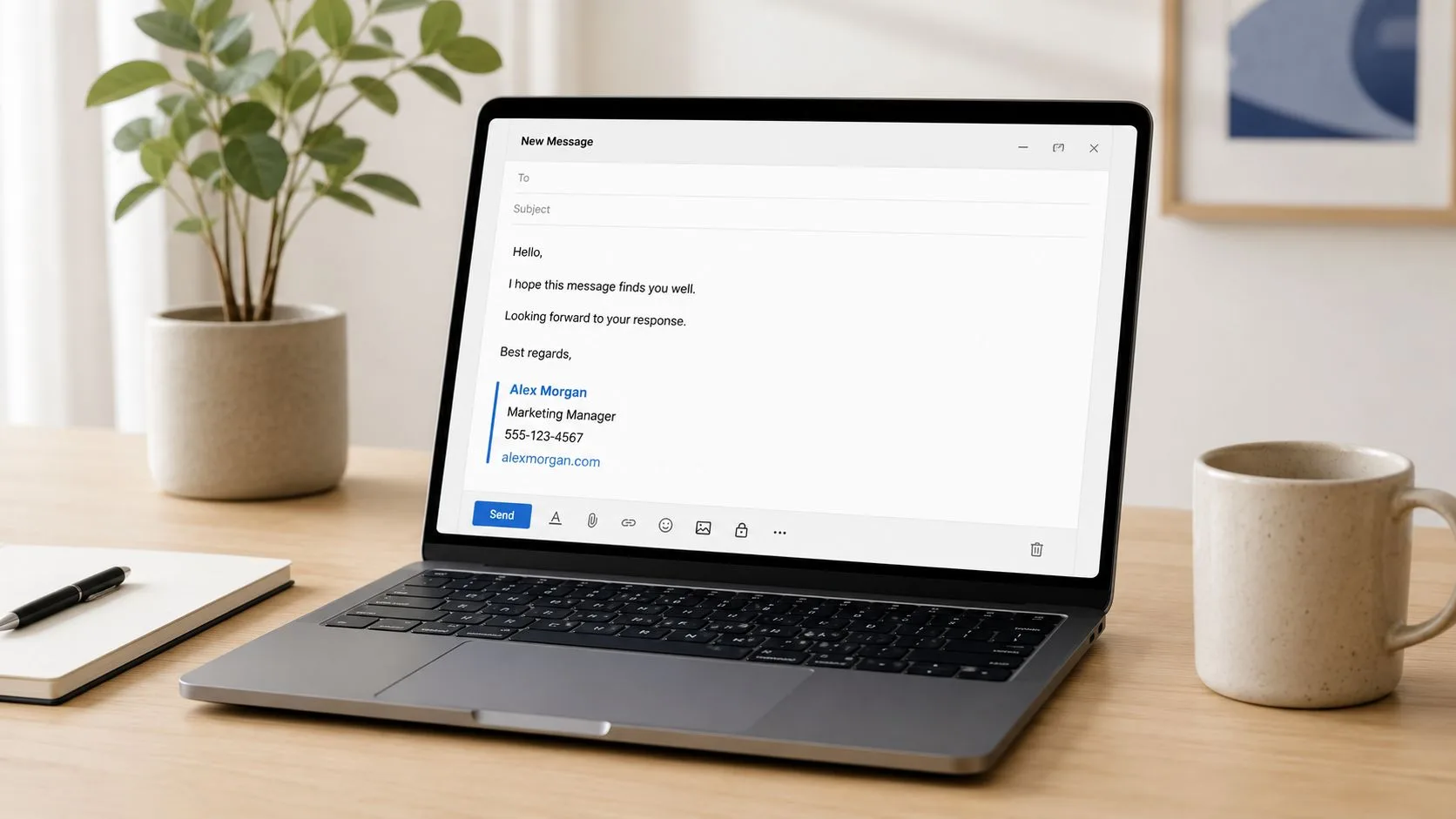
What concise looks like in Gmail
Gmail rewards simple formatting. Heavy signatures can wrap badly, push the body text down the screen, or look overbuilt on mobile. Clean signatures hold up better in replies and forwards, which is where a lot of business email gets read.
A practical setup looks like this:
- Start with your full name: Put it on the first line so the sender identity is immediate.
- Add role and company: This gives the recipient fast context.
- Include only priority contact paths: Use a direct phone number, one website, or one profile link based on your role.
- Use standard fonts: Arial, Calibri, Helvetica, and similar sans-serif fonts render consistently in Gmail.
A simple rule I use is this. If the signature is competing with the email body, it is too large.
This also affects tracking strategy. Gmail users who send with visible signatures signal legitimacy up front, which can make opens, clicks, and follow-ups feel more natural. Users who prefer invisible tracking or stripped-down outreach still need discipline here, because once the visible signature disappears, the body copy carries all the weight for trust and response. If you are tightening the full send experience, this guide on improving email open rates in Gmail pairs well with signature cleanup.
2. Include Multiple Contact Methods for Accessibility
People don’t all reply the same way. Some will answer by email. Some will click your LinkedIn profile. Some will call if the issue is urgent. A good signature removes that friction.
This matters even more in Gmail because a lot of outreach starts in inbox threads, then shifts channels. Recruiters often move conversations to LinkedIn. Sales reps may get a faster response by phone once interest is clear. Freelance consultants often land business because a prospect clicks through to a portfolio instead of replying immediately.
Pick contact options based on your role
A generic list of every channel you own isn’t useful. A selective set of channels is.
- Sales professionals: Lead with direct dial and website.
- Recruiters: Lead with LinkedIn and careers page.
- Consultants and freelancers: Lead with website and portfolio.
- Customer success teams: Lead with support-friendly contact details that you monitor.
Formatting matters here. Label links clearly with words like Phone, LinkedIn, and Website so mobile users know what they’re tapping. In Gmail, cluttered unlabeled icons often look polished in the editor and confusing in the inbox.
One practical advantage for people using Mail Tracker for Gmail is timing. If a recipient opens your email but doesn’t reply, having a direct phone number in the signature gives you another path that feels natural, not pushy. That’s especially useful in sales and recruiting, where speed often matters more than perfect email back-and-forth.
Give people more than one good way to respond, but don’t give them five mediocre ones.
The test is simple. Every contact method in your signature should be active, monitored, and appropriate for the kind of conversation you’re trying to start. If you never check a channel, it doesn’t belong there.
3. Add a Professional Photo or Brand Logo to Build Recognition
People recognize faces faster than names, which is why a small, credible image can help your emails stick after the first open. In Gmail, that only works if the image supports trust instead of slowing the message down or making it look promotional.
Text-only signatures are still the safer default. But for recruiters, consultants, real estate agents, client partners, and sales reps, a professional headshot or a clean company logo often improves recall. I would use a headshot when the relationship is personal and ongoing. I would use a logo when brand credibility matters more than individual identity.

Choose visible branding on purpose
A visible signature element does two jobs. It gives the recipient a memory cue, and it signals that a real person or company is behind the message. That matters more in Gmail than many teams realize, especially in cold outreach where inbox trust is thin.
There is a trade-off. Images add weight, and weight affects rendering. Microsoft’s Outlook guidance recommends keeping linked pictures small for reliable display across clients, so keeping your signature image under about 100 KB is a practical rule for Gmail too (Outlook image guidance). If you send outbound prospecting emails, go even lighter and avoid turning the signature into a graphic block. Gmail handles simple signatures well. It handles bloated ones poorly.
That also connects to tracking. A visible image in your signature can act like a lightweight engagement layer if you monitor opens and replies. An invisible tracking setup, such as Mail Tracker for Gmail, gives you behavioral data without changing the look of the sign-off. A visible headshot or logo changes perception. An invisible tracker changes what you can measure. Used together, they help you decide whether the signature is improving recognition, reply paths, or neither. If you track performance, compare signature changes against your email campaign KPIs and response metrics instead of judging by aesthetics alone.
A few image choices usually work well:
- Professional headshot: Best for recruiters, advisors, consultants, and relationship-led sales roles.
- Company logo: Best for support, partnerships, and teams selling under a known brand.
- Transparent PNG logo: Best if your emails are viewed in both light and dark mode.
If you want a polished image without booking a photographer, review the best AI tools for LinkedIn headshots. Then sanity-check the result. If the photo looks overprocessed, too glossy, or unlike you on a video call, leave it out.
The standard is simple. Use one image, compress it, test it in Gmail on desktop and mobile, and keep it there only if it strengthens recognition without adding friction.
4. Add a Clear Call-to-Action or Statement in Your Signature
Email signatures work better when they remove the next-decision friction. For Gmail users, that usually means one clear action, placed where the reader expects it, and easy to tap on a phone.
The common failure is clutter. Sales reps add a booking link, a case study, three social icons, a podcast, and a tagline. Recruiters add a calendar link plus hiring links plus company pages. The result is choice overload. On smaller screens, that gets worse. Litmus reports that mobile clients accounted for 41.6% of email opens in 2024, which is enough reason to write your signature CTA for thumb-scrolling, not desktop scanning.
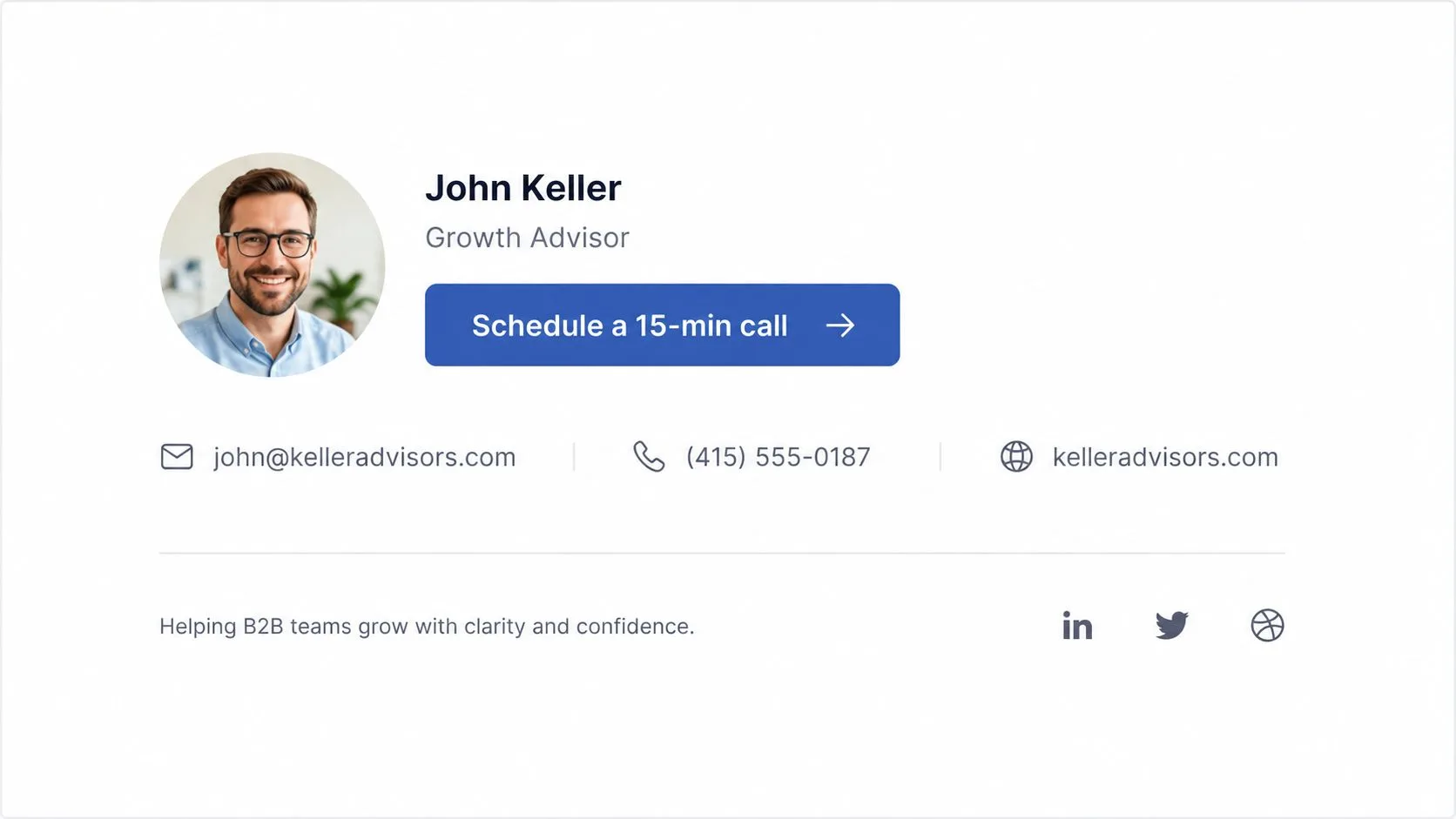
A good signature CTA does one job. It tells the recipient what to do next and why that action is worth taking.
Strong CTA examples for Gmail users
Match the CTA to the role and the email context:
- Availability CTA: Reply if you’d like to chat Tuesday or Wednesday.
- Booking CTA: Book a 15-minute intro call.
- Support CTA: Questions? Reply here or call direct.
- Value statement: Helping SaaS teams improve outbound response quality.
Keep it to one sentence. In Gmail, anything buried under icons, badges, or legal text starts to look ignorable.
There is also a strategic trade-off here. A visible signature CTA asks for action in plain sight. An invisible tracking setup helps measure whether people engage with the email even when they do not click or reply. Used together, they give a cleaner read on performance. If opens are strong but replies stay flat, the CTA may be weak or misplaced. If the signature gets clicks but no downstream response, the offer may be too broad. Teams testing these patterns often pair signature updates with other email productivity tools for Gmail so follow-up, tracking, and scheduling stay connected.
If you’re comparing signature variants or campaign outcomes, useful email campaign KPIs help you judge whether a CTA is earning its space instead of just decorating the footer.
A signature CTA should reduce hesitation.
If your industry requires a disclaimer, keep it separate from the CTA. Compliance text belongs below the action line, not wrapped around it.
5. Maintain Consistency Across All Email Signatures
A consistent signature does more than clean up your brand. In Gmail, it also makes your emails easier to recognize across replies, forwards, and tracked conversations. If one rep uses a logo, another uses plain text, and a third still links to last year’s webinar, recipients notice the inconsistency even if they never mention it.
Set a standard outlining the parts people should not improvise: name format, title, company name, phone number style, link order, logo use, and CTA placement. Then define the few things that can change by role. Sales can include a booking link. Support can point to a help path. Recruiting can use a careers link. That balance keeps the brand stable without forcing every team into the same exact footer.
Build a template people will keep using
The weak point is usually process, not design. If signatures are updated manually, Gmail teams end up with old titles, broken links, and random formatting copied from past emails. I recommend one master template, role-based versions, and a simple review cadence every quarter or after any brand, campaign, or staffing change.
A practical setup looks like this:
- Create one approved Gmail signature template: Standardize fonts, spacing, logo size, and link formatting.
- Allow controlled role-based edits: Limit changes to fields like CTA, support path, or recruiting link.
- Review on a schedule: Check titles, phone numbers, campaign links, and compliance text every quarter.
- Update centrally where possible: That prevents version drift across the team.
Consistency also matters if you use visible signatures alongside invisible tracking in Gmail. A stable signature builds trust on the surface, while tracking helps you measure opens and follow-up timing behind the scenes. That contrast is useful. A visible signature shapes perception. Invisible tracking shapes decisions. Used together, they help teams judge whether low engagement is coming from the message, the offer, or the way the email is presented. If you’re standardizing that workflow across a team, it fits naturally with other email productivity tools for Gmail.
6. Avoid Overloading Your Signature with Graphics, Colors, or Excessive Information
The fastest way to make a signature look amateur is to treat it like a microsite. Too many colors. Too many icons. Too much HTML. Too many badges no one asked for.
In Gmail, overdesigned signatures don’t just look noisy. They can create delivery and rendering problems. If your email is part of cold outreach, keep the technical footprint especially light. Heavy signatures are more likely to create friction with spam filtering and mobile loading.
What to cut first
The easiest cleanup usually comes from removing things you thought were helping.
- Multiple banners: They rarely justify the weight or the visual distraction.
- Animated elements: They look promotional in the wrong way.
- Large social icon sets: Most recipients won’t click six different platforms.
- Dense legal blocks: If a disclaimer is necessary, keep it compact and separated.
Deliverability metrics reinforce the need for restraint. To maintain healthy email performance, bounce rates should stay below 2% and ideally under 1%, while spam complaint rates should remain below 0.1%. Compact signature images and avoiding unnecessary tracking pixels support that goal (Instantly’s deliverability guidance).
That’s one reason visible versus invisible tracking deserves a real decision instead of a default setting. A visible tracking signature can increase transparency and may fit well in sales or internal business contexts. An invisible approach can preserve a cleaner look, but if you pile tracking behavior on top of a bloated signature, you’re increasing risk from both a trust and deliverability standpoint.
Clean signatures are easier to read, easier to render, and easier to trust.
A simple signature with one logo, restrained color, and clear contact info almost always beats a high-design footer that loads late, breaks on mobile, or pulls attention away from the email itself.
7. Include Industry-Specific Credentials, Certifications, or Social Proof
Credentials work best when they’re selective. One strong line can add authority. Three lines of badges usually create noise.
This is a useful move for advisors, recruiters, consultants, financial professionals, and technical specialists. A CFP®, PMP, AWS certification, or verified professional distinction can reassure the recipient that your outreach is relevant. A recruiter may include a recognized talent credential. A consultant may link to a credible profile or portfolio. A financial professional may include regulated designations that matter in that field.
Keep proof relevant and compact
The rule is simple. Add only the credential that changes how the recipient reads your message.
That can take a few forms:
- Formal designation: Best when the credential is widely understood in your industry.
- Recognized certification: Useful for technical, operational, or regulated roles.
- Credible profile link: LinkedIn or a verified third-party profile can work better than a claim with no proof.
- One-line achievement: Appropriate if it directly supports why the person should trust your outreach.
For Gmail users who track engagement, this matters before the click and before the reply. A recipient who sees a clean signature plus one relevant credential is more likely to view the message as legitimate. That’s especially true in outreach-heavy roles, where inbox skepticism is high.
Don’t overstate. Don’t stack awards from years ago. And don’t use social proof that makes sense only inside your company. If the recipient can’t understand why it matters in a glance, leave it out.
8. Ensure Mobile Optimization and Cross-Client Compatibility
A signature that looks good in Gmail on desktop can still fail where it matters most. On phones. That’s where a lot of messages are opened first, and mobile rendering is unforgiving.
The practical standard is straightforward. Keep the signature narrow, readable, and tap-friendly. A width under 600 pixels fits the recommended range already discussed, and a single-column structure usually holds up better than complex layouts. Phone numbers should be clickable. Links should be obvious. Spacing should allow for tapping without zooming.
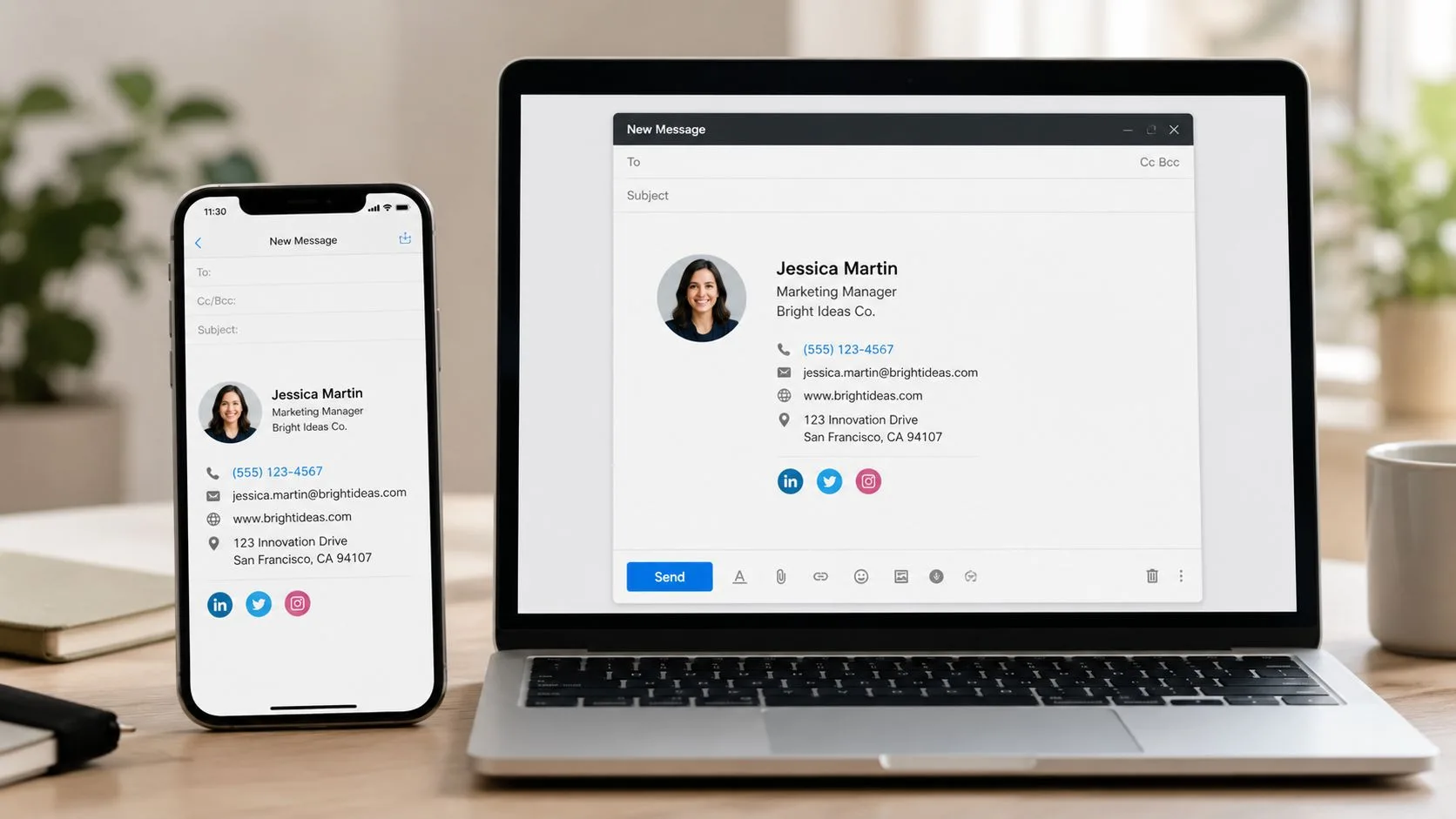
Test Gmail first, then everything else
Gmail users should always preview signatures in the web app and then send test emails to other environments. Outlook and Apple Mail can expose layout problems that Gmail hides. The Gmail mobile apps on Android and iOS deserve their own checks too, especially if you’re using Mail Tracker for Gmail and want to confirm the email still feels polished when tracking is enabled.
A good testing flow is:
- Check Gmail web: Confirm spacing, links, and image rendering.
- Check Gmail mobile: Make sure the signature isn’t too wide or visually dense.
- Check Outlook and Apple Mail: Catch broken alignment or awkward image behavior.
- Check accessibility basics: Good contrast helps recipients read your signature on different screens. WebAbility.io on color accessibility provides a useful reference.
One more point matters if you’re using tracking. Transparency isn’t optional. Organizations implementing tracked signatures should provide clear privacy policy disclosures before tracked emails are sent and maintain audit logs for consent procedures and opt-out requests (Mailbird’s tracking compliance discussion). That’s the operational side of the visible versus invisible signature decision. The visual choice is only half the equation.
8-Point Email Signature Best Practices Comparison
| Item | 🔄 Implementation Complexity | 🛠️ Resource Requirements | ⭐ Expected Effectiveness / Outcomes (📊) | 💡 Ideal Use Cases | ⚡ Key Advantages |
|---|---|---|---|---|---|
| Keep Your Email Signature Concise and Professional | 🔄 Low, simple edits and testing | Low, time to edit, basic testing across clients | ⭐⭐⭐⭐, improves deliverability, professionalism, readability | Sales, recruiters, corporate communications | ⚡ Fast to implement; reduces load and spam triggers |
| Include Multiple Contact Methods for Accessibility | 🔄🔄 Low–Medium, formatting and prioritization | Low–Medium, maintain phone/links and monitor channels | ⭐⭐⭐⭐, increases response rates and omnichannel reach | Sales teams, recruiters, freelancers | ⚡ Increases chance of quick replies; supports follow-up options |
| Add a Professional Photo or Brand Logo to Build Recognition | 🔄🔄 Medium, image sizing, placement, policy checks | Medium, photo/logo prep, compression, hosting | ⭐⭐⭐⭐, boosts recognition and trust; may affect deliverability if not optimized | Client-facing sales, recruiters, real estate, account managers | ⚡ Enhances memorability and personal connection when optimized |
| Add a Clear Call-to-Action or Statement in Your Signature | 🔄 Low, craft concise CTA and link | Low, copywriting; occasional updates | ⭐⭐⭐⭐, drives engagement and immediate actions | Sales outreach, consultants, recruiters scheduling calls | ⚡ Prompts faster responses and qualifies leads |
| Maintain Consistency Across All Email Signatures | 🔄🔄🔄 Medium–High, coordination and enforcement | Medium–High, templates, rollout, documentation, testing | ⭐⭐⭐⭐, strengthens brand recognition and perceived legitimacy | Companies, teams, regulated industries, enterprise sales | ⚡ Improves brand coherence and reduces confusion at scale |
| Avoid Overloading Your Signature with Graphics, Colors, or Excessive Information | 🔄🔄 Low–Medium, restraint in design and testing | Low, design choices, file-size checks, testing | ⭐⭐⭐⭐, improves deliverability, load speed, and readability | All senders; essential for B2B and regulated sectors | ⚡ Reduces spam flags and speeds email rendering |
| Include Industry-Specific Credentials, Certifications, or Social Proof | 🔄 Low, select and format concise credentials | Low, verification links, periodic updates | ⭐⭐⭐⭐, builds credibility and differentiation when relevant | Consultants, financial advisors, recruiters, subject-matter experts | ⚡ Quickly establishes trust and supports qualification |
| Ensure Mobile Optimization and Cross-Client Compatibility | 🔄🔄🔄 High, responsive design and broad testing | Medium–High, device/client testing, HTML/CSS adjustments | ⭐⭐⭐⭐⭐, ensures correct rendering and better engagement across devices | All senders, especially mobile-first audiences and large campaigns | ⚡⚡⚡ Reduces display issues, increases click-throughs and accessibility |
Turn Your Signature into a Strategic Asset
Many individuals treat their signature like administrative debris. They paste in contact details once, forget about it, and move on. That’s a missed opportunity, especially in Gmail, where your signature appears constantly across outreach, follow-ups, introductions, recruiting conversations, and client threads.
The best email signature best practices are practical, not flashy. Keep the signature short. Make contact options easy to use. Add a photo or logo only if it helps recognition without slowing the email down. Use one CTA instead of several. Standardize the format across your accounts and your team. Cut anything that makes the signature heavier, noisier, or harder to trust. If credentials strengthen your position, include them in one line. Then test the result on mobile and across other email clients before you assume it’s finished.
For Gmail users, the tracking layer adds a second decision. You aren’t just designing for aesthetics. You’re deciding how visible your intent should be. A visible tracking signature can support transparency and fit naturally in many business contexts. An invisible tracker can preserve a cleaner presentation, which some users prefer, but it also raises the bar on privacy handling, internal policy, and recipient expectations. That trade-off should be deliberate.
Mail Tracker for Gmail fits well when used thoughtfully. The product name is very descriptive. Mail Tracker for Gmail is a specific tool, not a generic label for the whole category of mail tracker for Gmail or email tracker for Gmail tools. Used properly, it gives Gmail users read receipts, open notifications, timestamps, and a practical signal for follow-up timing without forcing a separate workflow outside the inbox.
If you’re improving your setup today, don’t redesign everything at once. Start with one change that has a visible effect. Shorten the signature to the essentials. Replace multiple links with one CTA. Remove a banner that adds weight but no value. Or test whether a visible tracking signature supports your outreach style better than an invisible one.
A strong signature doesn’t need to be clever. It needs to be clear, credible, and easy to act on. That’s what makes every Gmail message work a little harder.
If you want to turn Gmail into a more actionable outreach channel, try Mail Tracker for Gmail. It adds read receipts, open notifications, double check marks, timestamps, and mobile-friendly tracking directly inside Gmail, with a visible tracking signature on the free plan and an optional invisible tracker on Premium so you can match your signature style to your privacy and communication needs.
Ready to track your emails?
Add Mail Track for Gmail from the Google Workspace Marketplace and know the moment your emails are opened. Free and unlimited.
Add to GmailMore reading
More from Tips
Email Delivery Confirmation: A 2026 Guide for Gmail
Get true email delivery confirmation in 2026. Learn the difference between delivered, opened, and read receipts, and discover how to track emails in Gmail.
Mass Delete Gmail Emails: The 2026 Pro's Guide
Ready to clean up your inbox? Learn how to mass delete Gmail emails on web and mobile using search, filters, and other pro tips. Reclaim your storage today.

Top Recruitment Email Templates: 7 Resources for 2026
Find the best recruitment email templates for outreach, interviews, offers, and rejections. Our 2026 guide covers 7 top resources to help you hire faster.