
Mass Delete Gmail Emails: The 2026 Pro's Guide
Ready to clean up your inbox? Learn how to mass delete Gmail emails on web and mobile using search, filters, and other pro tips. Reclaim your storage today.
Your Gmail inbox probably isn’t “a little messy.” It’s blocking work.
You search for one client thread and hit a wall of newsletters, shipping notices, webinar promos, internal alerts, and old attachments you should’ve cleared months ago. You mean to clean it up in five minutes, then Gmail makes you click through pages, select batches, and confirm actions. It’s easy to give up halfway through and go back to triage mode.
That’s why inbox cleanup needs a professional workflow, not a burst of motivation. If your job depends on fast replies, clean search results, and reliable follow-up, learning how to mass delete Gmail emails the right way saves attention every single day. If you’re also tackling email overwhelm, the fastest win is removing the noise that keeps burying important conversations.
Why Your Inbox Is Overflowing and How to Fix It
A crowded inbox usually comes from the same pattern. Useful messages arrive alongside low-value mail, and because deleting one message at a time feels pointless, everything stays. Weeks turn into years. Then every search gets slower, every inbox check gets heavier, and even simple follow-up work starts with distraction.
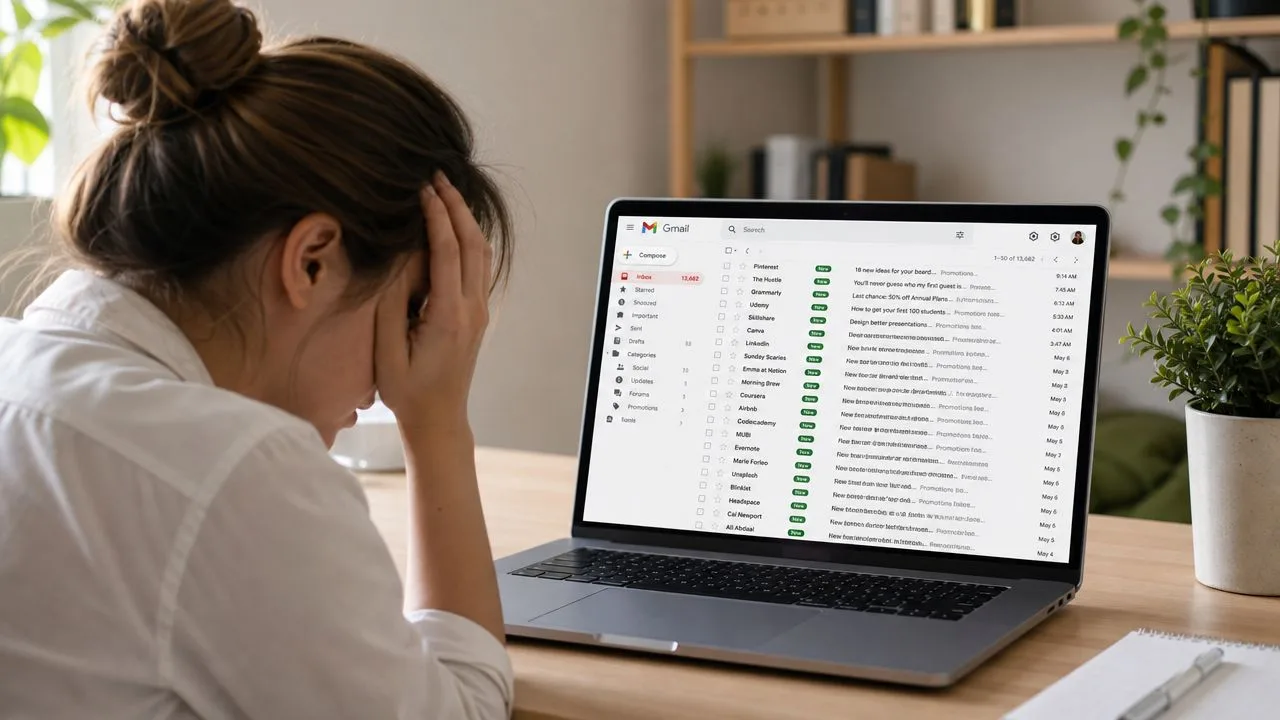
Professionals feel this more than casual users. Sales reps sit on promotional clutter while trying to spot replies. Recruiters lose visibility into candidate threads. Consultants end up storing years of attachments they no longer need. The problem isn’t only volume. It’s that Gmail’s deletion tools are powerful, but they only work well when you stop thinking in terms of individual emails and start thinking in groups.
Stop cleaning by hand
The fix starts when you treat your inbox like a searchable database. Instead of scrolling, you target:
- Old mail you’ll never revisit
- Promotional categories that add noise
- Large messages taking up space
- Specific senders you don’t need anymore
- Labels that have outlived their purpose
A clean inbox isn’t about getting to zero. It’s about making sure the next important email is easy to see and even easier to act on.
Once you use Gmail’s search operators and bulk selection properly, mass deleting stops feeling like a grind and starts feeling surgical.
The Ultimate Technique to Mass Delete Gmail Emails
The biggest mistake people make is assuming Gmail has a true one-click wipe button. It doesn’t. Gmail does not provide a single-click “delete all” function for the entire inbox; instead, users must use the “Select all conversations that match this search” prompt to bulk delete across multiple pages, a workflow that requires at least two distinct user actions to confirm bulk deletion (Time Atlas on Gmail bulk deletion).
That sounds annoying, but it’s workable if you use Gmail the right way.
The key move most people miss
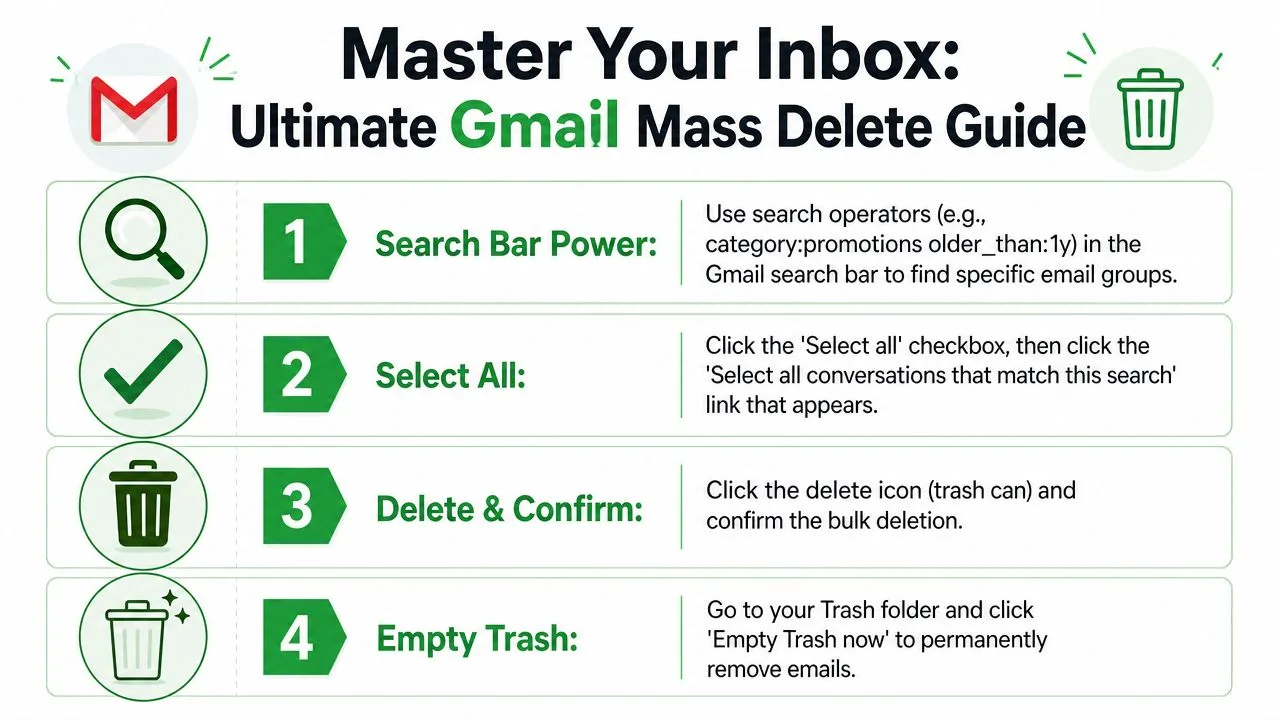
Here’s the desktop workflow that works:
- Run a search first. Don’t start from your whole inbox unless you want to create risk.
- Click the top checkbox to select the visible emails on the page.
- Click “Select all conversations that match this search.” This is the step that extends selection beyond the current page.
- Click the Trash icon.
- Confirm the bulk action when Gmail asks.
That second selection step is the difference between deleting a page and deleting the full result set.
A quick walkthrough helps if you want to see the flow in action:
Use search operators as your control panel
If you want to mass delete Gmail emails safely, the search bar matters more than the Trash icon. Search narrows the set. Deletion becomes the easy part.
Practical rule: Never bulk delete from a broad inbox view if you can delete from a filtered search instead.
These are the operator types that do the most work:
| Command | What It Does | Example |
|---|---|---|
older_than: | Finds emails older than a relative timeframe | older_than:1y |
larger: | Finds large messages that are good storage cleanup targets | larger:10m |
from: | Finds all mail from a sender or domain | from:linkedin.com |
label: | Pulls messages associated with a Gmail label | label:newsletters |
category: | Targets Gmail categories such as Promotions | category:promotions |
has:attachment | Isolates emails that include attachments | has:attachment larger:10m |
The fastest combinations
You’ll get better results by combining operators than by using them one at a time.
category:promotions older_than:1yis one of the safest bulk cleanup searches because it removes stale marketing mail without touching active conversations.
has:attachment larger:10m older_than:1yis the best search when storage pressure is the real problem.
A few high-value searches to try:
- Clear old promos:
category:promotions older_than:1y - Delete giant attachments:
has:attachment larger:10m - Remove old notifications:
from:notifications@company.com older_than:6m - Purge a dead label:
label:old-project - Clean one sender completely:
from:store@brand.com
What works and what doesn’t
What works is deleting in meaningful groups. What doesn’t is trying to scroll through years of mail and “select as you go.” Gmail was built for query-based cleanup, not manual page-by-page purging.
If you have a massive backlog, start with low-risk categories first. Promotions, stale alerts, and oversized attachments give you the biggest cleanup win with the least chance of deleting something important.
Automate Your Inbox Cleanup with Smart Filters
Manual cleanup gets you out of the hole. Filters keep you from falling back in.
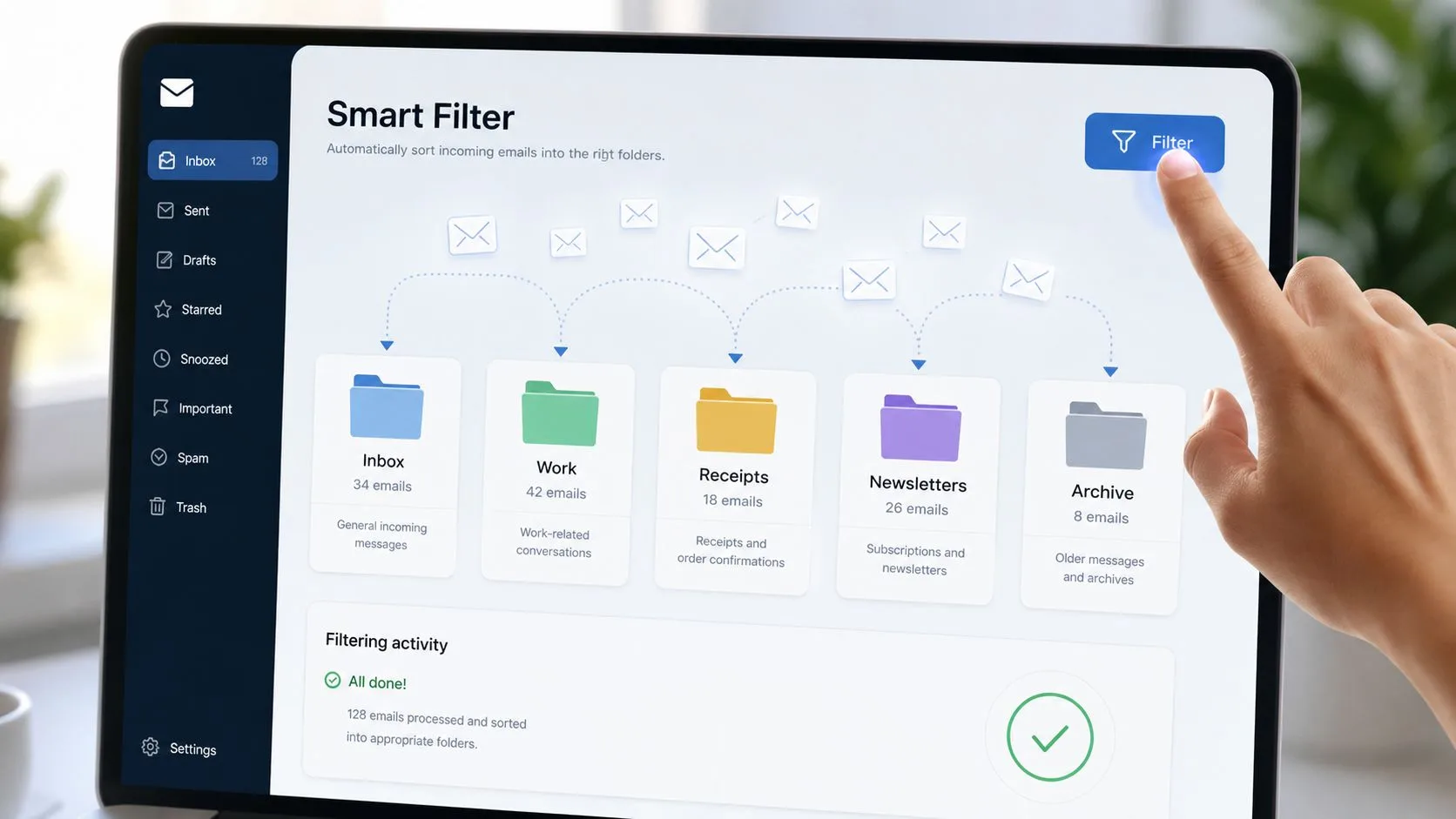
The most useful Gmail filters aren’t complicated. They’re specific. One sender, one pattern, one repeated annoyance. If a retailer, webinar platform, or software vendor keeps filling your inbox with messages you never read, stop deleting them manually and create a rule.
A simple filter that saves real time
Use this process:
- Search for the sender or pattern you want to stop seeing.
- Click Gmail’s filter option from the search tools.
- Refine the rule if needed, such as sender, subject line, or keywords.
- Choose the action to send matching messages directly to Trash.
- Apply it to existing matching conversations if that option fits your cleanup.
That’s the difference between cleanup and maintenance. Cleanup removes clutter that already exists. A filter stops the same clutter from landing tomorrow.
Good filter candidates
Some email types are perfect for automatic handling:
- Retail promotions you never open
- Event reminders from platforms you rarely use
- System notifications that don’t require action
- Vendor newsletters you forgot to unsubscribe from
If your team spends too much time repeating low-value admin work, it helps to think about inbox rules as part of a broader system for reducing manual agency busywork. Email cleanup is one of the easiest repetitive tasks to automate because the patterns are usually obvious.
Build filters around behavior, not hope. If you’ve deleted the same kind of message three times, Gmail should probably handle the fourth automatically.
One caution matters here. Don’t auto-trash messages from anyone who might occasionally send something important from the same address or domain. In that case, use labels, archiving, or category-based handling instead of deletion.
Deleting Emails on Mobile The Unfortunate Truth
If you’ve been trying to mass delete Gmail emails from your phone and feeling like Gmail is fighting you, your instincts are right. The Gmail mobile app lacks the “Select all conversations that match this search” feature critical for bulk deletion beyond 50 messages, forcing users to manually tap each email avatar (Zapier’s Gmail mobile deletion guide).
That limitation changes the strategy completely.
What mobile can do
The app is fine for quick cleanup when you’re waiting in line or riding to a meeting. You can search, narrow the list, and remove a small set of obvious junk. That works well for deleting a handful of promos or clearing one sender’s latest campaign.
What mobile can’t do well
It can’t handle true large-scale deletion efficiently. Once you’re dealing with old newsletters, stale client threads, or years of low-value mail, tapping avatars one by one becomes a bad use of time.
Your best workaround is to use mobile for triage and desktop for execution:
- Search first on mobile to narrow the email set.
- Delete only small batches if the list is short.
- Move the main cleanup to desktop when you need full bulk controls.
If Gmail is acting strangely on your phone on top of these limitations, it’s worth checking common Android issues that affect the app experience in this guide on why Gmail stopped working on Android.
The mobile app is for maintenance. Desktop is for cleanup.
That’s not elegant, but it’s the honest answer.
Critical Warnings Before You Bulk Delete
Bulk delete usually feels productive for about five minutes. Then you realize the storage number barely moved, an old thread is missing, or your Sent folder no longer gives you the context you use for follow-ups.
Deleting is not the same as freeing space
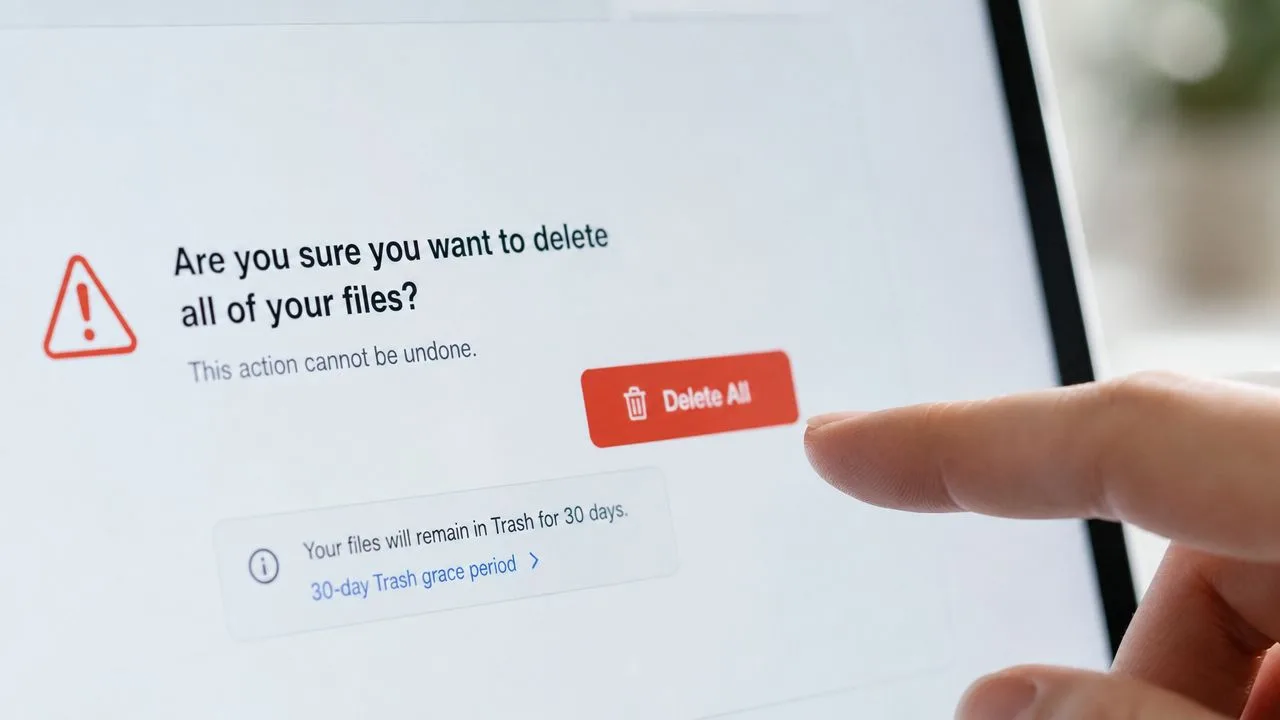
Deleted messages stay in Trash for 30 days and do not free storage until you manually empty Trash (Superhuman on Gmail mass deletion and storage).
That is the first surprise for professionals trying to recover space fast. Gmail treats deletion as a two-step process. First the message leaves your inbox. Then, after Trash is emptied, the storage is released.
Use a tighter sequence:
- Delete in batches you can verify
- Scan Trash for obvious mistakes
- Click “Empty Trash now” only after that review
- Check storage after Trash is emptied
This takes an extra minute. It also prevents the common mistake of deleting thousands of messages, seeing no quota change, and assuming Gmail failed.
Archive may be the better move
A clean inbox does not require permanent deletion. For receipts, client threads, project decisions, and anything you may need later, archiving is usually the safer call. This guide on when to archive messages in Gmail is a useful checkpoint before you run a large cleanup.
Delete clutter. Archive reference material.
That distinction matters more at work than it does in a personal inbox, because inbox cleanup should reduce noise without erasing useful history.
If you rely on tracking data, plan before deleting Sent mail
A common mistake is assuming the Sent folder is just visual clutter. For sales reps, recruiters, founders, account managers, and anyone doing client outreach, Sent mail often functions as a working record.
Open tracking adds another layer. Tracked emails typically use a tiny image pixel that records an open when the recipient’s email client loads it. The tracking log and the Gmail thread are related, but they are not always the same record. If you bulk delete sent conversations, you may still have tracking events inside your tracking tool, but lose the fast thread-level context you use to judge timing, reply gaps, and follow-up quality inside Gmail.
Here is the trade-off:
- Deleting Sent mail reduces visible clutter
- Keeping Sent mail preserves outreach context
- Tracking history may remain available, but message history inside Gmail can become harder to review
If you use a tool such as Mail Tracker for Gmail, decide in advance whether deletion is serving storage cleanup or whether it is stripping away part of your operating history.
Before you bulk delete Sent mail, protect the threads that still support active follow-up, reporting, or account context.
Maintaining a Permanently Clean Gmail Inbox
Monday starts faster when the inbox is already under control. You open Gmail, see only current work, and know that old promotions, status emails, and stale notifications are not waiting to steal attention.
That result comes from a maintenance routine, not another large cleanup session. Keep one short weekly block for bulk deletion, let filters route recurring clutter automatically, and reserve deletion for email with no future value. Archive the threads you may need for client context, handoffs, or follow-up history.
This matters even more in a professional workflow that includes email tracking. If you use Mail Tracker for Gmail or a similar tool, deleting a message can remove the Gmail thread you use to review timing, replies, and account context, even if some tracking activity still exists in the tracking tool. For outreach-heavy roles, a “clean inbox” should still preserve the record you need to work the next conversation well.
Habits that keep the inbox under control
- Run a weekly cleanup block for Promotions, notifications, and old updates that no longer support active work.
- Unsubscribe as soon as a sender turns into noise instead of letting low-value mail build for another month.
- Review filters once a month so they still match your projects, clients, and current priorities.
- Archive active or reference-worthy threads so you can remove inbox clutter without deleting useful history.
- Use tools that support triage and follow-up if Gmail is central to your day. This roundup of email productivity tools for Gmail-based workflows is a good place to refine that system.
Inbox control compounds when the rules are simple and repeatable. A few minutes each week is usually enough to keep Gmail usable on desktop, avoid bad cleanup decisions on mobile, and protect the thread history that still matters to your work.
If you send important emails from Gmail and need to know when they’re opened, Mail Tracker for Gmail adds read receipts, double check marks, timestamps, and real-time notifications directly inside Gmail on web and mobile. It fits naturally into the same professional workflow you use to clean, organize, and act on your inbox.
Ready to track your emails?
Add Mail Track for Gmail from the Google Workspace Marketplace and know the moment your emails are opened. Free and unlimited.
Add to GmailMore reading
More from Tips
How to Know if Someone Blocked Your Email in Gmail: Signs and Checks
How to know if someone blocked your email in Gmail: what a block really does, how to read bounce messages, and how open tracking tells a block from silence.
Gmail Snooze Email: How It Works and When to Use It
Learn how Gmail snooze email works, how it differs from archive and mute, and how to pair it with open tracking so follow-ups come back at the right time.
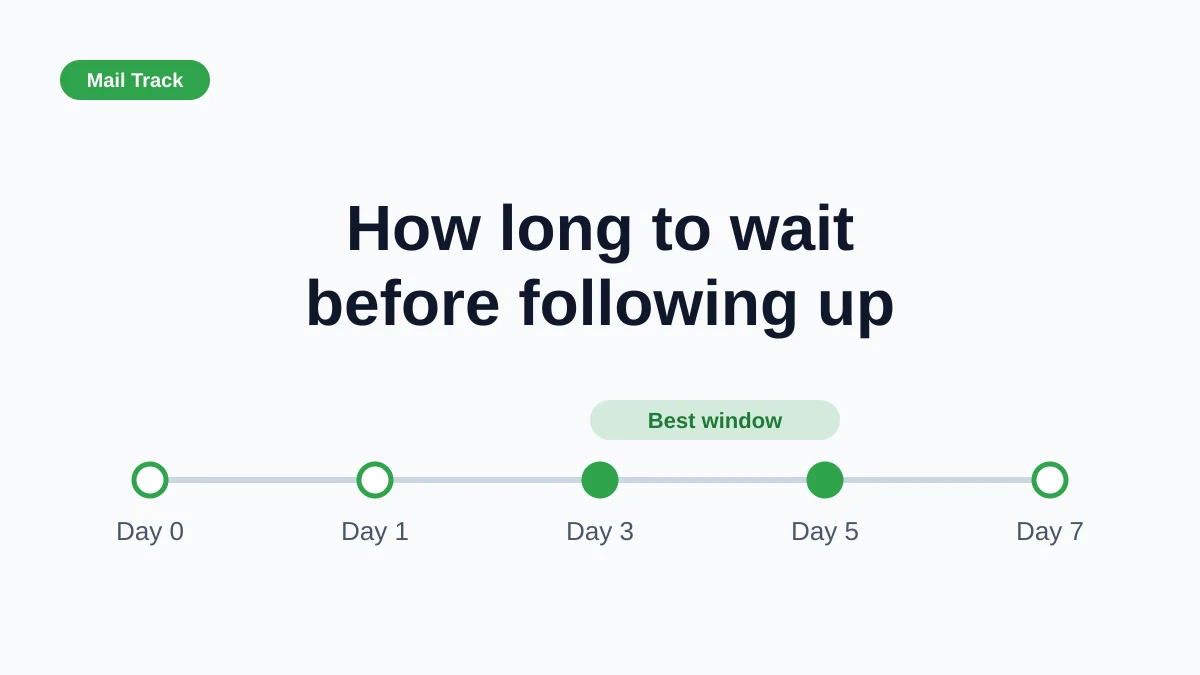
How Long to Wait Before Following Up on an Email (With Tracking Signals)
How long to wait before following up on an email? Use these waiting windows by situation, plus open and click signals in Gmail to time each follow-up.