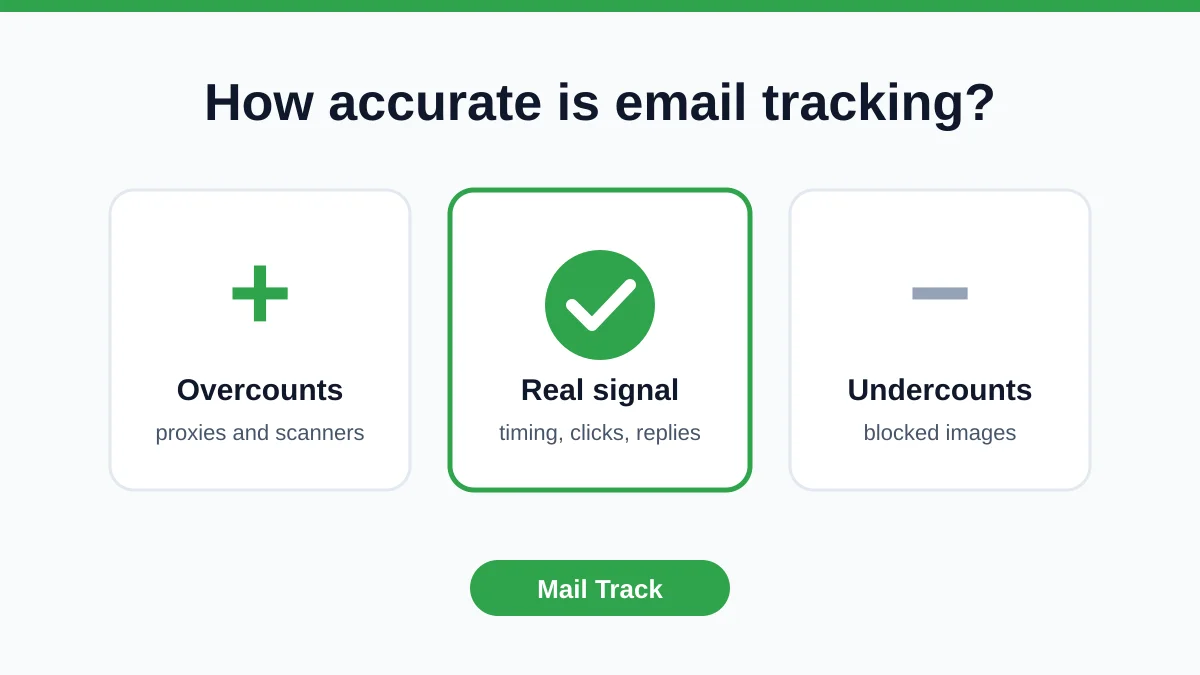
Free Email Tracker for Gmail: Real-Time Opens 2026
Get the best free email tracker for Gmail. Our guide covers installation and usage for real-time open notifications in 2026.
You sent an important email. Then the waiting starts.
A proposal goes out to a prospect you finally got on the phone. A recruiter message lands in a passive candidate’s inbox after three rounds of rewriting. A freelance quote hits send and you immediately wonder whether to follow up tomorrow, next week, or not at all. Gmail shows “sent,” but that doesn’t answer the question that matters: did anyone view it?
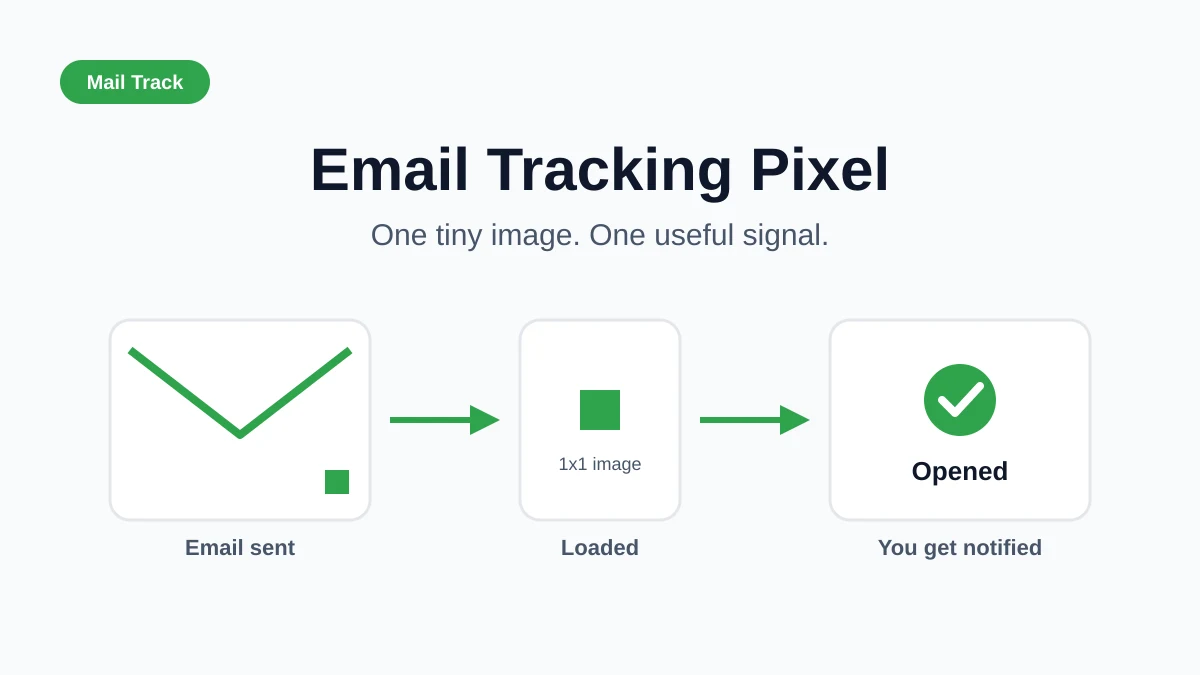
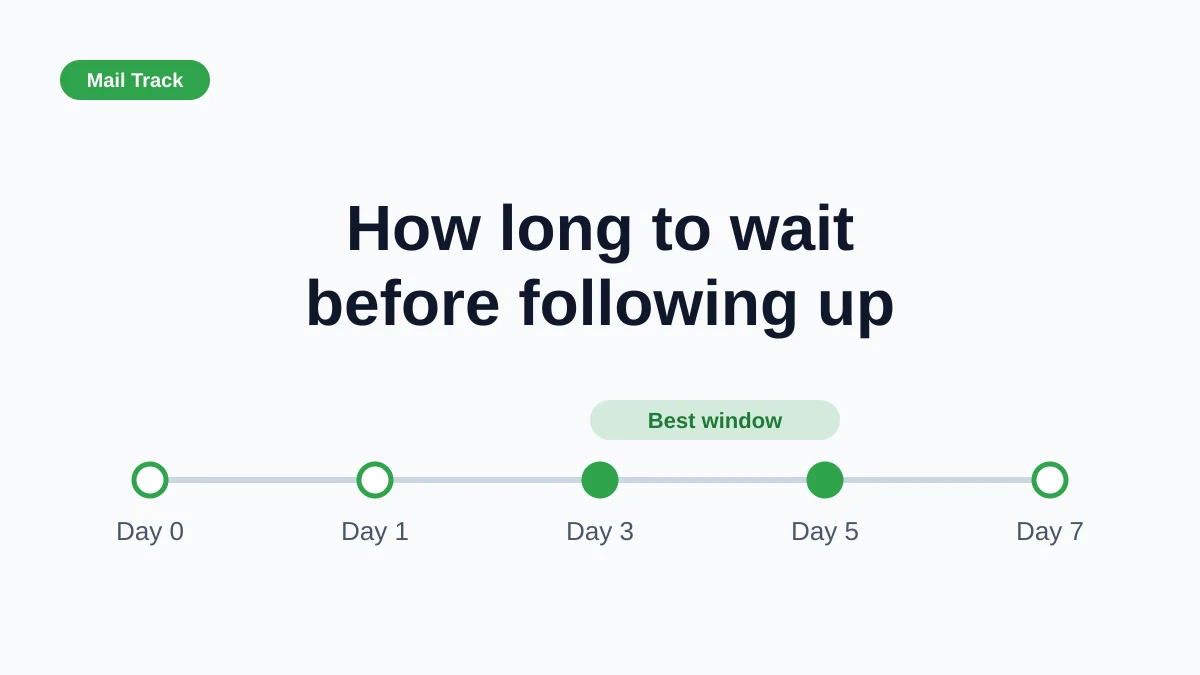
That gap creates bad timing. People follow up too early and sound pushy, or too late and lose momentum. A free email tracker for Gmail fixes that by turning guesswork into a signal you can act on.
Why You Need a Free Email Tracker for Gmail Today

The core issue isn’t sending email. Gmail already handles that well. The problem is what happens after send.
Without tracking, every follow-up is a blind guess. Sales reps call when the buyer hasn’t even opened the proposal. Recruiters assume a candidate isn’t interested when the message was buried all morning. Consultants send a second note at the wrong moment and break the rhythm of a live conversation that was about to happen.
![]()
Visibility changes follow-up behavior
A good tracker does one job well. It tells you when the email was opened, then surfaces that signal where you already work. That matters because extra dashboards usually get ignored. If the data isn’t inside Gmail, establishing a habit for its use is unlikely.

That’s where Mail Tracker for Gmail makes practical sense as a tool category example and as a specific product name you’ll see in the market. The product integrates directly into the Gmail compose window and inbox list, so you see tracking without changing your workflow. It also has a 4.6 out of 5 rating from over 2,677 reviews on the Google Workspace Marketplace, and the free plan includes unlimited email tracking, while many competing free plans cap usage at around 200 tracked emails per month according to its Google Workspace Marketplace listing.
Practical rule: If a tracker adds friction, teams stop using it. If it lives inside Gmail and alerts you in real time, people actually change their follow-up timing.
Unlimited matters more than most teams think
A tracking limit sounds manageable until a rep starts working a real pipeline. One proposal thread becomes three follow-ups. One hiring campaign becomes a dozen candidate conversations. One client renewal cycle touches multiple stakeholders.
With an unlimited free plan, you don’t have to ration tracking to “only the most important emails.” You track all the important ones. That’s a meaningful difference because consistency creates pattern recognition. You stop treating tracking as a novelty and start using it as part of daily follow-up discipline.
Getting Started with Mail Tracker for Gmail
Installing a Gmail tracker should take less effort than writing the email you want to send. If setup feels technical, adoption falls apart before the first notification arrives.
Start from the product page, confirm you’re choosing the actual product name and not just searching the category phrase “mail tracker for gmail,” then install the add-on or extension into the Google account you use for outreach.
![]()
What the setup should feel like
The best install flow is quiet. You click to add it, approve permissions, refresh Gmail, and the tracking controls appear where you already compose messages. No separate inbox. No new tab you’re expected to babysit. No complicated configuration before the first send.
That simplicity matters because a new rep won’t stick with a tool that demands training before value appears. The first win should happen fast: open Gmail, write an email, enable tracking, send.
A few habits make that first setup smoother:
- Use your main Gmail account: Install it on the account where you send outreach, not a test inbox you never open.
- Check compose view immediately: Open a new draft after installation and confirm the tracking option appears in the compose window.
- Send yourself a test message carefully: Use another email address or another device. Don’t rely only on your own inbox behavior because that can confuse your first read on tracking.
For a deeper practical walkthrough, this guide on unlocking email tracking with Mailtrack for Gmail expert tips for effective usage is useful because it focuses on day-to-day usage rather than just installation screens.
Your first tracked email
Keep the first message simple. Send one email to a colleague or a secondary personal address. Watch what changes inside Gmail after the message leaves your outbox. The point isn’t testing every feature. The point is confirming that the tracker is active and that you can see engagement without leaving your inbox.
Once the check marks and notifications start appearing, the benefit becomes immediately clear. The tool stops being “software you installed” and becomes a timing signal.
A short visual walkthrough helps if you want to see the flow before you click around in Gmail:
When onboarding a new seller, I don’t teach tracking as surveillance. I teach it as follow-up timing. That framing gets much better adoption.
What to avoid on day one
New users usually make one of three mistakes:
- They install more than one tracker. That creates noise and muddles which notification belongs to which tool.
- They test by reopening their own sent mail repeatedly. That can lead to confusion about whether a recipient opened it.
- They expect advanced analytics immediately. The first goal is reliability inside Gmail, not a complex reporting layer.
If the tracker appears in compose and your sent messages start showing status indicators, you’re set up correctly.
Decoding Your Email Tracking Data
Once tracking is live, the next skill is reading the signals without overreacting to them.
The strongest Gmail trackers keep this visual. You don’t want to decode a dashboard every time you send a proposal. You want a fast glance that tells you whether to wait, reply, or call.
![]()
Read the check marks first
Inside Gmail, the logic is simple:
| Indicator | What it tells you | What to do |
|---|---|---|
| One check mark | The email was sent | Wait for engagement before changing course |
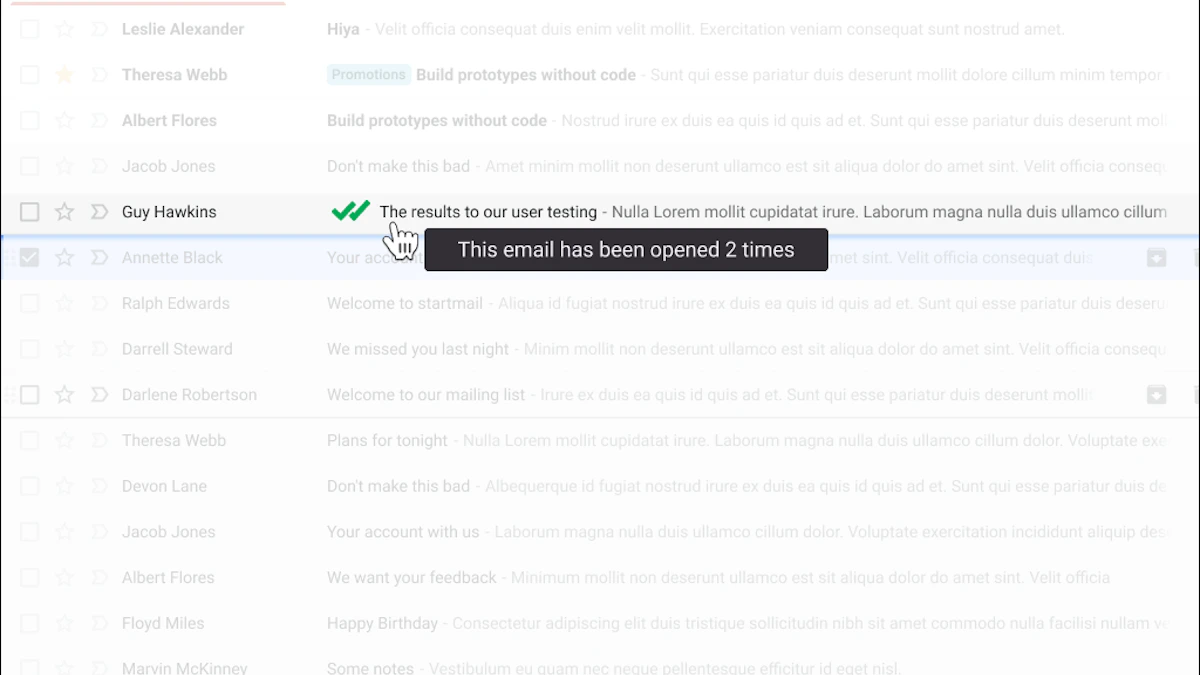
| Two check marks | The email was opened | Consider whether this is the right time for a follow-up |
That single visual cue reduces clutter. You don’t need to open every thread to inspect activity. You can scan your sent messages and instantly spot where attention exists.
Open count and timing tell the real story
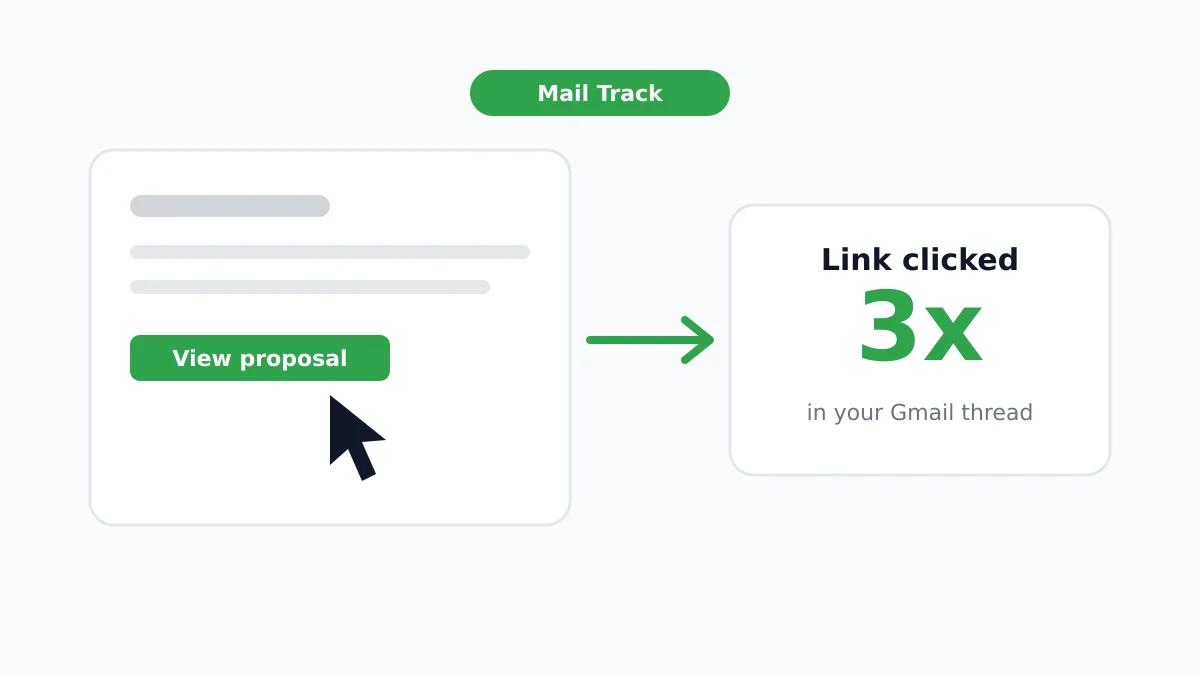
One open can mean the email was noticed. Multiple opens usually mean the message is being revisited, forwarded internally, or checked again before a response. That doesn’t guarantee intent, but it gives you a stronger reason to prioritize that thread over someone who never opened at all.
Hover details matter here. Good trackers show timestamps and open history so you can tell whether the activity happened once yesterday or several times in a short window. Those are different situations, and they deserve different follow-up styles.
A tracked email isn’t a verdict. It’s a priority signal.
Here’s how I teach teams to interpret common patterns:
- Single open, then silence: Don’t rush. The message was seen, but there’s not enough evidence to force a same-hour follow-up.
- Repeated opens in a short span: Move that thread up your queue. Something is happening around that email.
- No open at all: Rework the subject line or send time before rewriting the whole pitch.
- Open after a long delay: Keep the follow-up light. The thread may have just resurfaced in the recipient’s workflow.
If you want a broader benchmark-focused view of how open behavior fits into outreach decisions, this overview of email open rate helps frame what those signals can and can’t tell you.
Don’t confuse activity with commitment
Tracking is useful because it narrows uncertainty. It doesn’t replace judgment.
A prospect can open a proposal several times and still go quiet. A candidate can open once and reply immediately. The value comes from combining the signal with context: who the recipient is, what stage the conversation is in, and what the email asked them to do.
Configuring Tracking for Maximum Impact
Once basic tracking works, configuration becomes a strategy decision. Here, teams either improve deliverability and timing, or create extra noise for themselves.
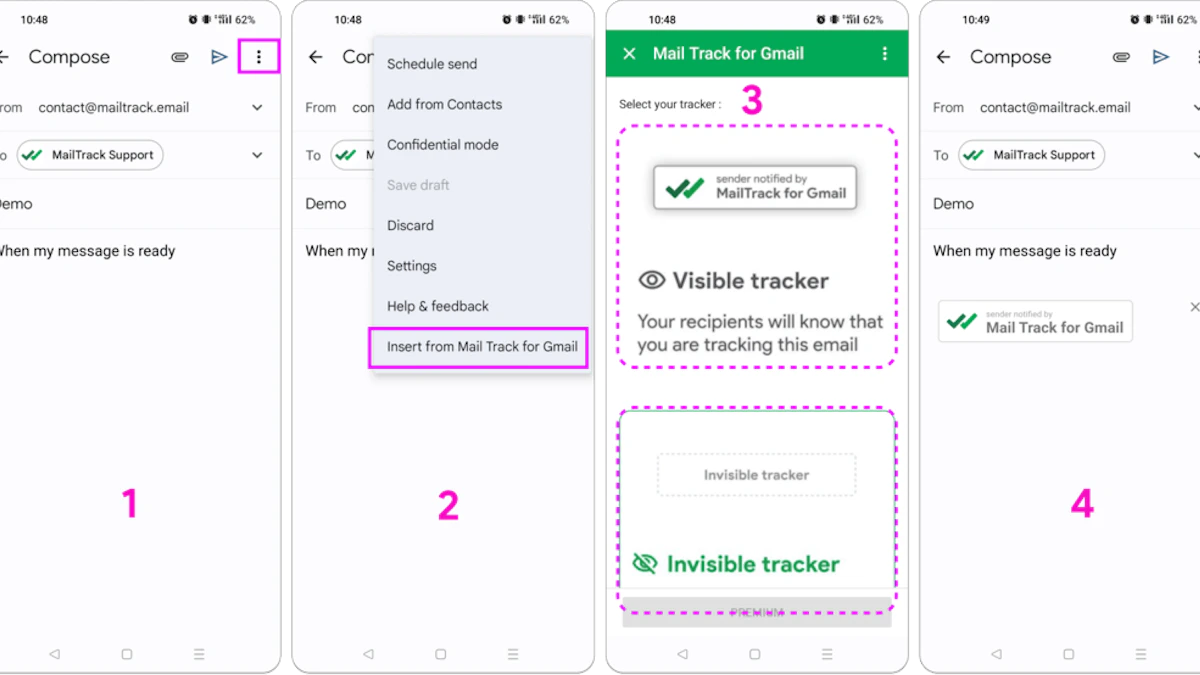
The biggest choice is whether you want a visible tracking signature or an invisible tracker. Many assume invisible is always better because it looks cleaner. That’s not always true.
![]()
Visible versus invisible tracking
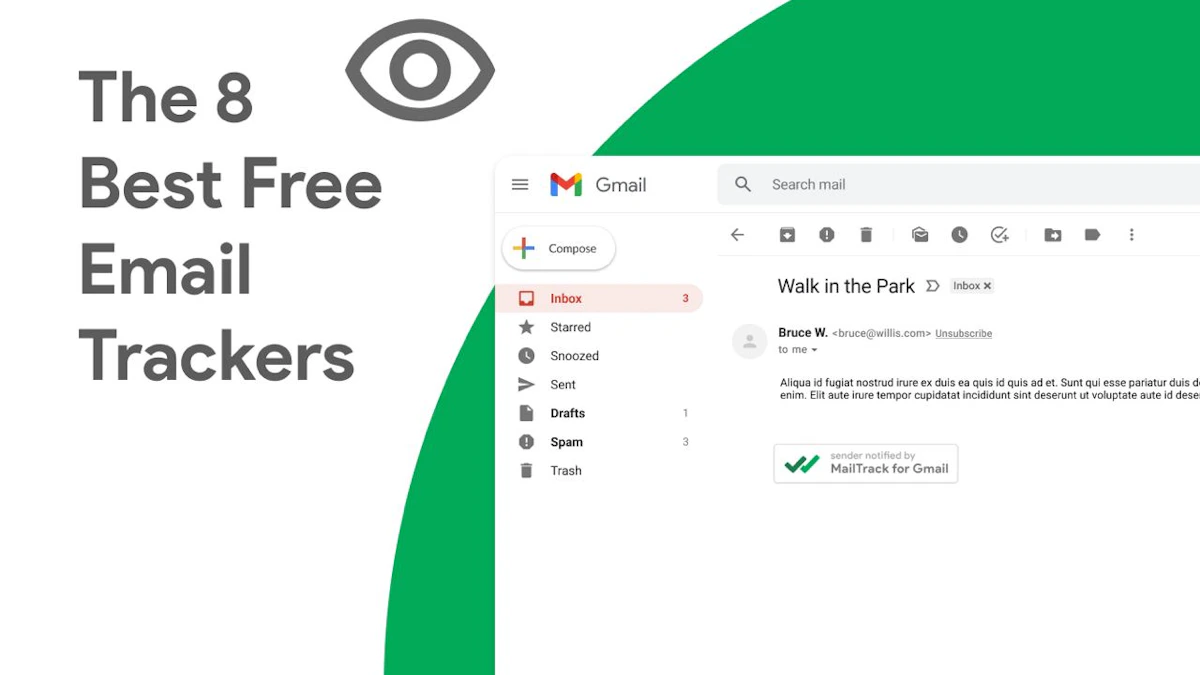
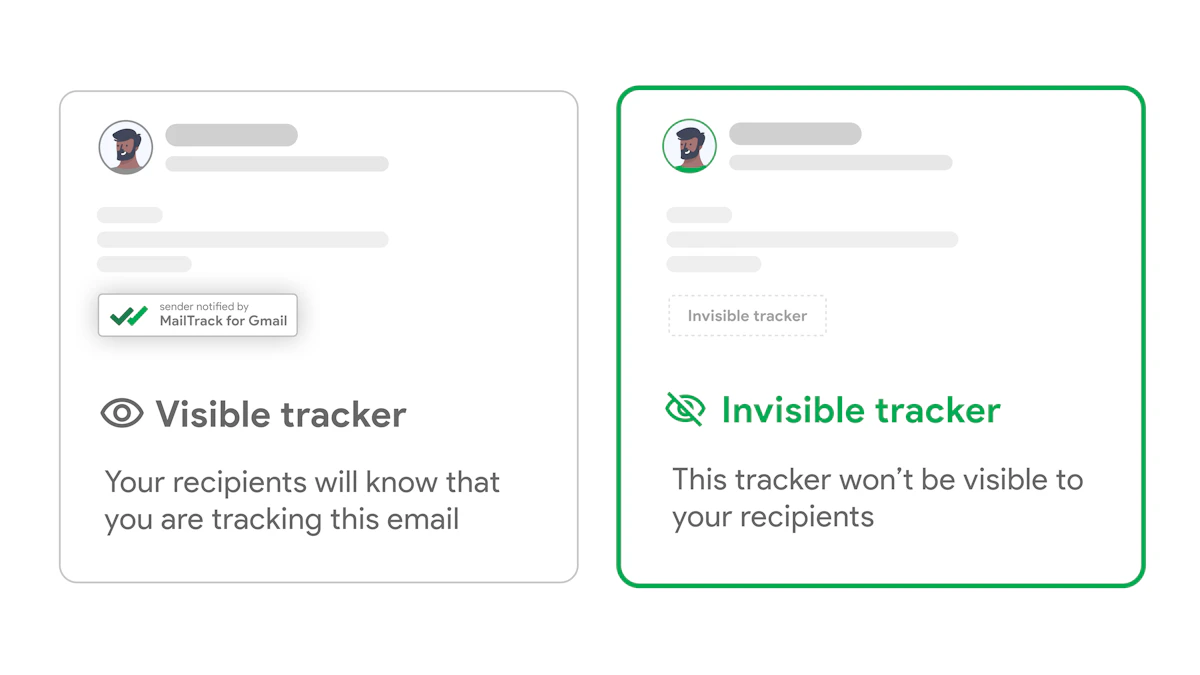
The free plan uses a visible signature. Premium removes that and adds an invisible tracker, fuller history, and deeper reporting. Premium is listed at approximately $2.99 per month on the product’s marketplace page, where the free plan and premium differences are also outlined in the Google Workspace Marketplace details.
The trade-off isn’t just appearance. Deliverability matters more than aesthetics in cold outreach and client-facing email. According to the analysis cited in this guide on free email tracking for Gmail, emails with invisible tracking pixels can see a 15 to 20 percent higher bounce rate under stricter spam filtering, while a visible signature can be the safer option for deliverability.
When each option makes sense
Use the visible signature when:
- Inbox placement matters more than polish: Outreach only works if the email lands.
- You’re on the free plan: It’s a fair trade for unlimited tracking and straightforward transparency.
- You’re testing a new domain or sending pattern: Fewer hidden elements can reduce avoidable risk.
Consider invisible tracking when:
- Brand presentation matters: Client proposals or polished outbound sequences may benefit from removing the extra footer.
- You already have stable deliverability habits: Cleaner lists, controlled volume, and disciplined follow-up reduce risk.
- You need deeper history: Premium gives more context if you manage a larger active book of conversations.
If deliverability is a recurring issue in your workflow, it’s worth reviewing practical inbox placement habits beyond tracking itself. These Icypeas email deliverability strategies are useful because they focus on the operational choices that affect whether your message reaches the inbox in the first place.
Field note: A visible signature may cost a little visual polish. A bounced email costs the conversation.
Set alerts so they help instead of distract
Real-time notifications are powerful when they’re selective. They’re a problem when every open pulls you out of focused work.
A few settings usually work best:
- Desktop alerts during prospecting blocks: Keep them on when you’re actively calling, replying, or booking meetings.
- Push notifications on mobile for high-value threads: Useful for recruiters, founders, and account managers who need to move when someone engages.
- Restraint outside work windows: If every open generates a buzz at all hours, you’ll start ignoring the alerts that matter.
Mobile support is especially useful for people who live in Gmail between meetings. If your workflow includes follow-ups on the go, enabling tracking and notifications on Android or iOS keeps the signal alive when you’re away from your desk.
Turning Opens into Opportunities
Tracking becomes valuable when it changes what you do next. The alert itself doesn’t close a deal, fill a role, or win a client. Timing does.
Sales teams usually get the fastest payoff because the signal maps directly to action. If a prospect opens a pricing email multiple times within a short period, that thread moves to the top of the call list. Don’t send a message saying you saw they opened it. Use the activity privately. Call with context, or send a short note that advances the conversation.
Sales, recruiting, and freelance use cases
For sales reps, the pattern is often obvious. A buyer ignores your first note, then opens the follow-up and revisits the proposal later the same day. That’s your window. A useful response is brief and specific: checking whether any questions came up, offering to walk through pricing, or proposing a time to discuss internal feedback.
For recruiters, immediate opens matter even more because candidate attention is fragile. A passive candidate who opens fast is giving you a short opportunity window. Reply with clarity, not pressure. Confirm why the role matches their background and make the next step easy.
Freelancers and consultants benefit from a calmer version of the same playbook. If a proposal gets reopened, don’t push with “just bumping this up.” Send a practical note tied to the project. Clarify scope, answer a likely concern, or offer a simple starting option.
The open notification is a private cue. It is not a script.
A simple follow-up rhythm that works
Use the signal like this:
- Open with no reply: Send a value-based follow-up, not a guilt-based one.
- Repeated opens: Prioritize that contact over colder threads today.
- Late reopen after silence: Assume the conversation is back on their radar and re-enter with relevance.
- No open after several days: Test a different subject line or channel before adding more body copy.
For teams trying to tighten execution across many small follow-up tasks, it also helps to discover effective AI tools for busy teams. The right automation can handle reminders and draft support while you use tracking data to decide where human attention should go.
A practical no-response sequence matters here too. This guide on follow-up email after no response is useful because it gives timing and message ideas for the moment after an open signal doesn’t turn into a reply.
What doesn’t work
Two habits routinely backfire.
First, don’t tell recipients you saw them open your email. That makes the tracking visible in the worst possible way and shifts attention from your message to your method.
Second, don’t treat every open as urgency. Some people preview, save, forward, or reopen later. Good teams use opens to rank follow-ups, not to force them.
Troubleshooting Common Tracking Issues
Most problems with a free email tracker for Gmail come down to interpretation, not installation.
Quick fixes that solve most issues
- Self-opens inflating activity: This is common across the category. Up to 30% of opens in group emails can be false positives from the sender’s own actions, which is why you should treat suspicious instant opens or repeated views from your own workflow carefully, as noted in this explanation from Mailsuite on Mailtrack features.
- No check marks showing in Gmail: Refresh Gmail, confirm the extension or add-on is active, and open a fresh draft instead of relying on an older one that was already open before installation.
- Notifications not appearing: Check browser notification permissions and mobile push settings. The tracker may be working even if alerts are blocked.
- Email bounced or never landed: If delivery is the issue rather than tracking, this guide to troubleshoot email bounce errors can help separate inbox placement problems from tracker problems.
Treat false positives as noise, not proof. Once users learn that, the data becomes much easier to trust.
If you want open notifications, Gmail-native check marks, and a simpler way to time follow-ups without changing your workflow, try Mail Tracker for Gmail. It gives you a direct read on whether your emails were opened, so your next move can be based on signal instead of guesswork.
Ready to track your emails?
Add Mail Track for Gmail from the Google Workspace Marketplace and know the moment your emails are opened. Free and unlimited.
Add to GmailMore reading
More from Guides
10 Best Email Productivity Tools for Gmail in 2026
Boost your inbox efficiency with the best email productivity tools for Gmail. Our 2026 guide covers tracking, automation, and collaboration to save you hours.
How to Get a Read Receipt in Gmail
Gmail does not offer free read receipts to everyone. Here is how to know when your emails are opened, on any Gmail account, in under a minute.
What It Means That Mail Track Is a Certified Email Tracker
Mail Track is a verified, Google-reviewed email tracker. Here is what certification, OAuth security review, and GDPR compliance mean for you.