


















Desktop Alerts for Gmail: Your Complete 2026 Guide
Learn how to enable and customize desktop alerts for Gmail. Get step-by-step instructions for native alerts and real-time open notifications for sent emails.
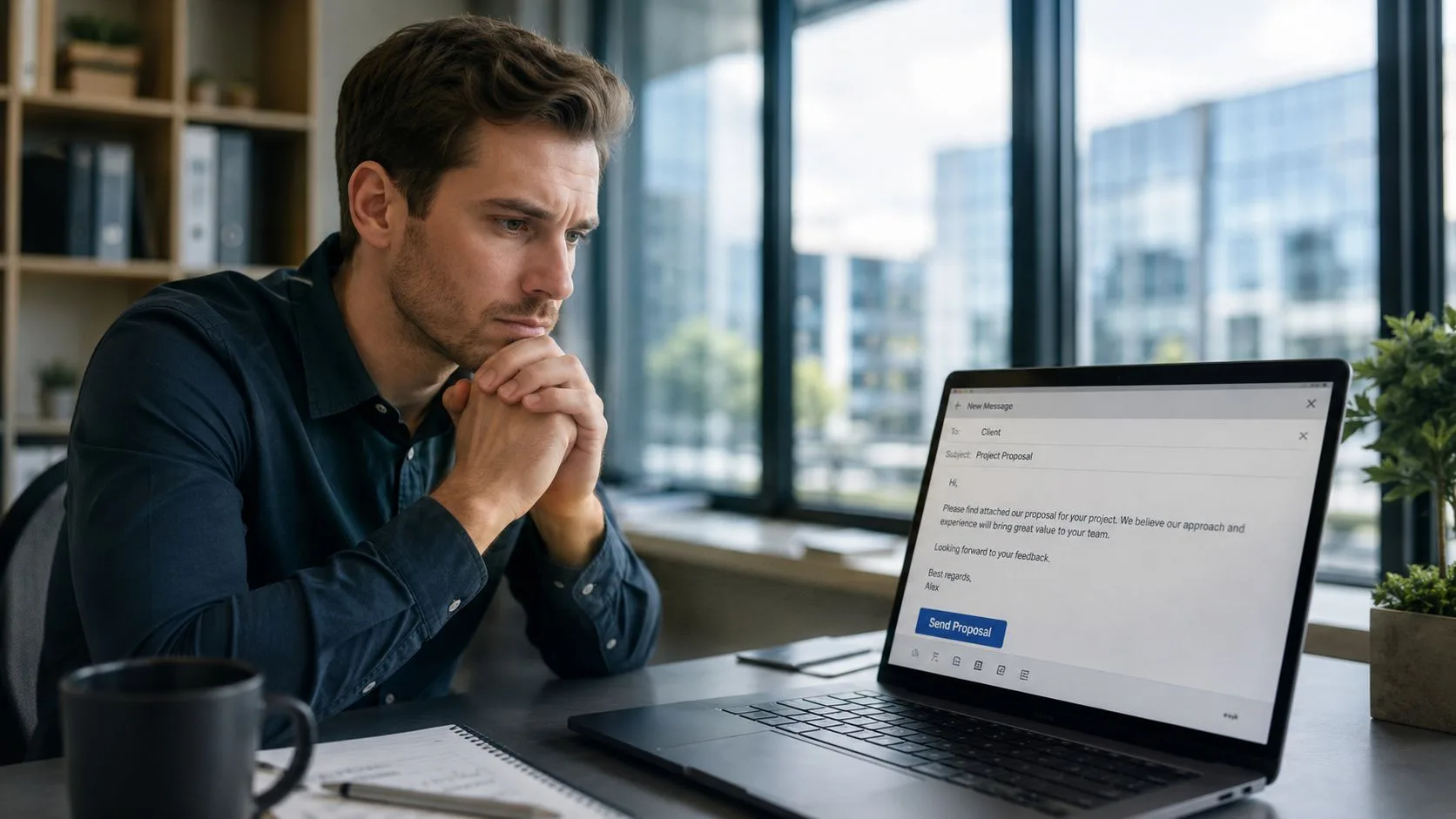
You send a proposal at 8:12 AM. Then you stare at Gmail, refresh twice, switch tabs, check Slack, come back, and wonder whether to follow up now or wait. The same thing happens with job applications, client quotes, candidate outreach, and renewal emails. Silence doesn’t tell you much.
A common misstep is solving the wrong problem. Users set up notifications for incoming mail and assume they’ve covered Gmail alerts. That helps you react when someone writes back. It doesn’t help when what you really need is a signal that your sent email was opened.
Never Miss a Critical Moment Again
If you work in sales, recruiting, or client service, timing matters more than people admit. A follow-up sent right after someone reads your message can feel attentive and well-timed. A follow-up sent too early feels pushy. One sent too late misses the window.
That’s why there are really two different kinds of desktop alerts for Gmail:
- Incoming email alerts tell you when a new message lands in your inbox.
- Open alerts for sent email tell you when someone engages with a message you already sent.
Those are not the same workflow, and treating them like they are creates a lot of bad advice online. A lot of content about desktop alerts for Gmail stays focused on inbound notifications and skips the harder question people commonly ask: how to get a desktop alert when a sent Gmail email is opened. That gap is called out in this discussion of outbound open alerts and common guide failures.
Why open alerts matter more in real work
A recruiter sending candidate outreach doesn’t just want to know when new mail arrives. They want to know when a candidate reads the message, so they can follow up while the role is still top of mind.
A sales rep sending pricing wants the same thing. If the prospect opens the quote during business hours, that’s often the best time to call, send a short nudge, or be ready for objections.
Practical rule: Inbox alerts help you respond. Open alerts help you time the next move.
That difference is the whole game. Native Gmail notifications are useful, but they only solve the first half.
Mastering Gmail’s Native Desktop Notifications
Gmail has supported native desktop notifications since 2010, and internal usage data cited in this overview of Gmail desktop notifications says users with notifications enabled respond to emails 47% faster than those without. That’s a strong reason to turn them on if you haven’t already.
Where to enable them
In Gmail on desktop:
- Open Settings
- Click See all settings
- Stay on the General tab
- Find Desktop notifications
- Choose your preferred notification mode
- Save changes at the bottom
Gmail usually prompts you with a browser-level message to allow notifications. If you miss that prompt or dismiss it once, the setting inside Gmail may look correct while alerts still never appear.
All new messages
Best if you work from a shared inbox, handle urgent threads, or need broad awareness of everything that arrives.
Important messages only
Better if you get a lot of newsletters, automated notices, or low-priority traffic and want less noise.
What native alerts actually do
Native Gmail alerts are designed for incoming messages. They’re good at telling you when fresh mail lands, especially if you keep Gmail open in a browser tab during the day.
What they don’t do is tell you when a recipient opens something you sent. That’s the gap many people discover after they’ve already “enabled Gmail notifications” and still don’t have the alert they really wanted.
A simple way to put it:
| Alert type | Trigger | Best use |
|---|---|---|
| Native Gmail notification | New inbound email | Fast inbox response |
| Sent-email open alert | Recipient opens your message | Better follow-up timing |
Use native alerts selectively
If you choose All new messages, expect more interruptions. If you choose Important messages only, Gmail does some filtering for you, which can make desktop alerts more manageable for busy teams.
For most professionals, native notifications should be the base layer. They keep the inbox moving. They just shouldn’t be mistaken for outbound tracking.
Configuring Your Browser for Reliable Alerts
The most common reason desktop alerts for Gmail fail isn’t Gmail. It’s the browser.
Gmail can be set correctly inside your account, but the browser still has final control over whether notifications show on your desktop. That applies whether you use Chrome, Edge, or Firefox. If the browser blocks notifications at the site level, Gmail can’t break through.
The browser is the gatekeeper
Think of Gmail as requesting permission and the browser as approving or denying it. You need both sides aligned.
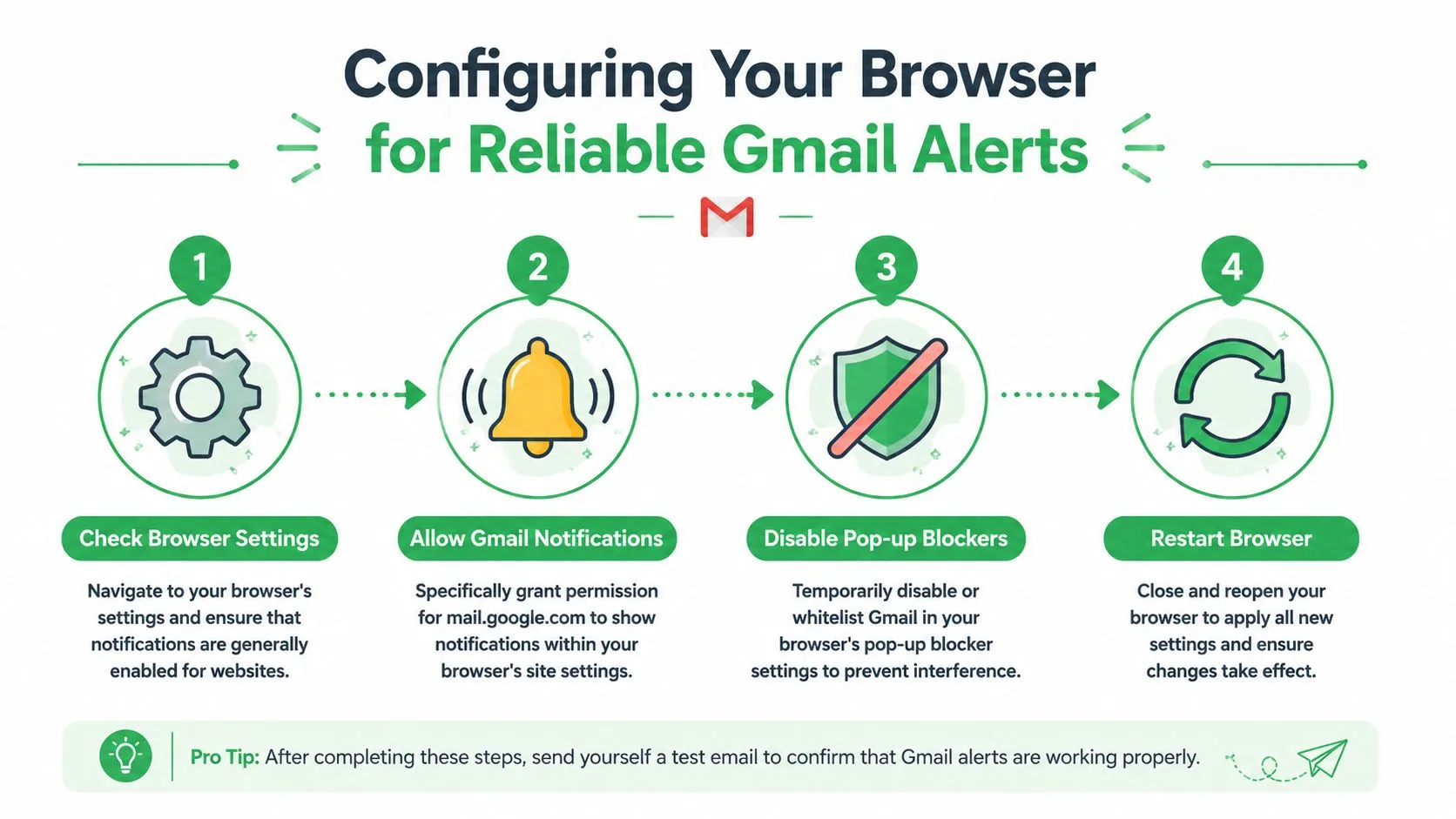
For reliable alerts, check these areas:
- Global notification setting. Your browser must allow websites to request and display notifications.
- Site-specific permission.
mail.google.comneeds to be allowed explicitly if it was blocked before. - Interference from blockers. Pop-up blockers or privacy tools can interfere with prompts and delivery.
- Fresh session state. Restarting the browser often applies the new permission cleanly.
A simple cross-browser checklist
Here’s the sequence that works most often:
- Open browser settings and search for “notifications.”
- Review allowed and blocked sites. If Gmail is in the blocked list, remove the block and allow it.
- Visit Gmail again and accept the browser prompt if it appears.
- Temporarily disable aggressive blockers if prompts never show.
- Restart the browser after making changes.
If Gmail says notifications are on, but your desktop stays silent, the browser permission is the first place to look.
One important distinction
Browser permission for Gmail covers Gmail’s own notification behavior. If you later use a separate extension for open alerts, that extension may have its own notification permission path. A lot of people assume one approval covers everything. It often doesn’t.
That’s why desktop alerts for Gmail can feel inconsistent. You may have successfully enabled inbox alerts while the separate tracking alert system is still blocked at the browser level.
Get Real-Time Open Alerts with Mail Tracker for Gmail
The workflow most professionals want is simple. Send an email, keep working, and get a desktop alert when the recipient opens it. That’s very different from getting pinged about new inbound mail.
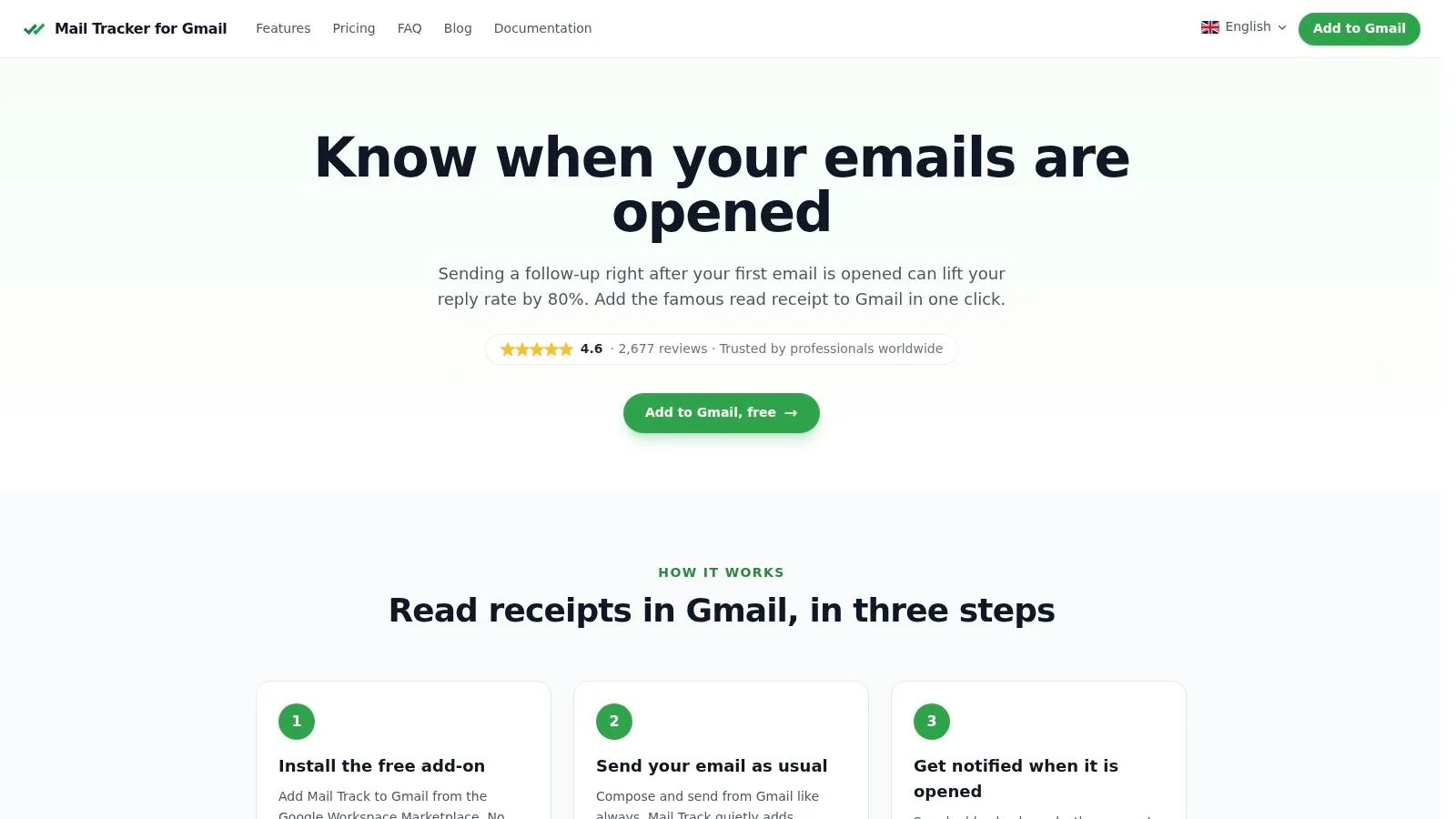
One option built for that use case is Mail Tracker for Gmail. Important naming note: the product name is descriptive, so don’t confuse Mail Tracker for Gmail the product with the broader category terms mail tracker for Gmail or email tracker for Gmail.
What this changes in daily work
Instead of guessing whether silence means disinterest, bad timing, or a buried inbox, you get a clearer engagement signal inside Gmail itself. The interface shows double check marks, open counts, and message-level timing directly where you already work, rather than pushing you into a separate dashboard.
As of 2026, the add-on holds a 4.6/5 rating from over 2,677 verified user reviews and supports real-time desktop and mobile push notifications on Android and iOS, with those read indicators shown in the native Gmail interface, as described on the Mail Tracker for Gmail product site.
That matters because a lot of tracking tools add friction. They make you learn a new workflow, log into another panel, or dig through reports. In practice, the best system is the one you’ll keep using between meetings.
What it looks like in a practical follow-up workflow
A clean outreach rhythm often looks like this:
- Send the email from Gmail. No need to change your core routine.
- Watch for the open signal. The alert tells you the message was engaged with, not just delivered.
- Choose the right follow-up action. Reply, call, or wait based on context.
- Prioritize active threads. Spend time where there’s actual buyer or candidate activity.
If you want a broader view of how tracking works before choosing a setup, this guide to a free email tracker for Gmail is useful background.
The product walkthrough below gives a quick visual sense of how this style of tracking fits into Gmail.
The trade-off to understand
Open alerts are actionable, but they aren’t magic. They tell you that a message was opened. They don’t automatically tell you intent, decision status, or whether now is the perfect moment to send a long follow-up. You still need judgment.
That said, for proposal emails, candidate outreach, and client threads, an open alert is often the first reliable sign that the conversation is live again. Used well, that turns follow-up from guesswork into a much tighter operating rhythm.
Troubleshooting Why Your Gmail Alerts Are Not Working
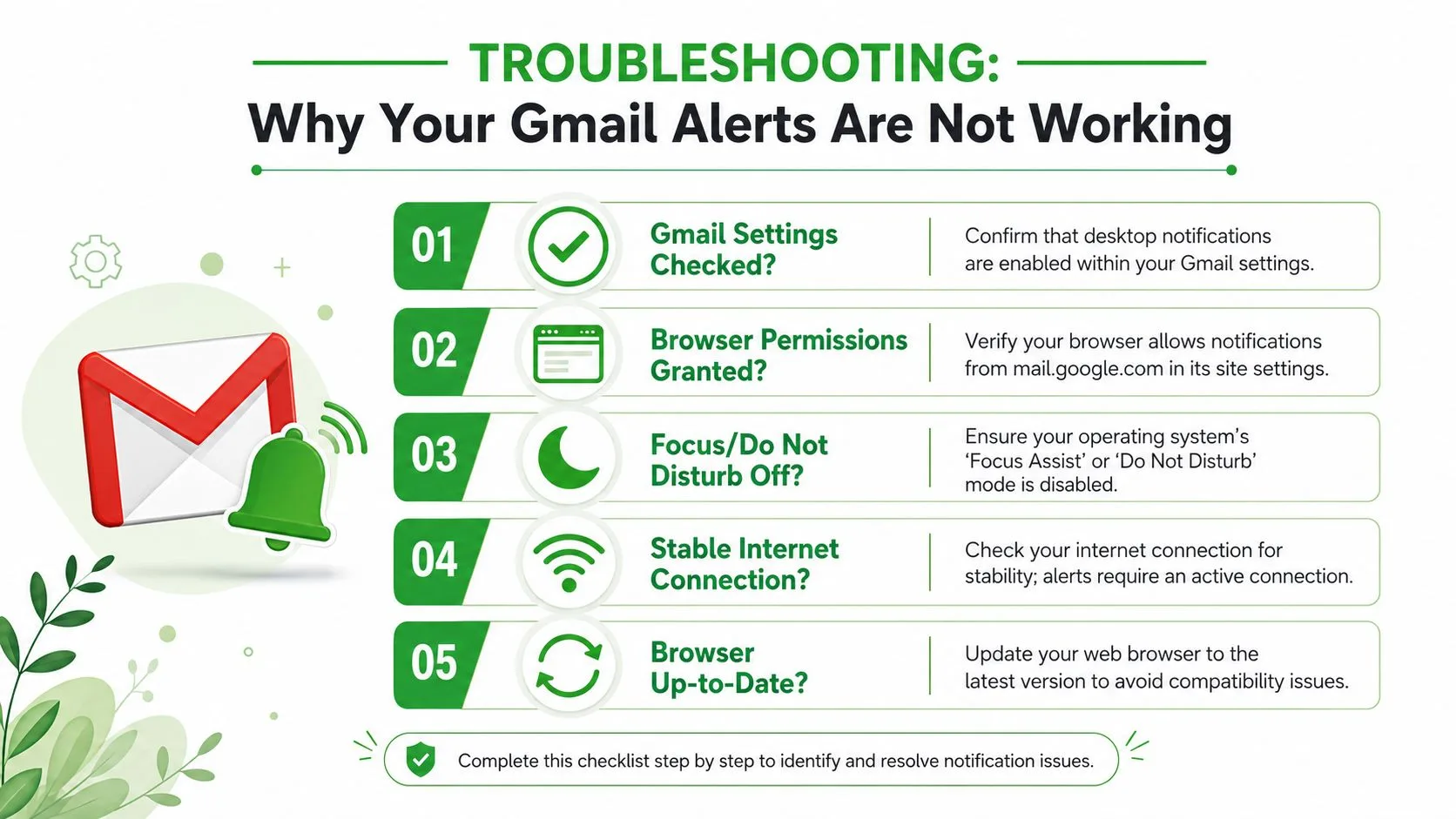
When alerts stop showing up, the fix usually isn’t complicated. The challenge is knowing which layer broke. Gmail, the browser, the extension permission, the operating system, and network stability can all affect delivery.
A key technical detail from this notification troubleshooting reference is that users often enable Gmail’s new mail notifications but forget to allow notifications from the specific tracking extension. That can cause a 30–40% drop in alert delivery success for tracked emails because extension alerts are separate from Gmail’s native alerts.
Check the failure point first
Ask one question before changing settings: Are inbox alerts failing, open alerts failing, or both?
If inbox alerts fail, start with Gmail and browser site permissions. If only open alerts fail, the problem is more likely tied to the tracking extension, browser notification permissions for that extension, or the browser’s background behavior.
A practical diagnostic checklist
- Gmail looks enabled, but no inbox popups appear. Recheck desktop notifications inside Gmail and confirm the browser still allows notifications for Gmail.
- Inbox alerts work, but sent-email open alerts don’t. Review the extension’s notification permission separately. This is the exact spot many people miss.
- Alerts used to work, then stopped after a system update. Check Windows Focus Assist or macOS Do Not Disturb. Operating systems can suppress notifications even when the browser setup is correct.
- Alerts arrive late or inconsistently. Browser behavior can delay third-party tracking notifications. Native Gmail incoming mail alerts and third-party tracking events don’t run on the same mechanism.
- Only one browser works. Test another browser profile or disable conflicting extensions temporarily.
The cleanest test is to reduce variables. One browser, one Gmail account, one tracking extension, and OS notification modes turned off.
When the problem is delivery versus interpretation
Sometimes the alert system works, but the user expects something different. An open event is not the same as a reply, and no notification setup can turn one into the other. If you need confirmation that a message reached the right stage in the workflow, it helps to understand the difference between opens and stronger engagement signals such as those discussed in this guide to email delivery confirmation.
If you still have issues after checking settings, restart the browser, then restart the computer. It’s basic, but stale permission states and sleeping background processes cause more notification trouble than often realized.
Best Practices for Using Alerts Without Going Crazy
Desktop alerts for Gmail are useful only if they help you act better. If they turn your day into constant interruption, they’re hurting more than helping.
The best approach is selective attention. Use inbox notifications to catch urgent incoming mail. Use open alerts for messages where timing changes the outcome, like proposals, interviews, pricing, renewals, and follow-ups that are close to a decision.
Use alerts as triggers, not commands
An open alert is a cue to check context. It isn’t an order to respond instantly every time.
A good rhythm looks like this:
- For sales threads, watch for an open on a quote or proposal, then send a short follow-up if the timing fits.
- For recruiting, treat an open as a sign the candidate saw the outreach, then decide whether a same-day nudge makes sense.
- For client work, prioritize threads that are active instead of re-reading stale conversations.
If you want to move through those follow-ups faster, pairing alerts with voice dictation for faster emails can help when you’re replying between calls or after meetings.
Respect privacy and keep your workflow clean
Mail Tracker for Gmail uses a narrower privacy model than broader platforms. It does not read email content and records only open events, a constraint documented as part of its privacy approach and GDPR-related user rights.
That matters in practice. You’re getting a signal about engagement, not running deep content analysis on every message. For a lot of teams, that’s a more comfortable line.
You should also decide whether a visible tracking signature or an invisible tracker fits your communication style. Some senders prefer transparency in every outreach message. Others want a cleaner presentation in high-stakes business emails. The right choice depends on your audience and the norms of your industry.
For a broader workflow around triage, follow-up, and cleaner inbox decision-making, this roundup of email productivity tools is worth a look.
If your current Gmail setup only tells you when new mail arrives, you’re missing the more useful signal. Mail Tracker for Gmail adds read receipts and real-time open notifications directly inside Gmail, so you can follow up when interest is active instead of guessing.
Ready to track your emails?
Add Mail Track for Gmail from the Google Workspace Marketplace and know the moment your emails are opened. Free and unlimited.
Add to GmailMore reading
More from Guides
Automate Email Responses in Gmail: Boost Productivity
Automate email responses in Gmail using built-in features & Zapier. Save time, follow up smarter, and boost engagement.
Can You Tell if Someone Read Your Email: Tracking Guide 2026
Can you tell if someone read your email - Explore methods for how you can tell if someone read your email in 2026. Discover read receipts, tracking pixels, &
Gmail Stopped Working on Android
Is gmail stopped working on android? Our 2026 guide fixes app crashes, sync errors, & notification issues with quick & advanced solutions.