
Gmail Blind Copy: What It Is and How to Use It Well
Learn how Gmail blind copy works, how to send BCC on web and mobile, etiquette rules, privacy trade-offs, and best practices for outreach workflows.
You know the moment. You’re about to send the same Gmail message to a customer, a manager, and two teammates, and you pause at the recipient line because you don’t want a messy reply-all chain, but you also don’t want everyone seeing each other’s addresses. That’s the exact point where Gmail blind copy starts doing real work, and it’s also where people often use it without thinking through the workflow around it.
Used well, BCC is a privacy tool. Used carelessly, it becomes a hidden-recipient habit that solves one problem while creating another, especially when a message needs follow-up, visibility, or proof of who got what. The trick is to treat it less like a checkbox and more like a communication design choice.
The Moment Blind Copy Solves a Real Problem
A recruiter needs to send the same update to several candidates without exposing anyone’s address. A sales rep wants to announce a webinar to a prospect list without turning the inbox into a public directory. A team lead wants to share a note with a few stakeholders but doesn’t want the thread to explode into a reply-all pileup.
That’s when BCC usually feels obvious. It protects the recipient list, keeps the message cleaner, and lets you send one email to many people without broadcasting who else was included. Gmail’s hidden-recipient behavior is built for exactly that kind of one-to-many communication, and the sender can still keep the full record in Sent mail, which matters when you need to check who was copied later.
The part people miss is that BCC doesn’t answer every communication need. It hides, but it doesn’t coordinate. It keeps people from seeing each other, but it doesn’t help them share context, hand off responsibility, or know who should follow up next.
Practical rule: Use BCC when the goal is privacy, not collaboration.
That’s the useful frame for the rest of this discussion. If you’re only trying to protect addresses, BCC is a good fit. If you’re trying to manage a process, especially across sales, recruiting, or account management, the hidden list can make the work harder even while the email itself looks neat.
What BCC Actually Does in Gmail
Think of Gmail’s recipient fields like a stage announcement. To and Cc are the names read out loud in front of the room. BCC, or Blind Carbon Copy, is the backstage note that only the sender can see clearly, while everyone else gets the message without the hidden list.
How the hiding works
When you send a message with BCC, Gmail delivers separate copies and strips the BCC list from the headers that other recipients receive. That’s why To and Cc recipients can’t see the blind-copied people, and why BCC recipients can’t see one another either. In practice, the sender’s Sent copy is the only place where the full blind list survives, which is why Gmail can keep the privacy model intact while still preserving a record for the sender. Independent explanations describe the same behavior across Gmail and similar systems, including the point that only the sender can recover the full BCC list from the sent message details. Experts Exchange discussion of hidden BCC behavior
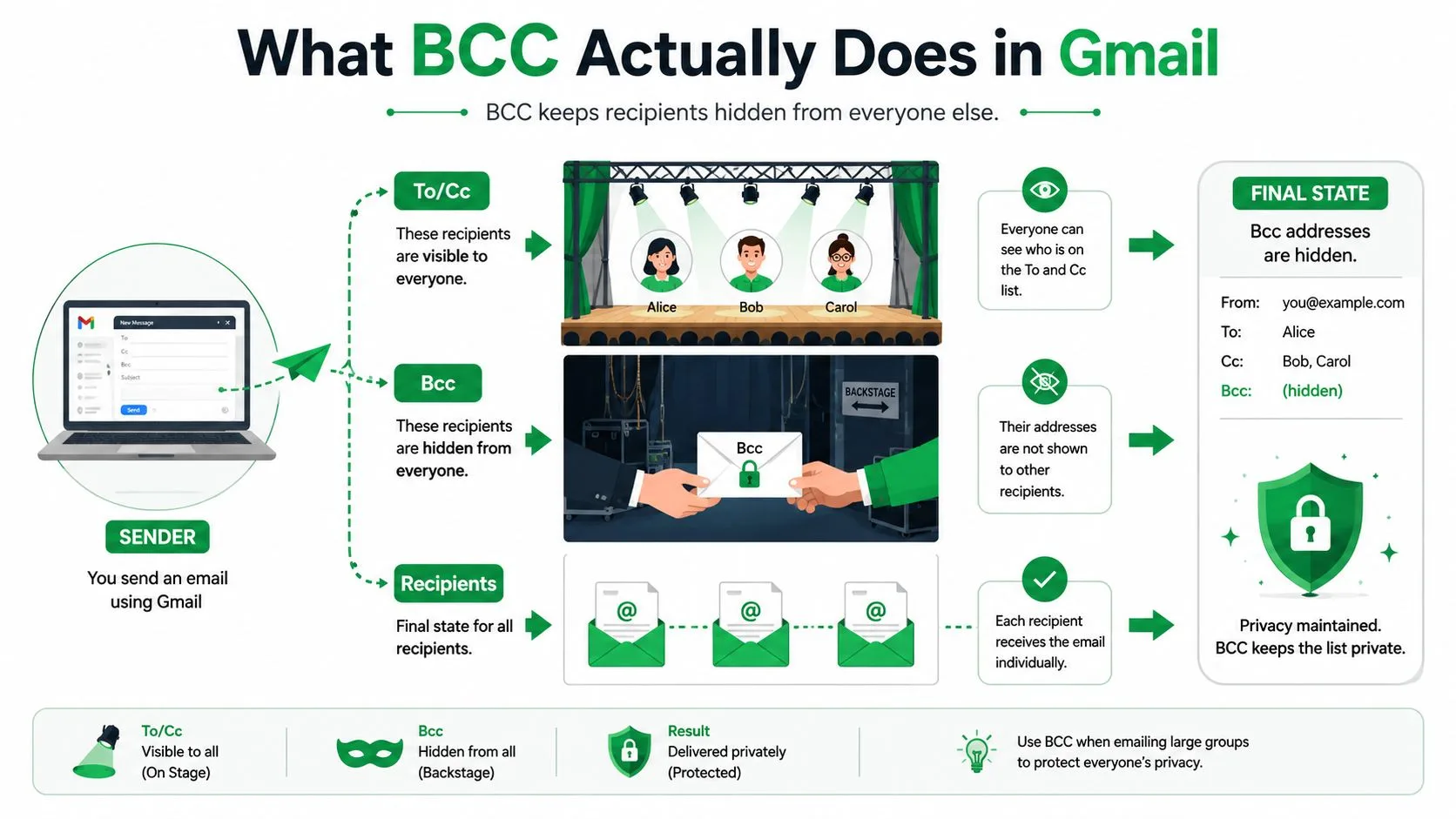
That server-side separation is why BCC works consistently across Gmail and other clients. The delivered message doesn’t expose the blind list to other recipients, so the privacy stays intact unless the sender shares it later.
A lot of people assume BCC is just “hidden CC.” It’s more precise than that. CC is visible copying, BCC is concealed distribution. The difference sounds small, but it changes the social meaning of the message completely.
Gmail’s BCC logic is simple, but the privacy outcome is strict, hidden recipients stay hidden from everyone except the sender.
BCC Compared with To and Cc
The easiest way to choose the right field is to stop treating them like synonyms. They serve different jobs, and if you use them interchangeably, the thread gets confusing fast.
To vs Cc vs BCC at a glance
| Field | Visibility | Typical use | Reply-all risk |
|---|---|---|---|
| To | Visible to all recipients | Primary people who need to act or respond | Normal visible thread behavior |
| Cc | Visible to all recipients | Stakeholders who should see the message but may not need to act | Higher, because everyone sees the list |
| BCC | Hidden from all other recipients | Privacy-preserving distribution and undisclosed copies | Lower for visible recipients, but hidden list still exists for sender |
The decision rule is pretty plain. Put the main actor in To. Put visible observers or stakeholders in Cc. Put recipients in BCC when the point is to keep the list private. That last part matters because BCC is private from everyone else on the email, including other BCC recipients, which is the behavior many casual users don’t realize until they need it.
The hidden-list part also changes how reply-all behaves. If someone can’t see the blind-copied recipients, they can’t easily pull them into the visible thread later. That’s useful when you’re protecting addresses, but it can also leave you with a thread that looks simple while hiding a lot of actual distribution behind the scenes.
For a broader sending pattern, the safest mental model is this. To is for the people doing the work. Cc is for the people who need the context. BCC is for people who need the message without the public roster. If you want a second reference on multi-recipient sending patterns, this guide on how to send an email to multiple recipients fits neatly with that distinction.
How to Send a Blind Copy on Web and Mobile
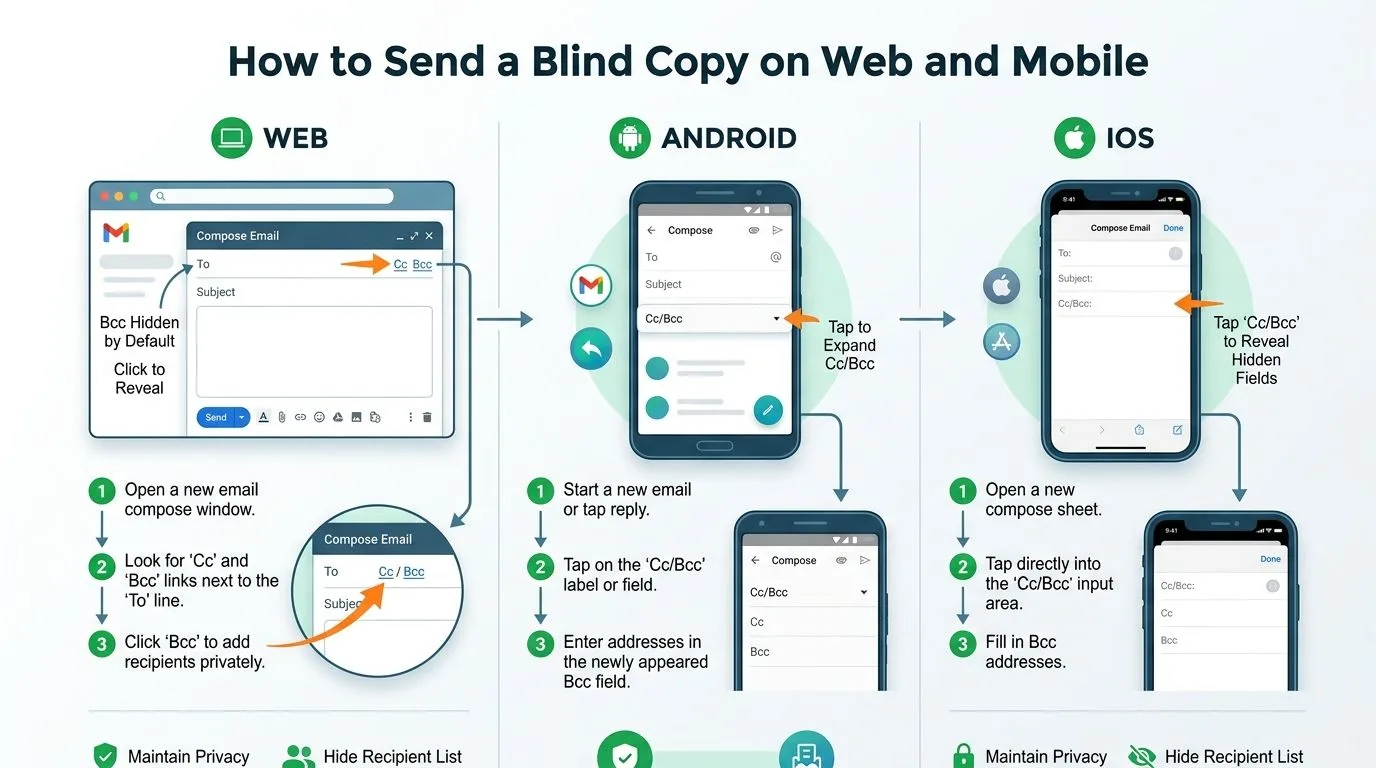
On Gmail desktop, the workflow starts in Compose. The BCC field sits near To and Cc, and you reveal it before or while entering recipients. That’s the fastest path when you’re working from a laptop or desktop browser and want to build the message once instead of sending the same note over and over.
On Android and iOS, Gmail hides that field a little deeper. You open compose, tap the recipient line controls, and use the dropdown or Cc/Bcc option to reveal the blind field. The tap order can feel slightly different between devices, but the goal is the same, expose the recipient options, enter the hidden addresses, and send.
Here’s the part that saves time later. After the message is sent, open it in Sent mail and inspect the message details. Gmail keeps the sender’s record there, which is the only easy way to confirm who was blind copied. If you’re handling recurring outreach, that record matters a lot more than people expect.
Practical rule: If you can’t explain who was blind copied later, you probably need a better contact workflow.
A simple habit helps here. Save recurring blind-copy recipients in Contacts or in a group label so you’re not retyping the same list every time. That’s not glamorous, but it cuts mistakes and makes repeat sends feel less fragile.
The Hidden Trade-Off Between Privacy and Accountability
BCC protects contact privacy, but it doesn’t create shared visibility. That’s the trade-off that most basic guides skip. Only the sender keeps the blind list in Sent mail, so anyone else involved in the thread has no native way to see the full distribution, audit the history, or coordinate a clean follow-up.
Why that matters in real work
In recruiting, a hidden recipient might need to be looped into the next step after a candidate replies. In sales, a prospect who was blind copied on an intro can become hard to manage if the sender is no longer the only person tracking the thread. In account management, hidden recipients can make it harder to prove who was informed and when. Gmail’s own behavior gives the sender a record, but it doesn’t solve team visibility, and that’s where the workflow tension starts.
That’s why privacy and accountability pull in opposite directions. BCC is great when you’re sending a one-off update and don’t want the recipient list exposed. It’s less useful when the same message needs to be recoverable by a team, documented for handoff, or reviewed later as part of a process. For recruiters especially, that can intersect with the kind of data retention rules for recruiters that make record-keeping a real operational issue rather than a nice-to-have.
If you want to keep the conversation visible without exposing hidden recipients, a different pattern often works better. Gmail’s own user-facing guidance only gets you so far, and the practical gap is why teams end up building their own process around BCC rather than treating it as a universal answer. A separate thread about Gmail read receipts can help when you need to know whether an email was seen, but BCC alone won’t give you that visibility.
The takeaway is simple. BCC is strong on privacy, weak on shared accountability. If the message is meant to move through a team, you need a workflow that preserves both.
When Blind Copy Is the Wrong Tool for Outreach
BCC feels safe because it hides names, but hidden names don’t automatically make a message better for outreach. If you’re sending recurring sales touches, recruiting blasts, or customer-success follow-ups from a regular Gmail account, BCC can become the wrong tool very quickly.
Mailbox providers are more cautious about bulk-style sending now, and BCC doesn’t change that. It can hide the list, but it doesn’t improve deliverability, handle unsubscribes, or give you a cleaner view of engagement. A personal Gmail account sending a long blind-copy list is still just a personal account sending to many people, which is not the same thing as a proper campaign workflow.
That’s the line to draw. Use BCC for legitimate hidden distribution, like a simple internal note or a privacy-sensitive group message. Don’t use it as a substitute for a mail merge or sending platform when you need tracking, segmentation, or repeatable outreach. For group sending in Gmail, this group email guide is a better reference point than treating BCC like a shortcut for every case.
If the message is a campaign, BCC is usually a patch, not a platform.
Sales, recruiting, and customer-success teams run into this mismatch most often. They want one email to reach many people, but they also need replies, routing, and performance visibility. BCC only handles the first half cleanly.
Limits, Errors, and Quick Fixes
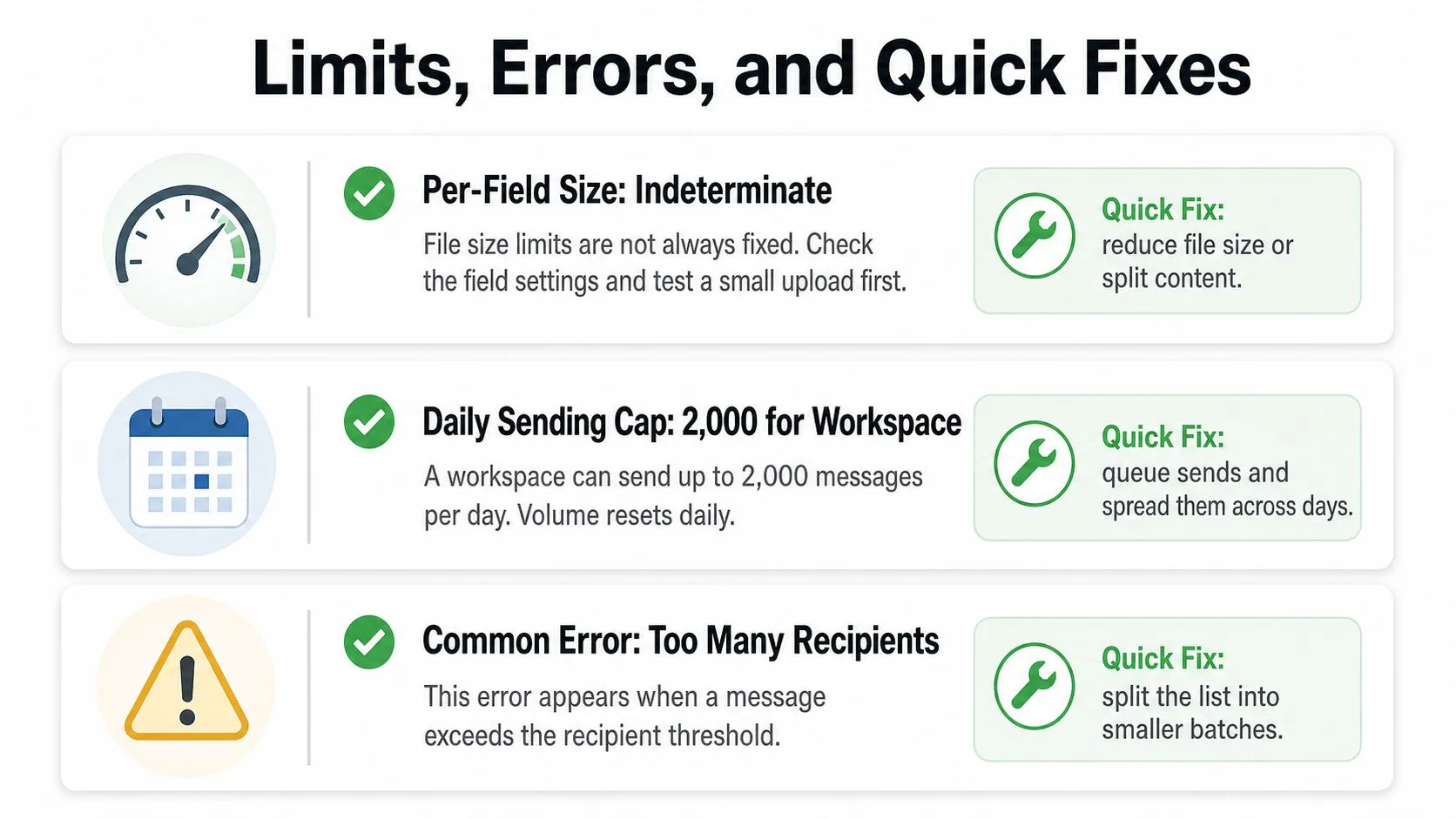
Gmail doesn’t present BCC as a neat fixed-size box with a simple ceiling. Community guidance describes the limit as indeterminate and tied to message-field size, which means the practical constraint is less about a neat number and more about how much address text the system can carry in one message field. Separate guidance for Google Workspace also notes a 2,000 daily sending cap for Workspace accounts, while community discussion points to the field limit being flexible in practice. Google community guidance on BCC limits
That means the errors you’ll run into usually look boring on the surface and annoying underneath. A pasted list may fail because a spreadsheet introduced hidden characters. A duplicate entry may make one person receive the message twice. A large send may stop because the combined recipient load pushed the account beyond its daily sending threshold.
Three common fixes
- Hidden characters in pasted addresses: If a message bounces right away, strip the list into plain text first. Remove line breaks, spaces, and spreadsheet junk before pasting into BCC.
- Duplicate recipients: If one person gets two copies, check whether they appeared in both a visible field and the blind field, or twice inside the same list.
- Sending failure on a large send: If Gmail refuses the message, split the list into smaller batches and review whether the total daily activity has already been used up.
Gmail does notify the sender about delivery problems, so failed sends don’t just disappear into the ether. The practical move is to check your sent and error feedback promptly instead of assuming the message went out cleanly.
Blind Copy Best Practices and Quick Answers
A good BCC habit starts with intent. If the recipient expects privacy and the sender wants a cleaner list, BCC makes sense. If the message needs visibility, accountability, or a handoff, use a more open structure and keep the hidden-copy trick out of it.
A practical checklist
- Confirm expectation first: Blind copying works best when nobody will be surprised by the privacy model.
- Keep Sent mail as the record: The sender’s copy is the best audit trail available inside Gmail.
- Use BCC for one-off privacy: Hidden distribution works well for a discreet announcement or a protected list.
- Pair it with tracking when needed: If your real goal is to know who opened the message or followed up, use a separate tracking workflow instead of assuming BCC covers that.
- Avoid secret inclusion in active conversations: If someone should know a third party is involved, say so openly.
Mail Tracker for Gmail is one option for that separate tracking layer. It adds read receipts and open notifications inside Gmail, so you can see when a sent message is opened without relying on blind-copy hacks for visibility.
Quick answers
Does BCC survive forwarding? Not in a reliable, visible way for other recipients. The hidden list is part of the sender’s copy, not the delivered view.
Can reply-all reveal the blind list? Not by itself in Gmail’s normal behavior, because hidden recipients aren’t exposed in the visible recipient header.
Can recipients see that BCC was used? They can usually tell the message was sent with hidden distribution patterns, but they don’t see the blind list itself.
Should BCC be your default for every group email? No. Use it when privacy is the point, not when the thread needs open coordination.
If you want a cleaner way to know whether your Gmail outreach is being opened, Mail Tracker for Gmail gives you read receipts and real-time open notifications inside the Gmail interface. If you’re already using BCC to protect privacy, Mail Tracker for Gmail can help you add visibility without turning hidden-recipient email into a guess.
Ready to track your emails?
Add Mail Track for Gmail from the Google Workspace Marketplace and know the moment your emails are opened. Free and unlimited.
Add to GmailMore reading
More from Comparisons

Best Browser Extension for Gmail: 2026 Comparison
Find the best browser extension for Gmail in 2026. Compare features, pricing, and performance to boost your email productivity.
How to Send an Email to Multiple Recipients in Gmail
Learn how to send an email to multiple recipients in Gmail on web and mobile. Master To, Cc, and Bcc, personalize at scale, and track opens.
Free Email Trackers for Gmail: What to Expect and What to Avoid
Most free email trackers cap your opens, show ads, or leak data. Here is what a good free tracker delivers, and why Mail Track for Gmail stays free.