
How to Send an Email to Multiple Recipients in Gmail
Learn how to send an email to multiple recipients in Gmail on web and mobile. Master To, Cc, and Bcc, personalize at scale, and track opens.
You’re staring at a Gmail compose window with a list of names in front of you, and the question isn’t whether you can send one email to multiple people. It’s whether you should. A recruiter updating candidates, a sales rep following up after a webinar, or a customer success manager nudging a small account list all face the same choice, visible group email, hidden recipients, personalized mail merge, or tracked individual sends.
That decision matters because email has been a multi-recipient channel since 1971, when Ray Tomlinson modified ARPANET mail systems so one message could go to more than one recipient, which set the logic behind modern group delivery and reply-all behavior history of reply-all. Today, that same basic design lives inside Gmail and Outlook, only with more safeguards because a simple send can spread errors as easily as coordination.
The Real Choice Behind Sending One Email to Many People
A mid-morning inbox scramble usually starts with urgency, not strategy. A recruiter has 40 candidates to update. A sales rep wants to nudge 25 prospects after a webinar. A founder needs to announce something to a small customer list before lunch. At that point, the temptation is to paste addresses and hit send, but the better move depends on what the message is supposed to do.
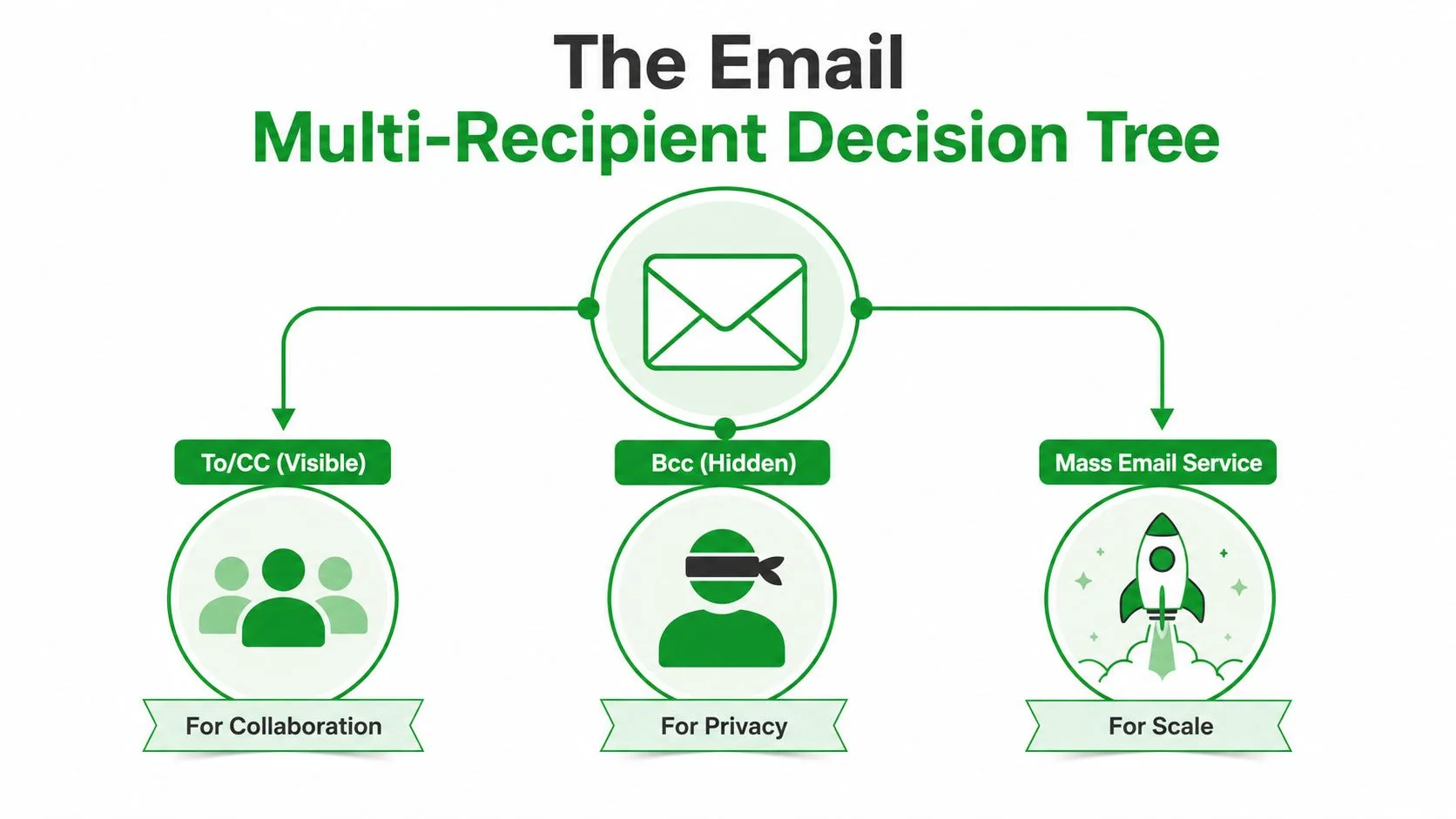
The four workflows people actually use
To or Cc works when visibility is the point. Everyone can see the list, so it fits collaboration and internal updates where people already know one another. Bcc hides the roster, which is useful when privacy matters more than interaction. Mail merge sends individualized copies, so each recipient feels like they got a separate note instead of a broadcast. A tracked sequence goes one step further, it helps you see who opened what and when you should follow up.
Practical rule: if the recipients need to see one another, use visible fields. If they shouldn’t, don’t pretend a single thread is private just because the names are hidden.
That’s the choice behind how to send an email to multiple recipients in Gmail. You’re not just typing addresses. You’re choosing between transparency, privacy, personalization, and timing.
A single multi-recipient email is fine for a team that already works together. It’s a bad fit for prospecting, recruiting, or anything where one awkward reply-all could create noise. If the goal is a one-off announcement, Bcc makes sense. If the goal is individualized outreach, a mail-merge workflow is the cleaner path. If the goal is follow-up discipline, a tracked send is usually the smarter move.
Using To, Cc, and Bcc in Gmail on Web and Mobile
Gmail keeps the mechanics simple, but small mistakes are where people get burned. On desktop, open Compose, type the main recipient in To, then click Cc or Bcc when you need them. Gmail and similar clients treat commas as the clean separator, so a pasted list gets split into individual addresses instead of one broken string, which is exactly what you want when you’re moving fast.
The desktop habit that saves most mistakes
The safest workflow is to draft first, then add addresses last. Paste hidden recipients into Bcc only after the body is finished, then check each address before you send. That matters because the privacy problem isn’t just theoretical, it’s the practical difference between a controlled send and a thread that exposes your list.
For a deeper playbook on using Gmail for link outreach and list-based sending, Press Release Zen’s email tactics is a useful reference point. It’s especially helpful if you already live inside Gmail and want to keep the workflow simple.
Gmail power users do the same thing every time, draft, verify, then paste the recipients into the right field at the end. That sequence prevents the classic “wrong field, wrong exposure” mistake.
Mobile works, but it’s not where you want to improvise
On the Gmail app for Android or iOS, the same logic applies. Open a draft, expand the recipient fields, and use Bcc when recipients shouldn’t see one another. The interface is smaller, which is exactly why people should avoid trying to build a giant recipient list on the phone while distracted.
The main difference is mental, not technical. On mobile, people tend to send too early because the message feels done. In practice, the final check matters more on the phone than on desktop because one mis-tap can expose the entire list or send a message before the addresses are right.
To is for a primary owner or a small visible group. Cc is for transparency. Bcc is for hidden delivery when privacy is the priority. If you can’t explain why each field is there, you’re probably using the wrong one.
Choosing Between To, Cc, and Bcc for Real Scenarios
A project update to five teammates is easy. Put the people who need to act in To, and copy anyone who needs visibility in Cc. That keeps the thread honest. Everyone sees who’s involved, and nobody has to guess why they were included.
A client introduction is different. If one person is supposed to make the introduction and another just needs to stay in the loop, Cc works because the relationship is part of the message. If you don’t want the recipients to see a broader list, Bcc is the safer route, especially for announcements where the audience shouldn’t know one another.
| Field | Who Sees the Address | Best Use |
|---|---|---|
| To | Everyone on the email | Action owners, direct recipients, small groups |
| Cc | Everyone on the email | Visibility, coordination, manager oversight |
| Bcc | Recipients do not see one another | Private announcements, hidden lists, one-off outreach |
The rule of thumb that keeps you out of trouble
To for action owners, Cc for transparency, Bcc for quiet reach.
That rule covers most real-world sends. A team update belongs in To and Cc because collaboration is the point. A formal introduction uses Cc when visibility is expected. A customer-list announcement usually belongs in Bcc because the recipients don’t need each other’s addresses.
There’s also a hybrid pattern that Gmail users lean on when they want to avoid reply-all chaos. Put your own address in To, put everyone else in Bcc, and send one message that doesn’t invite a visible group thread. That works for a one-off note, but it doesn’t turn a blast into a personalized email. It only hides the list.
If the message would feel awkward in a reply-all thread, it probably shouldn’t start in one.
The privacy stakes are real, too. Exposing recipient addresses can create trust issues fast, especially when the group includes clients, candidates, or prospects who never asked to be displayed to one another. Visible fields are a collaboration tool. Bcc is a concealment tool. They are not interchangeable.
Personalizing Bulk Sends with Mail Merge in Gmail
When the same note has to reach dozens of people, plain Bcc starts to feel lazy fast. It hides the list, but it doesn’t make the email feel like it was written for the reader. That’s where mail merge earns its keep, because each person gets a separate message with their own name, company, or other fields dropped into place.
In Gmail, the cleanest setup usually starts in Google Sheets. Build one row per contact and one column per field, then create a Gmail draft with placeholders like {{First Name}} and {{Company}}. If you need a workflow reference for list building, how to create a mailing list from scratch is a practical internal guide to keep handy.
Why mail merge beats a Bcc blast for medium-sized sends
A Bcc blast is one body sent to many hidden recipients. Mail merge generates separate copies, so the message can stay private while still feeling personalized. That difference matters for outreach, recruiting, and customer communication, because a generic message to a cold list gets ignored faster than a note that names the reader and references their context.
If you want help on the people side of this work, Upwork email marketing freelancer is a useful starting point when you need outside support for setup or list hygiene. It’s not about outsourcing judgment, it’s about getting a repeatable system in place when outreach volume gets annoying to manage by hand.
The Gmail template workflow that actually holds up
Start with a clean sheet. Use clear column names, keep the email column free of duplicates, and make sure the first-name field is consistent before you merge anything. Then draft the email in Gmail, insert your placeholders, and send a preview to yourself first so you can catch broken fields or awkward formatting before the entire list sees it.
Gmail’s native tools are fine for medium-sized personal sends, but they get clumsy if you’re trying to treat a spreadsheet like a full outbound system. If the list is getting larger, or if the message needs follow-ups and tracking, a dedicated sequence tool starts making more sense than a manual merge. Mail merge is a bridge, not a forever solution.
Deliverability and Privacy Risks of Large Bcc Sends
Bcc feels safe because it hides the list. That’s only half the story. A long Bcc send from a regular Gmail account can still create deliverability headaches, and those problems show up later when normal one-to-one mail starts landing poorly. Google and Yahoo also tightened expectations for bulk senders, including stronger authentication and easy unsubscribing, which raises the cost of pretending a mass send is just a normal email send email to multiple recipients individually.
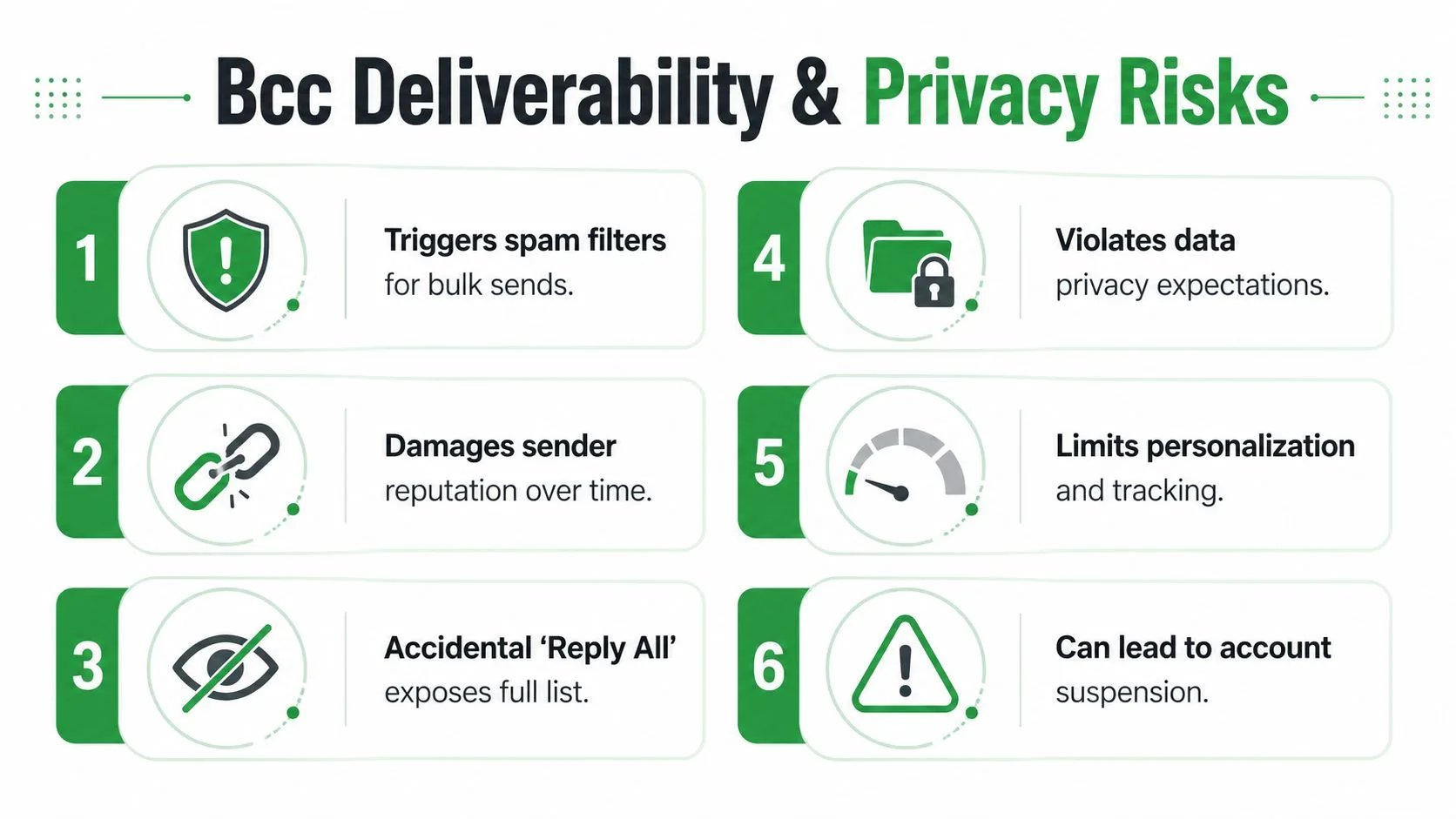
Why the simple method can become the expensive one
Mailbox providers look for patterns, and a single identical message going to many hidden recipients looks a lot like bulk mail. That’s not the same as saying every Bcc send is bad. It means volume, repetition, and lack of personalization make the message harder to trust.
A regular Gmail mailbox is fine for small sends. It’s not the right tool when the pattern turns into recurring outreach, customer campaigns, or anything that needs opt-out handling and reputation management. That’s where a structured mailing list, Google Groups, Groups.io, AWeber, or another dedicated service becomes the cleaner move, especially when you want confirmed opt-in and controlled visibility expert alternatives for mass email.
The hygiene habits that protect your account
Practical rule: if the send would be embarrassing to explain to support, it’s probably too large for manual Bcc.
Warm the sending address before volume rises. Keep the list clean. Respect unsubscribes. If the domain is already sending significant outreach, use structured tools instead of asking a normal inbox to behave like a mailing platform. A manual Bcc doesn’t give you the reporting, controls, or trust signals that a proper email system does.
For a deeper look at the ethics side of visible tracking and recipient expectations, does email tracking compromise ethics is worth reading before you decide how much visibility you want on your sends. The main lesson is simple, privacy problems rarely stay isolated. One sloppy send can affect how people treat your next message.
Tracking Opens and Timing Follow-Ups with Mail Tracker for Gmail
Sending the message is only half the job. The part that saves time is knowing who opened it, so you can follow up while the thread is still warm. Mail Tracker for Gmail adds open counts, double check marks, per-message timestamps, and push notifications inside Gmail, so you don’t have to guess whether a recipient saw the note Mail Tracker for Gmail.
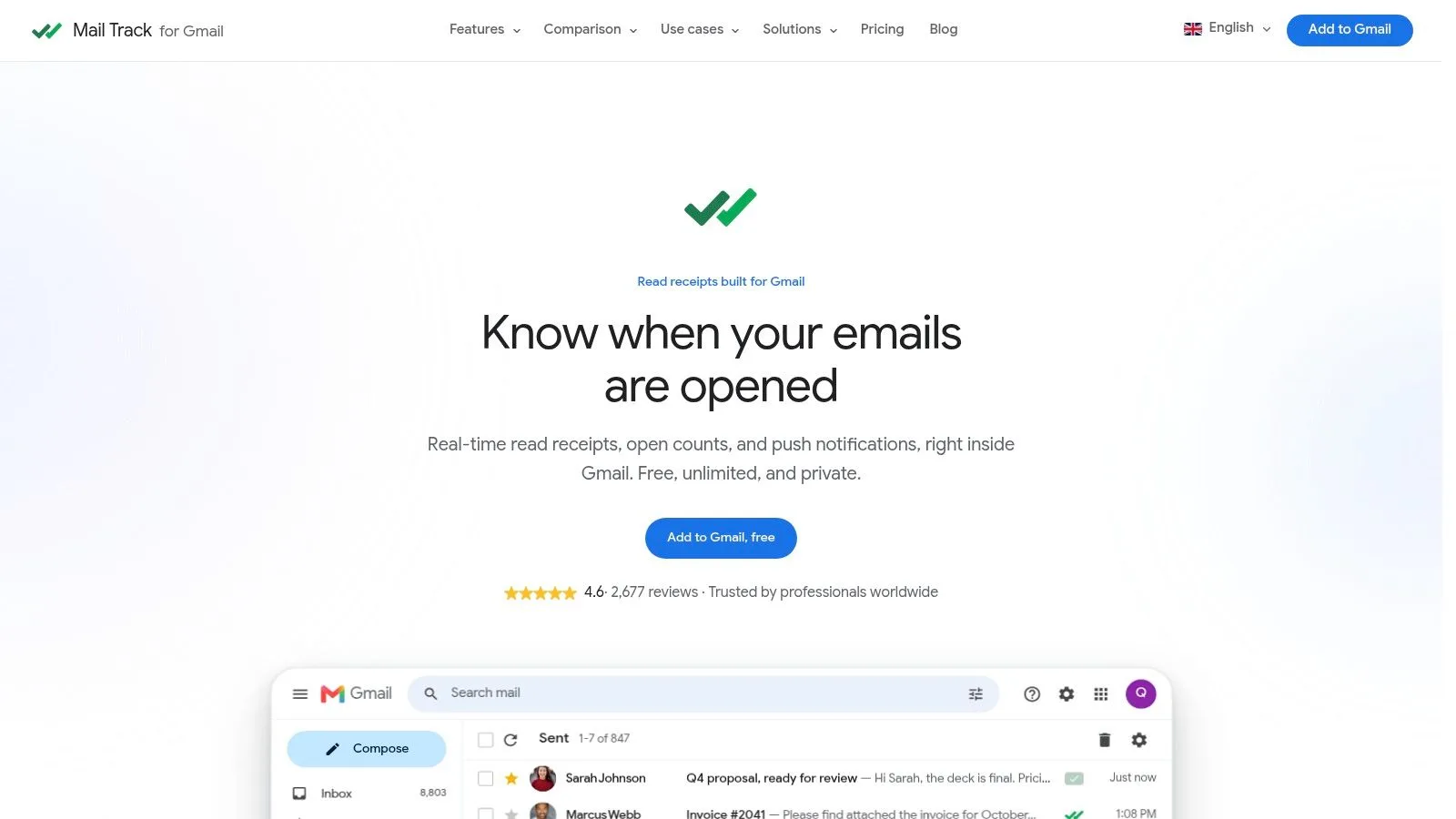
How the tracking workflow fits inside Gmail
Install the add-on from the Google Workspace Marketplace, then send as usual from Gmail. The tracking indicators appear inside the inbox, which means the workflow stays close to where the sending happens. That matters for high-volume outreach because the less context switching you do, the faster you can sort leads, candidates, or clients by actual engagement.
Mail Tracker for Gmail holds a public 4.6 out of 5 rating from more than 2,677 reviews on the Google Workspace Marketplace, with the Premium subscription priced at approximately 2.99 dollars per month and a lifetime license at 99.99 dollars one-time. It integrates directly into Gmail on web and mobile, so it doesn’t require a separate app Mail Tracker for Gmail.
What the visible and invisible options change
The free plan includes a visible tracking signature, which can be fine when transparency matters. Premium adds an invisible tracker, which is the better fit when the recipient shouldn’t see an obvious sign that tracking is enabled. That choice matters in sales and recruiting, where the recipient’s comfort level can shape whether they respond.
The useful part isn’t the icon, it’s the follow-up timing. A message that was opened five minutes ago deserves a different next step than one that hasn’t been touched at all. Once you can see the open history, your next action gets easier to prioritize.
If you want a deeper setup walkthrough, email tracking for Gmail shows how the tracker fits into Gmail without making the workflow feel bolted on. For anyone sending multiple recipients regularly, tracking helps turn a crowded inbox into a real follow-up queue.
A Quick Decision Checklist Before You Press Send
The fastest way to avoid a bad multi-recipient send is to slow down for thirty seconds before you hit send. Decide whether the message is a conversation or a broadcast. Then ask whether the recipients should see one another, whether the message needs personalization, and whether the send should be tracked for follow-up.
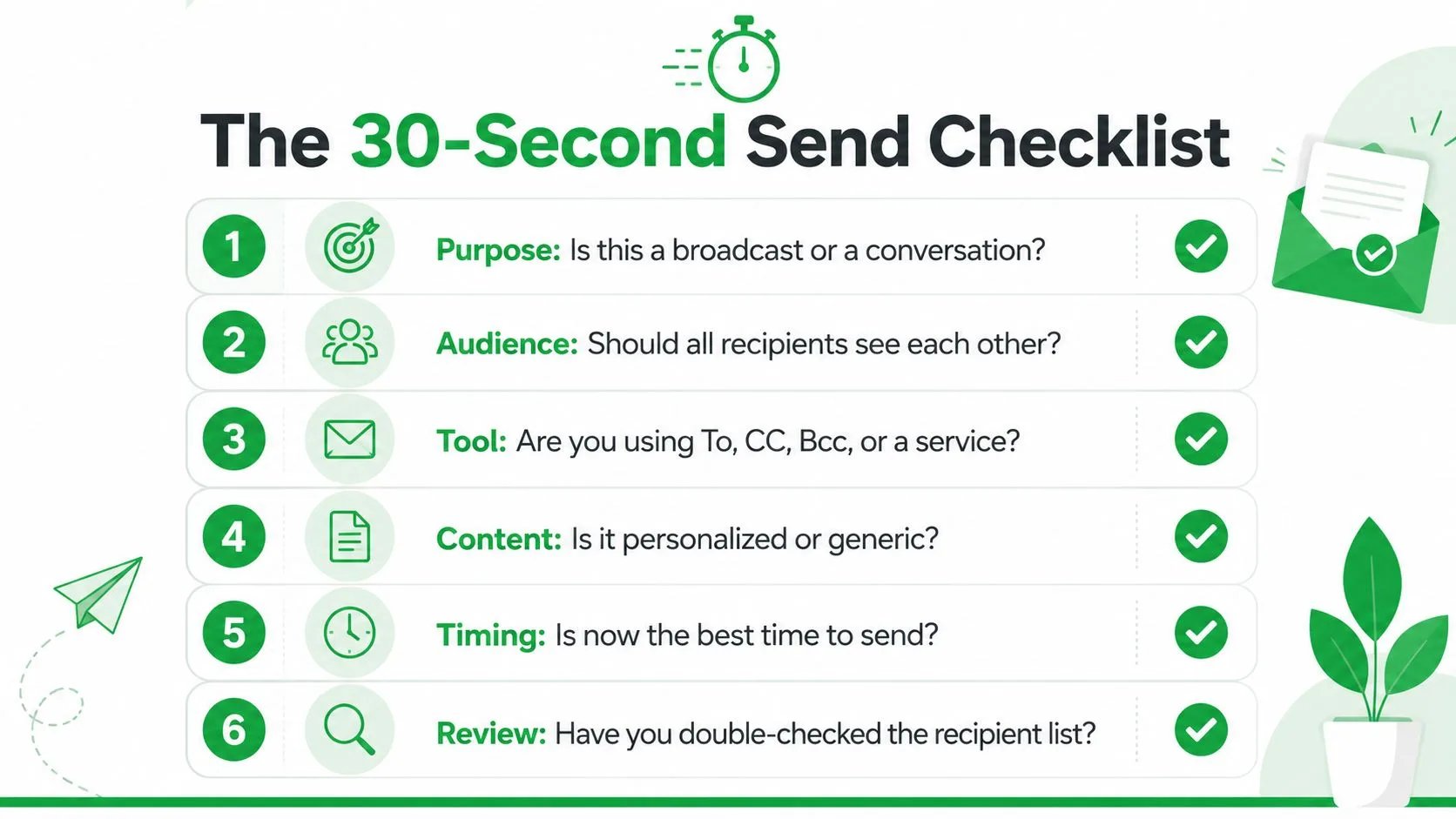
The checklist that keeps Gmail sends sane
- Purpose: Decide whether this is a broadcast or a conversation. A visible thread is fine for coordination, but it’s the wrong shape for private outreach.
- Audience: Check whether all recipients should see each other. If not, Bcc or a separate-send workflow is the safer choice.
- Tool: Match the field or service to the job. To, Cc, Bcc, mail merge, or a dedicated sender each solves a different problem.
- Content: Ask whether the message reads generic or personal. If the body needs names, companies, or custom details, mail merge is usually the better fit.
- Timing: Send when follow-up makes sense. If the thread needs monitoring, tracking gives you a better shot at replying while attention is still high.
- Review: Double-check the recipient list before sending. Most bad email mistakes aren’t strategy problems, they’re list problems.
If you’re handling a small internal update, the right answer is usually simple. If you’re mailing prospects, candidates, or customers, the choice gets more serious because privacy and deliverability both matter. That’s why the same Gmail inbox can support a quick Bcc note, a thoughtful mail merge, or a tracked outreach send, but only if you choose the right tool for the job.
If you send multiple-recipient email often, start by tightening the field choice, then move on to privacy, merge logic, and tracking. Try Mail Tracker for Gmail on your next outreach batch, watch which messages get opened, and use that signal to follow up faster, cleaner, and with a lot less guessing.
Ready to track your emails?
Add Mail Track for Gmail from the Google Workspace Marketplace and know the moment your emails are opened. Free and unlimited.
Add to GmailMore reading
More from Comparisons

Best Browser Extension for Gmail: 2026 Comparison
Find the best browser extension for Gmail in 2026. Compare features, pricing, and performance to boost your email productivity.
Gmail Blind Copy: What It Is and How to Use It Well
Learn how Gmail blind copy works, how to send BCC on web and mobile, etiquette rules, privacy trade-offs, and best practices for outreach workflows.
Free Email Trackers for Gmail: What to Expect and What to Avoid
Most free email trackers cap your opens, show ads, or leak data. Here is what a good free tracker delivers, and why Mail Track for Gmail stays free.