Mail Tracker for Gmail
Tutorials

How to Send a Group Email in Gmail: A 2026 Guide

Learn how to send a group email in Gmail using Contact Labels or Google Groups. Our guide covers privacy, best practices, and tracking engagement.

MT
Mail Track for Gmail Team
#how to send a group email in gmail#gmail group email#google contacts label#google groups#email tracking
How to Send a Group Email in Gmail: A 2026 Guide

You’re probably here because you need to send one email to a lot of people, and you don’t want to rebuild the recipient list from scratch every time. Maybe it’s a project update, a recruiting outreach batch, a client announcement, or a note to a volunteer group. Gmail can handle that. The part most tutorials skip is what happens after you hit send.

Sending the message is only half the job. If you’re doing any kind of outreach where follow-up matters, you also need to know which recipients engaged so you can respond intelligently instead of guessing.

The Challenge of Sending Group Emails in Gmail

Gmail gives you two practical ways to handle group email.

The first is Contact Labels in Google Contacts. This is the quick option. You build a reusable list of people, then insert that list into a new email when you need it. It works well for small teams, client clusters, interview panels, or any list you manage personally.
The second is Google Groups. That’s a different tool with a different purpose. It creates a permanent group address and a more formal group structure, which makes sense when you’re managing a larger audience, shared discussions, or a long-running mailing list.

Users often prioritize convenience when picking a method. That’s understandable, but it overlooks the crucial trade-off. The right method depends on how many people you’re contacting, whether privacy matters, and whether you need to track individual engagement afterward.

Practical rule: If you just need a reusable recipient list, use Contact Labels. If you need a durable shared address with membership management, use Google Groups.

There’s also a third layer that matters in real work. You may need to know not just whether the email went out, but who read it. That matters for sales follow-ups, hiring pipelines, customer updates, and stakeholder communication. A group send without engagement visibility often creates more work, not less, because you still have to figure out whom to follow up with.

That’s why learning how to send a group email in Gmail isn’t only about list creation. It’s about choosing a sending method that fits what you need next.
The Quick Method Using Contact Labels

Contact Labels are the fastest way to send a group email in Gmail. They’re simple, built into the Google ecosystem, and easy to maintain when your list changes.

A person using a laptop to manage Google Contacts while sitting at a wooden desk with coffee.

Create the label

Start in Google Contacts, not Gmail.

  1. Open Google Contacts from the Google app launcher.
  2. Select the contacts you want in the group.
  3. Click the Label icon.
  4. Create a new label, such as Project Team, Sales Prospects, or Book Club.
  5. Save it.

You can also create the label first in the Labels section and then add or remove contacts later. Google’s own support flow for reusable Gmail groups follows that pattern through Labels in Google Contacts and then inserting the selected recipients into the compose window through the contact picker, not by inventing a separate group address (Google support guidance for label-based group emailing).

Insert the label correctly

Many people find this part confusing.

Don’t rely on Gmail autofill by typing the label name directly into the address bar and hoping it resolves cleanly. The cleaner workflow is to click into the To field, choose My Contacts, select the label, then click Insert. That forces Gmail to populate the actual addresses tied to the label.

That method is also the one most often recommended in step-by-step tutorials because it’s predictable and easy to repeat. If you’re still building your list, this guide on creating a mailing list from scratch is a useful companion.

When labels work well

The main strength of labels is speed. You can keep a personal list current without setting up any extra infrastructure or permissions.

According to Tech Advisor’s Gmail group email walkthrough, using Labels in Google Contacts is the most efficient step-by-step method, with a 98% delivery success rate for lists under 100 recipients, while that success rate drops to 72% for lists exceeding 500 because Gmail’s anti-spam systems can flag heavy mass sends.

That matches what experienced Gmail users already notice in practice. Labels are great for smaller recurring groups. They’re less comfortable when the list gets big enough to look like bulk mail.

If you need to send personalized emails at a larger scale without manually rebuilding recipient lists, a tool like Mail Merge for Gmail can help bridge the gap between simple contact labels and full mailing list infrastructure.

If you’re tightening your contact process overall, a stronger contact management setup can also boost business efficiency, especially when the same people move between campaigns, projects, or account stages.

Here’s a quick way to think about labels:

  • Best for small reusable lists: internal teams, advisors, clients, candidates, or community members you contact regularly.
  • Easy to edit: add or remove people in Google Contacts without rebuilding the whole list.
  • Good fit for individual follow-up: because the recipient list lives in your contacts, not in a separate group system.
  • Weak for privacy by default: if you insert everyone into the To field, all addresses are visible unless you handle BCC properly.

A short visual walkthrough helps if you want to see the flow in Gmail and Contacts:

The Scalable Method with Google Groups

When the list stops feeling personal and starts feeling operational, Google Groups becomes the better tool. This isn’t just a shortcut for filling the recipient field. It’s list management.

A comparison chart showing differences between Personal Contact Labels and Google Groups for email communication scalability.

What Google Groups changes

A Google Group gives you a single permanent address for the whole list. Instead of selecting individual contacts each time, you send to one address, and Google handles delivery to the current membership.

That matters because the address stays constant even when members change. You don’t have to rebuild the list every time someone joins or leaves. Google also preserves group identity and message history, and it offers privacy controls that can be configured for public, anyone, or restricted access.

Google states that Google Groups supports unlimited members per group with no cap on invitations, direct additions, or approved joiners. That makes it the natural fit for department-wide announcements, large communities, shared calendars, and durable communication channels.

When to choose it

Google Groups makes more sense than Contact Labels when:

  • Membership changes often: HR lists, department mailers, alumni groups, support communities.
  • You need a stable address: one address that keeps working even as the people behind it change.
  • You want shared history: archived threads are useful for audit trails and context.
  • You need permissions: posting rights, join policies, and privacy settings matter.

Google Groups is closer to a managed mailing list than a personal address shortcut.

There’s one setting that matters if you want group conversations to stay visible to everyone. Some group replies can go back privately to the original sender rather than staying in the group thread. If the goal is transparent group discussion, admins need to adjust the group configuration so private replies to the topic author aren’t allowed. A practical explanation of that behavior appears in this Google Groups reply setting discussion.

Contact Labels vs Google Groups

FeatureContact LabelsGoogle Groups
Setup stylePersonal contact organizationManaged group address
Best use caseSmall, direct recipient listsLarge, ongoing list management
Membership changesEdited in Google ContactsManaged at the group level
Address permanenceNo dedicated group addressYes, one persistent address
Shared archiveNoYes
Permission controlsMinimalStronger group-level controls
Tracking suitabilityBetter for individual follow-up workflowsBetter for broad distribution

If your need is scale and continuity, Google Groups is the stronger method. If your need is targeted outreach and later follow-up, labels usually keep you closer to the actual recipients.

Protecting Privacy and Ensuring Deliverability

Most group email mistakes aren’t technical. They’re workflow mistakes.

The biggest one is exposing everyone’s address to everyone else. If you’re emailing clients, candidates, customers, or any mixed audience, you should assume that visible recipient lists are a privacy problem unless there’s a reason to make them public.

Use BCC on purpose

A privacy-first send in Gmail usually means putting your own address in To and the actual recipients in BCC. That keeps addresses hidden from the rest of the group.

The problem is that many users know the idea but not the workflow. One cited source says a 2025 Pew Research Center study found that 73% of professionals are concerned about privacy breaches in group sends, while only 12% know the correct BCC workflow for Gmail groups (referenced here). Whether you treat that as formal research or as a signal of user confusion, the practical gap is real.

Here’s the workflow that avoids most errors:

  1. Draft the email.
  2. Put your own address in To.
  3. Open the recipient picker instead of relying on quick autofill.
  4. Insert the contact list addresses, then move them into BCC if needed.
  5. Double-check that no one remains exposed in To or Cc.

If your team is thinking more broadly about email safety, not just address exposure, it’s worth understanding the basics of stopping BEC attacks, since business email compromise often exploits weak internal habits around trust and message handling.

Deliverability breaks when the send looks sloppy

Privacy isn’t the only issue. Deliverability drops when a message looks like bulk mail shoved through a personal inbox.

Common causes include:

  • Too many visible recipients: a crowded To field looks risky to filters.
  • Lists that are too large for the method: Contact Labels aren’t ideal for very large sends.
  • Overly promotional formatting: heavy images, aggressive wording, and link-stuffed copy can hurt deliverability.
  • Unclear tracking expectations: if you’re using open tracking, you also need to think through user consent and communication norms. This discussion on whether email tracking compromises ethics is useful if your team is setting a policy rather than making one-off choices.

Keep group emails plain, relevant, and segmented. Gmail is more forgiving when the message looks like normal correspondence instead of a blast.

A short list sent thoughtfully will usually outperform a giant mixed-audience send stuffed into the To field.

Beyond Sending Track Group Email Engagement

This is the part most Gmail tutorials leave out.

You build the group. You send the message. Then you wait and guess. That’s a weak workflow if your job depends on timing. Sales reps need to know who’s warm. Recruiters need to know which candidates saw the note. Client teams need to know who engaged before they escalate.

One cited source says 42% of group emails sent to stakeholders go unopened, and it highlights the gap between creating the group and tracking engagement afterward (source reference). That gap is why group email workflows often feel incomplete.

What individual engagement changes

If you can see individual opens, your follow-up gets sharper.

You can:

  • Prioritize active recipients: reply first to the people who have already looked at the message.
  • Avoid blind nudges: don’t resend the same note to someone who hasn’t had a chance to open it yet.
  • Spot timing patterns: some contacts open immediately, others only in certain windows.
  • Separate list quality from message quality: if nobody opens, the subject line or audience may be wrong. If only some people open, the next move is more targeted.

A useful side tool here is an AI email subject line guide when the issue is getting the initial message opened rather than tracking what happened after delivery.

Why method choice matters for tracking

Tracking works very differently depending on how you send the message.

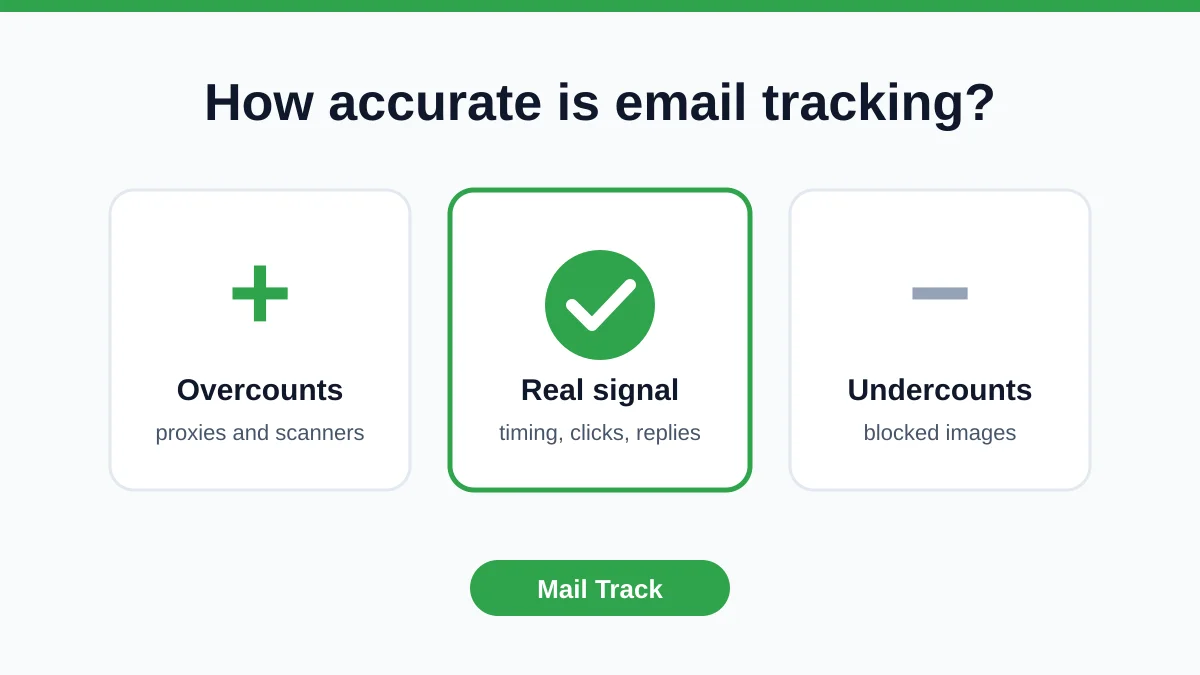
If you email a Google Group address, the group forwards the message onward. According to this discussion of tracking on Google Groups emails, that makes the tracking data useful only for understanding how many opens happened, not who opened it.

That’s the key limitation. Google Groups is built for distribution, not recipient-level engagement analysis.

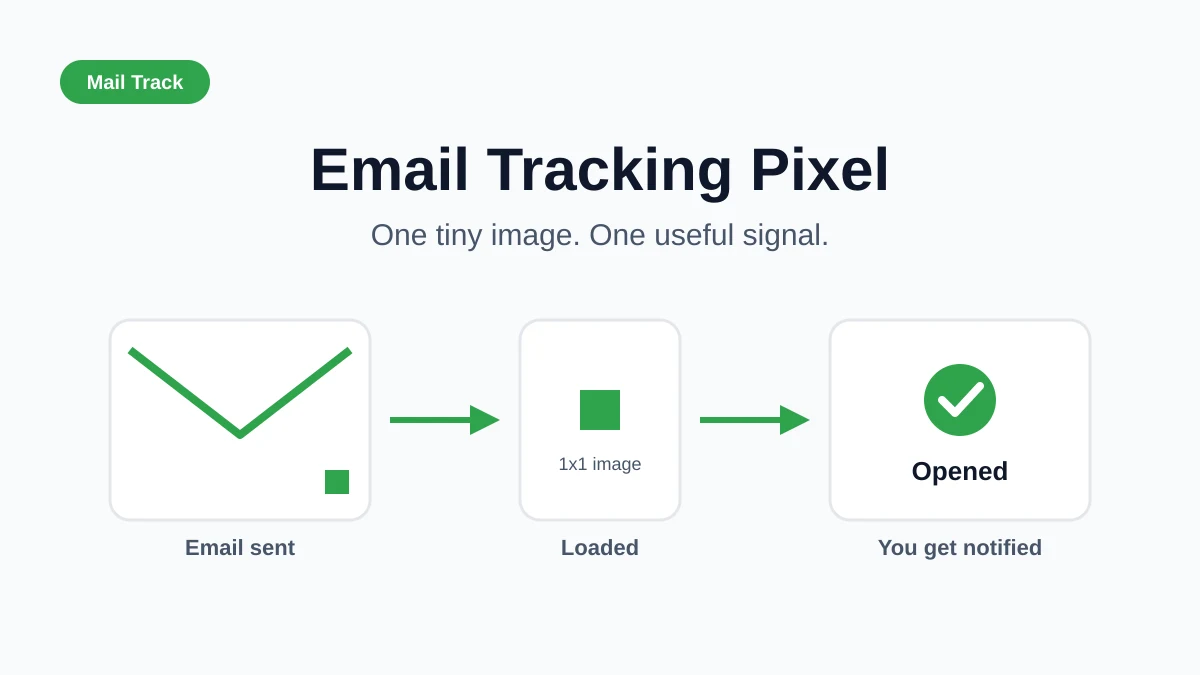
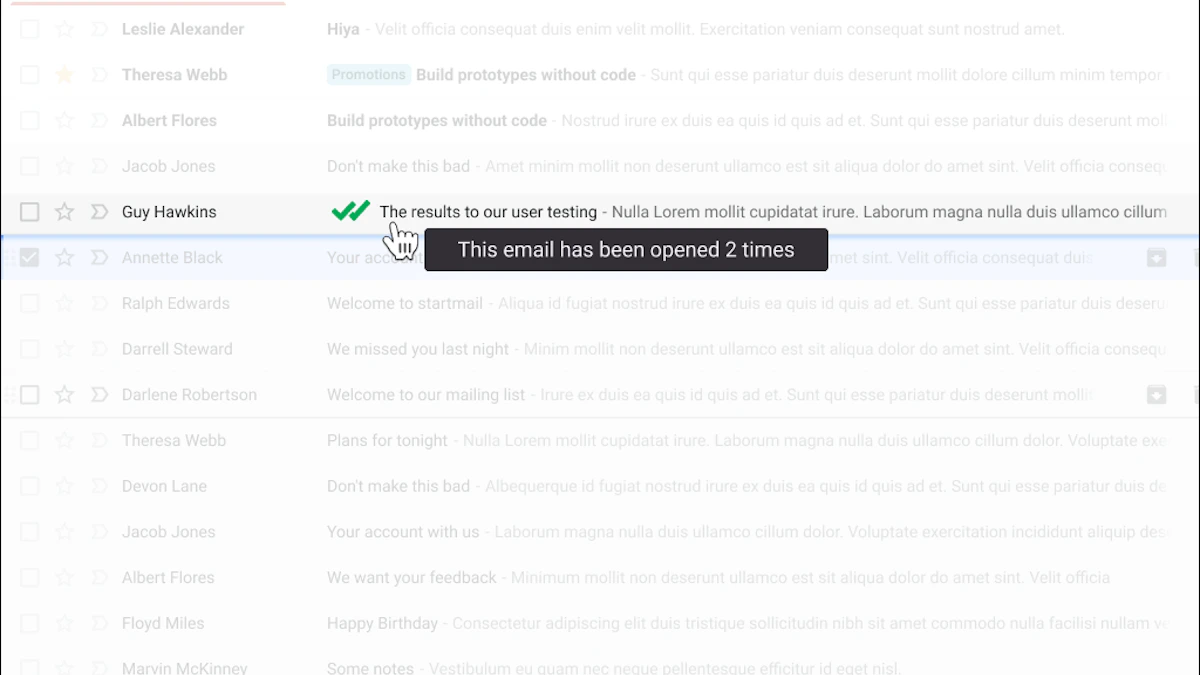
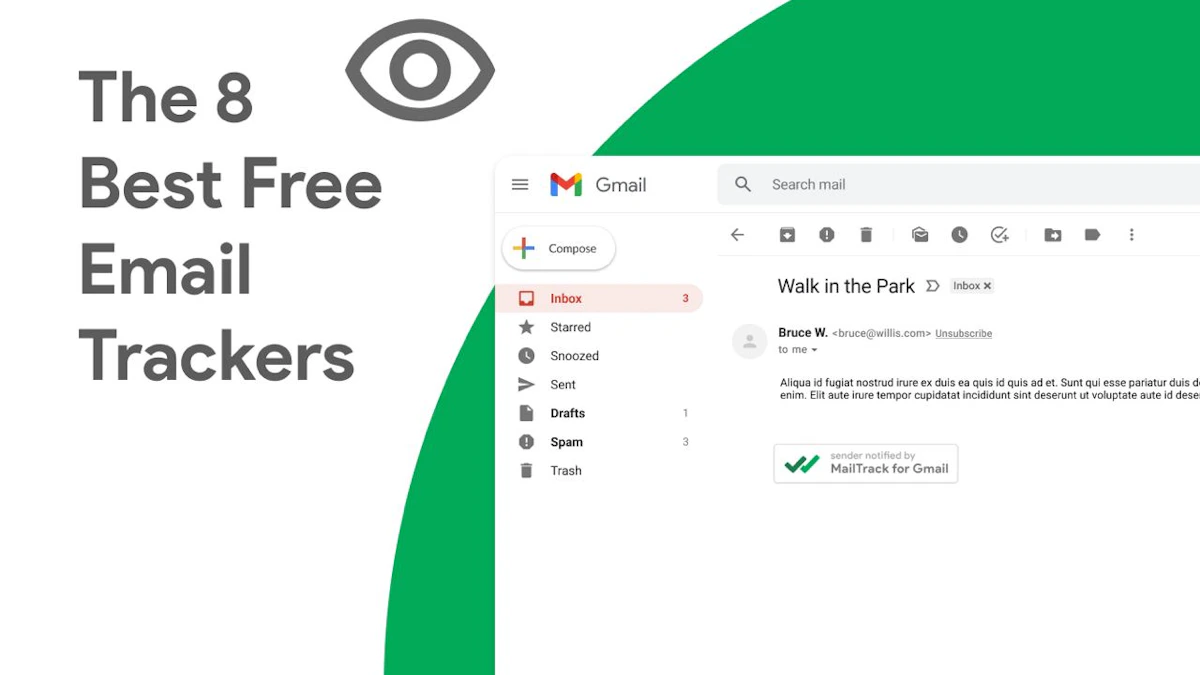
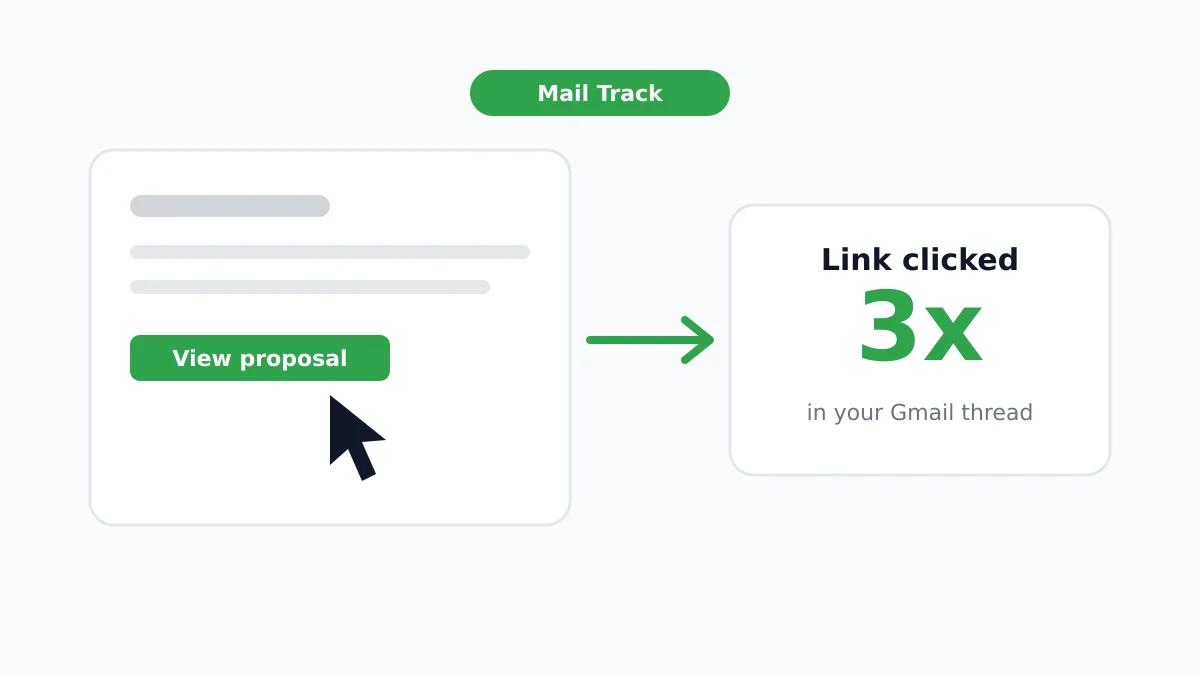
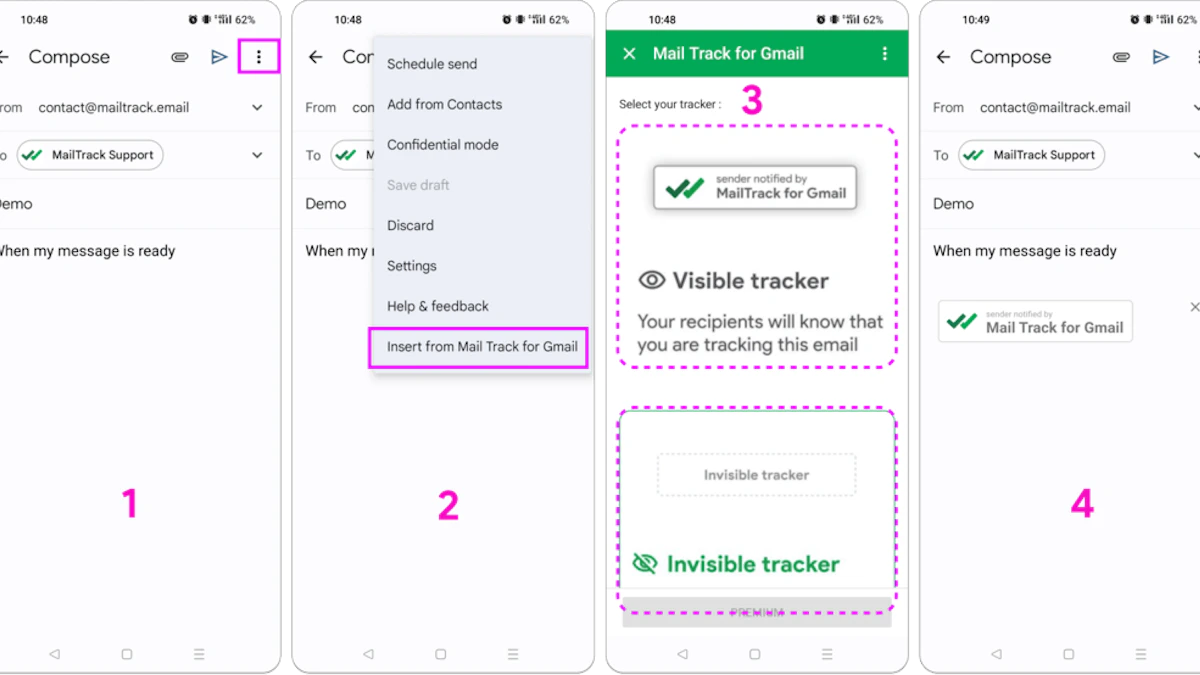
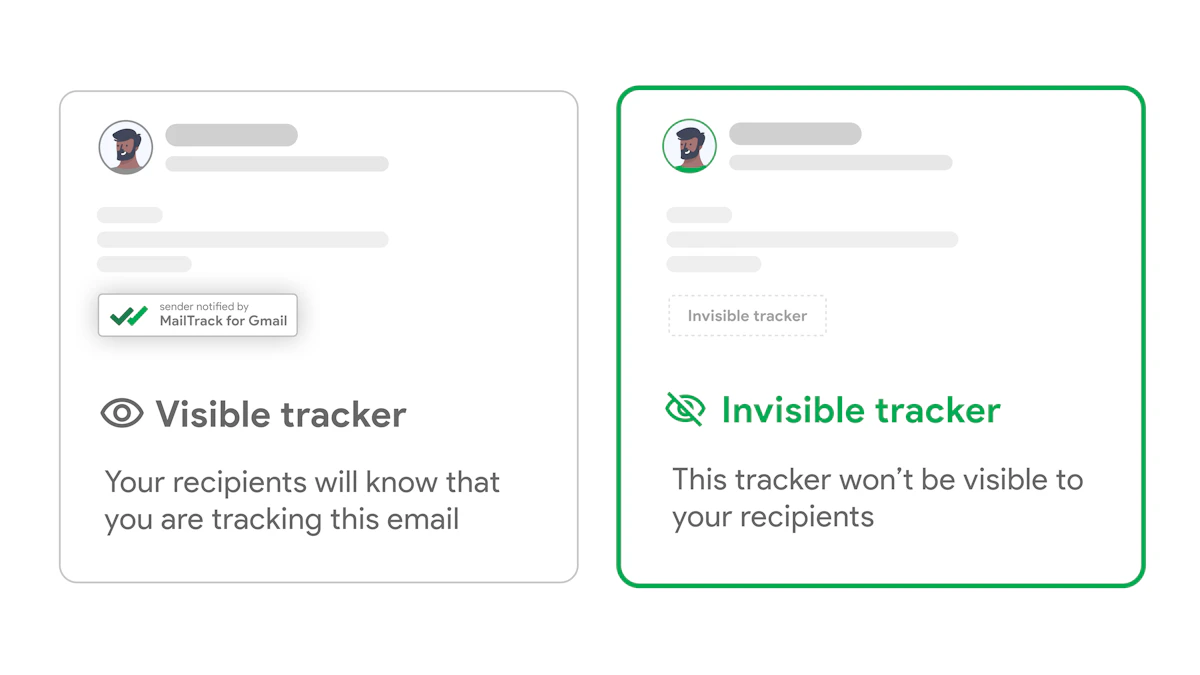
If you want to see engagement at the individual level, the label-based route is the better foundation, especially when paired with a Gmail tracking tool that records recipient opens per message. One example is Mail Tracker for Gmail, which adds read receipts and open notifications inside Gmail so you can see activity per sent email instead of treating the whole group as one opaque send.

Screenshot from https://mailtrack.email

Send method decides tracking quality. If the message goes to one group address, your visibility narrows. If recipients receive separate messages, follow-up gets more precise.

That’s why the answer to how to send a group email in Gmail depends on what you need after send. If you only need delivery, several methods work. If you need individual engagement data, your setup has to preserve recipient-level visibility.

Troubleshooting Common Group Email Problems

Even clean setups fail sometimes. Usually the symptoms point pretty clearly to the cause.

A chart showing common group email troubleshooting problems and their respective solutions for better email delivery.

Emails are delayed or fail to reach the full group

If you’re using Google Groups for high-volume delivery, quota limits may be the issue. Google Groups enforces a maximum rate of 5,100 recipients per minute and a daily ceiling of 7,400,000 recipients for taskqueue-based sending, according to this Google App Engine Groups discussion. When a send pushes beyond those limits, delays or errors can follow.

Try this instead:

  • Break up large sends: stagger them instead of pushing everything at once.
  • Check timing: a burst can fail even when the daily total is fine.
  • Use the right method: don’t force personal-style sending onto large operational lists.

People say they never received the message

This is often a list hygiene issue, a spam-folder issue, or a group settings issue.

Start with the basics:

  • Confirm the addresses: old or mistyped contacts are still the most boring and common failure point.
  • Review group membership: in Google Groups, make sure the intended recipients are members and subscribed appropriately.
  • Look at reply behavior: if members expect group-visible discussion but replies go private, they may think the group is broken when the setting is the problem.

Formatting looks broken across recipients

Complex formatting doesn’t always survive group delivery gracefully. If the message is important, simplify it.

Use shorter paragraphs, fewer design elements, and restrained linking. If a message has to render reliably across different inboxes, simple HTML or plain text is usually safer than a heavily styled layout.

The faster a group email needs to be understood, the less design it should carry.

When troubleshooting, don’t change five things at once. Change one variable, send a small test, and confirm what improved.

Frequently Asked Questions About Gmail Group Emails

Can I send a group email from the Gmail mobile app

You can send to saved contacts from mobile, but list management is easier on desktop because Google Contacts gives you better control over labels and membership. For anything important, build or edit the list on desktop first, then send from mobile if needed.

How do I edit a Contact Label after I create it

Open Google Contacts, find the label in the left sidebar, and add or remove members there. The label name stays the same, but the membership updates for future emails.

How do I edit a Google Group

Manage it inside Google Groups, not Gmail. That’s where you change membership, posting permissions, privacy settings, and moderation behavior.

What’s the difference between Gmail read receipts and a tracking add-on

Gmail’s native Request read receipt is limited. According to this guide to Gmail read receipts, it’s available only for Google Workspace accounts, and the recipient must manually approve sending the receipt back. That means it’s unreliable if the recipient ignores the prompt or doesn’t want to confirm anything.

A tracking add-on uses a different mechanism and can provide automatic open visibility inside Gmail, which is why many teams prefer it when follow-up timing matters.

Can I track who opened an email sent to a Google Group

Not at the individual level in a useful way. If the message goes to a group address and the group forwards it, you lose recipient-specific visibility. If you need person-by-person follow-up, send in a way that preserves individual recipients.

Should I use To, Cc, or BCC for group email

Use BCC when recipient privacy matters. Use To only when everyone is meant to see the full recipient list. Most external group sends should default to BCC unless there’s a reason not to.


If follow-up matters as much as delivery, Mail Tracker for Gmail gives Gmail users read receipts and real-time open notifications directly inside Gmail, which makes it easier to see who engaged and act on that signal instead of guessing.

Ready to track your emails?

Add Mail Track for Gmail from the Google Workspace Marketplace and know the moment your emails are opened. Free and unlimited.

Add to Gmail