
How to Search Dates in Gmail Using Advanced Date Filters
Learn how to search dates in Gmail with before, after, older_than and newer_than operators, advanced search UI tips, mobile workarounds, and troubleshooting.

You’re probably staring at Gmail search right now because scrolling isn’t working. You remember the email existed. You remember roughly when it landed. You might even remember the sender. But in a crowded inbox, “roughly” isn’t enough.
That’s where Gmail’s date filters stop being a nice extra and become part of daily inbox management. If you handle contracts, client replies, hiring outreach, invoices, or follow-ups, date-based search is one of the fastest ways to cut through noise and get to the exact thread you need.
Introduction and Prerequisites
Gmail archives pile up fast. For a busy professional, the common pain point is simple: you need the message from a specific window, maybe the contract sent two months ago or the follow-up that came in last Thursday, and broad keyword searches keep pulling up everything except the email you want.
This matters even more at Gmail’s scale. Gmail processes over 4.3 billion messages daily across its global user base, which is why date-based operators such as before:YYYY/MM/DD and after:YYYY/MM/DD are so useful for pulling historical records out of huge archives, as noted in Mailmeteor’s breakdown of Gmail date search.
Before searching, make sure a few basics are in place:
- Use the right interface: Gmail date searches work best in a desktop browser when you need precise combinations. The mobile app works too, but it’s better for simpler lookups.
- Use an updated Gmail app: If you’re on Android or iPhone, update the app first so the search UI matches current options.
- Know your account context: Search inside the correct Gmail account. This sounds obvious, but it’s a common reason people think a query failed.
- Decide what you know: Date alone is rarely the fastest route. If you also know the sender, label, or a subject keyword, keep that ready.
Practical rule: Start with the narrowest fact you trust. If the date is fuzzy but the sender is certain, combine sender first and date second.
You don’t need special permissions to search your own mailbox. You just need the search bar, the right syntax, and a rough sense of time. That’s enough to make Gmail searchable again instead of scrollable.
Understanding Date Search Operators
Typing the right operator is usually faster than clicking around. When people ask how to search dates in Gmail efficiently, these are the commands that matter most.
The operators worth memorizing
Gmail supports a small set of date filters that cover most real use cases:
| Operator | Purpose | Syntax Example |
|---|---|---|
before: | Find emails before a specific date | before:2026/02/01 |
after: | Find emails after a specific date | after:2026/02/01 |
older_than: | Find emails older than a relative time period | older_than:30d |
newer_than: | Find emails newer than a relative time period | newer_than:30d |
on: | Find emails from one exact date | on:2024/05/15 |
Each one solves a different problem.
before: and after: are best when you know calendar boundaries. If you want every message before the start of February, before:2026/02/01 is clean and predictable. If you want everything after a contract renewal date, after: is easier than estimating “the last few months.”
older_than: and newer_than: are better for rolling windows. newer_than:30d is ideal for recent activity checks, while older_than:6m works well when you’re cleaning up stale threads or checking whether an old conversation ever resumed.
on: is the sharpest tool. Use it when you know the exact day and want no drift.
What works best in practice
The fastest searches usually combine date with another filter. Date alone narrows the pile. Date plus context finds the email.
Try patterns like these:
- Sender plus range:
from:alex@example.com after:2024/10/01 before:2024/11/01 - Label plus recent window:
label:clients newer_than:14d - Subject plus exact day:
subject:proposal on:2024/05/15 - Inbox audit:
in:sent older_than:6m
Most failed Gmail searches aren’t caused by missing emails. They’re caused by search strings that are either too broad or too specific in the wrong way.
A few syntax habits make a difference:
- Use the date format Gmail expects.
YYYY/MM/DDis the safest choice. - Leave spaces between operators. Gmail reads each term separately.
- Don’t stack conflicting filters.
before:andnewer_than:can work together in some cases, but they often confuse the query if you don’t have a clear reason for both. - Add context after you confirm the date works. If a search returns nothing, test the date filter alone first.
When relative filters beat exact dates
Relative operators are stronger in daily workflows because they match how people think. You usually don’t remember “March 12.” You remember “sometime in the last month” or “older than six months.”
That’s why newer_than: and older_than: are good habits for recurring review tasks, while before:, after:, and on: are better for audits, disputes, and exact record retrieval.
Using the Advanced Search UI
If you don’t want to remember operators, Gmail’s built-in advanced search panel does the same job through menus and fields.
How to open and use it
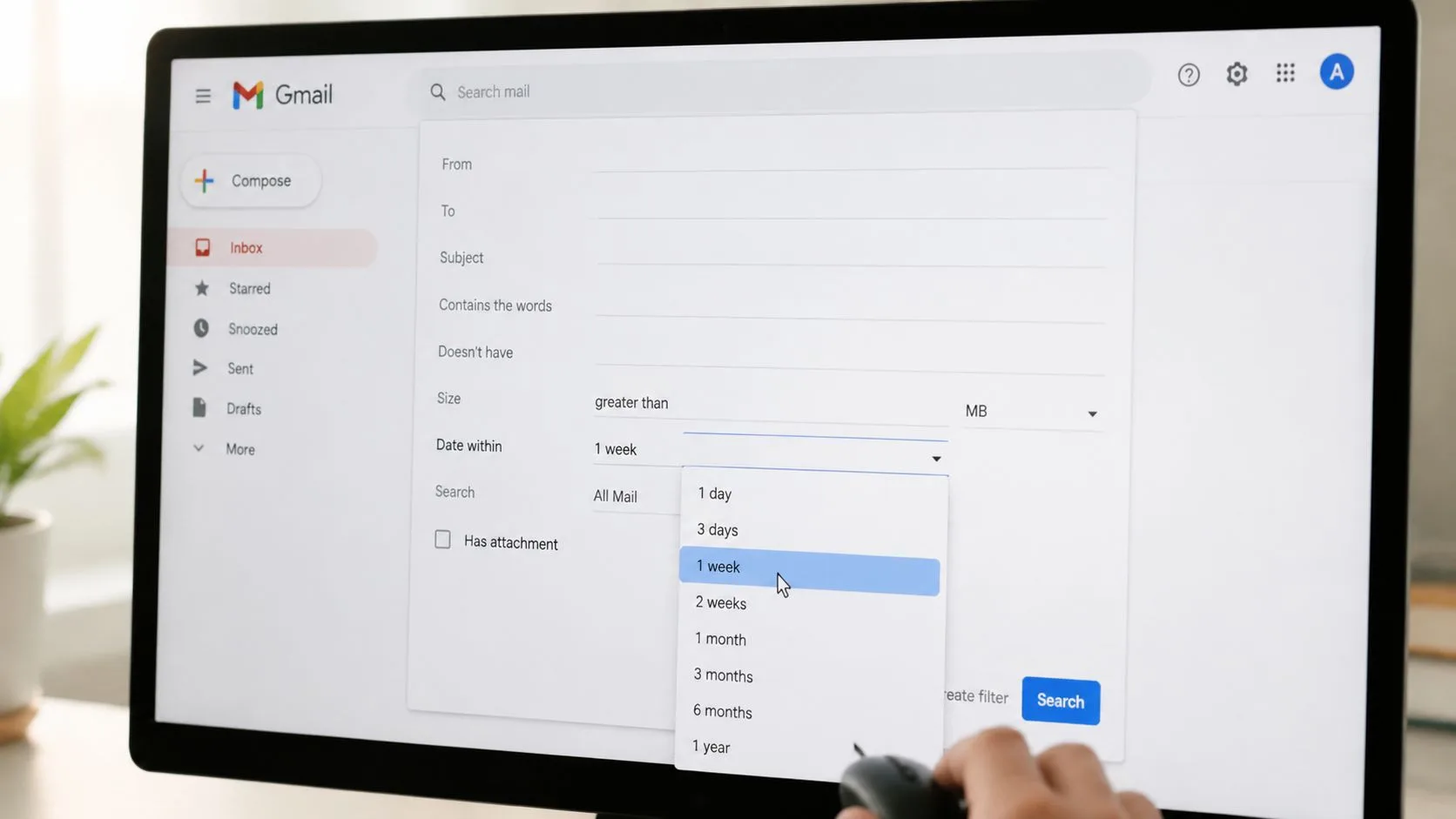
In Gmail on desktop, click the filter icon at the right side of the search bar. That opens the advanced search panel with fields for sender, recipient, subject, keywords, attachments, and date filtering.
Since Gmail’s launch in 2004, its search interface has grown to include an advanced panel with date windows ranging from one day to one year, helping business users locate older messages without manual scrolling, as shown in this Gmail search walkthrough on YouTube.
Inside that panel, the date controls are useful when you want a guided search instead of typed syntax:
- Choose a date window: Select a range such as one day, one week, one month, or up to one year.
- Anchor the range: Pick the reference date Gmail should use for that window.
- Add another filter: Sender, subject line, or “has attachment” will tighten the result set fast.
If you already organize your inbox with labels, pair the search panel with a cleaner inbox structure. Gmail automation helps a lot, and this guide to auto-labeling emails in Gmail is useful if your current setup still relies too much on manual sorting.
Where the UI is better than operators
The panel is better when you’re unsure about syntax, sharing steps with teammates, or building a search from memory. It also reduces mistakes when you’re combining several conditions at once.
The typed search bar is still quicker for repeat work. But the panel is a safer choice when precision matters and you don’t want to troubleshoot formatting.
Here’s a quick visual walkthrough before trying it yourself:
A reliable workflow
Use the panel this way:
- Start with the date window only.
- Check whether the result count feels right.
- Add sender or subject.
- Add attachment or label filters last.
That order matters. If you add everything at once and get zero results, you won’t know which field caused the miss.
Real-World Date Search Examples
Theory is useful. Real inbox problems are better. These examples show how date search works in day-to-day Gmail use.
Finding an invoice from a past billing cycle
You remember receiving an invoice a few months ago from a vendor, but not the exact subject line. The cleanest query is:
from:billing@example.com older_than:2m
That gives you older messages from that sender. If the result set is still messy, switch to a calendar range:
from:billing@example.com after:2024/12/01 before:2025/01/01
This is better when billing always happens in a predictable month.
Pulling outreach sent on one exact day
Sales and recruiting work often depends on proving when outreach happened. If you need everything you sent on one day, search:
in:sent on:2024/05/15
If you want only one campaign or one prospect group, add a keyword:
in:sent on:2024/05/15 "product demo"
That’s much faster than paging through Sent Mail.
Search by date first when timing is the issue. Search by subject first when wording is the issue. Mixing those instincts up wastes time.
Reviewing one quarter of a client conversation
For account work, quarterly reviews usually mean finding a full message trail in a specific period. A useful query looks like this:
from:client@example.com after:2024/01/01 before:2024/04/01
If you participated from multiple addresses or want both sides of the exchange, remove from: and use a distinctive phrase from the thread instead.
You can also combine labels for better control:
- Client folder review:
label:client-a after:2024/01/01 before:2024/04/01 - Attachment hunt:
label:finance has:attachment before:2024/07/01 - Proposal lookup:
subject:proposal after:2024/03/01 before:2024/03/31
Cleaning up messages after you find them
Date search is often the first step, not the last. Once you’ve surfaced the right time window, you may want to archive, relabel, or delete the clutter around it. If you’re doing mailbox cleanup after a search, this guide to mass deleting Gmail emails is a practical next move.
What expected results should look like
A good date query usually does one of three things:
- Returns a tight list you can scan in seconds
- Shows one obvious thread because the date and context match closely
- Returns nothing, which usually means the date boundary is too strict or the wrong mailbox term is included
If a query fails, broaden the window first. Don’t rewrite the whole search immediately. Often the email is there, but your date range excludes it by a day or two.
Mobile Gmail Date Search Workarounds
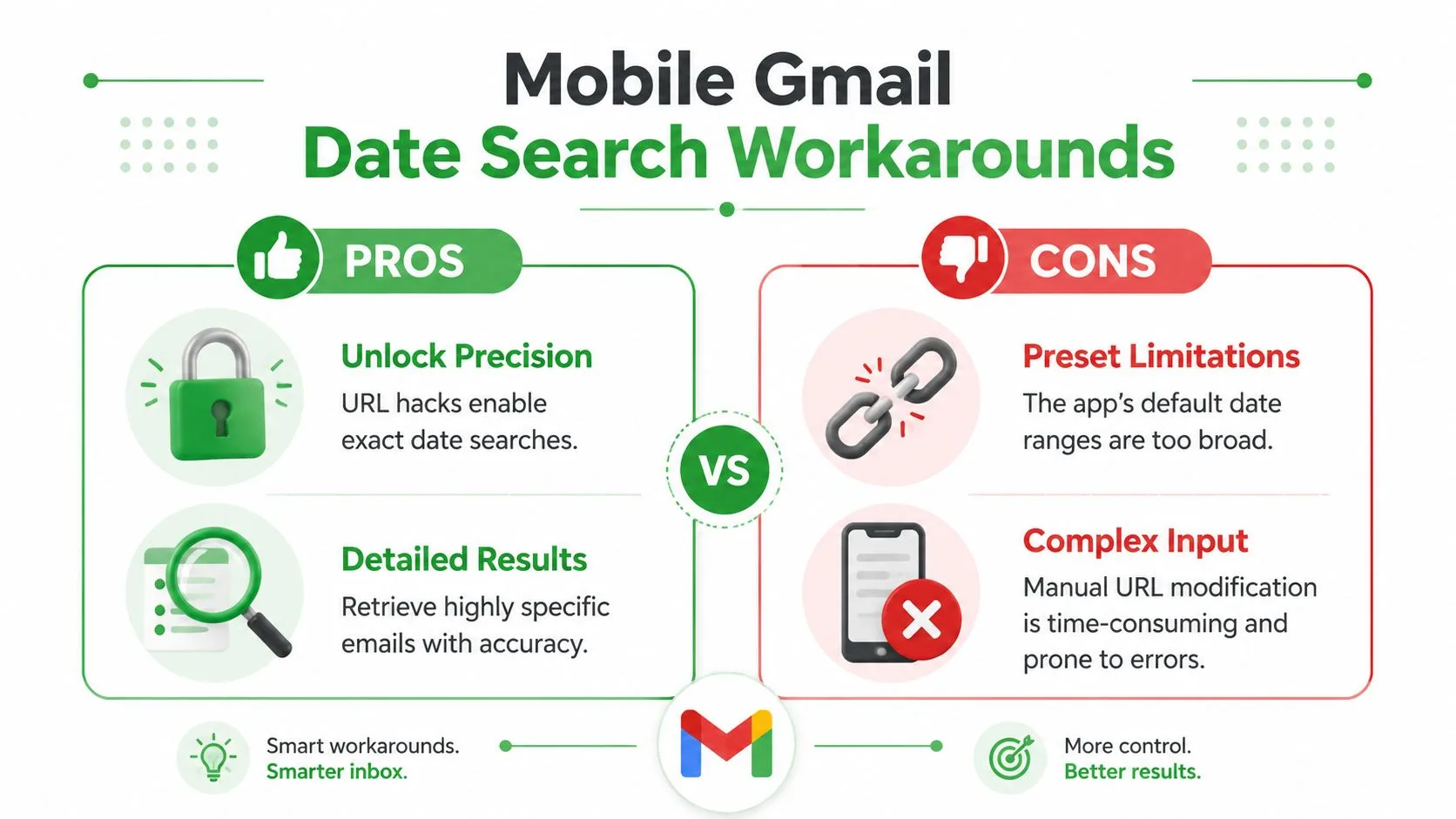
Mobile Gmail is good for quick lookups, not perfect precision. The app is convenient, but it doesn’t always expose the same detailed controls you get on desktop.
What the app handles well
On Android and iOS, Gmail includes date presets through the search interface. The app offers options like Older than a week, Older than 6 months, and Older than a year, which makes broad historical retrieval much easier on mobile, as described in this overview of Gmail’s mobile date search behavior.
That’s fine for rough recall. It’s less helpful when you need an exact day or a clean custom range.
Workarounds that actually help
The best mobile workaround is simple. Type operators directly into the Gmail search bar, even if the app doesn’t surface all of them in menus.
Try:
- Exact date:
on:2024/05/15 - Range search:
after:2024/05/01 before:2024/06/01 - Recent activity:
newer_than:30d
These often work better than relying on presets alone.
If the app still feels limiting, switch to Gmail in your mobile browser and request the desktop version for one-off complex searches. It’s clunkier, but it gives you access to the fuller search experience when precision matters.
For users who regularly search older messages on a phone, archiving matters too. A cleaner active inbox makes mobile search more usable, and this Gmail archive guide can help if your inbox is overloaded.
Mobile Gmail is best for retrieval, not query building. If a search needs three or more filters, desktop usually wins.
Troubleshooting Common Issues and Expert Tips
Most Gmail date search problems come down to a few repeat mistakes.
Fixes for common misses
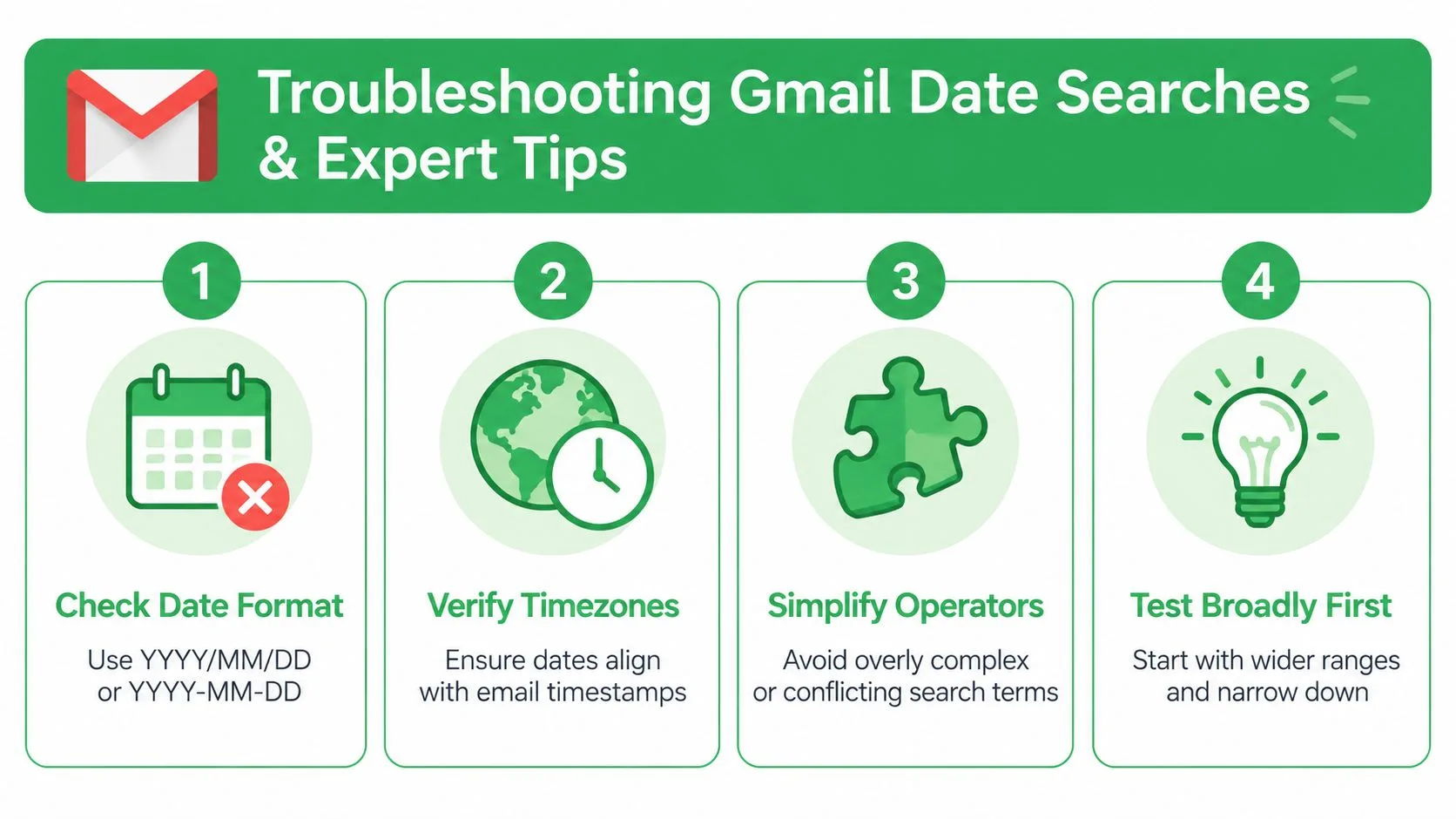
- Wrong date format: Use
YYYY/MM/DDfirst. If a query fails, simplify it to just one date operator and test again. - Timezone confusion: An email sent late at night may appear on a different date than you expect, especially across regions.
- Overloaded queries: If you combine sender, label, subject, keyword, and date all at once, one bad term can kill the whole search.
- Too-narrow windows: Start broad, then tighten.
Tips that save time in big inboxes
Use label: with date filters whenever possible. Labels cut down noise before Gmail even evaluates the rest of the query.
A second good habit is to test your date range alone, then add one extra filter at a time. That isolates errors fast.
Field note: The fastest way to debug a zero-result search is to remove everything except the dates, confirm the window works, and rebuild from there.
If you search the same periods repeatedly, save yourself work by using filters and labels for recurring projects, clients, or campaigns. Date search gets sharper when the inbox itself is structured.
Conclusion
Date search turns Gmail from a pile of messages into a workable record system. Learn the operators, use the advanced panel when typing feels slower, and keep mobile searches simple. Once date filtering becomes part of your routine, finding old email stops being guesswork and starts being fast.
If you also want to know not just when you sent an email but whether it was opened, Mail Tracker for Gmail adds read receipts, double check marks, and open timestamps directly inside Gmail on web and mobile. It’s a practical fit for anyone who lives in Gmail and needs better visibility on follow-ups.
Ready to track your emails?
Add Mail Track for Gmail from the Google Workspace Marketplace and know the moment your emails are opened. Free and unlimited.
Add to GmailMore reading
More from Tutorials
How to Track Link Clicks in Gmail (and What a Click Really Tells You)
Learn how to track link clicks in Gmail, why Gmail does not do it natively, how tracked links work and how to read clicks without being fooled by scanners.

How to Find My Contacts in Gmail: A Practical Guide
Learn how to find my contacts in Gmail on desktop and mobile. Clear steps for Google Contacts, search tips, shortcuts, and contact details from emails.
Objection in Sales Explained and How to Handle It
Learn what objection in sales really means, why it happens, and proven frameworks to handle price, timing and trust objections with confidence.