
How to Send Password Protected Email in Gmail
Learn how to send password protected email in Gmail using Confidential Mode, encrypted attachments, and secure sharing. Step-by-step methods for every scenario.
You’re about to send a contract, a tax file, or a client list, and the little Gmail send button suddenly feels bigger than usual. Regular email doesn’t give you a real confidentiality boundary, so the practical question isn’t whether the message should be protected, it’s which layer of protection fits the job without making the recipient hate the process.
In Gmail, that usually means one of four paths. You can use Confidential Mode for temporary access control, encrypt the attachment itself before sending, move to a PGP or enterprise encryption option when you need stronger message protection, or skip the attachment entirely and share a restricted file link instead. The right choice depends on what you’re trying to protect, who’s on the other end, and how much friction you can tolerate after you hit send.
Why Standard Email Falls Short for Sensitive Information
A lot of people only notice the problem when they are already staring at the compose window with something sensitive in hand. A recruiter is sending compensation notes, a small-business owner is forwarding bank paperwork, or an account manager is about to email a signed agreement, and plain email offers no meaningful control once the message leaves the outbox.
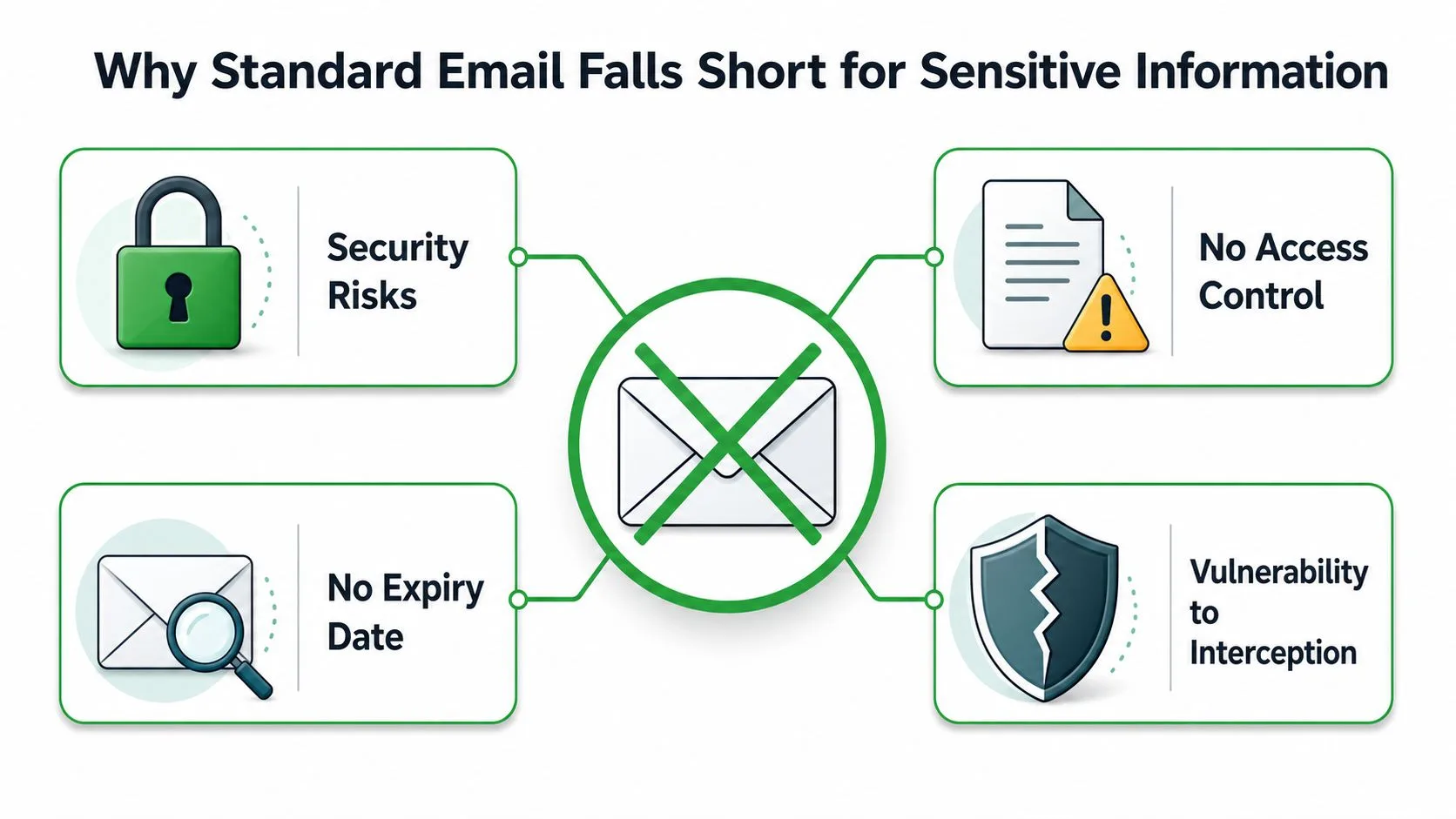
The core issue is that email was built for delivery, not confidentiality. That is why the practical options split into four buckets, access control, file encryption, managed encryption, or secure link sharing. If you are comparing methods for how to send password protected email, a useful starting point is to ask whether you need to limit viewing time, lock the file itself, enforce policy-based encryption, or avoid attachments altogether.
The four practical paths
Confidential Mode is the fastest move inside Gmail. It gives you an expiration window and can require a phone-based passcode, so it is useful when you care about temporary viewing and follow-up control rather than deep encryption.
Encrypted attachments are better when the file needs to travel with protection. If you lock the PDF or archive before it leaves your laptop, the security lives with the document instead of depending on the email platform.
PGP and enterprise encryption fit teams that need stronger message protection and can handle the setup. Microsoft’s documentation points to Microsoft Purview Message Encryption, S/MIME, and Information Rights Management, which shows how much of this work is really about managed encryption and usage restrictions rather than simple password entry.
Secure sharing links work well when the recipient should open a file in a controlled portal instead of in the email body. That is often cleaner for ongoing client work or large files that do not belong in an attachment in the first place.
If your workflow also includes cleanup after sending, there is a practical reason to think about the destination of sensitive data, not just the message path. For teams handling old records, find data destruction vendors in Atlanta can be part of the broader data-handling policy, especially when email and file retention overlap.
Practical rule: if the recipient needs to view something once and then move on, use a time-bound access method. If the file needs to stay protected wherever it goes, encrypt the file itself. If you also need to undo a mistaken send, how to delete sent emails in Gmail explains the limits of Gmail’s built-in recall window.
Using Gmail Confidential Mode for Access Control
Gmail’s built-in Confidential Mode is the quickest option when you want protection without leaving your inbox. It doesn’t feel like enterprise software, which is exactly why a lot of small businesses use it.
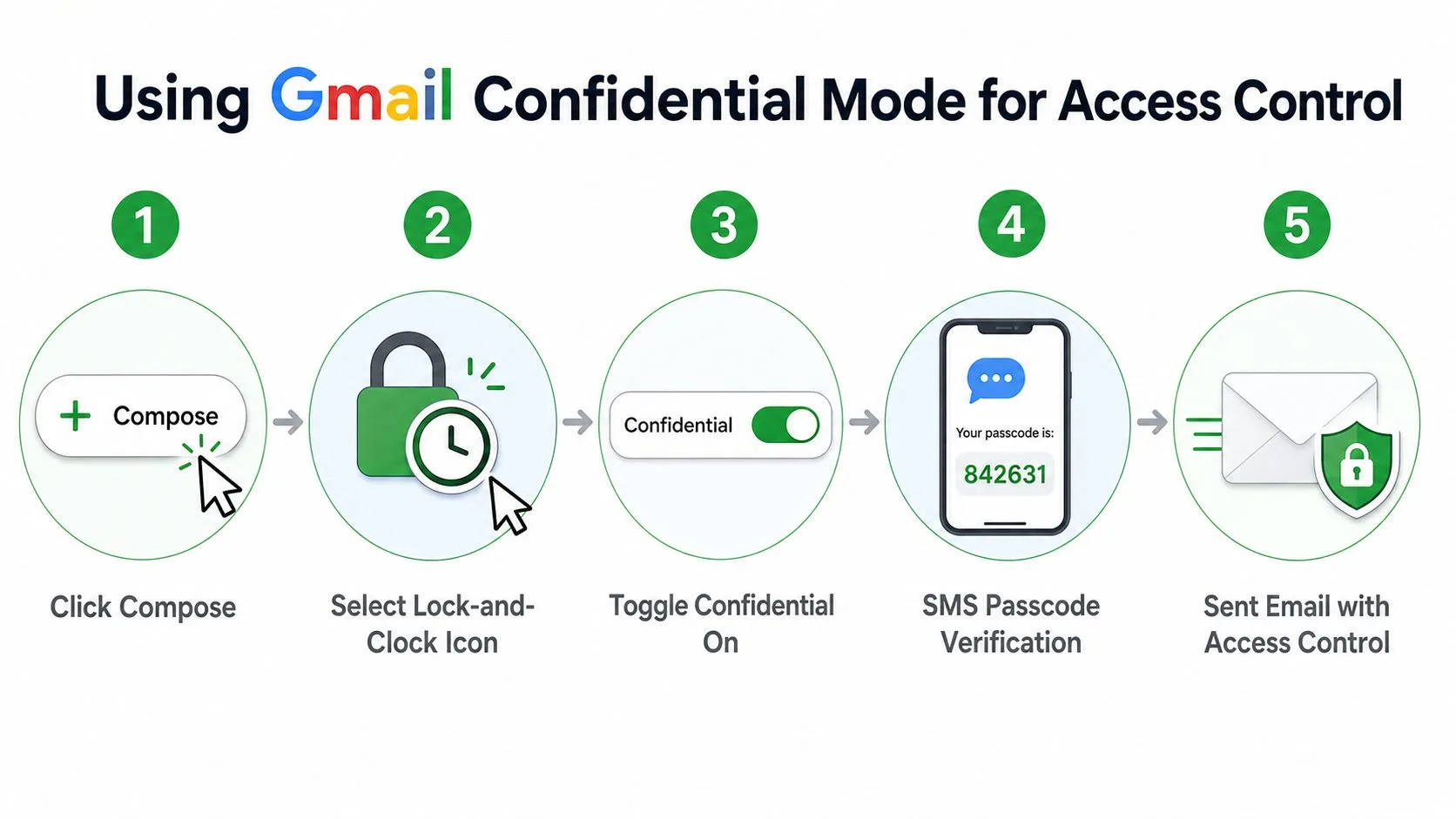
Click Compose, then select the lock-and-clock icon in the message window. From there, set an expiration window, one day, one week, one month, three months, or five years, and enable the SMS passcode option if you want the recipient to verify with a phone number before opening the message Gmail Confidential Mode video.
The recipient doesn’t get a normal message body experience. They get a link and, if you enabled the passcode, a verification step tied to the phone number you entered. That makes it a good fit for a quick proposal or a short-term client update, but it also means the workflow depends on the phone number being correct and the recipient having access to that device.
What it protects and what it doesn’t
Confidential Mode is about access control, not classic end-to-end secrecy. It’s useful because it can prevent forwarding, copying, downloading, and printing in the recipient view, but it’s not the same thing as a fully encrypted message that no provider can inspect.
That difference matters in regulated or high-sensitivity environments. If the other side can’t reliably receive a phone code, or if the document must be protected beyond Gmail’s built-in controls, this isn’t the right hammer for the job. In those cases, people usually move to attachment encryption or an enterprise policy workflow instead.
A detail many guides skip is the sender experience after the settings are saved. You need to lock in the confidential-mode choices before sending, because the protection is part of the message configuration, not an afterthought added later step-by-step Gmail guide.
If you also need to clean up mistaken sends, it helps to know how Gmail handles message recall and deletion behavior. The related workflow is covered in this guide on how to delete sent emails in Gmail, which pairs well with a confidential-message process.
Gmail Confidential Mode works best when the sender wants simple guardrails and the recipient can handle a link plus a phone check. It’s less convincing when the message itself needs cryptographic protection.
Password-Protecting Attachments Before Sending
When the attachment is the thing that needs protection, encrypt the file before it ever reaches Gmail. That shifts the security boundary from the email service to the document itself, which is a lot more dependable when you’re sending a PDF, a spreadsheet, or a ZIP archive to someone outside your usual system.
For PDF workflows, many people use Adobe Acrobat or another editor that can apply a password to the file. For Office documents, the built-in encryption options in Word and Excel are often enough for routine business use. For archives, tools such as 7-Zip, WinRAR, and macOS Finder can create password-protected .zip or .7z files, which is handy when you’re bundling several files together.
The part that actually matters
The password can’t ride in the same email as the file. If it does, you’ve handed over the lock and the key together, which defeats the point.
Independent guidance recommends a password of at least 8 characters with mixed character classes, then sending the password through a separate channel such as a phone call or another email mail encryption guidance. In practice, text message or a secure app is usually cleaner than replying in the same thread, because the recipient doesn’t have to hunt for a second message in the same inbox.
The recipient experience is less polished than Gmail Confidential Mode. They need the right software to open the file, they need the password from another channel, and they may need to understand why the file looks normal in email but won’t open until the password is entered. That friction is the trade-off for a stronger file-level protection model.
The easiest failure is also the most common one, putting the password in the message body or subject line. That makes the archive look protected while giving away the key in plain text, which is exactly the kind of mistake that gets repeated in busy offices.
If you want a practical companion workflow, this is the place to review how to send documents in a more controlled format. The related guide on how to send a document in PDF format helps when the file itself should be standardized before you encrypt it.
End-to-End Encryption and PGP Add-Ons for Gmail
Some messages need stronger protection than Gmail Confidential Mode can provide. In that case, PGP or enterprise encryption tools are the option requiring key management, because they protect the message itself instead of relying on the provider’s viewing controls.
Enterprise email protection is rarely a single setting. Tools such as Microsoft Purview Message Encryption, S/MIME, and Information Rights Management handle different parts of the problem, and S/MIME requires public keys for each recipient. That key exchange explains most of the friction. Both sides have to manage certificates or keys correctly before the message opens the way people expect.
Why the setup feels heavier
PGP and similar add-ons can provide true content encryption, but they ask more from both sender and recipient. Keys have to be exchanged, software has to be compatible, and the person on the other end has to know how to decrypt the message without asking for help.
That makes the workflow a fit for narrow cases and a poor fit for casual sending. A security-conscious partner, a technical colleague, or an internal team with IT support can handle the process. A one-off client often will not want to install anything or work through certificate steps just to read a message.
If you are comparing options rather than only the mechanics, Find secure password sharing tools gives a useful way to think about key exchange and access handoff. For broader workflow planning, the note-taking and follow-up side is covered in this discussion of email productivity tools.
The key question is whether the security requirement justifies the setup burden. If the answer is yes, PGP and enterprise encryption can be the right choice. If the answer is no, encrypting the attachment or using a controlled link usually creates less friction for everyone involved.
A recipient who cannot open the message without a support ticket has already run into the limit of the system. Strong encryption only helps when the people on the other end can use it.
Secure File-Sharing Links as an Email Alternative
Sometimes the best answer to how to send password protected email is not to attach the file at all. A restricted link can be cleaner, easier to revoke, and less annoying for the recipient, especially when the document is something both sides will revisit.
Google Drive is the obvious example inside a Gmail-centered workflow. You share the file with specific permissions, decide who can view or edit it, and send the link in your email instead of attaching the file directly. The recipient experience is usually straightforward, click the link, sign in if needed, and open the document in the browser.
When links beat attachments
This approach wins when version control matters. If you expect revisions, comment threads, or multiple stakeholders, a live file in Drive usually causes less chaos than a string of password-protected attachments.
It also helps when the file is too large or too dynamic for a normal attachment workflow. A secure link can be revoked later, which gives you a level of control that sent attachments don’t have once they’re out in the world.
Some teams combine this with Gmail Confidential Mode for extra restraint around the message itself. That layered approach can work well when the email is just the delivery wrapper and the main asset lives in a controlled file store.
The downside is identity friction. The security model depends on the recipient’s account access, which means the experience is smoothest when both sides already use Google Workspace or a known login pattern. If the recipient is outside that environment, the sign-in step can become the very thing that delays the conversation.
For ongoing client relationships, though, secure links are often the least painful option. The sender controls access, the recipient gets a live document, and nobody has to hunt for a password buried in a thread.
Choosing the Right Method and Security Best Practices
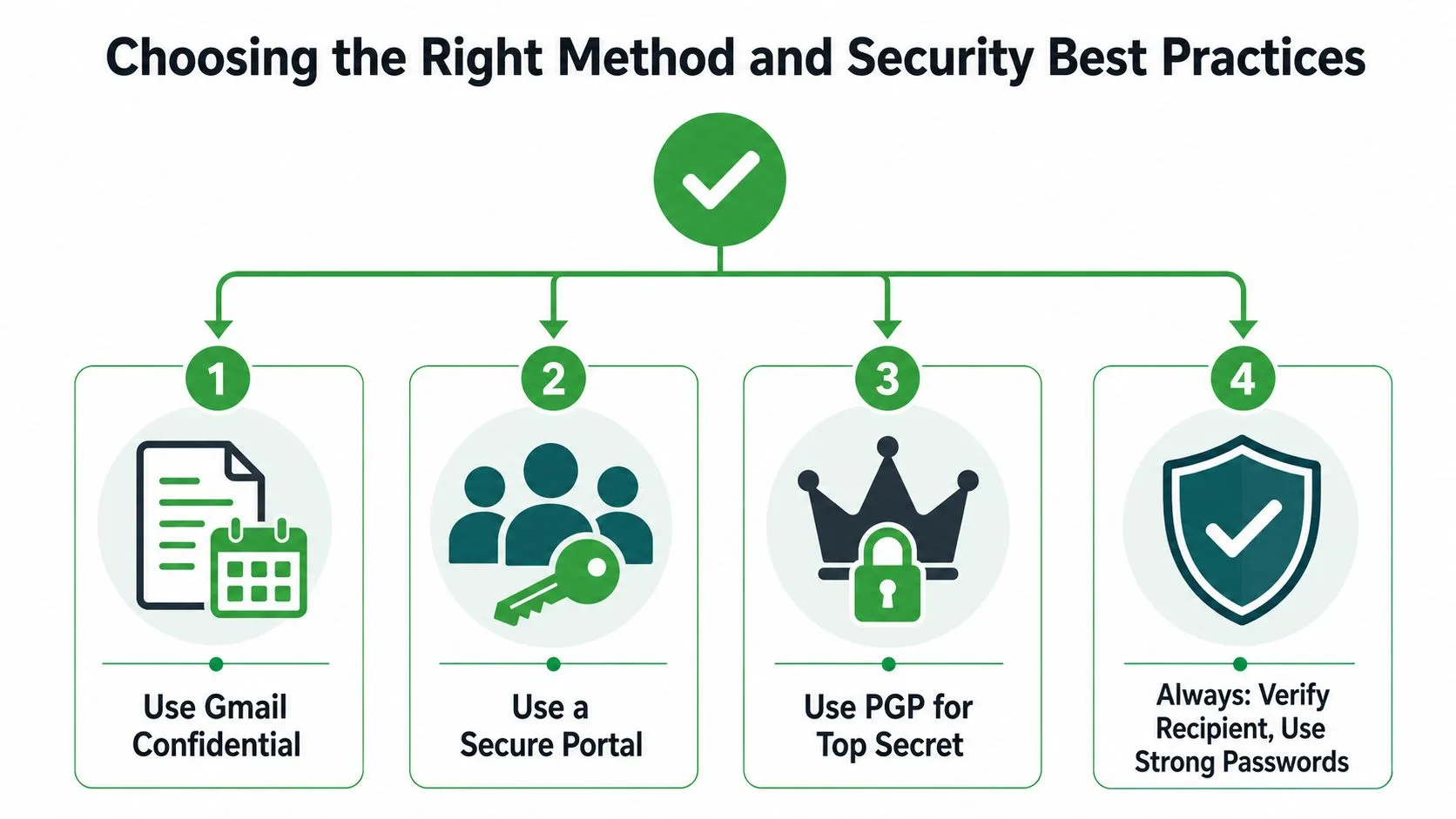
The fastest way to choose is to map the method to the scenario. A one-time contract to a new client usually belongs in Gmail Confidential Mode. Financial records sent to an accountant are better handled as an encrypted attachment with a separate password channel. A sensitive strategy note for a tech-savvy colleague may justify PGP or an enterprise encryption tool. An active project document shared with a team usually works better as a secure file-sharing link.
The hygiene rules don’t change much across methods. Use a short, neutral subject line that leaves out names, account numbers, or medical terms, and send the password by text, phone call, or a secure app instead of the same email security guidance. That’s not just etiquette, it’s the difference between a protected message and a false sense of security.
A simple decision frame
Use Gmail Confidential Mode when you want temporary access, easy setup, and built-in controls without asking the recipient to install anything.
Use an encrypted attachment when the file itself is the sensitive object and the password can travel through another channel.
Use PGP or enterprise encryption when your organization needs stronger message-level protection and can support key management.
Use a secure portal or Drive link when the recipient should work from a shared file instead of a static attachment.
The habit that protects every workflow is disciplined sharing. Strong passwords, separate channels, neutral subject lines, and the right method for the recipient’s comfort level do more for day-to-day security than a complicated setup nobody follows correctly.
A good email security process should feel boring after the first week. If you need a straightforward way to keep sensitive Gmail conversations organized while you manage follow-ups, Mail Tracker for Gmail gives you open notifications, read receipts, and message-level visibility inside Gmail without adding a separate workflow.
Ready to track your emails?
Add Mail Track for Gmail from the Google Workspace Marketplace and know the moment your emails are opened. Free and unlimited.
Add to GmailMore reading
More from Tutorials
How to Track Link Clicks in Gmail (and What a Click Really Tells You)
Learn how to track link clicks in Gmail, why Gmail does not do it natively, how tracked links work and how to read clicks without being fooled by scanners.
How to Find My Contacts in Gmail: A Practical Guide
Learn how to find my contacts in Gmail on desktop and mobile. Clear steps for Google Contacts, search tips, shortcuts, and contact details from emails.
Objection in Sales Explained and How to Handle It
Learn what objection in sales really means, why it happens, and proven frameworks to handle price, timing and trust objections with confidence.