
How to Recall an Email Sent from Gmail: 2026 Guide
Learn how to recall an email sent from Gmail using Undo Send, plus workarounds for mistakes and tracking tips.
You’re staring at the Sent folder because the mistake is already out there. Wrong recipient, wrong attachment, bad wording, or a sensitive file you never meant to ship. If you came here looking for a magic Gmail recall button, I’m going to save you time: Gmail doesn’t give you one.
Why You Can’t Truly Recall a Sent Email in Gmail
The hard truth is simple. Once Gmail finishes delivery, you can’t pull that email back. Google support says there’s no way to recall it after it’s sent, and the only native safety net is Undo Send, which gives you a tiny cancellation window of 5, 10, 20, or 30 seconds after you press Send, depending on your settings. Google Support on Gmail recall limits
That distinction matters because many people use the word recall when they really mean stop delivery before it finishes. Gmail only does the second one. If the pop-up disappears, the message is gone from your control and sits in the recipient’s inbox as their copy, not yours. Google support repeats the same point in another thread, saying once that cancellation banner is gone, there’s no way to cancel or recall the email. Google Support on Undo Send timing
A classic example is sending a client the wrong version of a deck, then noticing the mistake five minutes later. At that point, you’re not “recalling” anything. You’re doing damage control.
Practical rule: if the message has already left Gmail’s Undo Send window, stop hunting for a hidden recall feature. It doesn’t exist.
The clean way to think about how to recall an email sent from gmail is this. You either catch it in the first few seconds, or you switch to containment. If you want a deeper read on whether a recipient saw a message before you chase them down, this guide pairs well with how to tell if someone read your email.
Enabling and Using Gmail’s Undo Send
If you do one thing today, set Undo Send to the longest delay Gmail allows. Open Gmail on desktop, go to Settings → See all settings → General → Undo Send, choose a send cancellation period, and save the change. The available window tops out at 30 seconds, and that’s the buffer you want before you’re in trouble. Google’s Gmail help thread on Undo Send
After you hit Send, Gmail shows a small notification in the bottom-left corner. Click Undo right away, and the message reopens in Drafts, where you can fix the mistake or delete it entirely. The timing is the whole game here. If you wait for the notification to disappear, Gmail is done protecting you.
Desktop beats panic
On desktop, the workflow is built for speed. You send the email, watch the bottom-left banner, and decide whether to cancel before the timer runs out. That’s why I tell people to keep the cancellation period at 30 seconds even if the send feels a little less instant. A slower confirmation is a fair trade for not shipping the wrong file to a customer.
Mobile works too, but only if you set it up first
The Gmail mobile app on Android and iPhone/iPad shows the same Undo banner at the bottom right after sending. Tap it fast enough, and the email never leaves. The catch is that the timer still depends on the desktop setting, so configure it in Gmail on a computer first. The app doesn’t save you from a bad setup.
If your cancellation period is still sitting at the default, you’re gambling with every send.
That’s why I’m blunt about this. Undo Send is not a feature you discover after a mistake. It’s a setting you prepare before the mistake happens. Once that window expires, Gmail doesn’t give you a second shot.
The Hard Limits of Gmail Recall
The search results make this worse than it needs to be because people keep comparing Gmail to Outlook. That comparison is misleading. Gmail does not have Outlook’s style of recall, and even Outlook’s version only works in narrow Microsoft environments. Gmail’s model is much simpler, and much less forgiving. If the cancellation timer is gone, the message is delivered and you cannot delete it from the recipient’s inbox through Gmail’s native tools.
What actually fails in practice
A lot of people assume these cases might still work. They don’t.
| Time since Send | What you can do | Limitation |
|---|---|---|
| A few seconds | Click Undo in Gmail | Only works while the notification is visible |
| After the timer expires | Send a correction or apology | Original email stays in the inbox |
| After delivery to a Gmail account | Ask the recipient to delete it | You have no sender-side recall control |
Google support is explicit on one important edge case. If an email is sent to a Gmail account from outside that system, the sender still cannot recall it after it has been sent. That means a third-party client doesn’t magically give you more power. It usually gives you less.
Scheduled email is the one exception people confuse with recall. If you used Schedule Send, you can cancel it from the Scheduled folder before the send time arrives. That’s not recall, though. The message hasn’t gone out yet. Auto-saved drafts are also a red herring. They help you avoid losing work, not retrieve a message already delivered.
The practical rule is straightforward. If it has been more than 30 seconds and the recipient uses Gmail, you’re no longer looking for a recall button. You’re in workaround territory, and speed matters more than perfection.
Workarounds When Undo Send Is Too Late
Once the email is out, calm beats cleverness. The best move depends on what you sent and who received it, but the pattern is consistent, move fast, be direct, and don’t make the recipient work to understand your correction.
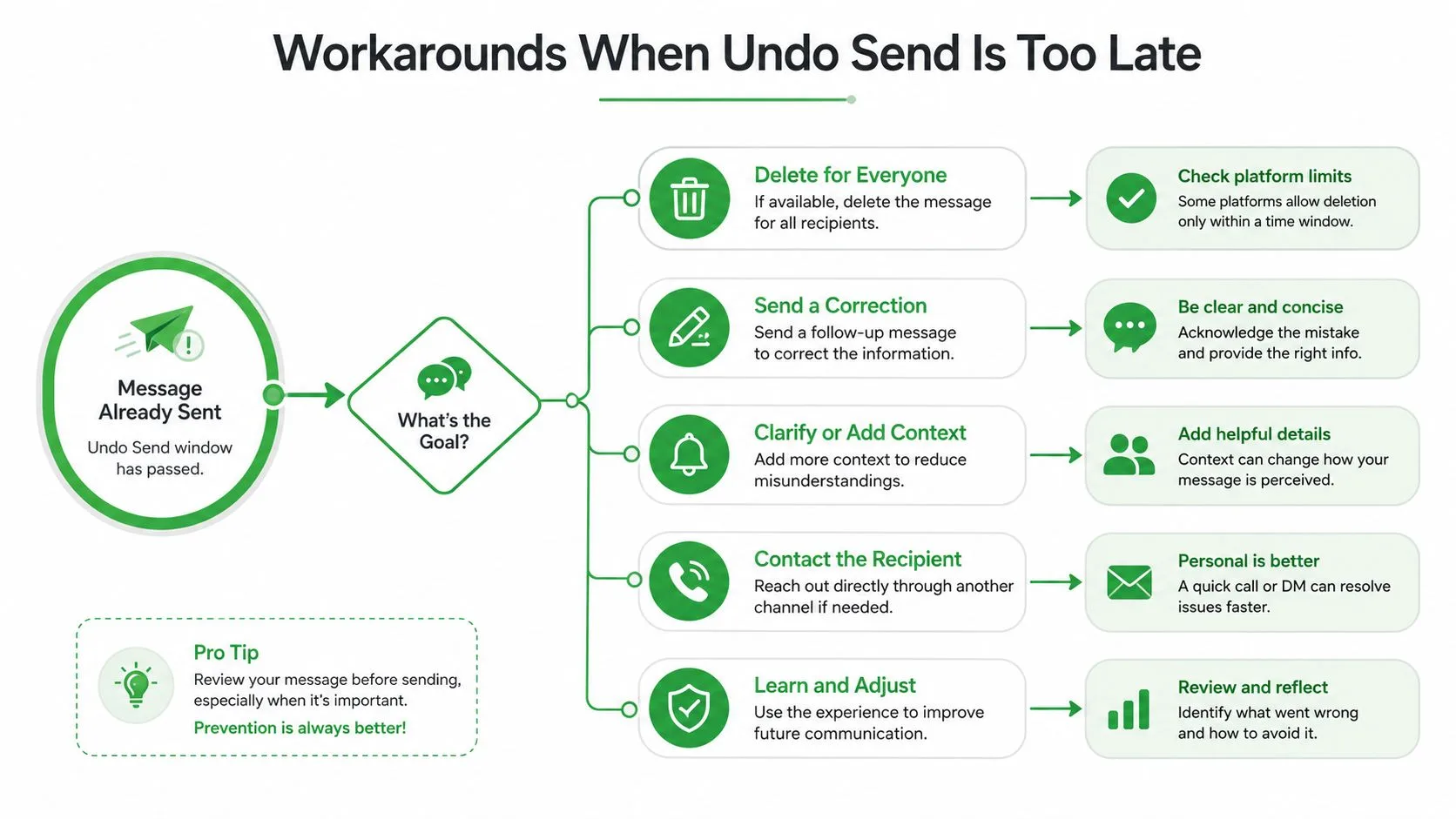
Use a short correction email
If you sent the wrong version, send a clean follow-up that does one job only. Keep it short, admit the correction, and point to the right version without dramatizing the mistake.
A simple template works:
Subject: Correction to my previous email
Body: I sent the wrong version just now. Please use this one instead and ignore the earlier message.
That wording avoids overexplaining. It also prevents the recipient from rereading the mistake line by line, which is what you want if the original error was minor.
Use Confidential Mode for future sensitive mail
Gmail’s Confidential Mode is useful for new messages when you want more control over access. It can help you limit how long a message is available, but it does not pull back anything that’s already been read. It’s a containment tool, not a time machine.
Ask for deletion when the relationship supports it
If you sent something to the wrong person, a direct request can work better than a long apology. Ask them to delete the email and ignore its contents. Keep the tone plain and respectful. People are much more likely to help when you don’t sound panicked.
Escalate inside Workspace when the content is sensitive
If the mistake happened inside a Google Workspace environment, individual users still can’t remotely delete a sent email from another person’s inbox. The right move is to loop in the people who manage data retention or security in your organization. If the file or message lives in an internal system, admin-level controls may help, but that’s an organizational process, not a personal Gmail trick.
If your mistake involved a follow-up rather than a leak, how to write a follow-up email after no response is a much better mindset than spiraling over the original send. Once a message is in someone else’s inbox, politeness and speed beat fantasy every time.
Using Mail Tracker for Gmail to Time Your Follow-Ups
The question after a bad send is often not “Can I recall it?” It’s “Did they see it yet?” Gmail gives you no native visibility there, which is why people either over-apologize or wait too long. A tracker inside Gmail changes that by showing double check marks, open counts, and per-message timestamps so you can judge whether a correction is urgent or premature. Mail Tracker for Gmail email tracking guide
Read signals change the follow-up
If a message hasn’t been opened, a brief correction can be enough. If it’s already been read, you need a tighter note because the recipient may have already formed an impression. That difference sounds small, but it changes how you write the next email and whether you should call instead of typing again.
Mail Tracker for Gmail also sends instant push notifications on desktop and mobile when a tracked email is opened, which is exactly the kind of signal you want when timing matters. The free plan uses a visible tracking signature, while Premium lets you use an invisible tracker. The privacy tradeoff is clear, too. The tool records open events, not email content.
That matters for sales, recruiting, client work, and support threads where timing decides whether you need a correction at all. If you know the recipient hasn’t opened the email, you can send a simple “please disregard” note before the original message gains traction. If they already have, your follow-up can be more precise and less noisy.
Use it as damage control, not decoration
Tracking isn’t about surveillance theater. It’s about avoiding blind follow-ups when a message has already landed, or about catching the moment a recipient opens something urgent. If you already work with a virtual assistant, especially one who helps manage inbox hygiene or outbound follow-up, you can pair that workflow with Hire Virtual Assistants to keep response handling tight without adding more manual checking.
The point is simple. If Gmail won’t let you recall a sent email, you need better visibility into what happened after send. That’s what makes a correction look intentional instead of frantic.
A Practical Recall Playbook You Can Actually Use
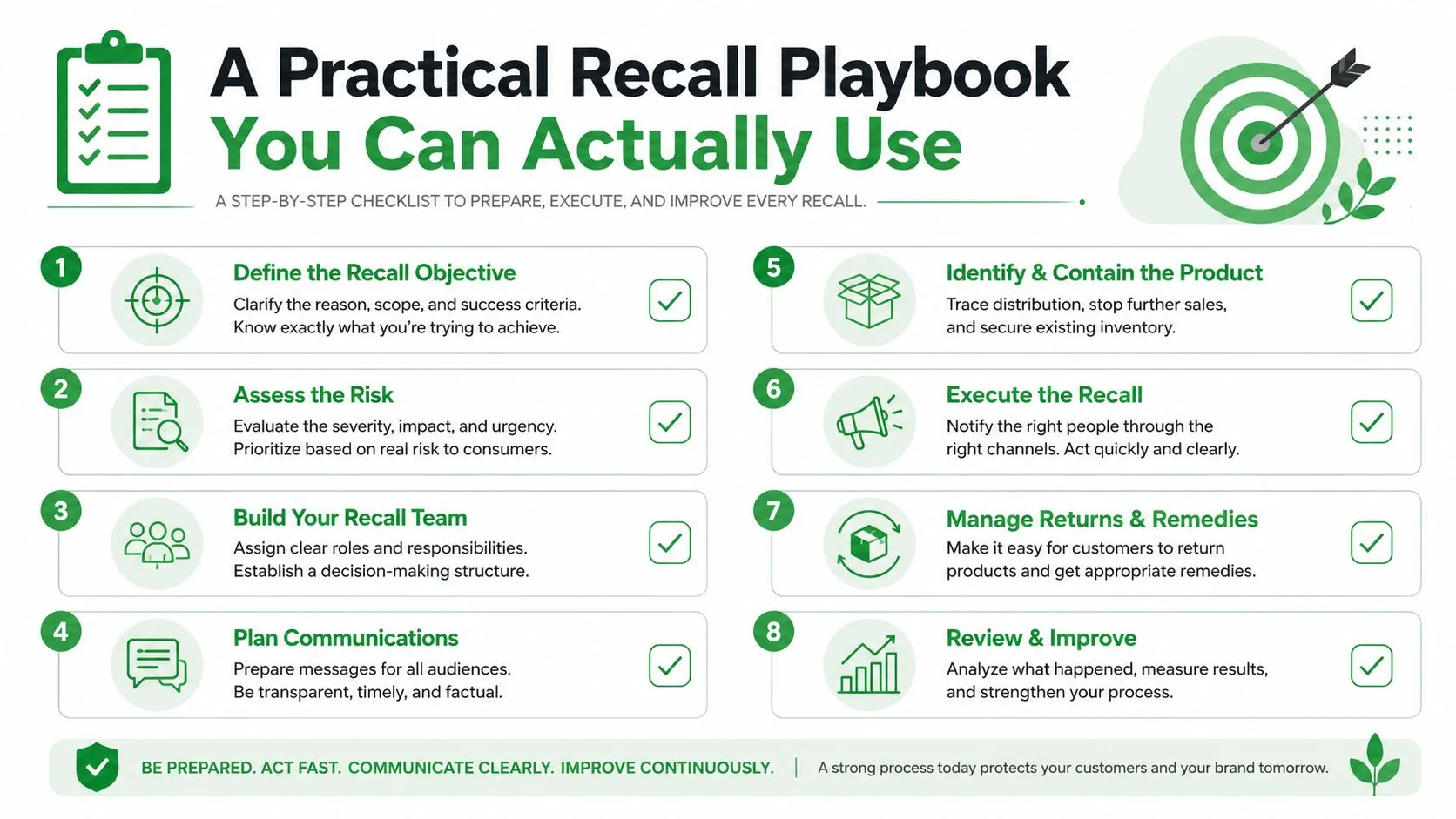
Use the right move for the right mistake.
- Hit Send too fast: click Undo within Gmail’s cancellation window, and keep that window at the full 30 seconds.
- Sent it to the wrong person and noticed later: send a short correction, ask them to delete the email, and don’t overexplain.
- Shared sensitive information: use Confidential Mode for future messages, then escalate through your organization if the message is already out.
- Need to know whether they saw it: use tracking signals before you chase someone with a follow-up.
- Working in a busy team: proofread in Drafts, not after sending.
- Sending something high-stakes: schedule it with a short delay instead of firing it immediately.
- Handling repeated outbound mail: keep your inbox clean so you stop replying to the wrong thread.
- Want fewer emergencies: build the habit now, before the next mistake happens.
If you run outreach at scale, a support team, or a recruiting desk, the whole game is process, not luck. The fastest teams don’t rely on memory, they rely on a setup that catches errors before the send button becomes a problem.
Set Undo Send to 30 seconds today. Then make your next sensitive message a scheduled send, not an impulse send. That single habit prevents more panic than any apology email ever will.
If you want a cleaner way to know what happened after you send, Mail Tracker for Gmail gives you the open signals, timestamps, and instant alerts that Gmail itself leaves out. It won’t recall a message for you, but it will tell you whether a follow-up is even necessary. Visit Mail Tracker for Gmail and set up the tracking workflow before your next send goes sideways.
Ready to track your emails?
Add Mail Track for Gmail from the Google Workspace Marketplace and know the moment your emails are opened. Free and unlimited.
Add to GmailMore reading
More from Tutorials
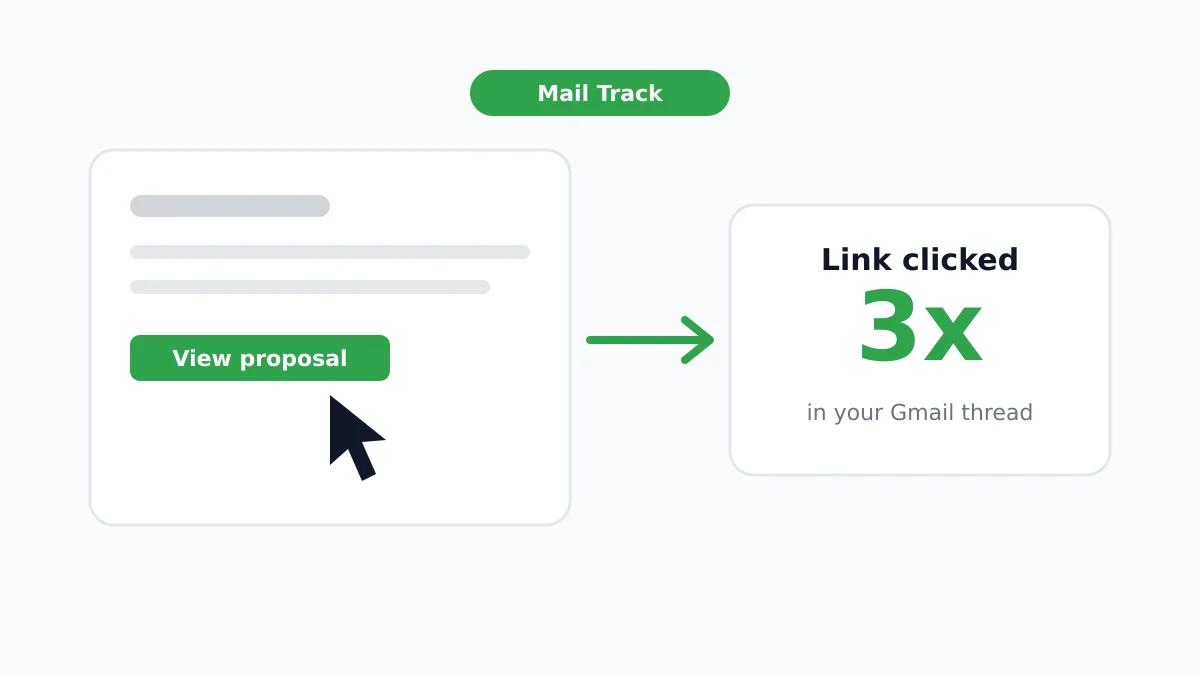
How to Track Link Clicks in Gmail (and What a Click Really Tells You)
Learn how to track link clicks in Gmail, why Gmail does not do it natively, how tracked links work and how to read clicks without being fooled by scanners.
How to Find My Contacts in Gmail: A Practical Guide
Learn how to find my contacts in Gmail on desktop and mobile. Clear steps for Google Contacts, search tips, shortcuts, and contact details from emails.
Objection in Sales Explained and How to Handle It
Learn what objection in sales really means, why it happens, and proven frameworks to handle price, timing and trust objections with confidence.