
Reply vs Reply All: Who Gets Your Email and When to Use Each
Reply vs reply all in Gmail: who receives each one, what happens to Bcc, how to change the default reply, and how to tell if anyone opened your group reply.
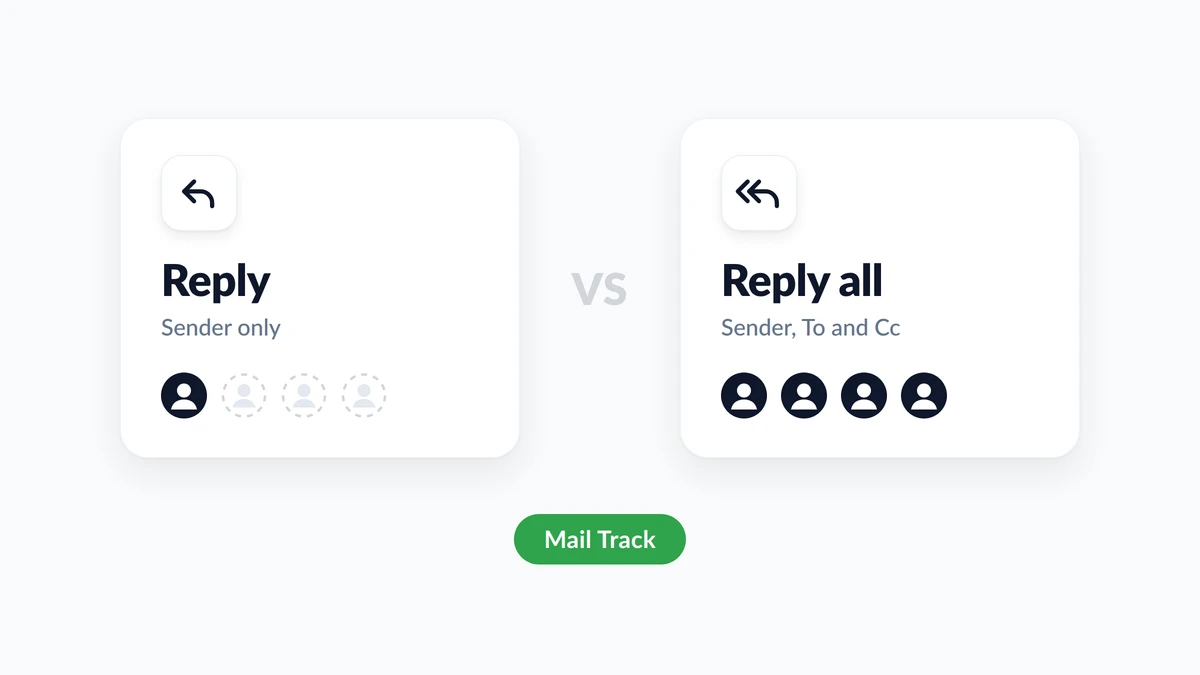
A message lands with six people on it, you type a quick answer, and your cursor hovers between two buttons. Reply vs reply all comes down to one question: who needs to see your answer? Reply sends it to the sender only. Reply all sends it to the sender and to everyone on the To and Cc lines. People who received the original on Bcc get neither.
This guide compares the two side by side, shows how to reply all in Gmail and change the default, explains what happens to Bcc recipients, and covers what to do after a reply all you regret. It also deals with the one thing neither button tells you: whether anyone opened what you sent. Mail Track for Gmail, a Chrome extension and Google Workspace add-on, shows when a sent email is opened inside Gmail, and the last section explains what that signal means on a group thread.
The difference between reply and reply all
| Reply | Reply all | |
|---|---|---|
| Who gets your message | The sender only | The sender and everyone in To and Cc |
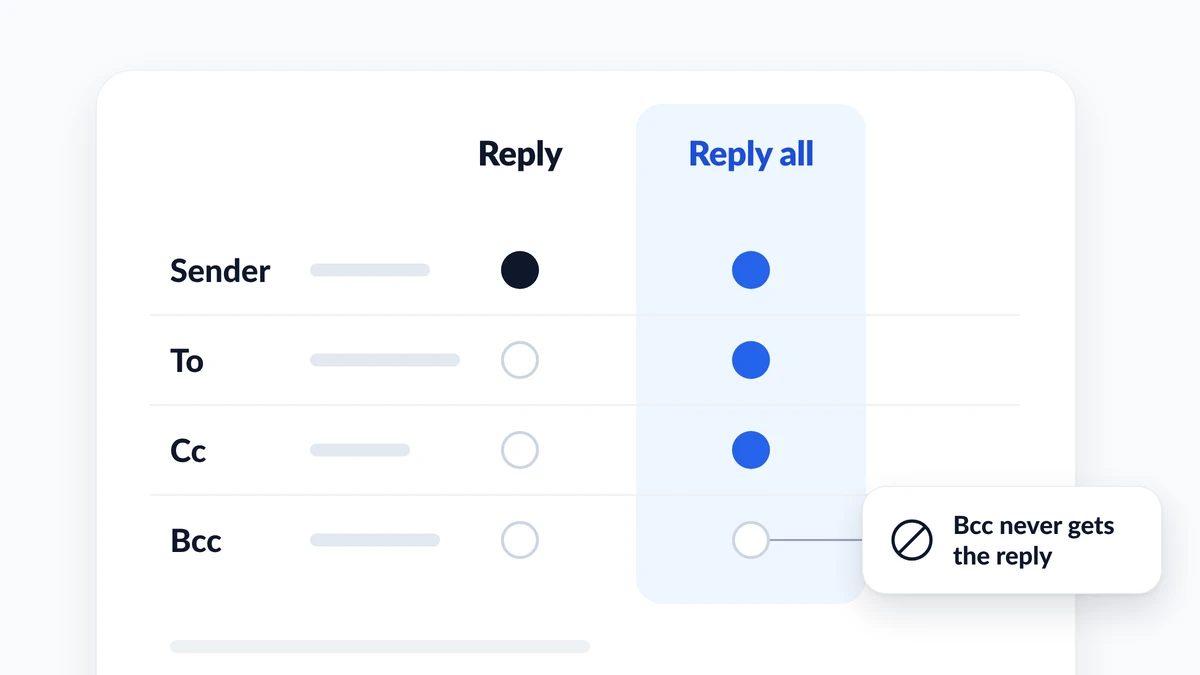
| Bcc recipients | Not included | Not included |
| Best for | An answer only the sender needs | An answer that changes what the group does |
| Main risk | Someone who needed the answer misses it | Inbox noise, or the wrong people read it |
| Gmail keyboard shortcut | r | a |
Google’s help page on replying to messages in Gmail defines the two in one line each: Reply sends the message to the sender, and Reply all sends it to the sender and anyone in the To and Cc lines. Outlook draws the same line. Microsoft’s page on how to reply to or forward an email message says Reply “only sends the new message to the original sender”, while Reply all goes to “the original sender and all other recipients on the To and Cc lines.”
A third button sits next to these two. Forward starts a message to people who were not on the thread at all. In Microsoft’s words, it “allows you to type in a whole new set of recipients.”
When to use reply vs reply all
The safe habit is to start from Reply, and to move up to Reply all only when your answer changes what other people on the thread will do.
Use Reply when:
- Your answer matters to the sender alone, such as “Thanks, got it” or “Yes, I can attend.”
- The message went to a large list, like a company announcement.
- Your answer contains something personal, sensitive or critical.
Use Reply all when:
- Your answer changes the plan for everyone: a new date, a decision, a correction.
- Others would ask the same question, or do the same work twice, if they did not see it.
- The sender asked the group to keep everyone copied.
Microsoft’s Outlook guidance leans the same way. Before you use Reply all on a message that went to many people, it suggests that “it’s often better to select Reply, and then add only the people you really want to include.” If you do choose Reply all, it tells you to “remove people who don’t need to get your message.” HubSpot’s guide on when to use Reply, Reply All, Cc and Bcc gives a handy test for the opposite case: use Reply all when others “will be confused by not seeing your response.”
Reply all etiquette: four checks before you send
- Read the To and Cc lines. Count the names. A reply all to four teammates and a reply all to four hundred colleagues are different acts.
- Ask who acts on your answer. If only the sender does, use Reply.
- Trim or add by hand. Nothing forces you to keep the whole list. Remove the people who do not need the answer, or use Reply and add the two who do.
- Rename the thread when the topic changes. Google’s Workspace Learning Center page on replying to email describes the step: next to Type of response, click the Down arrow, select Edit subject and enter a new subject.
What a reply all storm is
A reply all storm is what happens when a message goes to a very large list and recipients keep answering everyone. It is common enough that Microsoft built a brake into Exchange Online. The Exchange team’s post on Reply All Storm Protection settings gives the defaults: when a thread with at least 2,500 recipients gets 10 reply-alls within 60 minutes, further replies to it are blocked for 6 hours. Administrators can adjust most of those settings.
You will not start one if you follow a single rule: never reply all to a list you cannot count.
How to reply all in Gmail and change the default
On a computer
- Open the message.
- Click Reply all below the message.
- Check the recipients, write your answer and click Send.
Gmail’s page on keyboard shortcuts lists r for Reply, a for Reply all and f for Forward. They only work once shortcuts are on: open Settings, See all settings, find the Keyboard shortcuts section, select Keyboard shortcuts on and click Save Changes.
On Android, iPhone and iPad
Open the message in the Gmail app and look at the bottom of it. Google’s Android and iPhone versions of the same help page both say to tap Reply or Reply all there, write your message and tap Send.
Make Reply all the default, or switch it back
Gmail lets you decide which of the two comes first. Google describes the setting as changing the order of the Reply and Reply all buttons.
- Open Gmail on your computer.
- Click Settings at the top right, then See all settings.
- Stay on the General tab.
- In the “Default reply behavior” section, select Reply or Reply all. If Gmail shows a Save Changes button at the bottom of the page, click it.
| Where | Default reply setting | Path |
|---|---|---|
| Gmail on a computer | Yes | Settings, See all settings, General, Default reply behavior |
| Gmail app on Android | Yes | Menu, Settings, General settings, Default email reply action |
| Gmail app on iPhone and iPad | Not listed on Google’s help page | Choose Reply all on each message |
Does reply all include Bcc?
No. Gmail’s help page on sending messages with Cc and Bcc says it plainly: if people reply all to a message, people in Bcc won’t see the reply. The same page explains what each side can see:
- People in To and Cc do not know that anyone was added in Bcc.
- A person in Bcc sees that they were added using Bcc, and sees the To and Cc recipients.
- People in Bcc cannot see the name or address of anyone else in Bcc.
That is why Bcc suits announcements: nobody on the hidden list can answer the whole list. Our guide on how Bcc works in Gmail covers the sending side.
If you were on Bcc and you hit Reply all
Your answer goes to the sender and to everyone in To and Cc. They did not know you were copied, and now they do.
Google addressed this in July 2026. Its post on new Reply All warnings in Gmail says Gmail now shows a caution banner whenever you click Reply all on a thread where your address is not in the To or Cc fields. That covers Bcc, auto-forwarded and delegated emails. The warning is on by default, for Google Workspace customers, Workspace Individual subscribers and personal Google accounts.
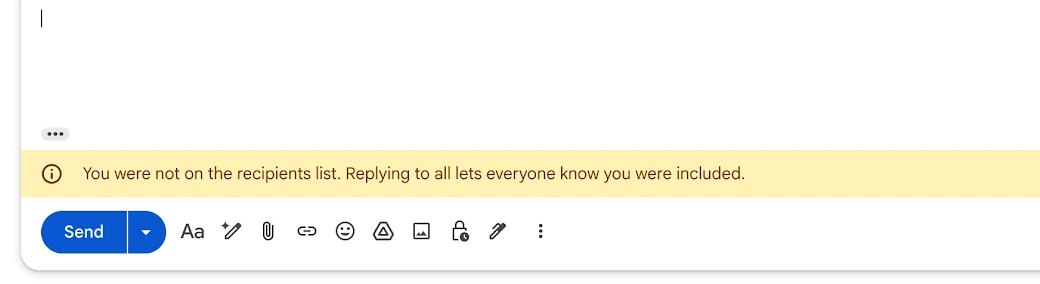
If you see that banner, check the To and Cc lines before you send. If you were on Bcc, switch to Reply: the sender chose to copy you quietly, and a direct answer respects that choice.
Sent a reply all by mistake? What you can still do
- Undo it within seconds. Right after you send, Gmail shows “Message sent” with an Undo option. Gmail’s Undo Send setting offers a Send cancellation period of 5, 10, 20 or 30 seconds. Set it to 30 now, before you need it. Our guide on how to recall an email in Gmail explains what is still possible once that window closes.
- Do not reply all again to apologize. A second message to everyone doubles the noise. If the content was harmless, let it go. If it was sensitive, write directly to the sender or to the person it concerned.
- Mute the thread if others keep replying. Google’s page on muting Gmail messages explains that once you mute a conversation, the replies skip your inbox and go directly to your archive. Tick the box next to the message, click More, then Mute, or press
mwith keyboard shortcuts on. A reply still reaches your inbox when it is sent only to you, when it goes to a Google Group you belong to, or when someone adds you to To or Cc. Searchis:mutedto find the thread later.
Did anyone read your reply all? What open tracking shows
A reply all often ends in silence. Five people received your update, nobody answered, and you cannot tell whether it was read or buried.
Mail Track adds read receipts to Gmail. A sent email shows double check marks once it is opened, with open counts and timestamps, and you can get a push notification on desktop or mobile. The free plan tracks unlimited emails and adds a small visible signature that tells recipients the email is tracked. Premium uses an invisible tracker with no signature.
On a group reply, read that signal with care:
- The tracker belongs to the message, not to each person. An open on a reply all to five people tells you that someone opened it. It does not tell you who.
- Open counts add up across readers. Four opens can be four colleagues, or one colleague four times.
- An open is not a read. Some mail apps and security filters load images on their own, and some readers block images, so opens can be overcounted or missed. Our guide on how accurate email tracking is goes through the cases.
This is where the choice of button matters again. When you need to know whether one specific person saw your answer, such as the client who has to approve a quote, send that person a direct Reply or a separate email. With a single recipient, an open is far more likely to be theirs. Keep Reply all for what the group needs to know, and never write “I can see you opened this” to a thread.
FAQ
Conclusion
Reply vs reply all is a question of audience, not of politeness. Reply answers the sender. Reply all answers the sender and everyone in To and Cc, and it never reaches Bcc. Start from Reply, move up to Reply all when your answer changes what the group does, keep Gmail’s Undo Send at 30 seconds, and mute the threads that will not stop. When you need to know whether your answer was opened, Mail Track shows it inside Gmail, and a direct Reply to one person gives you the clearest signal.
Ready to track your emails?
Add Mail Track for Gmail from the Google Workspace Marketplace and know the moment your emails are opened. Free and unlimited.
Add to GmailMore reading
More from Comparisons

Best Browser Extension for Gmail: 2026 Comparison
Find the best browser extension for Gmail in 2026. Compare features, pricing, and performance to boost your email productivity.
Gmail Blind Copy: What It Is and How to Use It Well
Learn how Gmail blind copy works, how to send BCC on web and mobile, etiquette rules, privacy trade-offs, and best practices for outreach workflows.

How to Send an Email to Multiple Recipients in Gmail
Learn how to send an email to multiple recipients in Gmail on web and mobile. Master To, Cc, and Bcc, personalize at scale, and track opens.