
How to Turn Off Email Alerts: A Complete 2026 Guide
Learn to turn off email alerts on Gmail, Chrome, and your phone. Step-by-step instructions for desktop, mobile, and browser, plus troubleshooting tips.
Your inbox doesn’t usually explode all at once. It starts with one ping, then a badge count, then a banner while you’re trying to finish something that matters. By lunch, the alerts have taken over your attention, and you’re not managing email anymore, you’re reacting to it.
That’s why turn off email alerts is the right move for a lot of professionals. It isn’t a sign that you’ve stopped caring, it’s a decision to stop letting every new message interrupt your work. Major platforms already treat alert control as a normal part of the product, not a hack, with Apple’s iPhone Mail settings, Gmail’s mobile and web controls, and Outlook’s message-arrival settings all built to suppress notifications at different layers (Apple iPhone Mail notification settings, Gmail notification controls on mobile and desktop).
The mistake is simple. They switch off one setting, then wonder why the noise keeps coming. That happens because email alerts live in four suppression layers, browser, operating system, in-app mail settings, and extension or add-on settings, and you have to audit each one if you want silence that holds.
Introduction
You can be in the middle of real work and still get dragged out of it by a mail chime, a badge count, or a banner that has nothing urgent behind it. The problem is the constant pull, not the message itself. Turn off email alerts when they keep stealing attention you already assigned to something else.
Use selective muting, not blanket silence. The useful move is to decide which alerts deserve to stay on and which ones should be muted, hidden, or delayed. Google and Apple both give you controls at the device and app level, and Gmail’s web interface also includes a dedicated Mail notifications off setting in desktop options (Gmail desktop notification settings, Apple iPhone Mail notification settings).
Practical rule: if alerts keep slipping through, you changed only one layer, so keep checking until every active path is shut down.
That is the standard to use here. Desktop Gmail, Gmail on Android, Gmail on iPhone, Chrome permissions, system notifications, and add-ons like Mail Tracker for Gmail all behave differently. Once you know which layer is responsible, you stop guessing and start muting the right alert type instead of shutting off everything blindly.
How to Turn Off Gmail Alerts on Desktop Web
A Gmail tab can keep interrupting you even when the rest of your computer stays quiet. Handle the alert at the source first. Open Gmail, click the settings gear, go to See all settings, scroll to Desktop notifications, choose Mail notifications off, and save the change (Gmail desktop notification workflow).
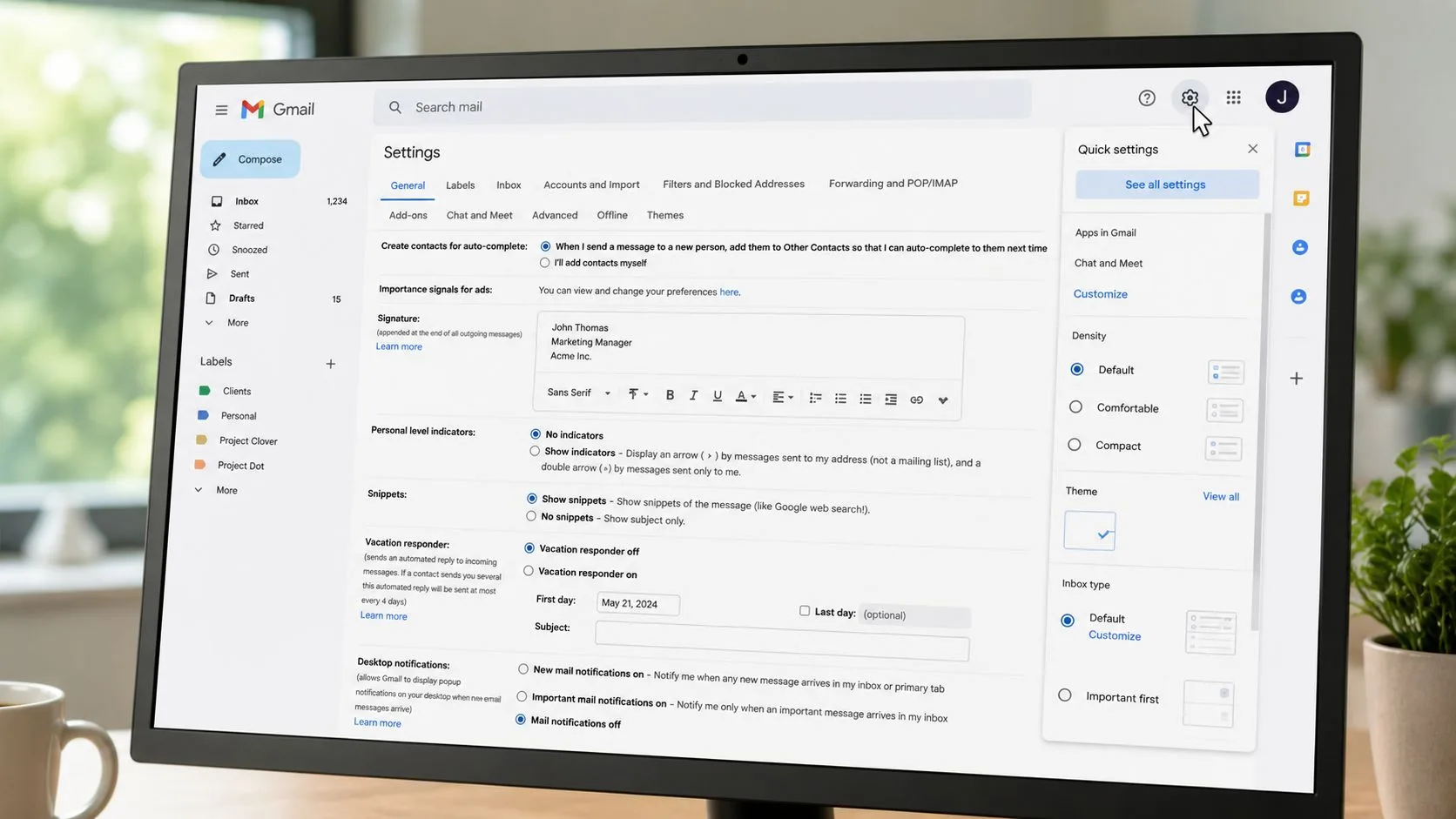
The control lives inside Gmail, so it only affects Gmail’s web alerts. Chrome, Outlook, Slack, and other apps keep their own notification behavior unless you change those separately. That split matters, because it lets you quiet one inbox without muting the rest of your desktop.
After you save the setting, watch for banners, sounds, and badge counts. If any of them still appear, Gmail is only one layer of the problem. Gmail’s help documentation separates web notifications from mobile app and operating system permissions, which explains why alerts can keep showing up after you disable one setting inside the inbox (Gmail notification help).
A lot of users go straight to Chrome and end up silencing every site on the browser. Don’t do that unless you want the whole browser quiet. Keep the change inside Gmail first, then widen the scope only if Gmail still gets through.
Gmail web should be handled inside Gmail first. Only move outward to Chrome or the OS if pop-ups, sounds, or badge counts still appear.
Outlook uses a different path. Microsoft’s desktop client puts message-arrival preferences such as Display a Desktop Alert inside Outlook’s own options, which shows that mail apps do not all expose the same control in the same place (Outlook desktop alert settings). The rule stays simple. Turn off the alert where the app generates it.
Gmail Mobile Notifications on Android and iOS
Mobile is where Gmail alert control gets messy, because Android and iPhone handle app permissions differently. On Android, open Settings, go to Apps or Apps & notifications, choose Gmail, open App notifications, and turn off Show notifications. If you only want to quiet certain Gmail notices, stay inside Gmail, open Settings, select your account, then Inbox notifications, and switch off Notify for every message. For a closer look at how Android app alerts are handled, this Gmail notification guide for Android app settings is useful because it focuses on the device layer, not just the inbox.
On iPhone, use the phone’s notification controls first. Open Settings, go to Notifications, find Gmail, and turn Allow Notifications off. If you want a more selective setup, keep Gmail’s own inbox options in play and use customize Focus modes on iPhone to reduce interruptions at the phone level instead of shutting everything down at once.
The point is simple. Phone settings and Gmail’s own preferences do different jobs, so changing one does not always silence the other. That is why people think alerts are gone, then banners, sounds, or badge counts keep showing up.
Decide what you are muting before you change anything. If you want the whole app quiet, turn off the device permission. If you only want to stop noisy message types, keep the phone permission and adjust Gmail itself. On iPhone, Apple iPhone Mail notification settings shows the same basic rule for Apple’s mail controls, the app layer and the phone layer are separate. If Gmail still pushes through, check the next layer rather than flipping every switch at random.
My advice: if Gmail still pings on mobile, do not blame the app. One permission or inbox toggle is still active.
Chrome and System Notification Controls
Chrome can keep pushing alerts even after Gmail itself is quiet. That’s because the browser has its own notification permissions, and Gmail may still be allowed to surface site notifications through Chrome or another browser profile. Open Chrome settings, go to Privacy and security, then Site settings, then Notifications, and block Gmail-related domains individually if they’re still approved.
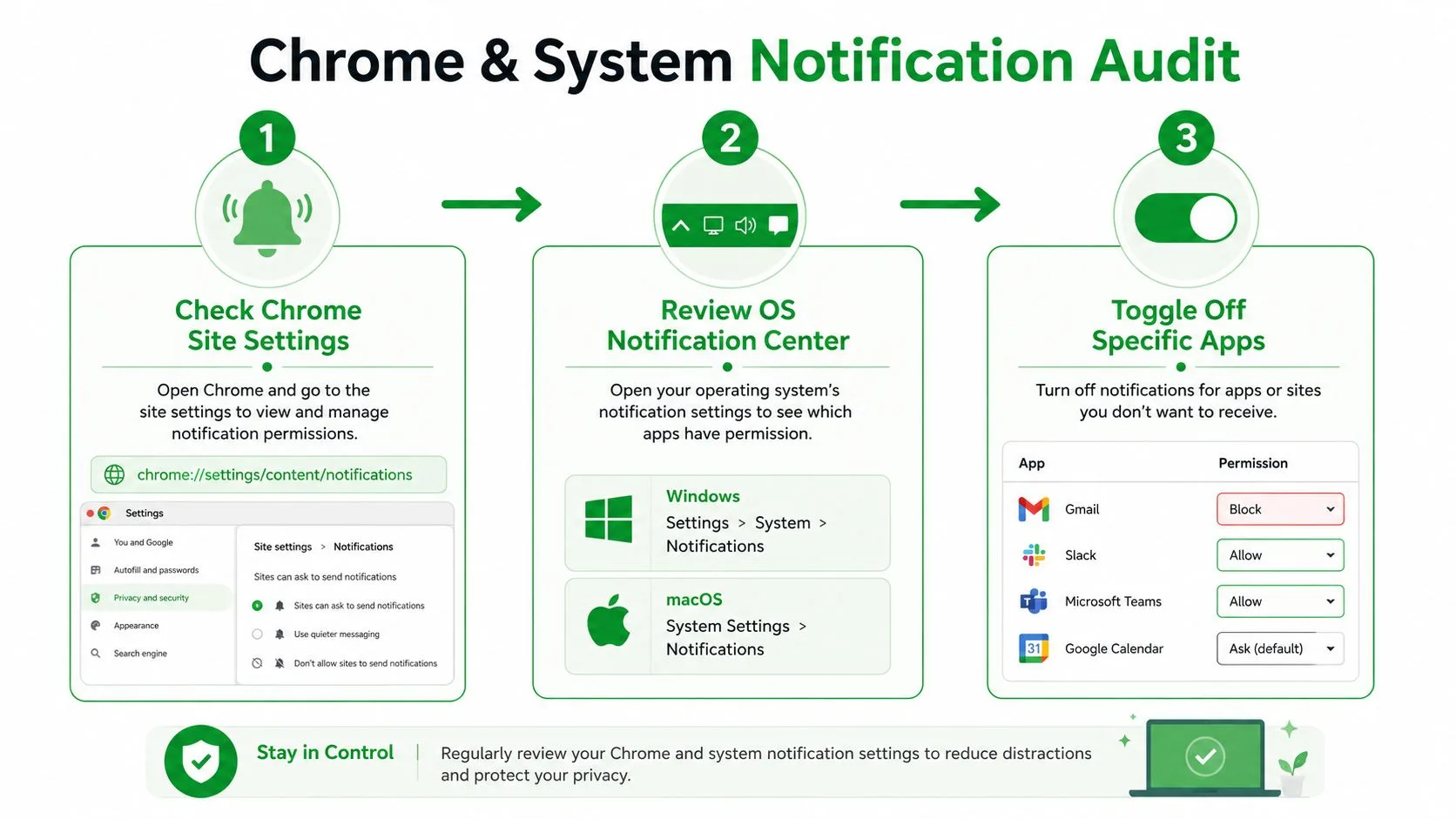
This is the layer people skip, and it’s the one that makes them think Gmail’s settings don’t work. Gmail’s in-app controls decide what the mail app does. Chrome’s notification permissions decide whether the browser can surface pop-ups or sounds at all. Those are not the same thing, and they don’t fail in the same way.
On the system side, check the notification center in macOS or Windows and look for Gmail, Chrome, or your mail client. You want to stop the OS from surfacing banners, badge counts, or sounds for the browser if Gmail still leaks through. That’s especially important if you keep multiple accounts signed in or use Chrome for everything, because the browser can become the last active path for alerts.
A useful way to think about this is the difference between content delivery and presentation. Gmail may stop showing an alert inside its own interface, but Chrome and the operating system can still present the same mail as an interruption. The right fix is to block the presentation layer too.
For a broader lifecycle lens on notification-heavy users, Mara’s lifecycle stages breakdown is a good reminder that different types of messages serve different purposes. Not every email belongs in the same alert channel, and your browser settings should reflect that.
Mail Tracker for Gmail Push Alert Settings
Mail Tracker for Gmail is a Gmail add-on. It adds read receipts and open tracking inside Gmail, and it can also send its own push alerts when a tracked email is opened. That means Gmail’s notification controls do not automatically silence the tracker’s open-event notifications.
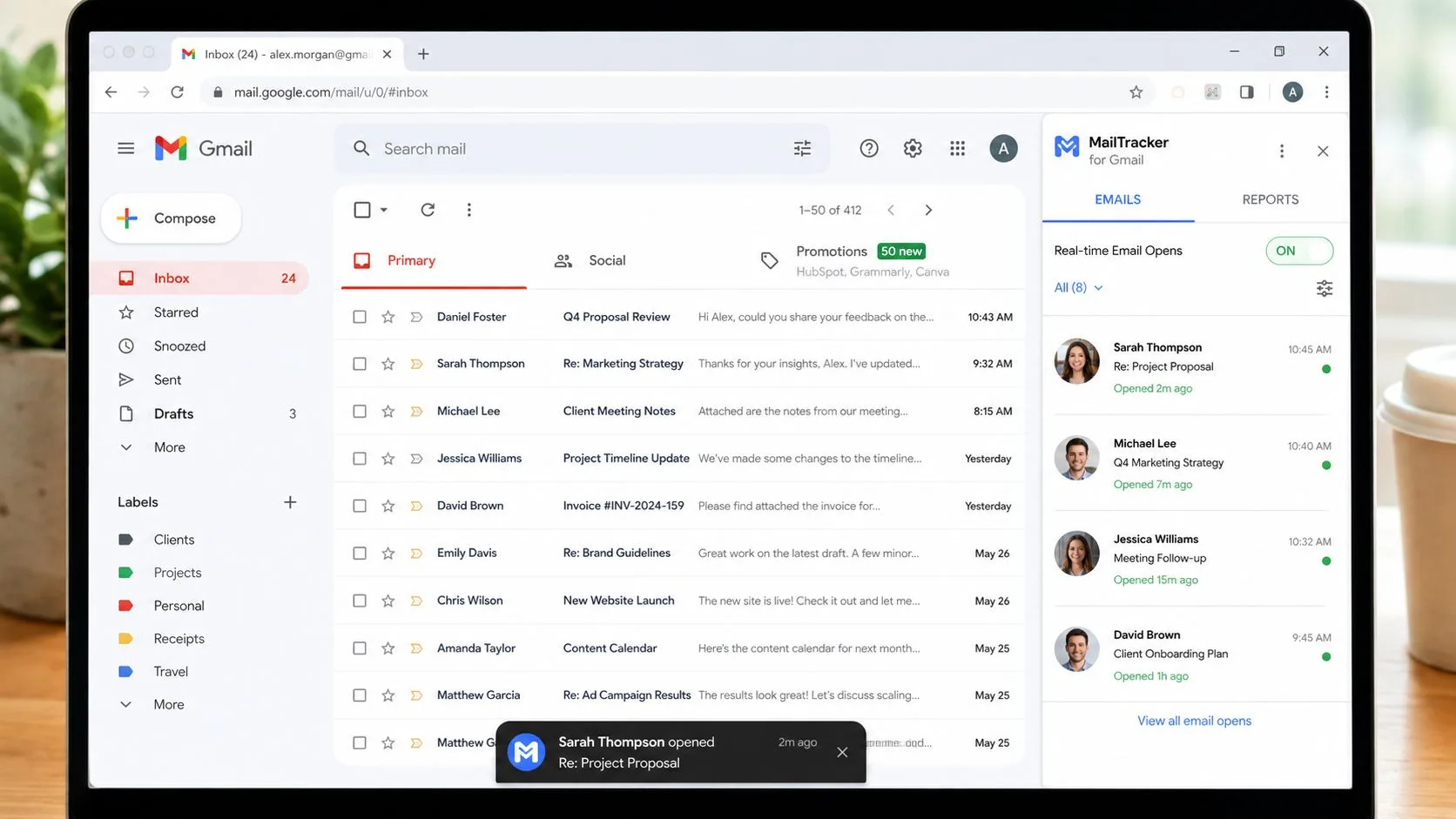
Treat this as a separate alert source. If you installed the Chrome extension, open the extension’s settings in Chrome and check its notification preferences. If you use the Gmail mobile app with the tracker connected, look for the app’s notification controls there as well, because the tracker’s push alerts can keep running even when standard Gmail alerts are off.
The cleanest approach is to separate three things in your head. Email delivery, Gmail notifications, and tracking notifications are different signals. Delivery says a message arrived. Gmail alerts say the inbox wants your attention. Tracking alerts say a recipient opened a sent message. Only the last one belongs to a tracker.
Mail Tracker for Gmail’s own help and product pages make that distinction by exposing notification controls inside its settings, including an Email alerts option in the product’s notification panel. If you use open tracking and want to limit the noise, manage the tracker itself instead of trying to force Gmail into doing that job. Mail Tracker for Gmail feature overview is the right place to start if you need a reminder of how the tracking layer fits into Gmail.
If a notification follows the recipient’s open event, it’s a tracker alert. If it follows inbox delivery, it’s an email alert. Turn off the right one.
Muting Threads Versus Fully Disabling Email Alerts
Not every conversation deserves a full shutdown. Sometimes you want to keep the inbox live, but stop one noisy thread from taking over your day. Gmail’s thread muting handles that use case well, because it silences future activity in a single conversation without changing your global notification rules. Google’s Gmail help also separates subscription and notification management, which is a useful clue that sender-level control and device-level control solve different problems (Gmail desktop help on notification controls).
| Approach | Best For | What Stays Active |
|---|---|---|
| Muting Threads | Ongoing project conversations, low-priority group replies, long back-and-forths you don’t need in real time | New mail, other senders, and higher-priority alerts |
| Disabling All Alerts | Focused work blocks, after-hours protection, inboxes that trigger too much interruption | Delivery still happens, but banners, sounds, or push alerts stop |
The right decision is usually not all or nothing. If you’re a recruiter, account manager, or freelancer dealing with mixed message types, keep transactional mail visible and mute the low-value noise. If you’re in a deep-work sprint, turn off the whole alert stack for a block of time and come back on your terms.
That’s also where sender and category discipline matters. Marketing blasts, community mail, and app-generated notices should not sit in the same alert lane as client replies or urgent transactional messages. B2B unsubscribe message compliance tips are useful if you’re dealing with outbound mail hygiene, because bad subscription practices create the very noise people later try to silence.
For Gmail users who want more conversation-level context, conversation view in Gmail helps explain why one thread can keep resurfacing even after the first message is handled. My recommendation is simple. Mute threads when the problem is local, disable alerts when the problem is systemic, and don’t confuse the two.
Troubleshooting and the Quick Notification Checklist
If alerts keep coming back, assume one layer is still active. Chrome permissions can override your inbox settings, the OS can still surface banners or badge counts, and a tracker add-on can keep firing its own notifications independently from Gmail. Some badges also remain visible even when sounds and banners are off, which is why people think the mute failed when only the presentation changed.
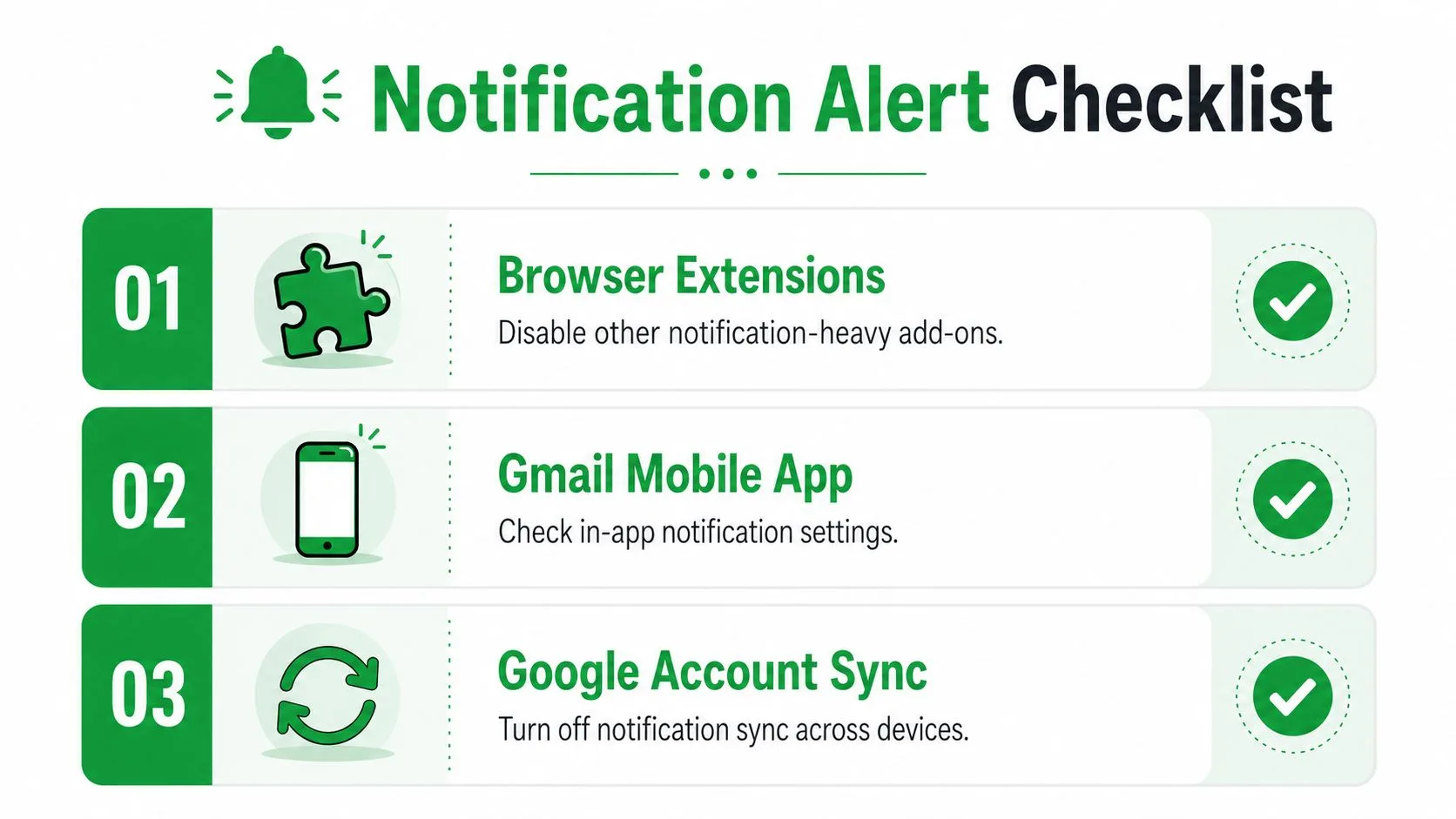
Use a layer audit, not random clicking. Start with Gmail web, then mobile, then Chrome, then the operating system, then any extension or add-on that tracks opens or sends its own alerts. That order catches the majority of “I turned it off, but it’s still happening” problems because it traces the path from the inbox outward.
Quick notification checklist
- Gmail desktop web: Open settings gear, go to See all settings, set Mail notifications off, and save.
- Android Gmail: Check Settings → Apps & notifications → Gmail → App notifications, then turn off Show notifications if you want a full mute.
- iPhone Gmail: Go to Settings → Notifications → Gmail, then switch Allow Notifications off if you want to stop banners at the device level.
- Chrome: Review Site settings → Notifications and block Gmail-related permissions.
- OS notifications: Check macOS or Windows notification center settings for Gmail or your browser.
- Mail Tracker for Gmail: Open the tracker’s own settings and disable its email alert or open-notification controls if that’s the source of the noise.
- Thread muting: Mute individual conversations when you only need to quiet one noisy chain.
- Sender control: Keep marketing and app-generated mail out of your priority lane instead of letting every message hit the same alert path.
The pattern is straightforward. If one control doesn’t work, the problem isn’t that notifications are impossible to stop. It’s that you haven’t found the right layer yet.
If you want open tracking without the clutter, Mail Tracker for Gmail gives you read receipts, open counts, and notification controls inside Gmail, so you can keep the signals that matter and silence the ones that don’t. Visit Mail Tracker for Gmail if you want a tracking setup that fits into Gmail without adding another inbox of its own.
Ready to track your emails?
Add Mail Track for Gmail from the Google Workspace Marketplace and know the moment your emails are opened. Free and unlimited.
Add to GmailMore reading
More from Tutorials
How to Track Link Clicks in Gmail (and What a Click Really Tells You)
Learn how to track link clicks in Gmail, why Gmail does not do it natively, how tracked links work and how to read clicks without being fooled by scanners.
How to Find My Contacts in Gmail: A Practical Guide
Learn how to find my contacts in Gmail on desktop and mobile. Clear steps for Google Contacts, search tips, shortcuts, and contact details from emails.
Objection in Sales Explained and How to Handle It
Learn what objection in sales really means, why it happens, and proven frameworks to handle price, timing and trust objections with confidence.