Mail Tracker for Gmail
Tutorials

How to Archive Messages in Gmail: 2026 Complete Guide

Learn to archive messages in Gmail on desktop & mobile. Find emails, understand delete vs. archive, and tracking. Your complete 2026 guide.

MT
Mail Track for Gmail Team
#archive messages in gmail#gmail archive#gmail tips#inbox zero#email management
How to Archive Messages in Gmail: 2026 Complete Guide

Your Gmail inbox probably looks familiar. A few messages need action, a pile of newsletters can wait, several conversations are finished but worth keeping, and somewhere in that stack are receipts, client threads, and sent follow-ups you may need later.

That’s where people usually make a bad choice. They either leave everything in the Inbox and live with noise, or they delete too aggressively and regret it later. The better move is to archive messages in Gmail as part of your daily cleanup. It keeps the Inbox focused without treating old email like trash.

Why Archiving Is Your Inbox’s Best Friend

A crowded Inbox creates fake urgency. When every message stays visible, important threads compete with completed tasks, shipping notices, marketing emails, and conversations that no longer need attention. One doesn’t always need fewer emails. One needs fewer emails in front of them.

Archiving fixes that. It removes a message from your Inbox view while keeping it available for reference later. That makes it the cleanest middle ground between hoarding and deleting.

I treat Gmail like a work queue, not a warehouse. If an email still needs action, it stays visible. If I’ve handled it and may need it later, I archive it. That one habit makes the Inbox easier to scan, especially during busy weeks when new messages keep landing faster than you can process them.

What archiving changes in practice

Archiving works well for messages like these:

  • Finished conversations: A vendor answered the question, the issue is closed, and you may want the thread later.
  • Reference emails: Booking confirmations, receipts, onboarding notes, and policy updates.
  • Low-priority reading: Newsletters or updates you’ve read and don’t need sitting in front of you.
  • Sent outreach: Messages you want off your main screen while you wait for a reply.

Practical rule: If you want the message out of sight but not out of your account, archive it.

This is also why archiving fits broader Gmail workflows so well. If you’re tightening your setup, guides on Google Workspace productivity tools can help you think beyond inbox cleanup and build a system around search, labels, and task handling. For more day-to-day workflow ideas inside Gmail, this roundup of email productivity tools is a useful companion.

Why this habit sticks

Deleting requires certainty. Archiving doesn’t.

That’s why people keep using it once they start. You can move fast because you’re not making a permanent decision every time you clear a message. You’re saying, “I’m done looking at this right now.”
How to Archive Gmail Messages on Your Computer

On desktop, Gmail gives you a few good ways to archive. The right one depends on whether you’re clearing one message, triaging a screenful, or doing a bigger cleanup session.

Computer screen displaying a Gmail inbox with an archive icon highlighted by a mouse cursor.

Archive with one click

The simplest method is the archive button in the Gmail web interface. When you hover over a message in the Inbox, Gmail shows quick-action icons. Click the archive icon and the message disappears from the Inbox immediately.

Open a message and you’ll also see the archive icon in the top toolbar. That’s useful when you’ve read the thread, dealt with it, and want to file it away before moving on.

This method is best when you’re working deliberately and want to avoid mistakes.

Use the keyboard shortcut for speed

If you process a lot of email, the keyboard is faster. In Gmail on the web, the E key archives the selected conversation.

That shortcut matters because archiving is most effective when it becomes frictionless. You read, decide, archive, move on. The less effort it takes, the more likely you are to keep your Inbox clean every day instead of saving cleanup for Friday afternoon.

The best Gmail workflow is usually the one with the fewest clicks.

If keyboard shortcuts aren’t active in your account, check Gmail settings and turn them on. Once they’re enabled, archiving by keyboard becomes one of the fastest ways to clear finished email.

Bulk archive when the mess is obvious

Some cleanup doesn’t need careful judgment. If you have a batch of already-read promotional emails or old updates that are cluttering the Inbox, bulk archive them.

A practical desktop workflow looks like this:

  • Select several messages at once: Tick the checkboxes beside related emails, then click archive.
  • Clear a whole page: Use the top checkbox to select all visible conversations on the page, then archive them together.
  • Filter first, then archive: Search or sort for a type of message you know you don’t need in the Inbox anymore, such as read newsletters.

That’s the fastest way to archive messages in Gmail without turning the task into a long manual review.

A good desktop routine

Try this simple habit:

  • Morning pass: Keep only messages that need action today.
  • Midday cleanup: Archive anything you’ve answered or finished.
  • End-of-day reset: Remove stale clutter so tomorrow’s Inbox starts with actual work.

When people say they want “Inbox Zero,” this is usually what they mean. Not an empty account. Just an Inbox that reflects current priorities.

Archiving Emails on the Gmail Mobile App

Mobile archiving matters because most inbox clutter builds up away from your desk. You check email in line, between meetings, or while commuting, read something quickly, then leave it sitting in the Inbox because cleanup feels slower on a phone.

Gmail on mobile is better than that.

A person swiping an email to archive it on their smartphone screen while in a cafe.

Swipe to archive

In the Gmail app on Android and iPhone, the fastest move is usually a swipe gesture. If your app is using the default setup, swiping an email archives it in one motion.

That’s ideal for quick triage. You read a shipping update, a calendar confirmation, or a finished thread, then swipe it away instead of letting it pile up.

If your app behaves differently, check the swipe actions in Gmail settings. Many people customize them and forget they changed the default behavior.

Use the menu when a thread is open

Sometimes you’re already inside the message. In that case, use the archive option from the top menu. The same applies when you select multiple emails at once in the message list. Gmail gives you an archive control for batch cleanup on mobile too.

This is the better option when you want to review before filing, rather than swiping quickly.

For Android users dealing with odd app behavior, this guide on Gmail issues on Android is useful if archiving actions or sync feel unreliable.

After you’ve seen it once, the mobile workflow is straightforward:

What works best on mobile

I wouldn’t use a phone for deep inbox reorganization. I would absolutely use it for maintenance.

  • Swipe obvious items away: Read it, confirm it’s done, archive it.
  • Batch archive during downtime: Waiting rooms and short breaks are enough for a quick cleanup pass.
  • Leave decision-heavy email for desktop: If it needs labels, a reply, or careful review, keep it visible until you’re back at a keyboard.

That split keeps the Gmail app fast and useful instead of turning it into a cramped version of your full setup.

Archive vs Delete The Critical Difference for Your Data

People often treat archive and delete like lighter and stronger versions of the same action. They’re not. In Gmail, they do different jobs.

Archive is for clearing the Inbox without giving up the message. Delete is for getting rid of the message.

According to this explanation of Gmail archive behavior, Gmail’s archive function does not delete messages or free up storage space. Archived emails remain in All Mail and continue to count against your Google storage quota indefinitely. The same explanation notes that an archived message is removed from the Inbox view but remains fully accessible and searchable.

An infographic comparing the differences between archiving and deleting emails in Gmail to help manage inbox storage.

The comparison that matters

ActionArchiveDelete
PurposeRemoves email from Inbox while keeping it in your accountSends email to Trash
Storage impactStill counts toward storageIntended when you want to remove mail from your account after Trash is cleared
Where it goesAll MailTrash
SearchabilityRemains searchableAvailable until permanently removed
Best use caseMessages you may need laterMessages you no longer want

The permanence question

Deleting has a timer attached. Messages in Trash are permanently removed after 30 days according to the same verified Gmail behavior described in the archive comparison source above. Archiving has no such time limit. The message stays available unless you delete it yourself.

That distinction matters for receipts, contracts, client notes, hiring conversations, and sent outreach. If there’s even a fair chance you’ll want the thread later, archive is usually the safer option.

Decision shortcut: Archive to clean up. Delete to throw away.

The storage mistake people make

A lot of users archive old mail expecting extra space. That won’t work. If you’re trying to reduce storage use, archiving isn’t the answer because the messages stay in your account.

If your goal is mailbox hygiene, archive. If your goal is reducing stored email, delete selectively and be intentional about what you keep. If you also want to clean up sent mail more aggressively, this walkthrough on deleting sent emails in Gmail is relevant.

How to Find and Unarchive Your Emails

The only reason archiving works is that retrieval is easy. Gmail doesn’t hide archived mail in some mystery vault. It keeps those messages accessible, which is why archiving is safe for anything you may need later.

A young man sits at a wooden desk looking at a Gmail inbox screen on his laptop.

Look in All Mail

If you want to browse archived conversations, open All Mail in Gmail. That view contains the messages in your account except those in Trash. Archived messages still keep their normal details, including subject lines, dates, and labels.

This is useful when you remember the rough timeframe or want to skim through older conversations without relying on exact search terms.

Search only archived mail

When you want speed, search is better than browsing. Gmail provides the in:archive search operator, which filters for archived conversations.

That gives you a clean way to find an old thread without sorting through your current Inbox. You can combine it with what you remember, such as a sender name, subject keyword, or phrase from the conversation.

A few practical examples:

  • Find archived mail from one person: Use in:archive with the sender’s name or address.
  • Find a topic-specific thread: Use in:archive plus a keyword from the subject or body.
  • Find something you recently filed away: Start with in:archive and narrow from there.

Search beats scrolling almost every time, especially once your account has years of mail.

Move it back to the Inbox

To unarchive a message, open it or select it, then choose Move to Inbox. That puts the conversation back into your active Inbox view.

There’s another useful behavior many people miss. According to this Gmail archive guide, archived emails are automatically restored to the Inbox if the recipient sends a reply. That means you won’t miss a response to a conversation you previously filed away.

That automatic return is one reason archiving works so well for active professional communication. You can clear finished threads, then trust Gmail to surface them again when the conversation becomes live.

Archiving and Email Tracking With Mail Tracker for Gmail

Archiving gets more nuanced when your sent mail matters as much as your received mail. Sales teams, recruiters, founders, consultants, and account managers often need a clean Inbox and clear visibility into whether a sent message was opened.

That’s where people get tripped up. Most archive advice focuses on received email. It rarely explains the practical difference between archiving something you received and archiving something you sent.

What changes when the message is sent by you

If you archive a received email, you’re mainly removing it from the Inbox view. If you archive a sent email, you may stop seeing it where you instinctively look for follow-up cues. The thread still exists in All Mail, but your visual routine changes.

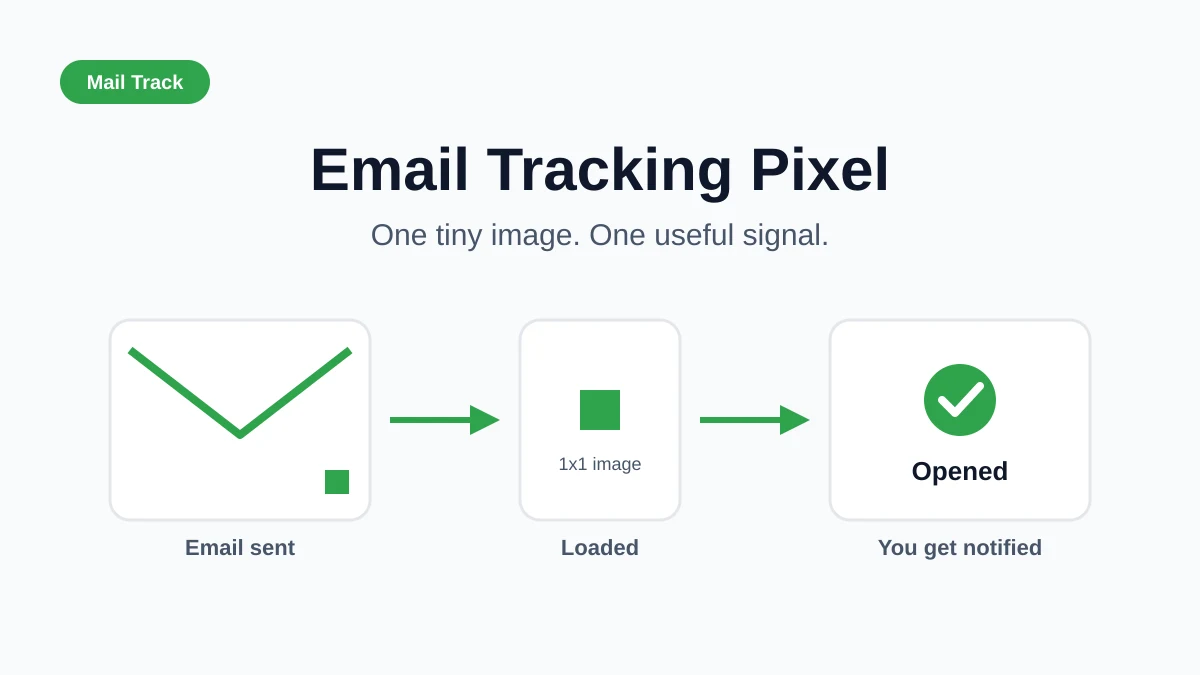
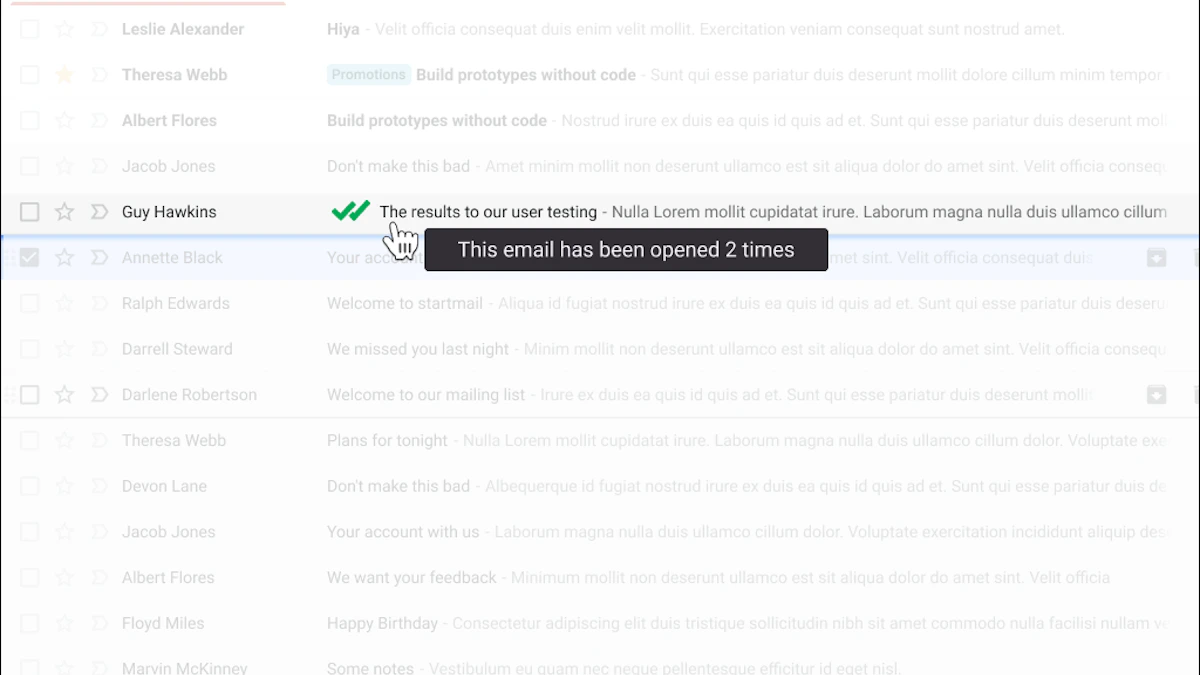
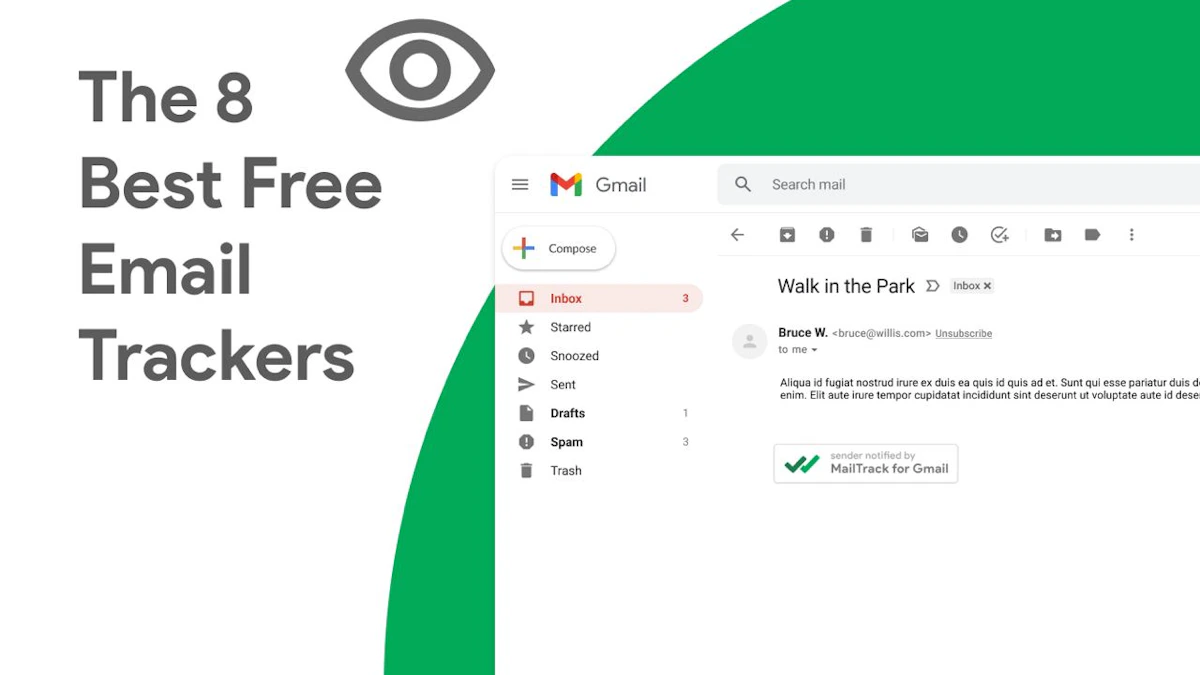
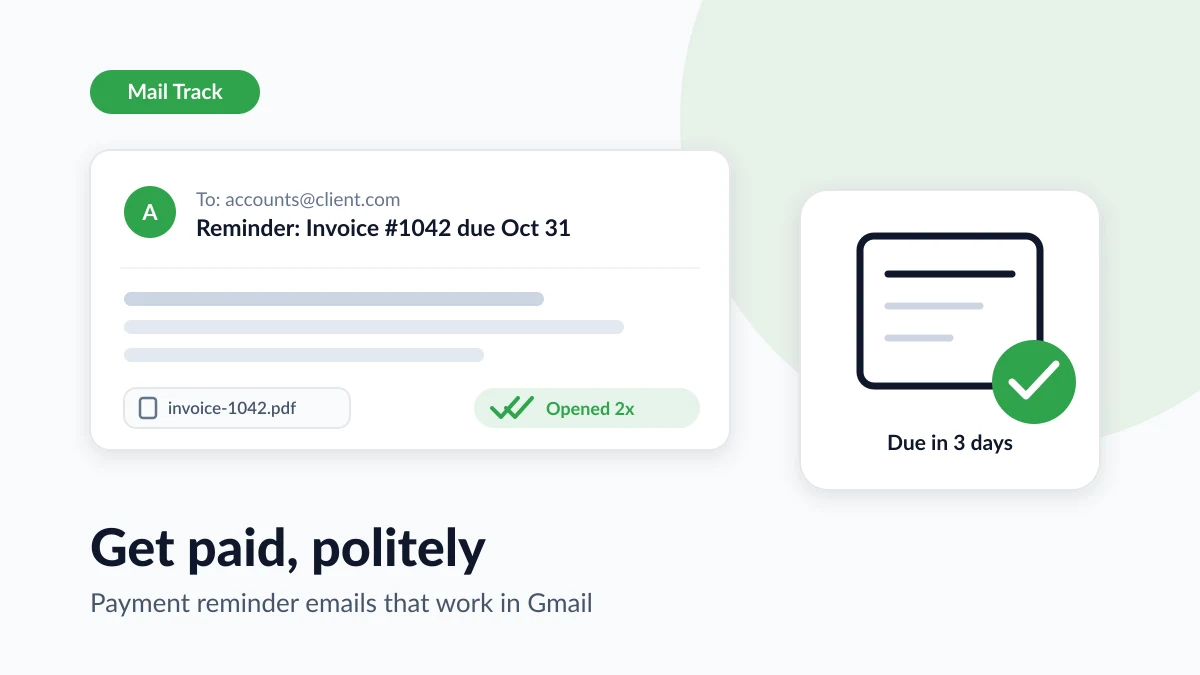
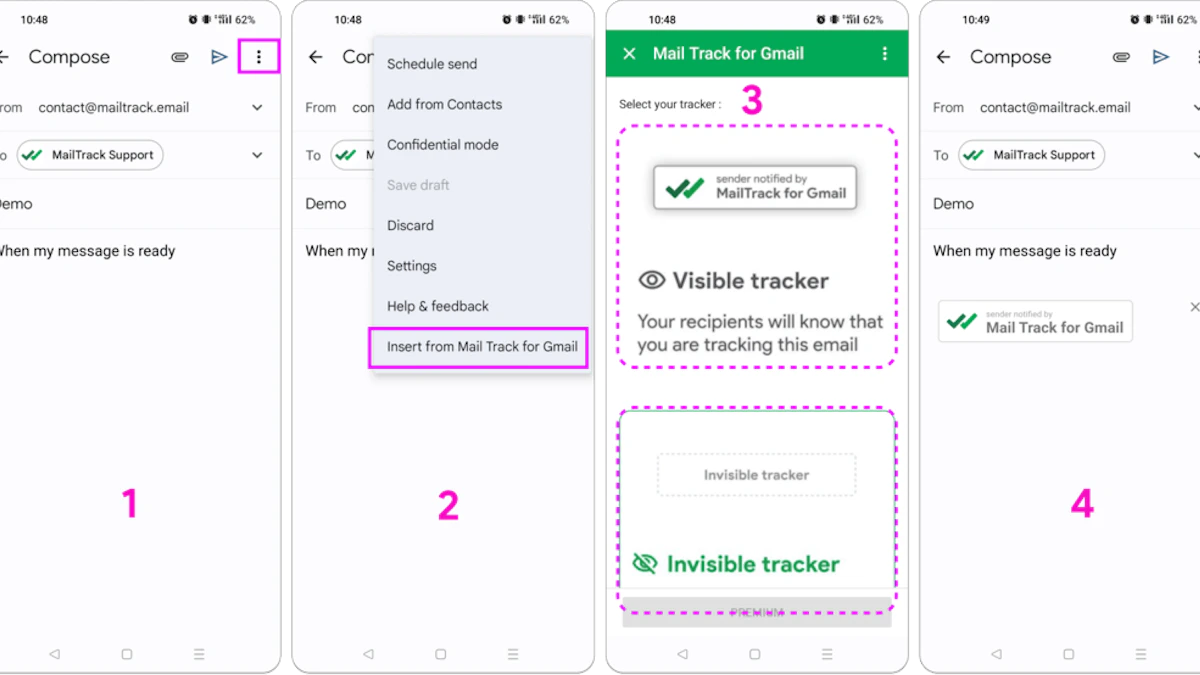
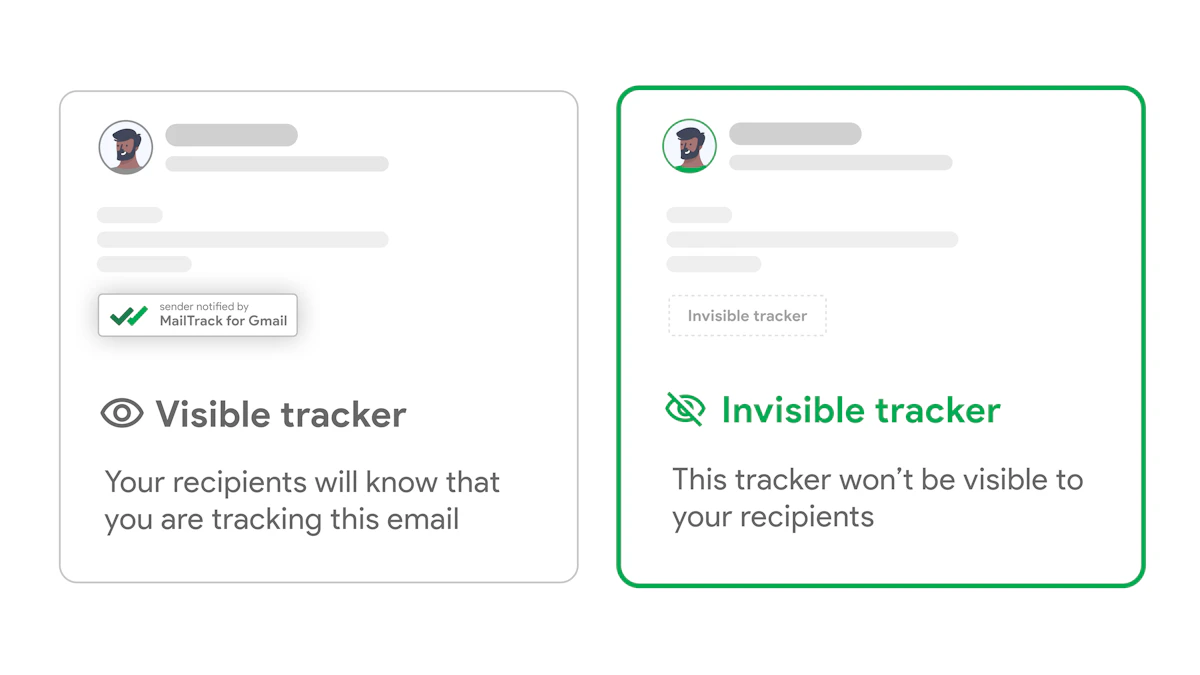
That matters when your workflow depends on read status. The exact product name mail tracker for gmail refers to a specific Google Workspace add-on that integrates directly into Gmail and shows double check marks, with one for delivered and two for opened, inside the Gmail interface, as described on the mail tracker for gmail product page.

The practical workflow that avoids blind spots

The safest habit is simple:

  • Archive received threads freely when they no longer need attention.
  • Be more deliberate with sent threads if you use the Inbox or Sent view as a follow-up dashboard.
  • Use All Mail and search when an archived sent conversation contains the history you need.

For readers comparing tracking-focused Gmail workflows, Chronoid’s Gmail insights are also worth reviewing because they help frame how people monitor engagement inside Gmail without building a separate process around another mailbox tool.

The key point is that archiving is an organization choice, not the end of message visibility. If your workflow depends on read receipts, open history, and timely follow-up, the important part isn’t whether the thread is archived. It’s whether you know where you’ll look for it next.


If you want read receipts and open notifications without leaving Gmail, Mail Tracker for Gmail adds delivered and opened indicators directly inside your inbox, plus real-time alerts on desktop and mobile so you can follow up while the thread is still warm.

Ready to track your emails?

Add Mail Track for Gmail from the Google Workspace Marketplace and know the moment your emails are opened. Free and unlimited.

Add to Gmail