Mail Tracker for Gmail
Comparisons

How to Delete Sent Emails in Gmail: Undo & Alternatives

Discover how to delete sent emails in Gmail. Learn about Undo Send and why true recall isn't possible. Explore safe alternatives and Confidential Mode in 2026.

MT
Mail Track for Gmail Team
#how to delete sent emails in gmail#gmail undo send#recall email gmail#unsend gmail#gmail tips
How to Delete Sent Emails in Gmail: Undo & Alternatives

You can only unsend a Gmail email within a 30-second window. After that, you can’t delete it from the recipient’s inbox, but you still have solid damage-control options.
If you’re here in a panic, you’re in the same place almost everyone lands sooner or later. You sent the draft with the wrong attachment. You replied to the wrong person. You hit send before fixing the subject line, or before removing a paragraph that absolutely should not have gone out.

The good news is that you can stop wasting time hunting for a hidden recall button. Gmail doesn’t work that way. What does work is knowing the one feature that can stop a message before delivery, understanding why deleting from Sent doesn’t help, and having a professional response plan for the moment when the message is already out.

That Sinking Feeling After Hitting Send Too Soon

The panic usually starts the same way. You send the email, look at the screen for half a second, and immediately notice the problem. Maybe the attachment is missing. Maybe the spreadsheet went to the client instead of your teammate. Maybe autocorrect made you sound careless at exactly the wrong moment.

That moment matters because Gmail gives you a very short chance to stop the message. If you’re still inside that window, act fast. If you’re outside it, stop clicking around randomly and move into recovery mode.

What people usually try first

Users commonly do one of three things:

  • Open the Sent folder: They hope deleting the message there will somehow pull it back.
  • Refresh Gmail repeatedly: They assume there must be a delayed sync or hidden option.
  • Search for a recall feature: They expect Gmail to work like some corporate mail systems they’ve heard about.

None of those approaches will save you once the message has been delivered.

Practical rule: Treat a sent Gmail message like a letter that’s already left your hands. Your job is either to stop it before it leaves, or manage what happens next.

The important shift is mental. Don’t ask, “How do I erase this?” Ask, “What outcome do I need now?” Sometimes that’s a correction. Sometimes it’s a quick apology. Sometimes it’s a call before the person opens the thread.

The right goal in the first minute

If the email just went out, your first job is simple:

  1. Check for the Undo button immediately
  2. If it’s gone, stop trying to delete the original
  3. Decide on the fastest clean follow-up

That calm pivot is what separates a small mistake from an escalating one.

Your First Line of Defense The Gmail Undo Send Feature

Undo Send is the only built-in Gmail option that can stop an outgoing email before it leaves. It isn’t a true recall feature. Gmail delays delivery for a short period, giving you a chance to cancel.

According to this explanation of Gmail’s unsend behavior, the cancellation window can be set to 5, 10, 20, or 30 seconds, and once you pass 30 seconds, the success rate for unsending drops to 0%.

Set it to the maximum now

If you use Gmail every day, set the delay to the longest option and leave it there.

  1. Open Gmail
  2. Click Settings
  3. Click See all settings
  4. In the General tab, find Undo Send
  5. Change the send cancellation period to 30 seconds
  6. Save changes

A hand selecting the undo send cancellation period setting in the Gmail settings interface on a monitor.

If your setting is shorter, you’re giving yourself less room than Gmail allows. For anyone serious about avoiding email mistakes, 30 seconds is the safest default.

What Undo Send actually looks like

Right after you send a message, Gmail shows a small confirmation area with Message sent and an Undo button. That button only exists during your configured delay window. Click it in time, and Gmail stops the send.

A few details matter here:

  • It’s a delay, not retrieval: The email hasn’t fully gone out yet.
  • It must be configured in advance: If you never adjusted the setting, you may not get the longest protection.
  • Interface timing matters: If you’re distracted, those seconds disappear fast.

Don’t think of Undo Send as a rescue feature. Think of it as a safety buffer you’ve chosen in advance.

Where people get caught out

The biggest mistake is assuming the feature will save every sent message everywhere. It won’t. If you’re sending from a mobile app or a third-party email client, the experience may not match what you expect from Gmail on the web.

Here’s the practical takeaway:

SituationWhat to expect
Gmail web interfaceBest chance of seeing and using Undo Send
Short cancellation settingLess time to catch mistakes
Third-party email clientThe prompt may not appear the way you expect
After the window closesThe message is gone

If you want the most reliable protection, send important emails from Gmail itself, with the cancellation period already set to 30 seconds.

The Sent Folder Myth What Deleting Really Does

Deleting a message from Sent only deletes your copy. It does nothing to the recipient’s inbox.

A split-screen comparison showing how to delete a sent email from Gmail to remove it from recipient.

This is one of the most common misunderstandings around how to delete sent emails in Gmail. According to this discussion of the Sent-folder misconception, 35% of threads in r/GMail revolve around confusion between deleting from Sent and unsending a message.

What deleting from Sent actually means

Deleting a sent email is like throwing away your copy of a letter after you’ve mailed it. Your drawer is cleaner. The other person still has the letter.

That applies whether you’re using:

  • Gmail on the web
  • The Gmail app on Android
  • The Gmail app on iPhone
  • A cleaned-up mailbox view that no longer shows your copy

The recipient’s mailbox stays exactly as it was.

Why this myth causes extra damage

The problem isn’t just the misunderstanding. It’s the false sense of relief. People delete from Sent, assume the issue is fixed, then stop paying attention when they should be sending a correction or picking up the phone.

If you’ve already deleted the sent copy, the next move is still the same. Assume the recipient has the email and act accordingly.

For a quick visual walkthrough of that distinction, this video helps clarify the difference between removing your copy and retracting a message:

Deleting from Sent is inbox housekeeping. It is not message recall.

Why You Cannot Truly Recall a Sent Gmail Message

Once the Gmail delay window closes and the message is delivered, control passes out of your hands. That’s the part many people don’t hear clearly enough.

Google’s own position is blunt. In Google’s support discussion about recalling sent Gmail messages, Gmail does not offer a true recall feature after delivery, and Google states that “there is no-one that can recall the email once it has been sent.”

The simple technical reason

Email doesn’t behave like a shared document that both sides can edit. It behaves more like a handoff between systems.

The flow is straightforward:

  1. You hit send
  2. Gmail processes the outgoing message
  3. The recipient’s mail server accepts it
  4. That copy becomes part of their mailbox

At that point, neither you nor Gmail gets to reach into someone else’s inbox and remove it.

Why people expect a hidden workaround

Some users assume there must be an admin tool, a power-user setting, or a browser trick that can pull a delivered message back. There isn’t. That’s why searches for how to delete sent emails in Gmail often lead people in circles.

A better use of your time is improving what happens after delivery. If you also care about whether your message has been seen, a guide to getting a read receipt in Gmail can help you think more clearly about timing and follow-up.

The mailbox analogy that actually fits

A physical letter is still the best analogy. While it’s on your desk, you control it. During Gmail’s brief send delay, you can still stop it. Once it’s delivered to the other person’s mailbox, it’s their copy.

Stop searching for a secret recall button after delivery. There isn’t one.

That sounds harsh when you’ve just made a mistake, but it helps. The faster you accept the technical limit, the faster you can make a smart professional response.

A Proactive Solution Using Gmail Confidential Mode

If you sometimes send sensitive information and worry about access later, Gmail Confidential Mode is the feature worth using before the mistake happens.

According to this walkthrough of sent email controls and Confidential Mode, when Confidential Mode is enabled before sending, you can revoke access to the message content later. It can make the email body disappear for the recipient, but it does not remove the thread itself from their inbox, and it does not hide the subject line or metadata.

An infographic showing the pros and cons of Gmail Confidential Mode and proactive email security features.

When Confidential Mode makes sense

Use it when the main concern is access to the content, not the existence of the message.

Good candidates include:

  • Sensitive documents: Information you may want to lock down later
  • Temporary access: Content that should expire after review
  • Restricted handling: Messages you don’t want forwarded, printed, or downloaded

A video explanation of Gmail Confidential Mode also shows the lock icon in the compose window and the option to set an expiration date before sending.

How to turn it on

In a new Gmail compose window:

  1. Click the lock icon
  2. Set an expiration date
  3. Add a passcode requirement if needed
  4. Send the message

If you later revoke access, the recipient can lose access to the body of the message even after it’s been delivered.

Its limits matter

Confidential Mode helps with access control. It doesn’t erase the fact that you emailed someone.

Here’s the trade-off:

What it helps withWhat it doesn’t do
Revoking message body accessDelete the email thread from inbox
Adding expirationHide the subject line
Blocking forwarding, printing, and downloadingRemove sender, timestamp, and recipient details

If you’re evaluating tools for visibility after sending, this overview of email tracking for Gmail is useful context. It solves a different problem. Tracking helps you understand engagement. Confidential Mode helps you control access before the send.

Smart Alternatives When an Email Is Already Sent

When Undo is gone, your job shifts from prevention to damage control. That doesn’t mean guessing. It means choosing the least messy next step based on what happened.

The useful mindset is simple. Be fast, brief, and professional.

A professional infographic titled Damage Control showing four steps to take after sending an incorrect email.

The local nature of Gmail’s Undo behavior has been true since the feature became a standard setting in June 2015, as noted in this Reddit discussion about Gmail’s Undo Send history and limits. Once that brief window passes, follow-up strategy matters more than technical tricks.

The best response depends on the mistake

A typo and a confidentiality issue are not the same problem.

Here are the options I recommend most often:

  • Send a correction email: Best when the original message is mostly fine but contains wrong information, a missing file, or a broken link.
  • Call or message directly: Best when the error is urgent, sensitive, or likely to create immediate confusion.
  • Ask for deletion plainly: If you sent something to the wrong person, ask them to delete it. Keep the request direct and respectful.
  • Escalate internally: In a workplace setting, involve legal, compliance, HR, or IT when the content creates a real organizational issue.

The worst follow-up is a long, nervous explanation. The best one is short and clear.

What a good correction looks like

A clean correction email usually has:

  1. A subject line that signals urgency clearly
  2. A one-sentence acknowledgment of the mistake
  3. The corrected information or attachment
  4. A concise apology if one is appropriate

If you want a stronger process for these moments, this guide to optimizing email follow-ups is worth reading. And if you’re dealing with threads that have gone quiet after a correction, this guide on writing a follow-up email after no response helps you keep the tone steady without sounding flustered.

A few subject lines that work

SituationBetter subject line
Wrong attachmentCorrection: Updated attachment attached
Wrong informationCorrection: Updated details below
Sent to wrong personPlease disregard my previous email

Don’t over-explain. If the original email created confusion, clarity is more valuable than self-criticism.


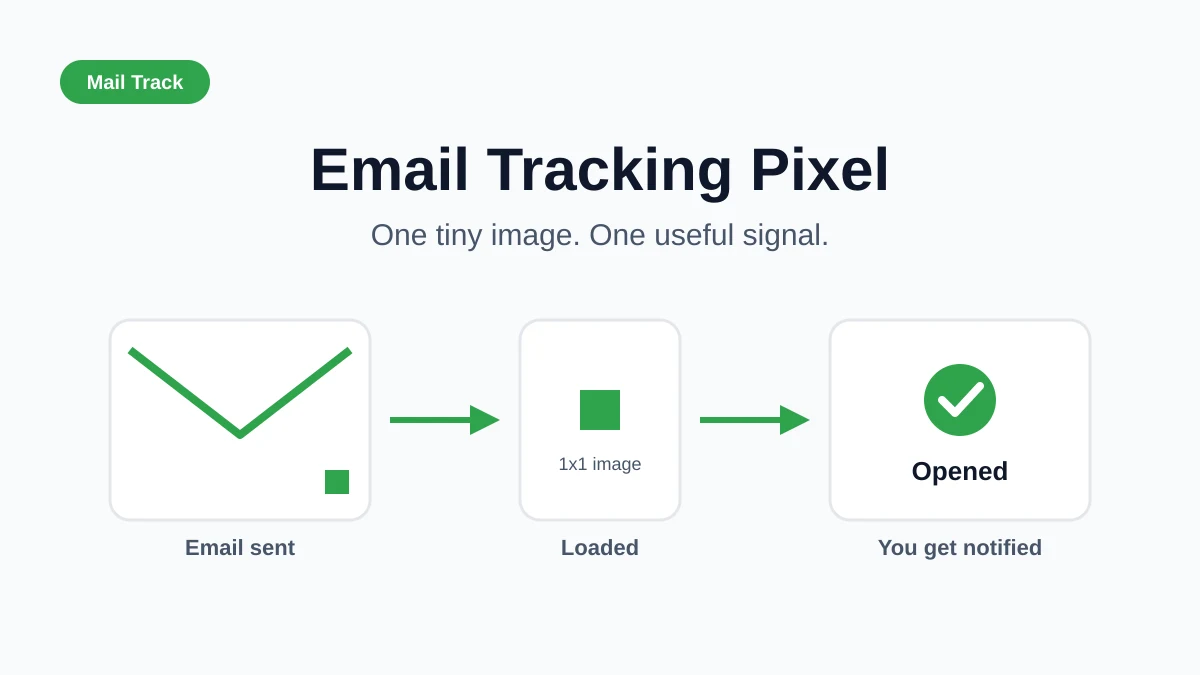
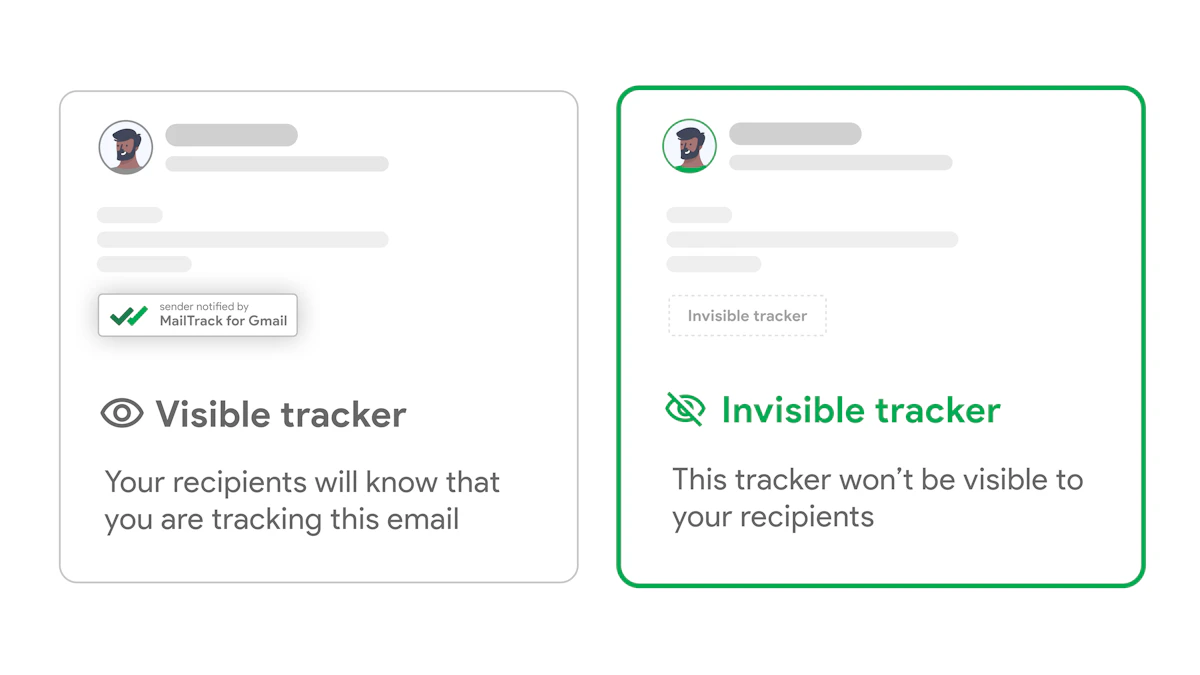
If you want better visibility after sending, Mail Tracker for Gmail helps you see when messages are opened so you can make smarter follow-up decisions in real time. Mail Tracker for Gmail is the product name, and it integrates directly with Gmail to show read receipts, timestamps, and notifications without forcing you into a separate workflow.

Ready to track your emails?

Add Mail Track for Gmail from the Google Workspace Marketplace and know the moment your emails are opened. Free and unlimited.

Add to Gmail