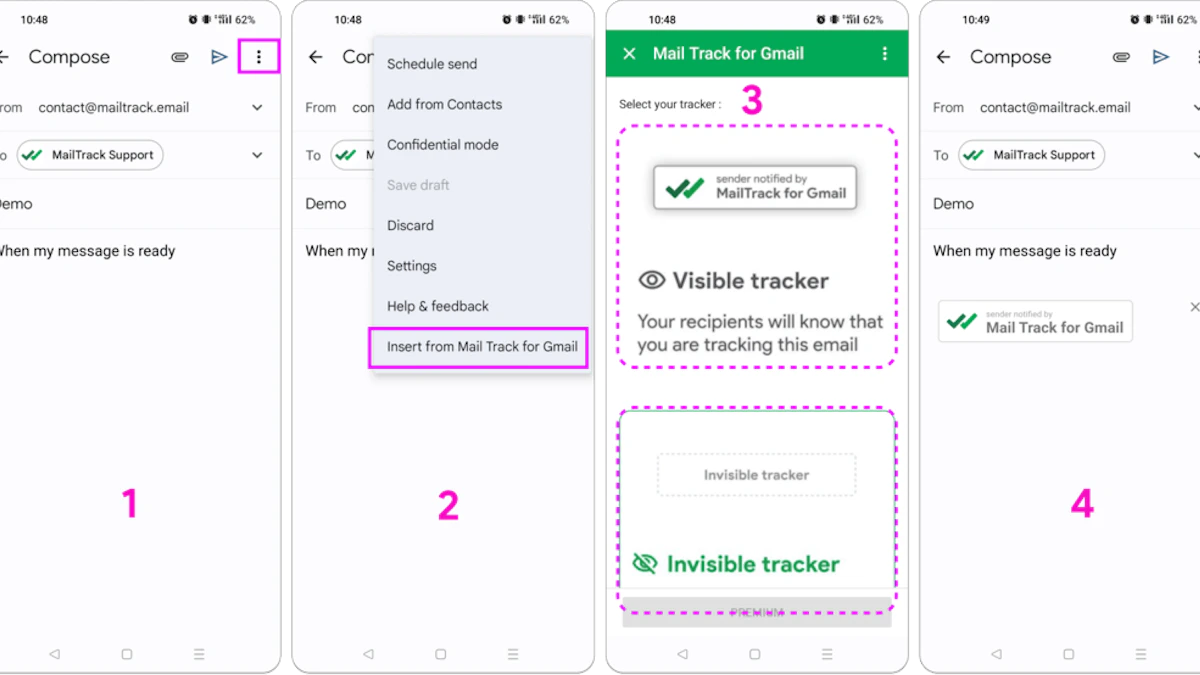
Mail Tracker for Gmail
Tutorials

How to Recover Email from Trash: A Gmail Guide (2026)

Accidentally deleted a message? Learn how to recover email from trash in Gmail on web and mobile, even after it's emptied. Step-by-step guide for all users.

MT
Mail Track for Gmail Team
#recover email from trash#gmail trash recovery#undelete gmail#find deleted emails#google workspace recovery
How to Recover Email from Trash: A Gmail Guide (2026)

You delete an email, empty Trash, and then remember what was in it. A contract. A client thread. A flight confirmation. The good news is that Gmail recovery is often straightforward if you act quickly. The bad news is that Gmail is strict about timing, and a lot of guides gloss over the details that matter when you’re trying to fix this under pressure.
To recover email from trash, start with one question: are you using a personal Gmail account or a Google Workspace account from work or school? That single detail changes what recovery options you have.

Understanding Gmail’s 30-Day Trash Lifeline

The core rule is simple. Gmail automatically retains deleted emails in the Trash folder for exactly 30 days before permanently erasing them, and once that window closes, those messages aren’t available through the normal Gmail interface, according to Google Help community guidance on deleted mail recovery.

A laptop screen displaying an infographic showing Gmail trash emails are automatically deleted after 30 days.

That means mail isn’t lost the moment Delete is pressed. Gmail moves it to Trash, where it sits until you restore it, empty Trash manually, or the retention clock runs out. If the message is still there, recovery is usually easy.

What this means in practice

Here’s the practical order of operations:

  1. Check Trash first. If the message is there, you can usually move it back immediately.
  2. Don’t keep troubleshooting other things first. Time matters more than perfection.
  3. Assume the clock is real. Once the retention period passes, standard user recovery is over.

Practical rule: If an email matters, check Trash before you search old labels, filters, or archived mail.

Why Gmail works this way

Gmail’s retention design balances two competing needs. Users need a recovery buffer for accidental deletion, but Google also needs a consistent point where deleted data is permanently removed. That’s why the recovery window is predictable, and why vague advice like “it might still be somewhere on Google’s servers” usually isn’t useful for end users.

A lot of stress comes from not knowing whether the problem is fixable. This part is fixable if you’re inside the retention window. If you are, stop reading for a moment and open Trash now.

How to Recover Deleted Emails in Gmail on Web and Mobile

Most guides explain the desktop path and stop there. That leaves out a big part of real-world Gmail use. Data shows 62% of Gmail users access the app primarily on mobile, but only 12% of recovery guides include mobile-specific steps, according to this Gmail help discussion on recovering a deleted message.

An infographic showing step-by-step instructions for recovering deleted Gmail messages on web and mobile devices.

Recover on the Gmail website

If you’re on a laptop or desktop, use the web interface first. It’s the clearest view and the fastest way to select multiple messages.

Steps on web:

  • Open Gmail in a browser. Sign in to the correct account first. This sounds obvious, but people often search one account while the missing email sits in another.
  • Find Trash in the left sidebar. If you don’t see it, click “More” to expand the labels.
  • Open the message or select it with the checkbox. You can restore one email or several at once.

  • Click the Move to icon. Send it back to Inbox or another label you use for filing.

  • Search for it afterward. Sometimes the move works, but the conversation lands under an existing thread and looks “missing” when it is restored.

Recover in the Gmail app on Android or iPhone

On mobile, the path is different enough that people get stuck. Open the Gmail app, tap the menu icon, go to Trash, then select the email and use More followed by Move to to put it back where it belongs.

A quick device check helps if the app is behaving strangely. If Gmail itself is glitching before you can get to Trash, this guide on fixing Gmail on Android is a useful first step.

Here’s the mobile flow in a cleaner format:

Device viewWhat to do
Android or iPhoneOpen the Gmail app and sign in to the right account
MenuTap the three-line menu and open Trash
SelectionTap and hold the message, or open it directly
Recovery actionTap More or the action menu, then choose Move to

A short visual walkthrough can help if you prefer to follow along:

On mobile, the most common mistake isn’t deletion. It’s opening the wrong Google account and assuming the email is gone.

What works best

Use the web interface when you can. It’s better for bulk restores and easier to verify labels after recovery. Use mobile when that’s what you have in front of you, especially if you’re traveling or trying to recover a message quickly between meetings.

If the email isn’t in Trash at all, you’re in a different scenario.

What If Your Gmail Trash Is Already Empty

An empty Trash folder doesn’t always mean you’re out of options. It does mean the easy path is gone. For personal Gmail accounts, the next thing to try is Google’s Gmail Message Recovery Tool.

For messages deleted within the last 30 days but missing from Trash, the tool provides a backend restoration path with a reported success rate of approximately 85% for accounts showing no suspicious activity, according to Google Help community guidance on recovering trashed emails.

When the recovery tool is worth trying

This tool is worth using when:

  • Trash is empty but deletion was recent.
  • You think mail disappeared unexpectedly.
  • You need Google’s backend process rather than the normal mailbox view.

It isn’t a magic undelete button for old mail. It’s a last-resort option inside a narrow recovery window.

How to approach it realistically

Use the tool once, provide the best date estimate you can, and make sure you complete the ownership checks. If the account shows suspicious activity, recovery gets messier. If the deletion happened long ago, expectations should be low.

That’s also where it helps to have a broader sense of understanding the data recovery process. Cloud systems don’t behave like local hard drives, and email recovery depends more on retention rules and provider workflows than on generic “undelete” ideas.

A separate issue comes up after bulk cleanup. If you cleared hundreds or thousands of messages and then realized something important was included, this guide on mass deleting Gmail emails is worth reviewing so the same mistake doesn’t repeat.

If the message left Trash recently, try the recovery tool immediately. Waiting doesn’t improve the odds.

What usually doesn’t work

A few things waste time:

  • Refreshing Gmail repeatedly. If the message is gone, reloads won’t bring it back.
  • Searching Inbox only. The issue isn’t search syntax if the item has already been removed from user-visible storage.
  • Third-party “Gmail recovery” apps with big promises. If they don’t have access to a legitimate copy of the message, they can’t recreate it.

If this is a company-managed account, don’t stop here. Workspace has a stronger option.

Advanced Recovery for Google Workspace Users

Business and school accounts have a path that personal Gmail users don’t. In Google Workspace, an administrator can use Restore Data in the Admin Console to recover deleted Gmail items for a limited time after user-level recovery is no longer available.

According to this guide on recovering deleted Google Workspace email, the admin-level Restore Data feature supports recovery up to 25 days post-deletion and has a documented 90–95% success rate when the admin has user consent and enters accurate timestamp parameters.

A six-step infographic showing the process for performing an advanced email recovery for Google Workspace users.

What end users should do

If this is your work mailbox, don’t keep trying consumer Gmail fixes. Contact your IT team or Workspace admin and give them:

  • Your account name
  • The approximate deletion date
  • Whether the message was removed from Trash
  • Your consent to restore the data

Those details matter. Admin recovery depends heavily on choosing the right date range.

What admins need to get right

Admin-side recovery is powerful, but it’s not forgiving. The usual failure points are operational:

Admin taskWhy it matters
Select the right userRestores are user-specific
Choose Gmail as the serviceWorkspace can restore different data types
Set the correct date rangeMissing the deletion day can block recovery
Document user authorizationSome organizations require explicit consent before data actions

This is one of those jobs where “close enough” often isn’t enough. A wrong date range can turn a recoverable message into a failed restore request.

Where Google Vault changes the situation

If the organization uses Google Vault and retention rules were already in place before deletion, admins may still be able to locate and export the message through Vault. That’s an enterprise retention and eDiscovery workflow, not a normal inbox restore, but it can be the only viable route for older deletions in managed environments.

For anyone researching how to recover email from trash in a company setting, that’s the key distinction. Personal Gmail depends on user actions and limited support tools. Google Workspace adds admin recovery and, in some organizations, Vault-based retention.

Proactive Strategies to Prevent Future Email Loss

The best recovery method is needing recovery less often. In day-to-day support work, the biggest wins usually come from changing habits, not from finding smarter emergency tools.

Replace deletion with safer habits

Start with your default behavior in Gmail:

  • Archive instead of delete. If you might need the message later, archive it. Deleting should be for junk, not uncertainty.
  • Use labels for important threads. Client approvals, invoices, legal notices, and travel confirmations shouldn’t sit in the same visual pile as newsletters.
  • Pause before emptying Trash. A quick scan catches more mistakes than expected.
  • Review your archive workflow. If you don’t use it consistently, this guide on how to archive messages in Gmail can help tighten up the process.

Build a cleaner mailbox so you make fewer mistakes

A cluttered inbox pushes people toward aggressive cleanup. Aggressive cleanup creates accidental loss. Better organization reduces that pressure.

For practical account protection habits, Accelerate IT Services Inc. security tips are a solid companion read. Security issues and deletion problems often overlap, especially when unexpected mailbox changes turn out to be account-access problems.

Better email hygiene prevents panic. Most “lost” messages were deleted too quickly, filed badly, or removed during cleanup.

Be selective about Gmail add-ons

If you use Gmail extensions or add-ons, pay attention to privacy and compliance details. The Google Workspace Marketplace requires Gmail add-ons to demonstrate GDPR compliance and document user rights including access, correction, and removal, as shown on the Mail Tracker for Gmail Marketplace listing.

Screenshot from https://mailtrack.email

One important naming note: Mail Tracker for Gmail is a specific product name. It isn’t the same thing as the generic category “mail tracker for gmail” or “email tracker for gmail.” That distinction matters when you’re evaluating tools, privacy policies, and Marketplace listings.

Frequently Asked Questions About Email Recovery

Can I recover emails deleted years ago

For standard personal Gmail, not through normal user tools. Once the deletion window and any limited recovery options are long gone, there isn’t a practical path back through the Gmail interface.

For work accounts, the answer depends on whether the organization had retention systems such as Google Vault in place before deletion. Without that kind of prior setup, old mail usually isn’t recoverable.

Does this process work the same way in Outlook or Yahoo

No. Every provider handles deletion, retention, and admin recovery differently. The steps in this guide are specific to Gmail and Google Workspace.

Can I recover deleted drafts

Sometimes, but only if the draft still exists somewhere in the mailbox or was synced in a way that preserved it. Draft recovery is less predictable than normal message recovery because drafts may not have the same lifecycle as received mail.

What if I emptied Trash by mistake today

Check whether the message still falls within Google’s recovery paths for your account type. For personal Gmail, try the Message Recovery Tool quickly. For Google Workspace, contact your admin rather than experimenting for hours on your own.

Why can’t I find the email after restoring it

A restored message may return to a conversation thread, another label, or a mailbox location you weren’t expecting. Search by sender, subject keywords, and date range rather than looking only in Inbox.

Should I use third-party recovery software

For Gmail server-side deletion, be skeptical. If a tool doesn’t have access to a real retained copy, local cache, backup, or admin-controlled export, it can’t reconstruct the original email.


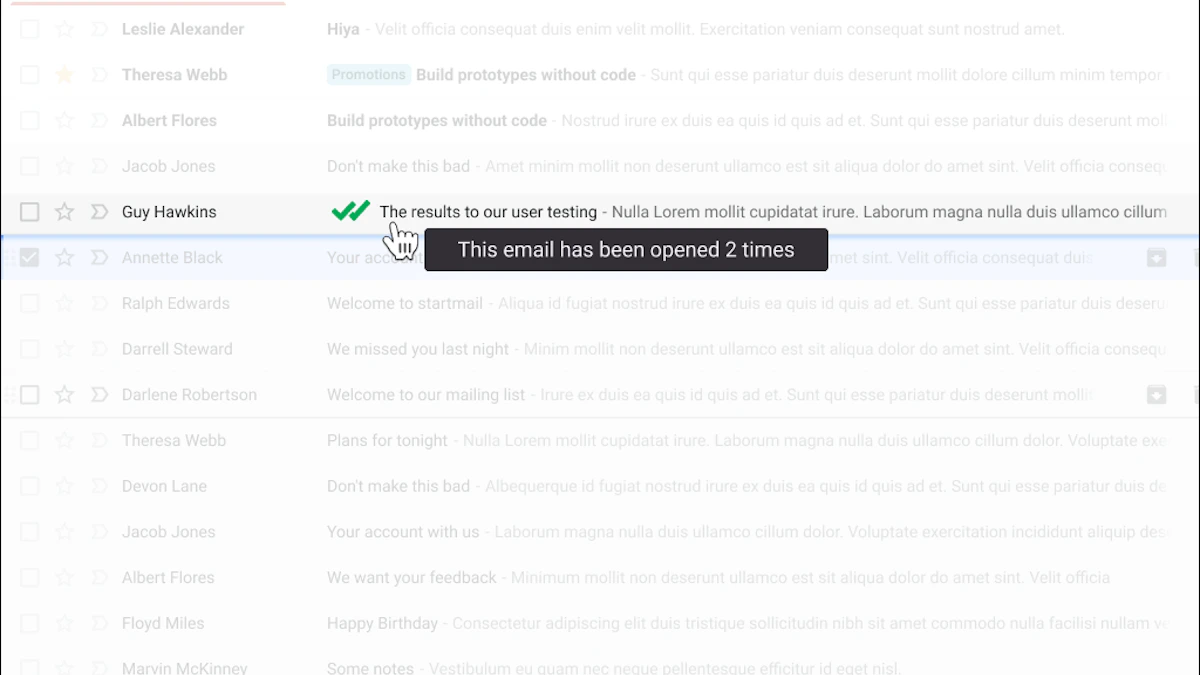
If you want less uncertainty in Gmail after a message is sent, Mail Tracker for Gmail gives you read receipts and open notifications directly inside Gmail on web and mobile. It won’t recover deleted emails, but it does answer another common stressful question fast: whether the recipient opened your message.

Ready to track your emails?

Add Mail Track for Gmail from the Google Workspace Marketplace and know the moment your emails are opened. Free and unlimited.

Add to Gmail