
How to Forward Emails in Gmail
Learn how to forward emails in Gmail with step-by-step instructions for single messages, automated filters, mobile setups, and troubleshooting silent failures.
You’re expecting an important reply, but it’s sitting in the wrong inbox. A client sent the latest project file to your personal address, a recruiter needs the candidate thread, or a sales lead must reach a shared mailbox before someone misses it. You can forward the message manually in seconds, but business email routing becomes less simple when attachments, filters, verification, security policies, and authentication enter the picture.
This guide explains how to forward emails in Gmail reliably. It covers individual messages, automated rules, mobile and desktop differences, silent failures, and the deliverability problems that can appear when a forwarded message crosses organizational boundaries.
Forwarding Single Messages and Attachments
Suppose a client emails you a project update and includes a document. You need to hand the entire conversation to a colleague, with enough context for them to act without asking you to resend the file.
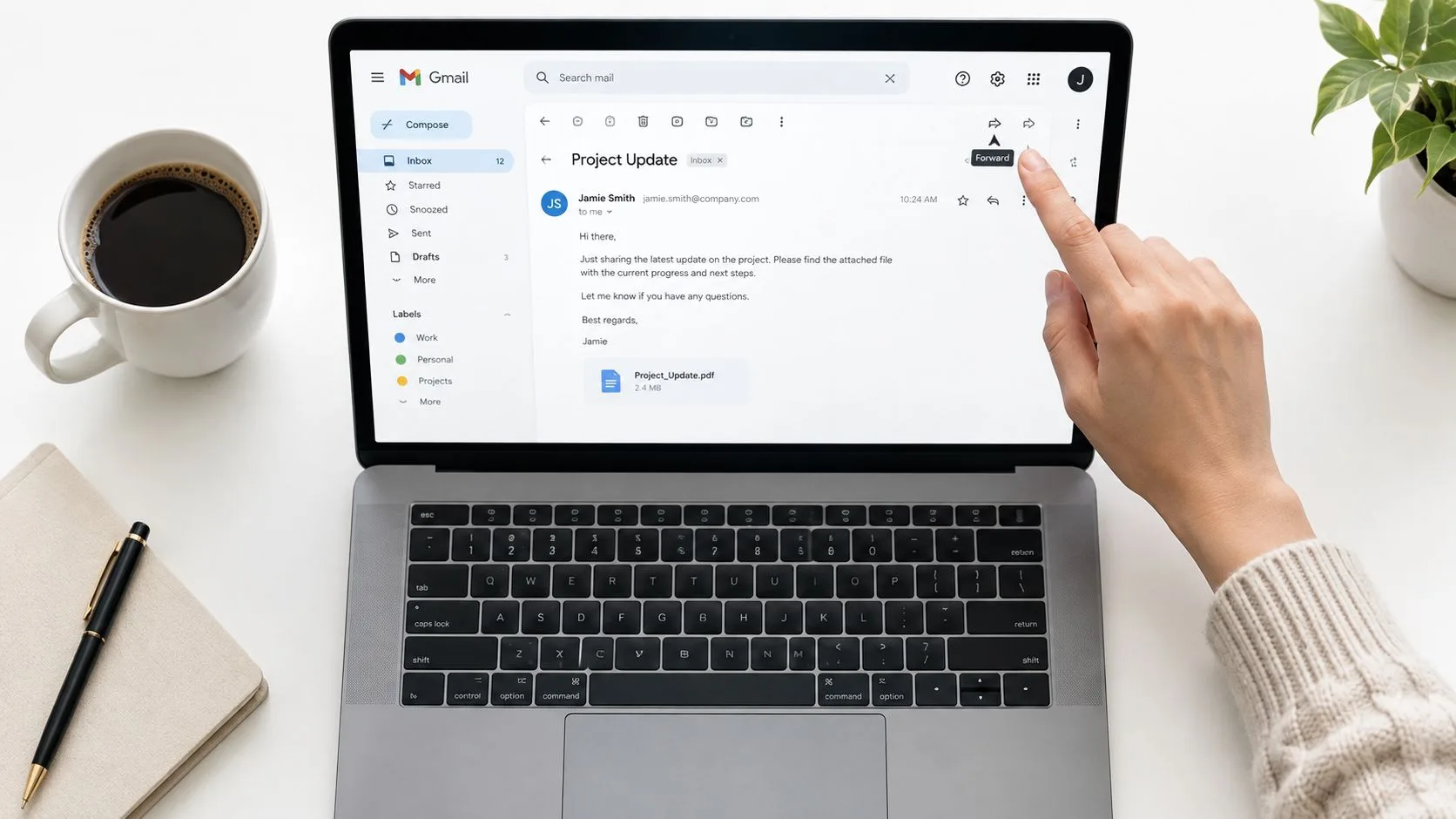
In Gmail on the web, open the message you want to send. At the bottom of that message, click Forward, enter the recipient, add a short explanation above the quoted content, and select Send. If you’re viewing a conversation with several messages, use the three-dot menu on the specific message, then choose Forward. That distinction matters because the main Forward button can include the conversation context, while the message menu targets one individual email.
Check the attachments before sending
Gmail normally carries attachments into a manual forward, but don’t assume every file is included. Look beneath the forwarded message body and confirm that each expected attachment appears before you send it. If a file isn’t listed, download it from the original message and attach it manually.
Large files can also create a practical limitation. Gmail may replace large attachments with a Google Drive link, so review how big a file Gmail can send before forwarding a project archive, video, or design package.
Your added note should appear above the quoted email. Write the reason for the handoff first, then identify any action the recipient needs to take. For example, explain which deadline changed, which file matters, or whether the recipient should reply directly to the original sender. Avoid inserting commentary inside the quoted text, because that can make ownership and chronology unclear.
Practical rule: Treat a forwarded message as a handoff, not just a duplicate. State why the recipient is receiving it and what they should do next.
Forwarding can expose client information, internal discussions, and attachments to people who weren’t included originally. Before sending sensitive material, follow practices that protect your business inbox, including checking the destination address and removing unnecessary confidential content.
Automating Your Inbox with Filtered Forwarding
Manual forwarding suits an occasional handoff. Recurring support requests, candidate replies, invoices, and client messages need a rule that runs without relying on someone to remember each message. Gmail provides account-level automatic forwarding, while Workspace administrators can configure organization-wide routing and address mapping through the administration documentation. Those controls also determine whether external forwarding is permitted.
Use Gmail in a desktop browser to configure the account. Select the gear icon, choose See all settings, open Forwarding and POP/IMAP, and select Add a forwarding address. Check the destination address character by character. Gmail sends a confirmation message there. Forwarding remains inactive until the recipient opens its verification link, after which you must return to Gmail settings and enable the address through the documented workflow.
Build a narrow rule
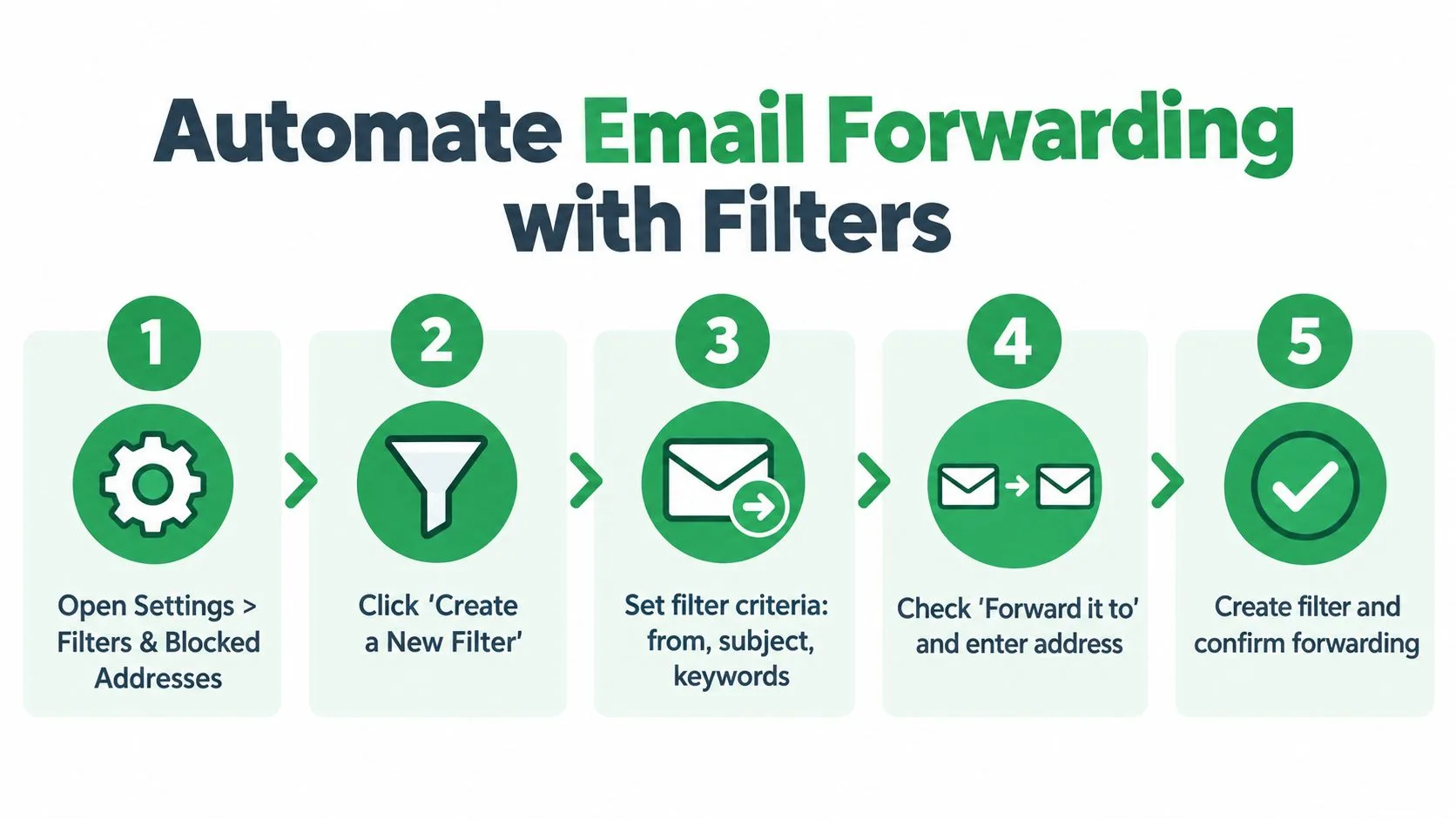
Once the address is verified, create a filter that identifies only the messages requiring routing:
- Open the filter controls: Go to Settings, then Filters and Blocked Addresses, and select Create a new filter.
- Define the match: Enter a sender address, subject phrase, message words, or another available condition.
- Test the criteria: Use Gmail’s search option before activating the rule. Review the results and tighten the criteria if unrelated messages appear.
- Choose the action: Select Forward it to, choose the verified destination, and save the filter.
- Preserve the original: Keep Gmail’s copy in the Inbox during testing. Google recommends retaining the source message because a new routing rule can otherwise make mistakes harder to investigate in its forwarding guidance.
A narrow filter limits accidental disclosure and makes missed messages easier to diagnose. Route mail from a shared support address to a service manager instead of forwarding every personal and business message. If a sender changes domains, a subject format evolves, or the rule begins matching too broadly, use this guide on how to edit Gmail filters.
This short walkthrough shows the interface in action:
Workspace forwarding is controlled routing, not simple message duplication. Administrative limits include 30 million forwarding operations in a 24-hour period and 600,000 in a one-minute window, according to Google Workspace’s Gmail routing documentation. Most organizations will not approach those thresholds, yet the controls explain why an administrator may restrict external destinations. Keeping the original message also helps expose authentication breaks, rejected deliveries, and rules that stop matching.
Navigating Mobile and Web Interface Differences
The Gmail app is useful for forwarding one message while you’re away from your desk. Open the email, tap the three-dot menu associated with that message, choose Forward, add the recipient and context, check the attachment area, and send it. This is the right tool for a quick handoff from an Android or iPhone.
The app isn’t the right place to configure account-level automatic forwarding. The settings required to add and verify forwarding addresses, choose whether the original remains in the Inbox, and create filters are available through Gmail’s web interface. Searching through the mobile app menus won’t reveal a complete replacement for those desktop controls.
Choose the interface for the job
| Task | Gmail mobile app | Gmail on the web |
|---|---|---|
| Forward one message | Suitable | Suitable |
| Add context before the quoted email | Suitable | Suitable |
| Confirm individual attachments | Suitable | Suitable |
| Add a forwarding address | Limited | Suitable |
| Create or manage forwarding filters | Not the practical option | Suitable |
| Review account-level forwarding settings | Limited | Suitable |
If you only have a phone, open Gmail in a mobile browser and request the desktop site. The layout may be awkward, but it gives you access to the account settings that the app doesn’t expose. For day-to-day reading, conversation view in Gmail can make related messages easier to review, but it doesn’t replace the web settings needed for automated routing.
Google also provides a Gmail API method named updateAutoForwarding for account-level forwarding controls, which confirms that automatic forwarding is a platform capability rather than a feature limited to a particular app screen in the Gmail API documentation. In practice, ordinary users should configure it in the web interface, while administrators and developers may manage it through Workspace controls or approved automation.
Troubleshooting Silent Forwarding Failures
The most dangerous forwarding problem isn’t an obvious error. It’s a rule that appears to exist but stops delivering messages, leaving the sender and destination user unaware. A missed forwarded message can represent a lost lead, a delayed candidate response, or an unanswered client escalation.
Start with the destination address. If the recipient never clicked Gmail’s confirmation link, the address isn’t active for automatic forwarding. Return to the forwarding settings, check the address status, and send the verification message again if Gmail offers that option.
Follow the message path
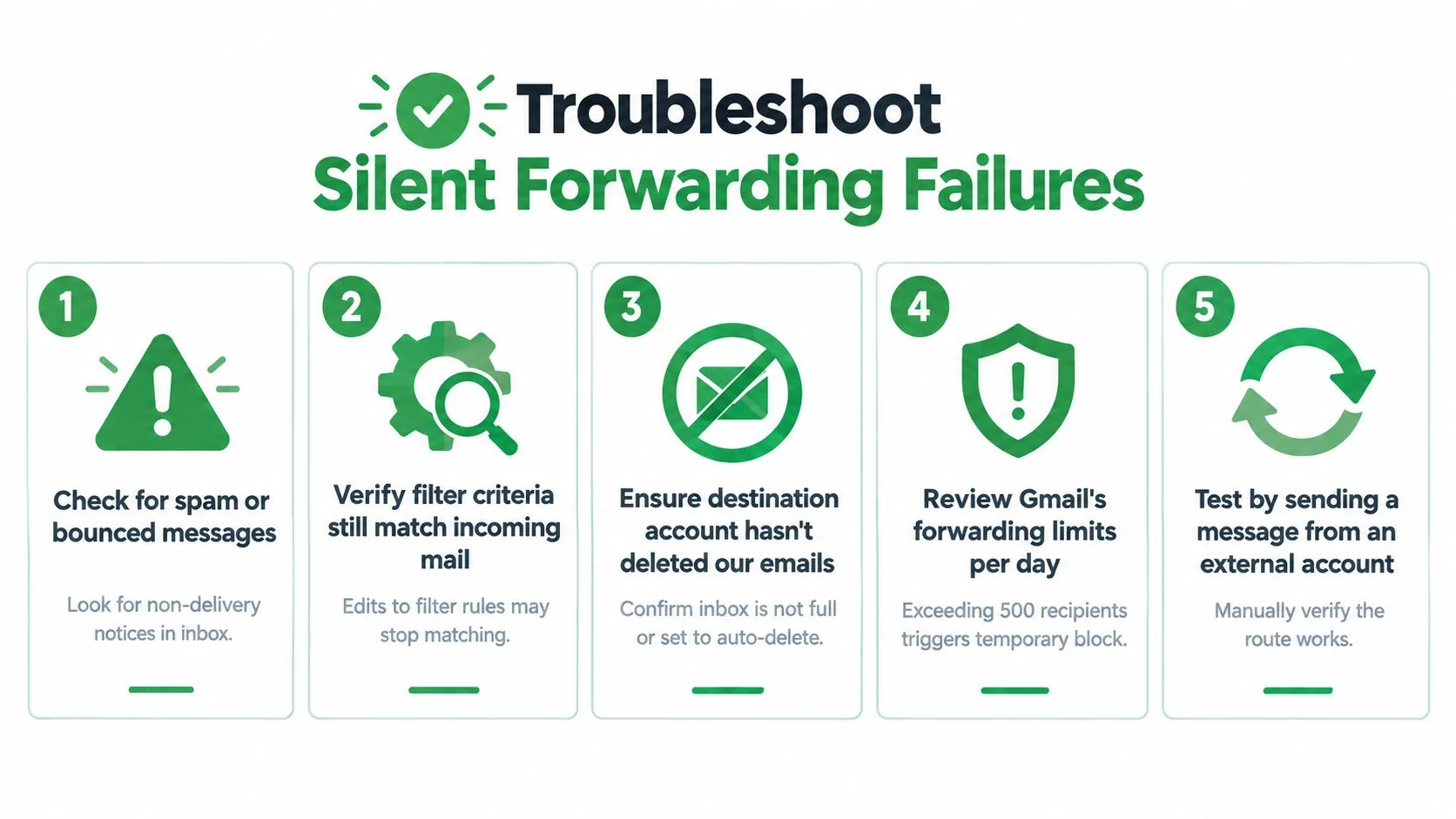
Use this diagnostic order instead of randomly changing settings:
- Check the destination inbox: Search Spam, Trash, and quarantine areas. Look for bounce notices or non-delivery messages.
- Test the filter match: Open the filter and compare its sender, subject, and keyword conditions with a new message. A supplier may have changed its sending address, or a team may have renamed a subject pattern.
- Inspect competing filters: Another Gmail filter may archive, delete, label, or otherwise process the message in a way that prevents the intended forwarding behavior. Temporarily simplify the rules during testing.
- Check Workspace policy: An administrator may block external forwarding or limit where messages can go. Personal Gmail troubleshooting won’t override an organization-level policy.
- Send a controlled test: Use a message from an external account with the exact sender and subject pattern the filter expects. Confirm receipt at the destination, then inspect the original mailbox.
Gmail’s user-facing forwarding workflow is simple, but reliability depends on several separate states. The destination must be verified, the filter must still match, the account must permit forwarding, and the receiving system must accept the routed message. A change to account security settings can also disable or interrupt forwarding, so review recent security events when a previously stable rule suddenly stops.
Diagnostic shortcut: If manual forwarding works but automatic forwarding doesn’t, focus on verification, filter criteria, competing rules, and Workspace policy. If manual forwarding also fails, inspect the destination inbox and deliverability signals first.
Don’t delete the original message while diagnosing the route. Keeping the source in Gmail gives you a reliable reference for headers, attachments, sender details, and the exact conditions that should have triggered the filter.
Security and Deliverability Considerations
Forwarding changes the delivery path, not just the recipient list. A message that reached the original Gmail account can receive different treatment after routing because the destination server evaluates its authentication history and its own security policies.
SPF checks whether an authorized sending system sent mail for a domain. A forwarding server may not be authorized by the original sender’s SPF policy, causing the forwarded message to fail that check. DKIM uses a cryptographic signature to help verify message integrity, but forwarding changes can invalidate that signature. DMARC then evaluates authentication and domain alignment. Failure may contribute to spam placement, rejection, or other policy enforcement.
Why ARC matters
ARC, or Authenticated Received Chain, can preserve authentication results across trusted forwarding steps. It does not guarantee that a message is safe or deliverable. Instead, it gives downstream systems more context about what an earlier server authenticated before forwarding occurred. This technical overview of DMARC forwarding and ARC explains why forwarding can create authentication failures and how ARC may help.
The risk is practical for sales, recruiting, finance, and government-facing teams. A forwarded invoice or candidate document may be legitimate, while the destination server sees a new delivery path and applies its own controls. Forwarding systems that support ARC and sensible spam handling provide more useful trust signals than services that redirect every message without preserving authentication context.
Security principle: Forward only what the destination user needs. External forwarding is a data-sharing decision as well as a routing decision.
Choose the email architecture with a clear understanding of message transfer versus mailbox access. Yalc’s guide to email protocols explains how SMTP and IMAP handle different parts of email delivery and access. A Gmail forwarding rule routes messages to another address. It does not create a second, fully synchronized mailbox, and permissions, policy, authentication, and destination filtering still govern the result.
Use forwarding cautiously for confidential conversations. If an organization requires consistent retention, auditing, centralized controls, or routing across many users, an administrator-managed Workspace configuration may fit better than individual rules. Organization-level Gmail routing also gives administrators explicit control over how messages are redirected, so confirm the applicable policy before relying on user-level forwarding.
Maintaining Reliable Email Routing
A forwarding rule shouldn’t be a “set it and forget it” feature. Treat it like a small operational dependency. Record what each rule does, who owns it, where messages go, and what business process depends on it.
A practical audit starts with the forwarding address list and continues through every filter. Remove destinations that no longer serve a purpose, review rules after team or vendor changes, and send controlled tests when you modify criteria. Keep the original message in the source Inbox while a new route proves itself.
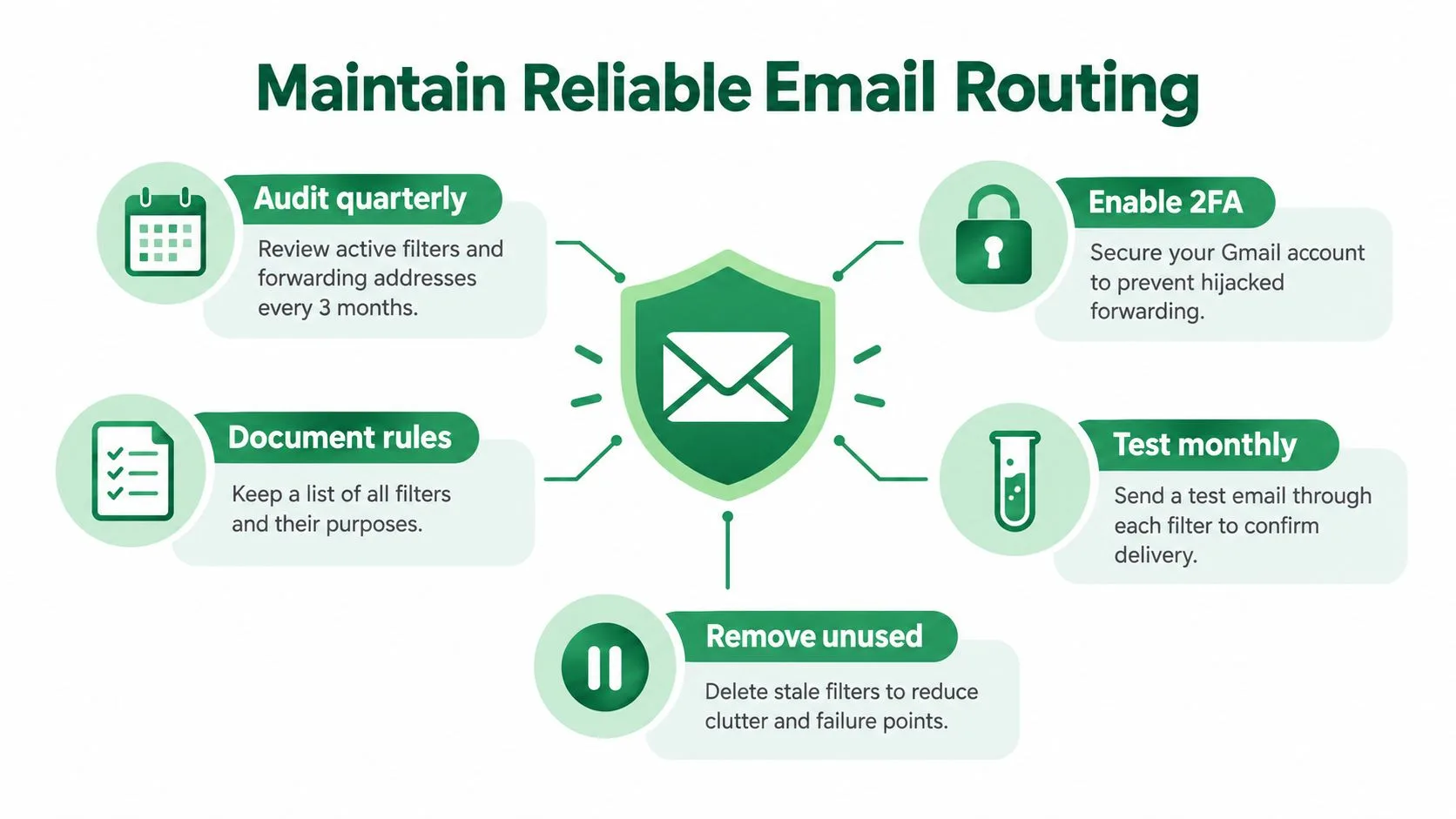
Use this maintenance checklist
- Document ownership: Note the person or team responsible for each forwarding rule.
- Review destinations: Confirm that every address is still authorized to receive the routed content.
- Test representative messages: Send a normal test that should match each important filter, then confirm arrival.
- Inspect failures: Check spam, bounces, quarantine, filter conflicts, and Workspace restrictions before rebuilding a rule.
- Reduce exposure: Forward only the messages and attachments required for the recipient’s role.
- Secure the account: Protect the Gmail account and administrator access with strong account security practices.
Forwarding and tracking answer different questions. Forwarding tells you whether a message should be routed to another inbox. A tracking tool can provide engagement signals for the original outbound message, such as whether it was opened and when, without replacing your routing audit. For a broader explanation of SPF, DKIM, DMARC, and related controls, consult this email authentication guide.
The durable workflow is simple: configure on the web, verify the destination, use narrow filters, preserve originals, test after changes, and investigate authentication when delivery becomes inconsistent. That approach prevents a routing rule from becoming an invisible single point of failure.
Mail Tracker for Gmail adds read receipts, open notifications, timestamps, and message-level engagement details directly inside Gmail, helping you distinguish an unanswered message from one that was never seen. Visit Mail Tracker for Gmail to see how tracking can complement your forwarding workflow and make follow-up decisions more timely.
Ready to track your emails?
Add Mail Track for Gmail from the Google Workspace Marketplace and know the moment your emails are opened. Free and unlimited.
Add to GmailMore reading
More from Tutorials
How to Track Link Clicks in Gmail (and What a Click Really Tells You)
Learn how to track link clicks in Gmail, why Gmail does not do it natively, how tracked links work and how to read clicks without being fooled by scanners.
How to Find My Contacts in Gmail: A Practical Guide
Learn how to find my contacts in Gmail on desktop and mobile. Clear steps for Google Contacts, search tips, shortcuts, and contact details from emails.
Objection in Sales Explained and How to Handle It
Learn what objection in sales really means, why it happens, and proven frameworks to handle price, timing and trust objections with confidence.