
How Big a File Can Gmail Send? Full 2026 Guide
How big a file can Gmail send in 2026? Learn the 25 MB limit, Google's new 50 MB Enterprise Plus change, Drive workarounds, and the best ways
25 MB is the Gmail sending limit for the combined attachments on a personal account. Starting in February 2026, Google Workspace Enterprise Plus users can send direct attachments up to 50 MB, so the right answer now depends on which Gmail account you use.
How big a file can Gmail send? The familiar answer is still 25 MB for personal Gmail, but that number no longer describes every Google Workspace setup. A personal inbox, a standard company account, and an Enterprise Plus account may follow different rules, and your administrator can also apply organization-specific restrictions.
There’s another source of confusion: Gmail measures the total message payload, not just the file size shown on your computer. A group of modest files can cross the threshold together, while Gmail may convert oversized attachments into a Google Drive link instead of sending them as traditional attachments.
The 25 MB Rule and What It Really Measures
For personal Gmail, the practical baseline is 25 MB for all attachments combined, not 25 MB per file. Google’s Gmail documentation explains that Gmail automatically replaces attachments with a Google Drive link when the total exceeds that limit.
That means two files of 12 MB each may fit, while a 24 MB PDF plus a 2 MB image won’t. Each file is below the headline limit, but Gmail adds the attachment sizes together before deciding whether the message can go out directly.
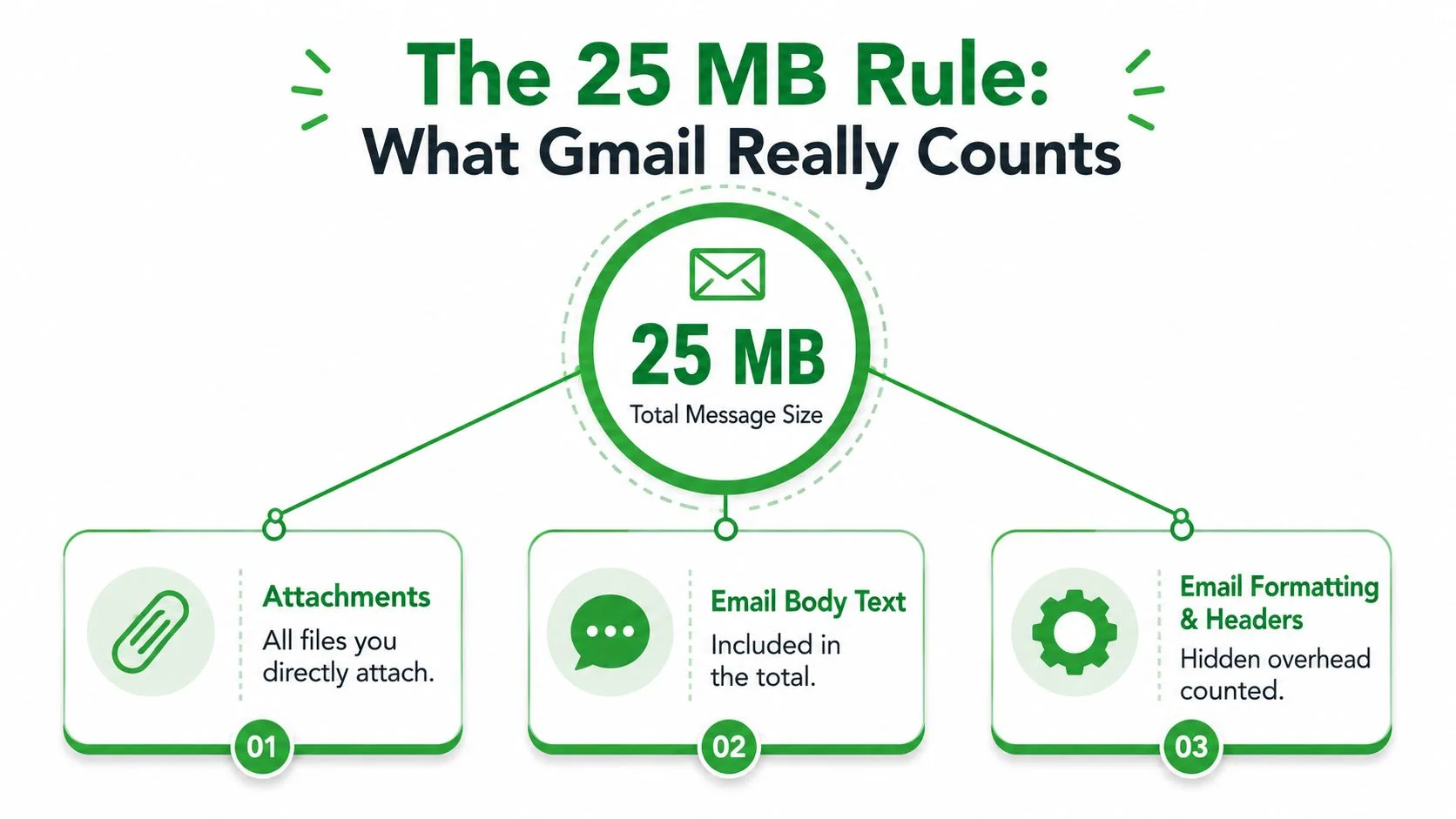
What Gmail counts
The attachment total is the part you check, but the message also contains the email body and technical message data. File encoding adds overhead during transit, so a file that appears very close to the limit may still trigger an error.
You don’t need to calculate the encoding manually. Gmail handles that process, but you should leave some breathing room rather than aiming for the exact ceiling.
Practical rule: Treat 25 MB as a combined ceiling with a little margin, not as a promise that one file labeled 25 MB will always send directly.
A quick check before sending
Open a draft and look at each attachment chip in the compose window. Hover over the files, note their displayed sizes, and add them together. If the combined total is comfortably below 25 MB, the message should send as a normal attachment under the personal Gmail baseline.
If you’re attaching several images, a presentation, and a PDF, check the group rather than focusing on the largest file. The question isn’t “Is this file under 25 MB?” It’s “Are all the files in this draft within Gmail’s total message allowance?”
Why Your Limit Might Not Be 25 MB
Personal Gmail gives most users a straightforward starting point, but work and school accounts can follow administrator-controlled limits. Google’s support guidance for Google Workspace states that sending and receiving limits for those accounts are set by the organization’s administrator.
The most important 2026 exception is Enterprise Plus. Google announced that, beginning in February 2026, Enterprise Plus users could send direct attachments up to 50 MB, while incoming message size increased to 70 MB. The announcement describes the outbound change as doubling the previous 25 MB sending limit. You can read the details in Google Workspace’s February 2026 update.
That doesn’t mean every company Gmail account has the new allowance. Your plan, administrator settings, rollout status, and the recipient’s ability to receive larger messages can all affect the result.
Gmail attachment limits by account type in 2026
| Account Type | Default Limit | Admin Can Lower To | Effective Feb 2026 |
|---|---|---|---|
| Personal Gmail | 25 MB combined attachments | Not applicable | 25 MB sending baseline |
| Google Workspace work or school account | Organization-dependent | Administrator-controlled | Depends on plan and rollout |
| Enterprise Plus | 50 MB outbound, where enabled | Administrator-controlled | 50 MB outbound and 70 MB incoming |
The safest check is inside your own compose window. Start a draft, attach a file, and read any maximum-size guidance Gmail displays beneath the attachment chip. If the visible limit differs from what a colleague sees, that may reflect account policy rather than a Gmail malfunction.
What Happens When You Go Over the Limit
Gmail’s response depends on how you add the file. A file selected from your computer may be stopped when it crosses the account’s direct-attachment limit. Gmail displays an attachment error in the compose window, giving you a chance to remove the file, reduce its size, or choose a sharing link instead.
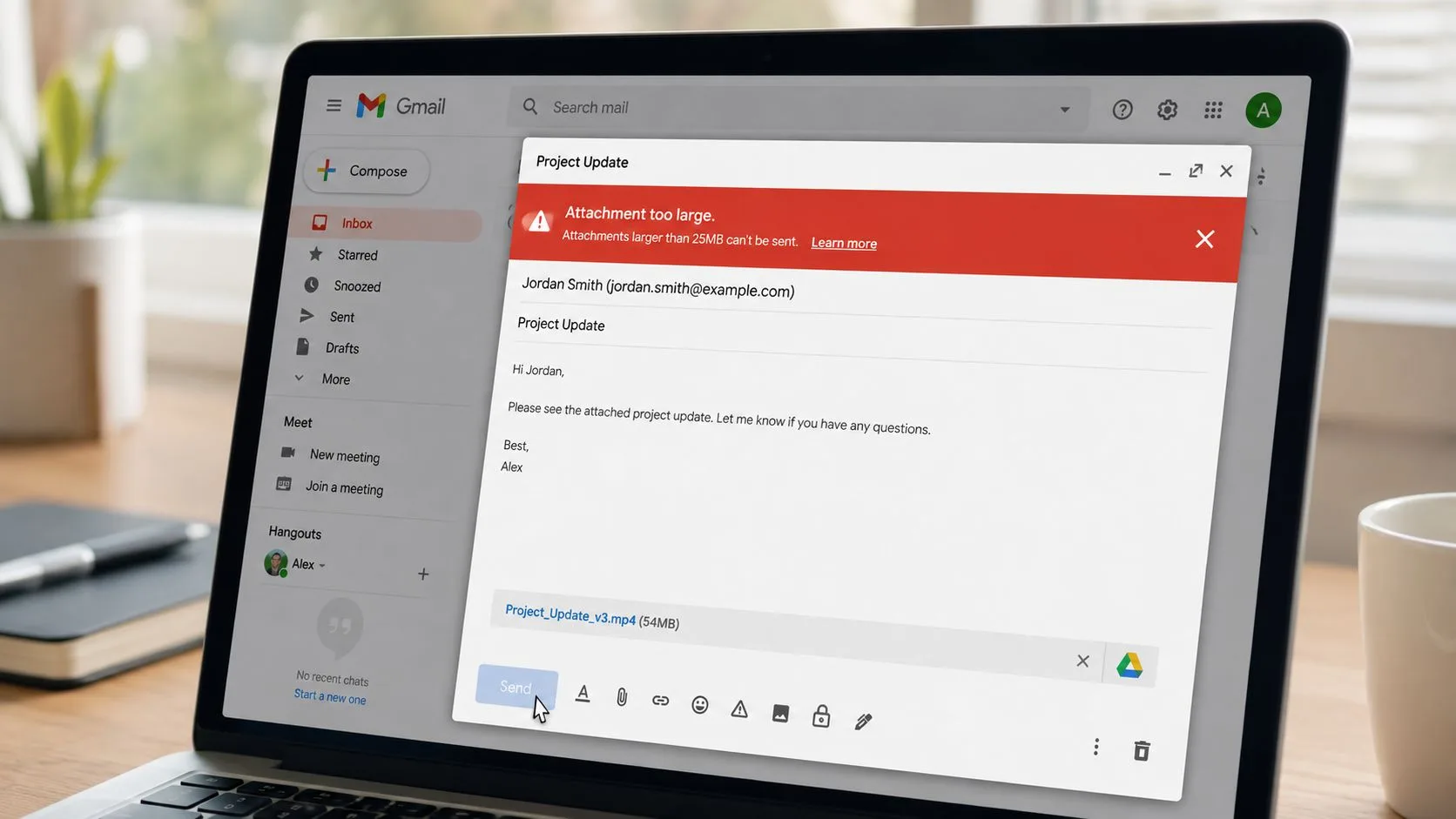
If the file is already in Google Drive, Gmail can insert it as a Drive link. The email itself stays small, while the recipient opens the file through Drive. That changes the access question: the recipient may need permission to view the item, and the link won’t work as intended if the sharing setting is too restrictive.
Read the warning before deleting anything
Look at the attachment chip and the text beneath it. Gmail may identify the specific file causing the problem, which helps when a draft contains several attachments. Remove only the oversized item first, then try a Drive link or a smaller version.
The recipient also won’t receive a conventional file copy in the link scenario. They’ll receive a message containing access to the Drive item, so check whether they can view, comment on, or edit it before sending.
A successful send doesn’t always mean a successful handoff. Verify both the email status and the recipient’s file permission.
For a visual walkthrough, this short demonstration shows how Gmail handles large attachments and Drive sharing.
Three Ways to Send Files Bigger Than the Cap
When a file won’t fit as a direct attachment, choose the method based on what the recipient needs to do with it. A collaborative document, a finished video, and a temporary archive don’t have the same sharing requirements.
Google Drive links
Drive is usually the smoothest Gmail-native option. Upload the file to Google Drive, select it from Gmail’s Drive picker, and insert a link rather than forcing the file through the attachment channel. Gmail may also make that substitution automatically when the total is too large.
The recipient can preview or download the item according to the permission you set. Drive works especially well when several people need the same current version, because you can update the stored file without sending another copy.
The trade-off is storage and access management. The file remains in the sender’s Drive, and recipients may be blocked until the owner grants suitable permission.
Compression
A ZIP archive can help when the overage is modest or when you’re sending several text-heavy documents together. Windows and macOS both provide built-in compression tools, and the recipient can extract the archive after downloading it.
Compression works best with documents and collections of similar files. Already-compressed videos, photographs, and many PDFs may shrink little, so creating a ZIP archive won’t always solve the problem. It can also make individual files harder to preview.
Transfer services
Services such as WeTransfer, Dropbox Transfer, Send Anywhere, and Filemail create a download link instead of placing the payload inside Gmail. Their policies differ, so check the available file allowance, password controls, expiry period, and whether the recipient needs an account before choosing one.
| Method | Max file size | Recipient needs account? | Expiry | Best for |
|---|---|---|---|---|
| Google Drive link | Depends on Drive availability and account storage | Sometimes, depending on sharing settings | Controlled by owner settings | Collaboration and ongoing access |
| ZIP archive | Must still fit Gmail’s direct-attachment allowance | Usually no | No automatic link expiry | Small overages and document bundles |
| Transfer service | Depends on provider and plan | Often not, but policies vary | Usually provider-controlled | One-off large deliveries |
For related workflows involving multiple personalized files, see mail merge with attachments. In simple terms, Drive wins for collaboration, compression helps with small overages, and transfer services suit one-off payloads that don’t need permanent storage.
Sending Large Files From the Gmail Mobile App
The Gmail app follows the same basic idea, but phone storage, mobile data, and connection quality make the process less forgiving. On Android, tap the paperclip, then choose a source such as Google Drive, Files, or Photos. On iOS, Gmail may pass the selection through Apple’s document picker, which can affect how a file is previewed or selected.
A reliable phone workflow
Start by selecting the file before writing a long message. Watch the upload progress, especially on cellular data, and avoid switching apps while Gmail is processing a large item. An unstable connection can interrupt the upload or leave the draft waiting longer than expected.
When Gmail turns an oversized item into a Drive link, check the attachment thumbnail before tapping Send. A Drive indicator tells you that the recipient will open a cloud link rather than receive a traditional file copy.
Photos and short clips are good candidates for local resizing when you’re on cellular data. Smaller media uploads faster and reduces the chance of a timeout, but don’t reduce quality so far that the recipient can’t use the file.
Mobile check: Confirm the file source, watch the upload finish, inspect the thumbnail, then review Drive permissions before sending.
The app can also impose practical constraints separate from the message total, including a per-attachment ceiling. If your phone can’t complete the upload, move the file to Drive over Wi-Fi and share it from there instead of repeatedly retrying the same attachment.
For messages containing confidential documents, review how to send a secure email before sharing from a phone. A cloud link is convenient, but convenience doesn’t replace deliberate access control.
Picking the Right Method for Any Size File
Use the size shown in your draft as the first decision point, then consider the recipient, file type, and required lifespan of the share.
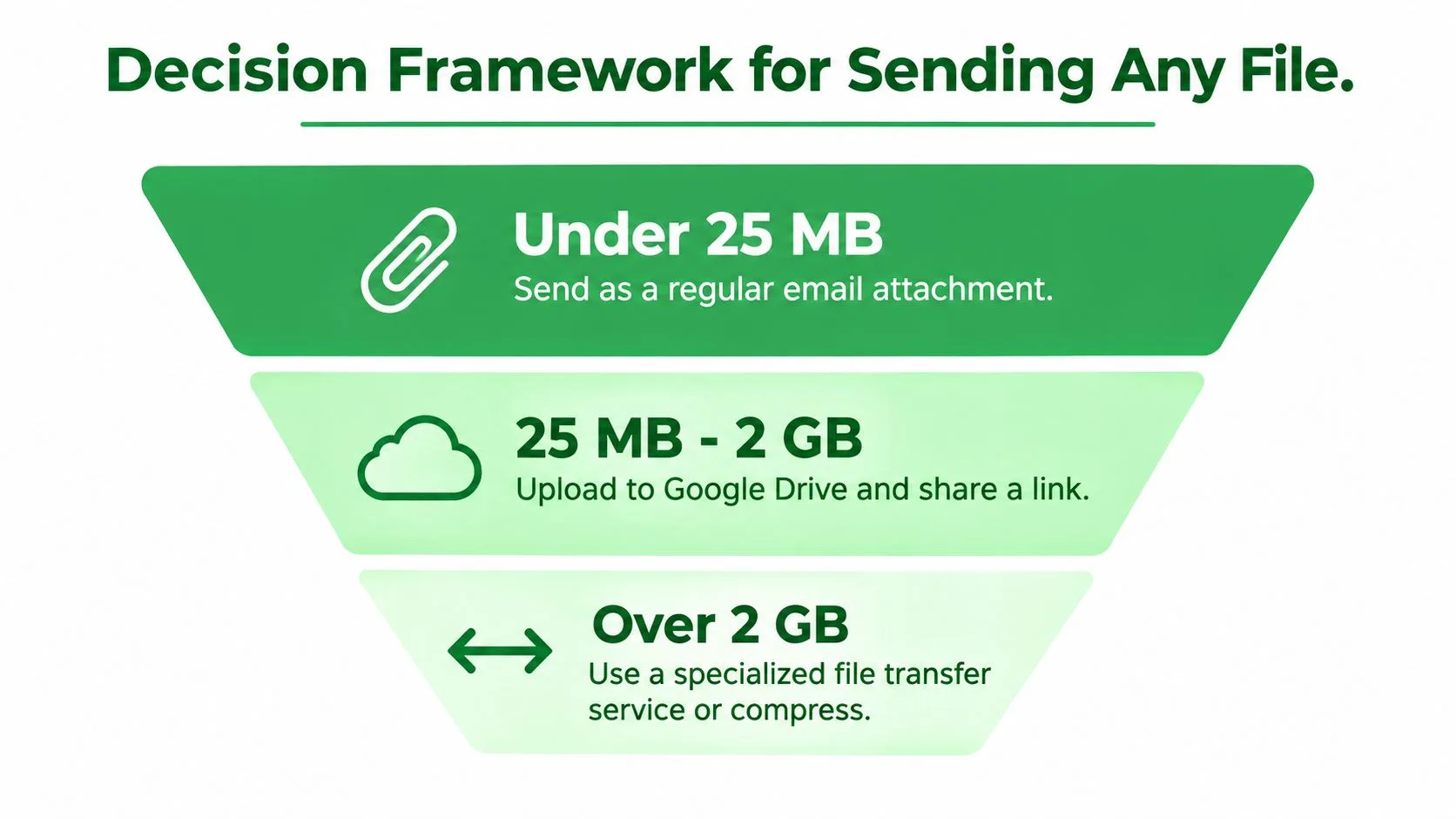
- Under 25 MB: Send it as a normal attachment if the combined draft total fits your account’s limit. This is the simplest choice for a document that the recipient needs to download or archive locally.
- From 25 MB to 100 MB: Use a Google Drive link or create a ZIP archive if compression can bring the collection under your account’s allowance. Set Drive access before sending, especially when the recipient is outside your organization.
- From 100 MB to 2 GB: Drive is often the practical choice, while a transfer service works well for a temporary handoff. A compressed folder remains useful when the contents are mostly documents and the recipient expects one downloadable package.
- Over 2 GB: Plan for cloud storage, a specialized transfer service, a physical handoff, or a split archive. Gmail isn’t the right delivery container for a payload at this scale.
Make the handoff work
Before sending, confirm that the recipient can open the format. A Drive link may be technically delivered but practically useless if the recipient lacks permission, while a ZIP file may require extraction software or a clear explanation.
For sensitive material, use a deliberately limited sharing role and prefer an expiring transfer link when long-term access isn’t necessary. If the message itself needs additional protection, review how to send password-protected email.
The memorable rule is simple: attach small files, link medium files, and transfer very large files. Check your account tier first, because the Enterprise Plus change means some Workspace users now have a wider direct-send path than personal Gmail users.
Mail Tracker for Gmail adds read receipts, open counts, timestamps, and real-time notifications inside Gmail, helping you confirm whether a file-sharing email was opened and follow up at the right moment. Visit Mail Tracker for Gmail to see how it can give your Gmail file handoffs clearer visibility.
Ready to track your emails?
Add Mail Track for Gmail from the Google Workspace Marketplace and know the moment your emails are opened. Free and unlimited.
Add to GmailMore reading
More from Guides
How Accurate Is Email Tracking? What Opens Really Tell You
How accurate is email tracking in Gmail? Learn why opens get overcounted or missed, how to spot false opens, and which signals to trust before you follow up.
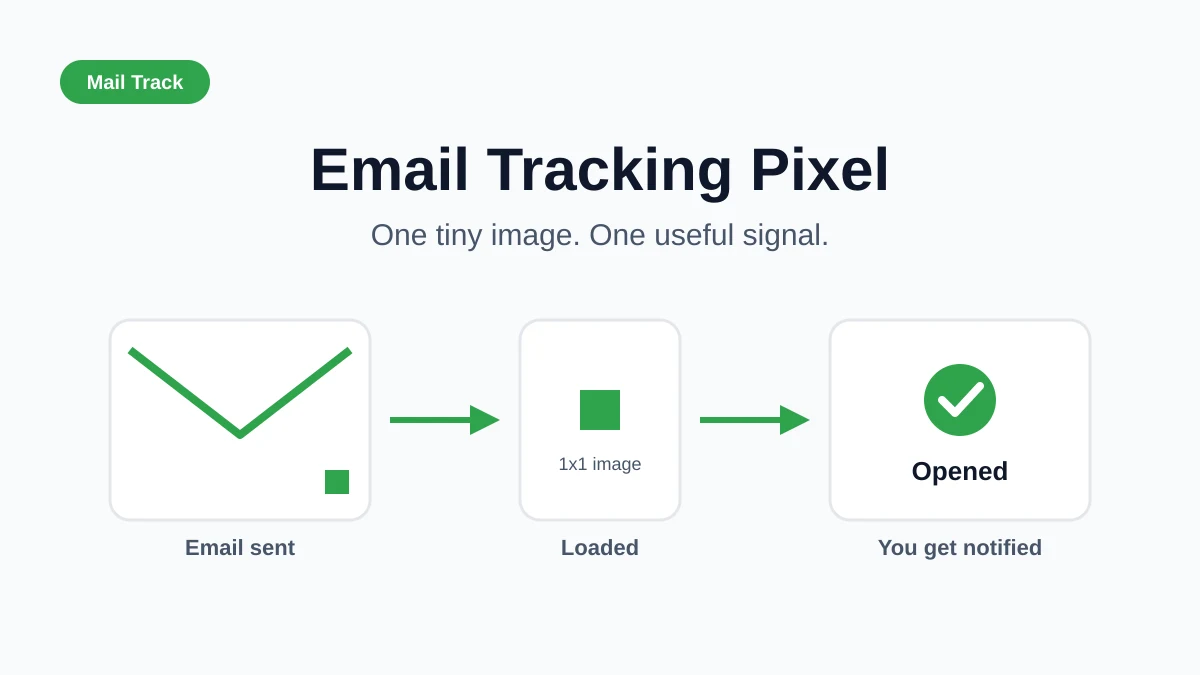
Email Tracking Pixel: How It Works, How to Spot One and Where It Falls Short
What is an email tracking pixel, how does it show an open in Gmail, how can you find one, and why Gmail and Apple Mail proxies limit what it can tell you.

7 Example Email Accept Job Offer Templates
Use these 7 example email accept job offer templates for formal, concise, and enthusiastic replies, with subject lines, clauses, and sending tips.