
Gmail Alert on Desktop
Learn how to enable Gmail alert on desktop with clear steps for Gmail settings, browser permissions, and real-time tracking notifications that keep you
You’re working in a spreadsheet when an important client email arrives. Gmail is open, but no banner appears, no sound plays, and nothing draws your attention to the inbox. You find the message much later, after the opportunity to respond quickly has already passed.
A reliable Gmail alert on desktop depends on more than Gmail’s notification switch. Gmail must be configured to send alerts, your browser must permit mail.google.com to display them, and your operating system must allow the browser to surface them. Once that chain works, a Gmail-integrated mail tracker can extend the same desktop workflow beyond incoming messages, showing when a tracked email is opened.
Why Your Gmail Alert on Desktop May Not Be Working
Gmail’s desktop notification feature began as a Chrome-based capability. Google introduced desktop notifications in January 2011, allowing users to choose alerts for chat, email, or both through a new Desktop Notifications section in Gmail settings. The original feature also supported alerts for Priority Inbox users, and Google later expanded browser support. Current Gmail documentation lists Chrome, Mozilla Firefox, and Apple Safari as supported browsers when Gmail is open and the user is signed in. Google’s historical announcement and current Gmail notification guidance show how the feature developed from an early browser function into a standard desktop workflow.
The failure usually sits in one of three layers:
- Gmail settings, where desktop notifications may be disabled or limited to important messages.
- Browser permissions, where
mail.google.commay be blocked from sending notifications. - Operating system controls, where Windows Focus Assist or macOS Do Not Disturb can suppress the browser’s banners.
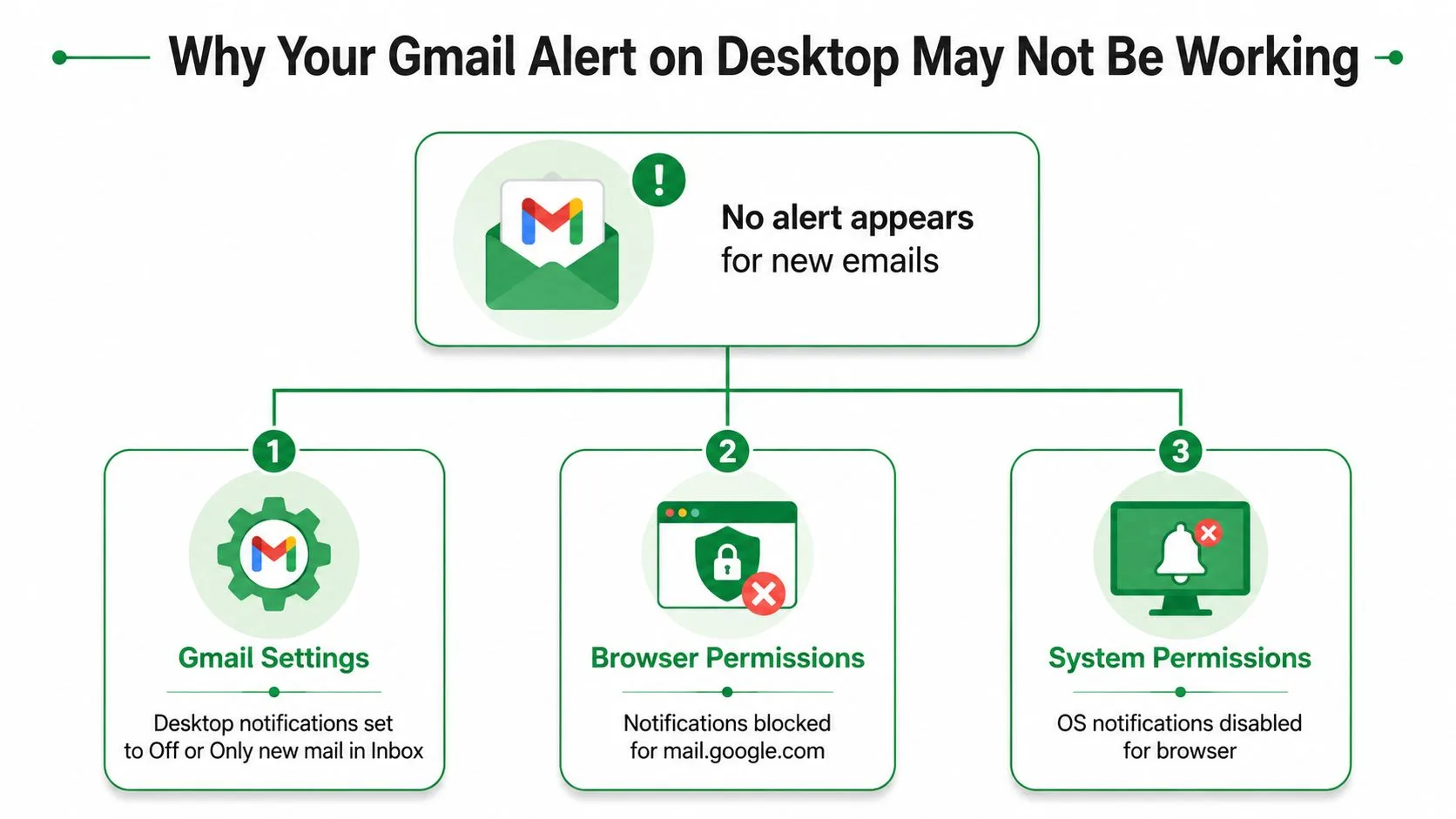
Check the entire alert chain
Turning on only Gmail’s setting won’t bypass a browser block. Likewise, allowing browser notifications won’t help if the operating system is silencing the browser. Gmail also needs an active signed-in session, so a closed tab, expired login, or muted browser window can interrupt the alert stream.
Practical rule: Treat desktop notifications as a chain. Test Gmail, the browser, and the operating system separately instead of repeatedly flipping the same Gmail switch.
Start with Gmail, then check site permissions, then inspect system notification controls. That order identifies the blocked layer quickly and avoids unnecessary changes to unrelated inbox settings.
Enabling Desktop Notifications in Gmail Settings
Use Gmail on the web for this setup. A desktop email client has its own notification controls, so changing those settings won’t configure alerts in Gmail’s browser interface.
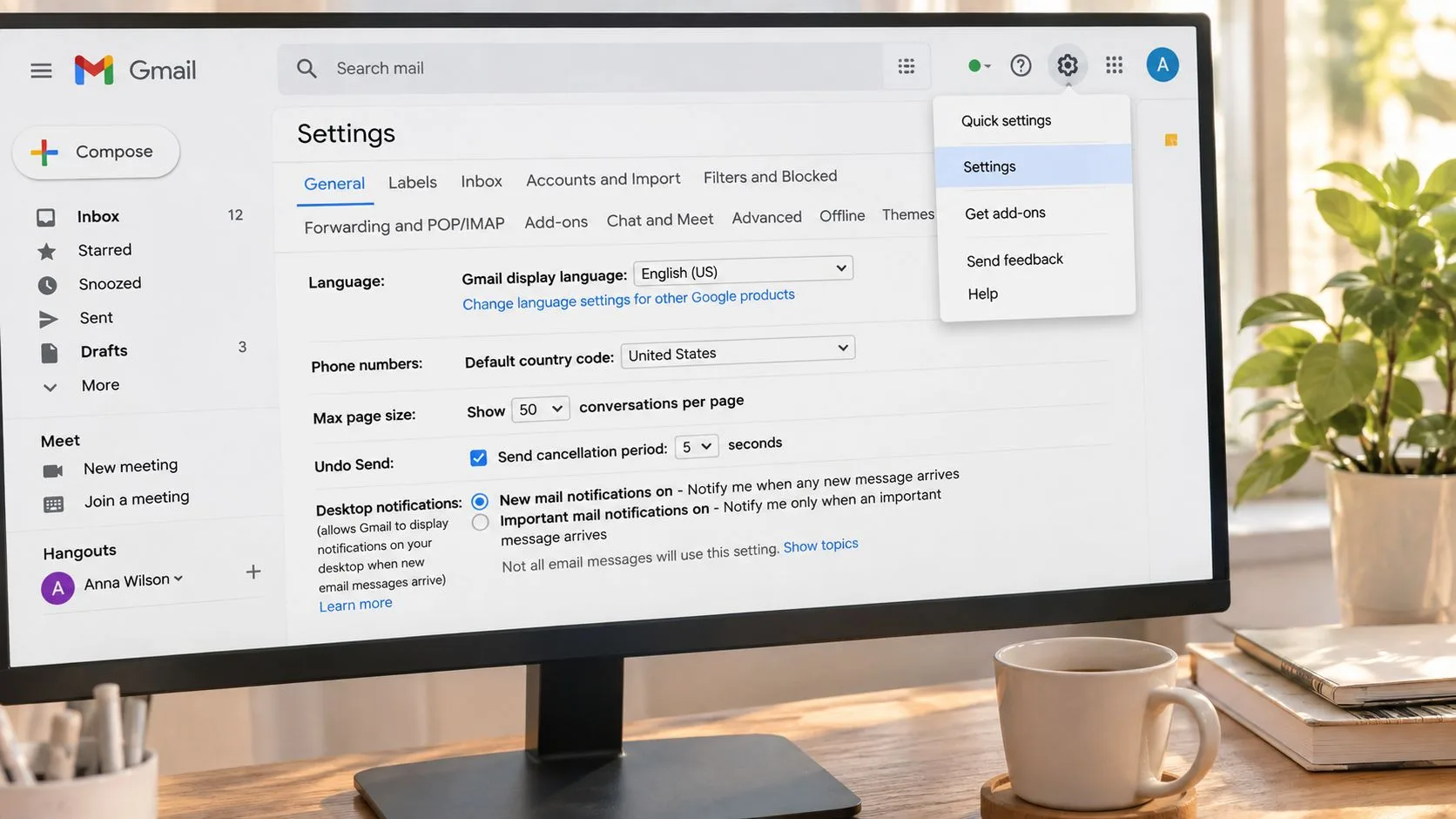
Open Gmail, select the gear icon, and choose See all settings. Stay on the General tab, then scroll to the Desktop Notifications section. Gmail provides two main choices:
- New mail notifications on displays alerts for incoming messages.
- Important mail notifications on limits banners to messages Gmail identifies as important.
The first option gives you broader awareness, but it can create more interruptions. The second reduces noise, although it may miss a message from a new sender or an email Gmail hasn’t classified as important. Your choice should match how aggressively you need to monitor the inbox. For a support queue or active client conversation, broader alerts may make sense. For a busy personal inbox, important-only alerts can be easier to live with.
Save the setting and keep Gmail active
After choosing an option, scroll to the bottom of the page and click Save Changes. Gmail doesn’t apply the selection until you save it, so leaving the page or switching tabs can discard the change.
Gmail’s help documentation also makes the session requirement clear. Desktop alerts appear when Gmail is open and you’re signed in, and browser permissions affect whether the alert reaches your screen. Keep at least one authenticated Gmail tab open while you’re expecting notifications. If the session has expired, sign in again before testing.
The setting controls the type of Gmail alert on desktop, but it doesn’t grant the browser permission automatically. That next check matters if Gmail appears configured correctly but no banner arrives.
A visual walkthrough can help if the General settings page is difficult to use.
Granting Browser and System Permission for Alerts
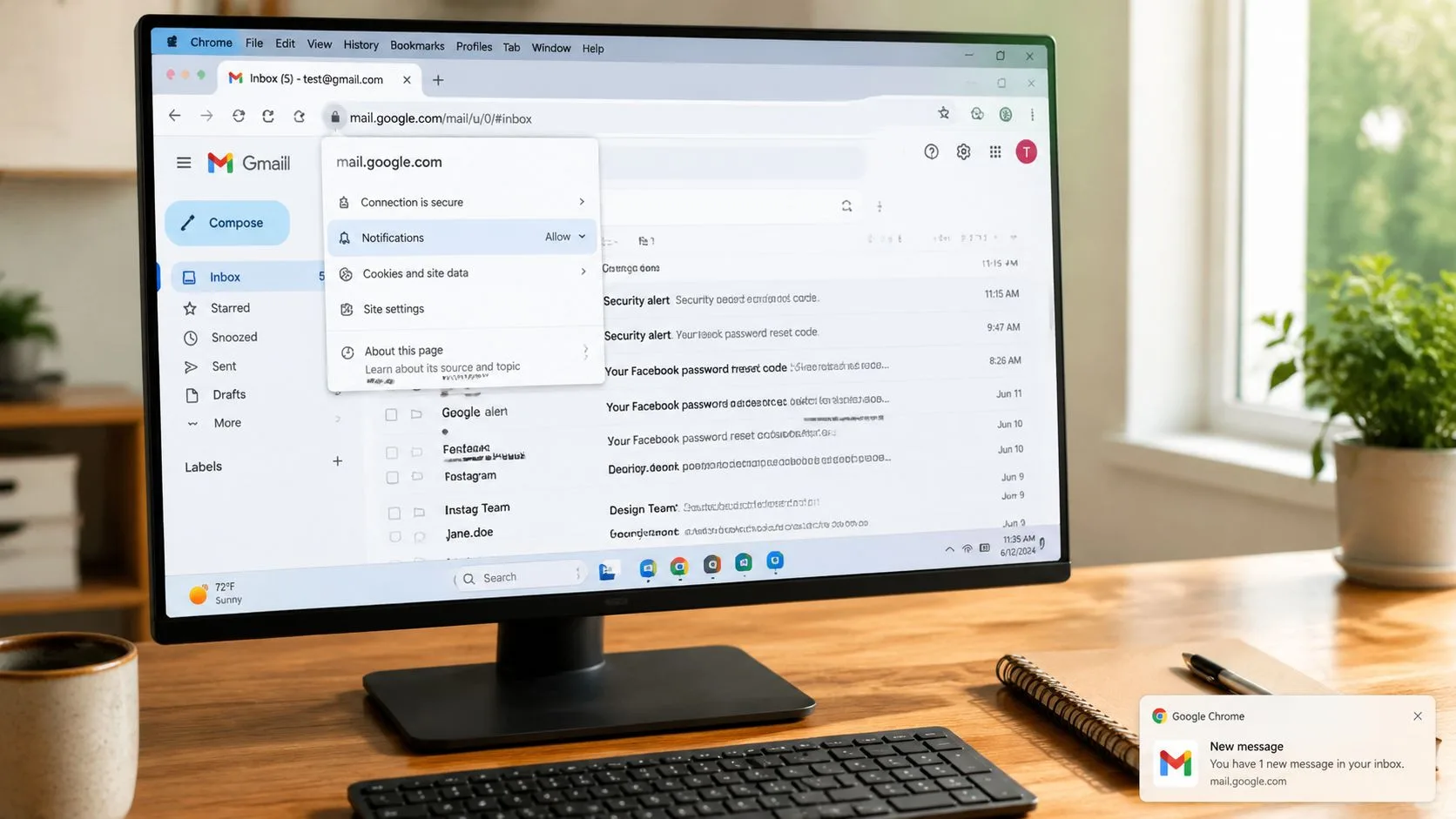
The browser acts as the delivery service between Gmail and your desktop. Gmail can request a notification, but the browser decides whether mail.google.com is allowed to display it.
In Chrome, open Gmail and select the padlock or tune icon beside the address. Choose Site settings, find Notifications, and set the permission to Allow. If the setting shows Block or asks for permission, Gmail’s request may never reach the desktop.
In Firefox, open the page information controls, go to Permissions, and review Receive Notifications. Set it to allow notifications for Gmail. Firefox can retain a site-specific block even after you’ve changed Gmail’s own settings.
In Safari, open Safari preferences, select Websites, and choose Notifications. Find mail.google.com and set it to Allow. Supported browser behavior can vary with the browser’s privacy and notification settings, so test the permission after making the change. Google’s Gmail support documentation identifies Chrome, Firefox, and Safari as supported browsers for desktop notifications.
Check the operating system gate
Windows can suppress browser notifications through Focus Assist. Open Focus Assist, turn it off for testing, and inspect its priority rules if you need Focus Assist enabled during other tasks. Make sure the browser running Gmail isn’t excluded from notification delivery.
On macOS, review Do Not Disturb and other Focus settings. Disable them temporarily or adjust their schedule so Gmail alerts can appear during your working hours. The operating system can silence the banner even when Gmail and the browser both report that notifications are allowed.
Send yourself a test email after each change. A visible desktop banner confirms that the chain is working. If Gmail is configured and the browser permission is allowed but no banner appears, the operating system is often the remaining block.
For teams that use Gmail across different devices and browsers, Mailtrack’s cross-platform compatibility guidance offers another reference point for understanding how notification behavior changes across environments.
Extending Alerts to Real-Time Open Tracking
A native Gmail desktop alert answers one question: did a message arrive in your inbox? It doesn’t tell you whether a recipient opened an email you sent. For outreach, recruiting, proposals, and client follow-ups, those are separate events that require a tracking layer.
A Gmail-integrated mail tracker adds that visibility inside the Gmail workflow. Tools such as Mailtrack, Streak, and Mail Tracker can connect to Gmail, request the permissions needed for their features, and provide tracking indicators or alerts. The exact controls differ by product, so review the extension’s permissions and notification settings before enabling it.
Consider an outreach sequence. You send a proposal in the morning, continue working in another application, and receive a desktop notification when the tracked message is opened. Later, a separate Gmail alert appears when the recipient replies. Native Gmail notifications cover the inbound message, while the tracker supplies an event connected to the outbound email.
Understand what open tracking can and can’t prove
Image-based tracking generally detects an open when the recipient’s email client loads an external image. A privacy-focused tracking service describes recording open events rather than reading message content, with open counts, timestamps, and double check marks displayed inside Gmail. Mailtrack’s explanation of its tracking mechanism provides that distinction.
Open tracking isn’t the same as proof that someone carefully read every sentence. The signal depends on image loading, and recipients can limit this by enabling Gmail’s Ask before displaying external images control. Technical guidance on Gmail image loading and tracking explains why disabling automatic external images can prevent image-based tracking from registering.
To configure a tracker, install a Gmail-compatible extension, review the requested Gmail scopes, and enable real-time desktop alerts in its settings. This guide to enabling push notifications covers the notification layer separately from Gmail’s native incoming-mail controls.
Quick Fixes When Desktop Alerts Stop Firing
When alerts go quiet, start with the layer that changed most recently. A browser update, a new Focus mode, a signed-out session, or a permission reset can interrupt notifications without changing Gmail’s General settings.
Gmail Desktop Alert Diagnostic Table
| Layer | Failure Mode | One-Line Fix |
|---|---|---|
| Browser | Notifications are blocked for Gmail | Open the browser’s site settings, set mail.google.com to Allow, and test again. |
| Gmail session | The tab is closed, muted, or no longer authenticated | Reopen Gmail, sign in, and keep an active tab available. |
| Operating system | Focus Assist or Do Not Disturb is active | Disable the mode temporarily or add the browser to its allowed notification rules. |
| Browser version | The browser is outdated | Update Chrome, Firefox, or Safari to a current stable build. |
| Network | A VPN or DNS route interferes with the connection | Disable the VPN or test another DNS path to isolate the issue. |
A pinned Gmail tab can help keep the session visible and ready, but pinning alone won’t override a browser permission block or system focus mode. Don’t treat it as a substitute for checking the full notification stack.
If an alert stops after you’ve installed a mail tracker, test native Gmail notifications first. Then inspect the tracker’s own desktop and push settings. Open tracking also depends on image loading, so a missing open signal doesn’t necessarily mean that the recipient ignored the message. For a tracker-specific control, this guide to turning off email alerts explains how notification settings can be adjusted.
Desktop Alert Checklist and Next Steps
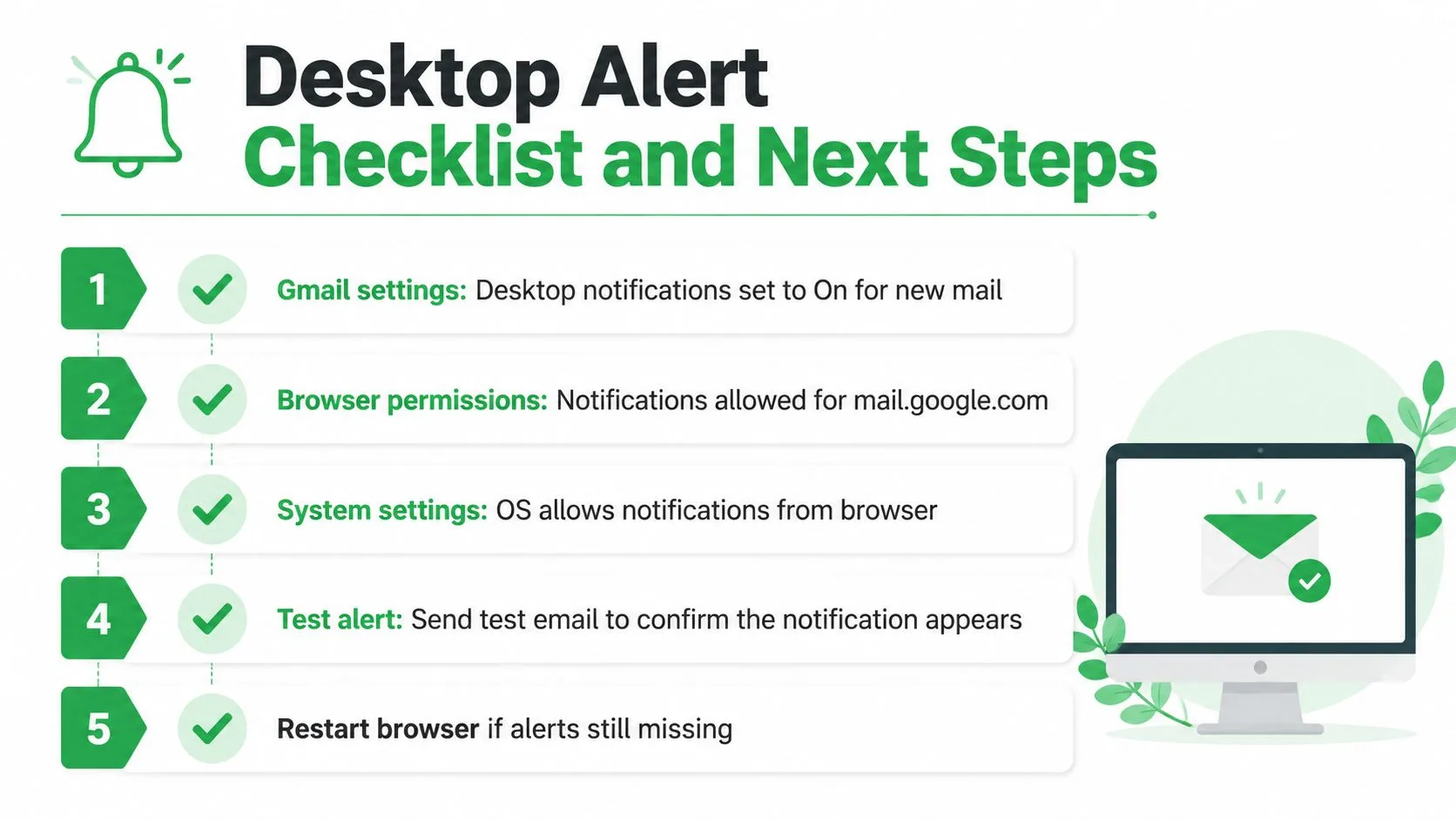
Before leaving Gmail unattended, run through this short checklist:
- Gmail settings: Desktop notifications are set to new mail or important mail.
- Browser permission:
mail.google.comis allowed to send notifications in Chrome, Firefox, or Safari. - System settings: Windows Focus Assist, macOS Do Not Disturb, or the relevant Linux notification service allows browser alerts.
- Gmail session: You’re signed in, and a Gmail tab remains open.
- Test message: Send yourself an email and confirm that a desktop banner appears.
If those checks pass, the native Gmail alert on desktop should handle incoming messages as configured. The next layer is outbound visibility. A Gmail-integrated tracker can add open and reply notifications to the same working environment, helping you decide when a follow-up deserves attention without repeatedly refreshing the inbox.
Mail Tracker for Gmail provides read receipts and real-time open notifications inside Gmail, with double check marks, open counts, and timestamps for tracked messages. Visit Mail Tracker for Gmail to connect outbound tracking with the desktop alert workflow you’ve just configured.
Ready to track your emails?
Add Mail Track for Gmail from the Google Workspace Marketplace and know the moment your emails are opened. Free and unlimited.
Add to GmailMore reading
More from Guides
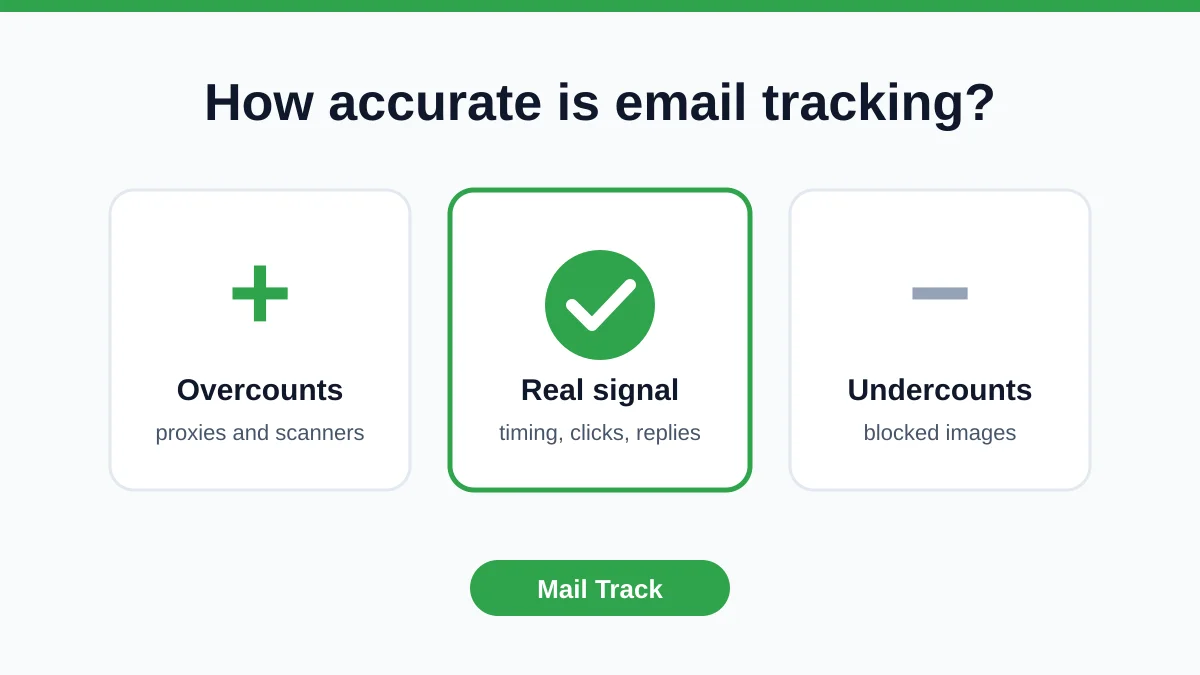
How Accurate Is Email Tracking? What Opens Really Tell You
How accurate is email tracking in Gmail? Learn why opens get overcounted or missed, how to spot false opens, and which signals to trust before you follow up.
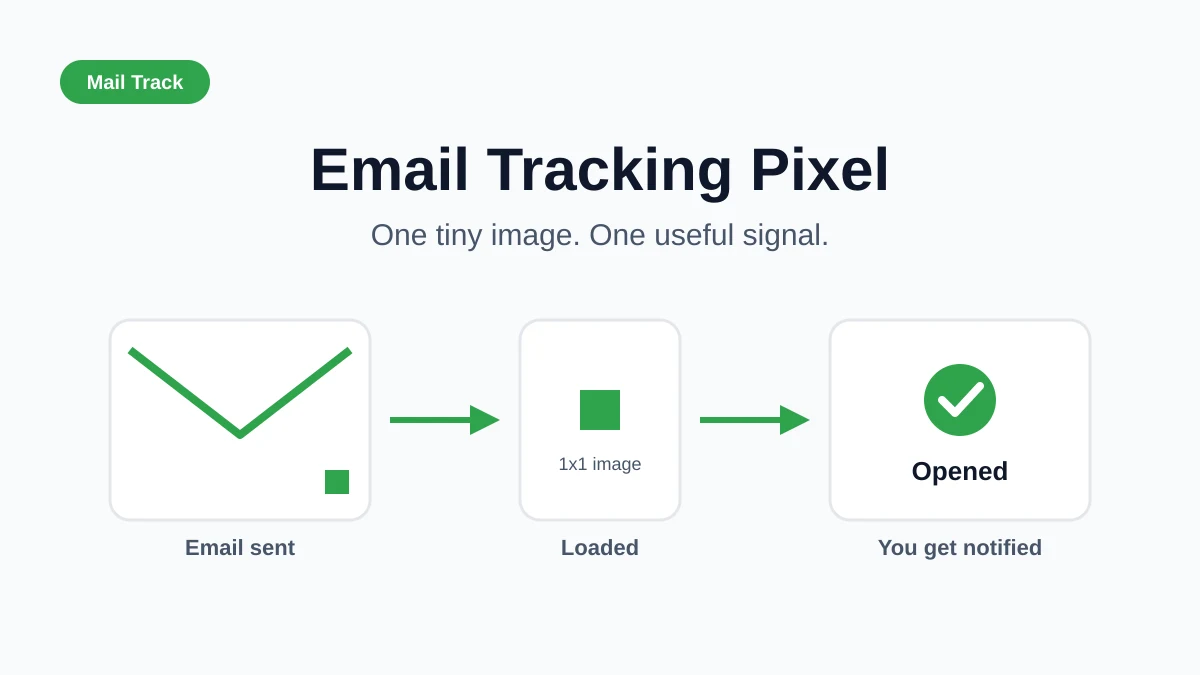
Email Tracking Pixel: How It Works, How to Spot One and Where It Falls Short
What is an email tracking pixel, how does it show an open in Gmail, how can you find one, and why Gmail and Apple Mail proxies limit what it can tell you.

7 Example Email Accept Job Offer Templates
Use these 7 example email accept job offer templates for formal, concise, and enthusiastic replies, with subject lines, clauses, and sending tips.