
Gmail Notification Settings: Complete Setup Guide
Master Gmail notification settings across web, Chrome, Android, and iOS. Step-by-step configuration, OS permissions, and troubleshooting tips
You’re waiting for a contract signature from a key client. The message arrives, but your phone stays silent, Chrome shows nothing, and you only discover the email hours later when you open Gmail manually. That failure feels random, but Gmail notification settings rarely fail at random. They fail because several independent controls must agree before an alert can reach you.
Gmail notifications work as a chain involving browser or operating system permissions, Gmail’s own settings, and label synchronization. A blocked permission at any point can stop delivery without producing a clear warning. The practical fix is to identify which layer is broken instead of repeatedly switching Gmail’s main notification toggle.
Why Your Gmail Notifications Silently Fail
A user can have Gmail notifications enabled and still miss an important message. On a desktop, Chrome may have blocked notifications for mail.google.com, or Windows or macOS may be suppressing Chrome through a focus mode. On a phone, the operating system can deny Gmail permission while the Gmail app continues to show notifications as enabled internally.
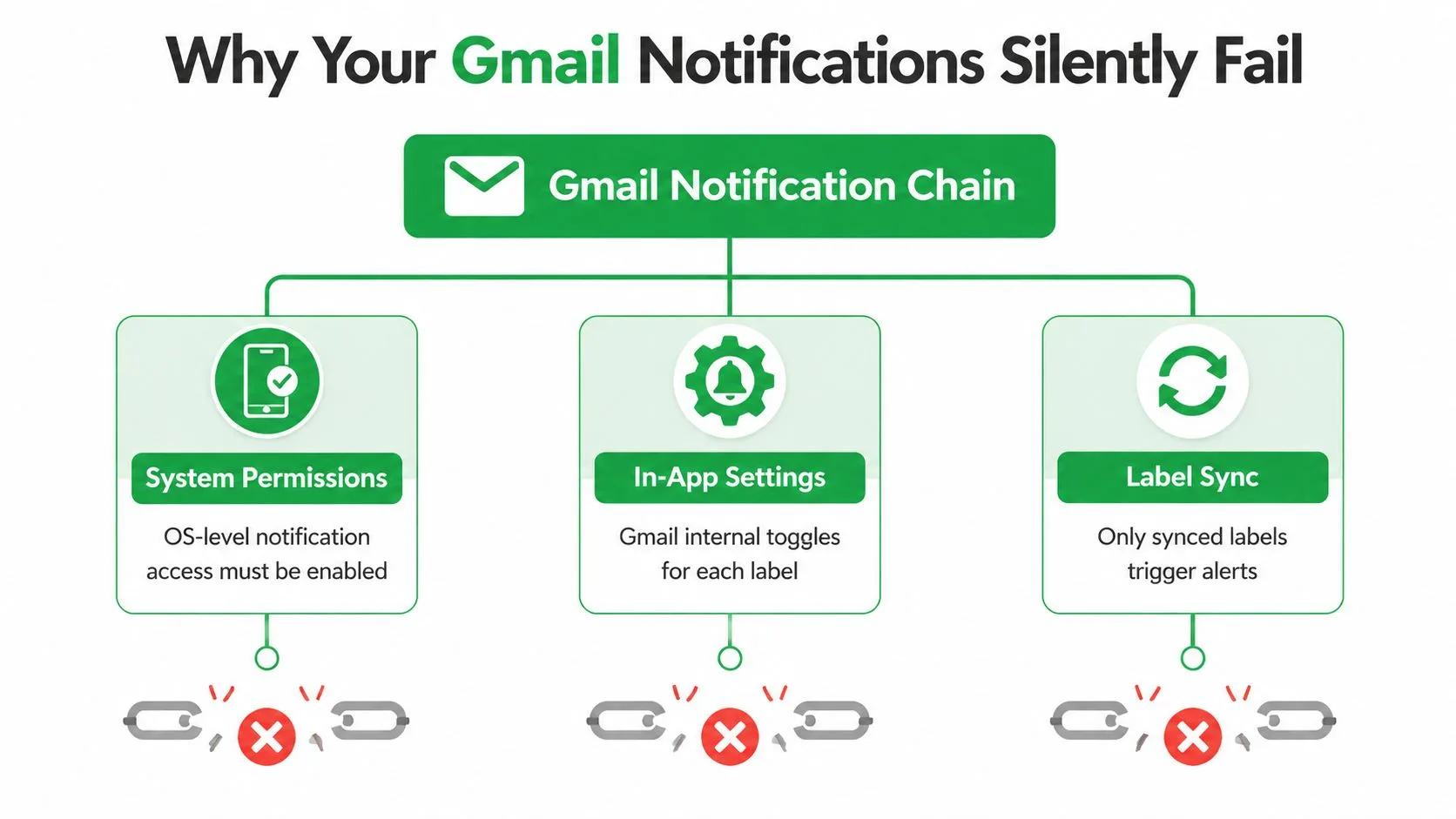
The three layers behind an alert
System permissions decide whether the browser or Gmail app is allowed to display banners, sounds, badges, or lock-screen alerts. These controls sit outside Gmail, which is why changing an in-app preference won’t override a blocked operating-system permission.
In-app settings decide which messages Gmail considers notification-worthy. Gmail supports separate desktop, Android, and iPhone/iPad behaviors, rather than one universal switch. On desktop, users can choose options such as new mail or important mail notifications in Gmail’s settings, as documented in Google’s Gmail notification guidance.
Label sync controls whether label-specific alerts can work on Android. Google states that a label must sync messages for notifications to be generated. If a label is set to sync with neither recent messages nor all messages, Gmail can receive and display the email later without producing an alert.
Practical rule: Test the layers in order. First confirm the device or browser can show Gmail alerts, then confirm Gmail allows them, then check whether the specific label is synced.
This explains the common contract-email problem. The message may be delivered correctly, but a filter routes it to a label that isn’t synced, or a mobile notification category is disabled, or Chrome’s site permission was previously blocked. No single setting exposes the whole chain, so users often repair the wrong layer and assume Gmail is unreliable.
Configuring Gmail Web and Chrome Browser Alerts
Desktop alerts require two separate permissions. Gmail must request notifications internally, and Chrome must allow mail.google.com to display them. Enabling only one leaves the browser chain incomplete.
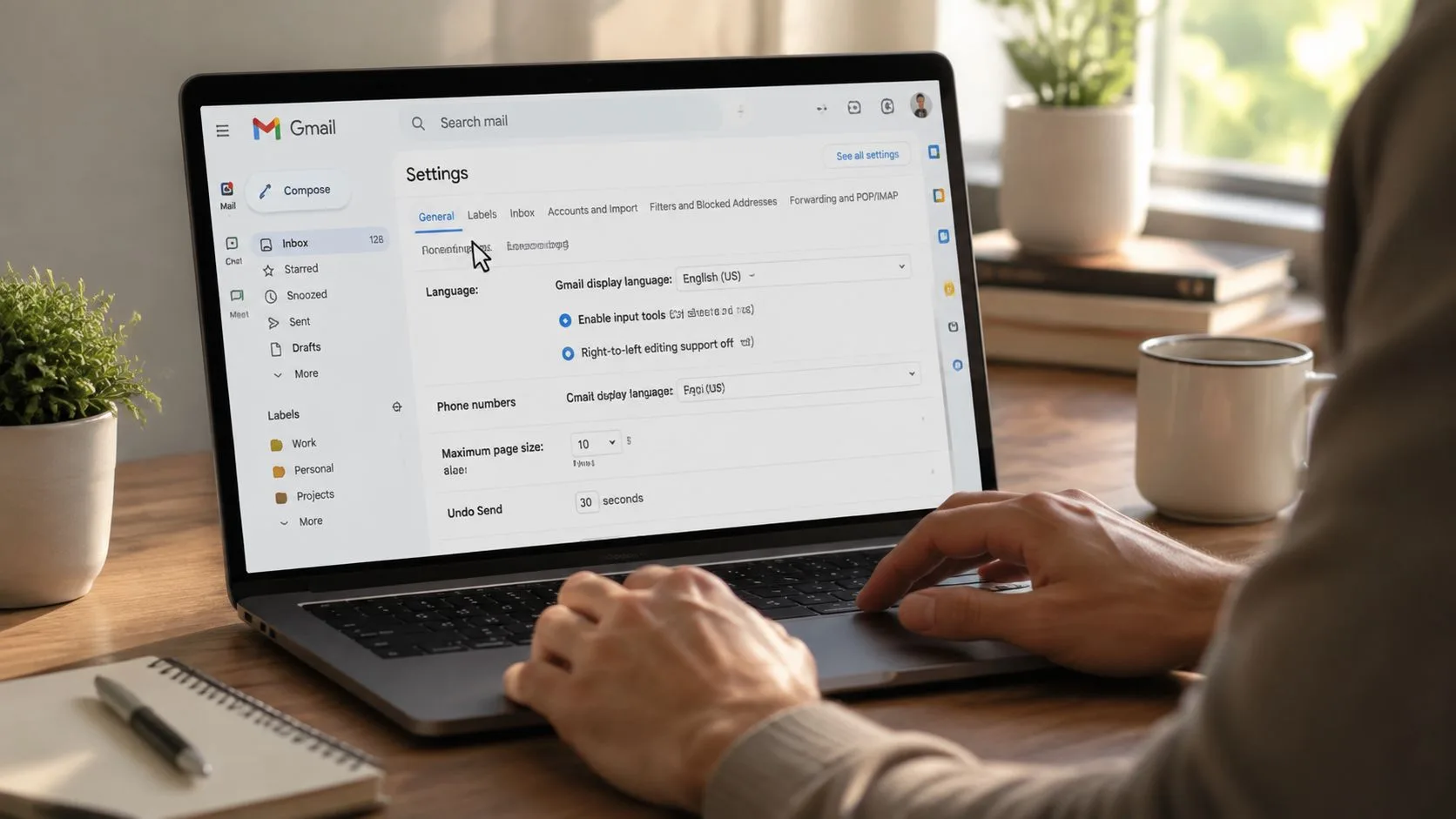
Turn on Gmail’s desktop preference
- Open Gmail in Chrome.
- Select the gear icon in the upper-right corner.
- Choose See all settings.
- Stay on the General tab.
- Scroll to Desktop Notifications.
- Select New mail notifications on or Important mail notifications on.
- Scroll to the bottom and click Save Changes.
The choice matters. New mail notifications are broader, while important mail notifications are narrower and depend on Gmail’s importance classification. If you’re waiting for a particular client, the broader option can help during testing, but a narrower rule is usually easier to live with in a busy inbox.
For a related walkthrough of browser-based alerts, see this guide to enabling push notifications.
Allow Gmail in Chrome
With Gmail open, select the lock icon beside the address bar. Find Notifications and change the permission to Allow. If Chrome previously blocked the site, this manual reset is necessary. Gmail cannot display a desktop alert when the browser has stored a block.
You can also review Chrome’s wider permission list:
Settings > Privacy and security > Site settings > Notifications
Check that notifications are allowed generally and that mail.google.com isn’t listed under blocked sites. Remove the site from the blocked list or change its permission to Allow, then reload Gmail.
If both settings look correct: Check the operating system’s notification center. Windows Focus or macOS Focus can silence Chrome while leaving Gmail and Chrome configured correctly. Temporarily disable the relevant focus mode, send yourself a test message, and observe whether the alert appears.
Chrome extensions can also interfere with notification behavior, especially privacy or productivity tools that restrict browser APIs. Disable recently added extensions temporarily, then test again. Avoid clearing all browser data before checking permissions, because a reset can remove useful settings without identifying the actual cause.
Setting Up Android Notifications with Label Sync
Android Gmail alerts depend on both the phone’s notification controls and Gmail’s account-level rules. The label-sync step is the one I find most often missed when a user says, “Notifications work for my main inbox, but not for messages sent to this folder.”
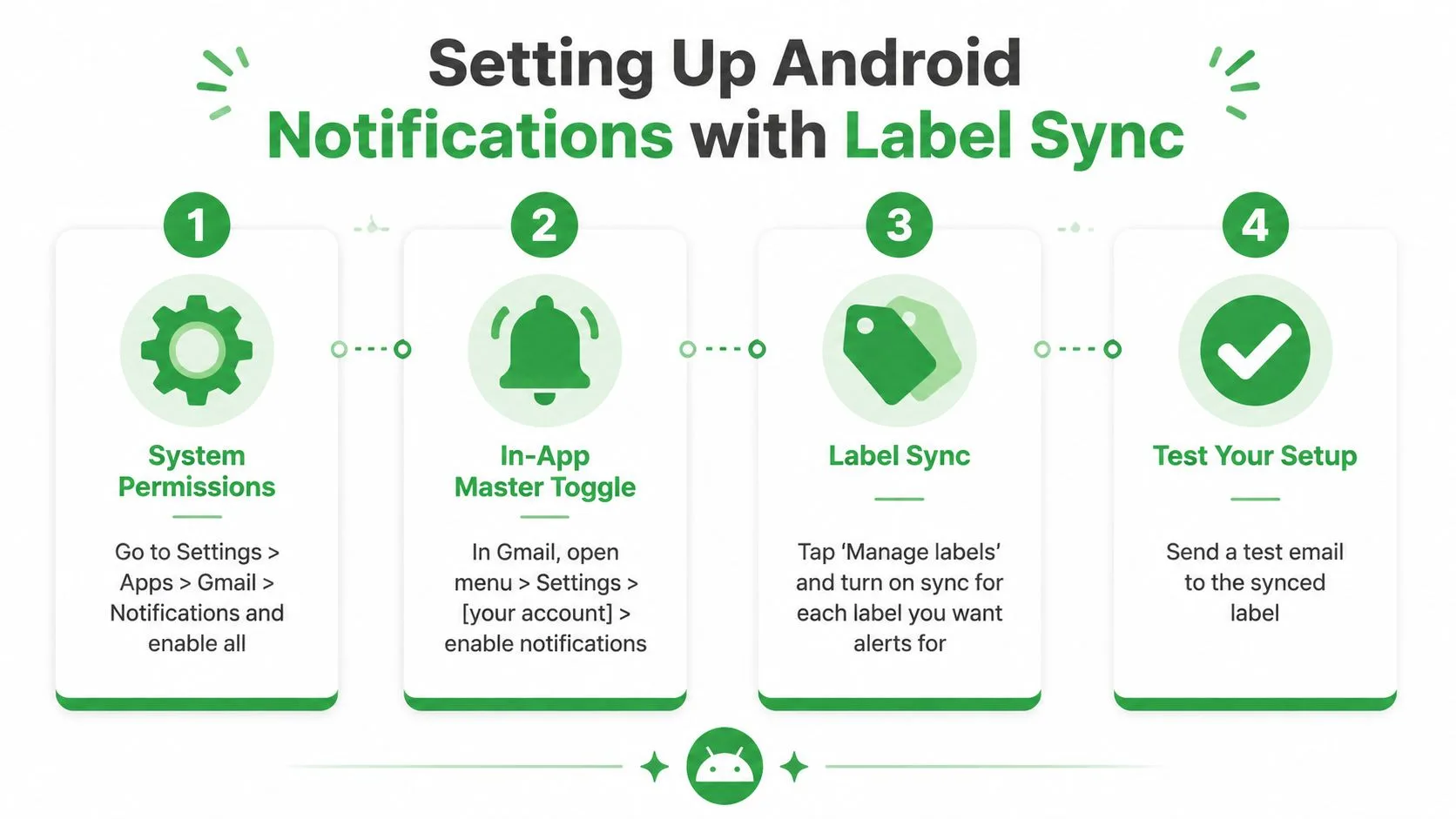
Start with Android’s system permission
Open Settings > Apps > Gmail > Notifications. Enable the main notification permission, then inspect the individual notification categories shown by your Android version. Categories such as default mail or high-priority mail can be controlled separately, so a permitted app can still have a disabled category underneath it.
Next, open Gmail and follow Menu > Settings > select your account > Notifications. Choose All if every incoming message should alert you, or choose High priority only if you want Gmail to filter routine mail.
Google’s documented Android path also points users to Inbox notifications under the selected account’s settings. Check that the account you’re editing is the account receiving the message, particularly if Gmail contains several accounts.
Sync every label that needs an alert
In Gmail, open Manage labels, select the relevant label, and inspect Sync messages. Choose Last 30 days or All. A label set to None won’t generate notifications, even if Android permissions and Gmail’s master notification preference are enabled.
This is especially important for filtered mail. A recruiting label, customer-support queue, or client folder may receive messages correctly while remaining silent because Gmail isn’t syncing that label on the device.
Use a test message addressed to the relevant account and routed into the target label. If the test appears only after opening Gmail, revisit sync and battery restrictions before changing unrelated Gmail settings.
Battery Saver, Data Saver, and manufacturer-specific background limits can delay background activity. Review Gmail under Android’s battery settings and remove restrictive treatment where your device provides that option. For broader advice on reducing interruptions, see stop notification overload Android. A separate guide to Android application notifications can help when the problem affects more than Gmail.
Managing iPhone and iPad Email Alerts
iPhone and iPad users need to configure Gmail in two places. iOS decides whether Gmail can show alerts, while the Gmail app decides which messages qualify. Either layer can silence mail while the other appears correctly configured.
Grant iOS permission first
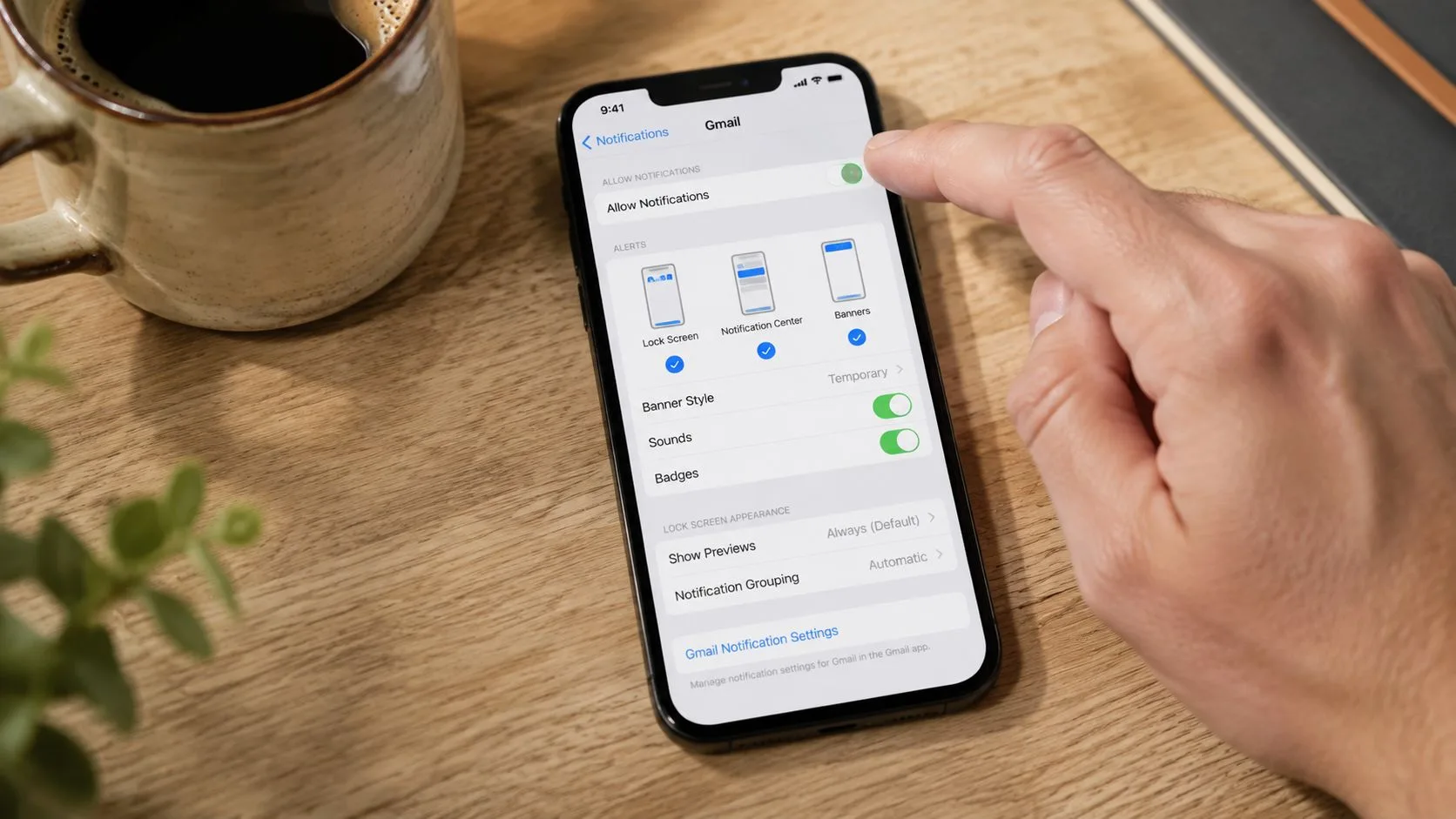
Open Settings > Notifications > Gmail and enable Allow Notifications. Choose whether alerts appear as banners, alerts, or on the lock screen, and decide whether sounds and badges should be enabled.
Then open Gmail and follow Menu > Settings > Notifications > Email notifications. Select the target account and choose the level that matches your workflow. Google documents options such as All new mail and High priority only in its iOS notification guidance.
All new mail is useful while diagnosing a missing alert because it removes Gmail’s priority filter from the test. High priority only is quieter, but it can leave users wondering why a message in a filtered category never triggered an alert. Gmail’s priority model and the device’s notification permission must cooperate.
Check Focus and background activity
A Focus mode can suppress sounds, banners, and badges even when Gmail is allowed to notify. Review Do Not Disturb and any custom Focus profiles, including schedules and app-specific filters. Test outside the active Focus period or temporarily allow Gmail.
Also inspect Settings > General > Background App Refresh and ensure Gmail is enabled. Background activity supports timely fetching when the app isn’t open. If it’s disabled, messages and badges may update only after you launch Gmail.
Badges can show stale numbers when background fetching hasn’t refreshed the app state. Open Gmail, refresh the inbox, and then check the badge configuration under Settings > Notifications > Gmail. If the count remains wrong, restart the app and retest after confirming both iOS permission and Gmail’s in-app notification level.
For users who need fewer interruptions, turning off email alerts selectively can be better than disabling Gmail globally. Keep alerts for the account or priority level that supports your work, and silence routine traffic.
Avoiding Notification Fatigue in High-Volume Inboxes
More alerts don’t automatically produce faster responses. They can create constant interruption, particularly when every automated update, newsletter, and social notification receives the same sound as a client message.
A 2024 survey of 500 employees reported that one-third were interrupted by digital notifications every 15 minutes, equivalent to about 160 distractions per week, as summarized in the provided Gmail category research. Independent 2025 research on smartphone alert fatigue also connects frequent alerts with attention disruption and reduced well-being. These findings support a practical conclusion, notification volume needs deliberate limits.
Build an alert hierarchy
Start with the consequence of missing a message, not the sender’s identity alone.
| Mail type | Recommended treatment |
|---|---|
| Client, manager, or active candidate messages | Allow prompt alerts when a delay has a real cost |
| Newsletters and automated reports | Route to a label and review in batches |
| Promotions and routine updates | Keep silent unless a specific message matters |
| Obvious marketing spam | Filter and archive without notification |
Gmail’s category model separates mail into Primary, Social, Promotions, and Updates, according to Google’s inbox category documentation. Use that separation as a starting point, but don’t assume Primary is perfect. Important operational mail can still be routed by filters or labels, so review the actual messages reaching each category.
On Android, label notifications require the sync setting described earlier. Sync only the labels that deserve attention, and leave low-value labels quiet. For filters, open Gmail’s search options, define the sender or terms, select Create filter, then apply a label and archive the message when appropriate. Auto-archiving keeps routine mail from competing with active work, while the label remains available for scheduled review.
A quieter inbox is a configuration choice, not a sign that you’re missing everything.
Audit your alerts regularly. Look at which labels produced sounds or banners, identify the alerts you ignored, and narrow those rules. Priority Inbox can help by separating important and unread, starred, and everything else, as described in Google’s Priority Inbox guide. That structure gives you a place to review lower-priority mail without making every arrival urgent.
Troubleshooting Common Gmail Alert Problems
Work from the outside in. Checking Gmail’s internal switch first can waste time when the operating system or browser has already blocked delivery.
Use this diagnostic order
- Browser permission: In Chrome, open the site controls for
mail.google.comand set Notifications to Allow. If the permission changed after a browser update, reset it manually and reload Gmail. - Operating-system permission: Confirm Chrome or Gmail is allowed in Windows, macOS, Android, or iOS notification settings. Disable Focus or Do Not Disturb temporarily while testing.
- Gmail preference: Recheck the account-specific notification setting. Multiple accounts require separate verification.
- Label sync: On Android, open Manage labels and set the relevant label to sync for Last 30 days or All. Unsynced labels cannot generate alerts.
- Background restrictions: Disable Android Battery Saver or restrictive battery treatment for Gmail. On iPhone and iPad, enable Gmail under Background App Refresh.
- Extensions and app state: Temporarily disable browser extensions that may block notification behavior. On Android, use Settings > Apps > Gmail > Storage > Clear cache, then reopen Gmail. Clearing cache is less disruptive than clearing app data.
- Account connection: If notifications remain broken across devices, remove and re-add the affected account. On a phone, restart after removal before signing in again.
Test one variable at a time
Send a test email to the exact account and label that should alert. Don’t change browser permission, Gmail preferences, battery settings, and label sync simultaneously, because you won’t know which adjustment solved the issue.
Read receipts are a separate feature from ordinary Gmail notifications. Google documents them as a Google Workspace-only capability, unavailable for personal @gmail.com accounts. In Workspace, the sender requests one through More options > Request read receipt, and administrators control availability under Gmail > User settings > Email read receipts. Google says an administrative change can take up to 24 hours to propagate, and the receipt reports the date and time the message was opened, rather than tracking message content. See Google’s read receipt documentation before treating a missing receipt as a notification failure.
If you need open-event visibility inside Gmail, Mail Tracker for Gmail provides read receipts and open notifications for tracked messages sent from Gmail, with activity shown through indicators and timestamps. Visit Mail Tracker for Gmail to review how it fits alongside your normal Gmail notification settings and follow-up process.
Ready to track your emails?
Add Mail Track for Gmail from the Google Workspace Marketplace and know the moment your emails are opened. Free and unlimited.
Add to GmailMore reading
More from Guides
How Accurate Is Email Tracking? What Opens Really Tell You
How accurate is email tracking in Gmail? Learn why opens get overcounted or missed, how to spot false opens, and which signals to trust before you follow up.
Email Tracking Pixel: How It Works, How to Spot One and Where It Falls Short
What is an email tracking pixel, how does it show an open in Gmail, how can you find one, and why Gmail and Apple Mail proxies limit what it can tell you.
7 Example Email Accept Job Offer Templates
Use these 7 example email accept job offer templates for formal, concise, and enthusiastic replies, with subject lines, clauses, and sending tips.