
How to Send Mass Emails: A 2026 Guide for Outreach
Learn how to send mass emails from Gmail with proven segmentation, deliverability, and tracking tips for sales, recruiting, and SMB outreach.
You’ve got a list in Gmail, a deadline on the calendar, and a nagging question that keeps getting worse the longer you stare at the compose window. Do you paste everyone into Bcc and hope Gmail doesn’t complain, or do you need a real sending workflow before your next outreach run? The answer depends on how many people you’re emailing, how much personalization you need, and whether you can afford to damage sender reputation by treating Gmail like a bulk mailbox.
Mass email isn’t a niche tactic anymore. An estimated 376.4 billion emails are sent and received every day worldwide, global email users are projected to reach 4.73 billion in 2026, and the average person receives 100 to 120 emails per day (email statistics source). Gmail is also the most widely used provider, with 1.8 billion active user accounts worldwide, so Gmail-first outreach is a real operating environment, not a side case. If you’re sending from Gmail, the skill isn’t blasting harder, it’s choosing the right method, keeping the message out of spam, and knowing who engaged.
The Moment You Realize You Need Mass Email in Gmail
A recruiter opens Gmail with 80 shortlisted candidates to contact. A freelancer has a fresh client list and needs one clean announcement. An SMB owner wants to tell 400 buyers about a product update without turning the inbox into a mess. In each case, the same instinct shows up fast. Paste the addresses into Bcc, hit send, and move on.
That instinct is understandable, and it’s also where people get burned. Bcc can hide recipients, but it doesn’t solve deliverability, it doesn’t give you much personalization, and it can leave you with awkward replies if someone hits “reply all” or notices how the message was sent. Gmail also has practical limits for bulk behavior, and invalid recipients are a red flag for spam systems, so the easiest-looking path is often the one that creates the most cleanup later.
Practical rule: if the message is sensitive, low in volume, and identical for every recipient, Gmail can work. If the list is larger, the audience is mixed, or you need tracking and follow-up timing, Gmail by itself starts to show its limits.
The decision usually comes down to three questions. Which Gmail-native sending method fits the size of the list? How do you keep the send out of spam? And how do you tell who opened, clicked, or replied? The rest of this guide answers those questions in the order a working sender needs them, not in the order a product brochure would prefer.
Segment Your List Before You Write a Single Word
A mass email fails fastest when everyone gets the same generic message. The cleanest campaigns start with a spreadsheet, not a draft. Before you write anything, split the list by role, stage, geography, or behavior, then write to the segment instead of the entire blob of contacts.
Use a simple hot, warm, cold structure
For a 500-contact outreach list, the first pass can be brutally simple. Hot means people who recently replied, clicked, booked, or showed direct interest. Warm means people who fit the target but haven’t engaged recently. Cold means people who match the profile but need a lighter touch or a different angle.
That three-bucket split keeps the message honest. A hot lead gets a direct ask. A warm lead gets a shorter follow-up with more context. A cold lead gets a softer intro and less pressure. That’s also where personalization stops being decorative, because the copy now reflects actual history instead of a mail-merge gimmick.
Clean the list before Gmail does it for you
Add columns for last touchpoint, pain point, owner, and status. Those four fields make it much easier to write a relevant line without stuffing the email with fake personalization. Tag opt-outs clearly, remove obvious duplicates, and don’t send to addresses that already bounced or look stale. Gmail and mail providers watch for invalid-recipient patterns, and sending to a bad list is one of the fastest ways to hurt reputation.
Tuesday and 10 a.m. are strong defaults when you’re scheduling a send, based on a meta-analysis cited by GMass that found Tuesday was the best day and 10 a.m. was the best overall time for open, response, and conversion performance (GMass timing analysis). That doesn’t replace segmentation. It just means you should send the right message to the right bucket at a sensible time.
Clean list, matched message, controlled timing. That combination beats a large untargeted blast almost every time.
Choosing the Right Way to Send From Gmail
Gmail gives you three workable paths, and they are not the same. The right choice depends on list size, how much each message needs to vary, and whether speed or visibility matters more. For teams that want more orchestration than Gmail can handle alone, CRM email marketing tools can take on parts of the workflow, but many Gmail-first senders still prefer to keep outreach inside the inbox.
| Method | Practical recipient cap | Personalization | Tracking | Best for |
|---|---|---|---|---|
| Bcc in Gmail | Small sends, stay well under Gmail’s own guidance of 500 recipients per message, with 300 recipients per message as the best-practice line (Gmail bulk email best practices) | Low | Minimal | Trust-heavy announcements, very small lists |
| Mail merge through Google Sheets and Gmail | Medium-volume sends, especially when each recipient needs a tailored line | High | Better than plain Bcc, but still depends on your setup | Recruiting, sales, account outreach |
| Gmail extension or Workspace add-on | Medium sends with open tracking and follow-up signals | High | Real-time indicators, double check marks, open counts, timestamps | Outreach that needs response timing |
Bcc is the lightest option, and it makes sense when privacy matters more than personalization. Mail merge gives you more control over the wording because each person can receive fields pulled from a sheet. A Gmail add-on or Workspace Marketplace extension adds the layer that plain Gmail does not provide, which is tracking inside the inbox instead of guessing who saw the message.
The cutoff is practical, not theoretical. If you are sending to a very small, trust-heavy list, Bcc can be enough. If you are sending to a larger list, need custom fields, or need to know who opened, move to mail merge or an add-on. Gmail itself says to keep recipient lists under 500 recipients when using your own mailbox or a resource mailbox, and to use lists under 300 recipients per message for best results (Gmail bulk email best practices). The question is whether Gmail is still the right sender at all, or whether the job has moved past personal inbox sending and into a workflow that needs heavier list control. If you are deciding where blind copy stops being workable, the mail track guide to Gmail blind copy explains the cutoff in Gmail terms.
Writing the Email and Installing Mail Tracker for Gmail
A good mass email starts with one specific subject line that fits the audience segment. Keep the preview text focused, give the reader one reason to keep going, make one ask, and stop. If the email tries to do everything, it usually does nothing.
Write the message before you add the tracking layer
Use a subject line that matches the audience segment, not your internal campaign name. The body should open with a single sentence that proves relevance, then move straight into the ask. If you’re using personalization tokens from Google Sheets, keep them narrow, like first name, company, role, or last touchpoint. Overloaded merge fields look robotic fast.
A simple structure works well in Gmail:
- Subject line: specific, direct, and segment-aware.
- Preview text: a short reason the email matters now.
- Opening line: one sentence that references the recipient’s context.
- Body: one clear request or next step.
- Signature: consistent, with the visible tracking tag if you’re on the free plan.
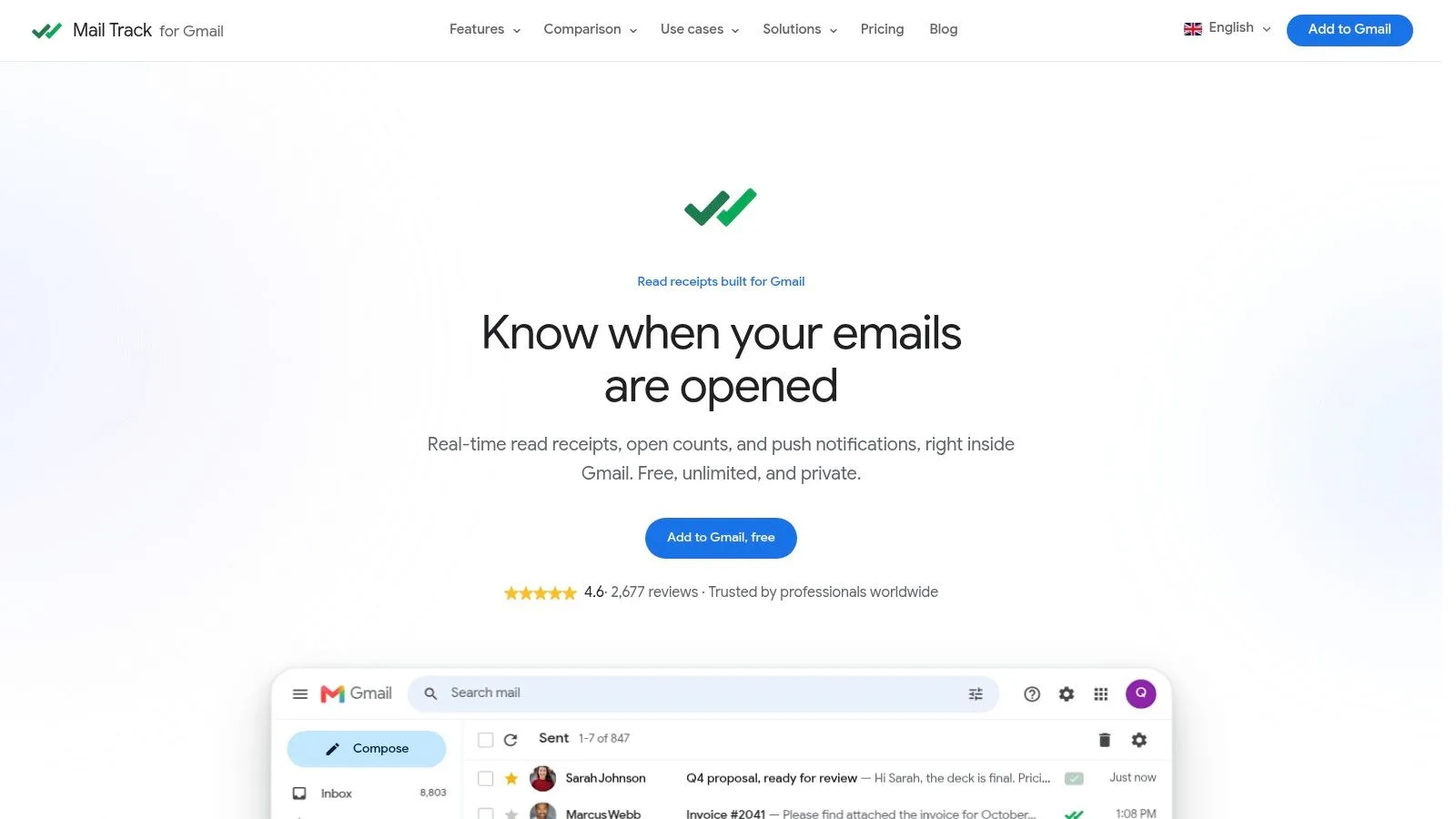
The tracking layer matters because it changes how fast you can follow up. A Gmail extension like Mail Tracker for Gmail integrates into the inbox, adds double check marks, open counts, and timestamps, and works from Gmail rather than forcing a separate workflow. Its visibility inside Gmail is the point.
Here’s the practical install flow. Add the Chrome extension or the Google Workspace Marketplace add-on, sign in once with the Gmail account you send from, and confirm that the tracking indicators appear in the inbox. Then send a test message to yourself and one other address you control. If the double check marks appear and the open timestamp updates, the setup is ready.
That setup is what makes mail merge useful in practice. Instead of sending one generic note, you can send tracked, personalized messages through Gmail and watch for the first sign of engagement before you waste time on the wrong follow-up. For a closer look at how the tracking layer behaves inside Gmail, see the email tracking guide for Gmail.
Keeping Your Sends Out of the Spam Folder
Deliverability is the part most Gmail guides skip, and it decides whether the email gets read at all. If you are sending at scale from Gmail, the first question is whether your sending setup can support the volume without trashing reputation. That means SPF, DKIM, and DMARC on the sending domain, plus a sending pattern that starts small and grows gradually instead of jumping straight into a blast.
Warm the account before you scale
A sensible ramp starts with low daily volume, then increases in controlled steps. A bulk-email guide from UpLead recommends beginning with 10–50 emails per day, roughly doubling volume every few days early on, then slowing to 20–50% increases as volume grows to protect sender reputation (UpLead mass email guidance). The operational logic is simple. New or cold sending patterns make mailbox providers nervous, and nervous mailbox providers filter harder.
A Gmail account that has only sent personal messages cannot suddenly act like a broadcast platform without consequences. Keep the list engaged, remove inactive addresses, and send in batches that match your reputation level. If you are moving beyond a tiny list, avoid sudden spikes. They look like spam behavior because, from the mailbox provider’s point of view, they are.
Watch the signals before they turn into blocks
Gmail’s own bulk-email guidance says to keep recipient lists under 500 recipients when using your own mailbox or a resource mailbox, and under 300 recipients per message for best results. If your list is bigger than that, split the send or move to a proper bulk-email workflow.
Do not send a cold list from a freshly prepared inbox and expect inbox placement to forgive it. Reputation is built batch by batch.
Watch inbox placement, bounce behavior, and complaints through the tools your sending setup gives you. If the reputation dips, stop expanding volume, prune inactive addresses, and clean the content so it looks less like a bulk blast and more like a relevant message to a real recipient. The mailbox is deciding what gets through, not your intent. Mechanical discipline beats copywriting magic when deliverability is on the line, and a solid follow-up email after no response only works if the first send lands.
Tracking Opens and Timing the Follow-Up
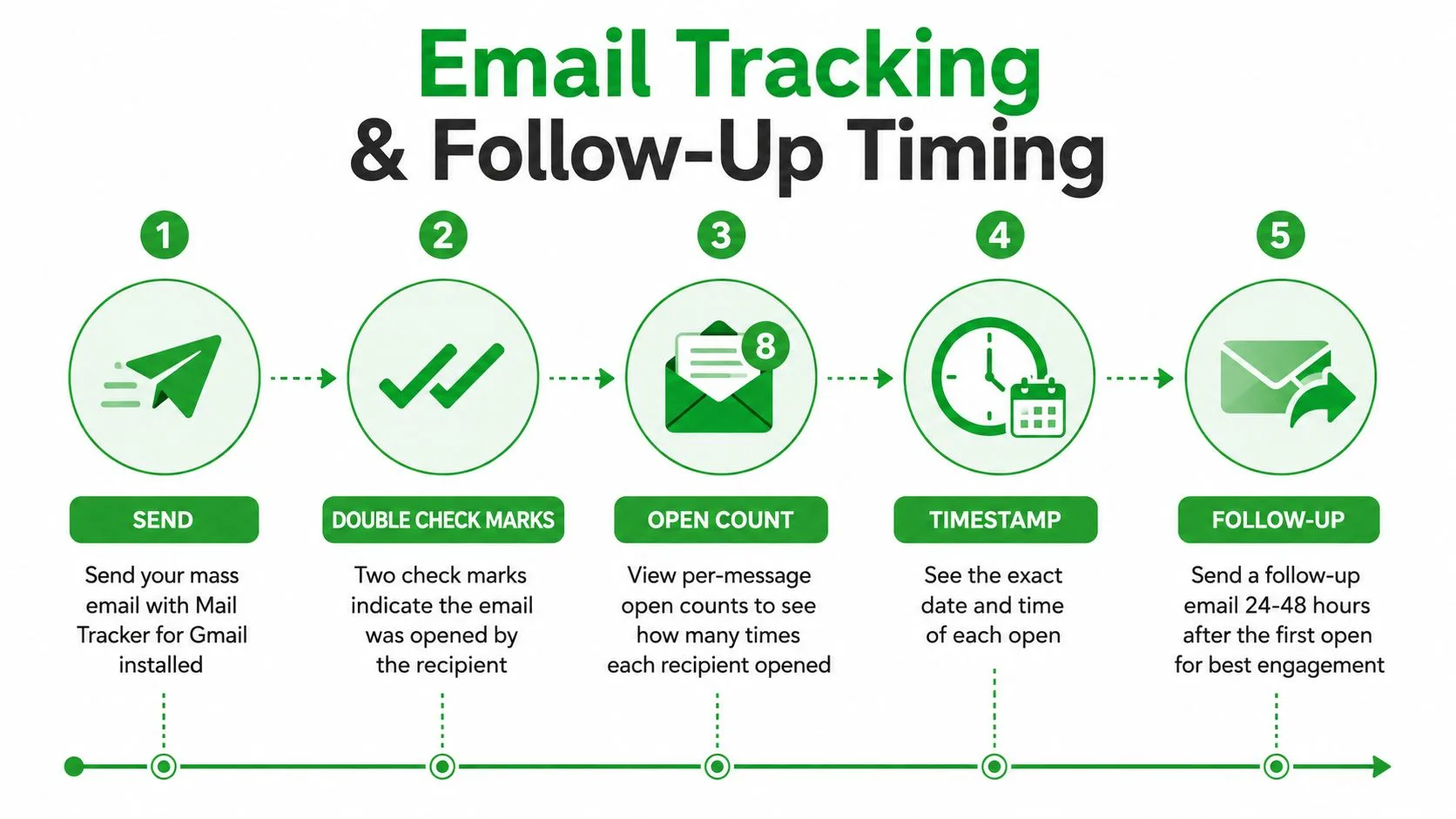
A tracked open is only useful if it changes the next move. Inside Gmail, double check marks, open counts, and timestamps tell you when someone engaged, and instant notifications let you act while the thread is still warm. That matters more than people admit, because most missed replies aren’t caused by bad copy. They’re caused by slow follow-up.
Turn the inbox signal into a sequence
A tracked email that’s opened once deserves a different response than one that’s opened three times. The visible indicators inside Gmail give you that distinction without leaving your inbox. If you’re on mobile, keep Gmail notifications on so the open signal doesn’t sit unnoticed until the next desktop session.
A practical cadence looks like this:
- Same day: if the email opens quickly and the fit is strong, send a brief human follow-up while the context is still fresh.
- After about 72 hours: if the person opened but didn’t reply, nudge them with one short line and a simpler ask.
- After 7 days: if there’s no open at all, send a polite breakup note or try a different angle later.
That sequence keeps you from over-contacting active readers and under-contacting people who may still be interested. It also makes the tracking layer useful in a very direct way. You’re not collecting vanity data, you’re deciding when to send the next message.
Use open alerts as timing, not as proof of intent
The follow-up email timing guide for Gmail is useful because it keeps the focus on timing after non-response, not on spammy persistence. If someone opened the message and didn’t respond, the open is a signal to adjust the next note. If they never opened, the issue may be timing, subject line, or list quality. Treat those as different problems.
The best workflow is simple. Send from Gmail, watch the double checks, follow up fast when the signal is strong, and stop chasing dead threads too long. That keeps your day moving and your inbox from becoming a graveyard of half-finished outreach.
What to Optimize When Opens Stop Being Reliable
Open rates used to feel like a clean proxy for interest. They aren’t clean anymore. Apple Mail Privacy Protection and Gmail image caching have made opens noisier, because an open can be pre-fetched or obscured even when a human never meaningfully read the message. That doesn’t make tracking useless. It just changes what the number means.
The better move is to shift the scoreboard. Reply rate, click-through rate, and downstream conversions tell you more about actual interest than a raw open count does. Recent practitioner guidance has been moving in that direction, and it makes sense for Gmail users who care about outcomes more than dashboards. A message that gets replies and meetings is more useful than one that racks up inflated opens.
Use open data as a clue, not a conclusion
Mail Tracker for Gmail still helps because it gives you per-message activity, timestamps, and real-time alerts inside the inbox. The trick is to pair that with CRM notes or your own log so you can separate curiosity from intent. If a recipient opens repeatedly and clicks, that’s a stronger signal than a one-off open. If they open and then go silent, the next move should stay short and specific.
The old open-rate obsession starts to break down here. A campaign shouldn’t be judged by whether people glanced at it, it should be judged by what they did after the glance. That means watching for replies, link clicks, meetings booked, and revenue influenced if your process tracks that far. Opens can still help with timing, but they shouldn’t be the main scoreboard.
Keep the weekly workflow tight
The repeatable routine is straightforward. Segment first, send from the method that matches the list size, watch the tracking signal, and write follow-ups based on real engagement. If the list starts to decay, fix the list before you rewrite the email. If the send volume starts to strain Gmail, stop scaling from the personal inbox and move to a dedicated bulk-email platform.
The common failure modes all have simple fixes.
Emails going to spam: authenticate the sending domain, slow the ramp, and remove inactive contacts before the next send.
Recipients seeing each other: use Bcc for tiny privacy-sensitive sends or switch to mail merge so each person gets an individualized message.
No opens showing up: check whether tracking is installed correctly, then judge the campaign by clicks and replies too, not just open signals.
Gmail blocking the send: cut the batch size, stay under Gmail’s guidance for recipient counts, and stop sending from a cold account that hasn’t been warmed up.
A short do’s-and-don’ts list keeps the process sane.
- Do authenticate your domain.
- Do start small and ramp gradually.
- Do tag each send so you know what was sent, when, and to whom.
- Do watch replies and clicks, not just opens.
- Don’t paste 1,000 addresses into Bcc.
- Don’t reuse the same subject line forever.
- Don’t ignore bounce reports.
One last decision rule helps more than any dashboard. Gmail is enough when the list is small, the send is simple, and the follow-up is manual. Gmail stops being enough when volume grows, when personalization matters, or when reputation is too important to leave to a personal inbox.
If you’re sending outreach from Gmail and you need to know who opened, who replied, and when to follow up, Mail Tracker for Gmail gives you that signal inside the inbox instead of forcing a second workflow. Visit Mail Tracker for Gmail to see how tracked sends, open timestamps, and instant alerts fit into the way you already work.
Ready to track your emails?
Add Mail Track for Gmail from the Google Workspace Marketplace and know the moment your emails are opened. Free and unlimited.
Add to GmailMore reading
More from Tutorials
How to Track Link Clicks in Gmail (and What a Click Really Tells You)
Learn how to track link clicks in Gmail, why Gmail does not do it natively, how tracked links work and how to read clicks without being fooled by scanners.
How to Find My Contacts in Gmail: A Practical Guide
Learn how to find my contacts in Gmail on desktop and mobile. Clear steps for Google Contacts, search tips, shortcuts, and contact details from emails.
Objection in Sales Explained and How to Handle It
Learn what objection in sales really means, why it happens, and proven frameworks to handle price, timing and trust objections with confidence.