
How to Create a Template in Gmail: Setup, Editing and Limits
How to create a template in Gmail: turn templates on, save a draft, insert, edit or delete it, send it automatically with a filter, and know the limits.
You have typed the same reply for the third time this week, and a fourth is coming. Learning how to create a template in Gmail fixes that in a few minutes: turn the feature on in Settings, write the message once, and save the draft from the three-dot menu of the compose window. From then on, the text is a few clicks away in any new email or reply.
This guide follows Google’s own instructions, then covers what they leave out: what a template saves and what it drops, how to edit one without an Edit button, how to send one automatically with a filter, and what to check when the Templates menu is missing. It ends with the question no template can answer, which is whether your email was opened. That is the job of Mail Track for Gmail, a Chrome extension and Google Workspace add-on for email open and click tracking inside Gmail.
The whole process at a glance:
| Stage | Where in Gmail | What to click |
|---|---|---|
| Turn templates on, once | Settings, See all settings, Advanced tab | Enable next to Templates, then Save Changes |
| Save a template | Compose window, More options (three dots) | Templates, Save draft as template, Save as new template |
| Reuse it | Compose window or reply, More options | Templates, then its name under Insert template |
How to enable templates in Gmail
Templates are built into Gmail, but they stay hidden until you switch them on. Google’s help page on creating a template in Gmail opens with a section called “Turn on templates”, and Zapier’s guide to Gmail email templates notes that the feature is “disabled by default”.
- Open Gmail on a computer. This cannot be done from a phone.
- Open the full settings. At the top right, click Settings (the gear icon), then See all settings.
- Open the Advanced tab. It sits in the row of tabs at the top of the settings page.
- Enable templates. Next to Templates, select Enable.
- Save. At the bottom of the page, click Save Changes.
The setting describes itself in one line: “Turn frequent messages into templates to save time.” You do this once.
The computer part is a hard limit. The same help page states: “You can only turn on and use message templates from Gmail on your computer.” Google’s Workspace guide to reading and sending email in Gmail says it from the other side: “Templates aren’t available in Gmail mobile apps.”
How to create a template in Gmail from a draft
A template starts life as an ordinary draft. Google’s steps are short:
- Click Compose. The button is at the top left of Gmail.
- Write the message. Type the text you want to reuse and add a subject line. Leave the To line empty.
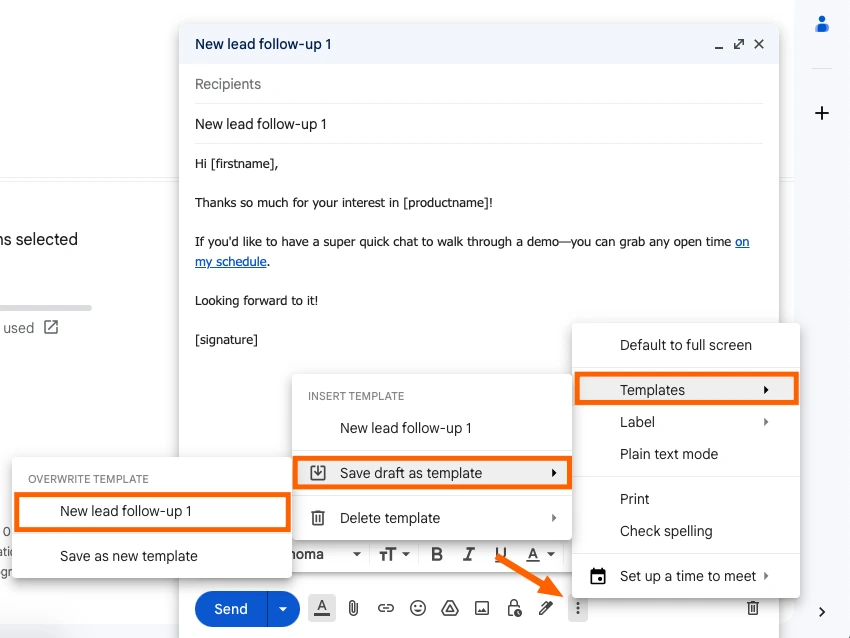
- Open More options. Click the three dots at the bottom of the compose window, then Templates.
- Save the draft as a template. Click Save draft as template, then Save as new template.
- Name it. Gmail asks for a name. According to Zapier, you can “either leave it as the subject line or give it a descriptive title”, then click Save.
What a template saves, and what it leaves out
Google sums up the feature in one sentence: “If you have a message that includes information that doesn’t change frequently, you can save the message as a template in Gmail and reuse it.” What exactly gets reused is less obvious.
| Part of the draft | What happens to it | Who says so |
|---|---|---|
| Body text | Saved. Google’s steps call it “your template text” | |
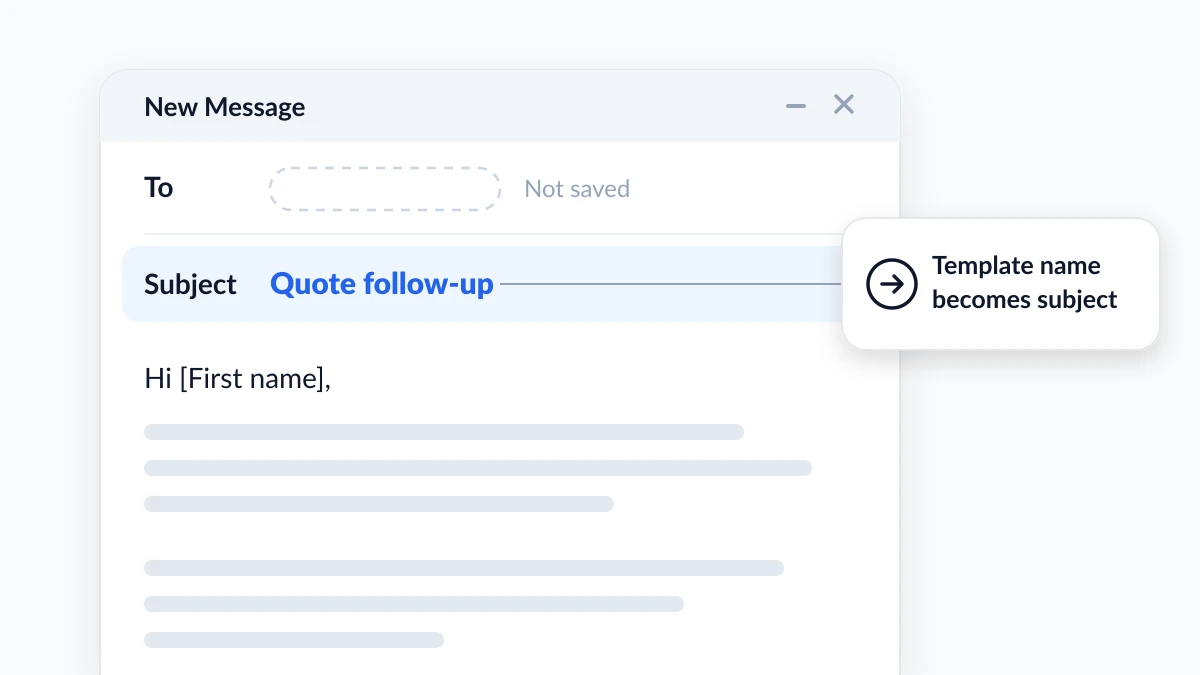
| Template name | Proposed from the subject when you save. On insert, it “will automatically populate as your subject line” | Zapier |
| Recipients | Not kept. “Don’t enter any recipients yet, as they won’t be saved in the template” | Zapier |
| Signature | Kept if it is in the draft. “You can also include your signature.” | |
| Attachments | Not mentioned on Google’s help pages | Nobody official |
Two practical consequences follow. If Gmail already adds your signature to every new email, keep it out of the template, or the message can end up with two. And if a file matters, do not assume it travels with the template: save one test template with the file attached, insert it into a new message and look.
Write a template that is safe to reuse
- Decide what the name is for. Zapier’s warning is blunt: “your template title becomes your subject line”. Either name each template like a real subject line, or use a descriptive name and change the subject every time.
- Make placeholders impossible to miss. A template is fixed text, and nothing fills in a name for you. Zapier’s advice is to “make your placeholders as obvious as possible”. Square brackets work well.
- Keep one template per situation. A short template you can send as it is beats a long one you have to cut down each time.
Here is a short follow-up written that way:
Subject: Following up on [topic]
Hi [First name],
I am following up on my email from [day] about [topic]. Is this still on your list?
If it helps, I can [specific next step].
Best regards,
[Your name]
For more wording worth saving, see our guide to writing a follow up email after no response.
How to use, edit or delete a template in Gmail
Insert a template in a new email or a reply
- Open a message. Click Compose, or open a reply. Zapier confirms that templates work there too: “click the Reply button if you’re using a template in a reply.”
- Open More options, then Templates. It is the same three-dot menu you used to save.
- Pick the template. Its name is listed under Insert template.
- Finish and send. Google’s last two steps are “Compose the rest of your message” and “Click Send”.
Before you send, run three checks:
- Subject line. In a new email it may now be the template’s name.
- Placeholders. Look for every opening bracket and replace what follows.
- Recipients. The To line is empty until you fill it.
Edit a template by overwriting it
Gmail has no editor for templates. Google’s method is to save a corrected draft over the old one:
- Insert the template into a new message.
- Change the text, the subject, or both.
- Open More options, then Templates, then Save draft as template.
- Choose the template’s name under Overwrite Template.
- Click Save to confirm.
Delete a template
Open More options, then Templates, then Delete template. Choose the template and click Delete.
How to send a template automatically with a filter
A template can also answer for you. Google’s rule is short: “To send your message template as an automatic reply, you must create a filter.”
- Open the search options. In the search box at the top of Gmail, click Show search options.
- Describe the emails to answer. Enter your search criteria, for example an address in the To field or words in the subject.
- Test the criteria. Click Search to see which emails match, then reopen the search options.
- Click Create filter.
- Choose the template. Check the box next to Send template, then select the template.
- Click Create filter again to finish.
Before you switch it on, know what you are building. Zapier describes the result: “every time you get an email that matches your filter, it will automatically respond with a template.” A filter does not judge who is writing, so loose criteria will also answer newsletters and automated notices. Keep the criteria narrow.
| Filter with Send template | Vacation responder | |
|---|---|---|
| Replies to | Emails that match your criteria | Emails that arrive during the dates you set |
| How often | Every matching email, according to Zapier | ”In most cases, your reply is only sent to people the first time they message you.” |
| Set up in | Search options, Create filter | Settings, General tab |
| Good for | One fixed answer to a predictable request | Time away from work |
The vacation responder column comes from Google’s page on sending an automatic reply when you’re out of office. For time off it is the better tool, and our standard out of office message templates give you the text.
To stop an automatic reply, remove the filter. Google’s page on rules to filter your emails gives the path: Settings, See all settings, Filters and Blocked Addresses, then Edit or Delete. Our guide on how to edit filters in Gmail covers the details.
Gmail templates not showing? Fixes, limits and alternatives
| What you see | Likely cause | What to do |
|---|---|---|
| No Templates entry under More options | Templates are not enabled, or the change was not saved | Enable Templates on the Advanced tab, then click Save Changes |
| No templates in the Gmail app on a phone | By design. Templates “aren’t available in Gmail mobile apps” | Open Gmail in a browser on a computer |
| Templates exist in one account, not in another | Each Google account has its own settings and templates | Check which account you are signed in to |
| A template has disappeared | It was deleted, and deletion is final | Write it again, and keep a backup copy next time |
| The subject line shows the template’s name | Gmail fills the subject from the name | Change the subject, or save the template again under a name that works as a subject |
Limits Google states, and limits it does not
- Computer only. Stated on both Google pages quoted above.
- No undo for deletion. Stated on the help page.
- Number of templates. The help page gives no maximum.
- Sharing. The help page describes no way to share a template with a colleague. A shared document that holds the text is the simple workaround.
- Attachments. Not addressed. Test before you rely on them.
Templates, mail merge or layouts: which one you need
Gmail has three features that sound alike. To add to the confusion, Google’s layouts page uses the word template too: “In Gmail, select a template, and then customize the template with logos, images, and more.”
| Feature | What it is for | Who gets it, per Google |
|---|---|---|
| Templates | Saved text you insert by hand, one email at a time | No plan requirement on the help page |
| Mail merge | Sending “personalized email campaigns, newsletters, and announcements to a wide audience”, with merge tags such as @firstname | Workspace Individual, plus the Standard and Plus editions of Business, Enterprise and Education |
| Layouts | Sending “professional-looking emails to a large audience”, with your logo, colors and images | The same seven editions |
If you need a different first name in each of 200 emails, that is mail merge, not a template.
Did anyone open it? What a template cannot tell you
A template makes sending faster. It does nothing about the silence afterwards. You can send the same careful message to ten people in ten minutes and still not know who saw it.
Mail Track adds that missing signal inside Gmail. An email built from a template is sent from the compose window like any other, so it is tracked like any other: double check marks appear when it is opened, with the open count and the time. The free plan tracks unlimited emails and adds a small visible signature that tells recipients the email is tracked. The Premium plan uses an invisible tracker with no signature.
Opens and templates work well together:
- Opened, no reply after a few days? Insert your follow-up template while the subject is still fresh.
- Never opened? The subject line or the timing is the more likely problem. Change the subject before you resend, or try another channel.
- One template keeps getting ignored? Rewrite it. A template is only worth saving if it gets answers.
Keep the limits in mind. An open means the email was displayed with its images loaded. If the recipient’s mail app blocks images, no open is recorded, and some apps and security filters load images automatically. An open is not proof that anyone read every line. Do not expect open data for automatic replies sent by a filter either: Gmail sends those on its own, with no compose window where tracking could be switched on.
FAQ
Conclusion
Once you know how to create a template in Gmail, the routine is short: enable the feature on a computer, save a clean draft, insert it where you need it, and check the subject line and the placeholders before you send. A template saves you the typing. It cannot tell you what happened next. For that, Mail Track shows inside Gmail whether the email was opened, so you know when the follow-up template is worth sending.
Ready to track your emails?
Add Mail Track for Gmail from the Google Workspace Marketplace and know the moment your emails are opened. Free and unlimited.
Add to GmailMore reading
More from Tutorials
How to Track Link Clicks in Gmail (and What a Click Really Tells You)
Learn how to track link clicks in Gmail, why Gmail does not do it natively, how tracked links work and how to read clicks without being fooled by scanners.
How to Find My Contacts in Gmail: A Practical Guide
Learn how to find my contacts in Gmail on desktop and mobile. Clear steps for Google Contacts, search tips, shortcuts, and contact details from emails.
Objection in Sales Explained and How to Handle It
Learn what objection in sales really means, why it happens, and proven frameworks to handle price, timing and trust objections with confidence.