
How to Search for Unread Messages in Gmail
Learn how to search for unread messages in Gmail using search operators, shortcuts, and filters. Master inbox triage with practical steps for web and mobile.

You open Gmail between meetings, see an unread badge, and expect the missing messages to be waiting in your inbox. Instead, the visible list contains only a few bold threads. The rest may be sitting in Promotions, Social, an archive label, Spam, or Trash, still marked unread but outside the view you normally check.
That’s why knowing how to search for unread messages in Gmail matters. The useful skill isn’t merely finding every unread message. It’s controlling the search scope so you can find the unread client request, candidate reply, invoice, or internal decision without letting low-priority mail distort the queue.
Why Finding Unread Messages Is Harder Than It Looks
Most professionals start by scanning Gmail’s Inbox and looking for bold subject lines. That works when mail arrives slowly and stays in one place. It breaks down when Gmail categorizes incoming messages, filters move threads to labels, or you archive a conversation before opening every message inside it.
Gmail’s unread status belongs to the message, not just the view on your screen. Google’s documentation explains that is:unread returns anything currently marked unread, wherever it exists in the mailbox, not only what appears in the inbox view. The practical result is a visibility gap: your inbox can look manageable while unread messages remain elsewhere.
A recruiter may see a quiet Primary tab while an unread candidate response sits in another category. A sales professional may search the inbox for a prospect’s reply and miss a thread that was automatically archived. A client manager may see an unread badge that doesn’t reconcile with the messages currently displayed.
Practical rule: Treat the unread badge as a mailbox-wide signal, not a precise description of what’s visible in your current inbox.
Basic scrolling doesn’t solve that problem because scrolling only inspects the current view. Search operators let you separate status, which means whether a message is unread, from location, which means where Gmail has placed it. If the inbox is contributing to a wider sense of overload, the broader guidance on what to do when work overwhelms you can help you decide what deserves attention before you start processing messages.
Conversation view can add another layer of confusion, especially when an older message inside a thread remains unopened. Reviewing how conversation view works in Gmail is useful if a thread appears unread even though its latest reply looks familiar.
Core Search Operators for Unread Messages
The dependable starting point is Gmail’s native search operator:
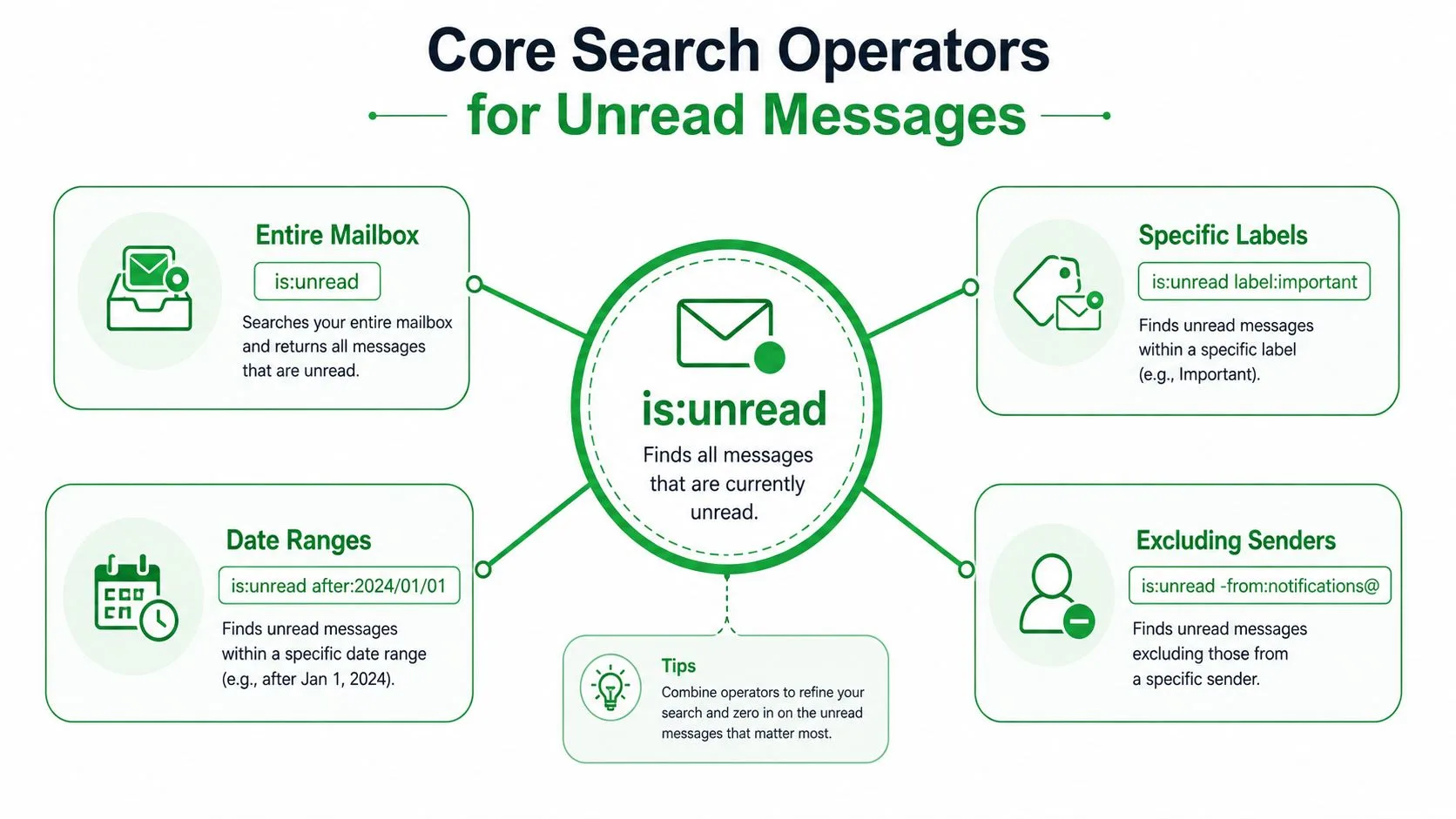
is:unread
Type it into Gmail’s search bar and run the search. Google officially supports this status filter on desktop, Android, and iPhone or iPad, and the results can include unread messages across the mailbox. It’s the right query when you’re trying to discover the full unread population rather than just the messages still sitting in Inbox. Google’s Gmail search documentation lists status and location operators that can be combined for more specific searches.
Choose the right scope
Use the query that matches the question you’re asking:
- Whole mailbox:
is:unreadfinds messages marked unread across Gmail’s searchable locations. - Active inbox only:
in:inbox is:unreadlimits results to unread messages currently in Inbox. Archived unread mail won’t appear. - Everywhere, including hidden locations:
in:anywhere is:unreadbroadens the search to locations such as archive, Spam, and Trash. - Primary messages:
category:primary is:unreadfocuses on mail Gmail has assigned to Primary. - Promotional messages:
category:promotions is:unreadisolates promotional mail for a separate cleanup pass.
The order of the operators doesn’t change the practical meaning. is:unread in:inbox and in:inbox is:unread express the same combined filter. What matters is that you include both the unread status and the location or category you care about.
Status and location answer different questions
is:unread answers, “Which messages haven’t been marked as read?” It doesn’t answer, “Which of those messages are still in my active work queue?” Add in:inbox when you need the second answer.
Use in:anywhere is:unread when the visible inbox and the badge don’t agree. It’s deliberately broad, so don’t treat the result as a ready-made action list. Treat it as an investigation view, then narrow by sender, category, label, or attachment before making bulk changes.
Advanced Operator Combinations for Precise Triage
A broad unread search is useful for discovery, but high-volume work requires a narrower query. Combine is:unread with the condition that identifies the work you need to do.
For a message from a particular client or colleague, use:
from:sender@example.com is:unread
For unread mail with a file attached, use:
is:unread has:attachment
You can combine both when the task depends on a sender and a document:
from:client@example.com is:unread has:attachment
That’s more useful than searching for “unread” and manually opening every result. It can surface an unread proposal, contract, invoice, or brief without forcing unrelated notifications into the same review queue.
Build searches around real workflows
Labels and categories serve different purposes. A category such as Primary or Promotions is Gmail’s automatic classification. A label such as Clients or Recruiting reflects an organizational system you or a filter created.
For a custom label, try:
label:clients is:unread
If the label includes archived threads and you only want active inbox work, add the location:
label:clients in:inbox is:unread
For a specific type of sender, exclude predictable noise with a minus sign:
is:unread -from:notifications@example.com
You can also target a category while excluding another source of distraction:
category:primary is:unread -from:newsletter@example.com
Date qualifiers help when the question is time-sensitive. Gmail supports after: and before: searches, and the Gmail date-search guide is useful when you need to refine a query around a particular period. Keep the date boundaries meaningful, such as a client follow-up window or a recent hiring cycle, rather than using date filters as a substitute for deciding what matters.
Common operator combinations for unread email triage
| Scenario | Search Query | Use Case |
|---|---|---|
| Active unread client mail | in:inbox label:clients is:unread | Focus on client threads still awaiting review |
| Unread mail from one sender | from:sender@example.com is:unread | Find a reply from a prospect, manager, or candidate |
| Unread documents | is:unread has:attachment | Locate messages that require reviewing files |
| Primary work queue | category:primary is:unread | Reduce promotional and social noise |
| Archived unread mail | in:archive is:unread | Investigate messages removed from Inbox |
| Unread mail from a recent period | is:unread after:2024/01/01 | Narrow a review to messages after a chosen date |
Use the narrowest query that still answers the business question. Overly broad searches create a new form of inbox fatigue because you spend your time sorting search results instead of acting on them.
Solving the Phantom Unread Problem
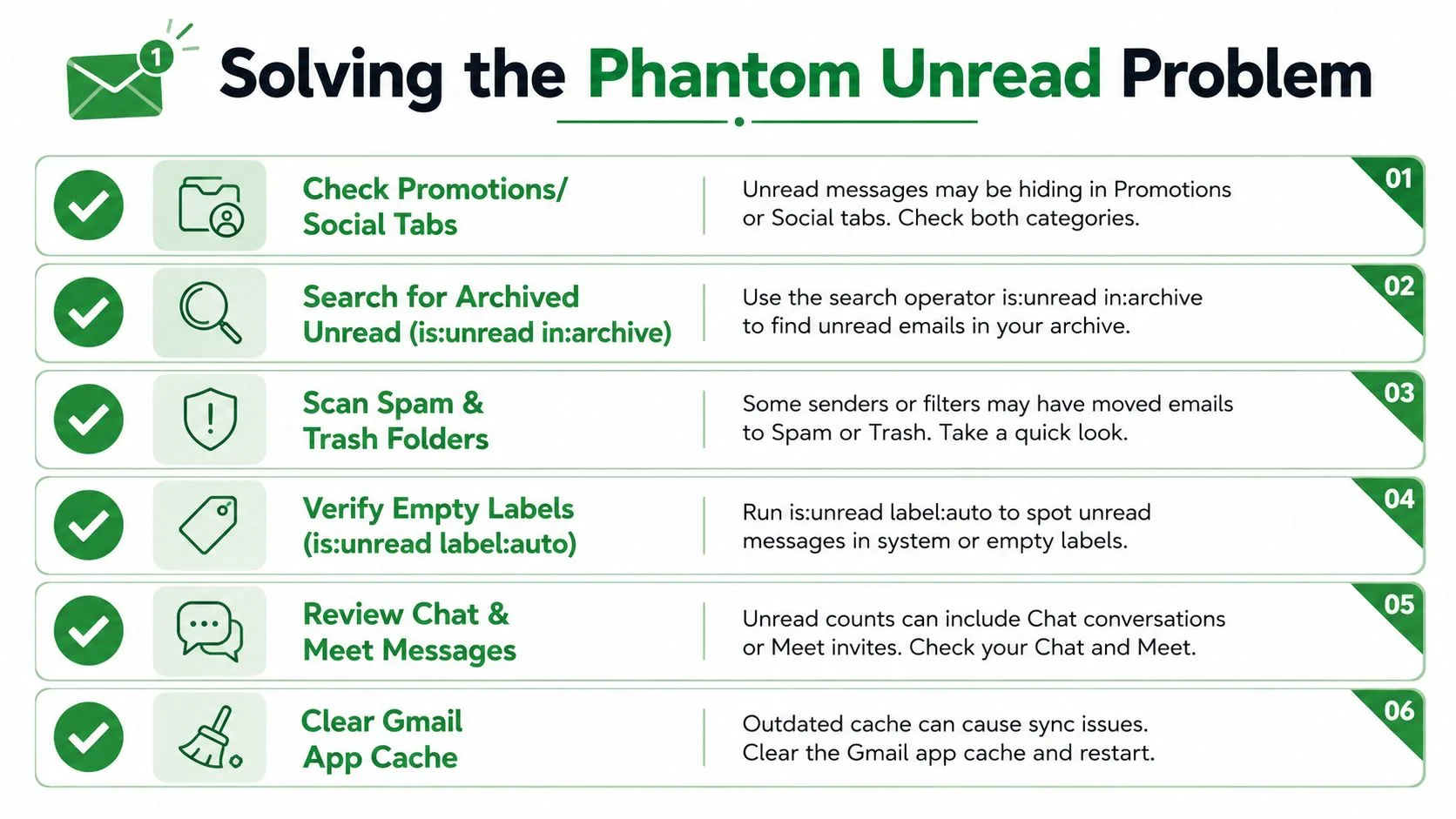
An unread badge can remain higher than the number of bold messages you see in Inbox. That mismatch usually means Gmail is counting unread messages outside the view you’re inspecting, not that the search system has randomly created unread mail.
Archived conversations are a common cause. A filter may have skipped Inbox, or you may have archived a thread before opening every message in it. Category tabs create another blind spot, particularly when you rarely inspect Promotions, Social, Updates, or Forums. Spam and Trash can also contain messages with unread status, which is why a normal inbox scan may not reconcile the badge.
Start with the catch-all query:
in:anywhere is:unread
Google documents is:unread as a mailbox-wide status search, while in:anywhere broadens the location scope to include places that ordinary inbox searches omit. Once the results appear, inspect the sender, category, label, and folder context. Don’t mark everything as read just to make the badge disappear. An unread message can still represent an unresolved obligation.
A practical diagnostic sequence
- Check category tabs: Run category searches for Primary, Promotions, Social, Updates, or Forums instead of relying on the default tab.
- Inspect archive scope: Compare
in:archive is:unreadwithin:inbox is:unreadto see whether filters or manual archiving moved messages out of view. - Search all locations: Use
in:anywhere is:unreadwhen Spam or Trash may explain the discrepancy. - Review filters: Look for rules that skip Inbox, apply labels, or mark incoming messages as read automatically.
- Refresh mobile sync: If the app badge looks stale, refresh the mailbox and clear the Gmail app cache through your device settings.
- Check conversation history: Open the thread and inspect older messages, not only the newest reply.
Community discussions about supposed missing unread messages point to scope, tab sorting, and stale mobile states as recurring explanations. If the catch-all search returns a result that isn’t visible where you expected, Gmail has likely placed it somewhere outside your normal working view.
Mobile App Search Steps for Android and iOS
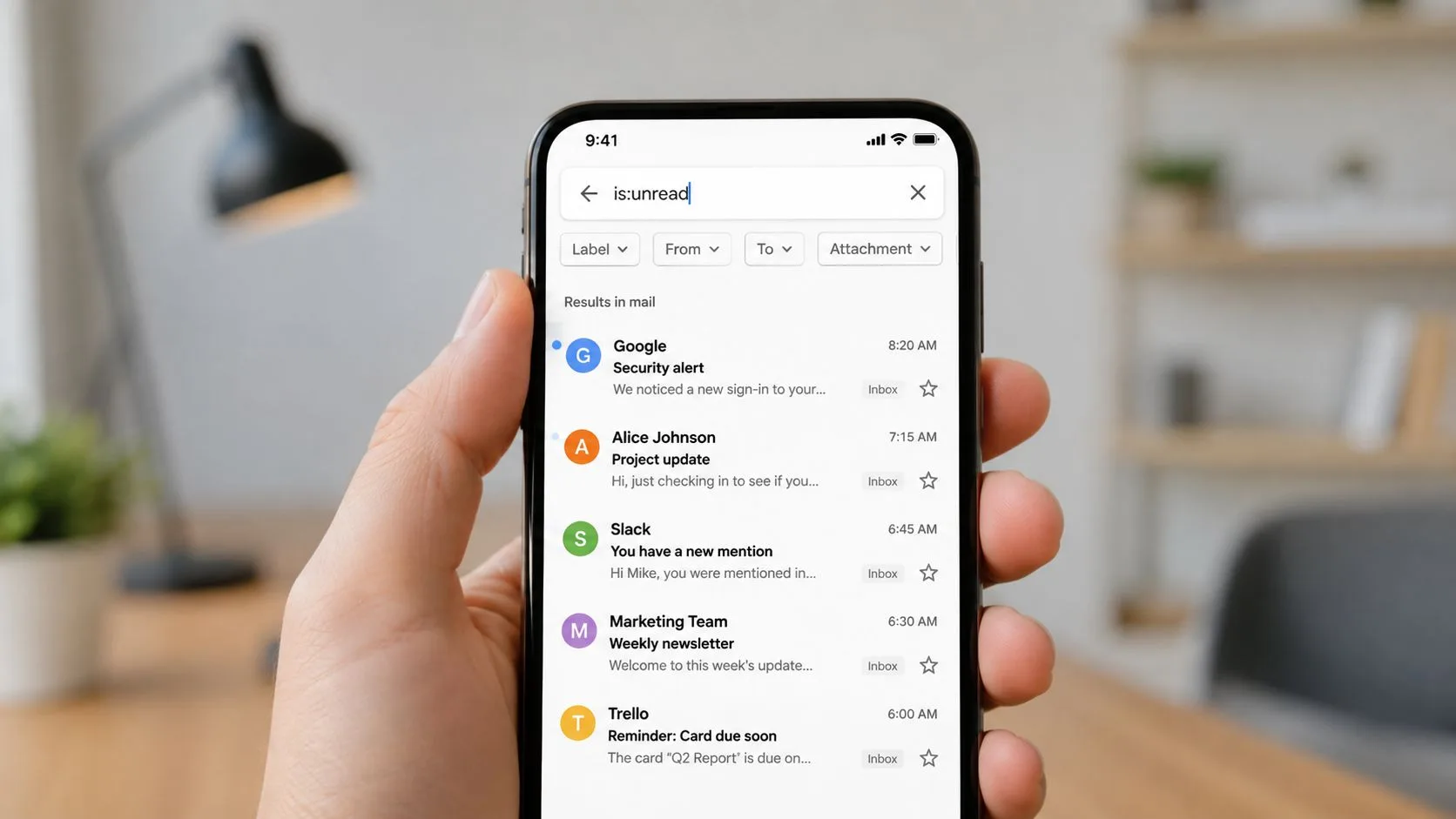
The Gmail mobile app supports the same core unread operator. Open the app, tap the search field at the top, enter is:unread, and submit the search. Google’s Android guidance confirms that the app can search by message status, including unread and read states.
Android steps
- Open the Gmail app.
- Tap the search bar.
- Enter
is:unread. - Tap the search icon or submit key.
- Add
in:inbox,from:,category:primary, orhas:attachmentif the result set is too broad.
For example, in:inbox is:unread category:primary gives you a more focused working queue than is:unread alone. If a notification badge still doesn’t make sense, run in:anywhere is:unread from the same search field.
iPhone and iPad steps
The path is nearly identical:
- Launch Gmail.
- Tap the search field.
- Type the operator manually, including the colon.
- Submit the search.
- Use recent searches to repeat a query you run frequently.
The mobile app’s search chips can help with common filters, but typing the operator is often faster when you already know the exact scope. Search history is convenient, though shared or sensitive devices may warrant clearing recent searches.
Mobile triage works best when you use a decision query rather than browsing. Search for a sender when you’re waiting on a response, search for attachments when you’re reviewing documents, and use the all-location query only when you’re diagnosing a mismatch.
Saving Searches and Creating Filters
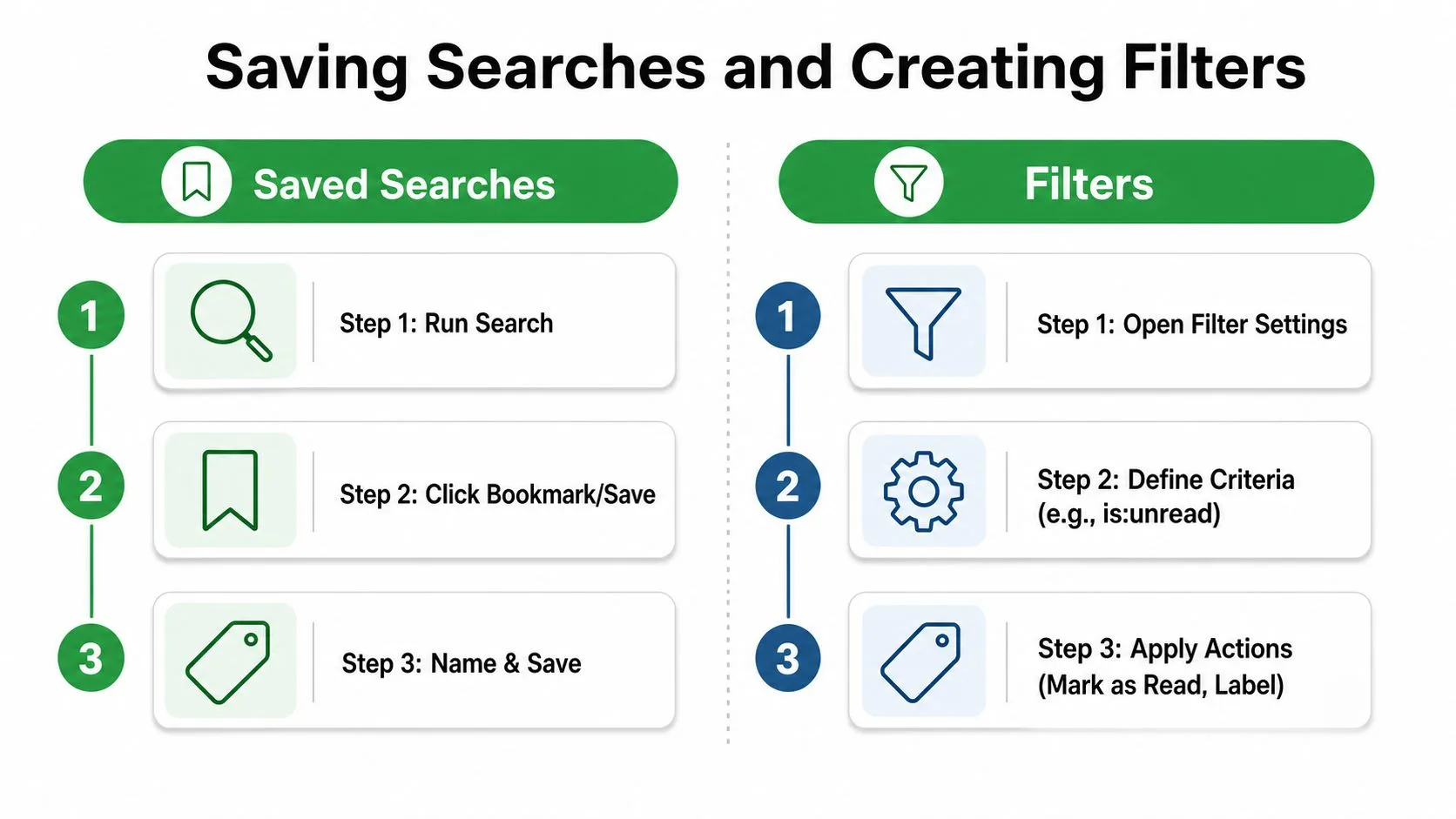
Gmail doesn’t provide a universal “save this search” button in the same way some task systems do, but you can still make recurring unread searches easy to reach. Run the query, copy the resulting Gmail URL, and bookmark it in your browser. A bookmark for in:inbox is:unread category:primary creates a direct doorway into your main review queue.
Filters are better for changing what happens to incoming messages. In Gmail on desktop, open Settings, choose See all settings, go to Filters and Blocked Addresses, and create a new filter. Define the sender, subject, or other matching condition, then choose an action such as applying a label, starring the message, marking it as important, or skipping Inbox.
Use filters to preserve scope
A filter can’t retroactively fix every unread message already in the mailbox. It’s designed to handle matching mail as it arrives, so test the criteria before applying broad actions. A practical setup might apply a Clients label to messages from important client addresses, then let label:clients is:unread become your recurring review search.
Be cautious with “Mark as read” and “Skip the Inbox.” Those actions reduce visible clutter, but they can also hide messages you still need to process. If you’re editing an existing rule, use Gmail’s filter controls carefully with this guide to edit filters in Gmail.
Automation principle: Automate classification first. Automate read-status changes only when you’re certain the message never needs personal review.
A sustainable arrangement usually combines three layers: bookmarks for manual searches, labels for durable organization, and filters for predictable incoming patterns. That gives you speed without turning Gmail into an opaque system that removes work from view.
Building a Proactive Email Triage System
Searching for unread messages is a recovery tactic. A better system gives important mail a recognizable place before the unread count becomes confusing.
Create labels for sender groups such as clients, candidates, vendors, and internal work. Use filters to apply those labels, then review saved searches that combine the label with is:unread. Keep category-specific searches separate so Primary work doesn’t get mixed with Promotions cleanup.
A simple operating rhythm is enough:
- Review the Primary unread queue first.
- Process labeled client or candidate messages next.
- Search attachments when documents drive the day’s work.
- Run the all-location search when the badge and visible inbox disagree.
- Archive, label, reply, or mark as read deliberately.
If legitimate messages repeatedly land in Spam, review practical guidance on how to stop email from going to spam in Gmail. The aim isn’t to eliminate every unread message. It’s to make every remaining unread message understandable.
For sales and client-facing teams, Mail Tracker for Gmail adds read receipts, open counts, timestamps, and notifications inside Gmail, helping you distinguish an unread outgoing message from one that has received engagement. Visit Mail Tracker for Gmail to see how tracked-message activity can complement a focused unread-search routine and make follow-ups easier to time.
Ready to track your emails?
Add Mail Track for Gmail from the Google Workspace Marketplace and know the moment your emails are opened. Free and unlimited.
Add to GmailMore reading
More from Tutorials
How to Track Link Clicks in Gmail (and What a Click Really Tells You)
Learn how to track link clicks in Gmail, why Gmail does not do it natively, how tracked links work and how to read clicks without being fooled by scanners.

How to Find My Contacts in Gmail: A Practical Guide
Learn how to find my contacts in Gmail on desktop and mobile. Clear steps for Google Contacts, search tips, shortcuts, and contact details from emails.
Objection in Sales Explained and How to Handle It
Learn what objection in sales really means, why it happens, and proven frameworks to handle price, timing and trust objections with confidence.