How to Send a Document in PDF Format: A Simple Guide
Learn how to send a document in PDF format from any device. Our guide covers creating PDFs from Word or Google Docs and sending them securely via Gmail.
You’ve got a document ready to go. Maybe it’s a resume you need to send before a deadline, an invoice a client is waiting on, or a proposal that took half your week to finish. The last thing you want is for the formatting to break, the file to bounce, or the recipient to miss it entirely.
That’s why PDF is usually the right format, and why sending it well involves more than clicking the paperclip icon. If you want to know how to send a document in PDF format without running into the usual problems, the workflow is simple: create a clean PDF, send it properly in Gmail, handle size or access issues before they become a problem, and use sensible tracking and security when the document matters.
Why Sending a PDF Is the Professional Standard
A PDF is the format people use when they want the recipient to see the document exactly as intended. Fonts, spacing, page breaks, logos, signature blocks, and layout stay consistent far better than they do in editable formats like Word documents or spreadsheets.
That matters more than people think. A resume with shifted margins looks sloppy. An invoice with broken tables creates friction. A proposal that opens differently on another device can make a polished piece of work feel unfinished.
PDFs protect presentation
Editable files are useful during collaboration. They’re less useful when the document is finished. Sending a PDF tells the recipient, “This is the final version. Review it as-is.”
That small signal changes how the document is received. PDFs feel more deliberate, more formal, and less likely to be accidentally changed.
Practical rule: If the document is meant to be read, signed, reviewed, approved, or archived, send a PDF unless the recipient specifically asked for an editable file.
PDFs fit real-world email habits
People open email on laptops, phones, tablets, and webmail clients with wildly different settings. PDF is one of the few formats that travels well across all of them. It also works better when you need to print the file later without weird reflow issues.
There’s another reason this matters. If you care whether your message was seen, you should treat “sent” and “opened” as two different things. That’s where delivery habits, recipient behavior, and the limits of tracking start to matter. If you want a grounded take on that side of email, this discussion of email tracking and ethics is worth reading.
The practical workflow
A reliable PDF sending routine usually looks like this:
- Create the final file carefully: Export or print to PDF from the app where you made the document.
- Name it clearly: Use a filename the recipient can understand at a glance.
- Send it with context: The email body should explain what the file is and what action you need.
- Use a link when needed: Large files or sensitive documents often work better through cloud sharing.
How to Create a PDF on Any Device
Making a PDF is easy once you know where each app hides the option. The method depends on what you’re starting with: a Word file, a Google Doc, a spreadsheet, a webpage, or a paper document sitting on your desk.

From Microsoft Word
If your document is already in Word, this is usually the cleanest route.
- Open the file in Microsoft Word.
- Click File.
- Choose Save As or Export.
- Select PDF as the file type.
- Save the file with a clear name.
Use this method for resumes, letters, reports, and forms. Word’s export usually preserves formatting better than copying text into another tool and converting it later.
A few checks before you save:
- Review page breaks: A PDF will lock them in.
- Embed final edits first: Comments or tracked changes can carry over if you forget to accept them.
- Check hyperlinks: If the file includes links, test them after export.
From Google Docs
Google Docs handles PDF export well, especially for collaborative drafts that are now final.
Open the document, click File, then Download, then choose PDF Document (.pdf). The browser will download a PDF version to your computer or device.
This is the fastest option when you’ve been working in shared docs with teammates or clients. Before downloading, switch to print preview if the layout is important. It’s a quick way to catch awkward page splits or oversized headings.
A PDF is only as clean as the source document. If the original file looks messy in print preview, the exported PDF will too.
Using Print to PDF on Windows and Mac
Sometimes there isn’t a built-in export button, or the file is in an app that doesn’t make PDF conversion obvious. That’s where Print to PDF helps.
On Windows
Most recent Windows setups include Microsoft Print to PDF.
- Open the document, image, or webpage.
- Press Ctrl + P or use File > Print.
- In the printer list, select Microsoft Print to PDF.
- Click Print.
- Choose where to save the new PDF.
This works well for webpages, receipts, image files, and software screens that need to be captured cleanly.
On macOS
Mac has PDF creation built into the print dialog.
- Open the file.
- Choose File > Print.
- In the print window, look for the PDF button.
- Select Save as PDF.
- Name the file and save it.
This is one of the most useful Mac shortcuts because it works across apps. If an app can print, it can usually become a PDF.
Turning a paper document into a PDF with your phone
For contracts, handwritten notes, signed pages, receipts, and forms, your phone is usually enough.
Most modern phones let you scan documents with the camera through built-in tools or common apps. The best workflow is to place the paper on a flat surface, use bright even lighting, keep the camera square to the page, and let the scan tool crop the edges automatically.
For cleaner results:
- Use contrast: White paper on a dark table helps edge detection.
- Avoid shadows: Overhead light is better than a desk lamp from the side.
- Scan all pages in one session: That keeps the PDF in the right order.
Picking the right method
Here’s the simple rule of thumb:
| Starting point | Best method |
|---|---|
| Word document | Export or Save As PDF |
| Google Doc | Download as PDF |
| Webpage or unsupported app | Print to PDF |
| Paper document | Phone scan to PDF |
If your goal is speed, use the app’s native export. If your goal is compatibility, print to PDF usually gets the job done. If your goal is to digitize something physical, scan it with your phone and rename the file immediately so you can find it later.
Attaching and Sending Your PDF in Gmail
Once the PDF is ready, Gmail makes the actual sending part straightforward. What trips people up isn’t the attachment button. It’s sending the file without enough context, with a vague subject line, or from the wrong device workflow.

Sending from Gmail on desktop
On the web version of Gmail:
- Click Compose.
- Add the recipient, subject line, and message.
- Click the paperclip icon.
- Select your PDF from your computer.
- Wait for the upload to finish.
- Click Send.
That’s the mechanical part. The professional part is the message around it.
A good email for a PDF attachment usually includes:
- What the file is: “Attached is the signed agreement.”
- Why you’re sending it: “For your review” or “for payment processing.”
- What happens next: “Please confirm receipt” or “let me know if you want an editable version.”
Sending from the Gmail mobile app
On Android or iPhone, open the Gmail app and compose a new message. Tap the attachment icon, choose the PDF from your files or cloud storage, then send it as usual.
Mobile works fine for quick sends, but it’s easier to miss details on a small screen. Before you tap send, double-check the file name and recipient address. Those are the two mistakes I see most often when someone sends a document from a phone in a hurry.
What to write in the email
Short is better than formal padding. You don’t need a long introduction.
A practical template:
Hi Sam, Attached is the PDF version of the proposal. Please review section 3 in particular, and let me know if you’d like any revisions.
Thanks, Alex
If your work involves regular outreach or client follow-up, this guide to improving sales efficiency with Mail Tracker for Gmail and real-time email tracking is useful for tightening the handoff after you hit send.
For a visual walk-through, this quick video helps:
A few small habits that help
- Use a specific subject line: “Invoice for May” beats “Document attached.”
- Name the file clearly: “Acme_Proposal_Final.pdf” is better than “final-v2-new.pdf”.
- Mention the attachment in the body: People are more likely to notice it.
- Send a test to yourself for important files: Especially if formatting matters.
Troubleshooting Common PDF Sending Problems
The most common failure is simple. The file is too big.

When Gmail rejects the attachment
The critical limit is 20MB. When emailing PDFs, exceeding the 20MB attachment limit used by major providers like Gmail causes 15-20% of delivery failures for large documents, and the recommended fix is to upload the PDF to cloud storage and send a shareable link instead, which can support near-100% successful delivery while reducing email header size by 90%, according to Investintech’s guidance on emailing PDFs.
That’s the practical answer in most cases. Don’t fight the attachment limit if the file is large. Move the document to Google Drive, Dropbox, or OneDrive, then send the link.
The better workflow for large PDFs
Here’s what works:
- Upload the PDF to your cloud storage service.
- Set the sharing permission appropriately.
- Paste the share link into your Gmail message.
- Explain what the file is and whether the recipient can view, comment, or edit.
This is cleaner for presentations, image-heavy portfolios, scanned contracts, and long reports. It also avoids repeated failed uploads from mobile connections.
If a PDF includes high-resolution images or scanned pages, assume file size could be a problem before you attach it.
If the PDF is larger than it needs to be
A lot of PDFs get bloated because of oversized images, unnecessary scans, or exporting with settings that are too heavy for email. If you need to shrink the file before sending, PDFWix’s PDF compression guide is a useful walkthrough.
Compression makes sense when the recipient needs the file attached rather than linked. Just be careful not to over-compress a document that includes fine print, signatures, or diagrams.
Other sending issues worth checking
- The file opens blank or oddly formatted: Re-export the original document instead of converting from a screenshot or copy.
- The recipient says they can’t access the link: Check the sharing permission. “Restricted” is a common culprit.
- The wrong version was sent: Add version control to filenames before sending, not after.
Advanced Tips for Professional PDF Sharing
Sending a PDF is basic office hygiene. Sharing one securely, and having a realistic sense of whether someone engaged with it, is where people usually level up.
Secure the document before you share it
Sensitive files need more than a polite “please keep confidential” note in the email body. Contracts, financial documents, hiring materials, and client records should be protected before the recipient ever opens them.
Adobe’s recommended approach is specific. Professional PDF sharing success rates increase by 35% when recipients are pre-authenticated via shareable links with adjusted permissions, compared to password-protected attachments where 28% of users fail to open files due to forgotten passwords or missing key delivery. The recommended protocol is to encrypt the PDF with Adobe Acrobat’s Protect tool, send the shareable link first, and then deliver the password separately by voice call or SMS, as explained in Adobe’s secure file transfer guidance.
That trade-off is worth understanding. Passwords add protection, but they also add friction. Shareable links with the right permissions often land in a better middle ground.
Choose permissions deliberately
Not every recipient needs the same level of access.
| Situation | Better setting |
|---|---|
| Final resume, invoice, signed letter | View only |
| Draft proposal under review | Comment or review access |
| Internal collaboration copy | Editable |
The point is to avoid using one sharing setting for everything. “Anyone with the link can edit” is convenient right up until someone changes the wrong file.

Know what email tracking can and can’t tell you
People often want certainty after sending an important document. Did they get it? Did they open it? Did they ignore it?
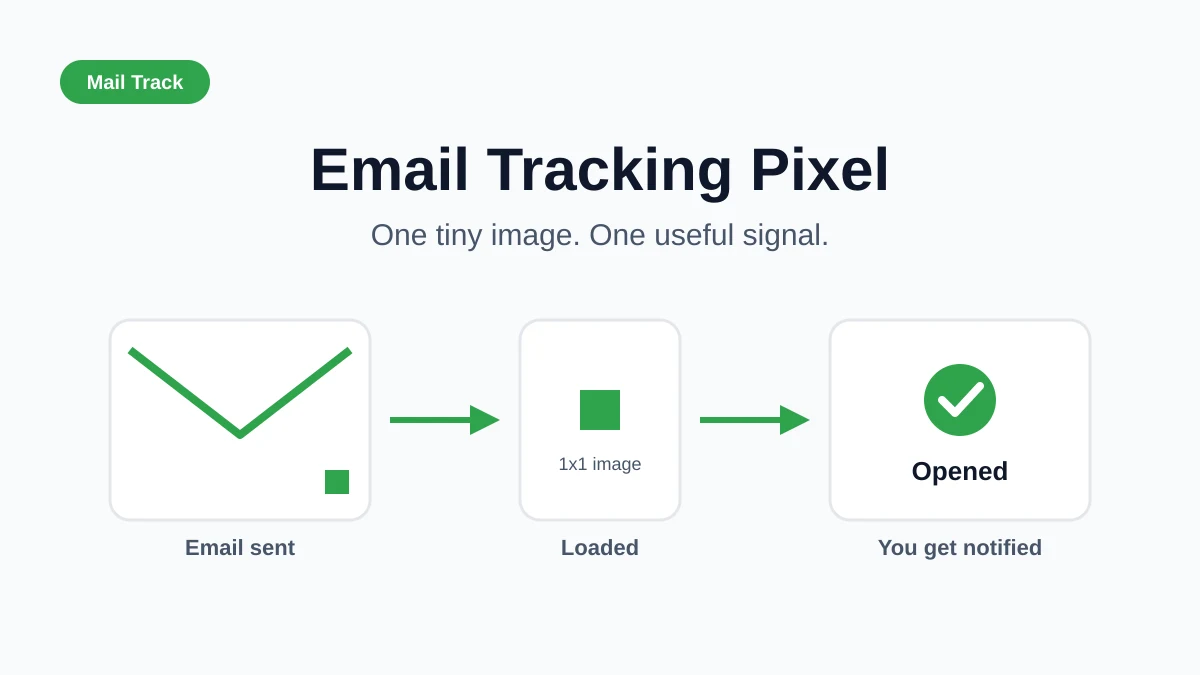
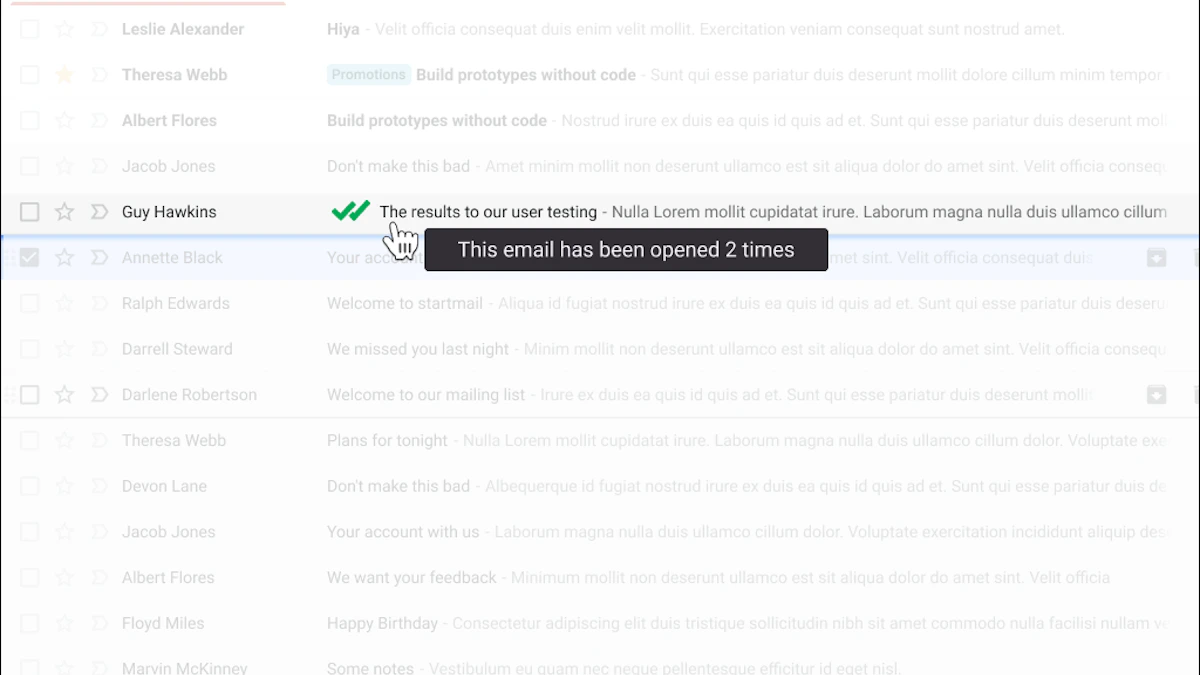
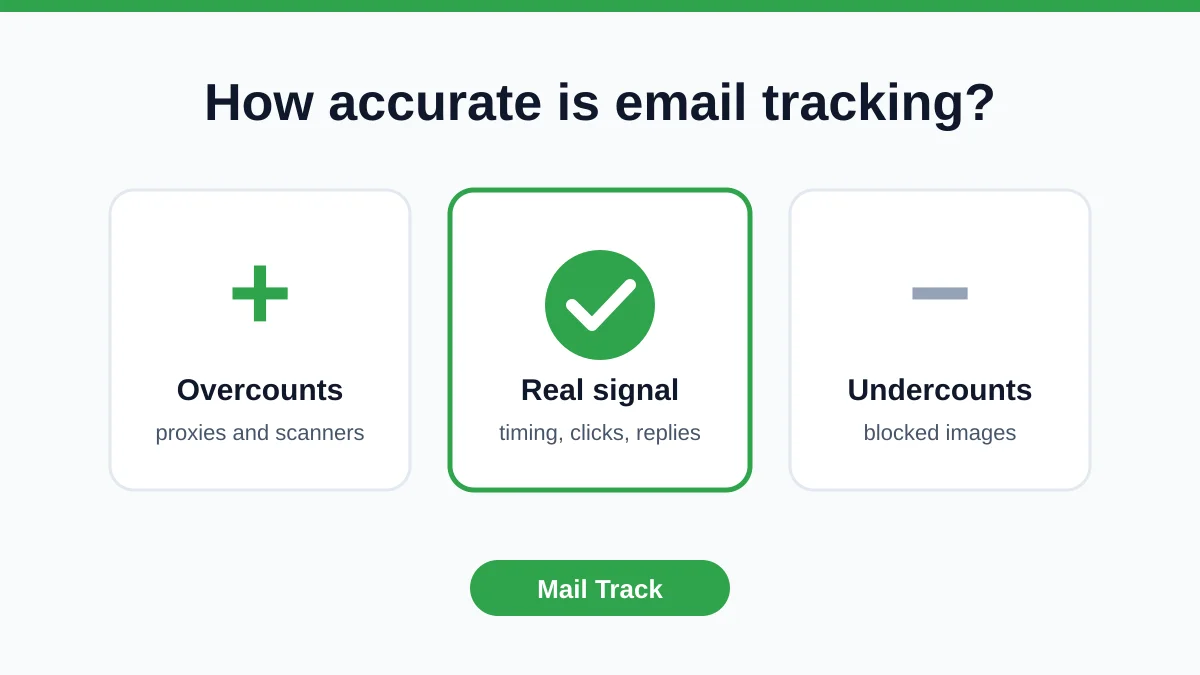
Open tracking helps, but it has limits. It typically works by loading a tiny invisible image when the email is opened. If images are blocked or auto-loading is disabled, the open isn’t recorded, so tracking is an educated guess rather than definitive confirmation, as noted in this discussion of how accurate email open tracking is.
That’s why I treat opens as a signal, not a verdict.
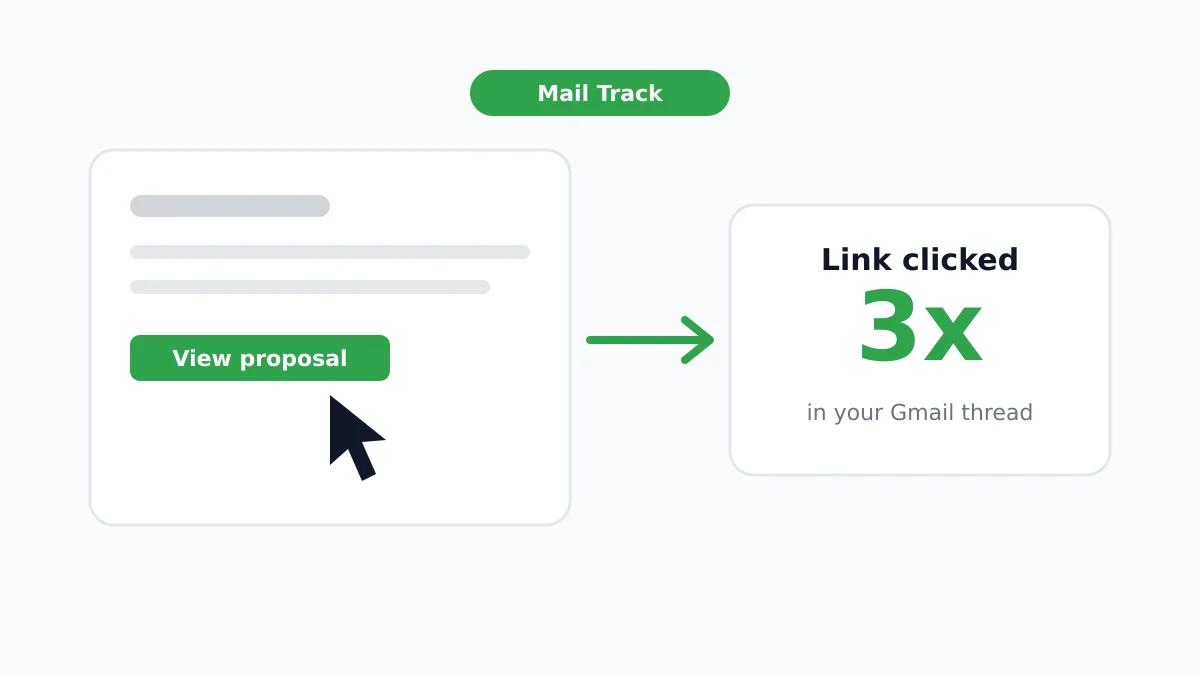
A stronger signal comes from pattern, not a single event. Qualtir’s guide to Gmail email tracking notes that one open is weak, while four opens and three link clicks suggest much stronger engagement. That’s a better basis for follow-up than reacting to one isolated notification.
Using a mail tracker for gmail without being creepy
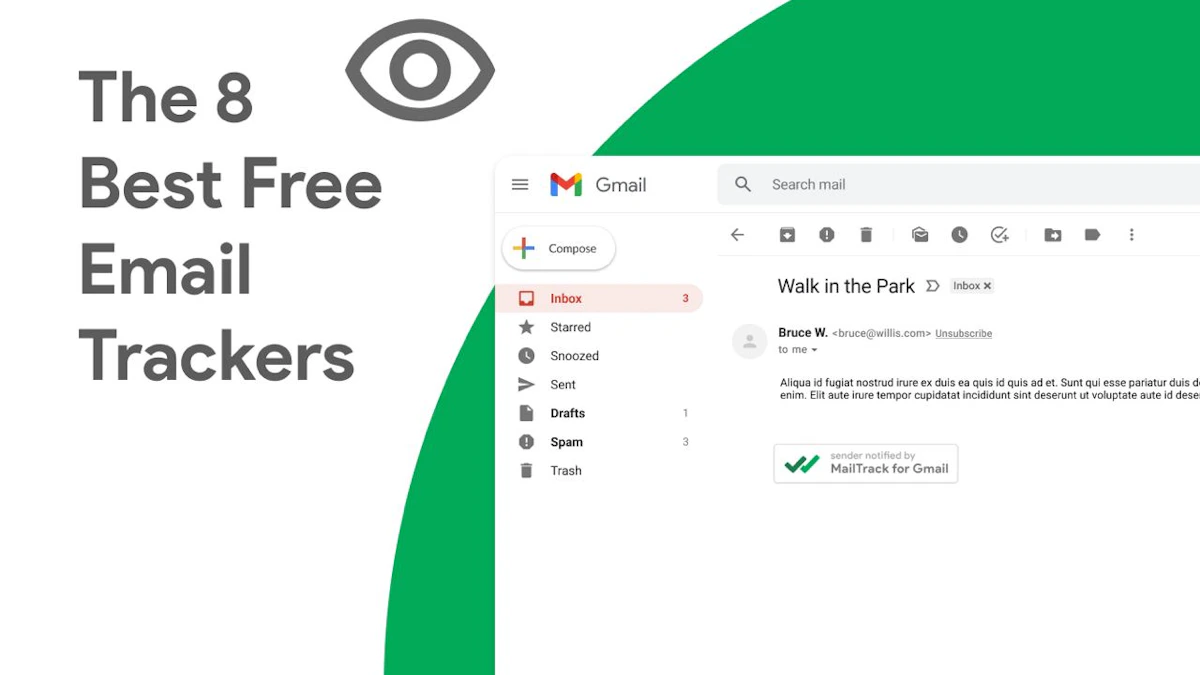
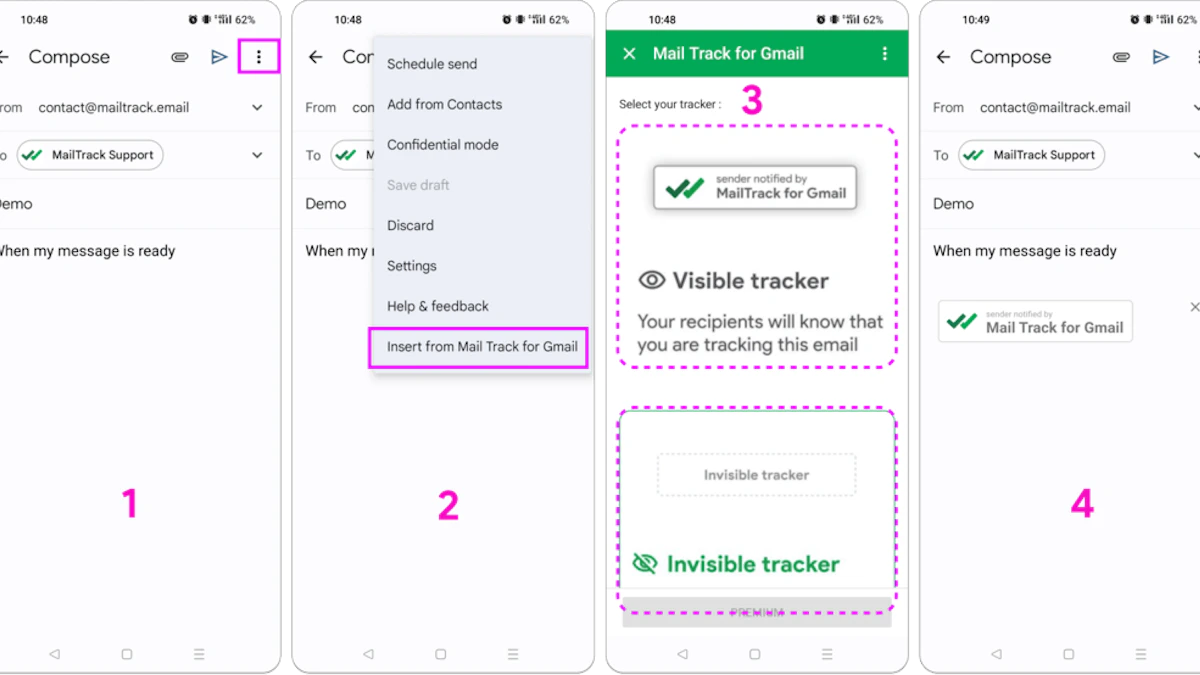
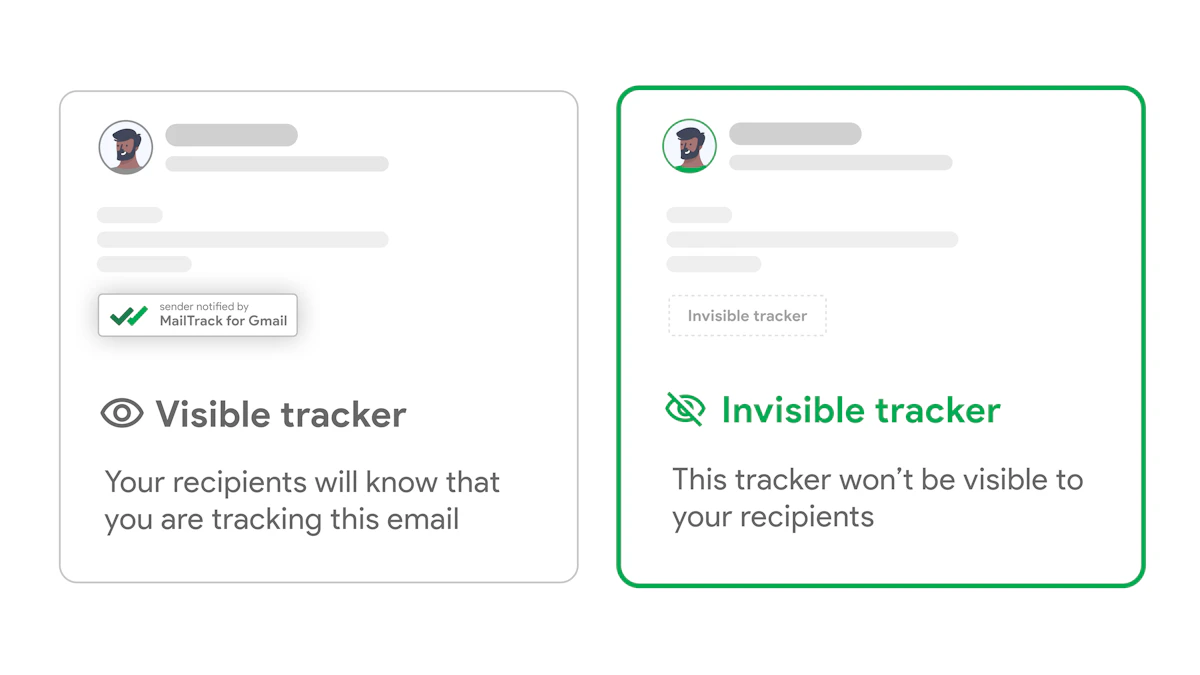
If you want read receipts inside Gmail, one option is Mail Tracker for Gmail. It adds read-status cues, timestamps, and open notifications inside the Gmail workflow rather than forcing you into a separate app. If you need setup details, this guide to getting a read receipt in Gmail covers the basics.
One wording point matters here. The product name is Mail Tracker for Gmail. That’s a specific tool. It’s easy to confuse that with the broader product category people call a mail tracker for Gmail or email tracker for Gmail, but they aren’t the same thing.
Also, don’t overreact to instant alerts. Mailtrack notes that push notifications can arrive the moment a tracked email is opened, but responding within seconds can feel intrusive and often doesn’t work well for follow-ups, according to Mailtrack’s overview of real-time open notifications. A better move is to use the alert as context, then reply when the timing feels natural.
The goal isn’t surveillance. It’s reducing uncertainty enough to follow up like a normal person.
Conclusion Sending Documents with Confidence
Once you’ve done this a few times, the workflow becomes automatic. Create the PDF from the source document cleanly, send it in Gmail with a clear message, switch to a cloud link when attachment size or access becomes a problem, and use security or tracking when the document calls for it.
That combination matters because document sharing isn’t just about file transfer. It’s about reducing friction for the person on the other end. A readable file, sensible permissions, and a clean email message make it easier for them to respond quickly and correctly.
If you’re sending PDFs regularly, it also helps to understand the email system around the message itself. Things like sender trust and message legitimacy shape whether your email gets attention at all, and mailX’s explanation of email authentication is a solid starting point if you want the bigger picture.
Knowing how to send a document in PDF format sounds basic. In practice, it’s one of those small skills that makes your work look tighter, more reliable, and easier to act on.
If you want simple read receipts and open notifications directly inside Gmail, Mail Tracker for Gmail is a straightforward option to consider. It keeps tracking in the inbox you already use, which is handy when you’re sending important PDFs and want better follow-up timing without changing your workflow.
Ready to track your emails?
Add Mail Track for Gmail from the Google Workspace Marketplace and know the moment your emails are opened. Free and unlimited.
Add to Gmail