
Mail Tracker Notification Not Working? Fix It Fast
Mail Tracker notification not working? Follow this step-by-step guide covering browser, Gmail, OS permissions, battery settings, and testing fixes.
You’ve sent a tracked proposal from Gmail, the prospect has opened it, and the double check marks are sitting in the thread. Yet no alert appeared on your desktop or phone, so the ideal follow-up moment passed. That feels like a broken tracker, but the failure can happen at several different points.
A notification has to travel through the Mail Tracker for Gmail extension or app, Gmail settings, browser permissions, operating-system permissions, and background power controls. The reliable fix is to test those layers in order, changing one setting at a time and retesting after each change. Randomly flipping every notification toggle makes it impossible to know what solved the problem.
When Your Open Alerts Go Silent
An open alert can disappear even when tracking itself is working. If Gmail shows an open count, timestamp, or double check marks, the message has generated activity inside the Gmail workflow. The missing piece may be the alert path, not the tracking event.
That distinction matters for people who depend on timing. A sales representative may send a proposal, see the recipient open it, and still miss the short window when a follow-up call would feel natural. A recruiter may see engagement on an application message but receive no prompt to respond. In both cases, “notification not working” describes the symptom, not necessarily the failed component.
Diagnostic rule: Confirm the open event first. Then find the layer that failed to turn that event into a visible alert.
Start with the extension or mobile app. Next, inspect Gmail’s account and label settings. After that, check browser or device permissions, followed by battery management, Focus, Do Not Disturb, and background activity. This order prevents a common mistake, changing phone settings when the extension never generated an alert, or reinstalling the extension when the operating system has muted it.
Notification reliability deserves that level of care because even successfully delivered messages don’t always produce an open event. Industry email open-rate benchmarks have been measured at 21.5% in 2021, 33.07% in 2023, 36.24% in 2024, and 43.46% in 2025, while reported benchmarks vary from roughly 30.1% to 55.71% by sector (email open-rate benchmarks). An absent alert can therefore mean an unopened email, a missing tracking event, or a blocked notification. Treat those as separate tests.
Quick Checks Before Anything Else
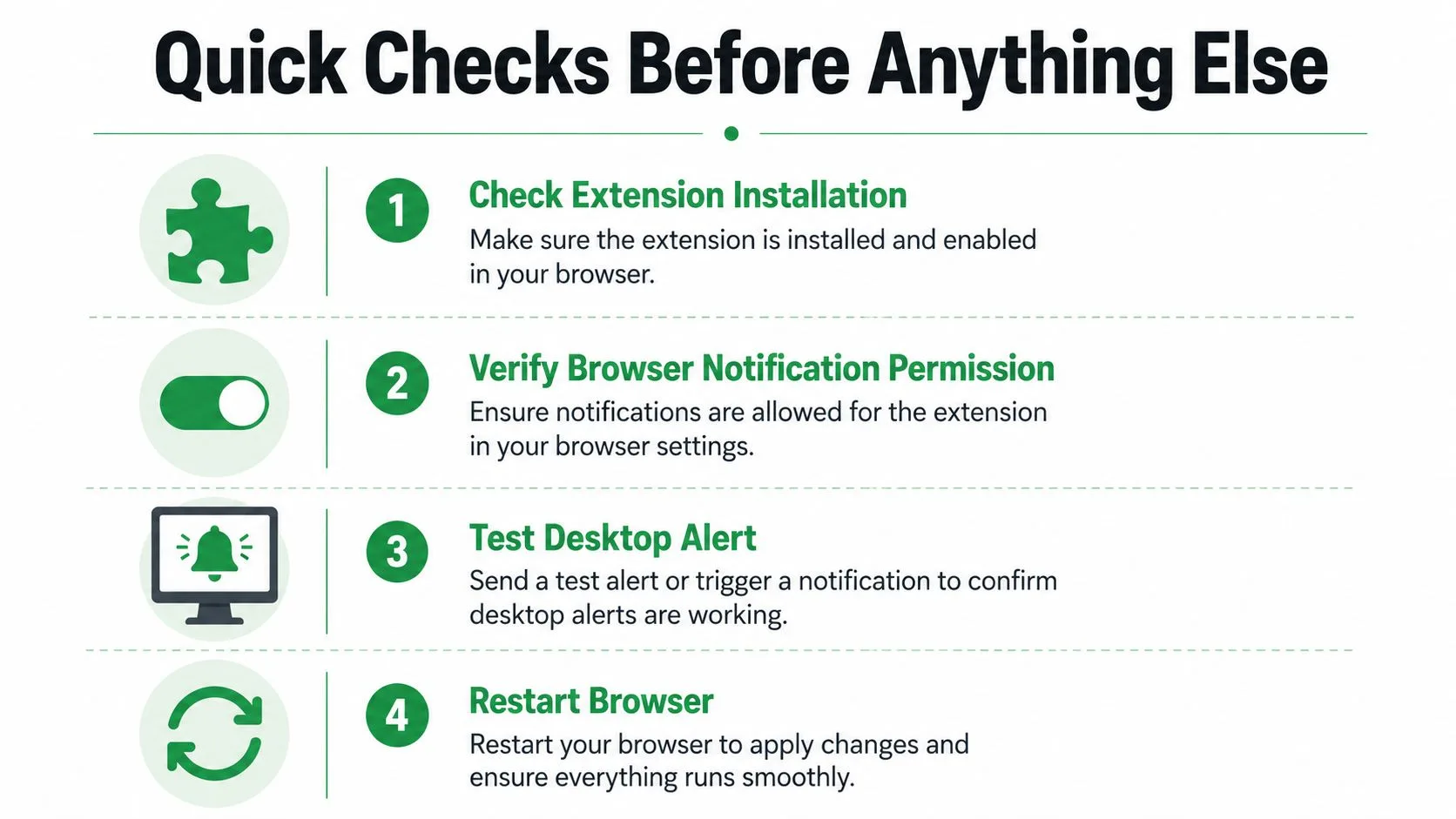
The first pass should take only a few minutes. Don’t change several settings at once. Check the evidence already visible in Gmail, then test the alert path with the smallest possible change.
-
Check the extension: Open Chrome’s extensions page and confirm the Mail Tracker for Gmail extension is installed, enabled, and present in the browser profile where Gmail is open. A second Chrome profile can be signed into a different Google account, which makes the extension appear to work while tracking another mailbox.
-
Verify the Gmail evidence: Open a tracked thread and look for the double check marks, open count, or timestamp. If those indicators are absent, don’t troubleshoot push alerts yet. First confirm that the message was sent through the tracked workflow and that the correct Gmail account is active.
-
Review account-level alerts: Sign in to the Mail Tracker web app and confirm that email or push alerts are enabled in the account settings. This setting can stop notifications even when the extension remains installed and Gmail continues to display tracking activity.
-
Test the connection: Load Gmail and the account dashboard, then send a controlled test message to a secondary address you can open. A weak or interrupted connection can prevent the alert request from reaching the browser or phone, so test on a known working network before changing deeper settings.
Operating-system updates deserve special attention. Android 13 introduced runtime notification permission, so newly installed apps must ask before sending notifications. Notification failures can also follow permission loss, background throttling, or reinstall edge cases, making the operating system a governance layer rather than treating every incident as an app bug (Android 13 notification permission).
If an update happened shortly before alerts stopped, inspect notification permission before clearing data or reinstalling anything. Change one permission, open a test message, and wait for the result. That simple discipline keeps the diagnosis clean.
Browser and Extension Troubleshooting for Desktop Alerts
Desktop alerts depend on the browser’s permission model. Gmail can show an open event while Chrome blocks the notification before Windows or macOS ever receives it.
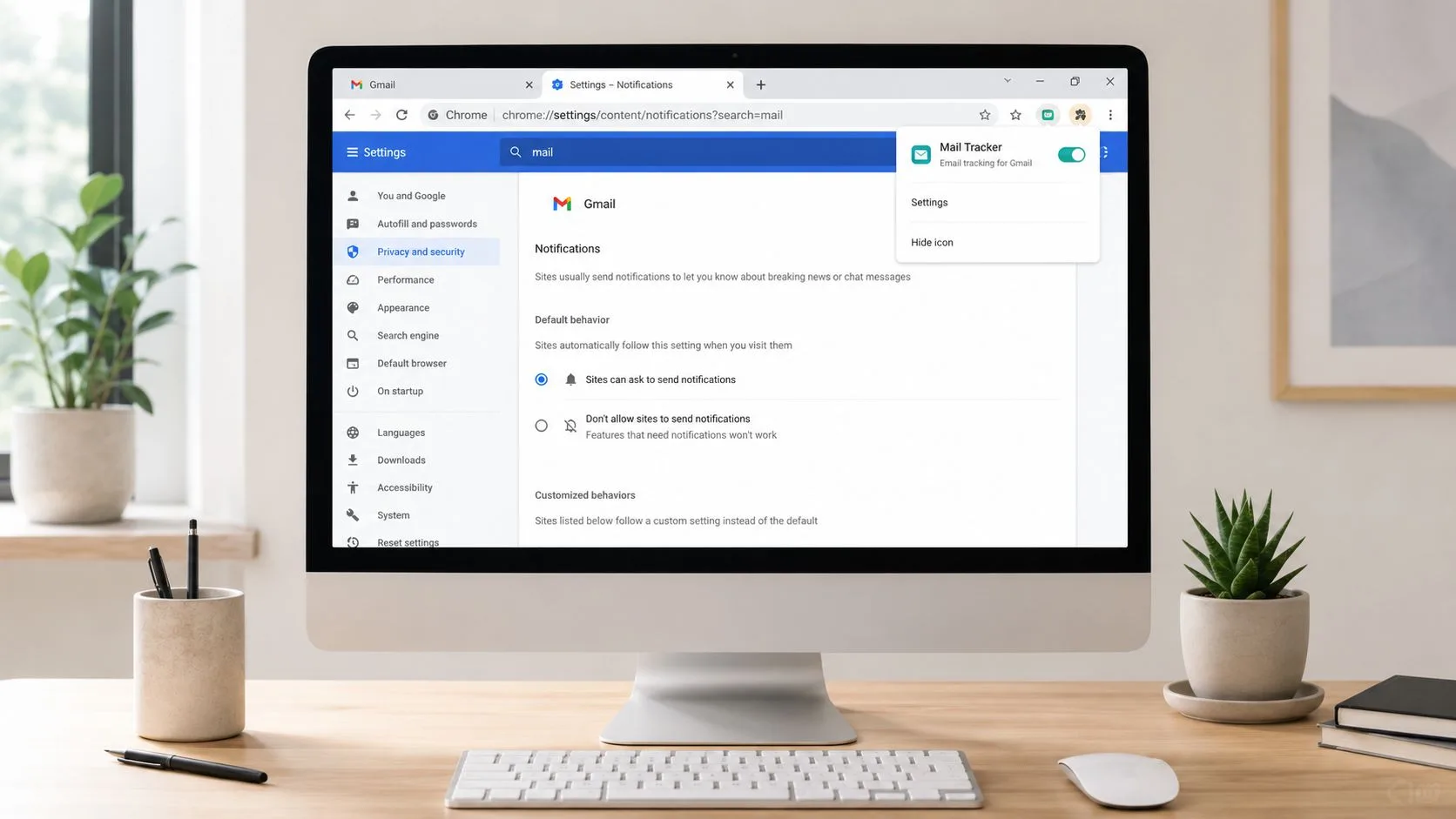
Open Chrome settings, find site permissions for Gmail and the Mail Tracker service, and confirm notifications aren’t blocked. Check the address-bar permission icon while Gmail is open, because a site-level block can override broader browser preferences. If you previously denied a prompt, remove that block and reload Gmail so Chrome can request permission again.
Then inspect the extension itself:
- Confirm the profile: Make sure the extension and Gmail session belong to the same Chrome profile. Switching profiles can leave you looking at the right inbox with the wrong extension state.
- Check extension status: Open Chrome’s extensions manager and verify the extension isn’t disabled. Browser updates, administrative policies, or another extension can alter its behavior.
- Test without conflicts: Temporarily disable extensions that modify pop-ups, privacy controls, page scripts, or notifications. Restore them individually after the test so you can identify a conflict instead of leaving unnecessary tools disabled.
- Refresh stale browser state: Sign out of Gmail, close the browser fully, reopen it, and sign back in. If the issue remains, clear cached site data for Gmail and the tracker, then repeat the controlled test.
Pop-up controls and notification permissions aren’t identical, but an aggressive blocker can interfere with the prompts or browser behavior required during setup. If Chrome’s permission prompt won’t appear, use this practical guide on how to stop pop up blocker blocking for browser-level checks.
For a desktop-specific walkthrough, follow Gmail alert on desktop. Use it after confirming the extension is active, not as a substitute for checking the Gmail account and Chrome profile.
Reinstallation comes later. Remove the extension only after permission, profile, conflict, and cache checks fail. Install it again from the appropriate Google marketplace, sign in to the intended account, grant notification access, and send one test message before restoring other extensions.
Gmail and Mobile App Notification Settings
Mobile Gmail has two notification controls that users often treat as one. The phone can allow Gmail notifications while Gmail’s own account settings suppress them, or Gmail can be configured correctly while the device blocks the app.
On iPhone or iPad, enable device notifications for the Gmail app first. Then open Gmail and follow Menu → Settings → Notifications → Email notifications, selecting the notification level you want. Google identifies “High priority only” as the relevant option when that mode is selected (Gmail notifications on iPhone and iPad).
That setting applies to Gmail email alerts, so it doesn’t automatically prove that a Mail Tracker open alert can appear. Check the app’s own alert permissions and test a tracked message after changing the Gmail notification level.
iPhone limitation: Apple’s Mail app doesn’t support Gmail push notifications. Gmail alerts on iPhone depend on the Gmail app, not on adding a Gmail account to Apple Mail (Gmail push notifications on Apple devices).
On Android, begin at the device level. Open the Gmail app’s notification settings and make sure notifications are allowed, then check Gmail’s settings for the specific account. If several Gmail accounts are signed in, the active account can have a different notification choice from the one you’re testing.
Labels add another layer. Gmail’s Android controls include label notifications and “Notify for every message.” A tracked message routed into a label with notifications disabled may not produce the alert you expect, even though general Gmail notifications are enabled (Android Gmail notification mechanics).
Use this order:
- Allow Gmail notifications in Android Settings.
- Open Gmail’s settings for the exact account.
- Review the relevant label and enable its notification behavior.
- Test one new tracked email.
- Change the next setting only if the alert still doesn’t arrive.
For a more detailed platform-specific reference, use Gmail notification settings. The key is to distinguish the Gmail app’s incoming-mail alert from the Mail Tracker alert generated by an open event. They may share the same phone permission, but they aren’t the same event.
Battery Saver, Do Not Disturb, and Background Restrictions
Some notification failures leave no error because the device deliberately prevents background work. The strongest clue is timing. If alerts appear only after opening Gmail, background execution is the first layer to inspect. If alerts arrive late, synchronization or power throttling is more likely. If nothing appears anywhere, return to permission and account checks.
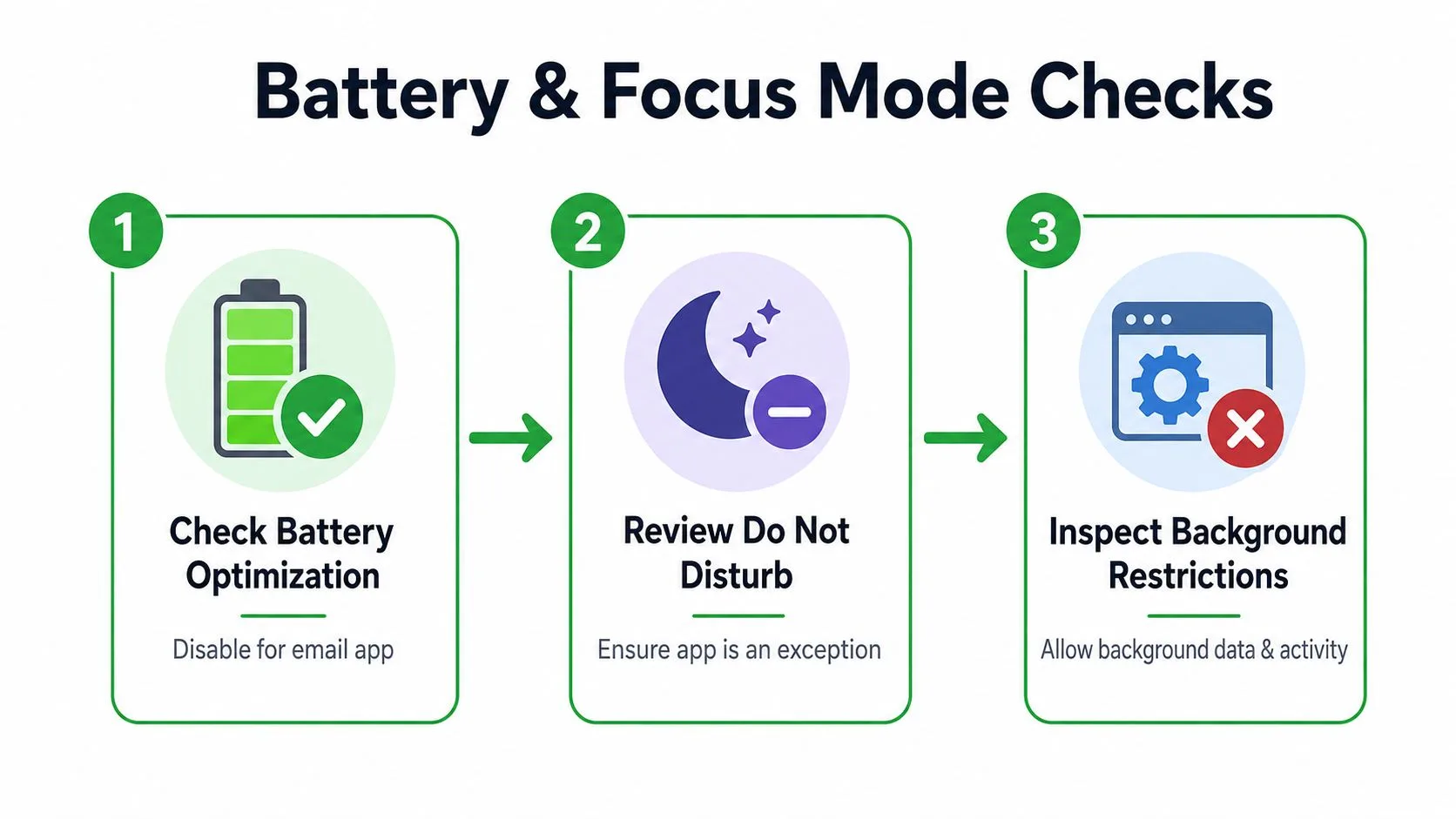
Android devices can restrict Gmail’s background activity to preserve battery. Open the Gmail app settings, find battery usage, and set Gmail to “Unrestricted” where that option is available. Also confirm that automatic app data sync is enabled, because Gmail needs background synchronization to receive new message information without waiting for the app to open (Android Gmail battery and sync guidance).
Don’t change battery settings and Do Not Disturb at the same time. First set Gmail to unrestricted, send a test message, and observe the result. If that doesn’t help, restore the previous setting if appropriate and inspect focus controls next.
Focus modes can mute a healthy alert path
On iPhone, review Focus modes and scheduled summaries. A Gmail or Mail Tracker alert may be permitted by the app but held back by the active Focus configuration. Check notification delivery options, Focus exceptions, and Background App Refresh for Gmail and the relevant tracking app.
On Android, check Do Not Disturb, notification categories, and any manufacturer-specific background manager. Some Android manufacturers apply additional power rules beyond the standard battery setting. That’s why a test on another device can be useful, especially when alerts work on one phone but not another.
Symptom map: “Only appears when the app is open” points to background restrictions. “Arrives late” points to sync or throttling. “Never appears” points first to permission, account, or event-generation checks.
Mobile delivery also varies across device ecosystems. One industry analysis reports that 40% to 70% of push notifications may go undelivered in parts of Asia, with device fragmentation, OEM power management, background-process killing, and inconsistent networks among the cited causes (push delivery troubleshooting analysis). Compare sent and delivered telemetry where available, then isolate whether the failure occurs during service delivery, OS presentation, or visible alerting.
For Android-specific notification controls, see application notification settings on Android. Test after each individual change. A working alert after one change tells you far more than a successful alert after six simultaneous adjustments.
Testing, Sync, and Reinstalling as a Last Resort
A proper test has a known sender, recipient, message, and expected event. Send one tracked email from the Gmail account that normally fails to a secondary address, open it once, and watch three places: the message indicators inside Gmail, the Mail Tracker account history, and the device or desktop alert.
Record what appears:
- Open indicators appear, alert doesn’t: The tracking event exists, so focus on account notification settings, browser permission, or device controls.
- No open indicator appears: Check the extension or app session, the tracked-send workflow, and the recipient test itself.
- The event appears after opening Gmail: Inspect background execution, battery optimization, sync, and Focus controls.
- Desktop works but mobile fails: Keep the extension test unchanged and troubleshoot only the mobile permission and background layers.
Gmail synchronization can stop the chain before an alert is generated. Confirm the account is syncing, and if Gmail reports a sync error, use Google’s sync-error fixes rather than repeatedly reinstalling the tracker. A stale account session can look like a notification problem because the device never receives fresh message or tracking data.
Reinstall only after the controlled tests point to stale application state. Remove and reinstall the Mail Tracker extension on desktop, or reinstall the Gmail app when the mobile app itself appears stuck. After installation, grant every requested notification permission again, sign into the correct account, and repeat the same test message.
The one-change rule matters most here. If you reinstall, change battery settings, disable Focus, and alter Gmail labels together, you may restore alerts without learning why they failed. That leaves the same problem waiting after the next browser or operating-system update.
When to Contact Support and Keep Alerts Worth Having
Contact Mail Tracker support when the open event is consistently visible in Gmail or the account history but alerts still fail after browser, Gmail, permission, and background checks. Include the device, operating-system version, browser, Gmail account context, and whether the open event appears inside Gmail. List every test you ran and identify the exact point where the result differs.
That evidence is far more useful than “notifications stopped.” Support can then separate an extension issue from an account configuration problem, a mobile permission block, or a service-side delivery failure. Also review the Mail Tracker web app for account and plan settings, including whether the tracking signature is visible or invisible, because those options affect what recipients and users see even though they don’t replace notification diagnostics.
There’s another possibility: the alert may be working, but you’ve trained yourself to ignore it. Users increasingly disable or overlook notifications after receiving too many low-value alerts, so “not working” can mean working but intentionally muted. Research and industry coverage describe notification fatigue as overload, desensitization, and reduced responsiveness, with consolidation, digests, and prioritization emerging as alternatives to raw alert volume (notification fatigue research).
Keep alerts tied to meaningful open activity. Reduce unnecessary noise, retain the signals that change your next action, and review the layered order whenever an operating-system update changes permissions. The practical sequence is simple: verify the open event, check the extension, inspect Gmail, confirm browser or device permission, remove background restrictions, test one change, and reinstall only at the end.
Mail Tracker for Gmail adds tracked open indicators, timestamps, and real-time alerts to Gmail across desktop and mobile, so you can diagnose the alert path without adopting a separate workflow. Visit Mail Tracker for Gmail to check the tracking setup and keep important follow-ups visible when an email is opened.
Ready to track your emails?
Add Mail Track for Gmail from the Google Workspace Marketplace and know the moment your emails are opened. Free and unlimited.
Add to GmailMore reading
More from Guides
How Accurate Is Email Tracking? What Opens Really Tell You
How accurate is email tracking in Gmail? Learn why opens get overcounted or missed, how to spot false opens, and which signals to trust before you follow up.
Email Tracking Pixel: How It Works, How to Spot One and Where It Falls Short
What is an email tracking pixel, how does it show an open in Gmail, how can you find one, and why Gmail and Apple Mail proxies limit what it can tell you.

7 Example Email Accept Job Offer Templates
Use these 7 example email accept job offer templates for formal, concise, and enthusiastic replies, with subject lines, clauses, and sending tips.