
Find Unread Emails in Gmail: Complete Guide 2026
Learn how to find unread emails in Gmail with search operators, filters, and shortcuts for web and mobile. Triage and clear the backlog fast.
You open Gmail to answer one urgent client message and see an unread badge that has become its own project. The Primary tab looks manageable, yet the account still signals unfinished business. A few messages are archived, others sit under Promotions or a team label, and one long conversation is bold even though you read its newest reply. That’s how unread emails in Gmail turn from a simple visual cue into a misleading workload signal.
The practical fix isn’t checking email more often. It’s separating messages that need action from messages that merely remain unread, then using Gmail search, labels, filters, and a repeatable review rhythm to keep those states meaningful. Gmail supports is:unread, label searches, inbox views, and bulk actions, but the feature only helps when your workflow reflects how you work across web, mobile, tabs, and threaded conversations.
The Unread Badge Problem and Why It Grows So Fast
The unread number feels personal because it sits beside your account every day. In team coaching, though, a swollen badge usually says more about triage design than discipline. If newsletters, automated alerts, recruiting replies, and customer requests all enter the same visual queue, the count can rise even when you’re actively processing important work.
The broader pattern is common. A 2025 YouGov poll on inbox-zero behavior found that 23% of Americans reported zero unread emails in their primary inbox, while 13% reported more than 1,000 unread emails. Gen Z showed an especially wide split, with 28% reporting zero unread emails and 9% reporting more than 10,000 unread emails. Those findings point to different habits, not a single universal standard for a “clean” inbox.
Why the number keeps moving
Gmail’s tabs and labels can hide unread messages from the view you’re using. Promotions, Social, archived mail, and custom labels may contain unread items without appearing in the Primary list. Threads add another layer. A conversation can look familiar because you read the latest reply while an older received message remains unread somewhere in the history.
Devices complicate the picture further. A browser tab, Android app, and iOS app may not refresh at the same moment, especially when connectivity changes. Gmail also treats unread status as a message state that users can change manually, rather than as a separate folder. Google’s Android guidance confirms that you can mark a message unread or read directly from the message actions.
Practical rule: Don’t promise yourself “inbox zero” until you know whether you mean zero unread messages, zero inbox messages, or zero unassigned actions. They’re different targets.
The useful goal is an honest queue. Keep unread for work that still needs your attention, mark non-actionable messages read, and use labels or snooze for items that belong in a later review cycle. The next step is locating the complete queue before deciding what to clear.
Finding Every Unread Email in Gmail with Search Operators
Start with the query that answers the broadest question:
is:unread
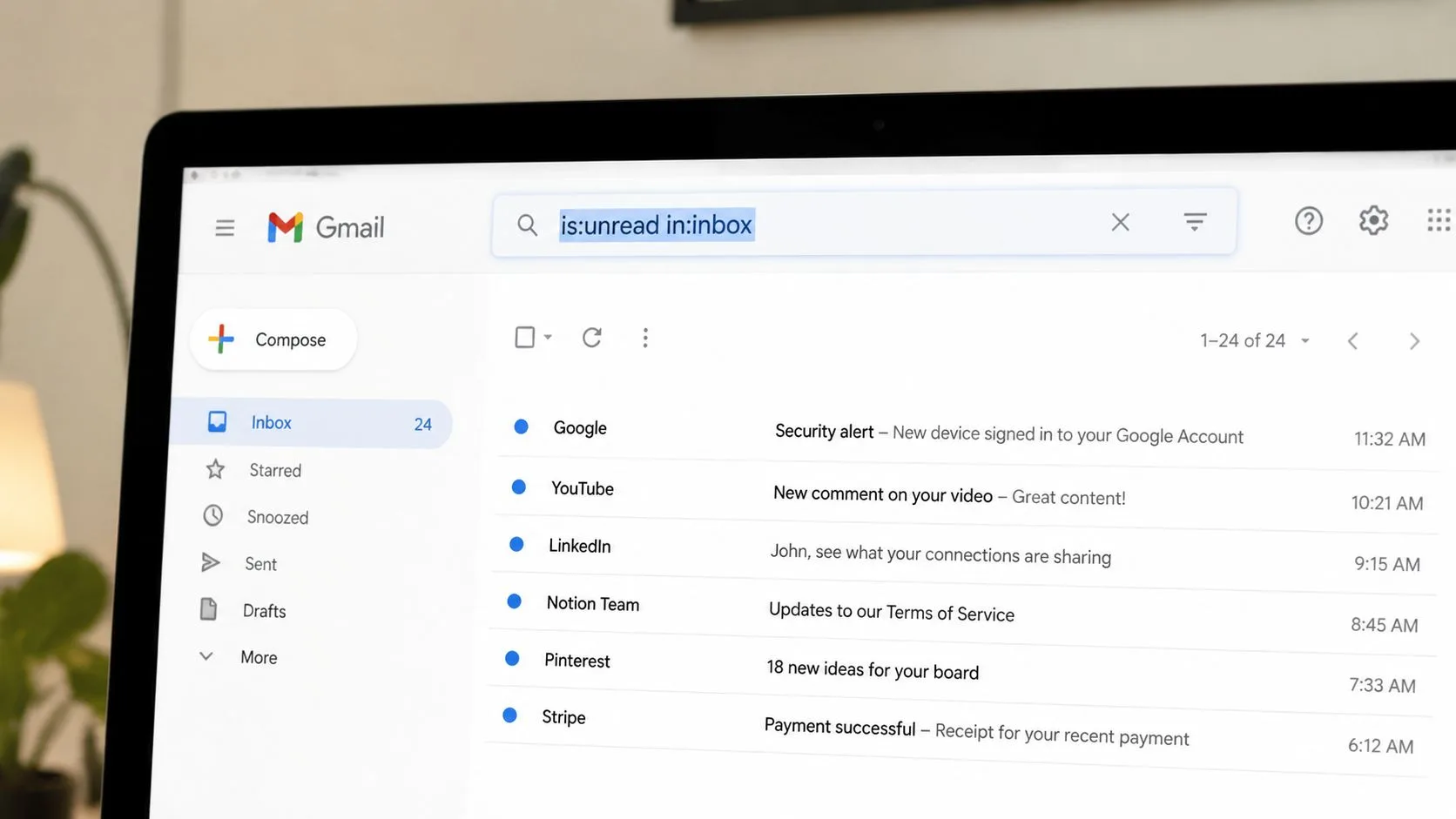
That search surfaces unread mail in the account, including messages outside the visible inbox. To limit the result to messages still in the inbox, use:
is:unread in:inbox
This distinction matters. Unread archived mail remains searchable, but an inbox-only query excludes it. The difference is documented in practical Gmail guidance on marking all messages as read, which also describes combining unread status with inbox scope.
Build the query around the queue you need
Use Gmail’s search field for quick operators, or open Show search options when you prefer visible fields for sender, subject, date, or attachment criteria. The search box is faster once you know the syntax:
- Primary work:
category:primary is:unread - Archived or hidden locations:
in:anywhere is:unread - A label queue:
label:important is:unread - A specific custom label:
label:recruiting is:unread - Starred follow-up:
is:starred is:unread - Recent weekly review:
newer_than:7d is:unread - Date-bounded backlog:
after:2026-01-01 is:unread - Exclude deleted mail:
is:unread -in:trash - Unread mail outside the inbox:
is:unread -in:inbox
Gmail’s official search operator documentation covers is:unread and label-based searches such as label:friends and label:important. For date-focused workflows, keep a reference for searching dates in Gmail nearby, especially when you need to audit a bounded period rather than attack the entire account.
One correction to common advice: label:unread isn’t the clearest way to express unread status in every workflow. Gmail’s reliable status operator is is:unread, so pair it with the location or category you want. A query such as category:promotions is:unread can expose unread promotional mail that Primary view leaves out.
Change the inbox view when search is too slow
On the web, open Settings, choose See all settings, go to Inbox, and change Inbox type to Unread first. This places unread conversations above the rest, while Default view separates mail by categories and can make the unread queue feel fragmented. The setting is described in Gmail Help Community guidance on keeping unread messages on top.
Search is still the better diagnostic tool. Inbox type changes what you see first, while in:anywhere is:unread answers what exists across the account.
Triage Workflows for Unread Mail on the Web
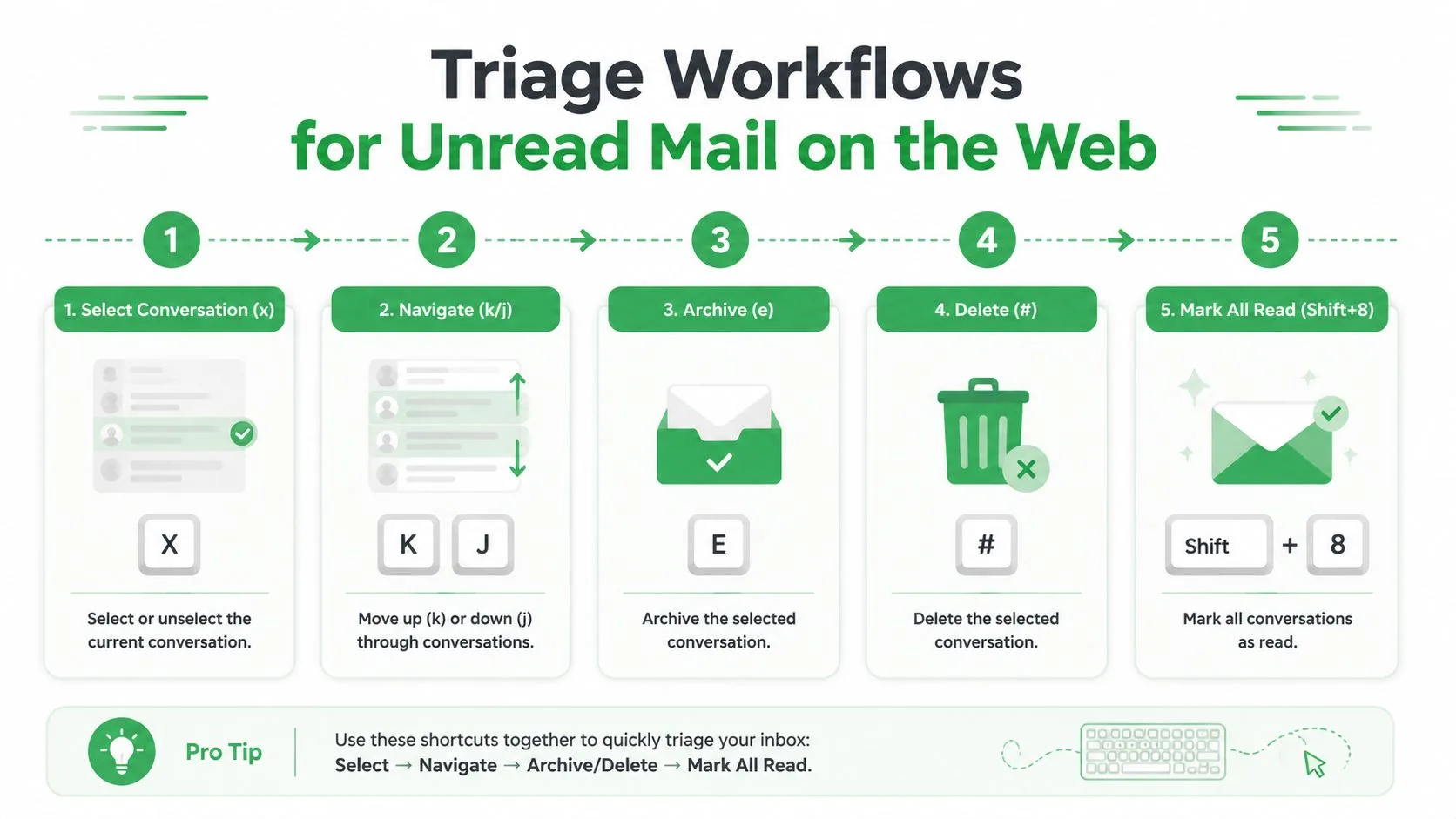
A search result becomes useful only when each message receives a clear decision. On Gmail web, enable keyboard shortcuts in Settings, then use a compact loop: select a conversation, move through the queue, and assign an outcome instead of reopening the same message repeatedly.
With shortcuts enabled, x selects a conversation. j moves to an older conversation and k moves to a newer one. Press e to archive, # to delete, and Shift+8 to star. Gmail’s exact shortcut behavior depends on the shortcut setting and focus state, so test it on a low-risk result before using it across a large queue.
Use selection for decisions that repeat
Run a focused search, select the first message, and work from the result list. The bulk pattern is more important than any individual key:
- Select the checkbox at the top of the results.
- Use Select all conversations that match this search when Gmail offers it.
- Choose Mark as read, Snooze, Add label, Archive, or Delete.
- Re-run the query to verify what remains.
Many cleanup attempts fail here. Marking everything read makes the number disappear, but it doesn’t create a follow-up system. Archive messages that require no inbox presence, snooze messages that need a future decision, and label recurring threads that you’ll review as a group.
Opening a thread can change its unread state, which is useful when you’re processing it but risky when you’re only scanning. If you need to preserve unread status as a reminder, preview the subject and sender from the list, then use Snooze or add a review label without opening the conversation. The right choice depends on whether unread means “not seen” or “action still pending.”
Working rule: Use unread for a decision you’ve intentionally deferred, not for a message you’re afraid to lose.
Snooze is preferable to archive when a reply has a known timing window. For recurring vendor conversations, apply a label such as Review, then archive the thread. That keeps the inbox focused without deleting a record you may need later.
The following walkthrough demonstrates the web workflow in context:
Managing Unread Emails in the Gmail Mobile App
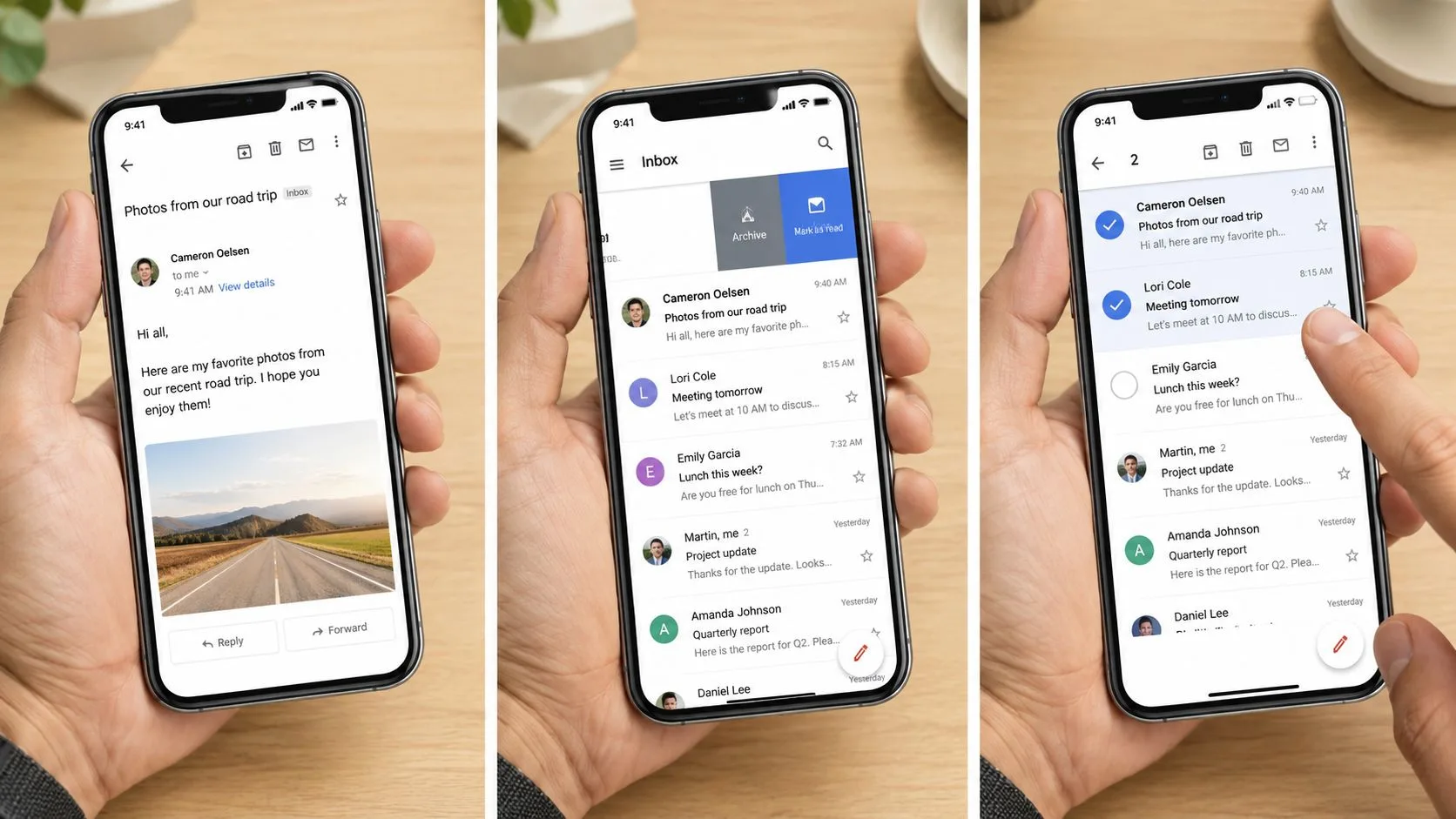
The Gmail mobile app uses the same search language but replaces keyboard shortcuts with taps, swipes, and long presses. Tap the search bar, enter is:unread, and run the search. Add in:inbox, label:important, or newer_than:7d when the full result is too broad.
Make the action bar do the work
Long-press a message to select it, then tap additional messages for a batch. The action bar gives you options such as Mark as read, Snooze, Archive, Delete, and Move to or Labels, although the exact placement can differ between Android and iOS versions.
On Android, Gmail’s official instructions describe opening a message and tapping the unread action at the top right. On iOS, swipe actions are configured through Gmail’s settings, so decide whether a left or right swipe should archive, snooze, delete, or mark a message before relying on muscle memory.
Unread First is configured differently from searching. On supported Gmail app layouts, open the account menu, go to Settings, choose the account, open Inbox type, and select Unread first if the option appears. Default Inbox keeps category organization, which can be useful for separation but can also hide unread work outside Primary.
Snooze instead of archive when you’ve committed to a later response. A snoozed message leaves the active inbox view and returns at the selected time, giving the pending task a defined re-entry point. A label is better when the timing is uncertain but the thread belongs to a standing queue.
Mobile notifications are a separate surface from the message list. Notification settings determine what the device displays, while Gmail’s account state determines which messages are unread. Drafts created offline can also wait locally until the device reconnects, after which the account and badge may resync. If the count looks stale, refresh the mailbox before making another bulk decision.
Why Your Unread Count Looks Wrong and How to Reconcile It
The badge is not a perfect account-wide counter. Gmail’s Default Inbox separates categories, archived unread conversations don’t remain in the inbox view, and threaded messages can conceal the unread item inside a familiar conversation. Muted conversations and labels can further separate what exists from what you’re currently looking at.
Gmail also distinguishes unread messages from unread threads in its underlying label system. The Gmail API exposes the UNREAD label and returns both messagesUnread and threadsUnread, which is why a visible conversation count won’t always match the number of individual messages. The Gmail statistics implementation documentation describes those separate counts and notes Gmail’s documented ceiling of 10,000 labels per mailbox.
Four checks that settle the disagreement
Run in:anywhere is:unread first. If it returns messages missing from the inbox, decide whether to archive them, label them, or mark them read. Then test the label you expect to contain the message, such as label:clients is:unread, and compare the result with the sidebar label count.
If desktop and mobile disagree, refresh the browser and force the app to resync. On Android, clearing the Gmail app’s local cache can remove stale local display data, but it won’t change the account’s actual unread state. On iOS, close and reopen the app, verify account sync and notification settings, then run the search again.
| Symptom | Likely Cause | Diagnostic Query / Action |
|---|---|---|
| Primary looks clear, but the badge remains | Unread mail in another category or archive | Run in:anywhere is:unread |
| A label shows activity you can’t find | Unread items inside that label or a nested conversation | Run label:foo is:unread |
| Thread count differs from message count | One conversation contains several unread messages | Open the thread and inspect its message history |
| Mobile and web disagree | Stale app or browser state | Refresh, verify sync, and rerun the account-wide search |
Google Help discussions repeatedly point users toward combinations such as is:unread, in:anywhere is:unread, category:promotions is:unread, and is:unread -in:inbox when messages appear to be missing. For a deeper explanation of how conversation display affects what you see, review conversation view in Gmail.
The reconciliation question is simple: “Where is the unread message?” Don’t ask whether the badge feels accurate until you’ve searched the account scope that includes archive and labels.
Building Filters and Routines That Prevent Backlog Rebound
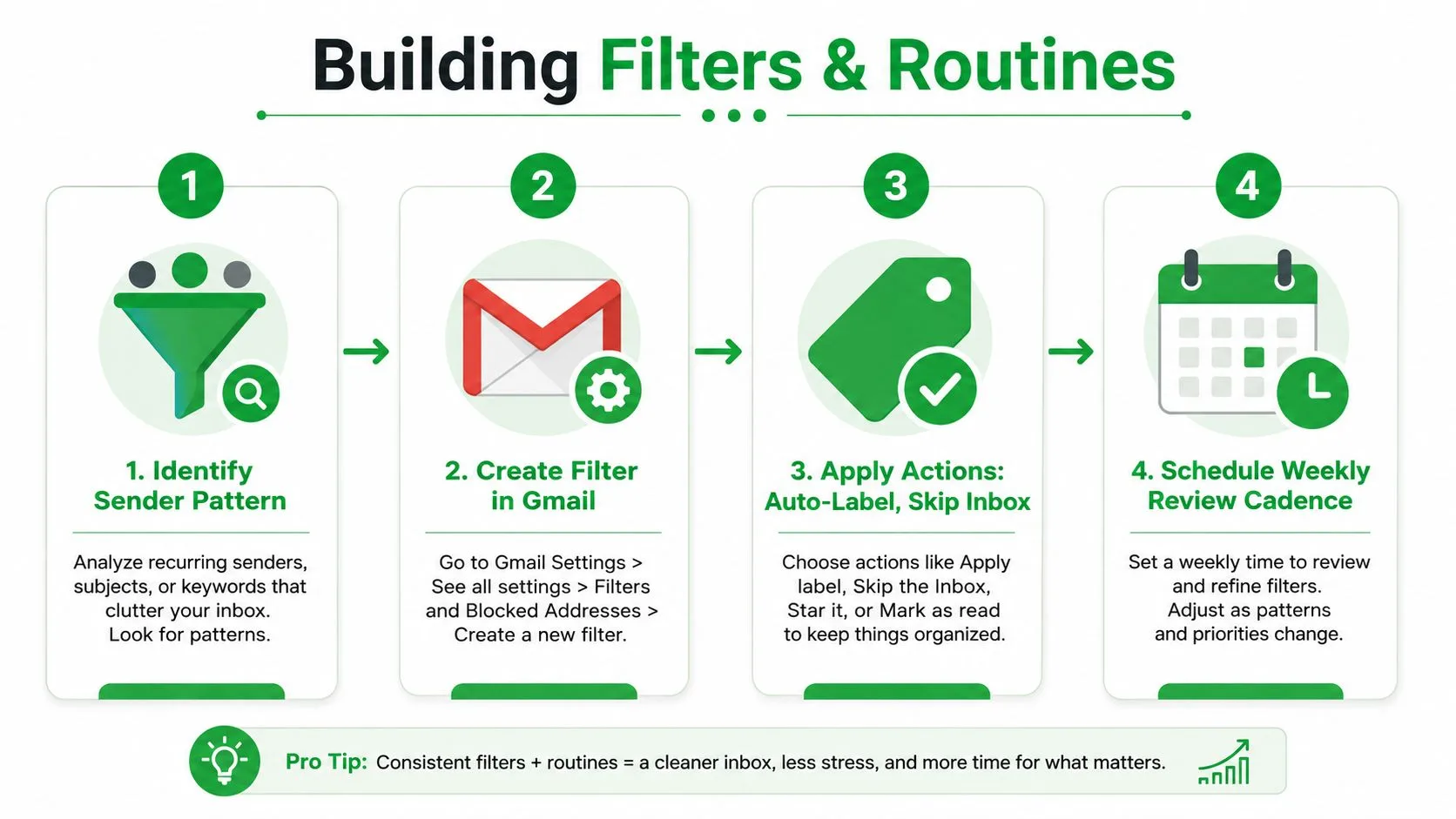
A cleanup lasts only when incoming mail stops competing with action mail. Filters are useful for predictable patterns, such as automated receipts, recurring notifications, newsletters, or messages from a shared system. They can apply a label and skip the inbox, keeping non-actionable mail searchable without adding to the daily work queue.
On Gmail web, open Settings, select See all settings, choose Filters and Blocked Addresses, and click Create a new filter. Enter a sender, subject phrase, or other matching condition, then choose Apply the label and Skip the Inbox when those messages don’t need immediate handling. Use care with broad sender or domain rules. A filter that catches too much can hide a genuine request.
Give each queue a defined review moment
Saved searches can act as standing triage queues even though Gmail doesn’t treat them as a formal task manager. Keep useful queries bookmarked or stored in a document:
- Aging action mail:
is:unread older_than:7d - Inbox backlog:
is:unread in:inbox older_than:7d - Client queue:
label:clients is:unread - Recent arrivals:
is:unread newer_than:7d
A short daily review should clear Primary, convert genuine future work into Snooze, and route informational messages out of the inbox. The weekly review can inspect label queues, archive older material, and audit muted threads. The exact duration matters less than assigning the routine a dependable place in the calendar.
The common mistake is creating a “Read Later” label and continuing to leave every item unread. That preserves visual pressure without preserving priority. If a message doesn’t require action from you, mark it read and apply a label that describes its reference value.
For detailed Gmail filter maintenance, use this guide to edit filters in Gmail. A filter should remove predictable noise from the action queue, not become another place where unread work disappears.
Turning Unread State into a Follow-Up Signal You Can Trust
Unread status becomes valuable when it answers one operational question: What still requires my action? That’s especially useful in sales, recruiting, customer success, and freelance work, where a missed reply can delay a decision or weaken a relationship.
A recruiter might leave a candidate’s reply unread only until the next touchpoint is logged, then mark it read and apply a recruiting label. A sales representative can keep a quote unread while a decision is pending, provided the thread also has a clear follow-up date. A freelancer can use unread as a visible queue for promised deliverables, then archive the conversation once the file or update has been sent.
Keep tracking separate from triage
Read receipts and tracking pixels can add context, but they don’t prove that a recipient understood, approved, or intends to answer. Images may be blocked, messages can be forwarded, and an open event can happen without meaningful attention. For high-stakes threads, explicit confirmation remains more dependable than an inferred signal.
That’s also why follow-up writing matters. If your reminders feel automated or repetitive, use guidance on how to avoid robotic follow-up emails and make each message reflect the actual status of the conversation.
For teams that need sent-message visibility inside Gmail, Mail Tracker for Gmail provides read receipts, open notifications, counts, and timestamps for tracked messages on web and mobile. Treat those events as timing information, not as a substitute for a clear next step.
If an unread message doesn’t require action from you, mark it read and move it to a useful label. The badge should represent real work, not unresolved guilt.
Mail Tracker for Gmail can help you connect sent-message opens with the follow-up queue you maintain in Gmail, using in-interface indicators and notifications across supported web and mobile workflows. Visit Mail Tracker for Gmail to see how tracked opens, timestamps, and follow-up visibility can fit into your existing triage routine.
Ready to track your emails?
Add Mail Track for Gmail from the Google Workspace Marketplace and know the moment your emails are opened. Free and unlimited.
Add to GmailMore reading
More from Tips
How to Know if Someone Blocked Your Email in Gmail: Signs and Checks
How to know if someone blocked your email in Gmail: what a block really does, how to read bounce messages, and how open tracking tells a block from silence.
Gmail Snooze Email: How It Works and When to Use It
Learn how Gmail snooze email works, how it differs from archive and mute, and how to pair it with open tracking so follow-ups come back at the right time.
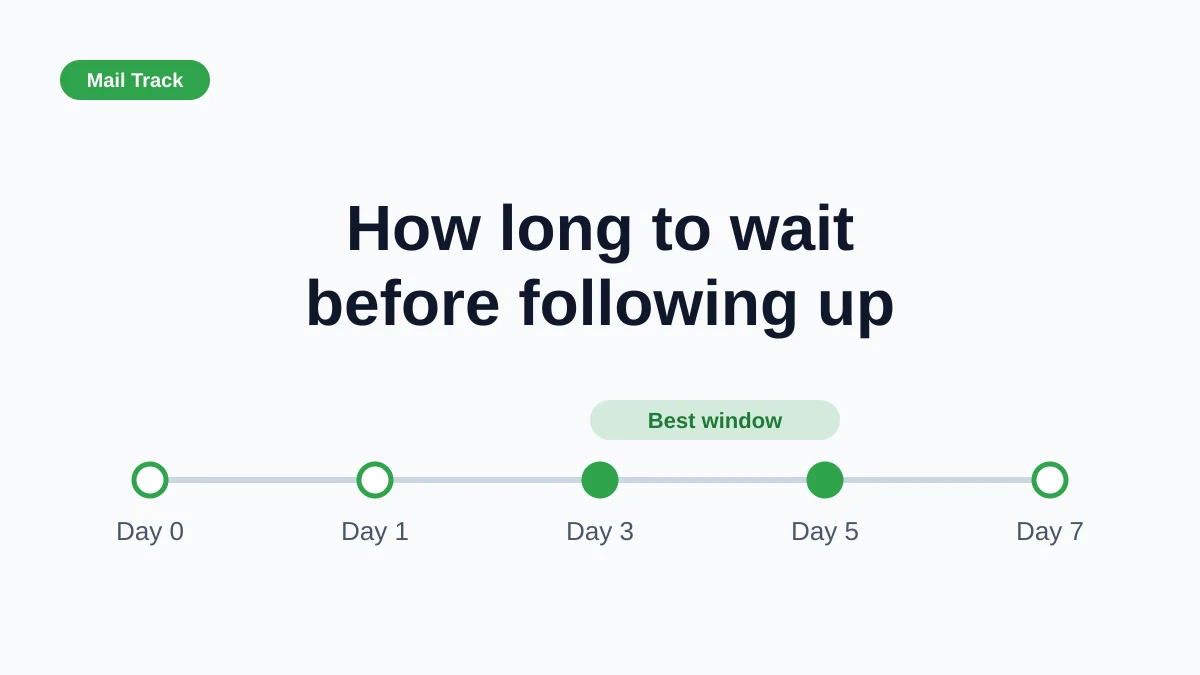
How Long to Wait Before Following Up on an Email (With Tracking Signals)
How long to wait before following up on an email? Use these waiting windows by situation, plus open and click signals in Gmail to time each follow-up.