
Why Am I Not Getting Emails Gmail Fixes That Work
Wondering why am I not getting emails Gmail should show? Diagnose filters, storage, spam and sync issues with quick fixes to restore your inbox fast.
You sent the message, watched the sender confirm it, and still your Gmail inbox looks exactly the same. You search the subject, check Spam, refresh the page, and start wondering whether Gmail has stopped working. The question “Why am I not getting emails in Gmail?” usually has a less dramatic answer: the message may have arrived, but Gmail, a filter, a forwarding rule, or another mail app put it somewhere you aren’t looking.
A missing message can also be a genuine delivery failure. The useful distinction is whether Gmail rejected or never accepted the message, or whether Gmail stored it outside the Inbox. This guide follows that path in order, from the fastest checks to sender authentication, account settings, and a dedicated check for Mail Tracker for Gmail.
Why Your Gmail Inbox Looks Empty When Mail Was Sent
A recruiter sends an interview invitation, or a client says they replied. The address is correct, but Gmail shows no new message in the Inbox. The email may still exist. Gmail could have stored it under another label, archived it, moved it to Spam or Trash, applied a filter, forwarded it, or synchronized a change from another mail app.
That distinction determines the next check. If Gmail never accepted the message, searching the mailbox will not find it. If Gmail accepted it, asking the sender to resend can create a duplicate while the original remains hidden elsewhere.
Delivery and visibility are different problems
Independent 2026 deliverability reporting found SPF adoption at about 93%, DKIM adoption at about 90%, and overall inbox placement at only 65%. The benchmark indicates that authentication improves delivery conditions but does not guarantee a visible Inbox result. (The 2026 Gmail deliverability benchmark)
A separate result from the same analysis found that 66% of email reached a visible mailbox, 34% landed in Spam, and under 1% was blocked or went missing entirely. These figures do not identify the location of your particular message, but they explain why “sent” and “visible in the Inbox” describe different outcomes.
Google has reported that Gmail’s AI catches 99.9% of spam, with a spam rate of about 0.1% and a false-positive rate around 0.05% in the cited period. (Google’s Gmail spam-filtering disclosure) Filtering normally protects the mailbox, yet an incorrectly classified message can still appear missing.
Practical rule: Ask two questions: “Did Gmail accept the message?” and “Where did Gmail put it?”
Begin with Gmail’s storage and message locations before assuming the sender failed. Google’s troubleshooting guidance identifies Spam, Trash, filters, forwarding, POP/IMAP access, deletions from another device, and confusion between labels and folders as common causes. (Google’s missing-email troubleshooting guide)
Conversation view creates another possible hiding place. Gmail may nest a reply inside an existing thread, so it does not appear as a separate row. Reviewing how conversation view works in Gmail helps distinguish a hidden reply from a message Gmail never received.
Also check whether Mail Tracker for Gmail is involved. A tracking extension or connected mail app may change how a thread is displayed or synchronized, so temporarily disabling it can separate a display problem from a delivery problem.
Use a fixed path: confirm storage, search all mail locations, inspect filters and forwarding, then check synchronization. Investigate sender authentication or domain reputation only after Gmail’s own storage and account pathways have been ruled out.
Quick Checks That Find Most Missing Emails Fast
Run these checks in order. They separate a full mailbox from a hidden message, and a recipient-side issue from a sender-side failure.
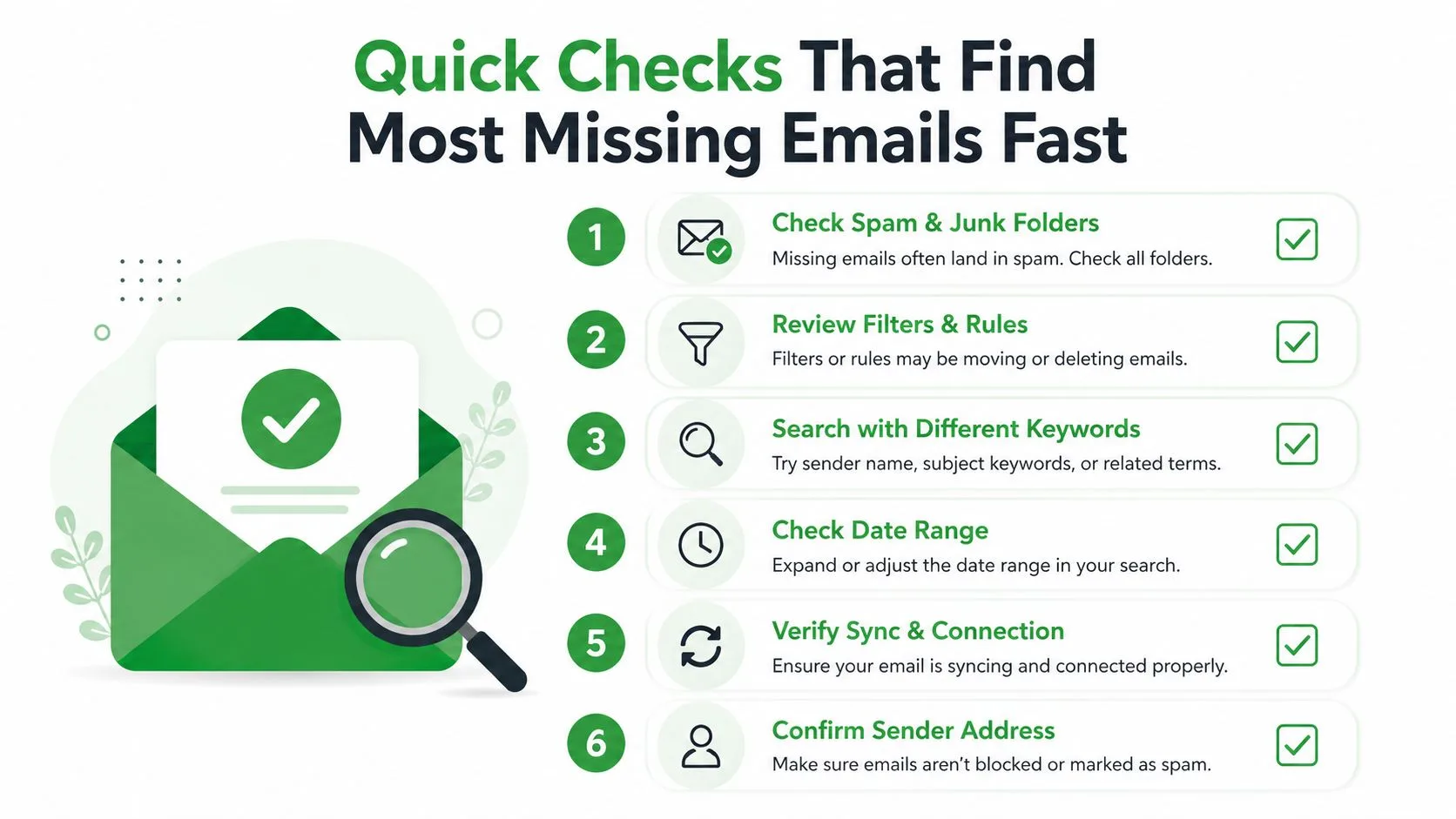
Check storage before changing settings
On Gmail for the web, open your Google Account storage view from the account menu or storage warning shown in Gmail. On mobile, open the Gmail app, tap your profile picture, and review the storage information associated with the account.
A full Google storage quota can stop Gmail from receiving new mail. Google’s troubleshooting guidance recommends checking storage first, then deleting older mail or upgrading storage if the account is over its limit. (Google guidance on storage-related receiving problems)
If storage is full, clear space and request a new test message. Emptying large messages from Trash and Spam may matter because those areas can continue consuming storage until they’re cleared. If storage isn’t full, move to the test message rather than changing filters at random.
Send a test from another account
Use a separate address, such as a personal account or a trusted colleague’s account, and send a simple message to the affected Gmail address. Give it a clear subject you can search for, then wait briefly and check Gmail on the web.
The result tells you where to look next:
- The test arrives in the Inbox: The mailbox can receive mail, so the original sender may have a delivery, authentication, reputation, or address-specific problem.
- The test arrives outside the Inbox: Gmail is accepting mail, but a filter, forwarding rule, label, Spam classification, or synchronization path is hiding it.
- The test never appears anywhere: Check storage again, then inspect account-level settings and ask the sender whether their system produced a bounce or error.
Try the web interface even if you normally use the Gmail app. A client can show a limited folder view or apply local synchronization behavior that obscures what Gmail stored on the server.
Search across every Gmail location
In Gmail on the web, click the search box, enter in:anywhere followed by a distinctive word from the subject or sender, and press Enter. For example, search in:anywhere interview or in:anywhere from:person@example.com.
Google identifies in:anywhere as a reliable way to search across locations that ordinary Inbox searches may omit, including Spam and Trash. (Google support discussion of missing messages and Gmail search)
On mobile, tap the search field, enter the same query, and run it. If the message appears, open it and check the label shown at the top. A result in Spam, Trash, All Mail, or a custom label tells you the message was delivered and points directly to the next setting to inspect.
If the search returns nothing, ask the sender for the exact address used and for any bounce or rejection notice. That evidence is more useful than another Inbox refresh because it can show that Gmail never accepted the message.
How Filters Forwarding and Blocked Senders Hide Incoming Mail
A Gmail filter can make a message disappear without deleting your account or affecting other mail. One old rule created for a former employer, newsletter, or client may still match every message from that sender and automatically archive it, delete it, apply a label, or forward it elsewhere.
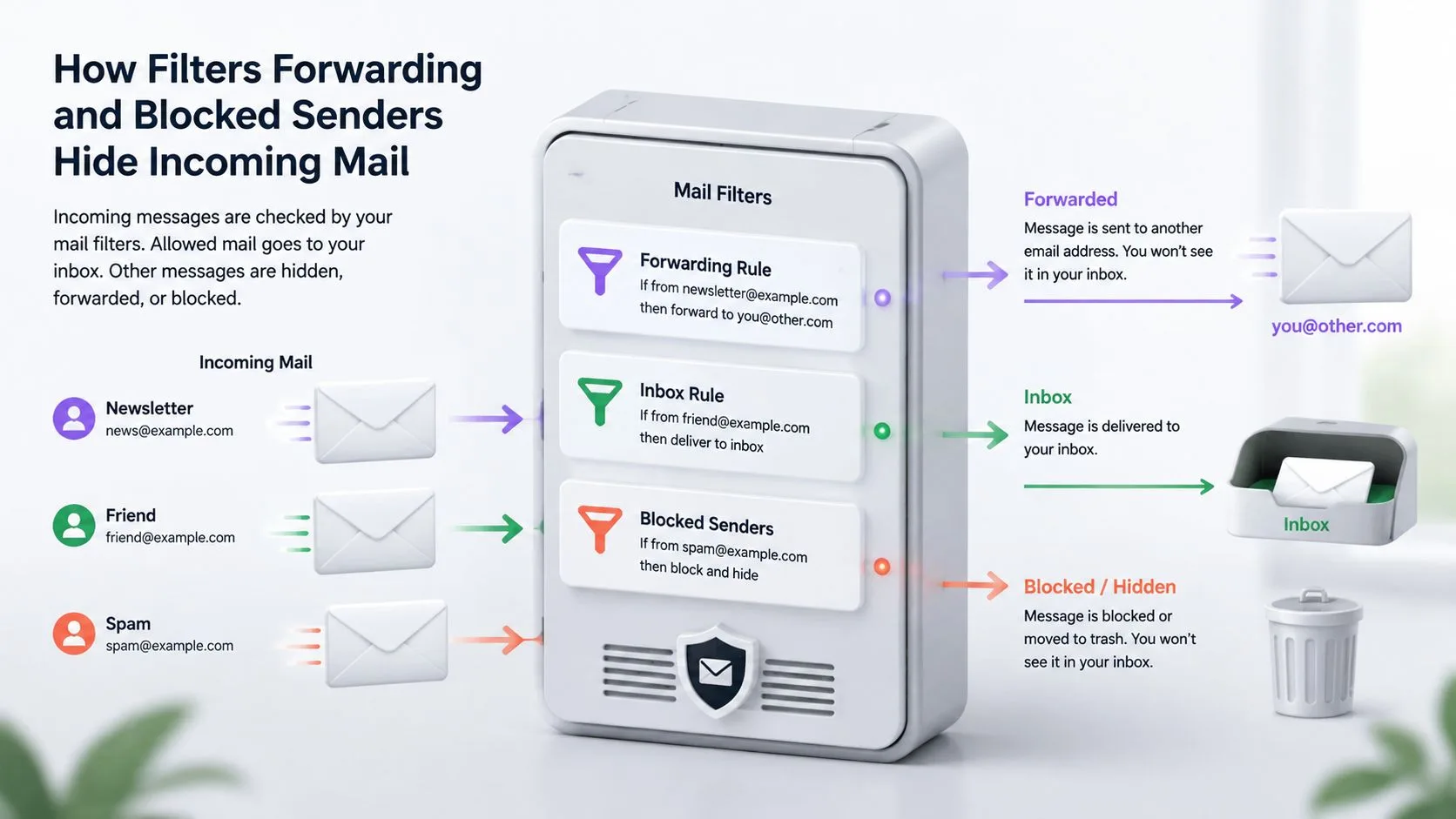
Audit Filters and Blocked Addresses
On Gmail for the web, click the gear icon, choose See all settings, then open Filters and Blocked Addresses. Review every row, not only rules that appear related to the missing sender.
Look for actions that change visibility:
- Delete it: Gmail sends matching messages to Trash.
- Skip the Inbox: The message remains in All Mail or a label but doesn’t appear in the main Inbox.
- Mark as read: The message can blend into older mail.
- Apply the label: Gmail may organize the message away from the Inbox view.
- Forward it: Another account or mail app may receive the message instead.
- Never send it to Spam: This is helpful for trusted mail, but check that the rule’s search criteria are correct.
For a careful audit, open each filter with Edit, inspect the sender and subject conditions, and save a corrected version rather than deleting a rule immediately. Google specifically recommends checking whether filters archive, delete, or skip the Inbox, and reviewing the blocked-address list because blocked senders won’t land in the Inbox. (Google’s filter and blocked-sender instructions)
A safe test is to disable one suspicious filter, send a new message, and observe the result. If the new message appears, you’ve identified the cause without destroying useful automation. You can then narrow the filter so it matches only the intended newsletter or address.
For a precise walkthrough of the controls, use this guide to edit filters in Gmail.
Check forwarding and POP/IMAP access
Still in See all settings, open Forwarding and POP/IMAP. Check whether Gmail forwards incoming mail to another address, whether a forwarding destination is unfamiliar, and whether POP or IMAP access is enabled for an older desktop client or mobile mail app.
A mail app using POP can retrieve messages and, depending on its configuration, remove them from Gmail’s Inbox after download. An IMAP client can also apply server-side actions, such as archiving, moving, or deleting, from another device. Google lists forwarding, POP/IMAP access, and deletion from another device among causes of missing messages. (Google’s account-level missing-message guidance)
Check each device that has access to the account:
- Review Apple Mail, Outlook, Thunderbird, and other desktop clients.
- Check Gmail on Android and iPhone for account and synchronization settings.
- Temporarily pause an unfamiliar client or remove an old account connection.
- Send another test message and search with
in:anywhere.
Labels aren’t folders
Gmail labels and traditional folders don’t behave exactly alike. A message can carry a label and still be absent from the Inbox because a filter selected Skip the Inbox. It may be visible under the label or in All Mail, while the Inbox appears empty.
Open the left navigation menu, choose More, and inspect All Mail and any custom labels that match the sender or project. If the message is there, remove the unwanted filter action and move the conversation back to the Inbox.
The following video shows where these controls sit and how Gmail rules can redirect incoming mail. Watch it after reviewing the settings so you can compare the visual paths with your own account.
If forwarding or POP/IMAP access is unfamiliar, change the account password and review connected apps after you restore visibility. That isn’t proof of unauthorized access, but it prevents an old integration from continuing to alter the mailbox while you troubleshoot.
Why Some Senders Never Arrive and Others Do
A friend’s message arrives immediately, yet a retailer, recruiter, or business domain never reaches your mailbox. That pattern usually points away from a broad Gmail outage. It suggests a sender-specific problem involving filtering, authentication, reputation, or domain routing.
Gmail’s filtering system is deliberately aggressive. Legitimate messages can be classified as unwanted when their signals resemble spam. Google’s explanation of Gmail spam filtering describes how Gmail’s AI handles spam at scale. (Google’s explanation of Gmail spam filtering)
Separate mailbox issues from sender issues
Use the result of a simple comparison to decide who should investigate:
- Messages from unrelated senders arrive: Your Gmail account is probably working. Ask the missing sender for a bounce or rejection notice.
- The missing message appears in
in:anywhere: Gmail accepted it. Check Spam, filters, labels, forwarding, and synchronized clients. - The sender receives a rejection or temporary-failure notice: The sender’s mail administrator should examine authentication, reputation, policy enforcement, or domain routing.
- Every sender fails: Recheck storage and account settings. If the address belongs to Google Workspace, the administrator should also inspect domain-level configuration.
For a business domain, its administrator should verify the domain’s MX records. Incorrect records can route mail away from Gmail entirely, so the sender may show the message as sent while Gmail never receives it. Google Workspace’s receiving-mail troubleshooting guide covers MX validation and related domain checks. (Google Workspace troubleshooting for receiving mail)
The same guide identifies suspended Workspace accounts and expired or disabled domains as possible causes. Forwarding and POP/IMAP can also move or remove mail after another service retrieves it. These checks matter when only one organization’s messages are missing.
Authentication affects visibility
The sender should confirm that SPF, DKIM, and DMARC are published and aligned for the sending domain. Misalignment can lead to rejection, Spam placement, or filtering even when the sender sees a successful send status.
Google’s Postmaster Tools provides dashboards for authentication and delivery errors. Senders can review whether SPF, DKIM, and DMARC pass, along with authenticated messages that were rejected or temporarily failed. Gmail’s filtering and Postmaster Tools reporting can help the administrator connect those results with delivery problems.
Sender reputation also affects placement. High complaint rates can cause Gmail to filter or deprioritize messages from a sender, so one sender may reach some recipients while missing others. The practical question is therefore not only whether the message was sent, but where it was accepted, routed, or filtered.
Content cannot repair a broken MX record or missing DKIM signature. Clear formatting can still help recipients recognize legitimate mail. Teams improving message trust and readability can review effective email subject lines and structure, then ask their administrator to inspect technical delivery logs.
If the sender’s server reports a bounce, stop changing your Gmail filters. Send the exact error message to the sender’s administrator and ask them to check domain authentication, MX routing, account status, and reputation signals. Gmail’s Spam and storage controls matter after acceptance. A rejection means the sender’s delivery path needs attention first.
Confirming Mail Tracker for Gmail Is Not Blocking Your Inbox
Mail Tracker for Gmail is an outbound open-tracking add-on. It adds tracking indicators, timestamps, and notifications for messages you send from Gmail. It doesn’t decide where incoming messages go, and it doesn’t replace Gmail’s Spam, filter, forwarding, or storage controls.
That distinction matters when you see tracking activity for your sent mail but can’t find an incoming reply. The tracking event concerns the recipient opening your outgoing message. It doesn’t confirm that their reply reached your account, and it doesn’t mean the add-on controls inbound delivery.
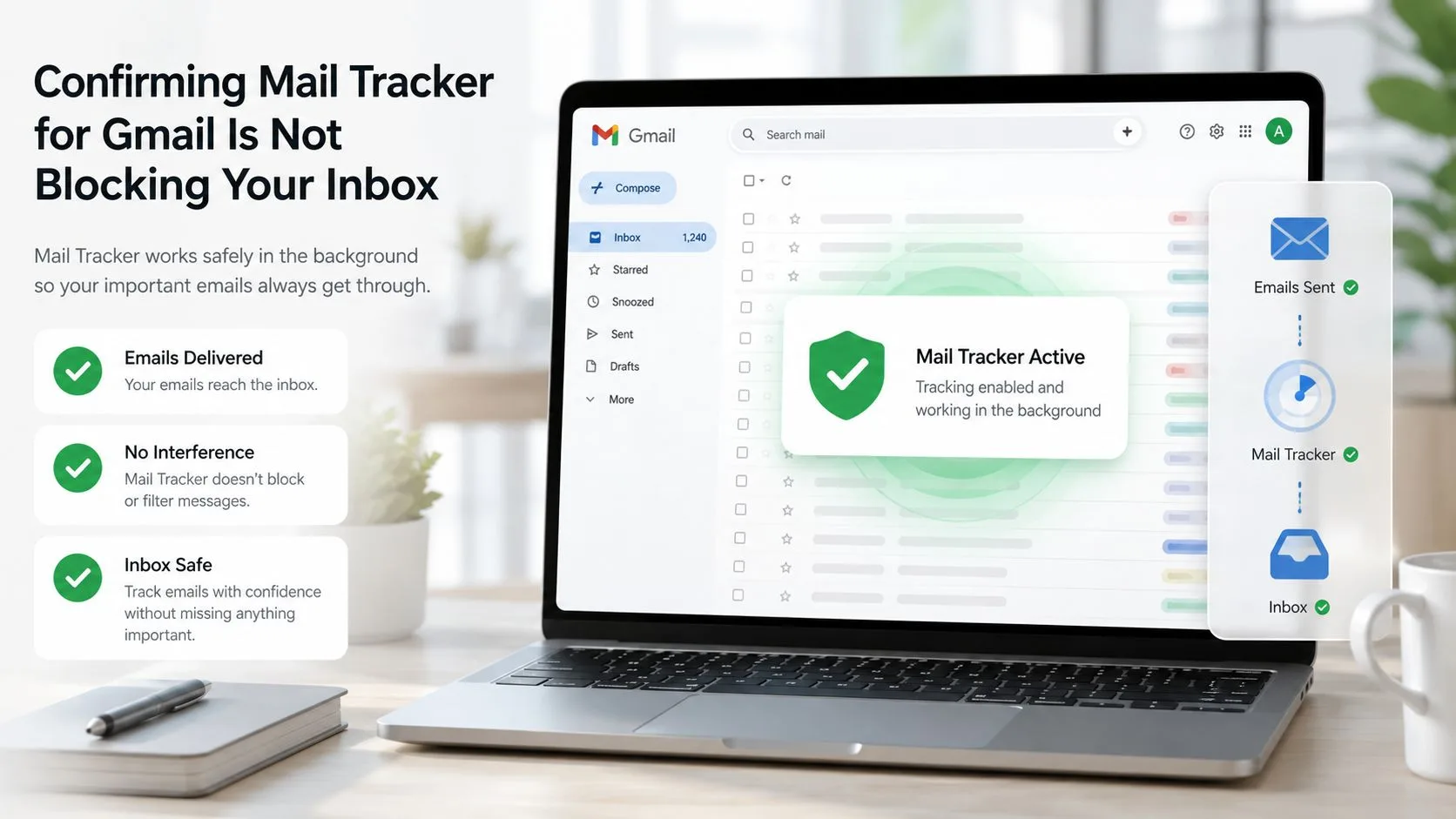
Run a short product check
Open Gmail on the web and confirm that the extension or Workspace add-on is enabled in the browser or account where you send tracked messages. Send a test message to a trusted address, then verify that the tracking mark, open event, or notification appears when that recipient opens it.
If a notification isn’t appearing, test the notification setting rather than changing Gmail’s inbound rules. The Mail Tracker for Gmail notification troubleshooting guide can help you separate an alert problem from a delivery problem.
Also review the permissions shown in your browser’s extension settings or Google account integrations. If the add-on is disabled, its tracking indicators may stop updating, but that still won’t explain why an unrelated incoming message is absent.
Compare the symptoms
| What you observe | What it usually indicates |
|---|---|
| A sent message shows an open event | Tracking is working for that outgoing message |
| A sent message has no open event | The recipient may not have opened it, or tracking may be unavailable |
| An incoming reply is missing | Check Gmail storage, search, Spam, filters, forwarding, and mail apps |
| Notifications fail but sent mail works | Review notification permissions and device settings |
| One sender receives a bounce | Ask that sender to investigate their delivery system |
Mail Tracker for Gmail records open events rather than reading the content of your email. For an inbound delivery failure, Gmail’s own mailbox and account settings remain the relevant controls.
Keep Gmail Receiving Reliably Going Forward
Once the missing message is located, keep the fix from reversing itself. Gmail problems often return when an old filter, retired mail app, or nearly full storage account remains in place.
Build a small maintenance routine
- Review storage: Delete large, unnecessary messages and clear Trash and Spam when space is tight.
- Audit filters: Look for rules that delete, archive, skip the Inbox, or forward mail from important contacts.
- Protect key senders: Add trusted addresses or domains to an appropriate “never send to Spam” filter, and verify the filter criteria before saving.
- Check connected mail apps: Remove old Outlook, Apple Mail, Thunderbird, or mobile connections that still retrieve or modify messages.
- Test after changes: Send a message from a separate account, search with
in:anywhere, and confirm both visibility and Inbox placement. - Keep evidence: Save bounce messages and rejection details instead of asking the sender to resend without explanation.
The most useful habit is to verify the message path, not just the Inbox.
For teams that manage customer conversations across multiple people, an inbox for AI-first support teams can provide a broader workflow for organizing incoming requests. For a personal Gmail account, the native search, labels, filters, and account settings are usually enough when you inspect them methodically.
Know when to escalate
Contact Google support or your Workspace administrator when every sender fails, storage is clear, in:anywhere returns nothing, and filters and forwarding are clean. Include the affected address, approximate sending time, sender address, test results, and any error shown by the sender’s system.
Contact the sender’s administrator when unrelated Gmail messages arrive normally but one domain fails, especially if the sender sees a bounce. Ask them to verify MX routing, SPF, DKIM, DMARC alignment, account status, and delivery logs.
Your Inbox should now be observable rather than mysterious. You can tell whether Gmail rejected the message, stored it under another label, handed it to another client, or displayed it in Spam, which means the next action is specific instead of guesswork.
Mail Tracker for Gmail adds read receipts, open notifications, timestamps, and tracking indicators to messages you send from Gmail, helping you distinguish unanswered outreach from mail that was never seen. Visit Mail Tracker for Gmail to review how it fits alongside Gmail’s own delivery and inbox troubleshooting tools.
Ready to track your emails?
Add Mail Track for Gmail from the Google Workspace Marketplace and know the moment your emails are opened. Free and unlimited.
Add to GmailMore reading
More from Guides
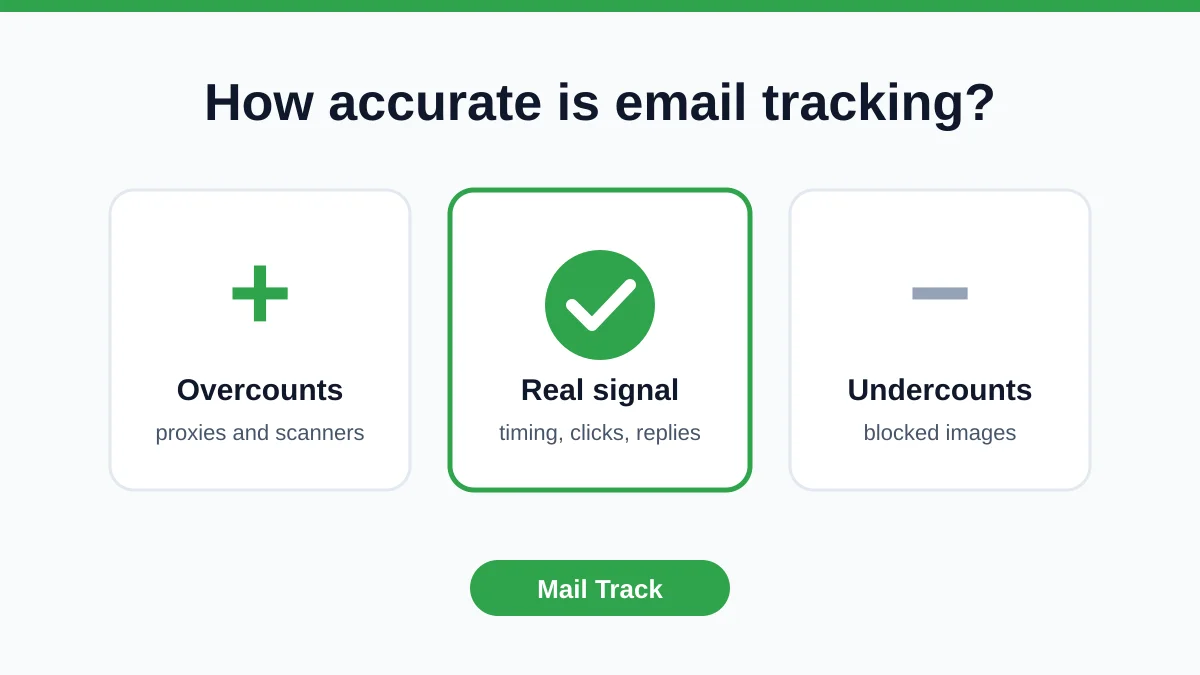
How Accurate Is Email Tracking? What Opens Really Tell You
How accurate is email tracking in Gmail? Learn why opens get overcounted or missed, how to spot false opens, and which signals to trust before you follow up.
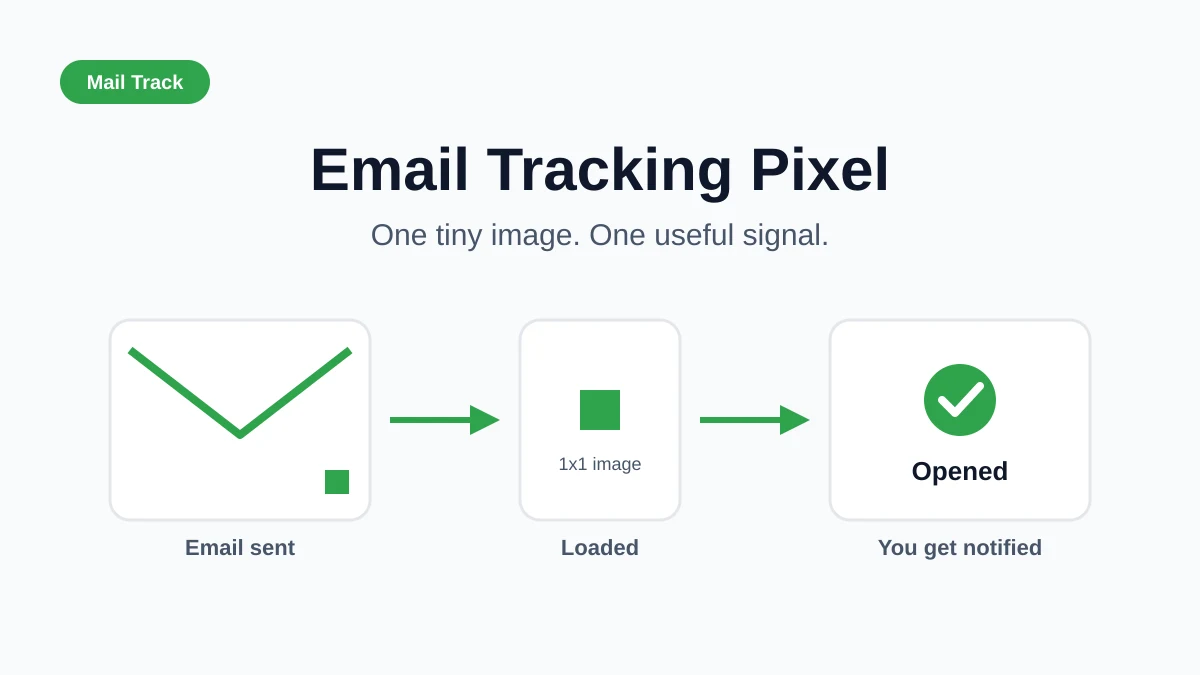
Email Tracking Pixel: How It Works, How to Spot One and Where It Falls Short
What is an email tracking pixel, how does it show an open in Gmail, how can you find one, and why Gmail and Apple Mail proxies limit what it can tell you.

7 Example Email Accept Job Offer Templates
Use these 7 example email accept job offer templates for formal, concise, and enthusiastic replies, with subject lines, clauses, and sending tips.