How to Delay Send on Gmail: A Complete 2026 Guide
Learn how to delay send on Gmail to schedule emails for the perfect time. This guide covers web and mobile steps, editing, and pro tips for 2026.
You finish a polished email at 11 PM. The subject line is solid, the copy is clean, and the recipient list looks right. But you still don’t want it landing in a client’s inbox that late, and you definitely don’t want to realize tomorrow morning that you forgot the attachment.
That’s the value of delay send on Gmail. It isn’t just about convenience. It’s about timing, accuracy, and keeping control of messages after you’ve written them but before they land.
A common approach involves learning only the basic click path. That gets the job done, but it misses the practical difference between Gmail’s short safety net and its actual scheduling workflow. If you send prospecting emails, candidate outreach, proposals, follow-ups, or client updates, that distinction matters more than the button itself.
Why Mastering Gmail’s Delay Send Is a Game Changer
The first thing to get straight is that Gmail gives you two different sending delays, and they solve different problems.
Undo Send is a brief cancellation window after you click Send. Gmail’s native Undo Send feature tops out at 30 seconds, and the available settings are 5, 10, 20, and 30 seconds in the General tab, as outlined in this Gmail delay guide. That’s useful for catching a typo, the wrong attachment, or the wrong recipient right after sending.
Schedule Send is the feature that allows you to control delivery timing in a meaningful way. If you want an email to arrive during business hours, after a meeting, before a deadline, or at a more thoughtful moment, scheduling is the tool that matters.
Two tools, two jobs
A simple comparison makes this easier:
| Feature | Best use | What it does |
|---|---|---|
| Undo Send | Last-second mistakes | Holds the message briefly after you click Send |
| Schedule Send | Intentional delivery timing | Queues the message for a future date and time |
Sales teams use scheduling to hit inboxes when buyers are working. Recruiters use it to avoid sending outreach at odd hours. Client-facing professionals use it when they want to write now but deliver later.
Practical rule: Use Undo Send for panic. Use Schedule Send for strategy.
The difference sounds obvious, but a lot of Gmail users still treat them like versions of the same feature. They aren’t. One is a short buffer. The other is a workflow decision.
Why this matters in day-to-day work
The strongest use cases aren’t flashy. They’re ordinary professional moments where timing changes how the email is received.
- Late-night writing sessions: You can draft when you have focus, then deliver during the recipient’s workday.


- Sensitive follow-ups: You can create a cushion before a message goes out.

- Cross-time-zone outreach: You can align your send time with the recipient’s local hours.
- Internal reviews: You can schedule first, then make a final check before release.
That’s why mastering delay send on Gmail pays off. You stop treating send time as an accident and start using it as part of the message.
How to Schedule Emails in Gmail on Desktop
On desktop, Gmail makes scheduling easy once you know where the option lives.

After you write your message, don’t click the main Send button. Click the small dropdown arrow next to it. That opens Gmail’s scheduling options.
Gmail’s native Schedule Send lets you queue a message for a future delivery time even if your device is offline, and it supports delays ranging from minutes to days with suggested options or a custom Pick date & time choice, as described in this overview of Gmail Schedule Send.
The desktop workflow
Use this sequence:
-
Compose the email fully Finish the recipients, subject line, body, and attachments first.
-
Open the send dropdown Click the arrow beside Send, not the main button.
-
Choose a suggested time or customize it Gmail often shows options like tomorrow morning or another preset. Those are fine when the exact minute doesn’t matter.
-
Select Pick date & time for precision This is the better option when you’re working around meetings, follow-up windows, or time zones.
-
Confirm the schedule Once saved, Gmail removes the message from your normal draft flow and queues it for delivery.
When presets work and when they don’t
Suggested times are quick, but they can be too generic for professional outreach. If you’re sending a proposal, a candidate follow-up, or a response tied to a conversation, choose the exact date and time yourself.
That gives you tighter control over when the message appears. In practice, that’s often the difference between “sent later” and “arrived at the right moment.”
A quick visual walkthrough helps if you want to see the interface in motion:
One habit that prevents mistakes
Before you schedule, pause for a final read with fresh eyes. Look for three things:
- Recipient accuracy: Make sure the email is going to the right person.
- Attachment presence: Confirm the file is there if your copy mentions it.
- Timing logic: Ask whether the send time matches the recipient’s day, not yours.
A scheduled email feels finished, so people stop reviewing it. That’s exactly when small mistakes slip through.
Desktop Gmail handles scheduling smoothly. Its true power emerges after that, when you know how to find, change, or stop a queued message before it goes out.
How to View, Edit, and Cancel Scheduled Sends
Once you schedule an email, it doesn’t disappear into a black box. Gmail stores it in a dedicated Scheduled folder, not in Sent, and you can cancel it from there using Cancel send, as noted in this explanation of Gmail’s scheduled folder workflow.
That’s the key mental model. Scheduled emails are pending, not finished.

Where to find them
Look in the left sidebar of Gmail for Scheduled. Open it, and you’ll see the emails waiting to be sent.
Click any message to review what’s queued. This is useful when you need to confirm whether a follow-up is already lined up or check the planned send time before making another move.
How editing actually works
Users often get tripped up here. You don’t directly edit a scheduled email in place.
Instead, use this workflow:
- Open the scheduled email
- Click Cancel send
- Let Gmail return it to Drafts
- Make your changes
- Schedule it again
That cancel, edit, reschedule pattern is normal. Once you treat it as the standard process, it stops feeling awkward.
If you need true revision control, think of Scheduled as a holding area and Drafts as the editing space.
A clean way to manage changes
If you’re working on client or sales emails, I recommend checking these items before you reschedule:
| Checkpoint | Why it matters |
|---|---|
| Recipients | Prevents accidental sends to the wrong contact |
| Subject line | Keeps the email aligned with the latest context |
| Links and files | Catches missing or outdated materials |
| Send time | Avoids releasing the message at the wrong moment |
If you’re trying to stop a message after it has already been sent, the rules are different. This guide on how to delete sent emails in Gmail helps clarify what is and isn’t possible once delivery has happened.
What this means in practice
The Scheduled folder is best treated like an active queue. Review it. Keep it tidy. Don’t let old follow-ups sit there unnoticed while circumstances change.
That habit matters most when you schedule several client or outreach emails in advance. The feature works well, but only if you remember that pending messages still need management.
Scheduling Emails on the Go with the Gmail App
Mobile scheduling works well, but the path is different enough from desktop that people often miss it the first time.

In the Gmail app on Android and iPhone, you won’t see the scheduling option beside the Send button. You need to tap the three-dot More menu in the top corner of the compose screen, then choose Schedule send.
The mobile path that works
On your phone, the process looks like this:
- Write the email as usual
- Tap the three-dot menu
- Choose Schedule send
- Pick a suggested time or use Pick date & time
- Confirm and exit
One practical issue matters here. If you don’t choose the custom picker, Gmail may default you into one of its suggested windows. That’s fine for casual messages, but not ideal when timing needs to line up with a handoff, interview window, or follow-up sequence.
Better habits for phone-based scheduling
When you’re scheduling from mobile, keep these points in mind:
- Use custom timing for important outreach: Presets are fast, but exact timing is safer for business email.
- Double-check before tapping away: On mobile, it’s easier to miss a wrong attachment or stale draft content.
- Manage across devices: You can schedule on your phone and later review or cancel from desktop.
If Gmail behaves oddly on Android, this article on fixing Gmail issues on Android is worth keeping handy.
What mobile is best for
I wouldn’t use the phone for every scheduled email. For high-stakes proposals or long client messages, desktop is still more comfortable. But mobile is excellent for quick follow-ups, rescheduling a message when plans change, or clearing a pending send while you’re away from your desk.
That flexibility is what makes delay send on Gmail useful in practice instead of just a hidden feature.
Best Practices for Timing and Tracking Scheduled Emails
The most effective Gmail users don’t schedule emails just because they can. They schedule with a reason.
Sometimes that reason is simple. You write better at night, but your recipient works standard hours. Sometimes it’s tactical. You want a buffer between writing and sending because important emails often need one more read before they go out.
That second use case matters more than many guides admit. Existing how-to content often skips the practical gap that Gmail leaves in place: there’s no native way to delay a send by a moderate review window without using scheduling, even though professionals often want that kind of buffer for attachment checks, recipient verification, or final judgment calls. This gap is described well in this analysis of Gmail’s send-delay limitation.

Use scheduling as a professional buffer
A scheduled send isn’t only about future delivery. It can also act as a review checkpoint.
Try using it in these situations:
- Before sending proposals: Schedule the message, then revisit it after a break.
- For sensitive client updates: Give yourself space to cool off and reread.
- When attachments matter: Queue the email, then verify every file and link before release.
- After a meeting: Draft the follow-up immediately while details are fresh, but send when the recipient is back at their desk.
That workflow is especially useful when the message is too important for a quick-send habit but doesn’t need a full approval process.
Match timing to the recipient, not your workload
The best send time is rarely “whenever I finished writing it.” It’s usually when the recipient is available, attentive, and likely to act.
That’s why scheduled sending works well for:
| Scenario | Better timing approach |
|---|---|
| International outreach | Deliver during the recipient’s local workday |
| Recruiting follow-ups | Arrive when candidates are likely checking work email |
| Sales emails | Land during business hours, not late evening |
| Client updates | Send when stakeholders can actually respond |
Timing also interacts with inbox placement and engagement. If you’re trying to improve campaign reliability, these email deliverability strategies from Mailwarm are a useful companion to simple send scheduling.
The send button controls delivery. The schedule controls context.
Where tracking changes the workflow
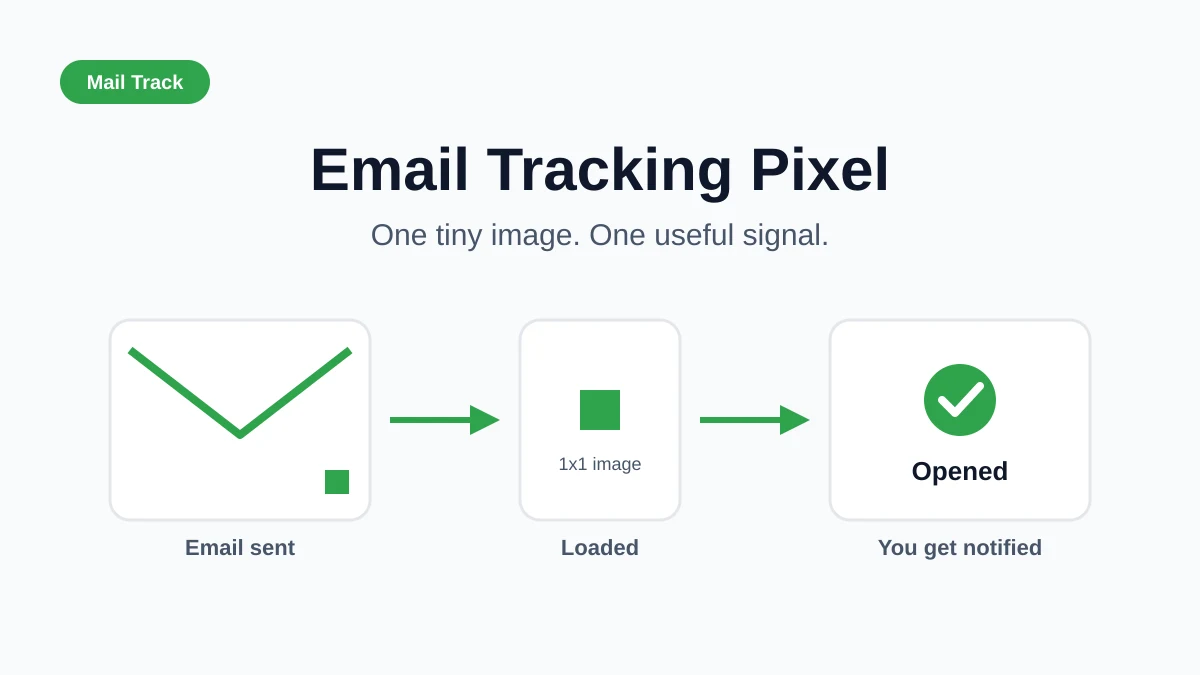
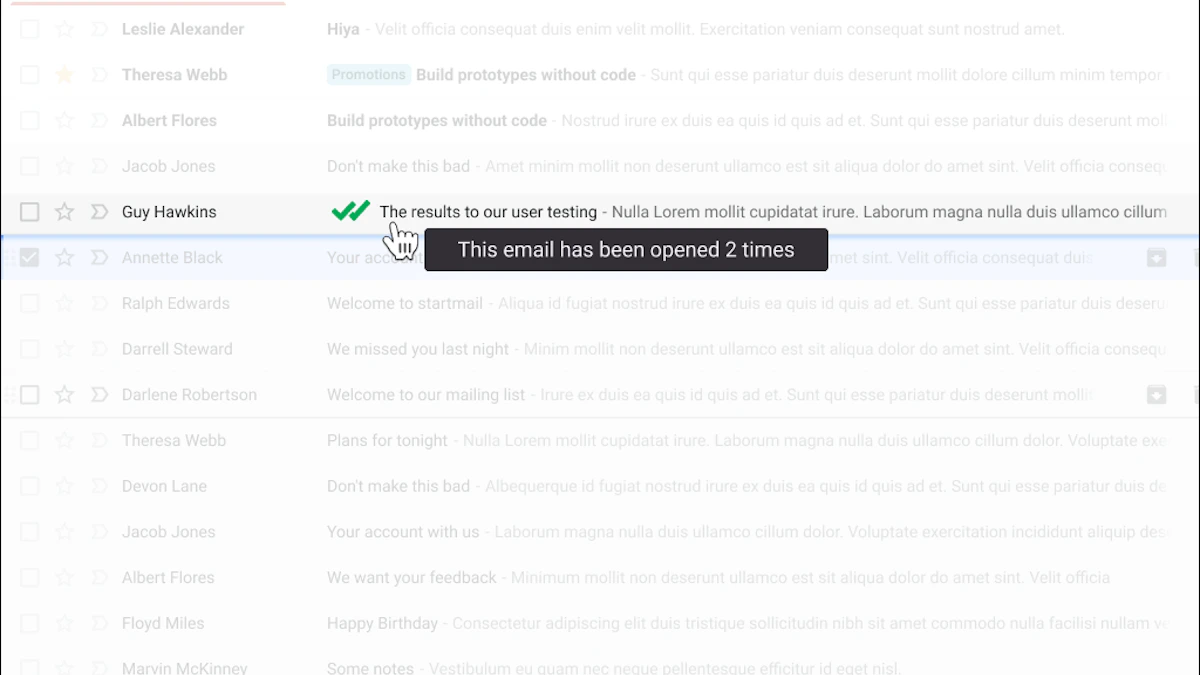
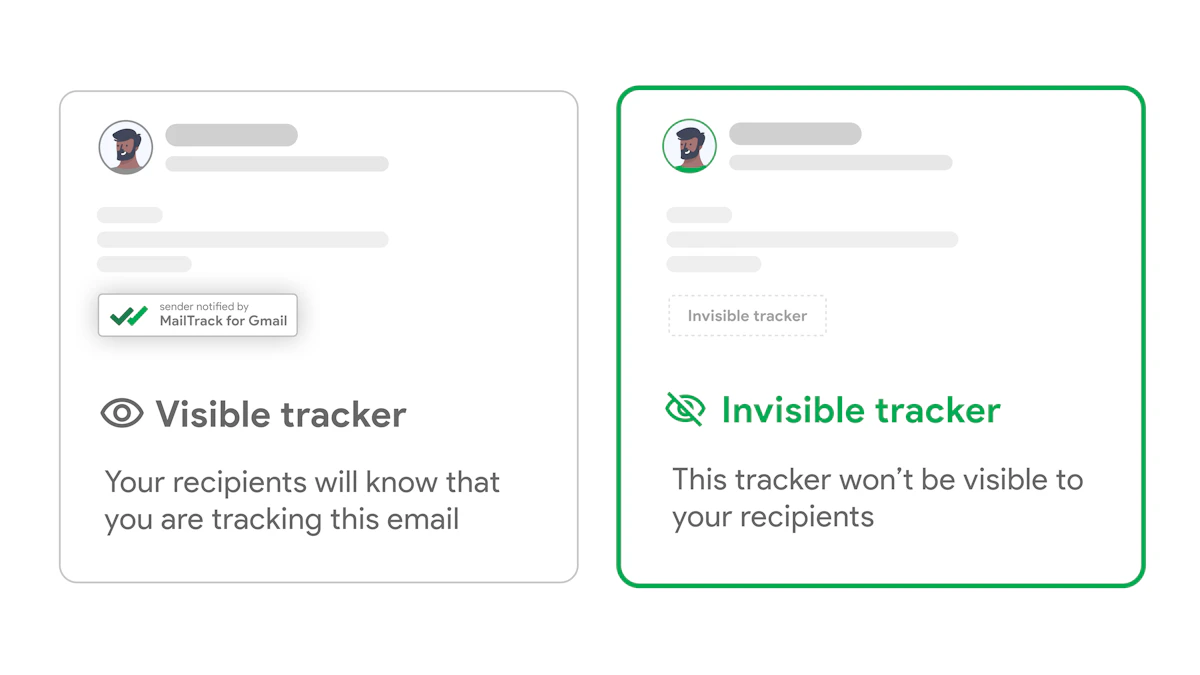
Scheduling is stronger when you pair it with visibility. If you send important follow-ups from Gmail, read tracking helps you know when a message was opened so your next step is based on signal instead of guesswork.
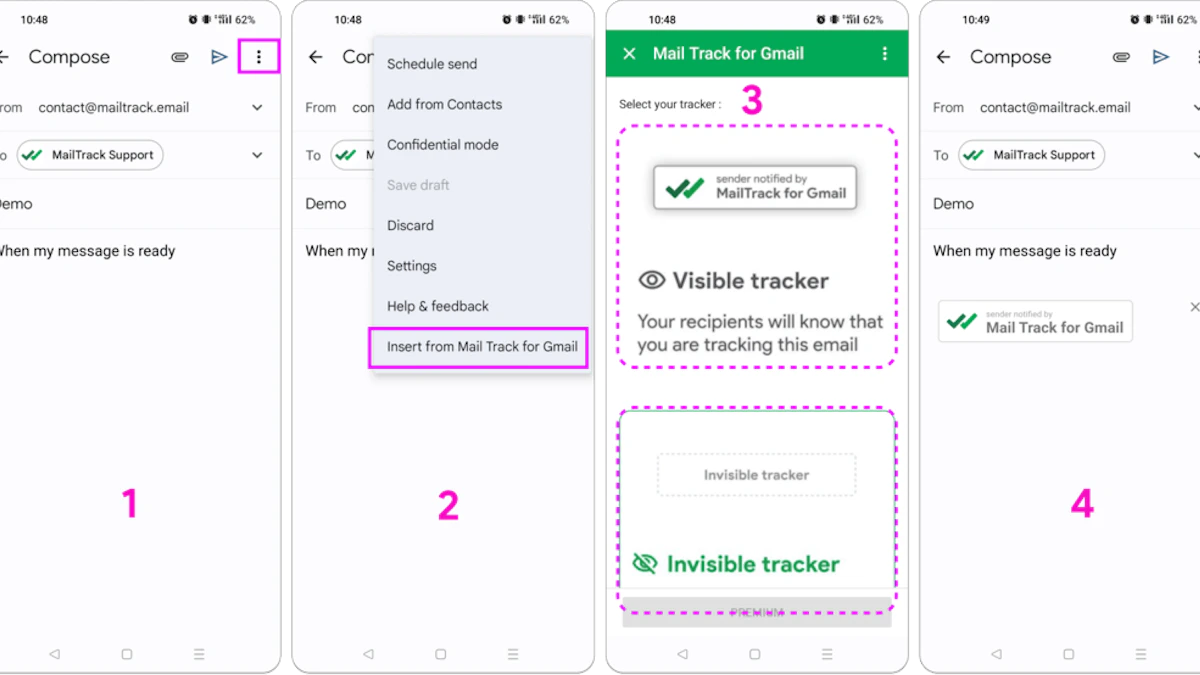
For this reason, a tool category like mail tracker for Gmail or email tracker for Gmail becomes practical. It lets you schedule for the right moment, then see when the recipient engages. That’s useful for sales, recruiting, freelance client work, and account management because timing doesn’t end at delivery. It continues into the follow-up.
If you want a broader view of how engagement patterns work after send time, this breakdown of email open rates is a helpful reference.
One wording point matters here because the product name is descriptive. Mail Tracker for Gmail is a specific product name. It shouldn’t be confused with the broader category terms mail tracker for Gmail or email tracker for Gmail.
Common Questions About Delaying Emails in Gmail
A few edge cases come up repeatedly once people start using delay send on Gmail in real work.
What happens if I’m offline when the email is scheduled to send
Gmail can send a scheduled email even if your device is offline because the message is queued on Gmail’s side once you schedule it. You don’t need to stay logged in with the compose window open.
Can I schedule a message for a very short custom delay
Not in the way many people want. Gmail’s native scheduling is for later delivery, not a slightly extended Undo Send experience. If you need a tactical review window, scheduling is the workaround rather than a true middle state.
Can I cancel a scheduled email later
Yes, as long as it hasn’t been sent yet. Open the Scheduled folder, select the message, and cancel it. Gmail then returns it to Drafts so you can revise it or discard it.
Can I edit a scheduled email directly
No. The practical method is to cancel it, update the draft, and schedule it again.
Why did my Undo Send chance disappear so fast
Because that timer is fragile. A documented pitfall is that Gmail’s Undo Send countdown doesn’t pause if you switch tabs or minimize the browser, which can lead to the email being transmitted while you think you still have time to review it, as explained in this note on Gmail’s cancellation pitfall.
Don’t treat Undo Send like a review space. Treat it like a last-second emergency brake.
Can I schedule recurring emails in Gmail
Not natively. Gmail handles one scheduled message at a time. If you need recurring sends, you’ll need a separate workflow or to recreate the message manually each time.
Is there a limit to how many emails I can schedule
Yes. Gmail supports scheduling up to 100 emails at a time. If you rely heavily on queued outreach or follow-ups, keep an eye on your scheduled list so it stays intentional rather than cluttered.
If you want better visibility after scheduling, Mail Tracker for Gmail adds read receipts and real-time open notifications directly inside Gmail, so you can time the send and know when the message is seen.
Ready to track your emails?
Add Mail Track for Gmail from the Google Workspace Marketplace and know the moment your emails are opened. Free and unlimited.
Add to GmailMore reading
More from Tutorials
How to Auto Label Emails in Gmail: Ultimate Guide 2026
Learn how to auto label emails in Gmail for an organized inbox. Discover filters, advanced rules, and tips to keep your emails clean and efficient in 2026.
How to Archive Messages in Gmail: 2026 Complete Guide
Learn to archive messages in Gmail on desktop & mobile. Find emails, understand delete vs. archive, and tracking. Your complete 2026 guide.
How to Send a Group Email in Gmail: A 2026 Guide
Learn how to send a group email in Gmail using Contact Labels or Google Groups. Our guide covers privacy, best practices, and tracking engagement.